Introduction
PHP is the language WordPress is written in. Your web server runs PHP to build each page. Like any software, PHP gets new versions each year. Old versions stop getting security fixes. When your server falls behind, WordPress starts to complain.
The problem can show up in two ways. Your site may run a PHP version that is too old. Then you see warnings, and some updates refuse to install. Or your host may have moved you to a new version. Then an old plugin may crash the site. Both are WordPress PHP version issues, and both can be fixed.
This matters for more than a tidy dashboard. Old PHP is slower and less safe. It can also lock you out of new WordPress releases. This guide shows you how to check your version. It explains what goes wrong and why. Then it walks you through a safe update, one step at a time. The common triggers are a host upgrade, a WordPress update, a new plugin, or a site move.
Signs That Show WordPress PHP Version Issues
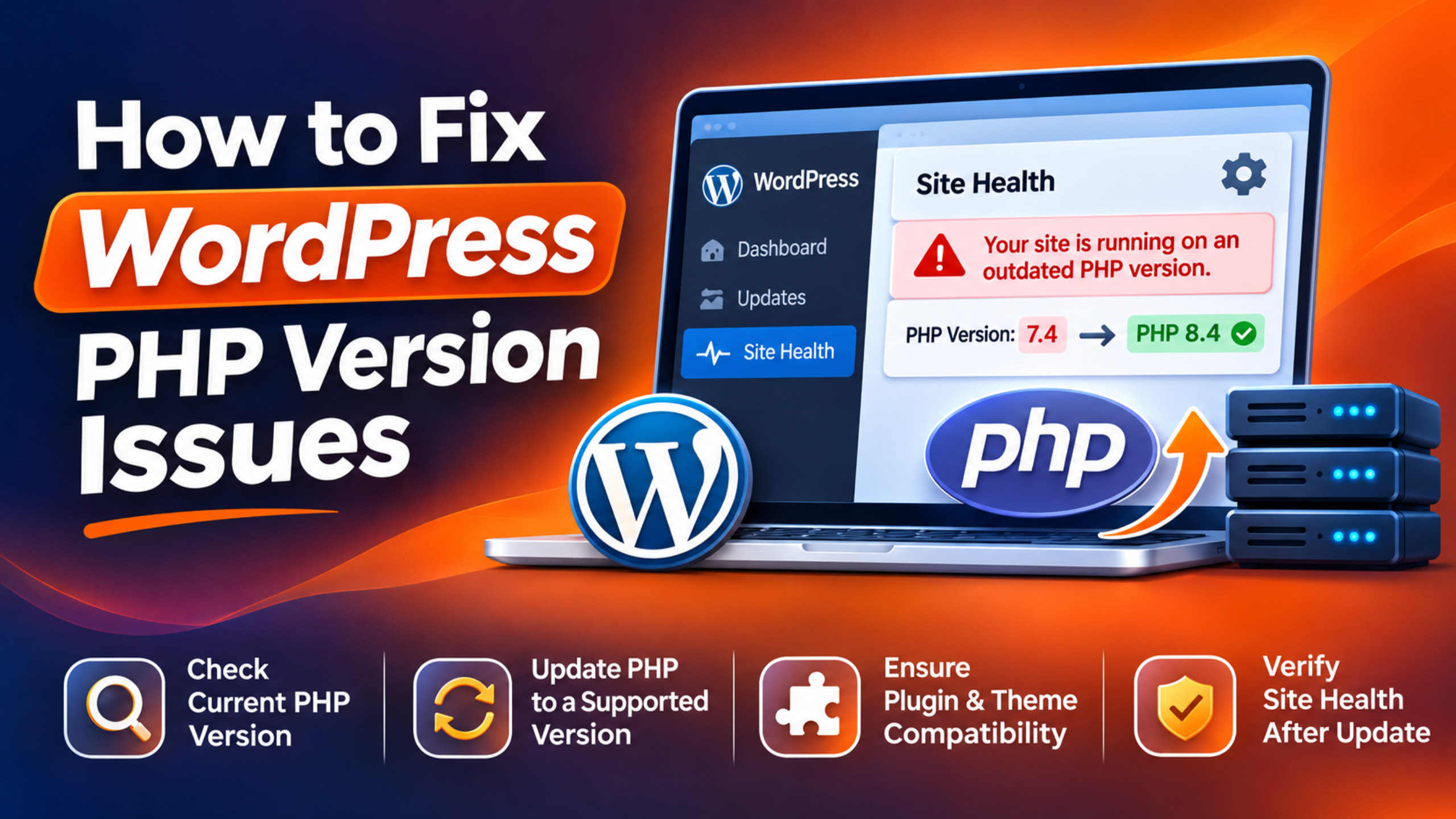
The first sign is a notice in your dashboard. WordPress shows a box titled “PHP Update Required” on the main dashboard screen. It appears when your server runs a version WordPress sees as out of date. The Site Health screen may list the same point as an issue.
The second sign is a blocked update or install. A plugin or theme may state the lowest PHP version it needs. If your server is below that, WordPress will not install or update it. WordPress itself has a floor too. Version 7.0 needs PHP 7.4 or newer. Sites on older PHP stay on the 6.9 line and miss new releases.
The third sign appears right after a version change. The site may show a message that there has been a critical error. It may show a blank white page. Lines of warning text may print across the top of your pages. Often the public site works but the dashboard does not, or the other way round. The timing is the clue. If the trouble began the day PHP changed, PHP is the likely cause.
The last sign is quiet. Pages load slowly, and the dashboard feels heavy. Old PHP handles fewer requests per second than new PHP. You may not see an error at all. Only the Site Health screen tells you the version is old.
Reasons Why WordPress PHP Version Issues Happen
Each sign above has a clear cause. Find the one that fits your case, then go to its step.
Your Host Still Runs an Old PHP Version
Many hosts do not upgrade PHP for you. They fear an upgrade may break a site, so they wait. An account opened years ago can still run the version it began with. WordPress checks which version your server runs. When it finds an old one, it shows the update notice. WordPress now suggests PHP 8.3 or newer. It still runs on 7.4, but that version no longer gets fixes.
Old Plugins and Themes Use Code That New PHP Removed
Each major PHP version retires some old features. Code that used them stops working. PHP then raises a fatal error and stops building the page. WordPress catches this and shows the critical error message. A plugin that has had no update in years is the usual source. A custom theme built long ago is the next most likely.
The reverse also happens. A new plugin may be written for new PHP only. On an old server it cannot run. WordPress blocks the install to protect you.
A Hidden Setting Pins the Site to Another Version
You change the version in your hosting panel, yet nothing changes. This is common on shared hosts. The version can be set in more than one place. Many hosts add a handler line to a file named .htaccess. That file sits in your main site folder. The line tells the server which PHP to use for that folder. An old line from a past setup can pin the site to an old version. A site in a sub folder or on an add-on domain may also have its own setting.
PHP Extensions and Limits Reset After a Switch
PHP uses add-on parts called extensions. One talks to the database. Others handle images, zip files and secure links. Hosts keep a set of extensions for each PHP version. When you switch, the new version may have fewer turned on. The same goes for limits, such as how much memory a page may use.
The result looks random. Image uploads may fail. A backup plugin may stop. If the database extension is missing, the site cannot load at all. In truth it is one cause, a part that was on before and is off now.
Debug Mode Prints Notices on Screen
New PHP versions warn about code that will be removed in future. These are notices, not errors. The code still runs. Yet if debug display is on, the notices print on your pages. Visitors then see lines of odd text above your header. The notices can also break the login screen, since they are sent before the page.
How to Fix WordPress PHP Version Issues (Step by Step)
The first steps are safe checks. The later ones change server settings, so each has a safety note.
Step 1: Check Which PHP Version Your Site Runs
This step tests the first cause, a host that still runs old PHP. You need the real number before you change a thing. Log in to your WordPress dashboard. Open Tools and choose Site Health. Click the Info tab. Open the section named Server. Read the line marked PHP version.
Now compare it. A version of 8.3 or higher is healthy. You have no version problem, so look at Step 5 or Step 6. A version from 7.4 to 8.2 works, but it is past or near its end of life. Plan an update. A version below 7.4 is too old for current WordPress. Update as soon as you can.
If you cannot log in, ask your host. Most hosting panels also show the version. Write the number down. You will need it if you have to switch back.
Step 2: Back Up and Update Everything Before You Switch
This step guards against the second cause. Old plugins and themes use code that new PHP removed. Updating them first removes most of that old code. So you fix the crash before it can happen.
Take a full backup first. Save both the files and the database. Our guide on backing up WordPress with UpdraftPlus shows how. Keep a copy off the server. A backup alone will not undo a PHP switch. You must also set the old version back at the host.
Next, open the Updates screen in your dashboard. Update WordPress, then your plugins, then your themes. If an update fails, see our guide on a failed WordPress plugin update. Now check each plugin for age. On the Plugins screen, click “View details” on each one. Look at when it was last updated. A plugin with no update in two years is a risk. Replace it, or ask its author about new PHP.
Check that the site still works after the updates. Visit the home page, a post and the contact page. Log out and in again. If all is well, you are ready to switch.
Step 3: Change the PHP Version in Your Hosting Panel
This step fixes the first cause for good. The server runs old PHP because no one has told it to change. You change it at the host, not inside WordPress. Do this on a staging site first if your host offers one. If not, pick a quiet hour, and keep your backup at hand.
Log in to your hosting account. Look for a tool with PHP in its name. In cPanel it is often called MultiPHP Manager or Select PHP Version. Other hosts place it under the site settings. Pick your domain. Choose the new version from the list, then save. Aim for PHP 8.3 or newer. If you are far behind, move in stages. Go from 7.4 to 8.1 first, test, then go up again. A smaller jump makes a fault easier to trace.
If you cannot find the tool, contact your host. Ask them to move your site to PHP 8.3 or newer. This is a routine request. Good hosts do it in minutes.
Now verify the change. Go back to Site Health and read the PHP version line. It should show the new number. The “PHP Update Required” box should be gone from the dashboard. Click through your main pages. If the number did not change, go to Step 4. If the site broke, go to Step 5.
Step 4: Remove a Setting That Pins the Old Version
This step fixes a hidden setting that pins the site to another version. The panel shows the new version, but Site Health still shows the old one. That mismatch is your proof. If both show the same number, skip this step.
This step edits a key server file. Download a copy of .htaccess before you touch it. A mistake in this file can take the whole site down. Open the File Manager in your hosting panel. Go to the folder that holds WordPress. Turn on the option to show hidden files. Open .htaccess to edit it.
Look for a line that starts with AddHandler or AddType and names PHP. It often sits at the top or bottom of the file. It may have a comment that says the host panel made it. If the line names an old version, it is the cause. Do not guess at a new line. Go back to the PHP tool in your panel and save your chosen version again. Most panels then rewrite the line. If it stays, ask your host to correct it. Also check that you changed the right domain. An add-on domain has its own setting.
Reload Site Health. The version should now match the panel. If it does, the pin is gone.
Step 5: Find the Plugin or Theme That Breaks on New PHP
This step fixes old plugin or theme code that fails on new PHP. The site worked before the switch and fails after it. That timing confirms the cause. First, get the site back up. Set PHP back to your old version in the hosting panel. The site should return at once. Now you can work without pressure.
Find the culprit next. Check the inbox of your admin email address. WordPress sends a message when a fatal error occurs. It often names the plugin or theme at fault. It also holds a link to recovery mode. That link lets you log in with the faulty item paused. Our guide on the critical error message in WordPress covers this in depth.
If no email came, test by hand on a staging site. Switch staging to new PHP. Turn off all plugins. If the site loads, a plugin is at fault. Turn them on one by one, and reload after each. The one that brings the error back is your answer. If the site fails with all plugins off, switch to a default theme. Our guide on finding a WordPress plugin conflict explains the method. A fully blank page is covered in our guide to the WordPress white screen of death.
Now deal with the faulty item. Update it if a newer release exists. If not, replace it with a plugin that is still kept up. For custom code, ask a developer to update it. Then switch to new PHP again. Load the page that failed before. If it works, the fix is done.
Step 6: Turn Missing Extensions and Limits Back On
This step fixes extensions and limits that reset after a switch. One feature stopped working, but the site still loads. Uploads, backups or image edits are common victims. Confirm it in Site Health. Open the Status tab. Look for an item that says a required or recommended module is missing. WordPress names each missing part there.
Go to your hosting panel and open the PHP tool again. Look for a list of extensions for your version. In cPanel it is often under Select PHP Version. Tick the ones Site Health named, then save. If WordPress cannot reach the database at all, look for mysqli. WordPress needs that one to talk to its database. If your panel has no such list, ask your host to enable them.
Check your limits in the same place. Find the memory limit and the upload size. Compare them with what you had before. If pages now run out of memory, see our guide on the WordPress memory exhausted error. Then return to Site Health. The missing module item should be gone. Try the feature that failed, such as an image upload.
Step 7: Stop Notices From Showing on Your Pages
This step fixes debug mode printing notices on screen. New PHP warns about old code, and your site shows those warnings to all. You have this cause if lines of text mention “Deprecated” at the top of a page. The site still works under them.
The fix is in a file named wp-config.php. It sits in your main WordPress folder. Download a copy before you edit it. A typing slip in this file will stop the site. Open it and find the line that sets WP_DEBUG. On a live site, it should be false. If you want to keep a record for a developer, use these lines instead:
define( 'WP_DEBUG', true );
define( 'WP_DEBUG_LOG', true );
define( 'WP_DEBUG_DISPLAY', false );
These lines save notices to a log file and keep them off the screen. Place them above the line that tells you to stop editing. Save the file and reload your site. The text should be gone. If it remains, your host may force errors to display. Ask them to turn display off.
Hiding a notice does not repair the code. Read the notice first. It names the plugin or theme file. Update that item, or tell its author. This saves you from a real error at the next PHP release.
Best Practices to Prevent WordPress PHP Version Issues in Future
A few habits keep PHP from catching you out again. Each one blocks a cause from this guide.
Check Site Health once a month. It shows your PHP version and flags an old one early. Plan one PHP review each year. A new PHP version comes out late each year. You do not need it on day one. Wait a few months, test, then move. This keeps your host from falling years behind.
Keep WordPress, plugins and themes up to date. Current code is written for current PHP. Remove plugins that no one maintains. Before you add a plugin, read its details. Check the PHP version it needs and the date of its last update. This stops old code from building up.
Test every PHP switch on a staging site first. Take a backup before each one. Note your old version, extensions and limits before you change them. Then you can match them on the new version. Use the same PHP version on staging and live. Keep debug display off on the live site. Send notices to a log, and read it now and then.
Speed gains from new PHP add to other work. Our guide on how to eliminate render-blocking resources in WordPress covers the browser side. For the official word, see the WordPress requirements page and the WordPress guide to updating PHP.
Conclusion
PHP version trouble in WordPress comes in two forms. The version is too old, or it is new and some code cannot cope. The signs are easy to read once you know them. You may see the update notice, a blocked install, or a slow site. After a switch, you may see a critical error or lines of warning text.
The causes are just as clear. Hosts leave old versions in place. Old plugins and themes use retired code. A hidden line can pin the old version. Extensions and limits can reset. Debug mode can print notices.
The fix is a calm, ordered process. Check your version in Site Health. Back up and update all your software. Switch PHP at your host, in stages if needed. Clear any pinned setting. Trace and replace code that breaks. Turn extensions back on, and keep notices off the screen. Test after each step.
Then keep it that way. Review PHP once a year. Keep your site updated, and test changes on staging. With those habits, your next PHP update should be quiet and quick.

James is an experienced WordPress and WooCommerce specialist with over 10 years of practical experience. At WPChatSupport, he creates clear guides that help website owners fix WordPress issues, improve speed, secure their sites, and manage WooCommerce stores with confidence. His expertise includes store setup, plugin configuration, theme customization, payment gateway integration, and website troubleshooting. Through simple and helpful content, James supports users in solving technical problems and following best practices for online business growth.