Introduction
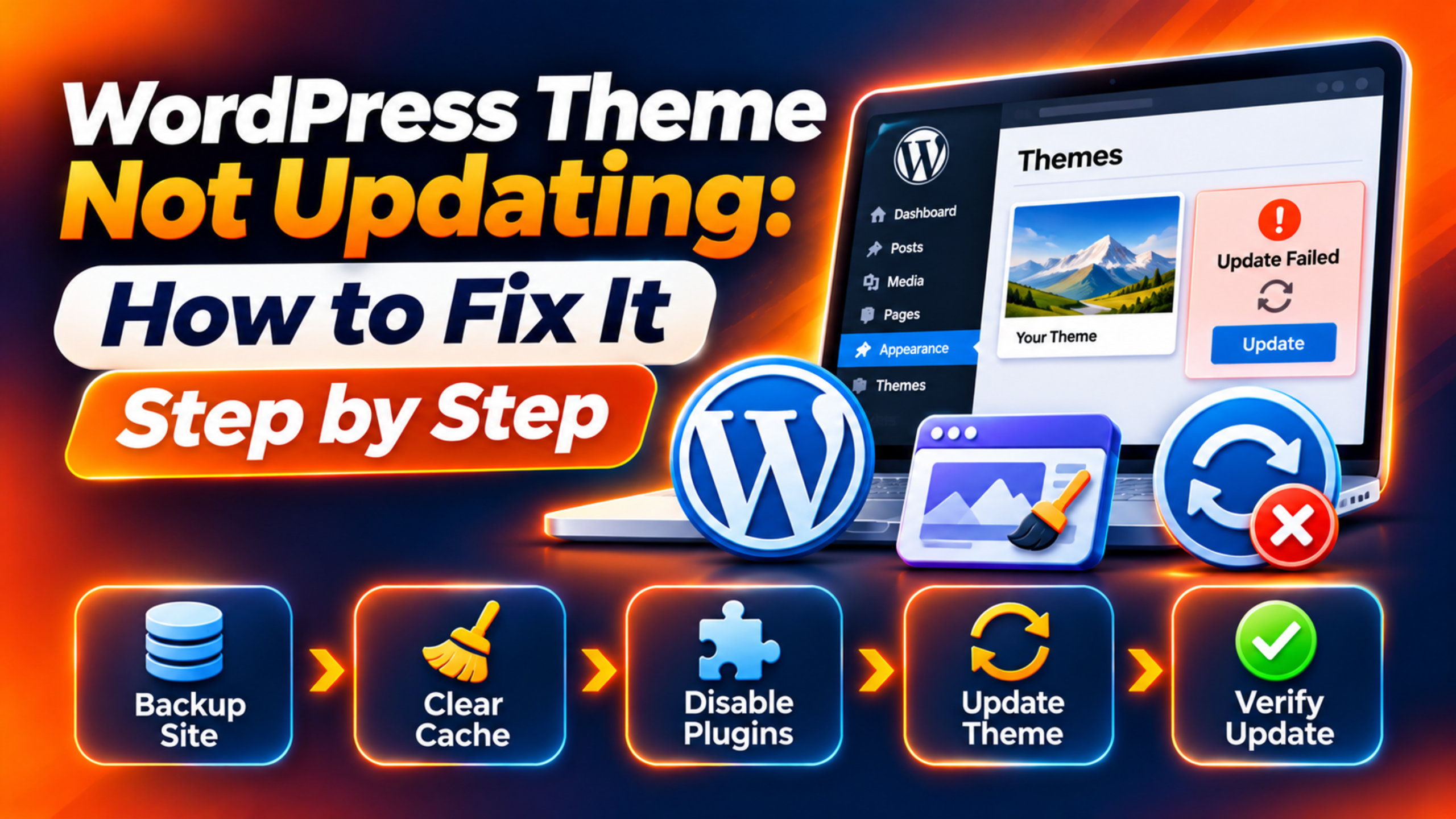
You open your dashboard and expect a theme update. Nothing shows up. Or you click Update and it fails with an error. Or the update seems to work, yet your site still runs the old version. All three look different, but they share one outcome. Your theme stays out of date.
This matters more than it seems. Theme updates carry security fixes, bug fixes and support for new WordPress and PHP versions. An old theme can break after a WordPress update. It can also leave a known hole open for attackers. On a store or business site, either problem costs you trust and sales.
This guide shows you how to fix a WordPress theme not updating, one cause at a time. You will learn the signs, the real reasons behind each one, and a safe order of fixes. Each fix tells you how to check that it applies to you and how to confirm it worked. We also cover how to stop the problem coming back. Common triggers include a cached update check, a blocked server connection, a missing licence, locked file permissions and a low memory limit.
Signs That Show a WordPress Theme Not Updating
The first sign is silence. Other plugins show update notices, but your theme never does. You may know a new version exists because the theme author announced it. Yet your dashboard says all themes are up to date.
The second sign is a failed update. You click the update link and see a message. It may say the download failed, a file could not be copied, or the package could not be installed. Sometimes WordPress asks for FTP details instead. That prompt means WordPress cannot write to your theme folder by itself.
The third sign is a false success. The screen says the theme updated. But the version number in your theme list has not changed. Or the front of your site looks the same as before. You may also see a stuck spinner that never ends.
Look at where the problem appears. If only one theme is stuck, the cause is probably tied to that theme, such as a missing licence. If every plugin and theme is stuck, the cause is probably your server or settings. Also test in a private browser window while logged in. That tells you whether you are seeing a real update problem or just an old cached page.
Reasons Why a WordPress Theme Is Not Updating
A theme update has several moving parts. WordPress must ask for news about new versions. It must download the new files. Then it must write them into your theme folder. A fault at any point stops the update. These are the causes we see most often.
A stale update check. WordPress does not ask for theme news on every page load. It asks the WordPress.org update service, then stores the answer for a while. On the Themes and Updates screens it waits about an hour between checks. In background tasks it waits about two hours. Everywhere else it waits about twelve. So a theme released this morning can stay hidden until the stored answer expires.
A blocked connection. The update check needs your server to reach api.wordpress.org. A firewall, a security plugin or a host rule can block that call. A site setting can also do it. When the call fails, WordPress keeps the old answer and shows no new version. Your site works fine, but it never hears about updates.
No update source for the theme. WordPress can only check themes that are listed on WordPress.org, unless the theme names its own update source. Premium and custom themes usually need a licence key. Without it, the theme author’s server refuses to send the update. A theme can also declare its own update address in its header. If that address is wrong, WordPress finds nothing.
Updates switched off. A line in your configuration file can block all plugin and theme installs and updates from the admin area. Some hosts add it for you. Managed hosts may also handle updates on their own schedule. In both cases the update button simply fails or disappears.
File permission limits. To update, WordPress deletes the old theme files and writes new ones. It needs permission to change the themes folder. If the folder belongs to another user account, the write fails. WordPress then falls back to asking for FTP details, or it ends with a copy error.
Server resource limits. Unpacking a large theme takes memory and time. Many hosts set low limits. When the limit is hit, the process stops halfway. You see a timeout, a blank screen or a partial update.
Update done, but not visible. Sometimes the update worked. Your caching plugin, your host cache or your browser still serves old files. Another case is a child theme. You update the parent, but your child theme holds the old design choices. The version you see may belong to the child, not the parent.
How to Fix WordPress Theme Not Updating (Step by Step)
Work through these steps in order. They run from the safest check to the deepest change. Each step matches one cause above. Before you start, take a full backup of your files and database. Better still, test on a staging copy of your site. A theme update replaces files, so a mistake can change how your whole site looks.
Step 1: Refresh the Stored Update Check
This step fixes the stale update check. WordPress may be holding an old answer from its last visit to the update service. That is why a new release does not show yet. To confirm, open your dashboard and go to the Updates screen. Look at the line that says when WordPress last checked. If the time is many hours old, you have found your cause.
Click the Check Again button on that screen. WordPress will contact the update service right away. Wait for the page to reload. Then look at the themes section. A healthy result is a list of themes with new versions, or the message that your themes are up to date.
Now compare with the real version. Open the theme page on WordPress.org or your theme author’s site and read the latest version number. Then check the version in your Themes screen. If the numbers match, you have no problem. If a newer one exists and still does not appear, move to the next step.
Step 2: Test the Connection to the WordPress.org Update Service
This step fixes a blocked connection. Your server must reach the update service to learn about new versions. To check, open the Site Health screen from the Tools menu in your dashboard. Look at the Status tab for messages about failed requests or a blocked REST API or loopback request. A warning that WordPress cannot reach outside addresses is a strong clue.
Next, look for the cause. Open your configuration file only after you take a backup. The file is called wp-config.php. Search for the line named WP_HTTP_BLOCK_EXTERNAL. When it is set to true, WordPress allows requests only to your own site. That blocks the update check. WordPress offers a second setting, WP_ACCESSIBLE_HOSTS, that lists hosts allowed through. You can add *.wordpress.org there, or set the first line to false.
If you do not see that line, ask your host whether a firewall blocks outgoing requests. Also turn off any security plugin’s outbound filter for a minute and test. After a change, return to the Updates screen and press Check Again. Success means new versions now appear. If nothing changes, continue.
Step 3: Confirm the Theme Has a Valid Update Source
This step fixes themes with no update source. First, find out where your theme came from. If you installed it from the WordPress.org directory, updates come from there. If you bought it from a marketplace or the theme author, updates come from the author’s own system. Open your Themes screen and click the theme to see its author and version.
For a premium theme, open its settings page or licence page. Look for a licence field. A healthy result shows an active licence with a future expiry date. A broken result shows an empty field, an expired licence or an error about the domain. Enter your key again, or renew the licence if it has run out.
Some themes also need a helper plugin from the author. Check that it is installed and active. If your theme was custom built, it may have no update system at all. In that case you must update it by hand, as covered in Step 5. After you fix the licence, return to the Updates screen and press Check Again.
Step 4: Check Whether Updates Are Switched Off
This step fixes blocked updates. Open your wp-config.php file after a backup. Look for a line named DISALLOW_FILE_MODS. When it is set to true, WordPress blocks plugin and theme installs and updates from the admin area. It also turns off the built-in file editor. That is why the update link may be missing.
If you find the line, change true to false, or remove the line. Save the file. If your site is on a managed host, do not guess. Ask the host whether they set it on purpose. Some hosts block admin updates so that they can run updates for you. In that case, use the host’s own update tool.
Also check your theme’s auto-update setting on the Themes screen. If auto-updates are on, the theme may already have updated in the background. Reload the Updates screen. A healthy result is an update button that works, or a theme that now shows the new version.
Step 5: Fix File Permissions or Update the Theme by Hand
This step fixes permission limits. A sign that applies to you is a prompt asking for FTP details, or an error saying a file could not be copied. WordPress needs to write to the themes folder. If it cannot, the update stops. Our guide on fixing WordPress file and folder permissions shows the safe values to use.
Ask your host to check that the web server owns the themes folder. WordPress also lets you force the file method with the FS_METHOD setting in wp-config.php. Official docs advise changing it only when you face update problems. Take a backup before you touch it.
If permissions stay stuck, update by hand. First back up your site and download the new theme as a zip file. Rename your current theme folder over FTP, for example by adding the word old. Upload and unzip the new folder in the themes directory. Return to the Themes screen and check the version. If the site breaks, rename the old folder back at once. If your site stalls on the way, see our guide to a site stuck in maintenance mode.
Step 6: Raise Server Limits for Large Updates
This step fixes resource limits. A sign that applies to you is an update that stops partway. You may see a timeout, a white screen or a message about memory. Check the Site Health screen, then open the Info tab and the Server section. Look at the PHP memory limit and the maximum execution time. Low numbers, such as 64M for memory or 30 seconds, can break large themes.
WordPress lets you set its memory with the WP_MEMORY_LIMIT line in wp-config.php. For example, you can set it to 256M. Some hosts block this change. If so, ask your host to raise the limits. Our guide to the memory exhausted error explains this in more detail.
Always back up before editing configuration. Then retry the update. If the site shows a critical error afterwards, read our guide on the critical error message. A good result is an update that finishes with a success message and a new version number.
Step 7: Clear Caches and Check Your Child Theme
This step fixes updates that are done but not visible. First confirm the real version. In your dashboard, open the Themes screen and read the version of the parent theme. If it shows the new number, the update worked. Your problem is cache or customisation.
Clear every cache layer. Purge your caching plugin, then your host cache, then any CDN. Reload your site in a private window. If the design is now correct, the cache was the cause.
Next, check whether you use a child theme. A child theme is a small theme that sits on top of a parent. WordPress docs explain that parent updates do not remove child theme changes. But code you added straight into the parent’s files will vanish on update. If your design changed, copy that code into the child theme instead. If a plugin may be at fault, read our guide on finding and fixing a plugin conflict. A healthy end result is the right version, the right design and no error messages.
Best Practices to Prevent WordPress Theme Update Problems in Future
Most update trouble comes back unless you fix the habit behind it. Start with backups. Keep a daily backup, and take a fresh one right before any update. That turns a bad update into a ten minute rollback instead of a crisis.
Use a staging site. Test each theme update there first. This protects you from design breaks and from code clashes with plugins. Only copy the change to your live site once it looks right.
Use a child theme for every change you make. Never edit the parent theme’s files. This prevents the loss of custom work, as described in the official child theme guide. Keep custom code in the child theme or in a small plugin.
Keep licences current. Put the renewal date in your calendar. Many theme updates fail simply because the key expired. Also keep your PHP version and WordPress version within what your theme supports.
Watch your server. Ask your host for a healthy memory limit and execution time. Check the Site Health screen once a month. It catches blocked requests early. Finally, avoid running many security and caching plugins that overlap. They cause blocked connections and hidden updates.
Conclusion
A WordPress theme not updating usually shows up in one of three ways. The update never appears, the update fails, or the update works but nothing changes. Behind those signs sit a handful of causes. They are a stale update check, a blocked connection, a missing licence, disabled updates, locked permissions, tight server limits and cache.
The fix process is simple when you follow the order. Refresh the update check first. Test the connection next. Then check your licence and your configuration. After that, fix permissions or update by hand, raise server limits, and clear caches. Check each result before you move on.
To stop the problem returning, keep backups, test on staging, use a child theme and renew your licences. Review Site Health once a month. If you still cannot update your theme, the WP Chat Support team can find the cause for you.
Sources used for the facts above include the official wp-config guide and the child theme handbook.

James is an experienced WordPress and WooCommerce specialist with over 10 years of practical experience. At WPChatSupport, he creates clear guides that help website owners fix WordPress issues, improve speed, secure their sites, and manage WooCommerce stores with confidence. His expertise includes store setup, plugin configuration, theme customization, payment gateway integration, and website troubleshooting. Through simple and helpful content, James supports users in solving technical problems and following best practices for online business growth.