Introduction
A plugin conflict is one of the most common reasons a WordPress site breaks. One day everything works. Then you update a plugin or add a new one. Suddenly a button does nothing, a page goes blank or the editor will not save.
The hard part is that the symptom rarely names the cause. The error may show up in a menu, a form or a checkout page. Yet the fault sits in two pieces of code that cannot work together. For a business site, that can mean lost leads and lost sales until you find the pair.
This guide shows you how to find and fix a plugin conflict, step by step. You will learn the signs, the real causes and a safe testing order. Each step tells you how to check that it applies to you and how to confirm the result. We also cover the habits that stop conflicts from coming back. Common triggers are plugin updates, new installs, theme changes, WordPress or PHP upgrades and cache.
Signs That Show a WordPress Plugin Conflict
The clearest sign is timing. The problem began right after you updated or installed something. If nothing else changed, the last change is your first suspect. Check your update history if you are unsure.
Another sign is a feature that stops working while the page still loads. A slider freezes. A form will not send. The Publish or Save button in the editor does nothing. These point to a script error on the page.
Some conflicts are loud. You may see a white screen, a critical error message or a notice about a function that already exists. Those come from the server side of the code. Our guides on the white screen of death and the critical error message cover those cases in detail.
A conflict can also hide. The problem may appear only for logged-out visitors, only on mobile, or only on one page type. Test in a private window and on a second device. If the issue vanishes there, you may be looking at cache rather than a true conflict.
Reasons Why a WordPress Plugin Conflict Happens
WordPress loads every active plugin into the same page. They all share one set of names, one set of scripts and one database. Trouble starts when two of them want the same thing. These are the common ways that happens.
Clashing PHP code. Each plugin defines functions and classes. If two plugins use the same name, PHP stops with a fatal error. The same happens when two plugins bundle different versions of the same library. The result is a white screen or a critical error.
Clashing JavaScript. Plugins load scripts in the visitor’s browser. When they use the same tools, such as jQuery, one script can break another. A single error can stop every script that runs after it. Buttons then stop responding while the page looks normal.
A theme and plugin clash. Your theme also loads code and styles. A theme may include its own slider, form or shop features. A plugin with the same job can fight it. The fault belongs to neither one alone.
Version and PHP incompatibility. A plugin built for older software can fail after a WordPress or PHP update. Another plugin may update first and change how a shared feature works. The two then drift out of step.
Overlapping features. Two caching, SEO, security or optimisation plugins often hook into the same events. They may both rewrite the same file or both minify the same script. The output then breaks.
Cache that hides or fakes the problem. Your browser, your caching plugin or your host can keep an old copy of a page. You may fix a conflict and still see the fault. You may also see a fault that is already gone.
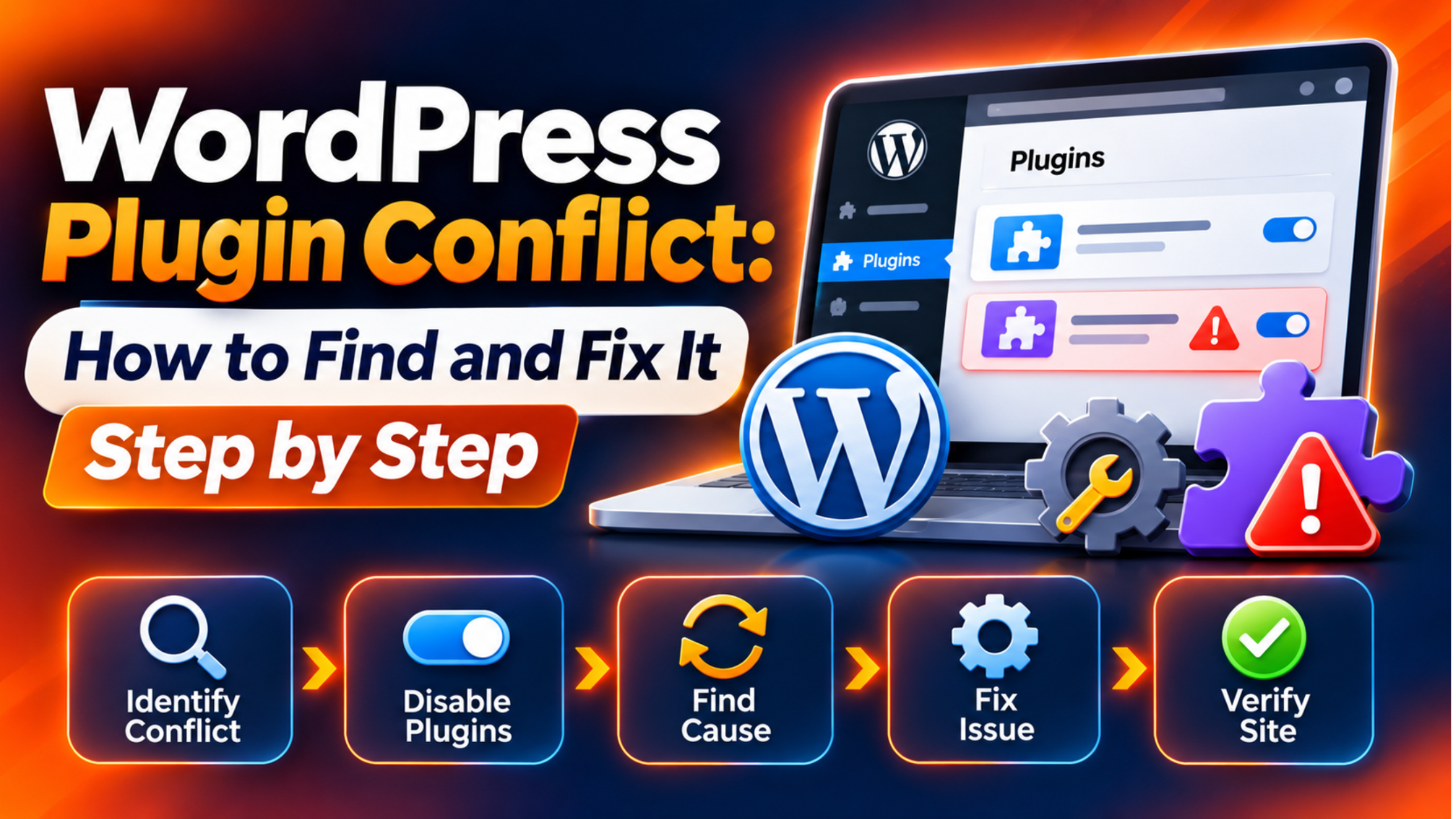
How to Fix a WordPress Plugin Conflict (Step by Step)
Follow these steps in order. They move from the safest checks to the deepest tests. Each step ties back to a cause above. Before you begin, take a full backup of your files and your database. The best choice is a staging copy of your site, so visitors never see your tests.
Step 1: Clear Caches and Check the Browser Console
This step handles stale cache and clashing JavaScript. First rule out cache, because it can make a healthy site look broken. Clear your browser cache and cookies. Then purge your caching plugin and your host cache. Reload the page in a private window.
If the fault remains, open your browser tools. In most browsers you press F12 and open the Console tab. Reload the page and look for red error lines. An error that names a plugin script file points to that plugin. An error that says a function is not defined often means another script failed first.
Write down every plugin name you see. A healthy console shows no red errors on the broken page. If you see errors, you now have suspects. If you see none, the fault is probably in PHP, so move on to Step 2.
Step 2: Read the Error Log for PHP Clashes
This step handles clashing PHP code. Use it when you see a white screen, a critical error or a message about a function declared twice. Debug mode records the exact file and line. Official docs say debug tools are not advised on live sites. So turn them on in staging, or switch them off again right after your test.
Take a backup. Then open the wp-config.php file and set WP_DEBUG to true. Set WP_DEBUG_LOG to true as well. Set WP_DEBUG_DISPLAY to false so visitors do not see errors. WordPress will write problems to a file named debug.log in the wp-content folder. That folder can be public, so delete the log when you finish.
Reload the broken page, then open the log. Look for lines that say fatal error. The path in the line shows which plugin failed. A message that a function cannot be redeclared names the two files that clash. Once you have your answer, set the debug lines back to false. If the log shows nothing, continue to Step 3.
Step 3: Deactivate All Plugins and Test
This step proves whether any plugin is involved at all. It covers every plugin-based cause in one test. Open the Plugins screen and select all plugins. Choose Deactivate from the bulk actions menu. Deactivating keeps your plugin settings, but note that some plugins also run background jobs, so avoid doing this on a busy shop.
Now test the broken feature. If the problem is gone, a plugin is the cause. The official WordPress troubleshooting guide uses this same method. If the problem stays, the fault lies elsewhere, such as the theme, the server or a core issue. In that case jump to Step 5.
A good result is a working page with every plugin off. Do not leave your live site like this for long. A store or form site loses function while plugins are off. Move on quickly to Step 4, or do this whole test on staging.
Step 4: Reactivate Plugins One at a Time
This step finds the exact plugin, and it also reveals overlapping features. Turn plugins back on one by one. After each one, reload the broken page. The moment the problem returns, you have found a culprit. Start with the plugins you updated or added most recently.
With many plugins, save time by splitting. Turn on half of them and test. If the fault appears, the cause is in that half. Split that half again. Repeat until one plugin remains.
Then find the partner. Many conflicts need two plugins. Leave the first culprit on and test the others against it. A caching plugin and an optimisation plugin are a common pair. Write down both names. A healthy result is a working site with a clear list of the pair that clash.
Step 5: Switch to a Default Theme
This step handles theme and plugin clashes. Use it if the problem stayed with all plugins off, or if two plugins seem fine on their own. Take a backup first. Changing themes can alter widgets, menus and layout settings. Test on staging if you can.
Go to the Themes screen and activate a default WordPress theme, such as Twenty Twenty-Five. Then reload the broken page. If the fault disappears, your theme is part of the problem. Turn your plugins back on one at a time with the default theme active. That shows whether one plugin clashes with your theme.
When you finish, switch back to your normal theme. Check your menus and widgets, because they may have moved. If the fault stays even with a default theme and no plugins, the issue sits in your server, your database or WordPress itself. Our guide to a memory exhausted error may help in that case.
Step 6: Regain Access If You Are Locked Out
This step is for when the conflict blocks your dashboard. You cannot reach the Plugins screen, so you cannot deactivate anything. The official guide gives two safe ways around this. Take a backup of your files and database before you use either one.
The first way uses FTP or your host file manager. Go to the wp-content folder. Rename the plugins folder to something like plugins.hold. WordPress then sees no plugins. Log in to your dashboard. Next, rename the folder back to plugins. All plugins remain deactivated, so you can turn them on one at a time.
The second way uses phpMyAdmin. Open the options table and find the row named active_plugins. Set its value to a:0:{} and save. That deactivates every plugin. Be careful with this method, because a wrong edit can damage settings. A good result is that you can log in again and continue from Step 4.
Step 7: Fix the Conflict and Check Versions
This step handles version and PHP incompatibility, and it applies the final cure. Once you know the pair, check each plugin’s page on WordPress.org or its vendor site. Look at the tested-up-to version and the required PHP version. Also read the changelog and the support forum for known clashes. A match to your problem often has a ready answer.
Then try the fixes in this order. Update both plugins to their latest versions, after a backup. If a plugin is outdated or no longer maintained, replace it with an alternative. If two plugins do the same job, keep only one. If both are needed, look in their settings for an option to turn off the overlapping feature, such as script minification.
If a new update caused the clash, you can roll back to the earlier version on staging while you wait for a patch. Report the clash to the plugin author with your log lines. Our guide to a failed automated update can help if the update itself broke. Finish by clearing every cache and testing the page in a private window. The fix is complete when the feature works and the console and log are clean.
Best Practices to Prevent WordPress Plugin Conflicts in Future
You cannot remove conflicts forever, but you can make them rare and cheap to fix. The first habit is a staging site. Test every update there before you touch your live site. Update one plugin at a time, so you always know which change caused a problem.
Keep backups. A daily backup and a fresh one before each update let you undo a bad change in minutes. Keep fewer plugins as well. Each extra plugin adds a new chance of a clash. Delete plugins you do not use, and avoid two plugins that do the same job.
Check compatibility before you install. Look at the tested-up-to version, the PHP requirement and the date of the last update. Prefer plugins that are active and well supported. Keep your PHP and WordPress versions current, and apply updates in small groups.
Watch for early warnings. Check the Site Health screen each month. Keep an eye on your error log on staging. Read the changelog before a large update. Finally, if your site earns money, ask a support team to monitor it, so a clash is found before your customers find it. A failed editor is often a related issue, so see our guide to the not a valid JSON response error.
Conclusion
A WordPress plugin conflict shows up as broken buttons, blank pages or errors that began after a change. Behind the signs sit a few causes. They are clashing PHP code, clashing JavaScript, a theme clash, version gaps, overlapping features and cache that hides the truth.
The fix process is a simple search. Clear caches and read the console first. Read the error log next. Then deactivate all plugins, bring them back one at a time, and test with a default theme. If you are locked out, rename the plugins folder. Finally, update, replace or reconfigure the pair.
To stop conflicts coming back, use staging, update one thing at a time, keep backups and run fewer plugins. If you also see updates failing on your theme, read our guide on a WordPress theme not updating. If you cannot find the pair, the WP Chat Support team can track it down for you. For more detail, see the official debugging guide and the troubleshooting FAQ.

James is an experienced WordPress and WooCommerce specialist with over 10 years of practical experience. At WPChatSupport, he creates clear guides that help website owners fix WordPress issues, improve speed, secure their sites, and manage WooCommerce stores with confidence. His expertise includes store setup, plugin configuration, theme customization, payment gateway integration, and website troubleshooting. Through simple and helpful content, James supports users in solving technical problems and following best practices for online business growth.