Introduction
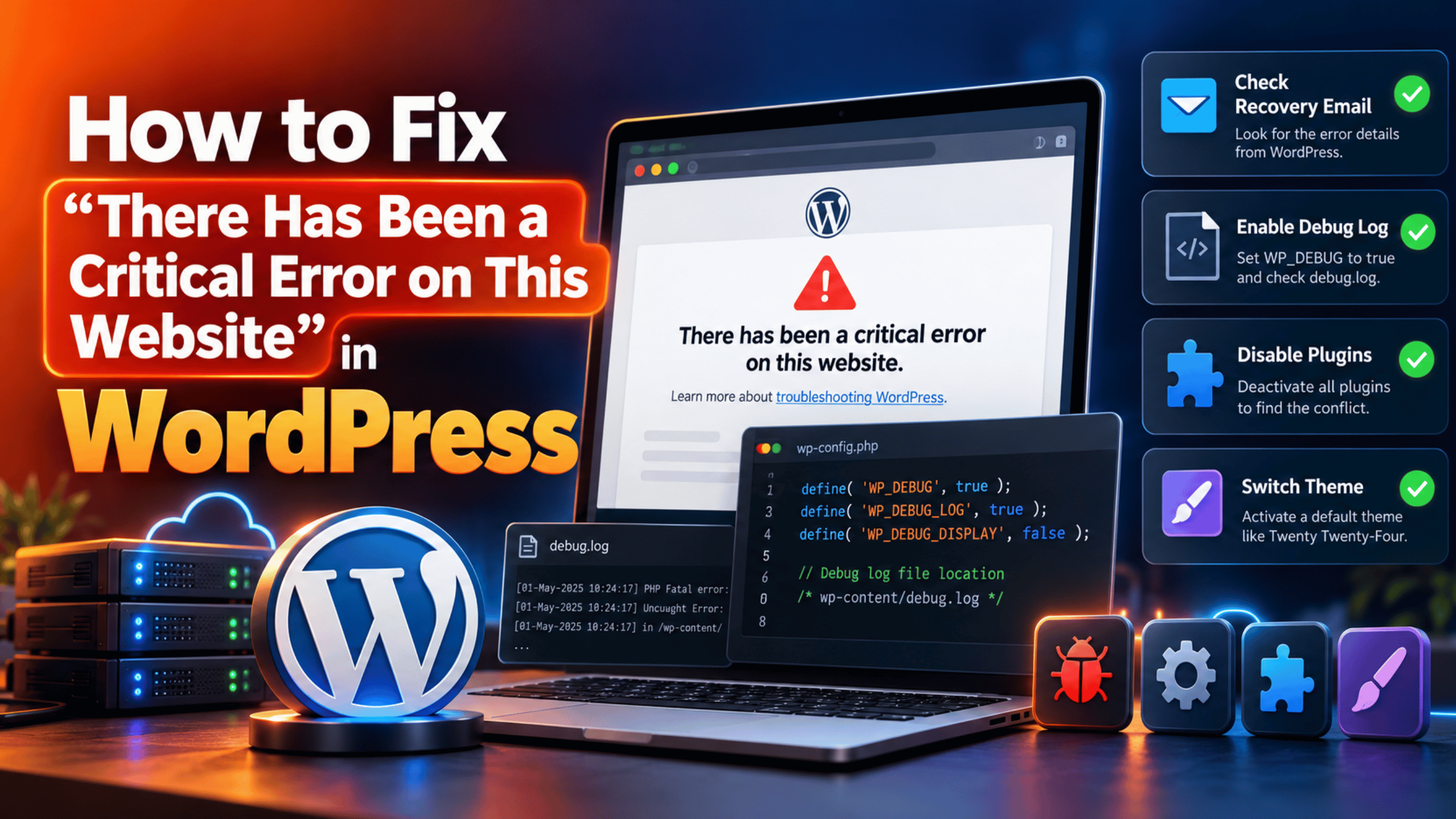
You load your site and the design is gone. In its place sits one short line of text. It reads “There has been a critical error on this website.” Nothing else is there. No menu, no content, no clue about what went wrong.
If you are logged in, the message is slightly longer. It adds a line telling you to check your site admin email inbox for instructions. That extra line matters a great deal, and most people miss it. It is pointing you at the fastest way back in.
This screen is not a bug in WordPress. It is a safety feature. WordPress 5.2 added a fatal error handler to replace the old blank white page. When PHP crashes, WordPress now catches the crash. It shows visitors a tidy message instead of a broken page or a raw error dump.
It also does something far more useful. It emails your admin address with a secret recovery link. That link lets you log in and pauses the plugin or theme that crashed. You get your dashboard back even when the site is down for everyone else. The WordPress core announcement for recovery mode explains how that pausing works.
This guide covers the whole job. You will learn the signs that confirm this exact fault, what really breaks underneath, and a fix for each cause in a safe order. You will also learn how to stop it coming back. The common triggers are a plugin update, a theme update, a PHP version change, or a snippet someone pasted into a file.
One point before you begin. If your page is completely empty with no message at all, you have a different fault. That one is covered in our guide to the WordPress white screen of death. Stay here if you can see the critical error wording.
Signs That Show the Critical Error on This Website Problem
The wording on screen is your first and best sign. But several details around it tell you how serious the fault is. Check each one below before you change anything, because they decide which step you start from.
Start with the exact text. Visitors see “There has been a critical error on this website.” Logged-in administrators see the same line plus a pointer to the site admin email inbox. If you see the longer version, WordPress knows who you are and has tried to email you. That is good news.
Next, check how much of the site is affected. Sometimes the whole site shows the message, dashboard included. Sometimes only the front end is broken and your dashboard still loads. Sometimes a single page or a single admin screen fails while everything else is fine. A fault limited to one screen usually points at one plugin that only runs there.
Now check your email. Look in the inbox for the address set as your site admin email, not just your personal inbox. Check the spam folder too. An email from your site with a recovery link is a strong sign the handler worked as designed. No email at all is itself a clue, and step 2 deals with that.
Look at what changed last. Did a plugin or theme update run, automatically or by hand? Did your host change your PHP version? Did you paste code into functions.php or a snippets plugin? The crash almost always starts at the last change made.
Finally, note whether the message appears every time. A fault on every request points at code that loads site wide. A fault that only appears on certain pages, or only during checkout, points at one feature. That difference saves you a lot of testing later.
Reasons Why the Critical Error on This Website Happens
Behind the message there is always a PHP fatal error. Something asked PHP to do the impossible, so PHP stopped. Below are the real causes, and what each one does to your site.
The message hides the detail on purpose. This is not a cause of the crash, but it is the cause of you being stuck. WordPress deliberately hides the technical error from the public screen. Showing file paths and code to visitors would be a security risk. So the detail goes into an email and a log file instead, and the public page stays vague.
The recovery mode email never reaches you. The recovery link only helps if the email arrives. It is sent to the site admin email address, which is often an old address nobody checks. Mail can also be blocked because the server cannot send email at all. WordPress also waits before sending another one. The rate limit between recovery emails defaults to one day, as the official WordPress reference confirms. So a second crash may produce no new email.
A plugin throws a PHP fatal error. This is the most common cause by a wide margin. Plugins run inside the same PHP request as WordPress. One fatal error in one plugin file stops the whole page. An update that changes a plugin’s code is the usual trigger.
A theme throws a PHP fatal error. Your theme runs on every page it renders. A fatal error in a theme file breaks every one of those pages at once. Child themes carry an extra risk. If a parent theme update removes a function the child theme calls, the page dies instantly.
Your PHP version no longer suits your plugins or theme. Each PHP release removes some old functions. A host upgrade can therefore break code that worked yesterday. A plugin written for a newer PHP version can also fail on an older one. In both cases the mismatch is fatal rather than merely untidy.
A file the code tries to load is missing or renamed. PHP code often loads other files to do its work. If one of those files is gone, the load fails and the request stops. Partial updates, failed migrations and malware cleanups all leave gaps like this.
Two plugins declare the same function or class. PHP will not allow the same name to be defined twice. When two plugins both ship the same shared library, the second one to load causes a fatal error. The error wording usually contains the words “cannot redeclare”.
Broken custom code in functions.php or a snippets plugin. Snippets you paste in run with full privileges and no safety net. A missing bracket, a stray quote or a call to a function that does not exist all end the request. Snippets plugins are just as risky here as theme files.
PHP runs out of memory part way through the page. Every request has a memory budget. When it is used up, PHP halts and the handler shows the critical error screen. WordPress aims for 40MB on a single site and 64MB on a multisite network by default. Heavy page builders and large imports can pass that easily.
How to Fix the Critical Error on This Website (Step by Step)
Work through these steps in order. They move from the quickest route back in to the deepest repairs. Stop as soon as your site loads normally again.
Step 1: Enter Recovery Mode Using the Link in Your Email
This step covers the hidden detail on the public screen. WordPress will not show you the error, but it will email it to you. The email also contains a secret link into recovery mode. In recovery mode, the broken plugin or theme is paused just for you, so your dashboard loads again. This is the single fastest way out of this fault.
Confirm this is available to you before anything else. Open the inbox for your site admin email address. You find that address on the general settings screen in normal times. Search for a message from your own site with a subject about a technical issue. Check the spam folder as well. If the email is there, you are in luck. If it is not, skip to step 2.
There is no risk in this step, which is why it comes first. Nothing is changed on your live site for visitors. Pausing only applies to your own browser, because recovery mode works through a cookie on your device.
Open the email and read it before clicking. It names the plugin or theme that crashed, the file, and often the line number. Write that down. Then click the recovery link and log in as normal. You will see a notice at the top of the dashboard telling you recovery mode is on, and which extension is paused.
Now act on the name you were given. Deactivate that plugin, or switch away from that theme, then exit recovery mode using the button in the admin bar. Reload your site in a private window. If it loads, you have your answer and can go on to replace or reinstall the extension. If the message returns, note the new name WordPress reports and carry on with the steps below.
Step 2: Turn On the Debug Log When No Email Arrives
This step covers the missing recovery email. The email may never arrive for several reasons. The site admin address may be out of date. Your server may be unable to send mail. Or WordPress may be holding off, because it waits a day between recovery emails by default. Without the email you need another way to read the error.
Check this cause before you edit anything. Confirm which address your site uses, if you can still reach any part of the dashboard. If you cannot, assume the email is not coming and continue. A healthy result at the end of this step is a log file that names a file path and the words “Fatal error”.
This step edits wp-config.php, and a mistake there takes the whole site down. Download a copy of the file first so you can put it back. Take a full backup too if you still have dashboard access, using a tool such as UpdraftPlus. Use a staging copy instead of your live site if your host offers one.
Open wp-config.php over FTP or in your host’s file manager. Just above the line that tells you to stop editing, add these three lines, exactly as the WordPress debugging documentation describes:
define( 'WP_DEBUG', true );
define( 'WP_DEBUG_LOG', true );
define( 'WP_DEBUG_DISPLAY', false );
Save the file and load your broken page once. Then open wp-content/debug.log and read the last few lines. The path in that entry is your answer. A path inside the plugins folder sends you to step 3. A path inside the themes folder sends you to step 4. Wording about memory sends you to step 9.
Set WP_DEBUG back to false when you are finished. Leaving debugging on a live site is not safe. While you are in the file, you can also check that your admin email is current, so the next recovery email actually reaches you.
Step 3: Pause or Deactivate the Plugin Named in the Error
This step covers a plugin throwing a fatal error. Plugins share the same PHP request as WordPress itself, so one crash ends the whole page. The usual trigger is an update that changed the plugin’s code. A clash with another plugin is the next most likely reason.
Confirm plugins are involved first. Your recovery email or your debug.log should name a path inside wp-content/plugins. If the crash started minutes after an update, that is strong evidence too. If neither points at plugins, read on but expect step 4 to be your fix.
If you reached your dashboard through recovery mode, simply deactivate the named plugin there. If you have no dashboard at all, do it over FTP. Rename that single plugin’s folder, adding -off to the end. WordPress can no longer find it and switches it off. Your settings stay safe in the database, so nothing is lost.
Reload your site. If it loads, that plugin was the cause. If you do not know which plugin to blame, rename the whole wp-content/plugins folder to plugins-off. That turns every plugin off at once. Rename it back, then switch plugins on one at a time, checking the site after each.
Once you know the culprit, decide what to do with it. Reinstall it fresh, in case the files were damaged. Update it, if an update is waiting. Or replace it and send the error line to its developer. If reinstalling itself fails, our guide to a failed WordPress plugin installation will help. If all plugins off changed nothing, your theme is next.
Step 4: Switch to a Default Theme to Test Your Theme
This step covers a theme throwing a fatal error. Your theme runs on every page it builds, so one broken file in it breaks them all. Child themes raise the risk further. When a parent theme update drops a function, the child theme calls something that no longer exists, and PHP stops.
Check this cause before switching. Look for a path inside wp-content/themes in your recovery email or debug.log. Also ask whether the fault began after a theme update or a design change. If plugins and themes both look clean, move on to step 5.
Switching theme changes how the site looks, so plan for it. Some widget placements and theme settings will not survive the round trip. Back up first, and run the test on a staging copy if you have one. If you cannot, choose a quiet hour.
From a recovery-mode dashboard, activate a default theme such as Twenty Twenty-Four. With no dashboard at all, rename your active theme’s folder over FTP. Make sure a default theme folder is present in wp-content/themes first. WordPress falls back to a default theme when the active one disappears.
Reload your site. If it loads with the default theme, your own theme is at fault. Update it, or reinstall it cleanly from a fresh download. If you edited its files, undo those edits and move them into a child theme later. If the critical error survives a default theme, your theme is cleared.
Step 5: Check Your PHP Version Against Your Plugins and Theme
This step covers a PHP version mismatch. Every PHP release removes some older functions. When your host upgrades PHP, code that relied on those functions fails at once. The reverse also happens, when a plugin needs a newer PHP version than you run. Either way the result is a fatal error, not a warning.
Confirm this is your cause with two checks. First, read your debug.log for the words “undefined function”, “deprecated” or “unsupported”. Second, find out whether your PHP version changed recently, which your hosting control panel will usually show. Many hosts email you before an upgrade, so search your inbox too.
Changing PHP versions affects your whole site, so treat it as a real change. Take a backup before you switch. Test on staging if you can, because a version that fixes one plugin can break another.
In your hosting control panel, note the PHP version you are running. Then open the WordPress.org page for each plugin named in your log and read its “Requires PHP” value. If your version is older than a plugin needs, move up one version at a time. If your version is newer than an abandoned plugin supports, the right answer is usually to replace that plugin, not to go backwards. Rolling back PHP leaves you on unsupported software.
Reload your site after each change. If the critical error clears, you have found it. Make a note of your PHP version and keep it current from now on. If nothing changes, the fault is in a file rather than a version, so continue.
Step 6: Restore the Missing File the Log Names
This step covers a missing or renamed file. PHP code frequently loads other files to work. If one is gone, the load fails and the request dies. Partial updates, interrupted transfers and malware cleanups all leave holes like this. The log is usually very clear about which file is absent.
Confirm this cause by reading the error text closely. Look for wording such as “failed to open stream” or “no such file or directory”. The path that follows is the file PHP wanted. Open that folder over FTP and check with your own eyes whether the file is there.
This step replaces files, so it carries real risk. Back up your files and your database before you begin. Never overwrite anything until you have a copy you could restore from. Use staging if your host provides it.
If the missing file belongs to a plugin or theme, reinstall that plugin or theme from a clean download. That restores every file it needs in one go. If the file is part of WordPress itself, download a fresh copy of WordPress, delete the wp-content folder from it, and upload the rest over your site. Leave your own wp-config.php untouched.
Reload your site after the upload. If it loads, the gap was your cause. If files keep going missing, treat that as a security matter rather than a one-off. Ask your host to scan the account, and read our guide to emergency WordPress support for the wider recovery process.
Step 7: Find the Duplicate Function or Class
This step covers two plugins declaring the same name. PHP refuses to define the same function or class twice. When two plugins ship the same shared library, whichever loads second triggers a fatal error. This often appears straight after you install a new plugin that overlaps with an old one.
Confirming this cause is easy, because the wording is distinctive. Your log will contain “cannot redeclare” followed by a function or class name. It usually names both file paths as well, which tells you exactly which two plugins are fighting. If that phrase is not in your log, skip this step.
The repair here only involves turning plugins off, so the risk is low. Even so, take a backup first if you are working on a live site. Turning a plugin off can hide content that depends on it.
Open both file paths from the error and note which plugin each belongs to. Then turn one of them off. Reload the site. You will almost always find that one plugin is newer, better maintained, or duplicates work another already does. Keep that one and remove the other.
Reload your site to confirm the message has gone. If both plugins are essential to you, contact the developer of the newer one with the exact error line. Shipping a shared library without a version check is a bug on their side, and they can fix it. If the phrase was never in your log, move on.
Step 8: Remove the Custom Snippet You Added Last
This step covers broken custom code. Snippets in functions.php or in a snippets plugin run with full privileges and no safety net. A missing bracket, a stray quote or a call to a function that does not exist ends the request immediately. Code pasted after the closing PHP tag causes the same thing.
Check this cause with one question. Did the critical error begin right after you pasted code somewhere? If so, this is almost certainly it. Your log will also name your theme’s functions.php or your snippets plugin, with a line number.
Editing these files can take the site fully offline, so prepare properly. Download a copy of the file before you change it. If you use a snippets plugin and cannot reach the dashboard, turn that plugin off over FTP by renaming its folder.
Now remove the code you added most recently and save the file. Reload your site. If it loads, your snippet was the fault. Add it back one line at a time on a staging copy to find the broken part. Long term, move snippets out of functions.php and into a small custom plugin, so a theme update cannot wipe them.
If you cannot remember what you added, sort the folder by date modified over FTP. The most recently changed file is your first suspect. If the message continues, one cause remains.
Step 9: Raise the PHP Memory Limit
This step covers memory exhaustion. PHP has a fixed memory budget for each request. When a page needs more than the budget allows, PHP halts and the handler shows the critical error screen. Page builders, large imports and image processing are the usual heavy users. The dashboard often breaks before the front end does.
Confirm this cause from the log. Look for the phrase “Allowed memory size” followed by a number. If you can reach the dashboard, the Site Health screen also reports the memory limit your site is actually running with. Without that phrase in your log, memory is probably not your problem.
This step edits wp-config.php again, so keep your copy of the file safe. Make the change on staging first if that option exists. A typo here will replace the critical error with a blank page.
Add this line above the “stop editing” comment in wp-config.php:
define( 'WP_MEMORY_LIMIT', '256M' );Save and reload your site. Remember that WordPress cannot exceed the limit your server sets. If your host caps PHP at 64MB, ask them to raise it for your account. Most will, and many let you change it yourself in the control panel.
Reload the page that was failing. If it loads, the fix worked, but do not stop thinking there. Memory runs out for a reason, and that reason is usually one heavy plugin. If you have worked through all nine steps and the message is still there, send your debug.log to your host or to a support team who reads these every day. Our guide to fixing the 500 internal server error is also worth a look, since the two faults share several server-level causes.
Best Practices to Prevent the Critical Error on This Website in Future
Each cause above has a habit that keeps it away. Set these up once and this screen becomes rare.
Keep your site admin email current and working. This directly prevents the missing recovery email. Check the address on your general settings screen today. Make sure it is an inbox someone actually reads. Send yourself a test message from the site so you know mail leaves the server at all.
Test every update on staging. This prevents the plugin and theme crash causes. Most good hosts include a one-click staging copy. Update there, click through your key pages, then push the change live. A few minutes of checking beats an outage.
Keep automatic backups running and test them. Backups do not stop a fatal error, but they end one quickly. Store daily copies of files and database away from your server. Restore one occasionally, because an untested backup is only a hope.
Stay on a supported PHP version. This prevents the version mismatch. Check your PHP version on the Site Health screen a few times a year. Upgrade on staging first. Replace plugins that cannot keep up rather than holding your whole site back for them.
Keep custom code out of theme files. This prevents the broken snippet cause. Put your snippets in a small custom plugin. Use a code editor that flags missing brackets before you upload anything. Never paste code straight into a live site.
Audit your plugins regularly. Fewer, better maintained plugins mean fewer fatal errors and fewer duplicate libraries. Before installing anything, check when it was last updated. Remove anything you no longer use, instead of leaving it switched off.
Watch for failed and partial updates. This prevents the missing file cause. If an update reports a failure, run it again properly rather than ignoring it. Check your WordPress version afterwards to confirm it finished.
Give PHP enough memory from the start. Set WP_MEMORY_LIMIT to a comfortable value and ask your host what the server cap is. Then keep an eye on plugins that use a lot, especially builders and importers.
Monitor your site and keep a recovery note. Use a monitor that checks for a word that should appear on your homepage. Keep a short written note of how to switch on the debug log and where the log lives. When something breaks, reading beats guessing every time.
Conclusion
“There has been a critical error on this website” is a message, not a mystery. The signs are clear once you look. The exact wording, whether your dashboard still loads, whether a recovery email arrived, and what changed just before the fault.
The causes are a short list. A plugin or theme throwing a fatal error. A PHP version that no longer matches your code. A missing file. Two plugins declaring the same name. A broken snippet. An exhausted memory limit. Plus the two reasons you feel stuck in the first place: the message hides the detail, and the recovery email may never arrive.
The fix process is always the same shape. Use the recovery link if you have one. Read the debug log if you do not. Then work through plugins, theme, PHP version, missing files, duplicate names, custom code and memory, in that order. Back up before any step that touches a file, and use staging wherever you can.
After that, build the habits. A current admin email, staged updates, tested backups, supported PHP, and snippets kept out of theme files. If you reach the end of step 9 and the message is still on screen, stop guessing. Hand your debug log to your host, or to a WordPress support team who reads these logs daily.

James is an experienced WordPress and WooCommerce specialist with over 10 years of practical experience. At WPChatSupport, he creates clear guides that help website owners fix WordPress issues, improve speed, secure their sites, and manage WooCommerce stores with confidence. His expertise includes store setup, plugin configuration, theme customization, payment gateway integration, and website troubleshooting. Through simple and helpful content, James supports users in solving technical problems and following best practices for online business growth.