Introduction: What Error 522 in WordPress Means for Your Site
You open your site and wait. The page hangs for a while. Then a grey screen says “Connection timed out” with the code 522. Your visitors see the same thing, so sales and leads stop. This guide shows you how to fix error 522 in WordPress, one cause at a time.
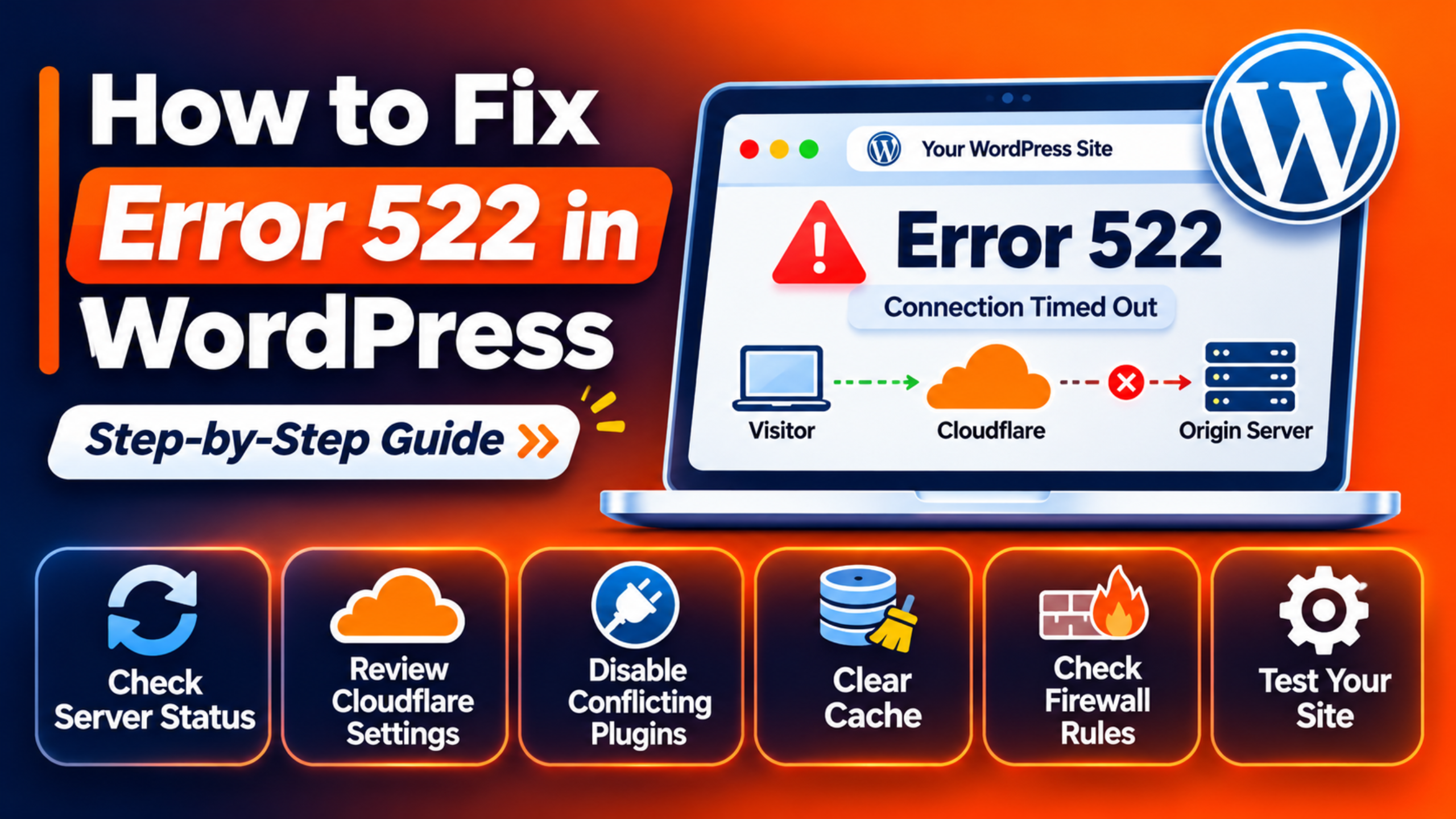
Error 522 only shows on sites that use Cloudflare. Cloudflare sits between your visitors and your web host. It passes each visit on to your server, which Cloudflare calls the origin. A 522 means Cloudflare knocked on your server’s door and got no answer in time. So the fault is almost always at your host or in your settings, not at Cloudflare.
The error often starts after a change. A new firewall rule can cause it. So can a move to a new host, a new security plugin, or a rush of traffic. Below you will learn the signs, the real causes, the fix for each one, and how to stop it coming back. You will not need another guide.
Signs That Show Error 522 in WordPress
The clearest sign is the Cloudflare error page itself. It shows the words “Connection timed out” and “Error code 522”. It also shows three small icons in a row. Your browser is marked as working. Cloudflare is marked as working. The last icon, your host, is marked with an error. That picture tells you where the chain broke.
Timing is the next sign. The page does not fail at once. It loads for about twenty seconds first, then the error shows. That wait is Cloudflare trying your server again and again before it gives up. A page that fails in one second is likely a different error.
The error may come and go. Your site may load fine in the morning and fail at lunch. That pattern points to a busy server or a rate limit. If the error shows on every page all day, think about a blocked address or a wrong IP. Your dashboard will fail too, since it runs on the same server.
Do not mix it up with its neighbours. Error 521 means your server refused the visit outright. Error 524 means your server took the visit but was too slow to reply. A 504 gateway timeout and a 502 bad gateway can come from your own host with no Cloudflare page at all. If your screen names Cloudflare and the code 522, you are in the right place.
Reasons Why Error 522 in WordPress Happens
Every 522 has the same root. Cloudflare tried to open a line to your server and heard nothing back. Five things can cause that silence. Each one breaks the line at a different point.
Your Server Blocks or Limits Cloudflare’s Addresses
This is the most common cause, by Cloudflare’s own account. With Cloudflare on, your server does not see each visitor’s address. It sees Cloudflare’s addresses over and over. A firewall can read that as one user sending a flood of visits. So it blocks the address or slows it down. A security plugin can do the same, and so can a rule in your .htaccess file. Once a Cloudflare address is blocked, its knocks are dropped without a reply. Cloudflare waits, then shows the 522.
Your Server Is Offline or Too Busy
A server can only hold so many visits at once. When it is full, it stops taking new ones. New knocks from Cloudflare get dropped in the queue. A traffic spike can fill it. So can bad bots, a heavy plugin, or a long backup job. On shared hosting, another site on the same machine can use up the room. If the server is fully down, it cannot answer at all. Both cases look the same from Cloudflare’s side.
The IP Address in Cloudflare Is Wrong
Cloudflare needs your server’s IP address to find it. You store that address in a DNS record called an A record. Hosts sometimes change your IP. It also changes when you move to a new host or a new plan. If nobody updates the A record, Cloudflare keeps calling the old address. Nothing lives there now, or a stranger’s server does. Either way, no answer comes back for your site.
Keepalive Is Switched Off on Your Server
Keepalive is a server setting. It lets one open line carry many requests in a row. Cloudflare relies on it to reuse lines to your server. With keepalive off, the server closes each line right after one reply. Cloudflare then has to open a fresh line for every file. Under load, some of those new lines fail to open in time. The result is a 522 that shows up now and then, mostly at busy hours.
Data Is Dropped on the Way to Your Server
Sometimes the server is fine and the address is right. The fault is in the network around the server. A bad router or a faulty network rule at the host can lose data on the way in. Cloudflare’s request never arrives, or the reply never leaves. You cannot see this from your dashboard. Only a network test run from the server can show it.
How to Fix Error 522 in WordPress (Step by Step)
Work through these steps in order. They start with quick, safe checks and end with the deeper tests. Test your site after each step, so you know which one worked.
Step 1: Check That Your Server Is Online
This step deals with a server that is fully offline. A server that is down cannot answer Cloudflare, so every page times out. Start here, since no setting will help while the server is off.
First, log in to your hosting account. Look for a status notice on the main screen. Many hosts also run a public status page that lists outages. Next, look at the service status in your hosting panel. A healthy server shows as running or active. A broken one shows as stopped, suspended, or in repair. Check your email as well. Hosts send a notice when they suspend a plan for a missed bill or for heavy use.
If the server is stopped, restart it from the panel if your plan allows that. If the plan is suspended, settle the reason with your host. If there is an outage, you can only wait for the host to finish. Then reload your site in a private window. If it loads, you are done. If the server is running and the 522 still shows, move on to step 2.
Step 2: Match the IP Address in Cloudflare to Your Host
This step fixes a wrong A record. Cloudflare sends visits to the IP address you gave it. If that address is out of date, the visits go to the wrong place and time out.
Confirm it before you change a thing. Open your hosting panel and find your server’s IP address. It is often on the main account screen, listed as the site IP or shared IP. Write it down. Now log in to Cloudflare and choose your site. Open the DNS records screen. Find the A record for your domain name, and the one for “www” if it exists. Compare the address there with the one from your host. If they match, this is not your cause. If they differ, you have found it.
To fix it, click edit on the A record. Replace the old IP with the one from your host. Save the record. Do the same for the “www” record if it is also an A record. Cloudflare starts using the new address within a few minutes. Reload your site in a private window. If the 522 is gone, the fix worked. If the page shows a new error like DNS_PROBE_FINISHED_NXDOMAIN, check that you typed the IP correctly.
Step 3: Allow Cloudflare’s Addresses Through Every Firewall
This step fixes the most common cause. Something on your side blocks or limits Cloudflare’s addresses, so their requests get no reply. The block can sit in three places. Check each one.
Start with your security plugin, since you can see it yourself. If you can reach the dashboard, open the plugin’s list of blocked or locked-out IP addresses. Then open Cloudflare’s public list of its IP ranges in another tab. Compare the two. If a blocked address falls inside one of Cloudflare’s ranges, that is your cause. Remove it from the block list. Then add Cloudflare’s ranges to the plugin’s allow list, if it has one. Our guide to setting up All-In-One Security shows where these lists live in that plugin.
Next, check your .htaccess file. This file sits in your site’s main folder and holds server rules. It can break your site if you edit it badly. So download a copy to your computer first. Open the file in your host’s file manager. Look for lines that start with “Deny from” or “Require not ip”. Compare any address on those lines with Cloudflare’s ranges. Delete only the lines that block a Cloudflare address, then save.
The last place is your host’s own firewall. You usually cannot see it. Send your host a short message. Ask them to confirm that no firewall or rate limit blocks Cloudflare’s IP ranges. Ask them to allow the full list. Hosts get this request often and can act on it fast. Once they confirm, reload your site. If it loads, a block was the cause. If not, go to step 4.
Step 4: Lower the Load on Your Server
This step fixes a server that is too busy to take new visits. The server is on, but it is full. It drops Cloudflare’s requests, and they time out. The giveaway is a 522 that comes and goes.
Check the load before you act. Open the resource usage screen in your hosting panel. It shows processor use, memory use, and the number of running processes. Healthy figures sit well below the limit of your plan. A broken picture shows one or more of them stuck at the limit. Note the times of the peaks. If they match the times of your 522 errors, load is your cause.
Now find what uses the power. Think about what changed last. A new plugin is a common culprit. Take a full backup first, or test on a staging copy. Then turn off the newest or heaviest plugin and watch the usage screen. Turn on page caching, so the server builds each page less often. Look at your visitor logs for one address that sends a flood of hits. That is often a bad bot, and you can block it in Cloudflare’s security settings. If memory is the limit, our guide to the memory exhausted error will help.
Give the changes an hour, then check the usage screen again. The figures should now sit below the limit. Your site should load each time you try it. If the load is normal traffic and still too high, your plan is too small. Ask your host about a larger one. If usage was never high, move on to step 5.
Step 5: Turn Keepalive On at Your Server
This step fixes a server with keepalive switched off. Without it, Cloudflare must open a new line for each file. Some of those lines fail under load, which gives you a 522 at busy times.
On shared or managed hosting, you cannot see this setting. Ask your host one clear question: “Is keepalive enabled on my web server?” A healthy answer is yes. If the answer is no, ask them to turn it on. This is a normal request, and it takes them a moment.
If you run your own server, you can check it yourself. Changing server settings can take your site offline, so copy the settings file before you edit it. On an Apache server, open the main settings file and find the KeepAlive line. It should read:
KeepAlive OnIf it says Off, change it to On and save. Then restart the web server so the change takes effect. Watch your site through the next busy period. If the stray 522 errors stop, keepalive was the cause. If they carry on, go to the last step.
Step 6: Ask Your Host to Test for Dropped Data
This step deals with data lost in the host’s network. The server works and the settings are right, yet requests still vanish on the way. You cannot fix this yourself, but you can get the right test done.
You reach this step by ruling out the rest. The server is online. The IP matches. No firewall blocks Cloudflare. Load is normal, and keepalive is on. If the 522 still shows, the network is the main suspect left.
Write to your host and ask for a network trace. The tools for this are called MTR and traceroute. Ask them to run the trace from your server to a Cloudflare IP address. The server logs show which Cloudflare address used to reach your site most often, so ask them to use that one. A healthy trace reaches the far end with no loss. A broken one shows loss at one hop, which marks the faulty point. Your host can then repair that part of their network.
Keep a record of what the host finds. If they see no fault, contact Cloudflare support. Send them the trace and the host’s notes. With both in hand, Cloudflare can check its own side. If you want a second pair of eyes at this stage, our guide on who to contact when your site is down can help.
Best Practices to Prevent Error 522 in WordPress in Future
Each cause above has a habit that keeps it away. Start with the firewall. Add Cloudflare’s IP ranges to the allow list in your security plugin today. Ask your host to do the same at the server. Cloudflare changes its ranges now and then, so check the public list a few times a year. When you add a new security plugin, check its allow list before you turn on any lockout rule.
Guard your A record whenever your hosting changes. Moving to a new host, a new plan, or a new server can change your IP. Make “update the A record in Cloudflare” a fixed line in your move checklist. After any move, compare the two addresses the same day. It takes two minutes and saves hours of downtime.
Keep the load on your server low. Use page caching, so most visits never reach WordPress. Remove plugins you do not use. Test new plugins on a staging copy before they touch the live site. Run heavy jobs, like backups, at quiet hours. Our guide to backing up WordPress with UpdraftPlus shows how to set a schedule. Watch the usage screen in your hosting panel once a week. A slow climb tells you to upgrade before the server fills up.
Last, set up an uptime monitor. It loads your site every few minutes and emails you when it fails. You will know about a 522 before your customers tell you. Keep your host’s support details where you can find them fast. Ask them once to confirm that keepalive is on, and note the answer.
Conclusion
Error 522 looks alarming, but it has a narrow meaning. Cloudflare reached out to your server and got no answer in time. You can spot it by the Cloudflare page, the code 522, and the long wait before it shows. The host icon on that page carries the error mark.
Five causes sit behind it. A firewall, plugin, or .htaccess rule blocks Cloudflare’s addresses. The server is offline or too busy. The A record points to an old IP. Keepalive is off. Or the host’s network drops data on the way.
The fix is to test each cause in turn. Check that the server is online. Match the IP in Cloudflare to your host. Clear every block on Cloudflare’s ranges. Lower the server load. Confirm keepalive is on. Then ask your host for a network trace. Test after each step, and stop when the site loads.
To keep it away, allow Cloudflare’s ranges, update your A record after every move, keep the server light, and monitor your uptime. Favicon trouble can also follow a Cloudflare setup, since old files stay in its cache. If your tab icon looks wrong next, see our guide on fixing a WordPress favicon that is not showing. For the full detail from the source, read Cloudflare’s own page on error 522 and its list of Cloudflare IP ranges.

James is an experienced WordPress and WooCommerce specialist with over 10 years of practical experience. At WPChatSupport, he creates clear guides that help website owners fix WordPress issues, improve speed, secure their sites, and manage WooCommerce stores with confidence. His expertise includes store setup, plugin configuration, theme customization, payment gateway integration, and website troubleshooting. Through simple and helpful content, James supports users in solving technical problems and following best practices for online business growth.