Introduction:
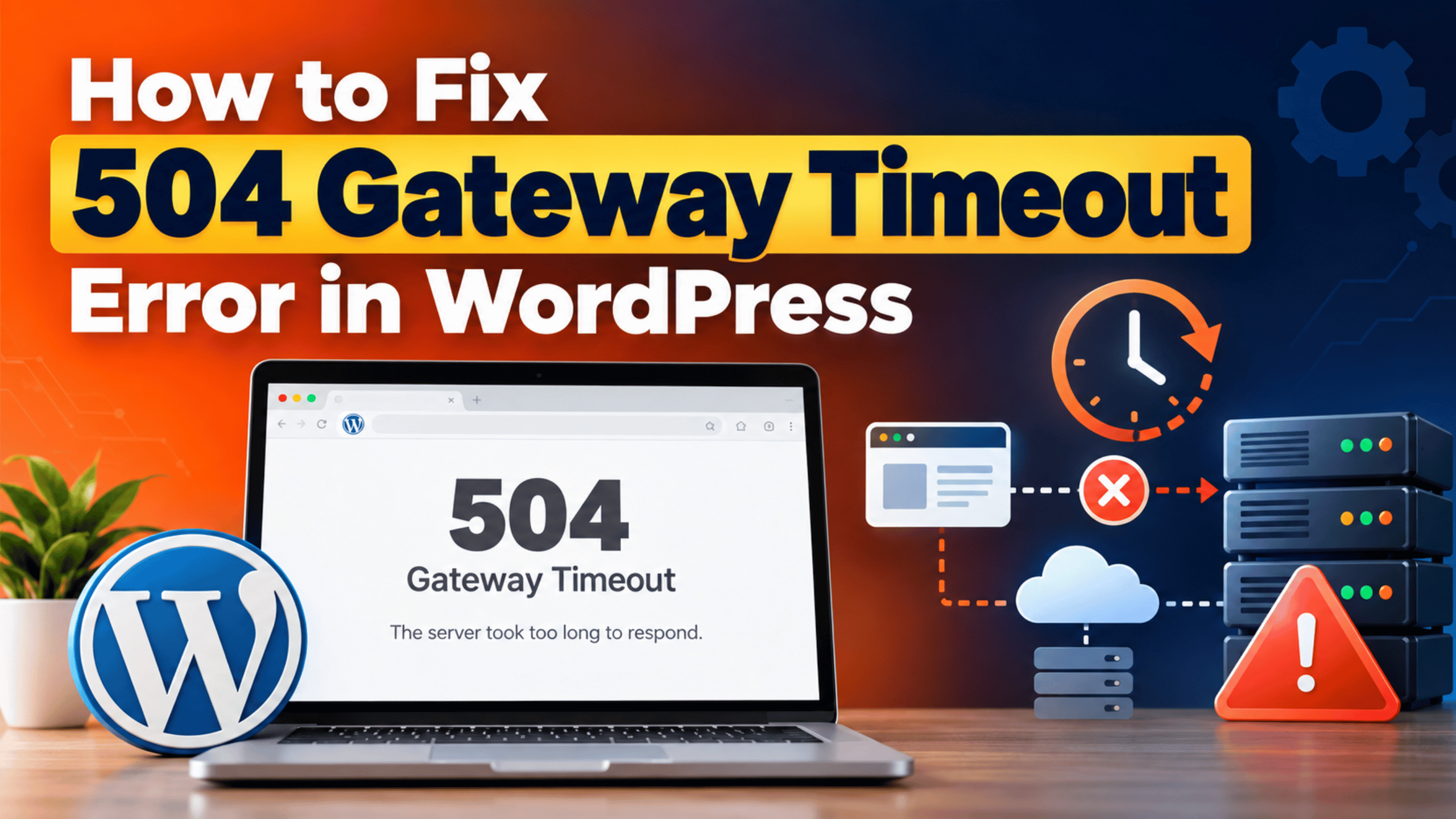
You click a link and the page just hangs. The tab spins for what feels like forever. Then a bare page appears with one line on it: 504 Gateway Timeout. Your theme is nowhere to be seen. Sometimes it happens only when you save a long post or run an import. Sometimes it takes down the whole site.
The long wait before the error is the clue. A 504 is not a crash. It is a server giving up on waiting.
Here is what happens underneath. Your web server receives a request for a page. It passes that request to PHP, the language WordPress is built in. PHP starts building the page. Your web server waits. It will only wait for a set number of seconds. When that time runs out, it stops waiting and sends the visitor a 504 instead. PHP may still be grinding away in the background, with nobody left to read the answer.
That distinction matters, because it changes the fix. Nothing is broken in the sense of being smashed. Something is simply too slow. Your job is to find out what is taking so long, and then either speed it up or give it more time.
This error hurts more than it looks. Visitors wait thirty or sixty seconds before seeing anything at all, and most of them leave before the error even appears. Search engines treat repeated timeouts as a reliability problem. On a shop, a checkout that times out costs you the sale and often the customer.
The usual triggers are ordinary. A plugin calls an outside service that stops answering. A backup or import runs on a normal page load. The database has grown large and one query now crawls. Traffic climbs and every PHP worker is occupied. A CDN in front of the site runs out of patience before your server finishes.
This guide covers the signs that confirm a 504. It covers the ten real causes behind it. Every cause gets a matching fix. It ends with the habits that keep the error away.
Signs That Show a 504 Gateway Timeout Error in WordPress
Timeouts are easy to confuse with other failures. These signs will tell you whether a 504 is really what you have.
There is a long delay before the error appears. This is the defining sign. A broken page fails instantly. A 504 makes you wait first. Count the seconds. If you consistently get 30, 60, or 120 seconds of spinning before the error, a timeout is cutting the request off. A regular, repeatable number is a very strong clue, because timeouts are set to round numbers.
The error page is plain and unstyled. You will see “504 Gateway Timeout”, “Gateway Timeout”, or “HTTP Error 504” on a blank background. None of your fonts or colours appear. That is because WordPress never finished, so it never sent your design.
It happens on one action, not everywhere. Very often the site is fine until you do one particular thing. Saving a long post. Running an import. Starting a backup. Updating prices in bulk. Loading a report screen. If the failure follows a specific action, you have already narrowed the cause a long way.
The admin area is slower than the public site. Dashboard screens run more queries and skip the cache. Your front pages may load fine while admin screens crawl or time out. That points at a slow database or a slow plugin.
It comes and goes with traffic. Timeouts that appear at your busiest hour and vanish overnight point at capacity, not at broken code. Note the times carefully. That timing is evidence.
Cached pages work, uncached ones fail. Your home page loads instantly while search results, cart, or checkout time out. Cached pages never touch PHP, so they cannot time out. This tells you PHP is the slow part.
It is not one of these. A 502 Bad Gateway error means the reply arrived but was invalid, and it usually appears quickly. A 503 Service Unavailable error means the server is up and deliberately refusing work. A 500 Internal Server Error means PHP ran and failed inside your site. Only a 504 makes you wait and then reports a timeout.
Reasons Why the 504 Gateway Timeout Error in WordPress Happens
Every 504 comes down to the same sentence: something took longer than the server was willing to wait. Ten things commonly cause that. Read them all, then pick the fix that matches your symptoms.
1. A Single Long Task Runs Past the Time Limit
Some jobs are simply big. Importing a few thousand products. Backing up a large media library. Regenerating every thumbnail. Running a bulk price update. These all run as one long PHP request while you sit and watch a progress bar. Your web server does not know the job is legitimate. It only knows the reply is late. When its patience runs out, it cuts the connection and shows a 504, even though the work was going perfectly well.
2. The Web Server’s Wait Is Shorter Than the Time PHP Needs
Two separate settings decide how long a request may take, and they often disagree. PHP has max_execution_time, which says how long a script may run. The web server has its own read timeout: fastcgi_read_timeout on nginx, or Timeout and ProxyTimeout on Apache. Both default to 60 seconds. If someone raises the PHP limit to 300 seconds but leaves the web server at 60, the web server still gives up first. The job is allowed to run, but nobody is left waiting for it.
3. Slow Database Queries Hold the Request Open
Every WordPress page runs database queries. Most finish in a few thousandths of a second. A badly written one on a large table can take many seconds instead. Filtering thousands of orders, running a complicated search, or listing posts without a useful index will all do it. PHP cannot continue until the database answers, so the whole request stalls. Databases get slower as they grow, which is why this cause often appears on sites that used to be fine.
4. Autoloaded Options Have Grown Out of Control
WordPress keeps settings in a table called wp_options. Rows marked to autoload are fetched on every single page load, before anything else happens. Plugins add rows there, and many never remove them when uninstalled. Over years, a site can end up loading several megabytes of settings on every request. That adds delay to every page, which pushes slow pages over the timeout. It is a quiet cause, because nothing looks broken.
5. Every PHP Worker Is Busy
PHP handles requests using a pool of workers, and each worker takes one request at a time. The pool size is capped. When traffic fills every worker, new requests wait in a queue. Waiting in the queue counts towards the timeout. So a request can time out before PHP even starts on it. One slow page makes this much worse. Each slow request holds a worker far longer than it should. The queue then backs up behind it.
6. WP-Cron Runs Heavy Jobs on Ordinary Page Loads
WordPress has a built-in scheduler called WP-Cron. It is not a real system scheduler. It only runs when somebody visits your site, and the visit that triggers it pays the price. If a backup, an email queue, or a sync job is due, one unlucky visitor’s page load carries that work. Their request takes far longer than normal and can time out. On a site with many scheduled tasks, or one where cron jobs have piled up unrun, this happens often.
7. A Plugin Is Waiting on an External Service
Plugins talk to outside services constantly. Licence checks, shipping rates, payment gateways, social feeds, analytics, font providers. When one of those services is slow or offline, the plugin waits for a reply. If it was written without a sensible time limit on that call, it waits a very long time. Your page cannot finish until it gives up. The frustrating part is that your server and your site are both perfectly healthy. The delay is somebody else’s.
8. A CDN or Proxy Hits Its Own Time Limit First
When a service like Cloudflare sits in front of your site, there is a second waiting period stacked on top of yours. Cloudflare’s documentation explains that a 502 or 504 usually means Cloudflare could not get a usable answer from your origin server. Cloudflare also has a separate error, 524, which means it connected to your server successfully but got no response within 100 seconds. Knowing which error you have tells you which machine ran out of patience, and therefore which one to fix.
9. A Traffic Flood or Bot Crawl Is Saturating the Server
Not all traffic is human. Aggressive crawlers, scrapers, and login brute-force attempts can generate more requests per second than your real visitors do. Each one consumes a PHP worker and a database connection. The server stays up but has nothing spare, so ordinary visitors queue and time out. Login and search pages are hit hardest, because they cannot be cached and are expensive to run.
10. Hosting Resource Limits Are Throttling Your Site
Shared hosting plans enforce limits you usually cannot see: a cap on concurrent processes, a CPU quota, an input-output quota. When you cross one, the host does not switch your site off. It slows you down. Requests that normally take one second now take thirty. Nothing in WordPress looks wrong, and no plugin is at fault. The site has simply outgrown its plan, or a neighbour on the same machine is using more than their share.
How to Fix the 504 Gateway Timeout Error in WordPress (Step by Step)
Work through these in order. Each step matches one cause above. Each tells you how to confirm the cause is yours before you change anything, and how to check the fix actually worked. Stop when the site behaves.
One warning first. Several steps change server settings, the wp-config.php file, or database contents. Any of those can take a live site down if you get it wrong. Take a full backup before you start, or work on a staging copy. Our guide to backing up WordPress with UpdraftPlus walks through it. The riskier steps below repeat this warning where it matters.
Step 1: Identify the Exact Action That Times Out
This step addresses the first cause: one long task running past the limit. It is also how you decide whether the rest of this guide applies to your whole site or to a single job.
Confirm it by mapping the failure. Load five ordinary pages: your home page, a blog post, a category page, your login page, and your dashboard. Note which ones work. Then repeat the action that failed. If everything else is fine and only one job breaks, you have a long-task problem, not a sick server. Time it as well. Does the job die at the same number of seconds every attempt? Then a timeout is cutting it off. It is not failing on its own.
The fix is to break the job into smaller pieces so no single request runs long. Most good import and migration plugins have a batch mode that processes a few hundred rows at a time. Turn it on. Backup plugins usually let you split archives into smaller chunks. Most also have a schedule option. Set the job to run at night instead of while you wait. For bulk edits, work through a few dozen items at a time instead of selecting everything. If the tool offers a command-line route, that avoids web timeouts completely, because the web server is not involved.
Verify by running the same job again in its new form. It should complete, even if it takes several passes. If the whole site times out rather than one job, skip ahead to Step 5.
Step 2: Line Up the Server Timeout With the PHP Execution Time
This step addresses the second cause: the web server giving up before PHP is allowed to finish. It is the most common reason a timeout fix does not seem to work.
Confirm it by reading both numbers. In your dashboard, open the Tools menu, go to Site Health, and open the Info tab. Expand the Server section and find the maximum execution time. Then find the web server’s read timeout. Ask your host for it. If you run the server yourself, read it from your nginx or Apache configuration. If the PHP number is larger than the web server number, that gap is your problem. A PHP limit of 300 seconds behind a web server limit of 60 gives you a failure at 60 every time.
The fix is to raise the web server timeout so it is equal to or greater than the PHP limit. On nginx, that means increasing fastcgi_read_timeout in the block that passes requests to PHP. On Apache, it means increasing Timeout, and ProxyTimeout if PHP runs through a proxy. Both default to 60 seconds. A syntax mistake here can take the entire server offline. Keep a copy of the original file. Test the configuration before you reload the service. On shared hosting you cannot do this yourself. Send your host the two numbers and ask them to raise the read timeout to match.
Verify by repeating the failing action and timing it. If it now runs past the old cut-off point, the numbers are in step. Treat this as breathing room rather than a cure, though. Our guide to the maximum execution time exceeded error explains why long-running scripts are worth fixing properly.
Step 3: Find and Fix the Slow Database Queries
This step addresses the third cause: a query holding the request open while PHP waits. It is the usual explanation when a site gets gradually slower over months rather than breaking suddenly.
Confirm it with a measurement, not a hunch. Install the free Query Monitor plugin from WordPress.org. It adds a panel to your admin bar. The panel lists every query a page ran, how long each took, and what triggered it. Load a page that is slow but does not quite time out, then open the Queries panel and sort by duration. Anything over half a second is worth attention. Query Monitor also names the component responsible, which is usually the whole answer.
The fix depends on what you find. If one plugin owns the slow query, check for an update first. Then look in its settings for an option to limit what it loads. Replace it if neither helps. Your slow query may be a search or a filter across a large table. Ask your host whether the right database index exists. A missing index is the usual reason a large table crawls. If your database has simply grown heavy with old revisions, expired transients, and spam comments, a database cleanup will help. Database changes are not easily undone. Take a database backup immediately before any cleanup. Use a well-reviewed tool rather than your own commands.
Verify by reloading the same page with Query Monitor still active. The total query time should drop noticeably. Then retry the action that was timing out.
Step 4: Clear Out Bloated Autoloaded Options
This step addresses the fourth cause: too much data being loaded on every request before anything useful happens. It is worth doing whenever every page feels heavy rather than one page failing.
Confirm it first. Query Monitor, from the previous step, reports how much autoloaded option data your site loads. As a rough guide, under about one megabyte is healthy. Several megabytes is a problem worth fixing. Many database cleanup plugins show the same figure and will list the largest rows by name. Look at that list. Rows belonging to plugins you removed long ago are dead weight.
The fix is to stop unnecessary rows from autoloading, and this is genuinely risky work. You are editing live settings, and deleting the wrong row can break a plugin or lose configuration. Take a full database backup first and, if you can, do this on a staging copy before production. Use a reputable optimisation plugin that offers a safe interface for this rather than editing the table by hand. Work through the largest rows, identify which plugin each belongs to, and remove only those whose plugin is no longer installed. Leave anything you are unsure about alone.
Verify by checking the autoloaded size again after the cleanup, then loading several pages and confirming they feel faster. Click through your most important pages and a checkout, if you have one, to make sure nothing lost its settings.
Step 5: Check Whether Every PHP Worker Is Occupied
This step addresses the fifth cause: requests timing out while queued, because no worker is free. It explains a 504 that follows your traffic rather than one particular action.
Confirm it by looking at two things together. First, the timing: does the error cluster at your busiest hour, after a newsletter, or during a sale, and disappear when traffic is light? Second, the PHP-FPM log, which your host can give you or your control panel may show. A warning that the pool reached its maximum number of children is direct proof that you ran out of workers.
The fix has two halves, and the cheap half comes first. Turn on full page caching so most visitors are served a saved copy and never occupy a PHP worker at all. This often removes the problem entirely and costs nothing. Our guide to fixing page speed issues in WordPress covers how to set caching up properly. Then, if the log still shows the pool filling, ask your host to raise your worker limit or move you to a larger plan. Do not simply demand a huge number. Each worker uses memory, often 60 to 100 megabytes on a plugin-heavy site, and too many workers will exhaust the server’s memory instead.
Verify by watching the site through the next busy period. The pool warning should stop appearing, and the timeouts should stop with it.
Step 6: Move WP-Cron Off Your Visitors’ Page Loads
This step addresses the sixth cause: scheduled jobs running on a normal visitor’s request. It is a good fix for a 504 that strikes at random, on random pages, with no pattern you can pin down.
Confirm it first. Install the free WP Crontrol plugin and open the scheduled events screen under the Tools menu. Look at two things. Are there tasks whose next run time is in the past, meaning they are overdue and piling up? And are there heavy recurring jobs from backup, email, or sync plugins? A long list of overdue jobs is a strong sign that cron work is landing on unlucky page loads.
The fix is to hand the job to a real scheduler on the server, which runs on time whether or not anybody visits. First add this line to wp-config.php, above the comment that tells you to stop editing:
define( 'DISABLE_WP_CRON', true );That stops WordPress triggering scheduled work on page loads. Editing wp-config.php can break the site if you mistype, so keep a copy of the original file. The second half is essential. Set up a real cron job in your hosting control panel. Point it at wp-cron.php and run it every five or fifteen minutes. If you skip that second half, your scheduled tasks stop running altogether and nothing warns you. Backups stop, scheduled posts never publish, and emails queue up silently.
Verify by waiting for your chosen interval and reloading the WP Crontrol screen. Overdue tasks should start clearing. Then check that a scheduled post publishes and a backup runs on time.
Step 7: Find the Plugin That Is Waiting on an Outside Service
This step addresses the seventh cause: a plugin stalled on an external call. It is the usual answer when a site times out for no visible reason and then fixes itself hours later.
Confirm it with Query Monitor again. Its HTTP API Calls panel lists every outside request a page made, how long each took, and which plugin made it. Load the slow page and read that panel. A call taking many seconds, or one that errors out after a long wait, is your answer, and the panel names the plugin responsible. Another clue is timing: if the problem started without you changing anything, an outside service probably changed instead.
The safest test is the official Health Check and Troubleshooting plugin from WordPress.org. Open Site Health from the Tools menu, choose the Troubleshooting tab, and enable troubleshooting mode. This disables every plugin and loads a default theme for you alone, while your visitors continue to see the normal site. That distinction matters on a live shop. Load the slow page. If it is fast, re-enable plugins one at a time until the delay returns.
Once you know the plugin, you have four options. Update it. Change its settings so it caches the outside data instead of fetching it live. Turn off the feature that makes the call. Or replace the plugin. Is it a licence check running on every page load? The developer will usually have a fix. This is a known mistake.
Verify by loading the page several times and watching the HTTP API Calls panel. The long call should be gone or cached.
Step 8: Work Out Whether Your CDN or Your Server Ran Out of Patience
This step addresses the eighth cause: a proxy timing out before your server answers. Skip it only if you have no CDN in front of your site.
Confirm it by reading the error page and the error number carefully, because they identify the culprit. Cloudflare’s documentation states that a 502 or 504 means Cloudflare could not get a usable response from your server. It also explains how to tell the two apart. A Cloudflare-branded page points at your server. An unbranded page points at Cloudflare. Cloudflare’s 524 error is different again: the connection to your server worked, but no response arrived within 100 seconds. So a 524 means your server is slow, while an unbranded 504 means the delay is not yours.
The second check is to take the CDN out of the picture. Temporarily set your domain to bypass the proxy, so visitors reach your server directly. Wait a few minutes for the change to spread, then repeat the failing request. If it works without the CDN, the CDN or its settings are part of the problem. If it still times out, your server is genuinely slow, and Steps 1 to 7 are where the real fix lives.
It is worth being realistic here. Raising a proxy’s patience is not usually possible on entry-level plans, and it is not the right goal anyway. If a request needs more than 100 seconds, the answer is to make it shorter, not to find someone willing to wait longer.
Verify by putting the CDN back once the request is fast. Then load the page in a fresh browser. Try a phone on mobile data too.
Step 9: Block the Bots and Brute-Force Traffic Eating Your Capacity
This step addresses the ninth cause: automated traffic consuming the workers your visitors need. It is worth checking whenever your server looks busy but your analytics show normal visitor numbers.
Confirm it by comparing two sources. Your analytics tool counts humans. Your server’s raw access log or your host’s traffic statistics count everything. If the server is handling far more requests than your analytics report, the difference is bots. Look at which addresses are being hit. Repeated hits on your login page, on search with odd terms, or on a shop’s filter pages are the usual signatures. A security plugin’s log will also show blocked login attempts, and a sudden spike there is telling.
The fix is layered. Turn on rate limiting for your login page, which every major security plugin offers, and add two-factor authentication for administrator accounts. Block or challenge the worst sources at your firewall or CDN. That is far cheaper than blocking them in PHP. The request never reaches your server at all. Make sure your search and filter pages are cached where possible. Is the traffic a real attack rather than a rude crawler? Your host can often filter it upstream. Contact them with the log evidence.
Verify by watching your request counts over the next day. Worker use should fall, and the timeouts should ease with it. Check that real visitors and legitimate search engine crawlers are still getting through.
Step 10: Check Whether Your Hosting Plan Is Throttling You
This step addresses the tenth cause: hosting resource limits slowing your site down. Come here when everything above checks out and the site is still slow.
Confirm it from your host’s own numbers. Most control panels have a resource usage screen. It shows CPU use, memory, concurrent processes, and input-output. Each one has a limit and a count of how often you hit it. That “faults” or “limit reached” count is the important one. If it is regularly above zero, your plan is capping you, and no amount of WordPress tuning will change that. Compare the times of those events against the times of your 504 errors. If they line up, you have your answer.
The fix is a conversation, not a setting. Send your host the resource report and the matching error times and ask which limit you are hitting. Sometimes the answer is a genuine inefficiency they can point you at. Often it is that your site has outgrown the plan, and the honest fix is more resources. Shared hosting also means neighbours, so if your usage is modest but performance is erratic, ask whether the machine itself is oversubscribed. Our guide to why hosting support cannot fix every WordPress problem explains where their responsibility ends and yours begins.
Verify after any plan change by repeating the action that failed and watching the resource screen during your busiest hour. The limit events should stop.
Best Practices to Prevent the 504 Gateway Timeout Error in WordPress
Each habit below shuts down one of the causes you just read about, so the error stops being a recurring event.
Never let a long job run on a page load. This closes off the first cause completely. Schedule backups, imports, and reports for quiet hours. Use batch mode wherever a plugin offers it. If a tool has a command-line option, prefer it, because the web server timeout does not apply there at all.
Keep your two timeout numbers in agreement. Write down your PHP execution limit and your web server read timeout, and check them after any host migration or PHP upgrade. Ensuring the web server waits at least as long as PHP is allowed to run prevents a whole class of confusing failures.
Watch your database as it grows. Run Query Monitor on your key pages once a month and look at the slowest queries. Clear out old revisions, expired transients, and spam comments on a schedule. A database that is maintained does not develop the slow creep that eventually causes timeouts.
Audit autoloaded options twice a year. Check the autoloaded size and remove rows left behind by plugins you no longer use. Doing this regularly keeps it a five-minute job rather than a risky cleanup of years of buildup.
Cache hard, so PHP handles only what it must. Full page caching is the single most effective protection here. A cached page cannot time out, because no PHP runs. That keeps your workers free for carts, checkouts, and logged-in users, which are the requests that genuinely need them.
Use a real cron job instead of WP-Cron. Once you have made the switch described in Step 6, scheduled work runs on time and never lands on a visitor’s page load. Check your scheduled events list every month for jobs that are overdue or duplicated.
Be strict about plugins that call outside services. Before installing anything, check when it was last updated and whether it caches the data it fetches. Fewer outside calls means fewer chances for someone else’s outage to become your outage.
Protect your login and search pages from automated traffic. Rate limiting, two-factor authentication, and firewall rules stop bots consuming the capacity your visitors need. Review your security plugin’s log monthly for new patterns.
Size your hosting for your busy hour, not your average. Ask your host what your worker and process limits are, and check your resource usage screen after every sale, campaign, or traffic spike. Upgrading before you hit the wall is much cheaper than recovering from a checkout outage.
Monitor uptime and page speed. A free uptime monitor will tell you about a timeout before a customer does. Watching your slowest pages over time shows you a problem building, while it is still easy to fix.
Conclusion: Putting the 504 Gateway Timeout Error in WordPress Behind You
A 504 Gateway Timeout means your web server asked PHP for a page. It waited as long as it was willing to. Then it gave up. Nothing is smashed. Something is just too slow. Three signs confirm it. A long pause before the error. A plain, unstyled page. And a fault that often strikes one specific action.
Ten causes explain nearly every case. A single long job running past the limit. A web server timeout set lower than the PHP limit. Slow database queries. Bloated autoloaded options. Every PHP worker occupied. WP-Cron running heavy jobs on page loads. A plugin waiting on an outside service. A CDN running out of patience first. Bots and brute-force traffic eating capacity. Or a hosting plan that is quietly throttling you.
The fix process follows the causes in order. Work out whether one action fails or the whole site does. Line up your two timeout numbers. Measure your queries with Query Monitor and clean up what is slow. Trim autoloaded options. Check your worker pool and turn on caching. Move cron to the server. Find the plugin stalled on an outside call. Decide whether your CDN or your origin ran out of patience. Block the bots. Then check whether your plan is the real limit. Every step tells you how to confirm the cause first, so you never change settings blindly.
Prevention comes down to the same few habits. Keep long jobs off page loads. Cache as much as you can. Maintain the database. Use a real cron job. Be picky about plugins that call outside services. Size your hosting for your busiest hour, not your quietest.
Do the timeouts continue after all ten steps? The bottleneck is usually at server level. It needs someone who can watch the machine while it happens. That is a sensible point to bring in help, and our team is here if you need it.

James is an experienced WordPress and WooCommerce specialist with over 10 years of practical experience. At WPChatSupport, he creates clear guides that help website owners fix WordPress issues, improve speed, secure their sites, and manage WooCommerce stores with confidence. His expertise includes store setup, plugin configuration, theme customization, payment gateway integration, and website troubleshooting. Through simple and helpful content, James supports users in solving technical problems and following best practices for online business growth.