Introduction
A 503 Service Unavailable Error can make any WordPress owner worried. Your website may stop loading without a clear warning. Visitors may only see an error message on the screen. In some cases, you may also lose access to wp-admin. This can make the problem feel even more serious. When a WordPress Website Down issue appears, quick action matters. It can affect traffic, leads, sales, and user trust.
If you run a business website, every minute can matter. A WooCommerce store can lose orders during this error. A service website can also miss important customer inquiries. The good news is that this issue is often fixable. You just need to follow the right process. The WordPress 503 Error can happen for many reasons. A plugin may stop working correctly. A theme may conflict with WordPress core. Your server may also reach its resource limit. Sometimes, a failed update can leave your site unavailable.
In other cases, heavy traffic can overload the server. This guide will help you understand the problem clearly. You will learn what this error means. You will also learn the common causes behind it. Then you can follow safe steps to Fix 503 Service Unavailable Error. A careful process can protect your website from more damage.
What Is the 503 Service Unavailable Error in WordPress?
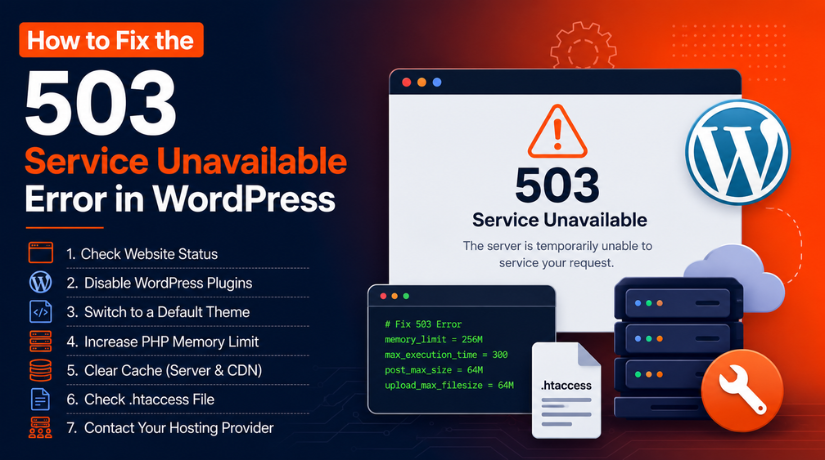
The 503 Service Unavailable Error is a server-side problem. It means the server cannot handle the request right now. This does not always mean your website is fully broken. The server may be busy, overloaded, or under maintenance. When someone visits your WordPress site, their browser sends a request. Your hosting server must process that request and send the page back. If the server cannot respond, it may show a 503 error.
Many users refer to it as a WordPress Server Error because of this. WordPress’s HTTP 503 Error message might show up in various ways. The page may display “503 Service Unavailable.” Additionally, you can notice “HTTP Error 503” or “Service Temporarily Unavailable.” “Backend server unavailable” may appear on certain websites. All of these indicators indicate a similar problem. The page cannot be served by the server. The problem could impact your entire website. Also, it might only impact certain pages or WordPress admin.
Sometimes, the homepage works, but the dashboard does not open. This can happen after updates, plugin changes, or traffic spikes. A 503 error is different from a 404 error. A 404 error means the page is missing. A 503 error means the server cannot respond now. That is why WordPress Error Troubleshooting should start with the cause. Once you know the source, the fix becomes easier. In the next sections, you will learn How to Fix 503 Error in WordPress safely.
Common Causes of the 503 Service Unavailable Error in WordPress
The WordPress 503 Error can happen for many different reasons. Some causes come from WordPress files, plugins, or themes. Other causes come from your hosting server or security tools. Before you Fix 503 Service Unavailable Error, you should understand what may trigger it. This makes WordPress Error Troubleshooting safer and faster.
Plugin Conflict or Faulty Plugin Can Stop Your Website
Plugins are one of the most common reasons behind this error. A plugin may have bad code, outdated files, or poor settings. It may also conflict with another plugin on your website. Some plugins run heavy tasks in the background. These tasks can use too much server power. When this happens, the server may stop responding properly. This can lead to an HTTP 503 Error WordPress issue.
Theme Issue or Custom Code Can Break Site Loading
A faulty theme can also cause a WordPress Server Error. This may happen after a theme update or code change. Custom code in the functions.php file can also create problems. If the code is wrong, WordPress may fail to load. A poorly coded theme may also use too many resources. This can make your WordPress Website Down for visitors.
Server Overload or Hosting Limits Can Trigger the Error
Your hosting server has limited resources. These include CPU, RAM, PHP workers, and entry processes. If your website crosses these limits, the server may fail. This is common on shared hosting plans. A growing website may need more server power over time. WooCommerce stores, membership sites, and large blogs need better hosting.
Failed Updates Can Leave WordPress in Maintenance Mode
WordPress enters maintenance mode during updates. This usually lasts only a short time. However, an update can fail or stop midway. When that happens, WordPress may remain stuck in maintenance mode. Visitors may then see a service unavailable message. This issue can appear after plugin, theme, or core updates.
Heavy Traffic, Bots, or Attacks Can Overload the Server
Sudden traffic spikes can also create this error. Your server may not handle too many requests together. Bad bots can also send repeated requests to your site. Brute-force login attempts can overload wp-login.php. Spam traffic can increase server usage quickly. These issues can cause a WordPress Website Down situation.
PHP Memory or Timeout Issues Can Affect WordPress
WordPress needs enough PHP memory to run smoothly. Themes, plugins, and scripts all use this memory. If the limit is too low, the site may fail. Long-running scripts can also create timeout errors. This can result in a WordPress Server Error or 503 message.
CDN, Firewall, or Security Rules Can Block Requests
A CDN or firewall can also create access problems. Sometimes, security rules block real users by mistake. A CDN may show a 503 error if the origin server fails. Security plugins may also block important WordPress requests. These settings should be reviewed during WordPress Error Troubleshooting.
List Of Quick Checks Before Start Fixing the 503 Error
Before you apply technical fixes, do a few simple checks. These checks can help you confirm the real issue. They can also prevent unnecessary changes on your website.
- Refresh the Website After a Few Minutes: Sometimes the problem is temporary. Your server may be busy or under short maintenance. Wait a few minutes and refresh the page again.
- Open the Website in Incognito Mode: Browser cache can sometimes show an old error page. Open the website in incognito mode. This helps confirm if the issue is browser-related.
- Check the Website on Another Device: Open the website on another phone, laptop, or network. This helps confirm if everyone sees the same error. If only one device shows it, cache may be involved.
- Check If wp-admin Is Working: Try opening your WordPress dashboard. If wp-admin works, troubleshooting becomes easier. You can check plugins, themes, and updates from there. If wp-admin fails, use hosting File Manager or FTP.
- Review Recent Website Changes: Think about what changed before the error started. Did you update a plugin or theme? Did you edit code or install a new tool? Recent changes often reveal the cause.
- Check Hosting Status and Resource Usage: Open your hosting panel and check server status. Review CPU, RAM, bandwidth, and entry process usage. If limits are high, hosting resources may be the issue.
- Avoid Repeated Checkout Attempts on WooCommerce Stores: If your store shows this error during checkout, avoid repeated refreshes. It may create payment or order confusion. First, check the server and payment status carefully.
If these checks do not solve the problem, start deeper troubleshooting. The next step is learning How to Fix 503 Error in WordPress using safe methods.
How to Fix the 503 Service Unavailable Error in WordPress Step By Step
To Fix 503 Service Unavailable Error, follow each step carefully. Check your website after every step. This helps you find the real cause without making extra changes.
Step 1: Deactivate All WordPress Plugins
- Open your WordPress dashboard if wp-admin is working.
- Go to Plugins > Installed Plugins.
- Select all plugins and click Deactivate.
- Check your website in a new browser tab.
- If the site works, reactivate plugins one by one.
- Check the website after each plugin activation.
- Remove, update, or replace the plugin causing the WordPress 503 Error.
- If wp-admin does not work, open File Manager or FTP.
- Go to wp-content and rename the plugins folder.
- This will disable all plugins at once.
Step 2: Switch to a Default WordPress Theme
- Go to Appearance > Themes if dashboard access works.
- Activate a default WordPress theme.
- Check your website after changing the theme.
- If the error disappears, your active theme may be faulty.
- Update the theme or contact the theme developer.
- If wp-admin does not open, use File Manager or FTP.
- Go to wp-content/themes/.
- Rename the active theme folder.
- Check if the website loads again.
Step 3: Remove the .maintenance File
- Open hosting File Manager or FTP.
- Go to your WordPress root folder.
- Enable hidden files if you cannot see them.
- Look for the .maintenance file.
- Delete the file from the root folder.
- Refresh your website.
- If the site opens, the update process caused the issue.
- Complete any failed WordPress, plugin, or theme updates carefully.
Step 4: Check Website Error Logs
- Open your hosting control panel.
- Look for PHP error logs or server logs.
- Check hosting resource logs if available.
- Review the logs for plugin, theme, or memory errors.
- If a plugin file appears, check that plugin first.
- If a theme file appears, review the theme.
- Use these details to make WordPress Error Troubleshooting easier.
Step 5: Increase PHP Memory Limit
- Check your current PHP memory limit.
- Increase memory from your hosting panel if available.
- You may also update wp-config.php, php.ini, or .user.ini.
- Make changes carefully and keep a backup first.
- Refresh your website after increasing memory.
- If the HTTP 503 Error WordPress issue returns, check plugins again.
- A heavy plugin or script may still be using too many resources.
Step 6: Check Hosting Resources
- Open your hosting account dashboard.
- Check CPU, RAM, bandwidth, and entry process usage.
- Review PHP workers if your hosting panel shows them.
- If limits are high, your server may be overloaded.
- Contact hosting support for server-level details.
- If the issue happens often, your website may need better hosting.
Step 7: Review CDN and Firewall Settings
- Open your CDN or firewall dashboard.
- Check if the CDN is showing origin server errors.
- Review firewall rules and blocked IPs.
- Check bot protection and security plugin logs.
- If the error started after a security change, review that setting.
- Do not disable security tools permanently.
- Only test changes carefully and restore protection after testing.
Step 8: Contact Hosting Support
- Contact your hosting provider if the issue continues.
- Share your website URL and error screenshot.
- Mention the exact time when the error appeared.
- Tell them about recent plugin, theme, or code changes.
- Ask them to check server logs, PHP errors, and resource limits.
- Also ask them to review firewall blocks or server maintenance.
- Hosting support can help confirm why your WordPress Website Down issue continues.
How to Prevent the 503 Service Unavailable Error in the Future
Preventing the 503 Service Unavailable Error is better than fixing it later. A stable WordPress website needs regular checks and safe updates. If you manage your site carefully, you can reduce downtime. You can also avoid repeated WordPress 503 Error issues.
Keep WordPress, Plugins, and Themes Updated Safely
- Update WordPress core, plugins, and themes on time.
- Always check plugin details before updating them.
- Avoid updating many plugins together on a live site.
- Create a backup before every major update.
- Test important updates on a staging website first.
- Remove outdated plugins that no longer receive support.
Use a Staging Website Before Major Changes
- A staging site is a test copy of your website.
- Use it before changing plugins, themes, or custom code.
- Test new updates before applying them to the live website.
- Check if forms, checkout, and pages work properly.
- Move changes live only after successful testing.
- This reduces the risk of a WordPress Website Down issue.
Remove Unused Plugins and Themes
- Keep only the plugins your website really needs.
- Delete unused plugins instead of leaving them inactive.
- Remove old themes that are not being used.
- Too many plugins can slow down your website.
- Extra plugins can also create security and conflict issues.
- A clean setup makes WordPress Error Troubleshooting easier.
Choose Reliable Hosting for Better Server Performance
- Use hosting that matches your website size and traffic.
- Check CPU, RAM, PHP workers, and storage limits.
- WooCommerce stores need stronger hosting resources.
- Avoid very cheap hosting for heavy business websites.
- Ask your host about server monitoring and backups.
- Good hosting can reduce WordPress Server Error problems.
Monitor Uptime and Website Performance
- Use uptime monitoring to track website availability.
- Set alerts for downtime and server errors.
- Check website speed and server response time often.
- Review hosting resource usage every few weeks.
- Fix small issues before they become bigger problems.
- Monitoring helps you act before users complain.
Schedule Backups and Heavy Tasks Properly
- Run backups during low-traffic hours.
- Avoid running backups during busy website times.
- Schedule malware scans when traffic is low.
- Do not run heavy imports during peak hours.
- Review cron jobs if the error happens often.
- Heavy tasks can trigger HTTP 503 Error WordPress issues.
Use Caching, CDN, and Security Tools Correctly
- Use caching to reduce server load.
- Set up CDN tools carefully for static files.
- Review firewall rules after every major change.
- Protect login pages from brute-force attacks.
- Block bad bots without blocking real visitors.
- Correct setup helps prevent 503 errors in WordPress.
Conclusion
The 503 Service Unavailable Error means your server cannot respond right now. It may happen because of plugins, themes, hosting limits, traffic spikes, or failed updates. Sometimes, CDN settings or firewall rules can also cause the issue. To Fix 503 Service Unavailable Error, start with simple checks first. Then deactivate plugins, test your theme, remove the .maintenance file, and check error logs.
You should also review PHP memory, hosting resources, and security settings. If the issue continues, contact your hosting support with clear details. Regular maintenance can prevent many future problems. Keep your website updated, use staging, remove unused plugins, and choose reliable hosting. A healthy WordPress website gives users a better experience.
It also protects traffic, leads, sales, and business trust. For more WordPress support information, you can visit WP Chat Support. You can also contact their support team at +1 888 602 0119 for help with WordPress website errors and related technical issues.
James is an experienced WordPress and WooCommerce specialist with over 10 years of practical experience. At WPChatSupport, he creates clear guides that help website owners fix WordPress issues, improve speed, secure their sites, and manage WooCommerce stores with confidence. His expertise includes store setup, plugin configuration, theme customization, payment gateway integration, and website troubleshooting. Through simple and helpful content, James supports users in solving technical problems and following best practices for online business growth.