Introduction
The WordPress Media Library helps you manage website images easily. You can upload, edit, view, and reuse images from one place. But sometimes, the Media Library does not work as expected. You may open it and see blank boxes instead of image previews. You may also see broken icons, grey thumbnails, or missing images. This issue can confuse website owners, bloggers, and store managers.
The good news is that images are not always deleted. In many cases, the files still exist on your server. WordPress may only fail to display them correctly. This can happen because of cache, plugins, themes, permissions, or server settings. Sometimes, the issue starts after a website update or migration.
This guide will help you understand the issue first. Then you can move toward the right fix safely. Before making changes, always take a full website backup. This protects your files, database, and website content.
What Is “WordPress Media Library Images Not Showing” Error?
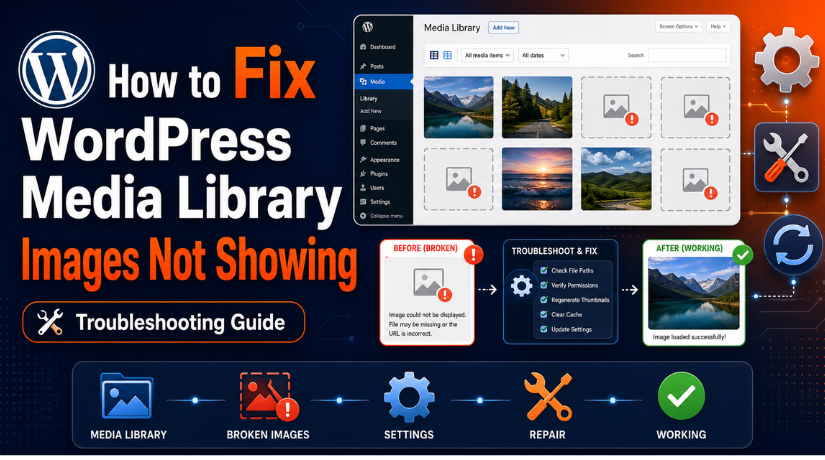
The WordPress Media Library images not showing error means image previews are missing or broken. It does not always mean your images are gone. It usually means WordPress cannot load, read, or display them properly. The issue may appear inside the dashboard, on live pages, or both.
A common sign is the WordPress media library blank screen. You may open the Media Library and see empty spaces. These spaces may replace image thumbnails that should appear there. This often happens because of cache, JavaScript errors, or plugin conflicts.
Another sign is broken image icons in the Media Library. This means WordPress has the image record, but cannot load the file. The file path may be wrong, or the file may be missing. File permission problems can also stop WordPress from showing images.
Sometimes, the Media Library keeps loading without showing anything. This can happen when WordPress admin scripts fail. It may also happen when a plugin blocks the Media Library request. Security plugins, cache plugins, and image tools can cause this problem.
Reasons Why WordPress Media Library Images Are Not Showing
Browser Cache May Show Old or Broken Image Data
Browser cache is one common reason behind this issue. Your browser saves website files to load pages faster. Sometimes, it keeps old or broken media data. Because of this, your WordPress Media Library may look blank or broken. This does not always mean your images are missing. Try clearing browser cache or opening the site in incognito mode.
WordPress Cache May Block Fresh Media Previews
Cache plugins can also cause missing image previews. These plugins store saved versions of your website files. If the cache becomes outdated, images may not load correctly. This can make the WordPress media library blank inside the dashboard. Clearing your WordPress cache can often fix the issue quickly.
CDN Settings May Serve Broken Image Files
A CDN helps load images from different servers worldwide. It improves speed, but wrong settings can cause problems. If CDN cache is old, images may not appear correctly. Sometimes, CDN tools also rewrite image URLs incorrectly. This can lead to WordPress images not displaying on your website or dashboard.
Plugin Conflict May Break the Media Library
Plugin conflict is a major reason for this problem. Some plugins change how images load, compress, or display. Cache plugins, security plugins, image optimization plugins, and gallery plugins can affect media files. A faulty plugin may make the WordPress media library broken after an update. Testing plugins one by one can help find the cause.
Theme Conflict May Affect Image Thumbnails
Your active theme can also affect Media Library images. Some themes add custom image sizes and media scripts. If the theme code is outdated, thumbnails may not show. This issue may appear after a theme update or change. Switching to a default theme can help confirm the problem.
Wrong File Permissions May Stop Image Access
WordPress needs correct permission to read media files. If permissions are too strict, WordPress cannot access images. If permissions are too open, your website may become unsafe. Wrong permissions can cause broken icons or missing thumbnails.
Incorrect Image URLs May Point to the Wrong Location
Incorrect image URLs can stop images from loading. This often happens after website migration or SSL changes. Your database may still use old domain links. It may also use HTTP links instead of HTTPS links. When URLs point to the wrong location, images cannot display properly.
Missing Files in the Uploads Folder May Cause Broken Images
Sometimes, WordPress still shows image records in the dashboard. But the real image files may be missing from the server. This can happen after a failed migration or incomplete backup restore. In this case, the Media Library may show broken image icons. You may need to restore missing files from a backup.
Quick Checklist Before You Start Fixing the Error In WordPress
Before you fix this issue, check a few simple things first. These checks help you understand where the problem starts. They also help you avoid risky changes on your website.
Take a Full Website Backup First
Always take a full website backup before making any changes. Your backup should include website files and the database. This step protects your images, posts, pages, plugins, and settings. If something goes wrong, you can restore the website safely.
Check If the Issue Is Only in the Dashboard
Open your WordPress dashboard and check the Media Library carefully. Then open your live website in another browser tab. If images show on the website but not in the dashboard, the issue may be admin-related. It may come from cache, plugin conflict, or dashboard scripts. This helps you fix WordPress media library issues faster.
Check If Images Are Broken on Live Pages Too
Visit a few pages and posts that already use images. Check if featured images, gallery images, and blog images appear. If WordPress images not displaying on live pages, the issue may be wider. It may involve image URLs, file permissions, CDN, or missing files. This check helps you separate dashboard issues from site-wide problems.
Open One Image URL in a New Tab
Right-click a broken image and copy its image address. Open that image URL in a new browser tab. If the image opens, the file still exists. The issue may be with display, cache, or scripts. If the image shows a 404 error, the file may be missing. This simple test gives you a strong clue.
Try Another Browser or Incognito Mode
Sometimes, your browser causes the problem. Open the website in another browser or incognito mode. This removes many local cache and extension issues. If images appear there, your main browser may be the cause. Clear the browser cache and test the Media Library again.
Disable Browser Extensions for Testing
Some browser extensions can block images or scripts. Ad blockers, privacy tools, and security extensions may affect WordPress. Disable them for testing, then reload the Media Library. If images appear after this, one extension caused the issue. You can then allow your website inside that extension.
Check Recent Website Changes Carefully
Think about what changed before the issue started. Did you update a plugin, theme, or WordPress core? Did you move the website to a new host? Did you add SSL, CDN, cache, or image optimization? These changes can cause a WordPress media library broken issue. Recent changes often point directly to the cause.
Check If Only New Uploads Are Affected
Upload one small test image to the Media Library. Use a simple JPEG or PNG file for testing. If old images show but new images fail, it may be a WordPress image upload issue. The cause may involve upload limits, permissions, or image processing. If both old and new images fail, check cache, plugins, and paths.
Do Not Delete Media Files Too Quickly
Do not delete images before checking the real cause. Many users upload duplicate images when previews disappear. This can make the Media Library messy and harder to manage. First, check image URLs, uploads folders, permissions, and cache. You should only delete files when you are fully sure.
Steps to Fix WordPress Media Library Images Not Displaying
If your WordPress Media Library is not showing images, do not panic. Start with simple checks before changing deep settings. Many image problems happen because of cache, plugins, URLs, or permissions. Follow these steps one by one and test after each step.
Step 1: Clear Your Browser Cache and Test Again
Start by clearing your browser cache first. Your browser may show old or broken media data. This can make the WordPress media library blank. After clearing the cache, reload your WordPress dashboard. You can also open the Media Library in incognito mode. If images show there, your browser cache caused the issue.
Step 2: Clear WordPress Website Cache Properly
Next, clear your WordPress website cache. Cache plugins save stored versions of website files. Sometimes, they save broken image previews too. Open your cache plugin settings and purge all cache. After that, refresh the Media Library page again. This may fix WordPress media library display problems quickly.
Step 3: Clear CDN and Server Cache
If you use a CDN, clear its cache too. A CDN may keep old image files active. This can cause WordPress images not displaying correctly. You should also clear server cache from your hosting panel. Many hosting companies use built-in cache systems. After clearing all cache, test your images again.
Step 4: Update WordPress Core, Theme, and Plugins
Outdated software can break image loading in WordPress. First, take a full backup of your website. Then update WordPress core, your active theme, and trusted plugins. Avoid using old or abandoned plugins on your website. After updates, clear cache and check the Media Library again.
Step 5: Undo Recent Website Changes Carefully
Check what changed before the issue started. Did you install a new plugin recently? Did you update a theme or move hosting? Did you enable SSL, CDN, or image optimization? Recent changes often cause WordPress media library broken issues. Undo one recent change at a time. Then test the Media Library after every change.
Step 6: Check for Plugin Conflict Safely
Plugins can affect images, uploads, scripts, and thumbnails. Cache, security, gallery, CDN, and image plugins may cause issues. First, create a backup or use a staging site. Then deactivate non-essential plugins for testing. Open the Media Library and check if images appear. If images return, reactivate plugins one by one. The last plugin that breaks images may be the cause.
Step 7: Switch to a Default WordPress Theme Temporarily
Your theme may also affect image previews. Some themes add custom image sizes or media scripts. Switch temporarily to a default WordPress theme for testing. Then open the Media Library and check your images. If images appear, your active theme may need updates. You can contact the theme developer for support.
Step 8: Check Uploads Folder Permissions
Wrong file permissions can stop WordPress from reading images. Open your hosting File Manager or FTP account. Go to the /wp-content/uploads/ folder. Check folder and file permissions carefully. Folders usually use 755 or 750 permissions. Files usually use 644 or 640 permissions. Do not set permissions to 777 for fixing images. It can create security risks for your website.
Step 9: Confirm Image Files Exist on the Server
Sometimes, media records exist but image files are missing. Copy one broken image URL from the Media Library. Open that URL in a new browser tab. If it shows 404, the image file may be missing. Check the correct folder inside /wp-content/uploads/. Restore missing images from a recent website backup.
Step 10: Fix Incorrect Image URLs After Migration
Image URLs can break after migration or domain changes. Your database may still use old image links. It may also use HTTP instead of HTTPS links. Check one broken image URL carefully. If it shows the old domain, update URLs safely. Use a trusted search-and-replace method after backup. Then clear all cache and test the website again.
Step 11: Regenerate WordPress Image Thumbnails
WordPress creates different thumbnail sizes after image upload. If thumbnails break, images may look missing. This often happens after migration or theme changes. Use a trusted thumbnail regeneration plugin for this task. Run the tool and wait until it completes. After that, clear cache and check the Media Library again.
Step 12: Check Image Format Problems
Some image formats may not work on every server. WebP, AVIF, and HEIC files need proper support. If phone images fail, convert them to JPEG first. Then upload the JPEG file to test the issue. If the JPEG works, format support may be the problem. Ask your hosting provider to check image format support.
Step 13: Increase PHP Memory and Upload Limits
Large images need enough server memory to process. Low limits can cause a WordPress image upload issue. You may see uploads complete but thumbnails fail. Ask your hosting provider to increase PHP memory limit. Also check upload size and execution time limits. This helps WordPress process large images more safely.
Step 14: Check CDN, Hotlink Protection, and Image Optimization
CDN and image tools can rewrite image URLs. Wrong settings may stop images from loading correctly. Check CDN image rewriting, lazy loading, and WebP delivery. Also review hotlink protection and firewall rules. Temporarily disable these features for testing. If images return, adjust those settings carefully.
Step 15: Reset Permalinks and Review the .htaccess File
Wrong server rules can block image files. Go to Settings and then Permalinks in WordPress. Click Save Changes without changing anything. This refreshes WordPress permalink rules safely. If the issue continues, check the .htaccess file. Always take a backup before editing this file.
Step 16: Check WordPress Site Health and Hosting Error Logs
If images still do not show, check error details. Go to Tools and then Site Health in WordPress. Look for REST API, loopback, or image processing errors. Also ask hosting to check server error logs. Look for permission errors, memory errors, 403, 404, or 500 errors. These logs can show the real cause clearly.
Do not apply all fixes at the same time. Test the Media Library after each single step. This helps you find the exact cause. It also prevents extra changes on your website.
Once images start showing again, stop and review that fix. Then keep a note for future troubleshooting.
How to Prevent WordPress Media Library Images Not Showing in the Future
You can prevent many Media Library problems with careful website management. A few simple habits can protect your images and website files. These steps also help avoid the WordPress media library broken issue later.
Keep Regular Website Backups
Always keep regular backups of your website. Your backup should include files and the database. Media files are stored inside the uploads folder. The database stores image records and attachment details. Both parts are needed for complete recovery.
Update WordPress Carefully
Keep WordPress, themes, and plugins updated. But always take a backup before updates. For bigger websites, test updates on staging first. This helps you catch plugin or theme conflicts early. Careful updates reduce Media Library display problems.
Avoid Using Too Many Image Plugins
Do not use many image tools together. Multiple cache, lazy-load, and optimization plugins may conflict. They may rewrite URLs or change image formats. Use only trusted plugins that you really need. This keeps image loading simple and stable.
Use Correct File Permissions
Keep uploads folder permissions safe and correct. Wrong permissions can block image access. Very open permissions can create security risks. Ask hosting support if you are unsure. Safe permissions help WordPress read media files properly.
Compress Images Before Uploading
Large images can cause upload and thumbnail problems. Resize and compress images before uploading them. This helps WordPress process files more easily. It also improves website speed and user experience. Smaller files reduce server load and errors.
Use Supported Image Formats
Use common formats like JPEG, PNG, and WebP. If a format fails, convert it before upload. For phone images, JPEG is often safer. Check hosting support before using newer formats heavily. This can prevent WordPress image upload issue cases.
Test the Media Library After Migration
Always test the Media Library after moving a website. Check old images, new uploads, and thumbnails. Also check live pages where images appear. Migration can break paths, files, or URLs. Early testing helps you fix problems quickly.
Conclusion
The WordPress media library not showing images issue can look serious. But it does not always mean your images are deleted. In many cases, the files still exist on your server. WordPress may only fail to display, read, or process them correctly.
Start with simple checks first. Clear your cache, test another browser, and review recent changes. Then check plugins, themes, file permissions, image URLs, thumbnails, CDN settings, and server limits. This step-by-step method helps you find the real cause without making risky changes.
If WordPress images are not displaying after migration, check image paths and upload folders. If new uploads fail, review file formats and server limits. If the WordPress media library is blank, check cache, plugin conflicts, and dashboard errors. Each sign can point to a different cause.
For safer troubleshooting, avoid deleting media files too quickly. Also avoid changing database or server files without a backup. If you need help reviewing the issue, you can contact WPChatSupport for WordPress support guidance. Visit https://wpchatsupport.com/ or call +1 888 602 0119 for assistance with WordPress Media Library issues.

James is an experienced WordPress and WooCommerce specialist with over 10 years of practical experience. At WPChatSupport, he creates clear guides that help website owners fix WordPress issues, improve speed, secure their sites, and manage WooCommerce stores with confidence. His expertise includes store setup, plugin configuration, theme customization, payment gateway integration, and website troubleshooting. Through simple and helpful content, James supports users in solving technical problems and following best practices for online business growth.