Introduction
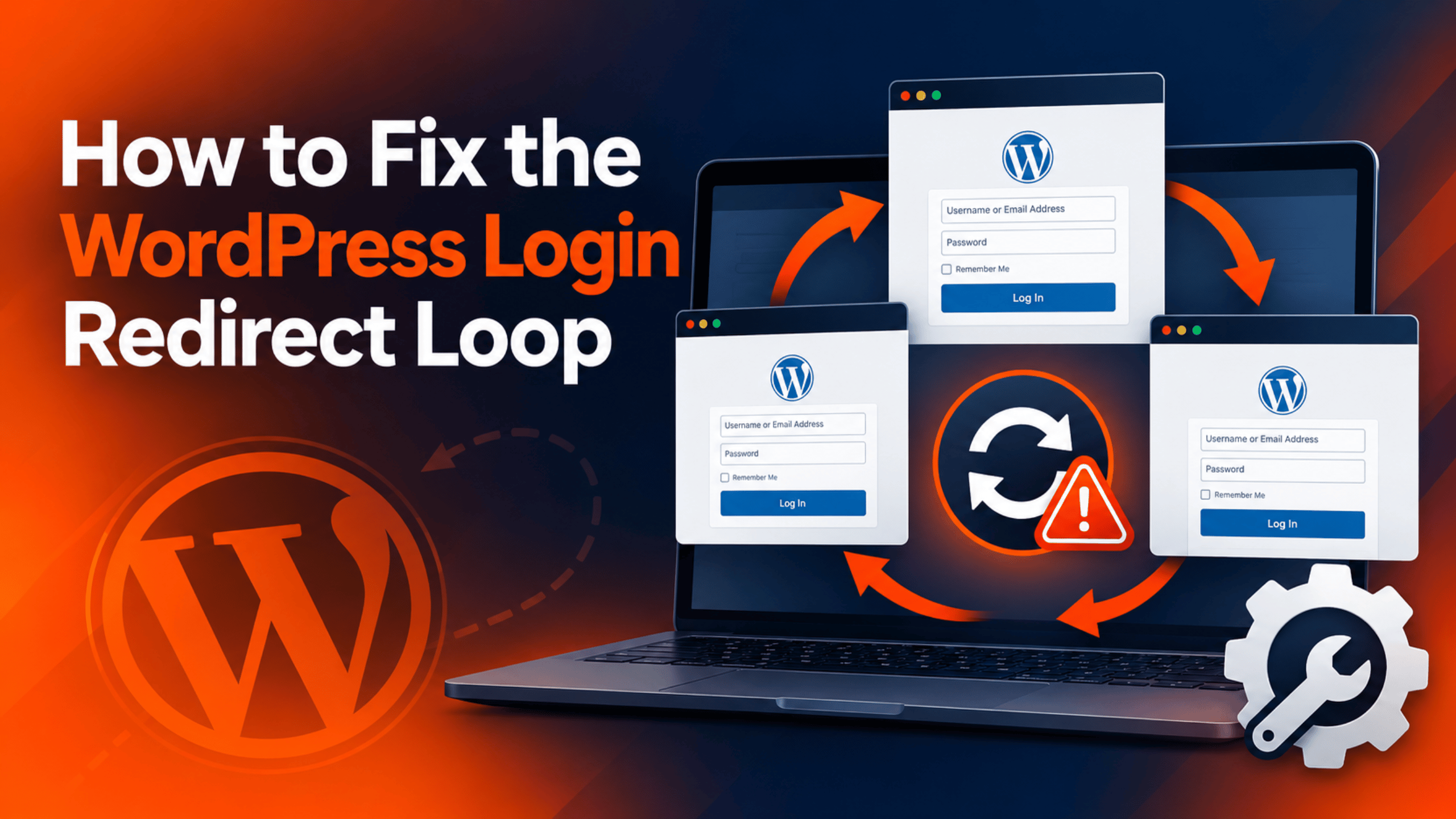
You type your password. The screen blinks. Then the empty login form comes straight back. There is no error, no warning, and no clue about what went wrong. You try again and the same thing happens. This is the WordPress login redirect loop, and it locks you out of your own dashboard.
The loop is frustrating because nothing looks broken. Your password is right. Your front end still loads for visitors. Only the door to the back end keeps swinging shut. Many site owners assume they have been hacked. In most cases the real reason is far duller than that.
Almost every WordPress login redirect loop comes down to one thing. The sign-in file hands your browser a cookie for one web address. The dashboard then looks for that cookie at a slightly different address. The two never meet, so the dashboard treats you as a stranger and sends you back to the login screen. You log in again, and the ride starts over.
This guide walks you through the whole problem. You will learn the signs that prove you have a loop and not some other login fault. You will see every common reason the loop starts, explained in plain words. Then you get a step by step fix list, ordered from the safest check to the deepest one. Each step tells you how to prove the cause is yours before you change anything.
The loop usually starts after a change. A move to a new host. A switch from http to https. A new security or caching plugin. A copied staging site. Even a stray space in a settings file can do it. Knowing which change came first will save you a lot of time.
Signs That Show You Have a WordPress Login Redirect Loop
“I cannot log in” covers many faults, and each one needs a different fix. Two minutes spent on the signs will save you an hour of blind guessing. Work through the list below and write down exactly what you see on screen.
Start with the form itself. In a true loop the login form loads fine and looks normal. You fill it in, press the button, and the blank form returns. The key detail is the silence. There is no “password is wrong” notice and no error box. WordPress accepted your details, then forgot you a moment later.
Next, look at the web address bar after the bounce. A loop almost always leaves a long address behind. You will see something like wp-login.php?redirect_to=...%2Fwp-admin%2F in the bar. That tells you the dashboard asked the login file to send you somewhere after sign-in. It is proof that wp-admin refused you, rather than the login form rejecting your password.
Watch for a browser level complaint too. If the bounce happens many times in a row, Chrome or Firefox may stop and say the page redirected you too many times. That message points at the same root cause, but it can also appear on pages that have nothing to do with login. If every page on the site shows it, read our guide on how to fix ERR_TOO_MANY_REDIRECTS in WordPress instead.
Check a few other small clues. A notice saying cookies are blocked or not supported points straight at your browser or your cache. A dashboard that opens for one second and then throws you out is the same loop wearing a different hat. If you get in and stay in, but drop out ten minutes later, you have a different fault. Our guide on why WordPress keeps logging you out fits better. If the login form never loads at all, start with our guide on WordPress login page not working instead.
Finally, test the edges. Does the loop happen in a private window as well? Does it happen on a phone on mobile data? Does it hit every user, or only you? Does the front end still work? A loop that hits every user on every device is a site problem. A loop that only hits one browser is a cookie problem in that browser. Write your answers down. They decide which step below you start with.
Reasons Why the WordPress Login Redirect Loop Happens
Nine causes produce almost every login loop. Each one breaks the same chain in a different place. Read them all before you touch anything, because the right cause makes the fix obvious.
The Two WordPress Addresses Do Not Match the One You Use
WordPress keeps two web addresses in its database. One is the Site Address, which is what visitors type. The other is the WordPress Address, which is where the core files sit. Both live in the wp_options table as home and siteurl.
These two values do more than fill in links. The login file uses them to decide which domain and which path the sign-in cookie belongs to. The dashboard then rebuilds its own address from the same values and looks for that cookie. If you reach the login screen on a hostname that does not match, the browser will not hand the cookie back. The dashboard sees nobody, so it fires you back to the login form. That is the loop in one sentence.
A www or https Mismatch Splits Your Cookie in Half
Browsers treat example.com and www.example.com as two separate homes for cookies. They treat the plain and secure versions of an address with the same care. So a cookie set on one variant is simply invisible on the other.
This causes trouble after any move to a secure address. Your host may add a redirect that forces every request to the secure www version. WordPress may still hold the plain non-www version in its settings. You sign in at one address, get bounced to the other, and your cookie is left behind. Nothing is corrupt. The two halves of your site just disagree about their own name.
Leftover Settings in wp-config.php Override Everything
The wp-config.php file can hard-code your addresses using WP_HOME and WP_SITEURL. It can also pin the cookie to a fixed domain using COOKIE_DOMAIN. When those lines are present, they win. The values stored in the database are ignored.
That is useful during a move and dangerous afterwards. People copy a live site to a staging server and forget to clear these lines. Or they add them to rescue a broken site and never remove them. Months later the site has a new domain, but the file still names the old one. The cookie goes to a domain that no longer exists, so the dashboard never finds it.
Your Browser Is Holding a Stale or Blocked Cookie
Browsers keep old cookies for a long time. After a site change you can end up with two sign-in cookies for the same domain, stored under different paths. WordPress reads the wrong one, decides it is not valid, and starts again.
Strict privacy settings cause the same ending by a different road. WordPress uses cookies to prove who you are, so a browser that refuses to store them can never keep you signed in. WordPress also drops a short-lived test cookie to check whether storing works at all. When that test fails you get a notice saying cookies are blocked or not supported. The official WordPress guide to cookies lists each one and explains what it is for. Browser extensions that scrub cookies on a timer will do this to you quietly.
A Cache Is Serving a Logged-Out Copy of the Dashboard
A page cache stores one finished copy of a page and hands the same copy to everybody. That is wonderful for your home page and poison for your login screen.
If the cache stores a copy of wp-login.php or any dashboard page, your fresh cookie never gets acknowledged. You receive a stored response built for a visitor who was not signed in. The dashboard in that stored copy redirects to login, so you loop. A CDN in front of your site can do exactly the same thing, even when your plugin is set up correctly. Server side caches and object caches can also hold a stale copy of the two address options.
A Plugin Is Sending Its Own Login Redirect
Many plugins hook into the moment just after sign-in and send you somewhere of their choosing. Security plugins, two-factor tools, membership systems, redirect managers and login-page designers all do this.
The trouble starts when two of them disagree, or when one of them points at a page that itself needs you to be signed in. Secure-address plugins are a common culprit. They rewrite links on the fly to force the secure version, which can clash with the address stored in your database. A security plugin that hides the standard login file will also loop you if a stale link still points at the old one.
Theme Code Interferes With the Sign-In Flow
A theme can hook into the same login moment that plugins use. Custom code in functions.php might send members to a profile page, or push everyone to the front end after sign-in. If that target page is locked, you bounce right back.
Themes cause a second, sneakier version of this. A stray blank line or a stray character in a theme file makes PHP start sending page content early. Cookies must be sent before any content leaves the server. Once content has started, the cookie header is refused, so no sign-in cookie is ever stored. The login appears to work and then nothing sticks.
A Broken .htaccess or Server Rule Fights WordPress
On Apache servers, the .htaccess file in your site root controls how addresses are handled. WordPress writes a small block of rules there for pretty links. People and plugins often add their own rules above or below that block.
A hand-written rule that forces www, or forces the secure version, can fight the redirect WordPress is already doing. The result is a tug of war where each side sends the browser to the other. A rule that rewrites the wp-admin path can strip the cookie path as well. Nginx servers have no .htaccess file, but a redirect block in the server config does the same damage.
The User Account Has Lost Its Access Rights
Your dashboard needs more than a valid cookie. It needs an account with the right to read the back end. WordPress stores those rights in the usermeta table, under a key that starts with your database table prefix.
Change that prefix during a move and the key no longer matches. WordPress then finds a real, signed-in user with no rights at all. The dashboard refuses such a user and sends them out to the login screen, which is where the loop comes from. A plugin that edits roles badly, or a half-finished import, can wipe the same key. The giveaway is that the loop hits one account while another account gets in fine.
How to Fix the WordPress Login Redirect Loop (Step by Step)
Work down these steps in order. They start with checks that cannot hurt your site and end with ones that touch files and the database. Each step names the cause it fixes. It shows you how to prove that cause is yours. Then it tells you what to change and how to confirm it worked. If a step does not help, undo it and move to the next one.
Before you touch any file or database table, take a full backup. A loop is annoying but your site is still alive, and a careless edit can take it down completely. Our guide on how to back up WordPress using UpdraftPlus covers this in a few minutes. Better still, try the riskier steps on a staging copy first.
Step 1: Clear Your Cookies and Test in a Private Window
This step deals with a stale or blocked cookie in your browser. That cause matters because WordPress proves who you are with a cookie, so an old or rejected one leaves the dashboard with nobody to recognise.
Confirm it first, and the check takes ten seconds. Open a private or incognito window and try to sign in there. A private window starts with no stored cookies at all. If you get into the dashboard and stay in, your normal browser is holding bad data and the rest of the site is fine. If the private window loops as well, this is not your cause, so skip to the next step.
To fix it, go to your browser’s privacy settings and clear cookies and site data for your domain only. Clearing everything works too, but it signs you out of every other site. Then close every tab for your site and open a fresh one. Check that cookies are allowed for your domain while you are in there, and turn off any extension that deletes cookies automatically.
Now load your login page and sign in. You should land on the dashboard and stay there after a page refresh. If the loop returns the moment you reload, the cookie is being set and then thrown away, which points at the cache or the address settings below.
Step 2: Make Sure Both WordPress Addresses Match the Address You Use
This step fixes the single most common cause: the two stored addresses do not match the address in your browser bar. The mismatch matters because the login file builds the cookie from those stored values, and the dashboard checks for the cookie at the same values. A gap of one www or one letter is enough to break the chain.
Confirm it without changing a thing. Open your database through your host’s phpMyAdmin tool and browse the wp_options table. Find the rows named siteurl and home and read their values. A healthy pair looks identical to what you type to reach the site. Both should start with https:// if your site is secure. Both should agree about www. Neither should end with a slash. If either value names an old domain, a staging address, or the plain http version, you have found your cause.
Back up the database before you edit it, because this change is permanent. Then edit the two rows so they both hold the exact address you use, written the same way in both. Save each row. The official WordPress migration handbook describes every safe way to change these two values. If phpMyAdmin feels risky and you have command line access, the safer route is two short commands:
wp option update home 'https://example.com'
wp option update siteurl 'https://example.com'
Reload your login page and sign in. The loop should end at once, because the cookie and the check now agree. If your pages look odd afterwards, re-save your permalinks as shown in Step 5. If the two values were already perfect, leave them alone and carry on.
Step 3: Empty Every Cache and Stop Caching the Login Page
This step clears a cache that is handing you a logged-out copy of the dashboard. It matters because a cache replies with a stored page instead of a fresh one, so your brand new cookie is never taken into account.
Confirm it with a simple test. Sign in using a browser you have never used on the site, with no extensions running. If that works, a cache is unlikely. Then check what you are running. Look in your plugin list for a caching plugin, and ask your host whether they run a server cache or a CDN in front of your site. Many managed hosts do, and it is on by default.
Clear everything in order. Empty your caching plugin’s page cache first. Then purge your CDN. Then ask your host to clear any server side page cache and object cache. Next, open the caching plugin’s settings and add an exclusion rule so the login file and the whole wp-admin path are never stored. Most plugins exclude these by default, but a custom rule or an aggressive setting can undo that. If your host offers a “bypass cache for logged in users” switch, turn it on.
Load the login page with a hard refresh and sign in. A fixed site lets you move around the dashboard without being thrown out. If you are still looping, the cache was not the problem, so put your exclusion rules back the way you like them and move on.
Step 4: Remove Leftover Address and Cookie Lines From wp-config.php
This step clears out hard-coded settings that override your database. Those lines matter because they win every argument. If one of them names an old domain, nothing you fix in the database will take effect.
Confirm it by reading, not editing. Open wp-config.php in your file manager or over FTP and look for lines that define WP_HOME, WP_SITEURL, COOKIE_DOMAIN, ADMIN_COOKIE_PATH or RELOCATE. A healthy file on a settled site usually has none of them. Each one you find should name your current, correct address. Anything naming an old host, a staging domain, or the plain http version is your cause.
Download a copy of the file before you touch it, because a broken wp-config.php takes the whole site offline. Then delete the stale lines, or correct them to your real address. The RELOCATE line should always be removed once a move is done, since leaving it in place is a known security risk. If you prefer to keep your addresses in the file, write them like this:
define( 'WP_HOME', 'https://example.com' );
define( 'WP_SITEURL', 'https://example.com' );
Save the file and upload it back. Load the login page and sign in. If you see a blank white page instead, you have introduced a typing error, so put your downloaded copy back and try again more slowly.
Step 5: Replace .htaccess With a Clean Copy and Re-Save Permalinks
This step ends a tug of war between your own redirect rules and the one WordPress performs. It matters because a server rule runs before WordPress does. A rule that forces www or forces a secure address can keep bouncing the browser between two versions of the same page.
Confirm it by reading the file. Open the .htaccess file in your site root. The block between the WordPress begin and end comments is safe. Look at everything outside it. Custom lines that mention RewriteRule, Redirect or wp-admin are suspects, especially if they were added by a plugin you no longer use. If your host runs Nginx you will have no such file, so ask them to show you the redirect block in your server config instead.
Take a copy of the file first, and paste any custom rules into a plain text note so you can put them back. Then replace the whole file with the standard WordPress block:
# BEGIN WordPress
RewriteEngine On
RewriteRule .* - [E=HTTP_AUTHORIZATION:%{HTTP:Authorization}]
RewriteBase /
RewriteRule ^index\.php$ - [L]
RewriteCond %{REQUEST_FILENAME} !-f
RewriteCond %{REQUEST_FILENAME} !-d
RewriteRule . /index.php [L]
# END WordPress
Now try to sign in. If you get through, open the permalink settings screen and press Save once. That makes WordPress rewrite the file properly for your setup. Our guide on how to set up and fix permalinks in WordPress explains what that button actually does. Add your custom rules back one at a time, testing after each, so you can see which one caused the loop.
Step 6: Rule Out Plugins by Renaming the Plugins Folder
This step finds a plugin that is sending its own redirect after sign-in. It matters because such a plugin can override the normal flow and point you at a page that itself demands a signed-in user.
Confirm it in one move, even though you cannot reach the plugin screen. Connect over FTP or open your host’s file manager and go to the wp-content folder. Rename the plugins folder to plugins-off. WordPress cannot find any plugin files, so it turns them all off at once. Now try to sign in. If you get into the dashboard, a plugin is your cause. If you still loop, plugins are innocent.
Rename the folder back to plugins straight away. Every plugin will show as inactive, which is expected. Sign in and turn them back on one at a time, reloading the dashboard after each. The one that brings the loop back is your culprit. Start with security tools, secure-address tools, caching tools, membership systems and anything that changes the login page, since those are the usual suspects.
When you find it, look in its settings for an option that controls where users go after sign-in, or an option that rewrites your site address. Fixing that setting usually keeps the plugin and ends the loop. If not, replace the plugin and tell its author what you found. Renaming folders on a live site leaves a short window with no plugins running. Do this at a quiet hour, or on a staging copy.
Step 7: Switch to a Default Theme to Test Your Theme
This step checks whether your theme is interfering with sign-in. It matters because theme code can hook into the same moment plugins use, and can also send page content out before the cookie is sent.
Confirm it the same way you tested plugins. In wp-content/themes, rename your active theme folder. WordPress cannot find it, so it falls back to a default theme such as Twenty Twenty-Five, as long as one is installed. Try to sign in. A dashboard that opens means your theme is the cause. A loop that continues means it is not, so rename the folder back and move on.
If the theme is to blame, look at its functions.php file. Search for any code that mentions a login redirect or a redirect after sign-in. Search for code that sends users to a members page or a profile page. Comment that code out and test again. Also check the very top and the very bottom of the file. A blank line or a stray character outside the PHP tags will push content out early and stop the cookie being set.
Never edit theme files directly on a live site. Use a child theme or a staging copy, and keep the original file so you can put it back. When you are done, reload the dashboard twice to prove the sign-in sticks across page loads.
Step 8: Find Content Being Sent Before the Cookie
This step hunts the quietest cause of all: content leaving the server before the cookie header does. It matters because a cookie can only be sent in the page header. Once any text has been sent, the server refuses to add the cookie, so sign-in silently fails to stick.
Confirm it by looking for the evidence. Turn on WordPress debugging so warnings are written to a log file rather than shown on screen. Add these lines to wp-config.php above the “stop editing” comment:
define( 'WP_DEBUG', true );
define( 'WP_DEBUG_LOG', true );
define( 'WP_DEBUG_DISPLAY', false );
Try to sign in, then open wp-content/debug.log. A message about headers already being sent is your proof, and it names the file and line number that sent content first. That is exactly where to look.
Open the named file and check the ends. Remove any blank lines or spaces after the final ?> tag. Better still, delete the closing tag entirely, which is the normal style in WordPress files. Check wp-config.php the same way. Watch for an invisible byte order mark at the very start of a file, which some editors add. Saving the file as plain UTF-8 without that mark clears it. Turn debugging back off once you are done, because a public log file is a security risk.
Step 9: Restore the Account’s Access Rights and Check the Table Prefix
This last step repairs an account that signs in but has no right to the dashboard. It matters because WordPress stores those rights under a key that carries your database table prefix. Change the prefix and the key no longer matches, so a valid user is treated as having no access and pushed back out.
Confirm it before you edit anything. The strongest clue is that one account loops while another gets in. To check properly, open your database and find the usermeta table. Look for a row for your user ID with a key ending in capabilities. Note the text before that word. It must match the prefix on your table names, which you can also read from the $table_prefix line in wp-config.php. A healthy site has all three in agreement. A mismatch, or a missing row, is your cause.
Back up the database first, because this is a direct edit to user data. Then correct the prefix in the key name so it matches your tables. Do the same for the matching user level row. If the row is missing altogether, the cleanest repair is to reset the role from the command line:
wp user update your-username --role=administratorSign in and open two or three dashboard screens. Staying in across several pages means the rights are back. If you are still looping after this step, the fault is likely outside WordPress. Ask your host to check for a redirect rule, a firewall rule or a proxy setting on their side. Share the exact address you see in the bar after the bounce.
Best Practices to Prevent the WordPress Login Redirect Loop in Future
Every cause above has a habit that stops it coming back. These are not generic maintenance tips. Each one closes a specific door.
Pick one canonical address and never waver. Decide on the secure version, with or without www, and write it the same way everywhere. Use it in both WordPress address fields. Use it in your host’s redirect rule. Use it in your CDN. A site that agrees with itself about its own name cannot split a cookie in half.
Treat wp-config.php as a file you clean up after. Any address or cookie line you add during a move should be removed as soon as the move is finished. Keep a short note of every line you add and why. The RELOCATE setting in particular should never be left behind, because it lets an attacker change your site address in some setups.
Keep your login path out of every cache. After you install or change a caching plugin, check its exclusion list and confirm the login file and wp-admin are still excluded. Do the same after a host migration, since a new server cache may arrive with different defaults. Ask your host directly which caches run in front of your site, so you are not clearing only half of them.
Test plugin and theme changes on a staging copy first. A staging site is a free rehearsal for exactly the kind of change that starts a loop. Pay the most attention to security plugins, secure-address plugins and anything that redesigns the login page, since those touch the sign-in flow by design. Update them one at a time rather than all at once, so a fault is easy to trace.
Keep a reliable way back in. Take regular off-site backups and know how to restore one. Keep a second account with full rights, using a different email address, so a broken single account never locks you out. Make sure you can reach your files over FTP or a file manager without the dashboard. If the reset email route is your backup plan, test it before you need it. Our guide on how to fix WordPress password reset not working gets that route ready.
Finally, write down your table prefix and keep it with your site notes. Prefix changes during a migration are a common source of broken access rights. Knowing the value makes a five-minute repair out of an afternoon of guessing.
Conclusion
A WordPress login redirect loop looks like a disaster and is usually a mismatch. The signs are easy to read once you know them. The login form loads, your password is accepted, no error appears, and the empty form comes straight back with a long redirect address in the bar. That pattern is your proof, and it rules out a wrong password or a broken login page.
The causes almost all break the same chain. Your two stored addresses disagree with the address you use. A www or secure version splits the cookie. A leftover line in wp-config.php overrides everything. Your browser holds a stale cookie, or a cache hands you a logged-out copy of the dashboard. A plugin or theme sends its own redirect. A hand-written server rule fights WordPress. Or your account has lost the rights the dashboard needs.
The fix process follows the same order every time. Clear cookies and test privately. Check both addresses. Clear every cache and exclude the login path. Clean up wp-config.php. Restore a clean .htaccess. Rule out plugins, then the theme. Hunt for content sent before the cookie. Repair access rights last. Back up before each step that touches files or the database, and undo anything that does not help.
Prevention is simpler than the fix. Agree on one address and use it everywhere. Clean up migration settings. Keep the login path out of every cache. Rehearse changes on staging. Keep a spare admin account and a working backup. Do those five things and the loop has nowhere left to start. If you are still locked out after all nine steps, the problem sits with your server, and your host is the right person to ask next.

James is an experienced WordPress and WooCommerce specialist with over 10 years of practical experience. At WPChatSupport, he creates clear guides that help website owners fix WordPress issues, improve speed, secure their sites, and manage WooCommerce stores with confidence. His expertise includes store setup, plugin configuration, theme customization, payment gateway integration, and website troubleshooting. Through simple and helpful content, James supports users in solving technical problems and following best practices for online business growth.