Introduction
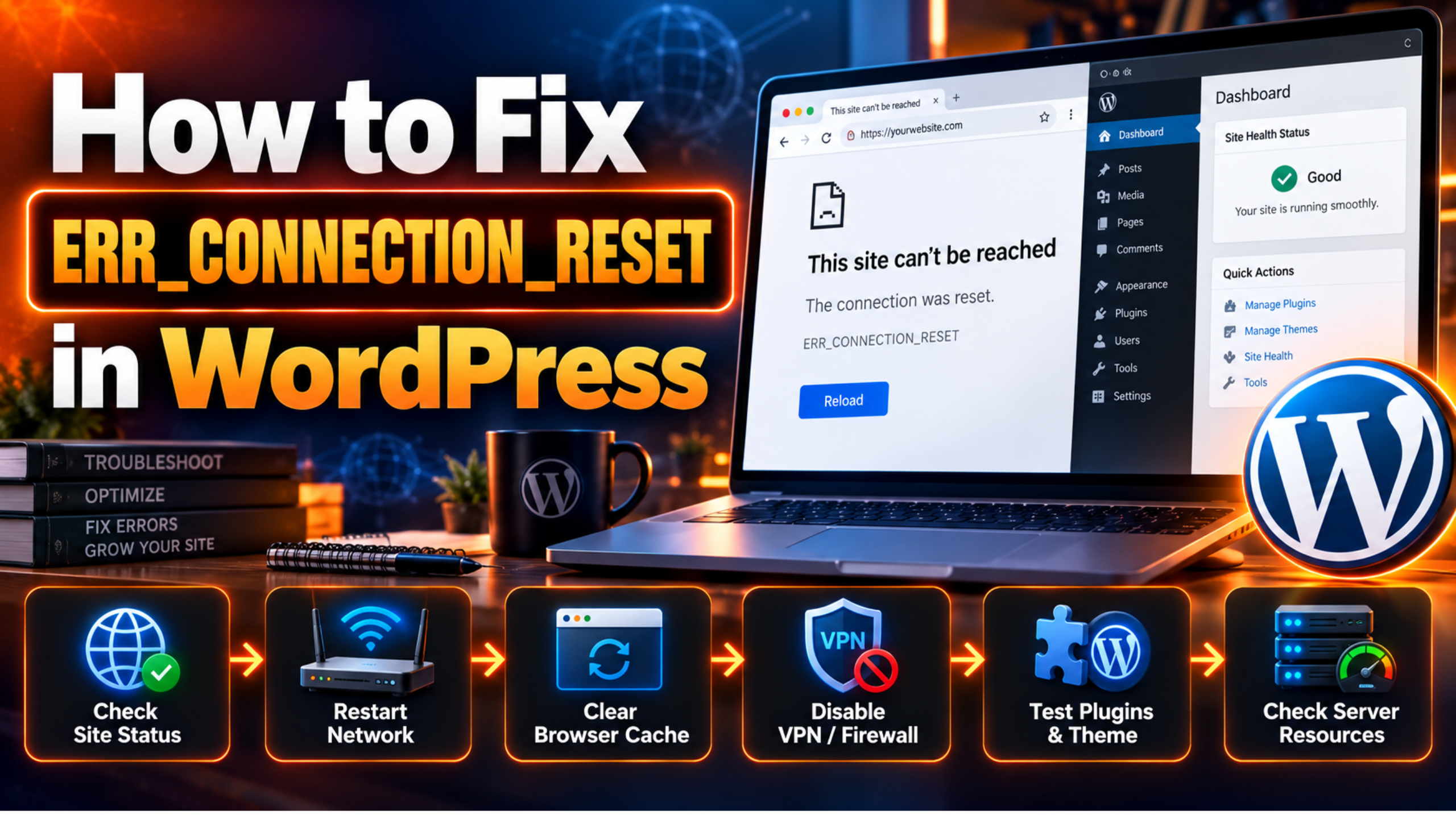
You type your address into the browser. The page starts to load. Then Chrome shows a grey screen that says “This site can’t be reached” and “The connection was reset.” The code underneath reads ERR_CONNECTION_RESET.
This error is confusing because it does not tell you who is at fault. The reset can come from your own device. It can come from your router or VPN. It can also come from the web server that hosts your site. Each of these needs a different fix.
The problem matters because a reset stops the page before a single byte of content arrives. Visitors cannot read your posts. Customers cannot reach your checkout. If the cause sits on the server, every visitor sees the same wall, not just you.
The error often shows up right after a change. A new security plugin, a plugin update, a host migration, a firewall rule, or a new VPN can all trigger it. Sometimes nothing changed on your side and a router simply glitched.
This guide walks you through the whole problem. You will learn how to recognise the error, why it happens, and how to fix it one safe step at a time. You will also learn how to stop it coming back. If the error is a refused connection instead, read our guide to fixing ERR_CONNECTION_REFUSED in WordPress.
Signs That Show You Have an ERR_CONNECTION_RESET Problem
The main sign is the Chrome message “The connection was reset” with the code ERR_CONNECTION_RESET. Other browsers word it differently. Firefox says “The connection was reset.” Safari says it “can’t open the page” because the server unexpectedly dropped the connection. The meaning is the same in all three.
Look at when the page fails. A reset usually hits in the middle of loading, not at the very start. You may see the tab spinner run for a few seconds before the error appears. A refused connection fails almost at once, so the timing is a useful clue.
Next, compare devices. Open the site on your phone using mobile data, not your home Wi-Fi. If it loads there, the fault sits on your computer or home network. If it fails on every device and every network, the fault is on the server side.
Compare parts of the site too. Sometimes only the login page or the admin area resets, while the public pages load fine. That pattern points to a security rule that targets certain URLs. It can also point to a plugin that crashes when one specific page loads.
Finally, note who sees the error. If only you see it, your IP address may be blocked. If a large upload or a form submit triggers the reset, the server may be cutting off big requests. Writing these clues down will save you time in the fix steps below. If your browser says the server IP address could not be found, you have a lookup problem instead. Read our guide to fixing DNS_PROBE_FINISHED_NXDOMAIN in WordPress.
Reasons Why ERR_CONNECTION_RESET Happens
A connection reset means one side of the link ended the conversation abruptly. In network terms, a reset packet arrived instead of a normal close. The browser cannot tell why. It only knows the other end slammed the door. The causes below fall into two groups: problems on your side, and problems on the server side.
Server Offline or Crashing
If the web server is down, overloaded, or restarting, it can drop connections mid-request. Your browser sees this as a reset. A host maintenance window, a crashed PHP process, or a full server can all do it. Because this affects everyone, it is the first cause to rule out. Step 1 shows you how.
Network or Router Fault
Your modem and router keep track of many open connections. After days of uptime, their tables can fill or glitch. The router then drops live connections without warning. Your browser reports a reset even though the site is healthy.
Corrupted Browser Data or Browser Experiments
Chrome stores cached files and connection data. A damaged cache can send broken requests. Experimental features turned on in the flags page can also change how Chrome opens connections. Extensions that filter traffic can interfere as well.
VPN or Proxy Interference
A VPN or proxy sits between your browser and the site. If it is overloaded or misconfigured, it may reset the connection. Some servers also refuse traffic from known VPN address ranges. The result looks the same as a server fault.
Firewall or Antivirus Software on Your Device
Security software scans network traffic. A strict rule can flag your own site as unsafe and cut the connection. This often happens after a security update or after the site moves to a new address.
Stale DNS Cache or a Broken Network Stack
Your computer remembers the address your domain pointed to. If the site moved to a new server, the old address may still be stored. Your computer then talks to the wrong place. A damaged network configuration on the device can cause similar resets.
Server Firewall or Security Plugin Blocking Your IP
Many hosts run a web application firewall such as ModSecurity. Many sites also use a security plugin with rate limits. When your traffic looks suspicious, they can block your address. A block often shows as a reset rather than a clear error page. Too many failed logins can trigger it.
Plugin or Theme Crashing the PHP Process
A faulty plugin or theme can crash the PHP worker that handles your request. When the worker dies, the server closes the link and the browser sees a reset. This usually happens after an update or a new install, and it may hit only certain pages.
Server Resource Limits
PHP has a memory limit and a limited number of workers. A heavy page can use up its memory and kill the process. A traffic spike can use every worker. Either way, the server drops connections instead of answering them.
How to Fix ERR_CONNECTION_RESET (Step by Step)
Work through these steps in order. The first steps are safe and quick. They only touch your browser and device. The later steps change the site, so they come with backup warnings. After each step, reload the page in a private window to test.
Step 1: Check Whether the Site Is Down for Everyone
This step rules out the “server offline or crashing” cause. If the server is down, nothing you do on your device will help. You would waste an hour fixing a healthy computer.
To confirm, load your site on your phone using mobile data. Then paste the address into a free uptime checker such as the one at downforeveryoneorjustme.com. A healthy site loads on the phone and the checker reports it as up. A broken site fails on both.
If the site loads on mobile data but not on your computer, the problem is local. Move on to Step 2. If it fails everywhere, the problem is on the server. Skip ahead to Step 7 and then Step 10.
Reload the page one more time before you move on. Some resets are one-off events. If the page now loads, note the time and keep an eye on it.
Step 2: Restart Your Modem and Router
This step fixes the “network or router fault” cause. Routers can drop live connections when their internal tables fill up. You can confirm this if other websites also load slowly or reset on the same Wi-Fi.
Switch off your computer. Unplug the modem and the router from power. Wait a full minute, because shorter waits may not clear the memory. Plug the modem in first and let it settle. Then plug in the router and start your computer.
Now reload your site. If it loads, the router was the cause. If the error stays on your home network but works on mobile data, try another device on the same Wi-Fi. If every device fails only on that network, ask your internet provider about the connection. If your site still resets, go to Step 3.
Step 3: Clear Browser Data and Reset Chrome Experiments
This step targets the “corrupted browser data” cause. To confirm it, open the site in a private window with extensions off. If it loads there but not in your normal window, your stored data or an extension is the problem.
In Chrome, press Ctrl+Shift+Delete on Windows, or Cmd+Shift+Delete on Mac. Set the time range to all time. Tick only “Cached images and files.” Click Clear data. Then do a hard refresh with Ctrl+Shift+R on Windows or Cmd+Shift+R on Mac.
Next, type chrome://flags into the address bar. Click “Reset all” at the top and restart Chrome. This undoes any experimental settings that change how Chrome connects. Then turn off your extensions one at a time. Reload the site after each one to find the guilty extension.
If the site now loads, you are done. Keep the flags at default. If the error returns, continue to Step 4.
Step 4: Turn Off Your VPN and Proxy Settings
This step addresses the “VPN or proxy interference” cause. You can confirm it by noting whether you use a VPN or proxy. If the site loads on mobile data but resets on your VPN-connected computer, that is a strong sign.
Disconnect your VPN completely, then reload the site. If it works, reconnect and choose a different server location. Some servers block VPN ranges, so a new location may help. If you manage the site, add your VPN address to the allow list in your firewall later.
Now check for a proxy. On Windows, open Settings, then Network and Internet, then Proxy. Make sure “Use a proxy server” is off unless your workplace requires it. On a Mac, open System Settings, search for Proxies, and turn off every protocol you do not recognise.
Reload the site. If the reset is gone, the proxy or VPN was the cause. If not, go to Step 5.
Step 5: Test Your Firewall and Antivirus
This step fixes the “firewall or antivirus” cause. Security tools sometimes cut off a connection they think is risky. To confirm, pause the protection for a few minutes and reload the site.
Open your antivirus or firewall app and look for a pause option. Use it only for the test. Keep your computer off other risky sites during the pause. Load your site once, then turn protection back on right away.
If the site loads while protection is paused, that tool is the cause. Do not leave it off. Instead, open its settings and add your website to the allowed or trusted list. If the tool offers a web shield or HTTPS scanning option, try turning that single feature off first.
If the reset stays even with protection paused, the tool is not the cause. Turn it back on and move to Step 6.
Step 6: Flush DNS and Reset the Network Stack
This step fixes the “stale DNS cache or broken network stack” cause. You can confirm it if the site moved hosts recently, or if other sites on your computer also act oddly. Note your current DNS settings before you start, in case you want to restore them.
On Windows, open Command Prompt as administrator. Run these commands one at a time: netsh winsock reset, then netsh int ip reset, then ipconfig /release, then ipconfig /renew, and finally ipconfig /flushdns. Restart the computer when they finish. These commands only touch your own device, not your website.
On a Mac, open System Settings and search for TCP/IP. Click “Renew DHCP Lease” and apply. To change DNS, add a public resolver such as Google’s 8.8.8.8 and 8.8.4.4, which Google documents on its public DNS setup page. Remove the old entry, then click OK.
Reload the site after the restart. If it works, the cause was local. If it still fails, the cause is almost certainly on the server. Continue to Step 7.
Step 7: Check Whether a Firewall or Security Plugin Blocked Your IP
This step handles the “server firewall or security plugin” cause. Confirm it by checking whether only you see the error while others load the site. Also check whether the reset began after several failed login tries or a burst of fast requests.
Take a full backup first if you plan to change anything. If you cannot reach the dashboard, ask your host to do it. Our guide to backing up WordPress with UpdraftPlus shows one way.
If you can log in from another network, open your security plugin. Look at its blocked IP list and its rate limiting or login protection settings. Find your own address and remove it from the block list. Find your address by searching “what is my IP” in a search engine.
If you cannot log in at all, contact your host and ask them to check the server firewall logs for your address. Ask them whether ModSecurity or a similar rule blocked you. Once your address is cleared, reload the site. If the block lifts but returns, loosen the rate limits.
Step 8: Test for a Plugin or Theme Conflict
This step fixes the “plugin or theme crashing PHP” cause. Confirm it by recalling what changed just before the first reset. A new plugin, a plugin update, or a theme change is the usual trigger. Also check your host’s error log, which may show a fatal error at the same time.
Back up your site first. Deactivating plugins is usually safe, but a backup protects you. If you can reach the dashboard, deactivate all plugins from the plugins screen and reload the site. If you cannot, connect over FTP or your host’s file manager. Rename the plugins folder inside wp-content to plugins-off. WordPress then loads without plugins.
If the reset disappears, rename the folder back. Then switch plugins on one at a time, reloading the page after each one. The plugin that brings back the reset is the culprit. Update it, replace it, or contact its developer.
If plugins are not the cause, switch to a default theme such as Twenty Twenty-Five. Reload the site. If the reset ends, your theme is the problem and needs a fix or replacement.
Step 9: Raise Server Resource Limits
This step fixes the “server resource limits” cause. Confirm it by checking whether the reset appears only on heavy pages, such as large product listings or long admin screens. Your host’s error log may also mention memory exhaustion.
Back up your site and download a copy of wp-config.php before editing it. A typing mistake in that file can take the whole site down. Open it over FTP or the file manager. Above the line that says to stop editing, add a memory limit line such as define( ‘WP_MEMORY_LIMIT’, ‘256M’ ); and save.
The WordPress developer handbook describes this file and its constants in detail. If your host caps memory lower than your setting, the change will not apply. In that case, ask your host to raise the PHP memory limit and the number of PHP workers on your plan. Our guide to the WordPress memory exhausted error covers this in more depth.
Reload a heavy page to test. If it now loads, the limit was too low. If the reset remains, go to Step 10.
Step 10: Contact Your Host With Evidence
This step covers the “server offline or crashing” cause when you cannot fix it yourself. Some faults live in the server settings that only your host can change. Examples include network firewalls, a failing server, or a broken PHP service.
Before you write, gather proof. Note the exact error text, the time it began, and which devices and networks show it. Mention that mobile data fails too. Say which fix steps you already tried. This lets support skip basic questions and act faster.
Ask them to check the server error log and the firewall log for your address and for the time of the first reset. Ask whether the server restarted or ran out of resources. For related server errors, see our guides on the 502 Bad Gateway error and the 504 Gateway Timeout error.
If the site is down and you need help now, read our guide to contacting WordPress support when your site is down. After the host confirms a fix, reload the site from a private window and from mobile data to verify.
Best Practices to Prevent ERR_CONNECTION_RESET in Future
Prevention works best when it targets the causes above. Start with the server side. Choose a host that offers uptime monitoring and clear resource limits. Set up a free uptime monitor that emails you when your site stops answering. You will learn about a crash before your visitors do.
Test plugin and theme updates on a staging copy first. Staging is a private clone of your site where mistakes cost nothing. This stops a bad update from crashing PHP on the live site. Keep a recent backup so you can roll back fast. Update PHP to a version your plugins support, and read each plugin’s notes before you update.
Tune your security plugin instead of leaving it on strict defaults. Set sensible login limits so a few typos do not lock you out. Add your own office and VPN addresses to the allow list. Review the blocked list now and then so real visitors do not get caught.
Watch your resources. If your pages keep getting heavier, plan a bigger hosting plan before memory runs out. Use caching so fewer requests reach PHP. Remove plugins you do not use, because each one adds load and risk.
On your own devices, keep your browser and security software current. Restart your router now and then. Avoid experimental browser flags on the computer you use to manage your site. Choose a trusted VPN, and turn it off when you test your own site.
Conclusion
ERR_CONNECTION_RESET means a connection was cut off before your page could load. You saw how to spot it: the Chrome message, the mid-load timing, and the difference between your phone and your computer. Those clues show whether the fault is local or on the server.
The main causes fall into two groups. On your side, a router glitch, damaged browser data, a VPN or proxy, security software, or a stale DNS cache can reset the link. On the server side, a firewall block, a crashing plugin or theme, low resource limits, or an outage can do the same.
The fix process moves from the simple to the deep. Check whether the site is down for everyone. Restart your router. Clear browser data. Turn off your VPN and proxy. Test your security software. Flush DNS. Then check the server firewall, test plugins and themes, raise limits, and call your host with evidence.
To prevent a repeat, monitor your uptime, test updates on staging, keep backups, tune security rules, and size your hosting for your traffic. If you get stuck, our team can help you find the cause quickly and safely.

James is an experienced WordPress and WooCommerce specialist with over 10 years of practical experience. At WPChatSupport, he creates clear guides that help website owners fix WordPress issues, improve speed, secure their sites, and manage WooCommerce stores with confidence. His expertise includes store setup, plugin configuration, theme customization, payment gateway integration, and website troubleshooting. Through simple and helpful content, James supports users in solving technical problems and following best practices for online business growth.