Introduction: Why WordPress Comments Go Missing
A reader leaves a thoughtful comment on your post. They press the button. Then they reload the page and see nothing. They think the site ate their words. You may think nobody cares, because your comment area looks empty.
When comments do not show, a site loses trust and conversation. Readers give up after one try. You also lose useful feedback, questions and fresh content that helps your search visibility.
Most of the time, the comments exist. They sit in a queue, a spam folder or a closed setting. Sometimes the theme does not print them. Sometimes a cached page hides new ones. Common triggers include a theme change, a new plugin, an update, or a change to your discussion settings.
This guide shows you how to find the real cause. You will learn the signs, the seven common causes, and seven steps to fix them in a safe order. Each step tells you how to check that it applies to you before you change anything.
Signs That Show WordPress Comments Are Not Showing
Start by noticing exactly what you see. The pattern points to the cause. A reader sees a message that the comment is awaiting moderation. That means the comment was saved but not published.
Another pattern is a comment count that says “3 comments” while the page shows none. That points to the display, not the data. A third pattern is a missing comment box. The post shows no form at all, or only a note that comments are closed.
Check who sees what. Log out, or open a private browser window. Compare your view with what you see when logged in. A comment may be visible to you as an admin, and hidden from visitors. Check also whether the issue affects all posts, only old posts or only one post. Old posts often point to an automatic closing rule. One post points to a per-post setting.
Finally, open the Comments screen in your dashboard. If comments appear there under Pending or Spam, they exist. If they do not appear anywhere, the comment may never have been saved. That points to a form or plugin problem.
Reasons Why WordPress Comments Are Not Showing
There are seven common causes. Each has its own fix below. Only some will apply to your site.
Comments held for moderation. WordPress can hold a comment until you approve it. The discussion settings let you require approval for every comment. They also hold a comment when the author has no earlier approved comment. They can hold comments with a set number of links. A moderation word list can hold comments that contain listed words, and the match is partial.
Comments sent to the spam folder. A spam filter or a blocklist can mark real comments as spam. WordPress documentation notes that comments caught by moderation or blocklist settings go to the spam folder. They stay hidden from visitors until you rescue them.
Comments closed or turned off. A post can have comments switched off. A global setting can turn them off for new posts. Another setting closes comments on posts older than a set number of days. In that case, old comments stay visible but the form disappears.
Comment pages and threading. WordPress can split comments across pages. The first or last page loads by default, so a new comment may sit on a page that visitors do not see first. Threaded replies can also look broken if the theme does not support nesting well.
A theme that does not print comments. A theme or page template must include the comments area. If the template leaves it out, the comments exist but never show. This often happens after a theme change or with custom page templates.
Cached pages. A page cache can show an old copy of a post. A new comment is approved, yet visitors still see the saved page without it.
Plugin conflicts. A comment plugin, a spam tool or a script from another plugin can stop the form or the list from loading. A script error can break the comment area even when the data is fine.
How to Fix WordPress Comments Not Showing (Step by Step)
Work through the steps in order. They run from the simplest checks to deeper tests. After each step, submit a test comment and reload the post in a private window. Use a different email address from your admin account, so WordPress treats you like a new visitor.
Some steps change plugins or theme settings. Take a full backup first, or test on a staging site. If you have no backup tool, our guide to backing up WordPress with UpdraftPlus explains the steps.
Step 1: Check the Pending Comments Queue
This step fixes the held-for-moderation cause. It is the fastest check, and it solves many cases.
To confirm the cause, open your dashboard and go to the Comments screen. Look at the tabs across the top. The Pending tab shows comments that wait for your approval. WordPress documentation says pending comments will not be visible on posts unless you approve them. A healthy site shows zero pending comments, or only a few. A broken result shows a long list of real comments that never went live.
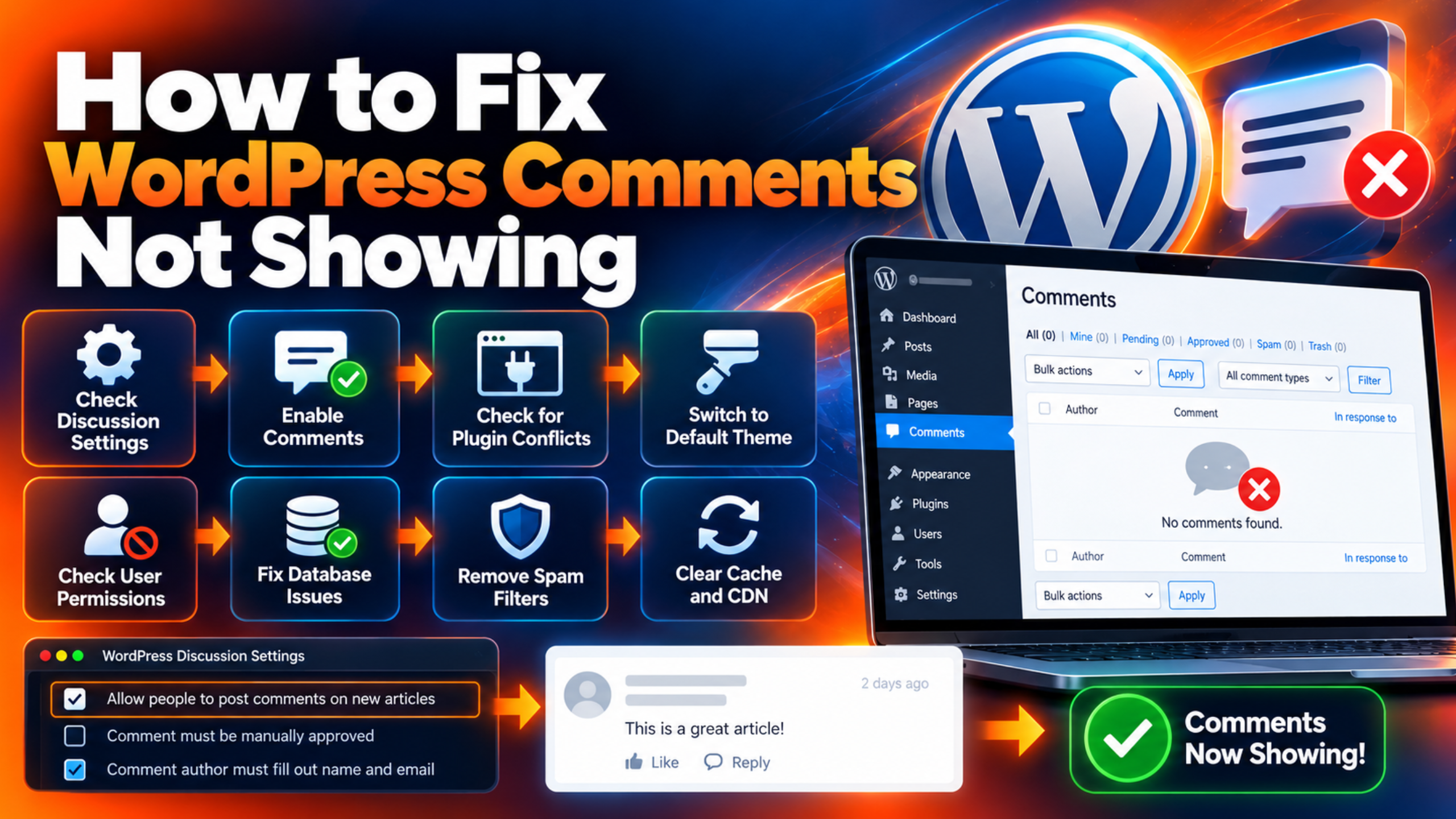
To fix it, hover over a real comment and click Approve. Then look at the reason it was held. Open Settings, then Discussion. Review the options that hold comments. These include “An administrator must always approve the comment,” “Comment author must have a previously approved comment,” the link limit and the moderation word list. Loosen the ones that are too strict for your site. Keep some protection, because open comments attract spam.
To verify, submit a test comment with a new email address. It should appear at once, or show a clear note that it is awaiting approval. If it still vanishes, move to Step 2.
Step 2: Rescue Real Comments From Spam
This step fixes the spam folder cause. A strict filter may trap real people.
To confirm the cause, open the Comments screen and click the Spam tab. Scan the list for real messages. A healthy folder contains junk links and strange text. A broken result shows normal comments from real readers. Pay attention to short, polite comments. Spam tools sometimes flag those.
To fix it, hover over a real comment and click Not Spam. WordPress will move it back to the approved list, or to pending, depending on your settings. Then check your tools. If you use Akismet or another spam plugin, read its settings and look for strict modes. Also review the Comment Blocklist in Settings, then Discussion. Remove words that are too common. WordPress documentation warns that blocklist matches can remove genuine comments, so it suggests using it only as a last resort.
To verify, submit another test comment. It should not land in the spam folder. If it does, tighten the filter less. If comments still do not appear anywhere, go to Step 3.
Step 3: Check Whether Comments Are Open on the Post
This step fixes the closed or turned-off cause. The form can be hidden by one checkbox.
To confirm the cause, open the post that has the problem. Look below it for the comment form. If you only see a note that comments are closed, a setting is blocking them. In the editor, open the Discussion box. If you cannot see it, click Screen Options in the top right of the edit screen and tick Discussion. Check that Allow Comments is ticked.
To fix it, tick Allow Comments and click Update. To change many posts at once, go to the Posts list, tick the posts, choose Edit from Bulk Actions and click Apply. Then set the Comments dropdown to Allow and click Update. Next, open Settings, then Discussion. Check “Allow people to submit comments on new posts.” Check the option that closes comments on posts older than a set number of days. Raise the number or untick the option if you want old posts to stay open.
To verify, reload the post in a private window. The comment form should now appear. If the form is there but comments still do not display, move to Step 4.
Step 4: Review Comment Pagination and Threading Settings
This step fixes the comment pages and threading cause. The comments may be there, but on a page your readers do not see first.
To confirm the cause, open Settings, then Discussion. Look at “Break comments into pages.” If it is ticked, note the number of comments per page and the default page. WordPress documentation says the first or last page loads by default. On a post with many comments, a new one might sit on another page. Also look at the threaded comments option and the number of levels.
To fix it, choose what suits your site. For small sites, untick the paging option so all comments show on one page. For large sites, set the default page to the one where new comments land. If replies look broken, lower the thread depth or turn threading off. The documentation notes that themes must be coded to show threaded replies well. Click Save Changes.
To verify, open a post with comments and look for the newest one. It should be easy to find. If comments are still missing, go to Step 5.
Step 5: Test Whether Your Theme Prints Comments
This step fixes the theme cause. If the template leaves out the comments area, nothing will show, however well your settings are set.
To confirm the cause, switch to a default WordPress theme on a staging copy of the site. Open the same post. If the comments and the form appear, your normal theme or its template is the problem. Also check whether the issue affects pages built with a custom template or page builder. Those templates often skip the comments section on purpose.
Take a backup before you change themes, and never test a theme switch on the live site during busy hours. To fix it, check your theme’s settings for a comments option, such as a toggle for pages or posts. If the theme has none, ask its developer to add the comments template to the layout. Child theme users should check that they did not override the comments file. A developer can add the standard comments call to the template.
To verify, view the post with your normal theme again after the fix. The comment list and form should appear. If they still do not, move to Step 6.
Step 6: Clear Caches So New Comments Show
This step fixes the cached pages cause. The comment may be live, but visitors see an old copy of the page.
To confirm the cause, approve a comment, then compare two views. Open the post while logged in, and then in a private window. If you see the comment in one and not the other, a cache is the likely culprit. Our guide to why a WordPress site is not updating immediately covers how stale copies appear.
To fix it, clear your cache plugin’s cache. Clear any server cache from your host and your CDN cache too. Then check your cache plugin for an option to clear the post cache when a new comment is approved. Turn that on if it exists. If your host runs its own cache, ask them how to purge the post automatically after new comments.
To verify, approve another test comment and reload the post in a private window. It should appear soon after. If the page stays stale, go to Step 7.
Step 7: Find Plugin Conflicts and Script Errors
This step fixes plugin conflicts. A single bad plugin can stop comments from loading or posting.
To confirm the cause, open the post in your browser. Open the browser’s developer tools and look at the Console tab. A red error that points to a plugin file during page load is a hint. Our guide on the not a valid JSON response error explains related script problems. Also note whether you use a separate comment plugin. These tools replace the built-in comment area, so their own settings control what shows.
Use a staging copy for this test. Deactivate all plugins except the one that handles your comments, then submit a test comment. If it works, turn the other plugins back on one at a time. Test after each. When the comments stop, you have found the conflict. Replace that plugin or ask its author for help. If your pages go blank during testing, see our guide to the WordPress white screen of death.
To verify, submit a comment again with the final plugin set. It should post and show. If it does not, a developer should check your theme and server logs for errors.
Best Practices to Prevent Missing Comments in Future
Each habit below stops one cause from coming back. Treat them as a regular routine.
Check the Pending and Spam tabs once a week. Real comments get stuck there more than most owners realise. Set your discussion settings on purpose, and write down what you chose. Test any change with a fresh email address. Keep your spam filter on, but review its settings after updates.
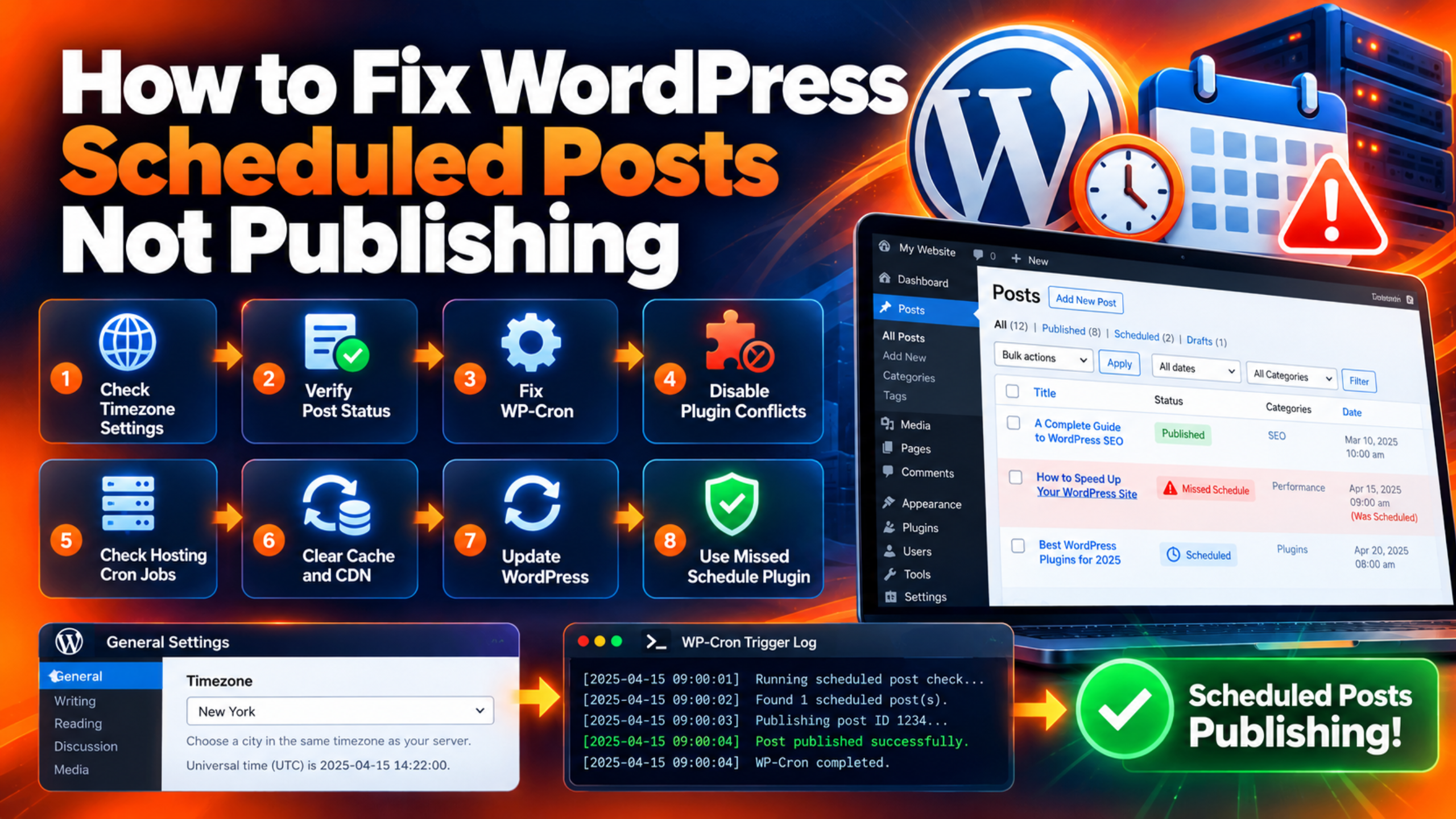
Test every theme or plugin update on a staging site first. Check that the comment form and list still show. Keep your caching rules simple, and turn on automatic cache clearing for new comments. Before you switch themes, check that the new theme prints comments on posts and on the page types you use. Keep a short plugin list and remove tools you no longer use. Finally, keep regular backups so you can roll back quickly. If you also use scheduled posts, you may like our guide to fixing scheduled posts that do not publish.
Conclusion
Missing comments usually are not lost. They are waiting in a queue, hiding in the spam folder, blocked by a setting, or hidden by the theme or cache. The signs tell you where to look: a note about moderation, a count with no list, a missing form, or a view that differs when you log out.
The fix process runs from easy to deep. Check Pending. Rescue comments from Spam. Confirm comments are open. Review pagination and threading. Test the theme. Clear caches. Hunt plugin conflicts. Always take a backup before you change themes or plugins.
Then keep the gains. Check your queues weekly, test updates on staging and clear caches when comments are approved. A healthy comment area builds trust and keeps readers coming back. For the official details, see the WordPress documentation on the Discussion settings screen, comments in WordPress and the Akismet plugin page.

James is an experienced WordPress and WooCommerce specialist with over 10 years of practical experience. At WPChatSupport, he creates clear guides that help website owners fix WordPress issues, improve speed, secure their sites, and manage WooCommerce stores with confidence. His expertise includes store setup, plugin configuration, theme customization, payment gateway integration, and website troubleshooting. Through simple and helpful content, James supports users in solving technical problems and following best practices for online business growth.