Introduction
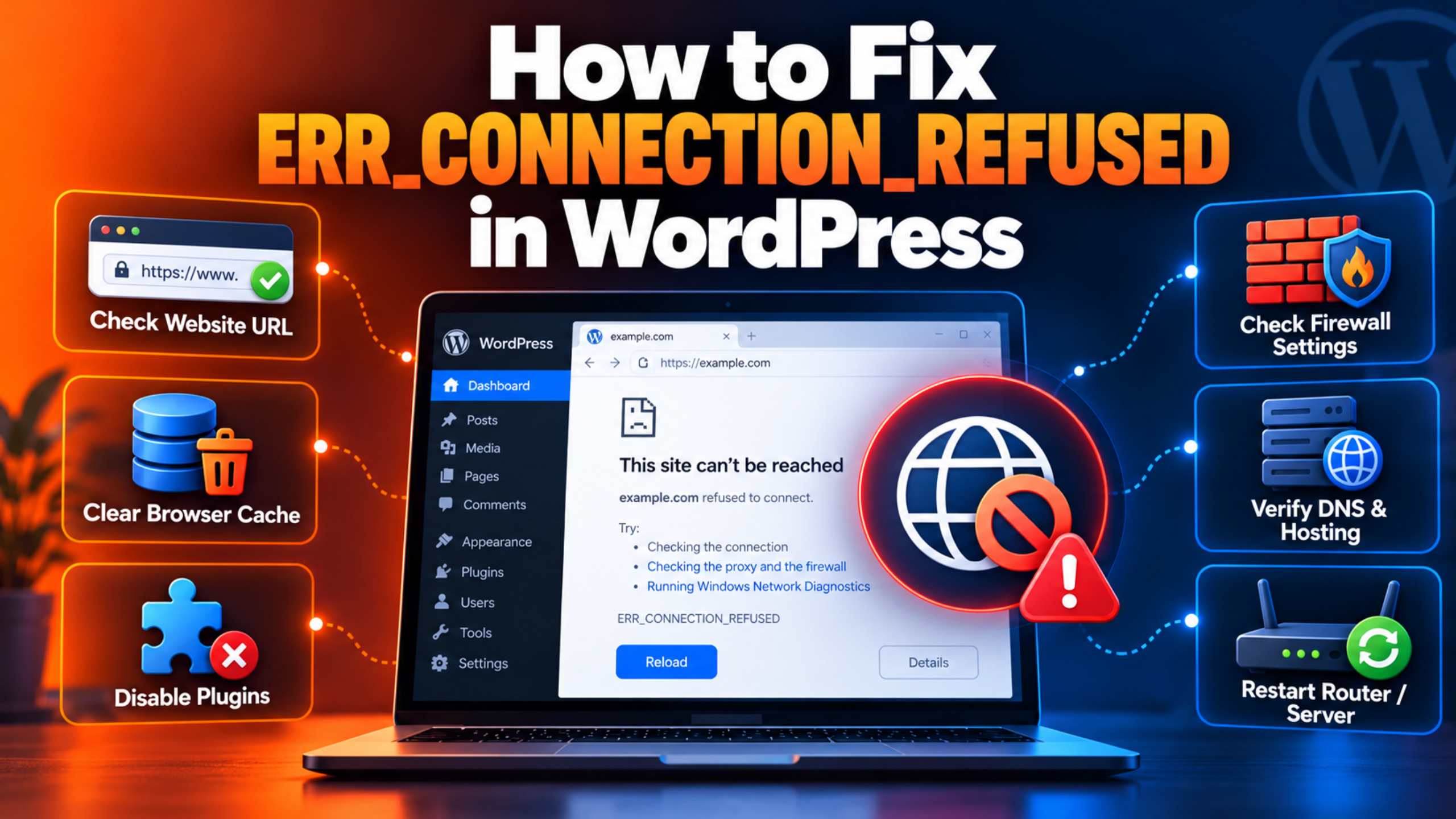
You type your address and the page gives up instantly. No loading bar. No spinning tab. Just a grey screen saying the site refused to connect. Below it sits the code ERR_CONNECTION_REFUSED. Nothing you click changes it. Refreshing does nothing. Your dashboard is unreachable too, so you cannot even look inside.
This error is blunter than most WordPress problems. It is not a crashed plugin or a bad theme update. Your browser never got far enough to ask for a page. It tried to open a connection to your server and something said no, immediately. That “no” might come from your server, from a firewall on the way, or from your own laptop.
The good news is that bluntness narrows things down. There is no PHP to debug and no error log full of warnings. There is only a short list of places where a connection can be turned away. Most of them you can check yourself in a few minutes, without touching a line of code.
This guide works through that list in order. You will learn how to tell this error apart from the ones that look similar. You will learn exactly what a refused connection means at a technical level, because that fact alone eliminates half the possible causes. Then you will check each cause in turn, starting with the ones that cost nothing. At the end you will find habits that stop it happening again.
A warning up front. Two steps near the end involve your domain records and your WordPress database. Both can make a working site unreachable if you rush them. Each of those steps tells you what to save first. Follow that advice even when you are in a hurry, because being in a hurry is how a bad situation gets worse.
Signs That Show the ERR_CONNECTION_REFUSED Error in WordPress
Browsers have several connection errors and they look alike at a glance. Reading yours precisely is the most valuable thing you can do in the first minute. The details below tell you which one you really have and how much of your site is affected.
The clearest sign is how fast the failure arrives. A refused connection fails almost at once, usually under a second. There is no long wait and no spinner. That speed is the whole clue. Your computer sent an opening packet and got an immediate rejection back. In Chrome’s own list of network errors this is number -102, described simply as a connection attempt that was refused.
Compare that with its lookalike, ERR_CONNECTION_TIMED_OUT. That one makes you wait, often for 30 seconds or more, before giving up. The difference is not cosmetic. A refusal means something alive answered and said no. A timeout means nothing answered at all. Firewalls can produce either one. It depends how the rule was written. A rule that rejects traffic bounces it back at once. A rule that silently drops traffic just leaves you waiting. If your error makes you wait, our guides on the 504 gateway timeout error and the 502 bad gateway error are a better match than this one.
Two more codes get mixed up with this error, so check your wording carefully:
- ERR_NAME_NOT_RESOLVED – your computer could not even find an address for the domain. That is a naming problem, not a connection problem.
- ERR_CONNECTION_RESET – the connection opened and then collapsed partway through. Something interrupted it rather than refusing it.
- ERR_CONNECTION_CLOSED – the other end hung up before replying.
- ERR_SSL_PROTOCOL_ERROR – the connection worked but the secure handshake failed. Our guide on fixing SSL certificate errors in WordPress covers that family.
Next, check how widely the error reaches. Try your home page, then a blog post, then /wp-admin. A refused connection almost always takes out all of them together, because the refusal happens before any URL is read. If some pages work and others fail, you are looking at a different problem and this guide is the wrong one. A site that loads but breaks only in the dashboard points elsewhere entirely.
Then test whether it is only you. This single test splits the causes in half. Open the site on your phone using mobile data rather than Wi-Fi. Ask someone in another country to try it. Or use any free “is it down” checking service. If outsiders load the site normally, the refusal is happening on your own network or device. If nobody can reach it, the refusal is at your server.
Watch for a local pattern too. Developers meet this error constantly on their own machines, not on live sites. The signature is an address with a port number in it, like localhost:8080, failing while other local sites work. That points at local software rather than hosting, and our walkthrough on installing WordPress on XAMPP locally covers that setup.
Finally, look at what the page actually says. A plain browser error page means your browser never reached anything. A branded error page from Cloudflare, with a number like 521 on it, means something very different. In that case Cloudflare reached your domain fine and then had its own connection refused by your server. That narrows the fault to your server or the firewall in front of it, and it is useful to know early.
Reasons Why the ERR_CONNECTION_REFUSED Error Happens in WordPress
A refused connection has a narrow set of causes. Understanding why helps you skip the irrelevant ones fast. A connection to a website starts with a handshake. Your browser asks to open a channel on a particular port. A healthy server replies and agrees. The refusal you are seeing is the replacement for that agreement. Something sent back a rejection instead. That only happens for two reasons: nothing was listening on that port, or something deliberately turned the request away. Every cause below is a version of one of those two.
The web server software has stopped. Your site is served by a program such as Apache, Nginx or LiteSpeed. That program holds open the ports that web traffic arrives on. If it crashes, runs out of memory, or fails to start after a configuration change, those ports fall silent. The machine itself is still switched on and still answering. That is exactly why you get a quick refusal instead of a long wait. A mistyped line in a server configuration file is a classic trigger, because the service refuses to start until it is corrected.
A firewall is rejecting traffic on your web ports. Servers run firewalls that decide which ports accept connections from where. Web traffic needs port 80 for plain requests and port 443 for secure ones. A rule that blocks either one produces this error for everyone it applies to. Security tools that ban addresses automatically can also catch you by mistake, after repeated failed logins or an aggressive scan. Again, the wording of the rule decides what you see. Rejecting traffic is loud. Dropping it is silent.
Your hosting account or the server itself is offline. Hosts suspend accounts for unpaid invoices, for exceeding resource limits, and occasionally after a security report. Shared servers also go down for hardware faults and emergency maintenance. In either case nothing is listening for your domain. This cause feels unlikely until you check your email and find the notice you missed. It is worth ruling out early because it costs one minute and no risk.
Your domain points at a server that is not serving your site. Domains work by resolving to a numeric address. That address may belong to a server you no longer use. Or to one where your site was never set up. Either way, requests arrive somewhere with nothing listening. This is the standard aftermath of a half-finished migration. It also happens when only one record gets updated. People fix the bare domain and forget the www version. That is why one of the two can work while the other refuses.
A CDN or proxy cannot reach your server. When a service like Cloudflare sits in front of your site, visitors connect to it rather than to you. It then opens its own connection to your server. If your server refuses that connection, the service shows its own error page instead, numbered 521. There are three usual causes. The web server has stopped. A firewall is blocking the proxy’s addresses. Or the proxy’s encryption mode does not match the port your server listens on. Cloudflare’s own documentation names blocked requests and an offline server application as the two most common reasons.
The address includes the wrong port. This is overwhelmingly a local development cause. Local tools run your site on a chosen port, and that choice can change. The port may already be taken by another program, so the tool quietly picks a different one. Or the site was set up on one port and you are visiting another. Live sites use the standard ports and you never type them, so this cause almost always means a site on your own machine.
Your own network is blocking the connection. Your request has to leave your building before it reaches anything. A proxy setting left behind by an old program can send it to a server that is not there. A VPN can route it somewhere that refuses it. Desktop security software with web filtering can block the destination on its own. Office and school networks block categories of site routinely. In all of these cases your site is perfectly healthy for everyone else.
Your browser or computer is holding stale information. Computers remember where domains live so they do not have to ask every time. After a hosting move, that memory can be out of date. It sends you to the old address while everyone else reaches the new one. Browsers keep their own separate memory of this as well, which is why one browser can fail while another works. Extensions add another layer, since ad blockers and privacy tools can block requests before they leave the browser at all.
WordPress is redirecting visitors to an address that is not listening. WordPress stores the address it believes your site lives at. It uses that value to redirect anyone who arrives by another route. The stored address may have the wrong hostname. Or a port that is no longer in use. Your browser follows the redirect and gets refused at the far end. The giveaway is an address bar that changes to something unexpected just before the error appears. This happens after migrations, after domain changes, and on local copies of live sites.
How to Fix the ERR_CONNECTION_REFUSED Error in WordPress (Step by Step)
Work down this list in order. The early steps are free, instant and carry no risk, and they clear away the causes that sit on your own machine. The later ones deal with your server, your domain and your database. Each step shows you how to confirm the cause before you change anything, so you never alter a setting on a guess.
Step 1: Clear Your Browser’s Stored Data and Address Memory
This step deals with stale information held by your browser and computer. It goes first because it is the most common cause for a single person, and because it costs nothing. People lose whole evenings to a server that was never broken.
Confirm it quickly. Open your site in a second browser you rarely use. Then open it in a private window. If either of those works while your usual window fails, stored data is your cause. If all of them fail the same way, read on but expect the real cause to be further down.
Start by emptying your browser’s saved files and cookies for your domain. In Chrome that lives under privacy settings; other browsers keep it in a similar place. Next clear your computer’s own record of where domains live. On Windows, open Command Prompt as an administrator and run ipconfig /flushdns. On a Mac, open Terminal and run sudo dscacheutil -flushcache, then sudo killall -HUP mDNSResponder. Chrome keeps a separate record of its own, which you can empty by visiting chrome://net-internals/#dns and clearing the host cache there. Then turn off your extensions, or simply test in a private window where they do not load. If an ad blocker or privacy tool turns out to be the culprit, add your own domain to its allowed list.
Verify by closing the browser completely and opening your site fresh. It should load normally. If it still refuses, your browser is not the problem, so move to Step 2.
Step 2: Check Your Own Network, VPN and Security Software
This step deals with your network blocking the connection before it leaves. It follows naturally from Step 1 because both affect only you. The two are worth separating, though, since the fixes live in completely different places.
Confirm it with the test from earlier. Load your site on a phone using mobile data with Wi-Fi switched off. If it works there and fails on your computer, something between your computer and the internet is at fault. Trying a different network entirely, such as a phone hotspot, makes this even clearer.
Work through the likely blockers one at a time. Turn off any VPN and reload. Then look at your proxy settings. Chrome hands these off to your operating system. Open the proxy section in your system’s network settings. Nothing should be set there unless you know you need it. An old proxy entry, left behind by software you removed, is a classic cause. Next, pause your security software’s web protection briefly and test again. If that fixes it, add your domain as an exception. Leaving the protection switched off is not a fix. Finally restart your router. Leave it unplugged for about half a minute. On an office or school network, ask whoever runs it whether your domain is blocked. You cannot change that yourself.
Verify by reloading on your own network with everything switched back on except the one thing you identified. The site should load. If outsiders could never reach it either, your server is the problem, so continue to Step 3.
Step 3: Check the Port in the Address for Local Sites
This step deals with the wrong port in the address. It applies only to WordPress running on your own computer. Skip straight to Step 4 if your site is on real hosting, because you never type a port for a live site.
Confirm it by looking at the address. A local address usually includes a colon and a number, such as localhost:8080. Now open your local tool’s control panel and read which port it is actually using for web traffic. If the two numbers differ, that mismatch is your cause. A tool that refuses to start its web service at all points the same way.
To fix it, try the port your tool reports rather than the one you had bookmarked. If the service will not start, the usual reason is that another program already holds the port. On Windows, port 80 is often taken by a built-in web service or by other communication software. The simplest answer is to set your local tool to a free port, such as 8080, and use that in the address. Restart both the web service and the database service afterwards, since a site with no database will fail in a different way. Our guide on installing WordPress on XAMPP locally walks through the service panel in detail.
Verify by loading the address with the corrected port. Your site should appear. If the right port still refuses, the stored address inside WordPress may be fighting you, which Step 9 covers.
Step 4: Check Whether Your Web Server Is Actually Running
This step deals with web server software that has stopped. It is the most likely cause once you know outsiders cannot reach your site either. Nothing is listening on your web ports, so every request gets refused the instant it arrives.
Confirm it from your hosting control panel, which is reached by its own address and so still works when your site does not. Look for a services or server status area and check whether the web service is running. On managed hosting, look for a server health or status indicator instead. A down or stopped state confirms this cause. Being able to log in to the panel is itself a strong hint. It proves the machine is alive.
To fix it, restart the web service from your control panel if you have that option. Many hosts offer a single restart button. Sometimes the service starts and then stops again within seconds. That pattern means a configuration error, not a crash. Open your server error log and find the line it objects to. A recent edit to a server configuration file is the usual suspect. On managed or shared hosting you will not have these controls. Open a ticket instead, and say the web service is not listening. That wording is far more useful than “my site is down”. Our post on emergency WordPress support when your site breaks covers how to escalate well.
Verify by loading your site in a private window once the service reports as running. It should answer, even if some pages are slow at first. If the service is running happily and connections are still refused, something is turning them away, so go to Step 5.
Step 5: Check Your Hosting Account and the Server Status Page
This step deals with an offline or suspended account. It belongs here because it explains a server that looks fine from your side while refusing every visitor. Checking it takes a minute and removes a cause you cannot fix with any amount of technical work.
Confirm it in two places. First open your email and search for recent messages from your host, including the spam folder. Look for notices about billing, resource limits, or abuse reports. Then open your host’s status page, which almost every provider publishes, and look for current incidents affecting your server or data centre. A suspension notice or an open incident confirms this cause.
To fix a suspension, deal with whatever triggered it. An unpaid invoice is the simplest case: pay it, then ask support to restore service, because reinstatement is often manual. For a resource limit, you will usually need to reduce usage or move to a larger plan. For an abuse or malware report, your host will tell you what they found and what they need before they will lift the block. For an ongoing provider incident there is nothing to fix at your end. Subscribe to their updates. Then tell your own users honestly that your host is working on it.
Verify by loading your site once the account shows as active or the incident is closed. Allow a few minutes after reinstatement, since services often need to be started again. If your account is healthy and the host reports no problems, move to Step 6.
Step 6: Check That the Firewall Is Not Rejecting Ports 80 and 443
This step deals with a firewall rejecting your web ports. It fits here because it produces exactly the same symptom as a stopped web service, so you need Step 4 ruled out first. The difference is that the service is running perfectly and something in front of it is bouncing the traffic.
Confirm it with a free port checking tool. Enter your domain and test ports 80 and 443. A healthy site reports both as open. If the tool says they are closed while your control panel says the web service is running, a firewall rule is your cause. Here is a second clue. You can reach the site from one network but not another. That means the block applies to specific addresses.
To fix it, start with any security plugin that blocks addresses automatically. Those tools keep a list of blocked visitors, and your own address can land on it after several failed logins. Open that list from the plugin’s area in your dashboard if you can get in, or ask your host to clear it for you. Next check the firewall in your hosting panel. Both web ports should accept traffic from everywhere. A public site has to be reachable by the public. If you manage your own server, check the system firewall for rules covering those ports. Be careful here. A badly ordered rule can lock you out of your own server. Keep a second way in open while you work. And never remove a rule you do not understand.
Verify by running the port check again. Both ports should report as open, and the site should load from more than one network. Continue to Step 7 if the ports are open and the error persists.
Step 7: Confirm Your Domain Points at a Server That Is Listening
This step deals with a domain pointing at the wrong server. It explains an error that survives every server-side fix, because you have been repairing one machine while visitors are being sent to another. Expect this one after any hosting move.
Confirm it by comparing two numbers. Find the address of your current hosting account, which your control panel displays on its main page. Then use any free lookup tool to see what your domain actually resolves to. A mismatch is your cause. Check the www version separately, since each has its own record and one is often forgotten.
Save a copy of your current records before changing them. Take a screenshot of the full list. A mistake here can take down your email as well as your website. That original list is the only thing that will get you back.
To fix it, log in wherever your domain’s records are managed. That might be your registrar, your host, or a service like Cloudflare, and it is not always where you expect. Point the record for your bare domain at the correct address. Do the same for www, whether it is a direct record or an alias. Leave your mail records exactly as they are. Then wait, because these changes spread gradually and old answers linger for as long as the record’s lifetime value allows. Our guide on migrating a WordPress website away from GoDaddy covers this part of a move in depth.
Verify by repeating the lookup an hour or two later. It should return the new address. Then load the site from a network you have not used yet. Go to Step 8 if you use a CDN.
Step 8: Fix the Connection Between Your CDN and Your Server
This step deals with a CDN that cannot reach your server. Skip it if nothing sits in front of your site. When it does apply, it is often the last piece. Every check you ran against your server passed. Meanwhile the proxy in front of it was still being turned away.
Confirm it from the error page itself. A Cloudflare page showing 521, or wording about the web server being down, is this cause exactly. You can also test it directly: pause the proxy service briefly, or use its development mode, and see whether your site answers without it. If it does, the problem is between the two of them rather than at your server.
To fix it, work through the three usual reasons. First, make sure your web service is genuinely running. Step 4 covered that check. Second, make sure your firewall accepts traffic from your CDN’s own addresses. Security tools sometimes block them as unfamiliar. Every provider publishes its current address ranges for exactly this purpose. Third, check that the proxy’s encryption mode matches the port your server listens on. Cloudflare’s flexible mode connects over port 80. Its full modes connect over port 443. A server listening on only one of those will refuse the other. The sound long-term answer is a full mode plus a valid certificate on your server. Our guide on fixing SSL certificate errors in WordPress covers getting that certificate right.
Verify by turning the proxy back on and loading several pages. The branded error page should be gone. Then purge the CDN cache so nobody is served a stored copy of the error. If the site is reachable but immediately redirects somewhere broken, finish with Step 9.
Step 9: Correct the Site Address Stored Inside WordPress
This step deals with WordPress redirecting visitors to an address that is not listening. It comes last because it only shows up once the connection itself works. Your server answers, then WordPress sends the browser somewhere else, and that somewhere refuses the connection.
Confirm it by watching your address bar closely. Load your site and look at what the address changes to just before the error. If it jumps to a different hostname, or gains a port number you did not type, this is your cause. On a local copy of a live site, the address often flips to the live domain, which proves the stored values came across with the database.
Back up your database before changing these values. They control how your whole site is reached, and a wrong entry can lock you out of the dashboard entirely. Our walkthrough on backing up WordPress using UpdraftPlus takes only a few minutes, and a database export from your hosting panel works too.
To fix it, the safest route avoids the database altogether. Connect over SFTP, open wp-config.php, and add two lines just above the comment that says to stop editing. Set WP_HOME and WP_SITEURL to the correct full address, including https:// and nothing after the domain. These lines override whatever is stored in the database, so your site becomes reachable immediately and you can undo it by deleting them. Once you are back in the dashboard, open the Settings area and then General. Correct both address fields to match and save. Then remove the two lines from wp-config.php. If a stale database entry is the real problem, this sequence replaces it properly. Also check that no plugin or security tool is adding a redirect of its own, since those run before your settings do.
Verify by loading the site in a private window and clicking through a few links. The address should stay where it belongs. A database connection error may appear at this point. That is a separate problem. Our guide on fixing the error establishing a database connection picks up from there.
Best Practices to Prevent the ERR_CONNECTION_REFUSED Error in Future
Each habit below closes off one of the causes above. Together they turn a frightening outage into something you hear about from a monitor rather than from a customer.
Monitor your site from outside and get alerted. A stopped web service and a suspended account both have the same practical problem: nobody tells you. A free uptime monitor checks your site from elsewhere every few minutes and messages you when it stops answering. That turns hours of invisible downtime into minutes. Point the monitor at your home page and at one inner page, so you catch partial failures too.
Keep your hosting billing and contact details current. Suspensions are the most avoidable cause on the list. Make sure the email on your hosting account is one you actually read, not an address from a former colleague. Turn on automatic payment if your host offers it, and note your renewal date somewhere you will see it. Read the resource warnings your host sends rather than filing them away, because they arrive before the suspension, not after.
Never change server configuration without a way back in. Web services that will not restart are usually the result of one bad line. Keep a copy of any configuration file before you edit it. If your host provides a way to test the configuration before applying it, use it every time. Where possible, make the change on a staging server first so a typo costs you nothing.
Treat firewall rules with the same care. A rule that rejects your web ports takes your whole site offline, and a rule that locks out administrators can lock out you. Add rules one at a time and test after each. Keep a second route into the server open while you work. Review the automatic block list in your security plugin now and then. Add your own office address to its allowed list. Then a few mistyped passwords can never lock you out.
Plan migrations around the record lifetime. Pointing a domain at the wrong server is almost always a migration side effect. Before the move, lower the lifetime value on your records so changes spread quickly. Update every record that matters, including the www version, and leave your mail records alone. Keep the old hosting running for a few days afterwards. Then anyone still sent to the old address sees a working site, not a refusal.
Allow your CDN’s addresses and record your settings. Proxy problems mostly come from security tools blocking the proxy, or from someone changing an encryption mode during an unrelated problem. Add your provider’s address ranges to your firewall’s allowed list and review them occasionally, since they change. Write down which mode you use and why, so the next person does not guess.
Give local sites their own fixed ports. Port conflicts waste developer time for no good reason. Pick a port for each local project, write it down, and avoid the ones your operating system already uses. Keeping local sites on their own hostnames rather than raw port numbers also prevents the stored-address problem from Step 9.
Keep a tested backup and know your host’s support route. Several steps here touch domain records, wp-config.php and your database. A backup you have never restored is only a hope. Restore one onto staging once so you know it works. Save your host’s support link and your account number somewhere else. You will need them at the one moment your own site cannot load.
Conclusion
The ERR_CONNECTION_REFUSED error in WordPress is one of the clearer problems to diagnose, once you know what it means. It is not a WordPress fault at all, strictly speaking. Your browser asked to open a connection and got an immediate refusal. Nothing it could have done differently would have helped. That is why no amount of refreshing changes anything.
The signs tell you a great deal before you change a thing. A failure that arrives instantly is a refusal; one that makes you wait is a timeout, and a different problem. An error that only you see sits on your own network. An error everybody sees sits at your server. A Cloudflare page numbered 521 means the proxy reached your domain and your server turned it away. An address with a port number in it points at local software. Each of those observations removes several causes from the list.
The causes themselves come down to two ideas: nothing was listening, or something said no. Nothing listening covers a stopped web service, a suspended account, a domain aimed at the wrong server, and the wrong port on a local site. Something saying no covers server firewalls, automatic security blocks, your own proxy or VPN, and desktop security software. Two more are just variations on those themes. A proxy that cannot reach your server. And a stored WordPress address that points somewhere dead.
So the fix order is simple. Rule out your own browser and network first, because those cost nothing and account for a large share of cases. Check the port if the site is local. Then confirm your web service is running, your account is in good standing, and your firewall is letting the web ports through. Check that your domain points where you think it does. Sort out the proxy connection if you use one. Finish with the address WordPress has stored. Save your records before touching DNS, and back up your database before touching the stored addresses.
Prevention is mostly about being told early. Monitor the site from outside. Keep your billing and contact details current. Change server and firewall settings carefully and one at a time. Plan migrations with record lifetimes in mind. Keep a backup you have actually restored. With those habits in place, a refused connection becomes a short interruption rather than a lost day. For the underlying references, see Cloudflare’s notes on error 521, Chromium’s own list of network error codes, and the WordPress documentation on editing wp-config.php.

James is an experienced WordPress and WooCommerce specialist with over 10 years of practical experience. At WPChatSupport, he creates clear guides that help website owners fix WordPress issues, improve speed, secure their sites, and manage WooCommerce stores with confidence. His expertise includes store setup, plugin configuration, theme customization, payment gateway integration, and website troubleshooting. Through simple and helpful content, James supports users in solving technical problems and following best practices for online business growth.