A forum turns a quiet website into a place people come back to. Customers answer each other’s questions. Members swap ideas. Your support inbox gets lighter.
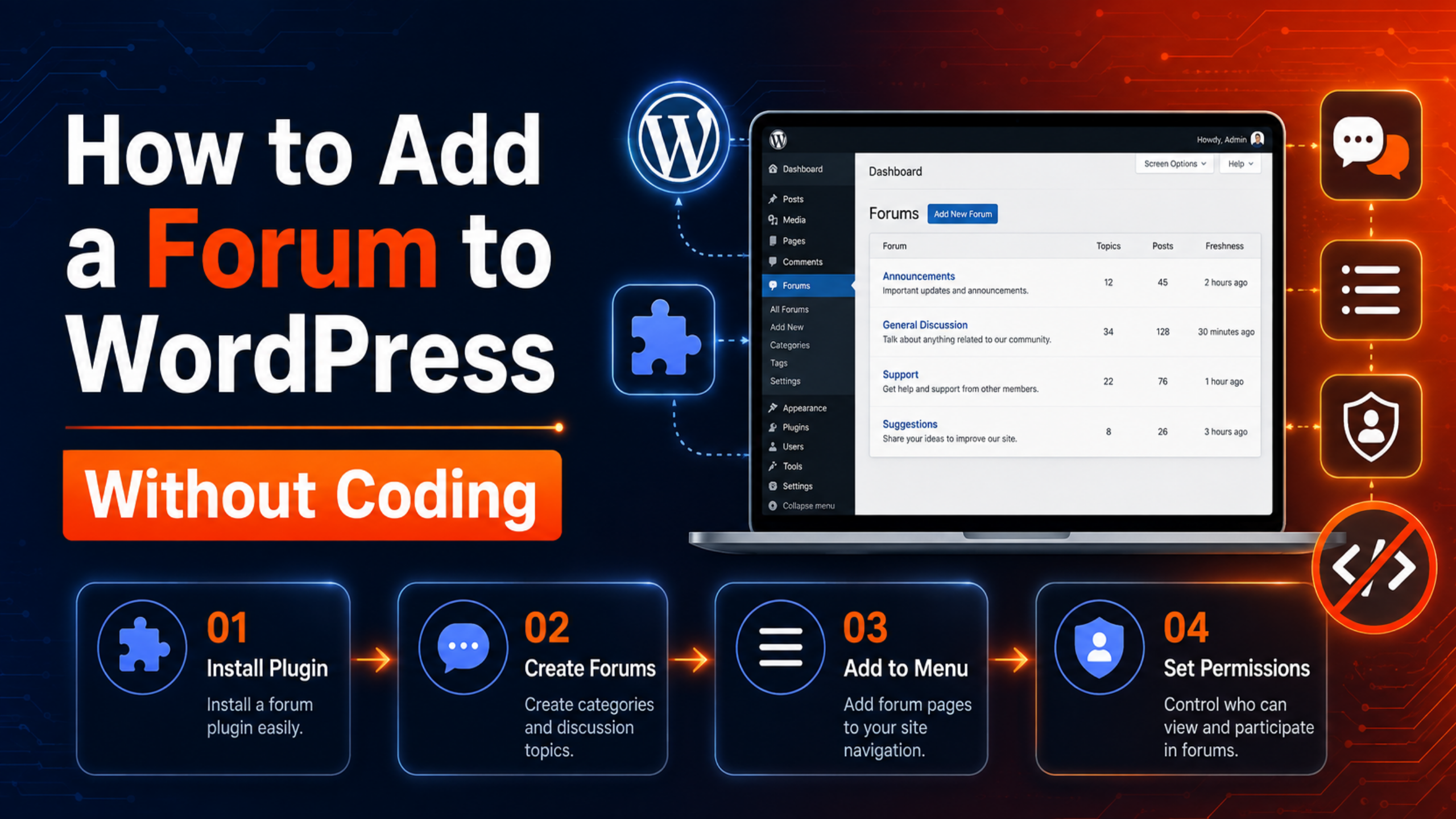
The good news is that you do not need a developer. You can add a forum to WordPress without coding in about an hour. No PHP, no template edits, no FTP.
This guide walks through the whole job, step by step. Pick a plugin, install it, build your categories, set the rules, and open the doors.
What You Need Before You Start
Only three things.
An admin account. You need to install plugins, so a Subscriber or Editor login will not do.
Pretty permalinks. Go to Settings > Permalinks and choose Post name. Forum plugins build their own URLs and most of them break under the default ?p=123 structure. If yours are already misbehaving, our guide on setting up and fixing permalinks in WordPress sorts it out.
A fresh backup. Forum plugins create database tables and new pages. Back up before you begin so you can roll back cleanly.
That is it. Everything else happens inside your dashboard.
Step 1: Pick a No-Code Forum Plugin
Three free plugins cover almost every use case. All are on WordPress.org, and all install from your dashboard.
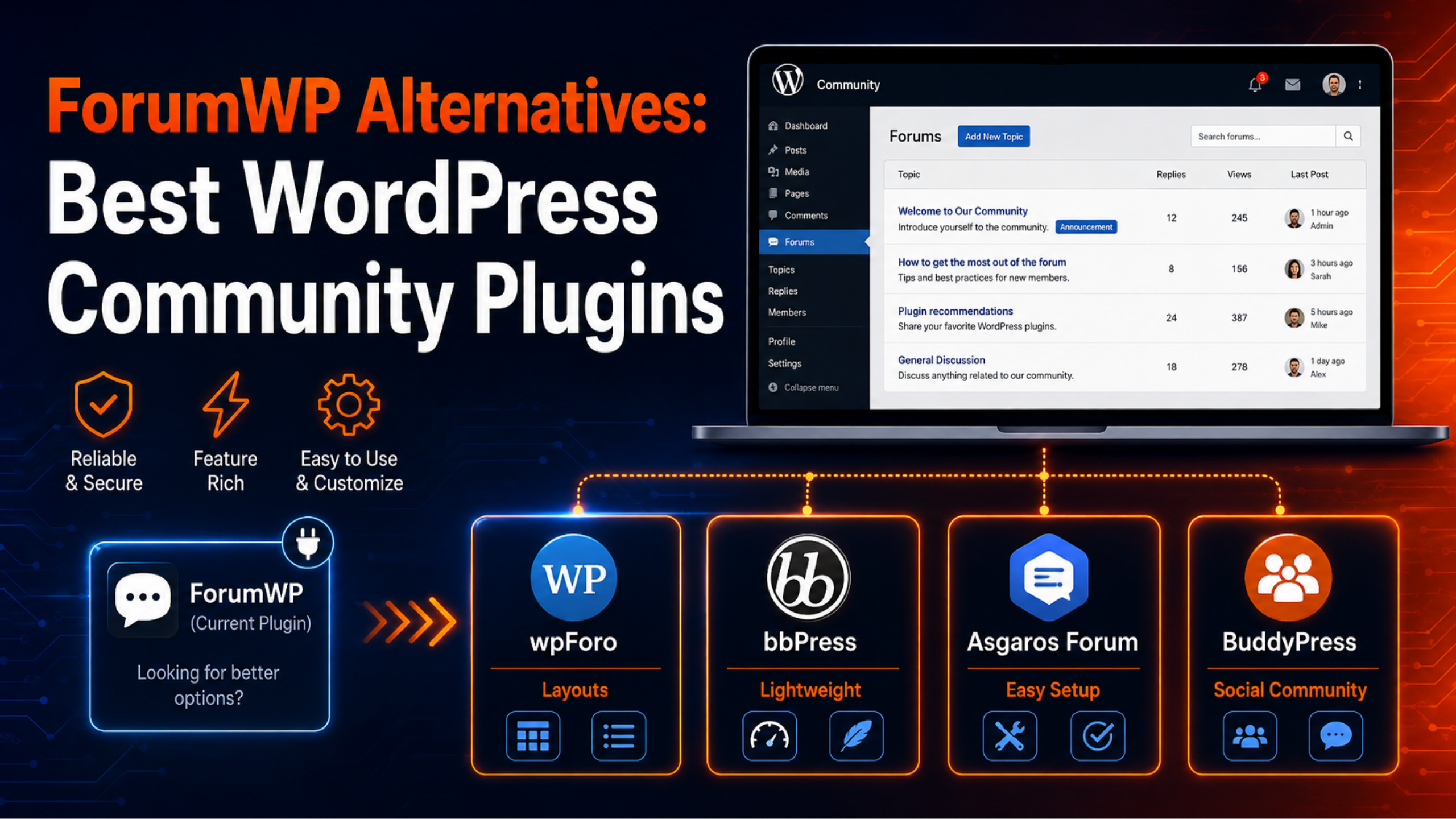
Asgaros Forum is the fastest way to a working board. Roughly 10,000+ sites use it, and it holds a 4.8-star rating. You activate it, place a shortcode, and you have a forum. Pick this if you want something running in ten minutes.
wpForo Forum is the feature-rich choice. It runs on 20,000+ sites with a 4.7-star rating. It offers five layouts — Extended, Simplified, Threaded, Question & Answer, and Boxed — plus a full permission system and built-in caching. Pick this if you expect real traffic.
bbPress is the classic. It sits on 100,000+ sites and stores everything as standard WordPress content. It is light and stable, though development has slowed. Pick this if you want the smallest possible footprint.
For this walkthrough we will use wpForo, because its settings screens match what most guides describe. The steps map closely to the other two. Already using ForumWP and thinking of moving? See our rundown of ForumWP alternatives.
Step 2: Install and Activate the Plugin
Open your dashboard and follow these clicks.
- Go to Plugins > Add New.
- Search for your plugin by name.
- Click Install Now, then Activate.
wpForo creates a forum page at /community/ automatically. Asgaros asks you to place a shortcode. bbPress adds a Forums menu in the sidebar.
If the install fails partway, it is usually a file permission or memory limit problem rather than anything you did wrong. Our guide on fixing the plugin installation failed error covers the common causes.
One note for existing sites: if you already have more than 100 registered users, wpForo will ask to synchronise them. Say yes. It links your WordPress accounts to forum profiles.
Step 3: Build Your Categories and Forums
A forum has two layers. Categories are the headings. Forums are the boards inside them.
Go to Forums > Forums in your dashboard. Create a category first, then add forums under it. wpForo lets you drag rows to reorder them, so you never touch a settings file.
Start small. Three or four forums look busy. Twelve empty forums look abandoned. A simple starting structure works well:
- Announcements — read-only news from you
- General Discussion — the catch-all
- Help & Support — questions and answers
You can always split a busy forum later. Merging dead ones is more work.
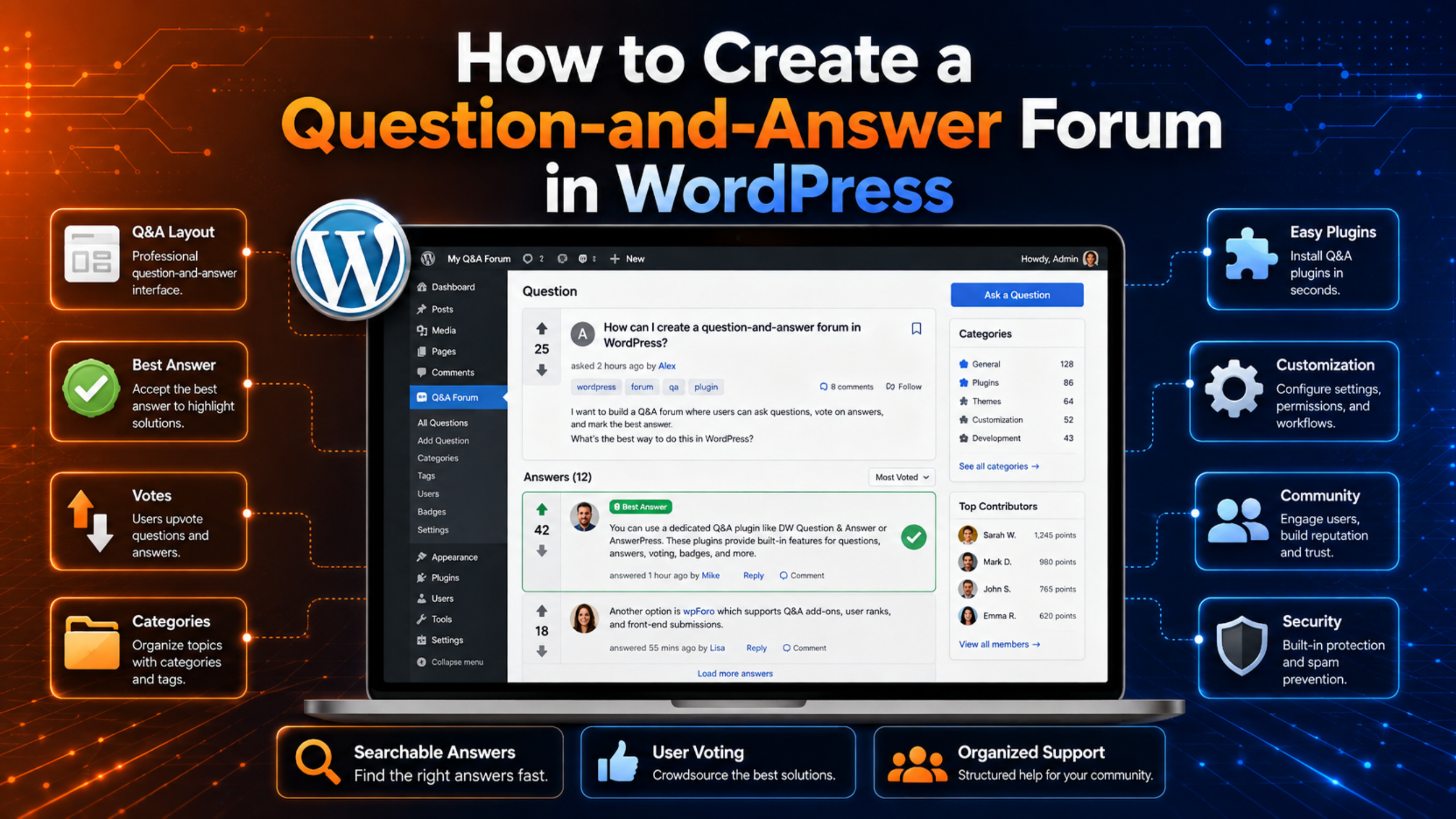
While you are here, pick a layout for each forum. Use the Question & Answer layout for support boards so the accepted answer floats to the top. Use Extended or Simplified for general chat.
Step 4: Add the Forum to Your Menu
People cannot join a forum they cannot find.
Go to Appearance > Menus. Find your forum page in the Pages list on the left. Tick it, click Add to Menu, and drag it where you want it. Save.
wpForo also creates its own navigation menu for forum links such as Members and Recent Activity. You edit that on the same screen.
Add a link in your footer too. Forums grow through repeat visits, and a footer link catches people who scrolled past the header.
Step 5: Decide Who Can Post
This is the setting people skip, and the one they regret skipping.
Open Forums > Settings and look for usergroups and access rules. You are answering two questions.
Can guests post? Allowing guest posts lowers the barrier but invites spam. For most sites, require registration.
Does the first post need approval? Turn this on for new members. Once someone has a few clean posts, the plugin can promote them automatically. It costs you a few minutes of moderation a day and stops most junk.
Set private forums here as well. wpForo, bbPress, and Asgaros all let you hide a board from everyone except a chosen usergroup. That is how membership sites build paid-only areas — a pattern we cover in our roundup of the best WordPress forum plugins for membership sites.
Step 6: Block Spam Before It Starts
A public forum will be found by bots within days. Set these up now, not after the first flood.
Turn on reCAPTCHA. wpForo 3.0 supports reCAPTCHA v2 Invisible and v3. Both work without making real members solve puzzles.
Enable Akismet. wpForo integrates with it directly, and it catches most automated posts.
Use flood protection. This limits how often one account can post. It stops a hijacked account from dumping fifty links in a minute.
Keep the plugin updated. Forum plugins handle user-submitted content, which makes them a target. The wpForo changelog lists security fixes in almost every recent release. Updates are not optional here.
It is also worth hardening the site itself. Our walkthrough on setting up the All In One WP Security plugin adds login protection and firewall rules in a few clicks.
Step 7: Test It Before You Launch
Open a private browser window and check three things.
Can a logged-out visitor see the forum? If not, your access rules are too tight.
Can a new account register and post? Run through it yourself with a spare email address.
Do notification emails arrive? Reply notifications are what bring people back. If they land in spam or never send at all, your site is probably sending mail through PHP rather than a proper SMTP service. Fix that before launch.
Check the forum on a phone too. Most forum traffic is mobile, and a broken table layout will lose you members on day one.
Common Problems and Quick Fixes
The forum page shows 404. Go to Settings > Permalinks and click Save without changing anything. That flushes the rewrite rules and fixes it most of the time.
The forum looks broken or unstyled. Clear every cache — plugin cache, host cache, and CDN. Forum plugins load their own CSS, and stale caches hide it.
The layout is squashed inside your theme. Your theme content area is too narrow. Switch the forum page to a full-width template in the page editor.
Nobody is posting. This is not a technical problem. Seed twenty real threads yourself, answer them, and give people something to reply to.
Frequently Asked Questions
Can I really add a forum to WordPress without coding?
Yes. Every step above happens in the dashboard. You install a plugin, click through settings screens, and add a menu item. No files are edited.
How long does it take?
Around an hour for a basic board. Asgaros can be live in ten minutes. wpForo takes longer because there is more to configure.
Will a forum slow down my site?
It can, once traffic builds. Forums run more database queries than normal pages. Use a caching plugin, keep your PHP version current, and choose hosting that can handle the load.
Do I need a separate forum plugin if I already use BuddyPress?
Not always. BuddyPress groups include discussion areas. Add a forum plugin only if you want threaded boards with categories and moderation tools.
Can I move my forum to a different plugin later?
Yes. wpForo ships a free migration tool that imports from bbPress, Asgaros, SimplePress, phpBB, SMF, Kunena, and MyBB. Back up first and test on staging.
Is a free forum plugin good enough?
For most sites, yes. wpForo, bbPress, and Asgaros are all free and all run real communities. Paid add-ons are for specific extras, not for basic function.
Conclusion
Adding a forum to WordPress is a plugin job, not a development job. Choose Asgaros for speed, wpForo for features, or bbPress for a light footprint. Then build a few focused categories, add the forum to your menu, lock down who can post, and switch on spam protection.
The technical part takes an hour. Growing the community takes longer, so seed the first conversations yourself and reply to every early post.
If the setup stalls — a 404 that will not clear, a layout that fights your theme, or notification emails that never arrive — our team at WP Chat Support can sort it out for you.

James is an experienced WordPress and WooCommerce specialist with over 10 years of practical experience. At WPChatSupport, he creates clear guides that help website owners fix WordPress issues, improve speed, secure their sites, and manage WooCommerce stores with confidence. His expertise includes store setup, plugin configuration, theme customization, payment gateway integration, and website troubleshooting. Through simple and helpful content, James supports users in solving technical problems and following best practices for online business growth.