Introduction
WordPress permalinks are your website’s content’s permanent web links. They direct users to your categories, posts, goods, pages, and other aspects. A clear permalink makes it easier for visitors to comprehend a site before they visit it. Additionally, it makes your content topic easier for search engines to understand. Because of this, the structure of your WordPress URL is crucial for both users and search engines. Links that are straightforward are easier for users to trust.
They can also share them through email, chat, or social media. A poor URL can look confusing and less professional. A clean URL can make your site look better and safer. Many website owners face issues with WordPress permalinks after making changes. Sometimes the homepage works, but inner pages show 404 errors. This may happen after updates, migrations, plugin changes, or SSL changes.
It can also happen after users change permalink WordPress settings without redirects. These issues can hurt user experience and reduce website traffic. The good news is that many permalink problems are fixable. You can fix WordPress permalinks with the right steps. Before fixing them, you must first understand what they are.
What Are Permalinks in WordPress and How Do They Work?
A permalink is a WordPress page’s complete web address. The reason it is called permanent is that it ought to remain steady. A page’s link shouldn’t be changed frequently once it is published. For example, a contact page may use /contact-us/ as its URL.
A blog post may use /how-to-speed-up-wordpress/ as its URL. These connections are clear, uncomplicated, and simple to navigate. Additionally, they explain the topic of the page to visitors. The permalink settings in WordPress regulate how these links show up on your website.
WordPress offers different permalink structures for different website needs. Some URLs show numbers, dates, or post names. Some users choose a custom WordPress permalink structure for special websites. However, most business websites use the post name option. It keeps URLs short, clear, and easy to remember.
For example, /wordpress-maintenance-guide/ looks better than /?p=123. A clean link gives users more confidence before they click. This is why many site owners prefer SEO friendly URLs to WordPress structures.
Permalink vs Slug: Understand the Simple Difference
A permalink and slug are closely connected, but not the same. The permalink is the full URL of a page or post. The slug is only the last part of that URL. For example, in /fix-wordpress-permalinks/, the slug is fix-wordpress-permalinks. The full permalink includes your domain and the slug together. So, your permalink may look like example.com/fix-wordpress-permalinks/.
The slug helps describe the page topic in a short way. A good slug should be simple, clear, and easy to read. It should not include long words, symbols, or random numbers. It should also match the main topic of the page.
This makes your WordPress URL structure cleaner and more useful. When you edit a page, WordPress lets you change the slug. But you should be careful when changing old slugs. Old URLs may already have traffic, backlinks, or rankings. If you change them, you may need redirects.
How to Set Permalinks in WordPress (Step by Step Guide)
From the dashboard, setting WordPress permalinks is easy. For this method, coding knowledge is not required. The permalink settings in WordPress regulate how your URLs show up online. A well-organised WordPress URL structure facilitates easy link reading by users. Additionally, it clarifies the topic of your page for search engines.
Step 1: Log In to Your WordPress Dashboard
- Open your WordPress login page in your browser.
- Enter your admin username and password carefully.
- You need admin access to change permalink settings.
- Open your website in another browser tab.
- This helps you compare links after changes.
- Take a fresh backup before changing any setting.
- A backup keeps your website safer during updates.
Step 2: Open the Permalink Settings Page
- Look at the left side menu in WordPress.
- Click on Settings from the dashboard menu.
- Now click on the Permalinks option.
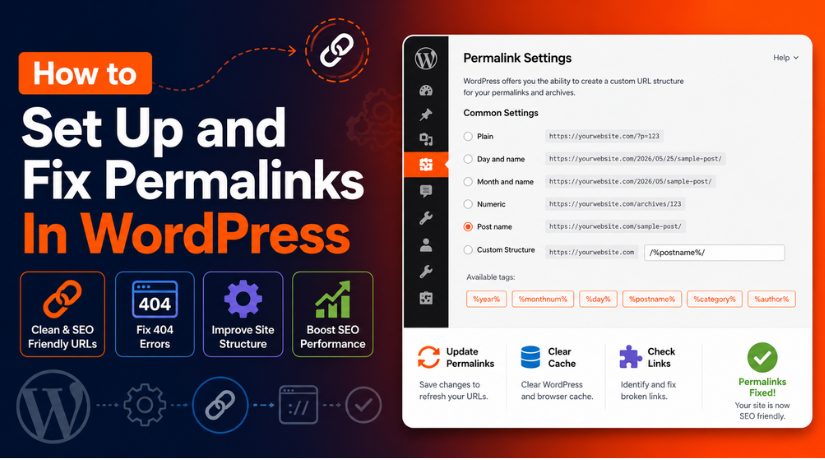
- This opens the WordPress permalink settings page.
- You will see different URL structure options there.
- These options control your WordPress permalink structure.
- Review each option before making your final choice.
Step 3: Choose the Right Permalink Option
- WordPress gives many permalink structure options.
- The Plain option uses numbers in the URL.
- It may look like /?p=123.
- This option is not clear for users.
- Date-based options add publish dates in URLs.
- They may work for news or daily posts.
- Numeric URLs also use numbers in page links.
- The Post Name option uses your page title.
- This is best for most business websites.
Step 4: Select the Post Name Structure
- Choose Post Name for most WordPress websites.
- It creates SEO friendly URLs WordPress users trust.
- A URL may look like /fix-wordpress-permalinks/.
- This looks cleaner than random numbers or dates.
- Clear URLs are easier to read and share.
- They also make your site look more professional.
- Ask a developer before using a custom structure.
Step 5: Click the Save Changes Button
- After choosing the structure, click Save Changes.
- This updates your WordPress permalink settings.
- It also refreshes your clean URL rules.
- Wait until WordPress shows the success message.
- Do not close the page before saving finishes.
- This step can also fix WordPress permalinks.
- Many 404 errors improve after saving again.
Step 6: Test Your Important Website Links
- Open your website after saving the settings.
- Test your homepage, pages, posts, and categories.
- If you use WooCommerce, test product pages too.
- Make sure every page opens without errors.
- If any URL fails, copy that broken link.
- You may need it while checking the issue.
- Testing helps catch broken WordPress permalinks early.
Step 7: Clear Website and Browser Cache
- Cache can show old links after changes.
- Clear your WordPress cache plugin first.
- Then clear hosting cache from your server panel.
- Clear CDN cache if you use Cloudflare.
- Also clear cache from your web browser.
- Test your website links again after clearing cache.
- This helps the new WordPress URL structure load.
Step 8: Use Redirects for Old URL Changes
- Be careful when changing old website URLs.
- Old URLs may already rank in search results.
- Other websites may also link to old pages.
- Without redirects, users may see 404 errors.
- Use 301 redirects from old URLs to new URLs.
- This helps protect traffic and SEO value.
- Avoid changing permalinks again after publishing.
How to Fix Permalinks In WordPress When Links Stop Working
Broken WordPress permalinks can create a poor website experience. Visitors may click a page and see a 404 error. Sometimes the homepage works, but inner pages fail. This issue can affect posts, pages, products, and categories. It may also affect custom post types on your site. Many website owners face this after updates or migrations. It can also happen after changing WordPress permalink settings.
Step 1: Re-Save WordPress Permalink Settings First
- Log in to your WordPress dashboard first.
- Go to Settings from the left-side menu.
- Click on the Permalinks option.
- Do not change any setting at this stage.
- Scroll down and click the Save Changes button.
- This refreshes your WordPress permalink structure.
- It also rebuilds the rules for clean URLs.
- Now open the broken page in your browser.
- Test posts, pages, products, and category links.
- If the pages open, the issue is fixed.
Step 2: Change the Structure and Then Change It Back
- Open the WordPress permalink settings page again.
- Choose another option, such as Plain or Numeric.
- Click Save Changes and wait for confirmation.
- Now select your preferred permalink structure again.
- For most websites, choose the Post Name option.
- Click Save Changes one more time.
- This helps refresh the WordPress URL structure.
- It may fix stuck permalink rule issues.
- Open your broken links again and test them.
- If they still fail, move to the next step.
Step 3: Clear Cache From Your Website and Browser
- Cache may show old broken page versions.
- First, clear your WordPress cache plugin.
- Next, clear cache from your hosting panel.
- If you use Cloudflare, clear CDN cache too.
- After that, clear your browser cache.
- You can also test in a private browser window.
- This helps you see the latest website version.
- Cache clearing is important after permalink changes.
- It helps confirm if links are really fixed.
- Test your important pages after clearing cache.
Step 4: Check the .htaccess File Carefully
- Many WordPress websites use Apache hosting servers.
- Apache uses the .htaccess file for clean URLs.
- This file helps WordPress permalinks work properly.
- If this file is missing, pages may break.
- If this file is damaged, links may show errors.
- If permission is wrong, WordPress cannot update it.
- Take a full backup before editing this file.
- Do not edit it if you are unsure.
- Ask hosting support to check it safely.
- They can fix file rules and permissions.
Step 5: Ask Hosting to Check Server Rewrite Rules
- Some websites use Nginx instead of Apache.
- Nginx does not use the .htaccess file.
- It needs server-level rules for clean URLs.
- Missing rules can break WordPress permalinks.
- This often happens after hosting migration.
- It can also happen after server changes.
- Contact your hosting support team for help.
- Ask them to check WordPress rewrite rules.
- Ask them to confirm clean URLs are supported.
- This is useful when only plain URLs work.
Step 6: Disable Plugins That May Break Permalinks
- Some plugins can affect WordPress permalink settings.
- Redirect plugins may change your URL paths.
- SEO plugins may add special link rules.
- Security plugins may block some URL requests.
- Multilingual plugins can change page URL paths.
- Custom post type plugins can add rewrite rules.
- Disable plugins one by one for testing.
- It is safer to test on a staging site.
- Re-save permalink settings after disabling each plugin.
- If links work, that plugin may be causing issues.
Step 7: Switch to a Default WordPress Theme for Testing
- A theme can also affect permalinks sometimes.
- This often happens with custom post types.
- Some themes use special rules for content pages.
- These rules may break your WordPress URL structure.
- Switch to a default WordPress theme for testing.
- You can use Twenty Twenty-Four or another default theme.
- Re-save WordPress permalink settings after switching themes.
- Open your broken pages and test them again.
- If links work, your theme may need fixes.
- Contact your theme developer or support team.
Step 8: Check WordPress Address and Site Address
- Wrong site address settings can break links.
- Go to Settings in your WordPress dashboard.
- Click General from the menu.
- Check the WordPress Address field carefully.
- Also check the Site Address field.
- Both should show the correct domain name.
- Both should use the right HTTPS version.
- If your site uses SSL, use HTTPS.
- Save changes after correcting these fields.
- Clear cache and test your website again.
Step 9: Check Redirect Rules for Old URLs
- Redirects send old URLs to new URLs.
- Wrong redirects can create 404 errors.
- They can also create redirect loops.
- This may happen after a permalink change.
- It may also happen after website migration.
- Check your redirect plugin settings first.
- Also check redirects added in hosting.
- Remove duplicate or wrong redirect rules.
- Use 301 redirects for changed URLs.
- This helps protect SEO friendly URLs WordPress users trust.
Step 10: Contact WordPress or Hosting Support
- Ask for expert help if the issue continues.
- Share exact broken URLs with the support team.
- Tell them which steps you already tried.
- Hosting support can check rewrite rules.
- They can also check file permissions and cache.
- WordPress support can check plugins and themes.
- They can also review redirects and URL settings.
- Avoid random testing on a live website.
- A trained team can fix WordPress permalinks safely.
- This protects your traffic and user experience.
Best Practices for WordPress Permalinks to Keep URLs Clean
A well-designed WordPress permalink keeps your website organised and easy to navigate. They also facilitate sharing and reading your sites. A robust WordPress URL structure can facilitate an improved user experience.
Use Simple and Clear URLs for Better User Experience
Simple URLs are easier for visitors to understand. They should clearly show what the page is about. For example, /wordpress-maintenance-tips/ is clean and helpful. It looks better than a link with numbers or symbols. Clear WordPress permalinks also look more trusted when shared online. Users can read them before they click the link. This helps them feel more confident on your website. Always keep your URLs short, direct, and useful.
Use Post Name Structure for Most WordPress Websites
The majority of websites benefit from the Post Name option. It is a suitable option for company pages and blogs. Additionally, it allows WordPress users to simply comprehend SEO-friendly URLs. The page or post title in the URL is used by this structure. It stays away from unnecessary dates, digits, and ambiguous wording. Verify the age of your website before making any changes to the permalink WordPress settings.
Use Hyphens, Lowercase Words, and Clean Slugs
Hyphens make URLs easier for users to read. They separate words clearly in your page slug. Always use lowercase words in your WordPress URL structure. Lowercase URLs look cleaner and are easier to type. Avoid spaces, special symbols, and random numbers in URLs. These can make links look messy or unsafe. A clean slug should match the page topic. It should also stay short and easy to remember.
Avoid Changing WordPress Permalinks Too Often
A page’s URL shouldn’t be changed frequently once it is live. Links from the past may already be kept or shared online. Additionally, other websites may have backlinks to them. Users may notice issues if URLs are changed without being redirected. This may have an impact on search traffic as well. Use a 301 redirect if changing a URL is necessary. As a result, users are sent to the new URL from the previous one.
Take a Backup Before Major Permalink Changes
Always take a full website backup before major changes. This is important before updating WordPress permalink settings. A backup gives you a safe restore option. It can help if links break after changes. You should also test important pages after saving settings. Check posts, pages, categories, and product links.
Conclusion
WordPress permalinks are important for every website. They help users find pages, posts, products, and blogs easily. A clean WordPress URL structure also helps search engines understand your content. The best approach is to choose a simple permalink structure early. For most websites, the Post Name option works well. It keeps URLs short, clear, and easy to read.
If your links stop working, start with simple checks first. Re-save WordPress permalink settings from the dashboard. Then clear cache and test your important pages again. If the issue continues, check redirects, plugins, themes, and server rules. You should also avoid changing old URLs without 301 redirects. This helps protect visitors from broken links and 404 errors.
For website owners who need help understanding or fixing WordPress permalink issues, WPChatSupport provides WordPress support guidance. You can visit WP Chat Support or call +1 888 602 0119 for more information about WordPress support options.

James is an experienced WordPress and WooCommerce specialist with over 10 years of practical experience. At WPChatSupport, he creates clear guides that help website owners fix WordPress issues, improve speed, secure their sites, and manage WooCommerce stores with confidence. His expertise includes store setup, plugin configuration, theme customization, payment gateway integration, and website troubleshooting. Through simple and helpful content, James supports users in solving technical problems and following best practices for online business growth.