Introduction
Your site is live, your visitors are fine, and you cannot get in. The login screen is blank, or it will not load, or it keeps reloading without letting you through. Nothing you type makes any difference.
This is one of the most stressful WordPress problems, because it locks you out of the only tool you normally use to fix things. You cannot deactivate a plugin from the dashboard. You cannot roll back an update. You cannot even read the error, because the dashboard is on the wrong side of the door.
The good news is that this is nearly always a solvable problem, and you rarely need developer skills to solve it. Every fix below is done from your hosting file manager, an FTP client, or your hosting control panel. Those tools keep working even when WordPress will not let you in.
This guide covers the signs that tell you which version of the problem you have, the real causes behind each one, a step-by-step fix for every cause, and the habits that keep your login page healthy afterwards.
Certain events trigger this far more often than others. A plugin or theme update. Adding a security plugin that hides or protects the login page. Moving the site to a new domain or to HTTPS. A failed update that left files half-written. A caching plugin or CDN that started storing the login page.
Before you begin, note one important difference. This guide is for people who cannot get in at all. If you can log in successfully but get dropped again a moment later, read our guide on what to do when WordPress keeps logging you out. That is a cookie problem with its own set of fixes.
Signs That Show the WordPress Login Page Is Not Working
“Login not working” covers several different faults, and each one points at a different cause. Spending two minutes on the signs will save you an hour of guessing. Work through the list below and write down exactly what you see.
Start with what loads. A completely white page with no text at all usually means PHP stopped running partway through. A short message saying the site is experiencing technical difficulties means WordPress caught a fatal error and sent an email to your admin address. A “not found” page means the server cannot find the login file at that address. A server error page means something failed before WordPress even started.
If the form does load, watch what happens when you submit it. A page that reloads the empty login form, again and again, without any error message is the classic refresh loop. A page that says your password is incorrect is a different fault. A page that mentions cookies being blocked or not supported is pointing straight at a cookie problem.
Look at the address bar during the failure. Sometimes it bounces between the login page and the dashboard. Sometimes it switches between www and the plain domain, or between http and https. Sometimes it ends up on the front page of the site instead. Each of those tells you something useful.
Check whether anything is blocking you by name. A “forbidden” page, a message about too many attempts, or a browser box asking for a second username and password all mean a security layer has stepped in front of WordPress. That is a different situation from a broken file.
Finally, test the boundaries of the problem. Try a second browser and a private window. Try your phone on mobile data rather than your office network. Ask a colleague to try. If it fails everywhere, the cause is on the server. If it fails only for you, suspect your browser, your network, or an IP block on your address.
Reasons Why the WordPress Login Page Stops Working
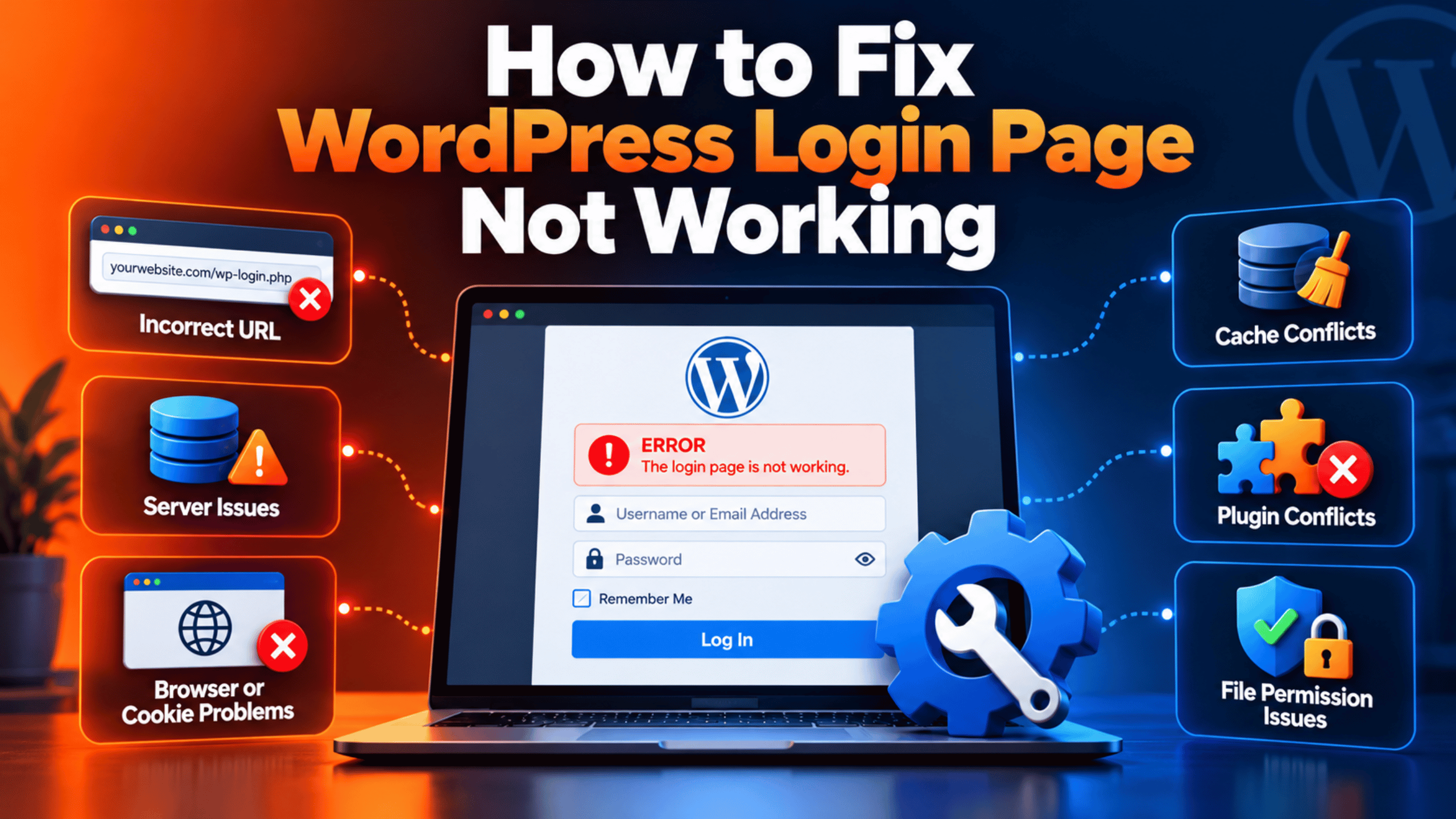
The login page is a small file, wp-login.php, but a lot has to work before it can do its job. The server must find it. PHP must run it without a fatal error. WordPress must load every active plugin and your theme. It must set a cookie and redirect you correctly. Each cause below breaks one link in that chain, so read them and shortlist the ones that match your signs.
1. The login address has changed or been hidden. Several security plugins move the login page away from the standard address, so attackers cannot find it. That is a good idea, but it also means the standard address returns a “not found” page. People hit this after a site is handed over, after a plugin is reinstalled, or after a bookmark goes stale. Your login page is not broken at all in this case; it has simply moved.
2. A plugin or theme is causing a fatal PHP error. The login page loads your active plugins and your theme’s functions file, just like any other page. If any of that code hits a fatal error, PHP stops and sends nothing useful. Modern WordPress catches many of these and shows a technical-difficulties message instead of a blank page, then emails a special recovery link to your site admin address. A version mismatch after an update is the usual trigger.
3. Something sends output before the page headers. A cookie is set in the page headers, and headers must be sent before any visible content. If a file sends even a single blank line too early, the cookie never gets set. This most often comes from a stray space or empty line in wp-config.php, or from a badly saved theme file. The giveaway is a warning about headers already being sent, which names the exact file and line at fault.
4. Your browser is blocking the cookies. WordPress cannot log anybody in without cookies, so it writes a test cookie first and checks whether it survived. Strict privacy settings, a “clear cookies on exit” setting, an aggressive extension, or a managed work browser can all block it. WordPress then tells you that cookies are blocked or not supported by your browser, and the form will never succeed.
5. The .htaccess file is corrupted or missing its rules. On Apache servers this file controls how addresses are handled. A misbehaving plugin, a failed migration, or a hand-written redirect can leave it broken. The result is usually a server error on every page, a redirect loop, or a “not found” page for the login screen. A missing rewrite module produces similar symptoms for pretty permalinks.
6. Your stored site address does not match the address you use. WordPress stores a WordPress Address and a Site Address. Cookies belong to one exact host name, so a mismatch means your browser will not send the cookie back after login. WordPress sees an unknown visitor and shows the login form again. This is the number one cause of the endless refresh loop, and it appears right after a move to a new domain or to HTTPS.
7. The login page is being cached. Every login form carries a one-time security token. If a cache stores a copy of that page and serves the same token to everybody, submissions start failing for no visible reason. Caches can also store the redirect that follows a successful login, which sends you back to the form. Page caches, CDNs and some hosting-level caches can all do this.
8. A security rule has locked you out. Firewalls and security plugins block repeated failed logins by IP address, which can catch you after a few wrong guesses. A hosting firewall can block a whole country or network range. The login file can also be protected with a separate server password, which makes the browser ask for credentials before WordPress is reached at all. These produce “forbidden” or “unauthorized” responses rather than broken pages.
9. The password is wrong, or the user record is damaged. Sometimes the simple answer is the right one, especially if the reset email never arrives. A damaged user record is rarer but real: a migration can import users with the wrong database table prefix, which leaves the account unable to see any menus even after a successful login. A deleted or demoted administrator account has the same effect.
10. Server limits or database faults stop the page finishing. PHP has a memory limit and a maximum run time. A heavy plugin can exhaust either one while the login page is loading, which produces a white page or a timeout. Database problems do the same from another direction: a crashed table in the options or users table can stop WordPress reading the settings it needs, and a failed database connection stops everything.
How to Fix a WordPress Login Page That Is Not Working (Step by Step)
Work through these steps in order. They begin with checks that change nothing, then move to file-level fixes. Every step names the cause it addresses, shows you how to confirm that cause before you act, and tells you how to check the result. Skip any step whose check shows it does not apply to you.
Two things will make this much easier. First, get access to your files now, through your host’s file manager or an FTP client, because most of the later steps need it. Second, take a full backup of files and database before you edit anything, or work on a staging copy. Our guide to backing up WordPress with UpdraftPlus shows a free way to do it, and most hosts can take a one-click backup for you from the control panel.
Step 1: Confirm You Are Using the Right Login Address
This step deals with cause one, a login page that has moved. It costs nothing and it solves a surprising number of cases, so always start here. A hidden login page is working perfectly; you are just knocking on the wrong door.
Confirm it by looking for the plugin that moved it. Open your wp-content/plugins folder in your file manager and look for a login-security plugin, a plugin that hides the login page, or a broad security suite. If one is there, its custom address is stored in your database settings, but there is a quicker route. Check your browser history and your password manager for the address you used to use, and check whether any old email from the site contains an admin link.
If you cannot find the custom address, you can turn the feature off temporarily. Rename that one plugin’s folder, for example from wps-hide-login to wps-hide-login-off. WordPress will treat it as missing and deactivate it, and the standard login address will work again. Take a backup first, and rename the folder back and reactivate the plugin once you are in, because hiding the login page is genuinely useful.
Verify by loading the standard login address. If the form appears, this was your cause. If you still get a “not found” page, the file or the rewrite rules are the issue, and our guide on setting up and fixing permalinks in WordPress will help alongside step eight.
Step 2: Clear Your Cookies and Test in a Private Window
This step addresses cause four, blocked cookies. WordPress cannot complete a login without them, so no server-side change will help until the browser cooperates. The check is completely safe and takes a minute.
Confirm it by changing browser. Open the login page in a browser you never use, or in a private window, and try again. If you get in there, your usual browser is the problem. If you see a message about cookies being blocked or not supported, you have confirmed the cause directly.
Now fix your preferred browser. Clear cookies and site data for your own domain rather than wiping everything. Look for a setting that clears cookies when you close the browser and switch it off. Add your site to the list of sites allowed to store cookies. Then disable privacy and script-blocking extensions one at a time, testing after each. On a work laptop, a managed policy may block cookies, and your IT team will need to allow your domain.
Verify by logging in again in your normal browser. Reaching the dashboard means a browser setting or extension was the cause. If the cookie message still appears even in a clean browser, the server is failing to set the cookie, and step ten covers that.
Step 3: Clear Every Cache and Stop Caching the Login Page
This step fixes cause seven. A cached login form carries a stale security token, so your perfectly correct password gets rejected or the page simply reloads. Most sites have several caches, and all of them need clearing.
Confirm it in two ways. First, open the login page in a private window; a cached copy is often served to anonymous visitors only, so a working private window with a failing normal window points this way. Second, check whether you recently installed or reconfigured a caching plugin or CDN. A form that reloads with no error message fits this cause well.
Clear each layer in turn. Most hosts expose a cache purge button in the control panel, so start there. Purge your CDN next, from its own dashboard. If you cannot reach the WordPress dashboard to clear a caching plugin, delete the contents of its cache folder inside wp-content, which is safe because the files are only copies. Then stop the problem returning: configure the plugin and the CDN never to cache the login page or the admin area, and to bypass the cache whenever a WordPress login cookie is present.
Verify by reloading the login page with a forced refresh and signing in. If you get through, caching was the cause. If the form still loops, go to step nine, which covers the address mismatch behind most loops.
Step 4: Reset Your Password Without the Dashboard
This step covers cause nine. It is worth doing early because it is quick, it is reversible, and a forgotten password is far more common than people like to admit.
Confirm it by reading the error. If the form tells you the password is incorrect, or that the username is unknown, the form itself is working and your credentials are the problem. If the form never submits at all, skip this step. Also check whether the reset email arrives, because a site that cannot send email will make this look like a deeper fault.
Try the simple route first. Use the “Lost your password?” link on the login page and follow the email. If the email never arrives, use your hosting database tool instead. In phpMyAdmin, open your site’s database, open the users table, find your username, and edit the password field. Delete the existing value, type your new password in plain text, and select the MD5 function from the dropdown beside the field before saving. WordPress will accept that and upgrade it on your next login. Back up the database before you edit it, because database edits cannot be undone. The official WordPress password reset documentation covers this and several other routes in detail.
Verify by logging in with the new password. If you get in, you are done. If your reset emails never arrive, fix your site email next, because you will need those messages later. If the correct password is still refused, move on to step five.
Step 5: Check Whether a Security Rule Is Blocking You
This step addresses cause eight. Security layers sit in front of WordPress, so they can refuse you before the login logic ever runs. Their messages look alarming but the fix is usually a small change in a control panel.
Confirm it from the response you get. A “forbidden” page means something refused a request it recognised, which our guide on fixing the 403 forbidden error in WordPress covers in depth. A browser pop-up asking for a username and password means the login file is protected by a separate server password. A message about too many attempts means a plugin has locked your address out. Try your phone on mobile data too: if that works, your own IP address is blocked.
Fix it at the layer that is blocking you. In your hosting control panel, look for a security, firewall or IP blocking section and remove your own address from the blocked list. If there is directory protection on the login file, that same control panel will let you turn it off or tell you the password. If a security plugin is the culprit and you cannot reach its settings, rename its plugin folder as described in step one to switch it off temporarily. Take a backup first, and put the protection back once you are in.
Verify by loading the login page and signing in from the network that failed before. Then re-enable the protection and add your own address to its allow list, so the same lockout does not repeat next week.
Step 6: Rule Out a Plugin by Renaming the Plugins Folder
This step tackles cause two, a fatal error from plugin code. The login page loads every active plugin, so one broken plugin can blank the whole screen. Turning them all off at once is the fastest way to prove whether a plugin is responsible.
Confirm it from the signs. A blank white page, a technical-difficulties message, or a server error on the login page all fit this cause. Check your site admin inbox as well, because WordPress emails a recovery link when it catches a fatal error, and that link lets you into the dashboard with the broken plugin paused. Your host’s PHP error log, usually available in the control panel, often names the exact plugin file.
If you have no recovery email, do it by hand. Take a full backup first, because your site will lose all plugin features while they are off, which matters on a store. Then use your file manager to rename wp-content/plugins to plugins-hold. Load the login page. If it now works, log in, rename the folder back to plugins, and go to the plugins screen, where everything will be listed as inactive. Reactivate them one at a time, loading the login page in a private window after each, until the fault returns. The plugin that brings it back is your cause. The official WordPress troubleshooting FAQ documents this method.
Verify by leaving the guilty plugin deactivated and confirming that the login page works normally. Then update it, replace it, or contact its support team. Our guide on the WordPress white screen of death goes deeper if the blank page persists after every plugin is off.
Step 7: Switch to a Default Theme to Rule Out the Theme
This step also addresses cause two, but from the theme side. Your theme’s functions file runs on the login page as well, so a fatal error there produces exactly the same blank screen. People often skip this check because the login page does not look like their theme.
Confirm it by sequence. If step six cleared the problem, the theme is innocent and you can skip this. If the login page is still blank with every plugin disabled, your theme or your core files are next in line. A recent theme update, a child theme edit, or a PHP version change on the server all point this way.
Test it by taking the theme out of play. Take a backup first. In your file manager, open wp-content/themes and rename your active theme’s folder, for example from my-theme to my-theme-hold. WordPress falls back to a default theme such as Twenty Twenty-Four if one is present, so make sure a default theme folder exists before you rename anything. If none is present, download one from the official theme directory and upload it first.
Verify by loading the login page. If it works, your theme was the cause: log in, keep the default theme active for now, and restore your own theme from a backup or reinstall a fresh copy. If the page is still broken with the theme and all plugins out of the way, the fault is in core files or configuration, which steps eight to eleven cover.
Step 8: Replace the .htaccess File With a Clean Copy
This step fixes cause five. A corrupted rules file can send the login page into a loop, hide it behind a “not found” error, or break every address on the site. Replacing it with the standard version is a well-documented, low-risk repair.
Confirm it by looking at the file. On an Apache server you will find .htaccess in the same folder as wp-config.php; your file manager may need “show hidden files” switched on. Open it and read it. Rules outside the block marked as WordPress, especially hand-written redirects or leftovers from a security plugin, are prime suspects. A server error on every page is a strong signal. If your host runs Nginx, there is no such file, and your host controls the rules instead, so skip to step nine.
Replace it carefully. Download a copy of the current file to your computer first, so you can restore it, then also copy any custom rules into a separate note. Now replace the file’s contents with the standard WordPress block:
# BEGIN WordPress
RewriteEngine On
RewriteRule .* - [E=HTTP_AUTHORIZATION:%{HTTP:Authorization}]
RewriteBase /
RewriteRule ^index.php$ - [L]
RewriteCond %{REQUEST_FILENAME} !-f
RewriteCond %{REQUEST_FILENAME} !-d
RewriteRule . /index.php [L]
# END WordPress
Verify by loading the login page and then a few inner pages of the site. If login works but inner pages now return “not found”, open the permalinks screen in your dashboard and save it once, which rewrites the rules properly. Then add your custom rules back one at a time, testing after each. If the login page still loops, go to step nine, and our guide on fixing ERR_TOO_MANY_REDIRECTS in WordPress covers wider redirect loops.
Step 9: Fix the Site Address and HTTPS Mismatch
This step addresses cause six, and it is the answer to most endless refresh loops. Your browser only returns a cookie to the exact host name that set it, so a stored address of example.com and a browsing address of www.example.com will never agree.
Confirm it before changing anything. Open wp-config.php and look for WP_HOME and WP_SITEURL lines. If they are there, compare them with the address in your browser bar, character by character, including www and https. If they are not there, the values live in your database instead: in phpMyAdmin, open the options table and read the siteurl and home rows. A loop that started right after a domain change or an HTTPS switch is almost certainly this.
Set both values to the one address you want. The quickest safe route is wp-config.php, because it overrides the database without changing it. Back the file up, then add these two lines above the line that says to stop editing, using your own address with no slash on the end:
define( 'WP_HOME', 'https://example.com' );
define( 'WP_SITEURL', 'https://example.com' );
Verify by loading the login page at that exact address and signing in. If you get through, keep the lines for now, then set the same values on the general settings screen and remove the lines once the site is stable. Visit the other version of the address on purpose to confirm it redirects correctly. If you get in but keep getting logged out again, that is a separate problem, and our guide on WordPress logging you out repeatedly takes it from there.
Step 10: Check wp-config.php for Stray Output
This step fixes cause three. Cookies travel in the page headers, and headers have to be sent before any visible content. One stray blank line in the wrong file stops the cookie being set, so the login form can never succeed.
Confirm it from the warning. If you see a message about headers already being sent, read it carefully: it names the file and line number where the unwanted output started. That is the file to fix, not the login file mentioned later in the same message. Even without a visible warning, this is the cause to suspect when a clean browser still reports blocked cookies and no cache or plugin is involved.
Fix the named file. Download it, then open it in a plain text editor such as Notepad or a code editor, never a word processor. Confirm the very first characters of the file are the opening PHP tag, with nothing at all before them, not even a space. Then go to the very end and remove every blank line and space after the final line of code. Save the file as plain UTF-8 without a byte order mark, because that invisible marker counts as output too. Keep your downloaded copy as a backup, and remember that a mistake in wp-config.php takes the whole site offline.
Verify by uploading the file and loading the login page. The warning should be gone and the form should accept your details. If the page now returns a server error instead, you have introduced a syntax mistake, so restore your downloaded copy and try again more carefully.
Step 11: Raise Server Limits and Repair the Database
This step covers cause ten. If the login page runs out of memory or time, or cannot read the settings it needs, it stops partway through and shows you nothing. These are server-side limits, so they are the last thing to check.
Confirm it from the evidence. A message about allowed memory size being exhausted, or about a maximum execution time being exceeded, names the cause directly. A database connection error does the same. Your host’s PHP error log will show these even when the page itself is blank, and the log is usually one click away in the control panel.
Raise the limits first, because that is the easier half. Back up wp-config.php, then add a line above the stop-editing line to give WordPress more memory:
define( 'WP_MEMORY_LIMIT', '256M' );If your host caps PHP memory below that, the line will not help and you will need to ask them to raise it or move to a better plan. For the database half, open phpMyAdmin, back up the database, then select your tables and choose the repair option, paying particular attention to the options and users tables. Treat a memory limit as a clue rather than a cure, because something on your site is using that memory and will use it again.
Verify by loading the login page and signing in, then watching the error log for repeat entries. If every step here has failed, the problem is probably specific to your hosting stack, so open a ticket with your host or bring in a WordPress specialist rather than carrying on by guesswork.
Best Practices to Prevent WordPress Login Page Problems in Future
Each habit below closes off one of the causes above. None of them takes long, and together they mean you will almost never be locked out again. The aim is to make sure that when something does break, you still have a way in.
Record your custom login address. If you hide the login page, write the real address in your team’s password manager next to the credentials. Also note which plugin provides it. This single note prevents the most avoidable lockout of all, especially when a site changes hands.
Keep a second administrator account. Create a separate administrator with its own email address and a strong password, and keep it unused. If your main account is locked, demoted, or lost in a migration, you still have a normal way in. Store its details somewhere other than the site itself.
Set up file access before you need it. Make sure you can reach your host’s file manager or connect by FTP today, while everything works. Test it once. When the dashboard is down, this is your only route to the fixes above, and finding your hosting password during a crisis wastes the worst hour.
Test updates on staging first. Plugin and theme updates cause most fatal errors on the login page. Many hosts offer a free staging site, so update there, click around, and only then update live. Read changelogs for anything that touches login, security or caching.
Keep your site email working. Password resets and fatal-error recovery links both arrive by email, so an unreliable mail setup removes two of your safety nets at once. Use a proper sending service rather than the default server mail, and send yourself a test message every few months.
Configure caching to leave the login page alone. Exclude the login page and the admin area from every cache, in your caching plugin, your CDN and your host’s cache. Tell the CDN to bypass the cache when a WordPress login cookie is present. Then purge everything after any change to the site.
Use one canonical address with HTTPS end to end. Pick www or the plain domain, use HTTPS, and keep both stored addresses matching exactly. Install a valid certificate on your own server and set any proxy to its strict mode. This prevents refresh loops and mixed-content warnings together.
Allow your own address in your security tools. Add your office and home IP addresses to the allow list in your security plugin and your hosting firewall. Set the lockout threshold to something sensible rather than very strict, and make sure the lockout expires on its own so you are never permanently shut out.
Keep backups automatic and test a restore. Daily automatic backups of files and database turn almost any lockout into a short task. Restore one to a staging site once, so you know the process works and how long it takes. An untested backup is only a hope.
Stay on supported versions. Keep WordPress, plugins, themes and PHP current, and check the Site Health screen now and then. Most fatal errors on the login page come from old code meeting a new PHP version, and keeping everything current removes that whole category of risk.
Conclusion
Being locked out of your own site feels like an emergency, but the login page fails in a small number of recognisable ways. A blank screen, a technical-difficulties message, a “not found” page, an endless refresh, a cookie warning, or a “forbidden” response each point at a different cause. Writing down exactly what you see, and whether a second browser or a phone behaves differently, is the fastest move you can make.
The causes form a short list. A login page that has moved. A fatal error from a plugin or theme. Stray output before the headers. A browser blocking cookies. A corrupted rules file. A mismatch between your stored site address and the address you visit. A cached login page. A security rule blocking your address. A wrong password or damaged user record. Server limits or a damaged database table.
The fix process follows the same order every time. Confirm the login address, clear your cookies, clear every cache, reset your password, check for a security block, rule out plugins, rule out the theme, replace the rules file, correct the site address, check the configuration file for stray output, and finally look at server limits and the database. Each step tells you how to confirm it applies before you change anything, and every risky step starts with a backup.
Prevention is about keeping a second way in. Record your custom login address, keep a spare administrator account, make sure file access and site email both work, exclude the login page from every cache, allow your own IP address in your security tools, and test updates on staging before they reach live. Automatic backups turn the worst case into an inconvenience.
Work through the steps in order and you will find the cause rather than guess at it. And if you can reach the login screen and sign in, but keep getting dropped straight afterwards, our guide on what to do when WordPress keeps logging you out picks up exactly where this one ends.

James is an experienced WordPress and WooCommerce specialist with over 10 years of practical experience. At WPChatSupport, he creates clear guides that help website owners fix WordPress issues, improve speed, secure their sites, and manage WooCommerce stores with confidence. His expertise includes store setup, plugin configuration, theme customization, payment gateway integration, and website troubleshooting. Through simple and helpful content, James supports users in solving technical problems and following best practices for online business growth.