Some talks belong behind a login. Client updates. Course chats. Paid coaching groups. A private member forum gives you that space on your own site. You own the data. You set the rules. You choose who gets in.
WordPress can do this with no code. You need one forum plugin and a handful of settings. This guide walks you through the whole build. You will create the forum, hide it from the public, add members, and lock it to a paid plan.
What Is a Private Member Forum?
A private member forum is a board that only logged-in members can see. Guests see nothing. Search bots see nothing. Topics, replies, and member names all sit behind your login screen.
This is not the same as a members-only page. A page holds one block of text. A forum grows by itself. Members ask. Other members answer. Over time you build a searchable archive that nobody else can copy.
Firms use these boards for clear jobs. Course sellers run class chats. Agencies give clients a support board. Nonprofits plan volunteer shifts. Software teams gather beta notes. In each case, the wall around the board is the value.
What to Check Before You Start
Check five things first. This saves you an hour of clean-up later.
- Updates. Open Dashboard > Updates. Install every pending core, theme, and plugin update.
- A backup. Take a full site backup. Store it off your server.
- Permalinks. Open Settings > Permalinks. Pick Post name. Forum plugins need clean URLs.
- A staging copy. Build there first. Forum plugins add many new templates.
- Your pricing plan. Free or paid? The answer changes which plugins you install.
That last point matters most. A free private forum needs one plugin. A paid one needs two. Sort it out now. Switching later means moving users, roles, and links by hand. That job is slow and easy to get wrong. If you are still picking tools, our roundup of the best WordPress forum plugins for membership sites lays out the options side by side.
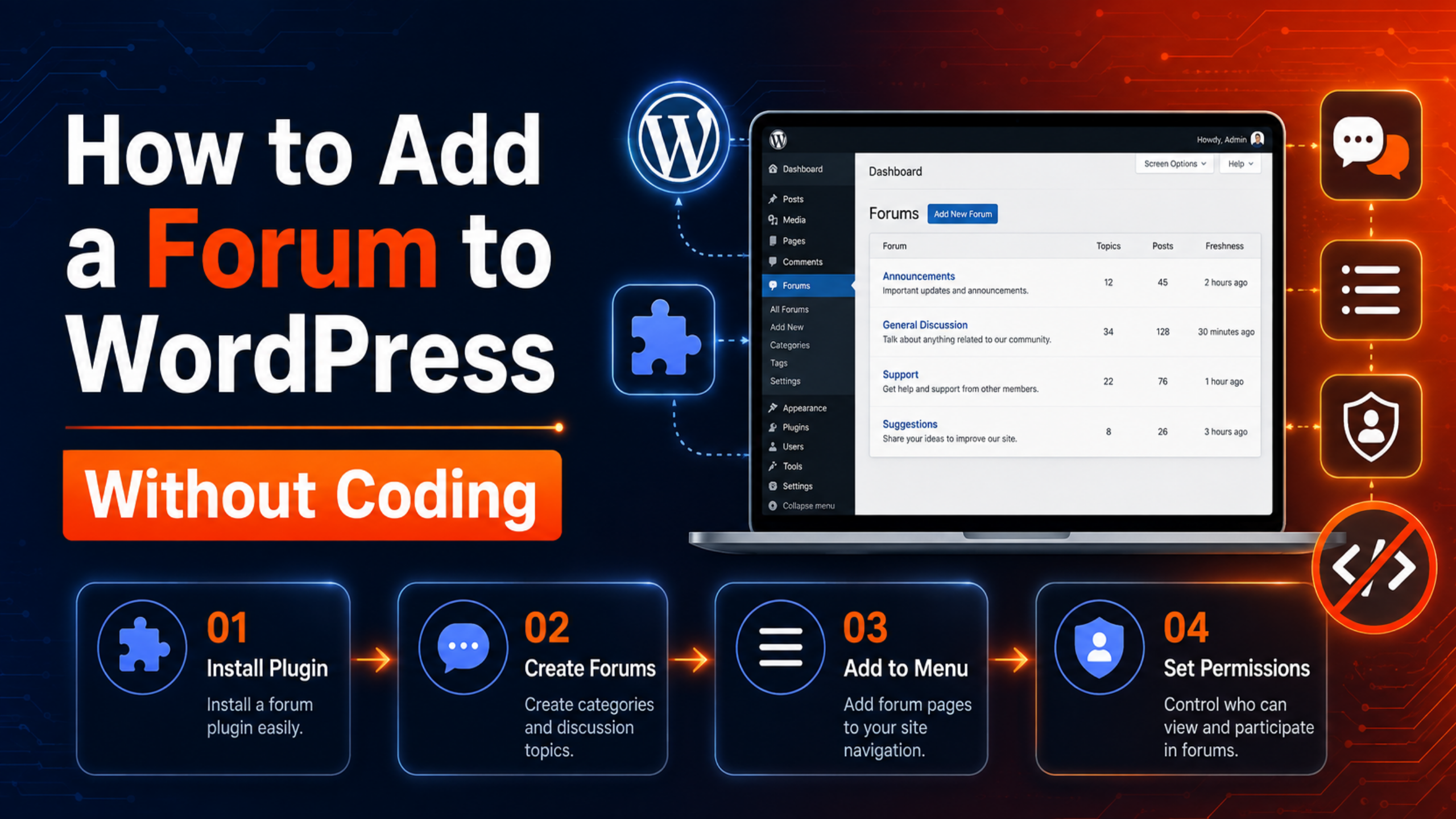
Step 1: Install bbPress and Build Your First Forum
bbPress is the classic forum plugin for WordPress. It is free, and it ships with the visibility settings you need.
Go to Plugins > Add New. Search for bbPress. Install it and turn it on. You now have three new menu items in the sidebar: Forums, Topics, and Replies.
Open Forums > New Forum. Give it a name such as “Member Lounge”. Add a short description. Save it. You need at least one forum before anything shows up on the front end.
Now add one test topic. Go to Topics > New Topic. Pick your new forum in the Forum box. Save it. This gives you real content to test against once the wall goes up. If you want a wider view of setup routes, see our guide on how to add a forum to WordPress without coding.
Give the Forum Its Own Page
bbPress needs a page to show up on. There are two ways to do it.
Method one uses the root slug. Open Settings > Forums and look at the Forum Root Slug. The default is forums. Create a WordPress page with that exact title, then save it. bbPress will find it.
Method two uses a shortcode. Create a page, add a line of welcome text, then paste [bbp-forum-index] below it. Publish. This method lets you add intro copy above the board, which most sites want. The official bbPress setup guide covers both routes in detail.
Add the page to your menu either way. Members need a link they can find.
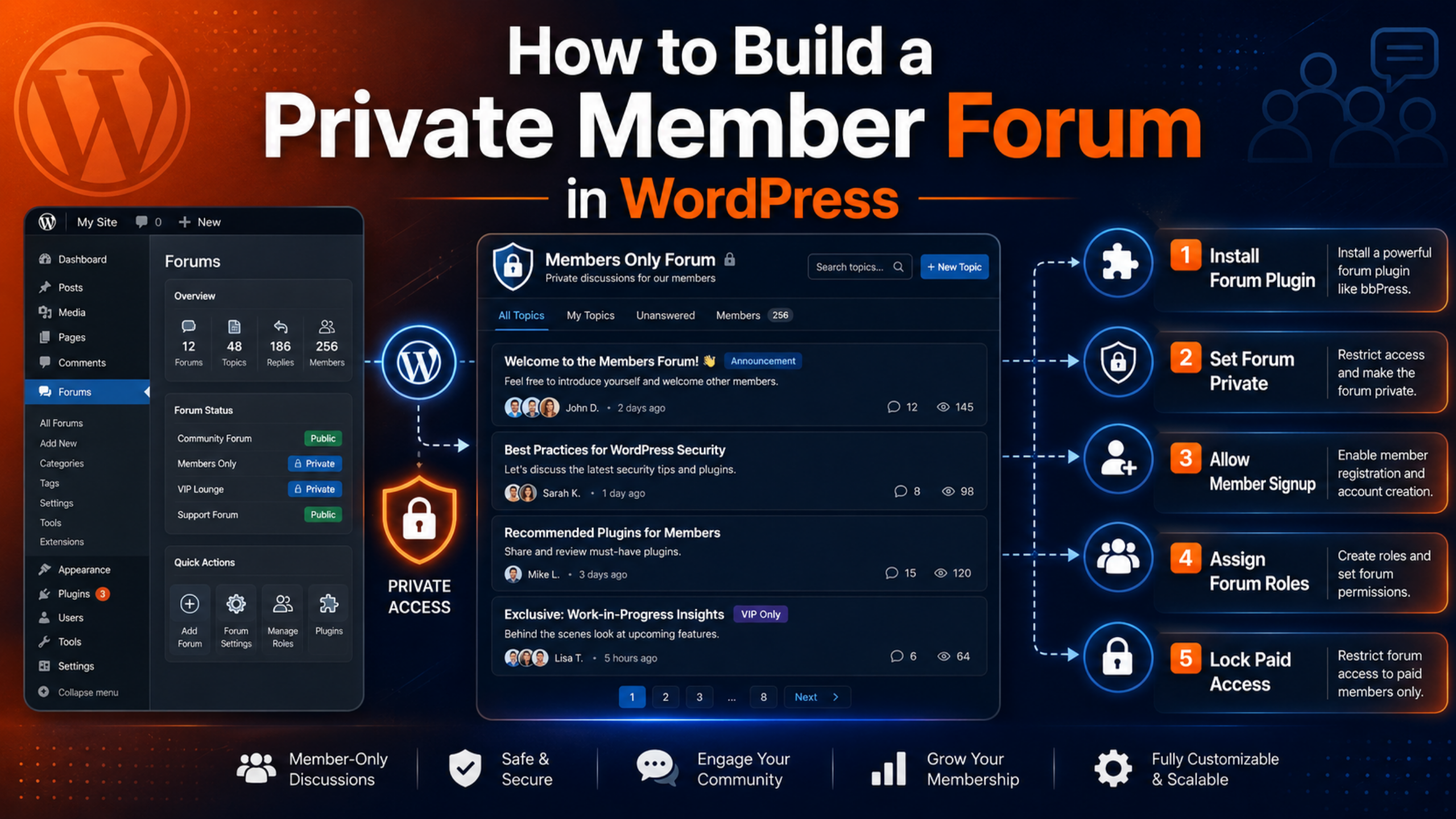
Step 2: Switch the Forum to Private
This is the step that builds the wall. It takes ten seconds.
Open Forums and click Edit on your forum. Look at the right column for the Forum Attributes box. You will see a Visibility field. Change it from Public to Private. Update the forum.
Now reload the forum page in a private browser window. You should see nothing. That blank screen is the whole point. If you still see the board, you are still logged in somewhere. Try again in a fresh window with no session.
Do this for every forum you want hidden. Visibility is set per forum, not site-wide. A new forum starts as Public unless you change it. That default trips up a lot of site owners.
Public, Private, and Hidden Explained
bbPress gives you three states. Each one does a different job.
Public. Anyone can see the forum. Guests and bots included. Use this for a help board you want indexed.
Private. Only logged-in users with a forum role can see it. This is the setting for a member board.
Hidden. Only moderators and keymasters can see it. Use this for staff notes or a forum you are still building.
Pick Private for your member board. Then keep one Hidden forum as a scratch pad for your team. It is a handy place to test settings while members carry on elsewhere.
Step 3: Choose How Members Sign Up
You now control who sees the board. Next you control who joins it.
Open Settings > General. Look at the Membership row. Tick Anyone can register for open sign-up. Leave it clear for manual sign-up.
Open sign-up is fast. People join in seconds. It also invites spam bots, so pair it with a captcha and a moderation queue.
Manual sign-up is slower but much tighter. You add each user by hand under Users > Add New. Nobody slips in. Most paid and client boards use this route.
Either way, give people a place to start. Create a page and paste [bbp-register] for the open route. For the manual route, use a contact form and reply by email.
Step 4: Give Members a Forum Role
A private bbPress forum checks two things. Is the user logged in? And does the user hold a forum role? Miss the second one and your members still see a blank page.
bbPress ships with five forum roles. Spectator can read but not post. Participant can read and post. Moderator can edit and remove other people’s posts. Keymaster runs everything. Blocked shuts a user out.
Set the default under Settings > Forums. Tick the auto-role box and pick Participant. New users then get posting rights the moment they sign up.
To change one person, open Users, click Edit, and scroll to the bottom of the screen. The forum role box sits there. Save the change, then test it in a private window. This is the single most common cause of “my members cannot see the forum” tickets.
Step 5: Lock the Forum to Paid Members
Private stops guests. It does not stop free members. If you sell access, you need one more layer.
Paid Memberships Pro handles this well. Install the main plugin, then install its free bbPress add-on. The add-on puts a Require Membership panel on each forum edit screen.
Open your forum and tick the levels you want to allow. The add-on then protects the forum index, every topic inside it, and every reply. Members on other levels get your error message instead. The official add-on page lists the full feature set.
Write that error message with care. It is the only thing a non-member reads. Say what waits inside the forum. Add one clear link to your pricing page. A blank denial screen wastes a warm lead.
The wpForo Route: Usergroups and Forum Access
bbPress is not your only option. wpForo takes a different path that suits larger groups.
wpForo ships with five usergroups: Admin, Moderator, Customer, Registered, and Guest. You find them under Forums > Usergroups. Each group holds its own set of rights.
Access is then granted per forum. Open a forum’s settings and set the Forum Access rules for each usergroup. You can let one group read and post, let a second only read, and shut a third out entirely.
The Customer group is the useful part for stores. It maps to buyers from WooCommerce. Sell a product, and the buyer lands in a group that can reach your private board. Our bbPress vs wpForo comparison covers the wider trade-offs between the two.
Five Mistakes That Leak a Private Forum
Most leaks come from the same short list. Check each one before you invite members.
1. A public parent forum. Child forums follow their parent in most setups. Set the parent to Private too.
2. Sidebar widgets. Many themes show recent posts in a sidebar. Remove those widgets from public pages.
3. Cached pages. A page cache can serve a member view to a guest. Exclude your forum URLs from the cache.
4. RSS feeds. Check that your forum feed is off or gated. Feeds skip a lot of front-end logic.
5. Old sitemap entries. Your SEO plugin may still list old forum URLs. Rebuild the sitemap after you go private.
Test all five in a private window with no login. That five-minute check catches nearly every leak.
Keep the Private Forum Fast
Forums add database load. Every page view runs several queries. A slow board kills member habit fast.
Start with cache rules. Cache your public pages. Skip the cache on forum URLs and on any logged-in view. Most caching plugins have a cookie rule built for this.
Next, trim what loads. Forum plugins often add scripts to every page on the site. Load them only on forum URLs if your setup allows it.
Then watch your reply counts. Set replies per page to 15 or 20. Long threads on one page are slow to build and slow to paint.
Finally, open the board on a phone once a month. Members read on phones. Our guide on how to fix page speed issues in WordPress has more fixes you can apply today.
Frequently Asked Questions
Can search engines index a private bbPress forum?
No, not when the setup is right. A Private forum only renders for logged-in users who hold a forum role. Google’s crawler is never logged in, so it gets the same empty view a guest gets. That said, leaks still happen through side doors. A sitemap that still lists old forum URLs is the most common one. Sidebar widgets and RSS feeds come next. Rebuild your sitemap right after you flip the setting. Then run a site search for your forum slug a week later. If old URLs still show up, request removal in Google Search Console and confirm the live URL returns nothing to guests.
What happens to old public topics when I switch a forum to private?
They stay in your database and they stay attached to the forum. Once the forum is Private, guests can no longer open them. The URLs still exist, though, and Google may hold them in its index for a while. That gap is normal. Speed it up by rebuilding your XML sitemap and asking for removal in Search Console. Also check your cache. A cached copy of a topic can keep serving to guests for hours after the switch. Purge the cache the moment you change the setting. Then test one old topic URL in a private window to be sure.
Do I need a membership plugin, or is bbPress enough?
It depends on money. If your forum is free and you only want it hidden from guests, bbPress alone does the job. Set visibility to Private and hand out forum roles. No extra plugin needed. If you charge for access, add a membership plugin. bbPress has no idea who paid and who did not. Paid Memberships Pro with its free bbPress add-on is the common pairing, and it lets you pick exact levels per forum. Paid Member Subscriptions offers a similar add-on. Pick one and stick with it. Running two membership plugins at once causes odd access bugs.
Can members see each other’s names and profiles?
Yes by default, and that catches some site owners out. bbPress shows the display name and a profile link on every topic and reply. For a client board this can be a real problem. Client A should not learn that Client B works with you. You have two fixes. First, set each user’s display name to something neutral under Users > Edit. Second, run a separate forum per client and restrict each one. wpForo handles this more cleanly, since its usergroup rights include profile access. Decide this before you invite anyone. Changing names later muddles the whole archive.
How many members can a WordPress forum hold?
More than most sites will ever need, if the host is right. The limit is rarely the plugin. It is your database and your PHP resources. A budget shared host will struggle once a few dozen members post at the same time. Move to a plan with more memory and a faster database before you hit that point. Watch three numbers: server response time, database query count, and peak memory use. If replies start timing out, that is your signal to upgrade. Managed WordPress hosting handles forum load better than cheap shared plans, though it costs more each month.
Final Thoughts
A private member forum is a small build with a large payoff. Five settings do most of the work. Install bbPress. Create the forum. Set visibility to Private. Choose your sign-up route. Hand out forum roles.
Add a membership plugin only if you charge for access. Reach for wpForo instead when you need fine-grained group rights across many boards.
Then run the leak check. Log out. Open the forum URL. Confirm you see nothing at all. Repeat that check after every theme or plugin update, because updates can quietly reset cache rules.
If you want a public board instead, our guide on how to create a question-and-answer forum in WordPress covers the opposite setup. And if a forum plugin breaks something, our team can help you get WordPress support fast.

James is an experienced WordPress and WooCommerce specialist with over 10 years of practical experience. At WPChatSupport, he creates clear guides that help website owners fix WordPress issues, improve speed, secure their sites, and manage WooCommerce stores with confidence. His expertise includes store setup, plugin configuration, theme customization, payment gateway integration, and website troubleshooting. Through simple and helpful content, James supports users in solving technical problems and following best practices for online business growth.