Introduction
A broken link is a link that leads nowhere. A visitor clicks it and lands on a “page not found” screen. On a WordPress site, this can happen with links in posts, menus, buttons, and images. It looks careless, and it sends readers away.
Broken links also matter to search engines. Google treats a page that returns a 404 status as content that does not exist. If you link to such a page yourself, you waste your own visitors’ time and send a poor signal about the site. Google’s own help pages say to focus on 404 errors that you link to yourself or list in a sitemap.
The usual triggers are simple. You delete a post. You change a page address. You move from HTTP to HTTPS. You switch domains. You link to another site that later shuts down. Any of these can leave old links pointing at nothing.
This guide shows you how to recognise broken links, why they appear, and how to find and repair them. You will learn to redirect old addresses, fix links inside your content, and handle links after a move. We also cover ways to keep links healthy. Take a backup before changes that touch the database. Our backup guide shows how.
Signs That Show You Have Broken Links in WordPress
The clearest sign is a 404 page after you click a link. You may see your theme’s “Page not found” screen, or a plain server message. Check links in your menu, footer, and buttons first. Those are the places visitors use most.
Another sign is a missing image. A broken image link shows a small empty box or the alt text instead of the picture. This often happens after a site move, when image addresses still point to the old domain. Our guide on broken images in WordPress covers that case in more detail.
Search Console can show the problem too. Its page indexing report lists pages that returned “Not found (404)”. A growing list after a change on your site is a strong clue. Remember that a deleted page with no replacement is a normal reason for a 404, so not every entry is an error you must fix.
Some links look fine but redirect many times. Others lead to the wrong page. Those are not broken in the strict sense. But they hurt visitors in the same way, so check them too.
Finally, watch for outside links that no longer work. A link to another website can die without any change on your own site. These only show up when you scan for them or when a reader complains.
Reasons Why Broken Links Happen in WordPress
There are six common causes. Each one has its own step in the fix section.
1.A page or post was deleted or its address changed
If you remove a page, every link to it breaks. If you change its address, called the slug, the old link no longer matches. WordPress does try to forward old post addresses to the new one. That feature covers old post slugs only, and it skips pages. So old page addresses stay broken.
2.The permalink structure changed
The permalink structure sets the pattern of every address on the site. WordPress documentation says permalinks should be permanent and never change. When you switch the pattern, all old addresses stop matching. Every inbound link and bookmark can break at once.
3.Links point to the old domain or to HTTP
After a move to HTTPS or a new domain, old links stay in your database. They still point at the old address. Posts, menus, and widgets all keep their old URLs until someone changes them. Some of those old links return an error. Others bounce through a redirect, which slows the visitor down. Both outcomes are a problem you can fix.
4.Links were typed wrongly
A missing letter, an extra slash, or a wrong word breaks a link the moment it is saved. Copy and paste errors also add stray text. These breaks are small, but they are common in long articles. Because they hide inside normal-looking text, nobody notices them until a reader clicks.
5.External sites changed or closed
You do not control other websites. They move pages, retire content, or go offline. A link that worked last year can fail today. Only a scan can show these quickly.
6.Rewrite rules are missing or stale
WordPress uses rewrite rules to match pretty addresses to content. If those rules are missing or out of date, valid pages can return a 404. Saving the permalink settings refreshes them. This cause looks like a broken link but is really a site setting.
How to Fix Broken Links in WordPress (Step by Step)
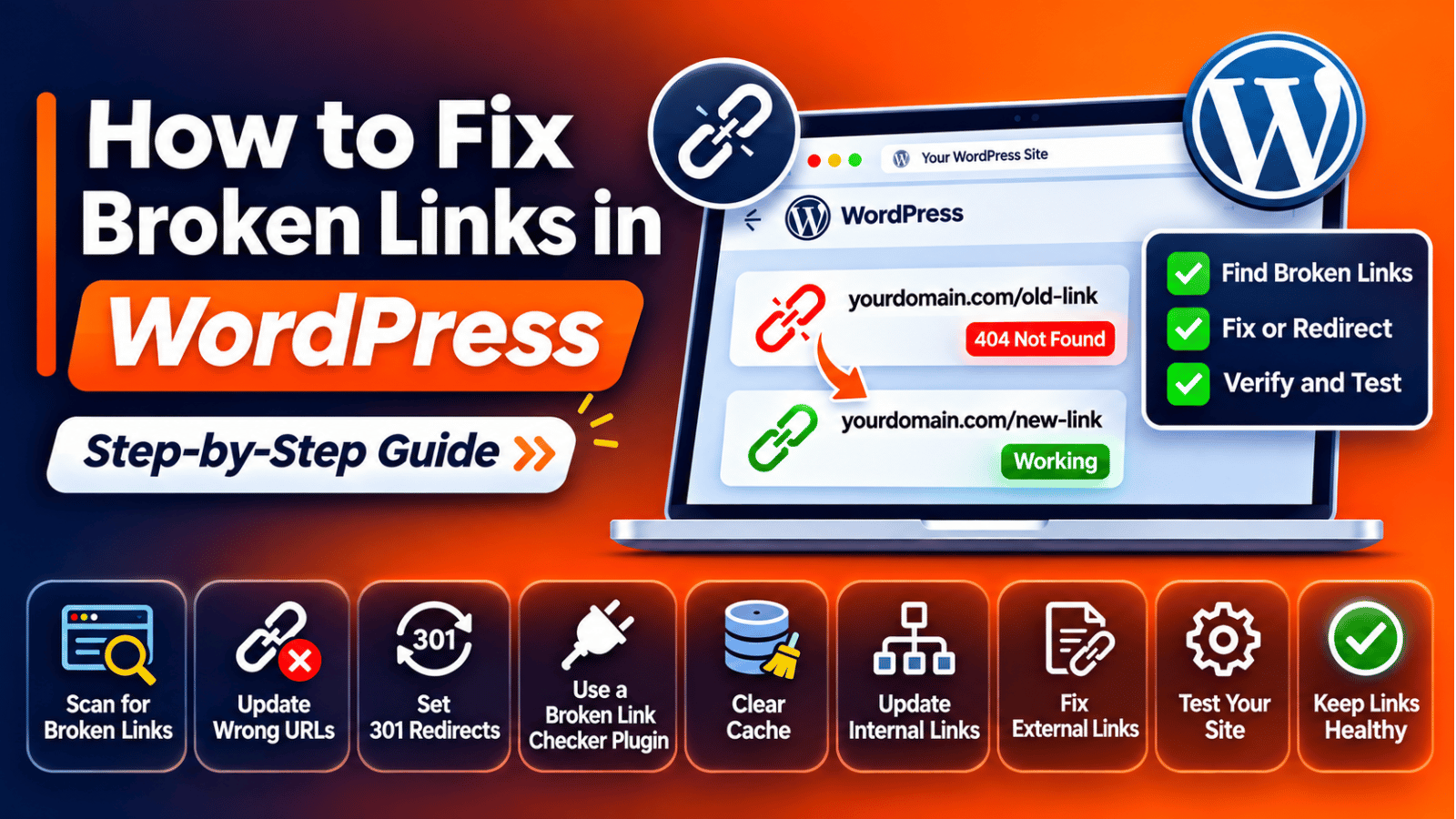
Follow these steps in order. They run from safe checks to larger changes. After each step, test the link that failed. Take a backup before Step 5 and Step 6, because they change your database or server files.
Step 1: Find your broken links with a scan
This step helps you find links broken by deleted pages, typos, and closed outside sites. To confirm you have a problem, you need a list. Open Google Search Console and view the page indexing report. Look for “Not found (404)” entries. Also click through your menu and main pages by hand.
For a full scan, use a link checker plugin. The Broken Link Checker plugin scans posts, pages, comments, and custom fields. It marks broken or redirected links and broken images. Its page says you can pick a cloud scan or one that runs on your own server. The cloud version connects to the WPMU DEV service. The local version works inside your admin area.
Run the scan and export or note the list. Group the results by cause: deleted pages, wrong addresses, and outside sites. That grouping tells you which later step to use. Plugin reviews mention some false alarms, so open each flagged link yourself before you change it. If a flagged link opens fine in your browser, leave it alone.
Step 2: Correct typos and wrong links inside your content
This step fixes links that were typed wrongly. To confirm, open the flagged post and hover over the link. Read the address in the browser status bar. Look for a missing letter, extra characters, or the wrong slug.
Edit the post. Select the link text and open the link tool. Replace the address with the correct one. The easiest way is to search for the target page on your own site and select it from the list. Update the post and open the live page.
Click the link to verify it loads the right page. If it still fails, the target page itself may be gone. Go on to Step 3. For links to other sites, open the address in a new tab. If it is dead, find a new source or remove the link.
Step 3: Redirect old addresses to the right page
This step fixes links to pages that moved or were deleted. To confirm, paste the old address into your browser. If you see a 404 page, and a matching page exists at a new address, a redirect is the right fix. Google says to return a redirect to the new page if a page has moved.
Use a permanent redirect when the change will not be reversed. Google treats 301 and 308 as strong signals that the new address is the main one. Server-level redirects are preferred over meta refresh or script redirects.
The easiest tool in WordPress is the Redirection plugin. It manages 301 redirects and keeps a log of 404 errors. It can also create a redirect on its own when you change a post or page address. Add a redirect from the old path to the new page. Visit the old address and confirm it lands on the new one.
Do not redirect everything to the home page. Send each old link to the closest matching page. If no page matches, a 404 is an honest answer, and Google lists it as a normal reason a page is not indexed.
Step 4: Refresh your permalinks if valid pages return 404
This step fixes broken links caused by stale rewrite rules. To confirm, open a page that you know exists. If the dashboard shows it but the public address gives a 404, rules may be stale. Check the same for a post.
Go to Settings, then Permalinks. Change nothing. Press Save Changes. WordPress documentation says that visiting this screen refreshes the rewrite rules. It also says that if your file is not writable, it will show rules for you to copy into the .htaccess file by hand.
Reload the failing address. If it now loads, the rules were the cause. If it still fails, check the pattern you use. Do not change it unless needed, since a new pattern breaks old links. Our permalink guide and our 404 error guide cover this in more detail.
Step 5: Restore or redirect after a permalink structure change
This step fixes links broken by a new permalink pattern. To confirm, compare an old address with the new one. If the pattern differs, every old link will fail. Take a backup before you change anything.
The cleanest fix is to go back to the old pattern, if the change was recent. Then save the permalink screen. Old links work again at once. If you must keep the new pattern, create redirects from the old pattern to the new one.
The Redirection plugin offers a Migrate Permalinks feature for old permalink structures. It can redirect old-style addresses in bulk. Test several old links after you set it up. Check a post, a page, and a category.
Keep a note of the old pattern. You may need it later when you check logs or search results. Do not delete the redirects for a long time, since outside sites may still link to the old addresses.
Step 6: Update old domain and HTTP links in the database
This step fixes links left behind after a move to HTTPS or a new domain. To confirm, view the page source, or hover over links, and look for the old domain or http://. Back up your database before this step. A mistake here can damage content.
First, make sure the WordPress Address and Site Address in your settings use the right address. WordPress documentation says both must start with https:// and must not end with a slash. Then replace old addresses stored in your content.
The migration guide names three safe ways to search and replace: the Better Search Replace plugin, the Velvet Blues Update URLs plugin, or the WP-CLI command wp search-replace. These tools handle serialized data with care. A plain database find and replace can break serialized data, because string lengths change.
With WP-CLI, run the command with --dry-run first. It shows what would change without saving anything. Skip the guid column, since WordPress says never to change it. After the real run, check menus under Appearance, and widgets, because they may still hold old URLs. Our mixed content guide covers the HTTPS side of this task.
Step 7: Remove or replace dead outside links
This step fixes links to other sites that no longer work. To confirm, open the link in a private window. If it returns an error or an empty page, it is dead. Try the site’s own home page to see whether the whole site is gone.
Search for the page title to find its new address. If you find it, update your link. If the page is gone, look for another trusted source. If nothing fits, remove the link and keep the text. Do not leave a dead link just to avoid editing.
Mark the date you checked. Then run your scan again in a few weeks. Verify the fixed links with a fresh test. A clean report means the work is done.
Best Practices to Prevent Broken Links in WordPress
Do not change an address unless you must. WordPress says permalinks should stay permanent. If you change a slug, add a redirect the same day. The Redirection plugin can create it for you.
Before you delete a page, check what links to it. Redirect it to a close match, or update the links first. This keeps your menus and posts clean. It also protects traffic from old links.
Plan site moves with care. Update the Site Address and the stored links as part of the move. Use --dry-run before the real replace. Test on a staging copy and keep a backup of the database.
Scan your site on a schedule. A monthly scan catches dead outside links early. Review the Search Console page indexing report too. Fix only the 404s that you link to or list in your sitemap.
Use the 404 log in your redirect plugin. It shows which missing addresses visitors really try. Add redirects for the common ones. Ignore random bot requests.
Add links with care. Pick the page from your own site list and avoid retyping addresses. Review links before you publish. This avoids most typo breaks. If the site editor also acts up, see our guide on the WordPress visual editor not working.
Conclusion
Broken links appear as 404 pages, missing images, and Search Console warnings. They come from deleted pages, changed addresses, permalink changes, domain moves, typos, closed outside sites, and stale rewrite rules.
The fix process starts with a scan to find them. Then you correct typos, redirect moved pages, refresh permalinks, handle a pattern change, update old domain links in the database, and clean dead outside links. You test each fix by opening the link again.
To prevent them, keep addresses stable, redirect before you delete, plan moves with a dry run, and scan on a schedule. A backup before every database change is a must.
If you want help with a large cleanup, the team at WP Chat Support can run the scan and set up redirects for you. For more detail, read Google’s guide on redirects and Google Search.

James is an experienced WordPress and WooCommerce specialist with over 10 years of practical experience. At WPChatSupport, he creates clear guides that help website owners fix WordPress issues, improve speed, secure their sites, and manage WooCommerce stores with confidence. His expertise includes store setup, plugin configuration, theme customization, payment gateway integration, and website troubleshooting. Through simple and helpful content, James supports users in solving technical problems and following best practices for online business growth.