Introduction
You click Add New or Edit on a post. Instead of the editor, you see a blank white area. Or a spinner turns forever. Or the editor opens but the blocks and toolbar never appear. Your work stops, and the deadline does not.
This problem is more common than it looks. The block editor is a large app that runs in your browser. It needs working scripts, a working connection to your site, and enough server memory. If any one of these fails, the editor fails.
The trigger is often a recent change. A plugin update, a new theme, a caching or speed setting, or a move to HTTPS can all start it. A browser extension can cause it too.
This guide helps you find the real cause. You will see the signs, the likely reasons, and seven fixes in a safe order. Each fix tells you how to check it first and how to confirm the result. If your editor loads but fails on save with a JSON message, read our guide on the not a valid JSON response error. If your uploads fail inside the editor, see our guide on the HTTP error when uploading images.
Signs That Show the WordPress Block Editor Is Not Loading
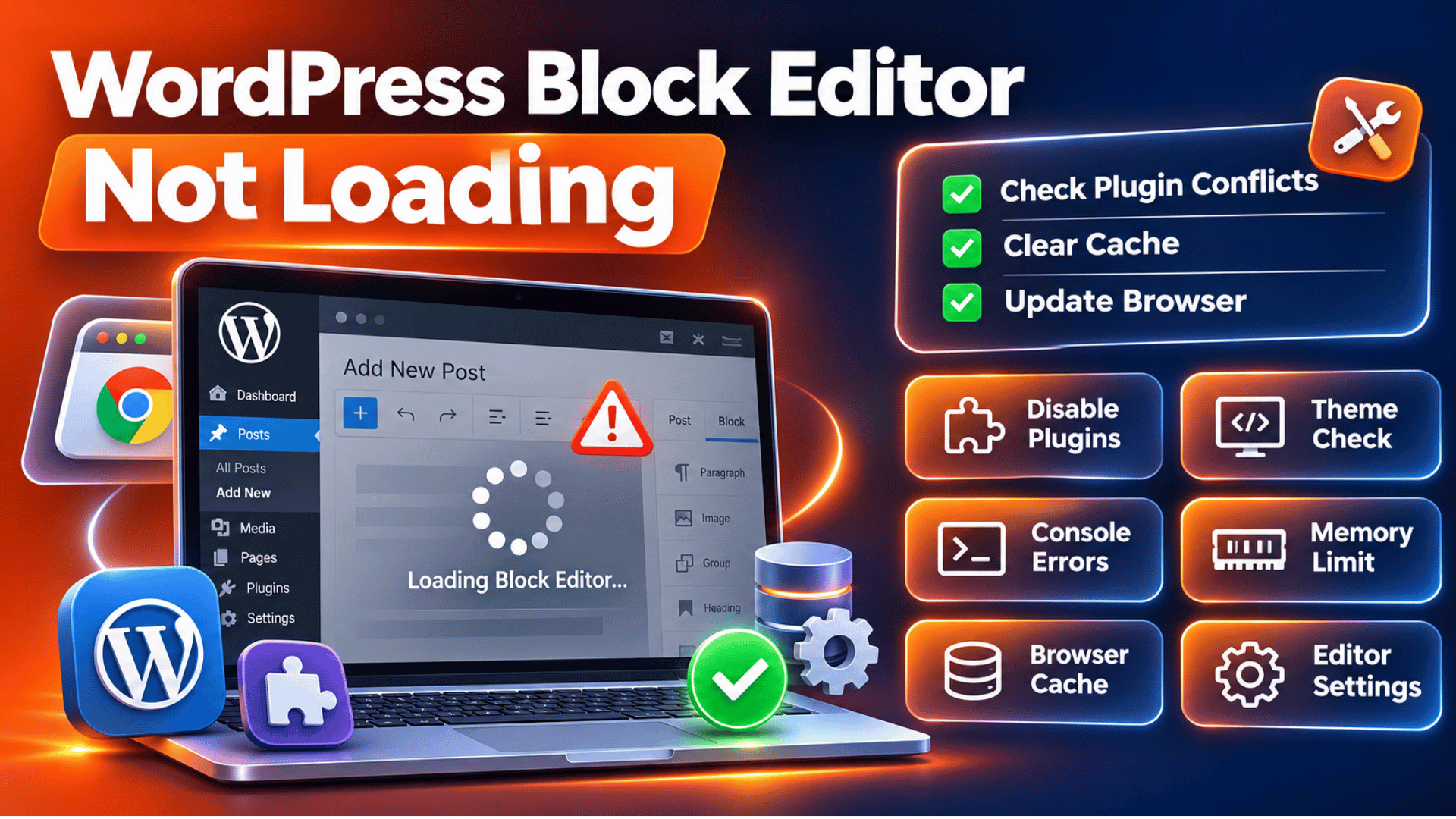
The most common sign is a white or grey screen where the editor should be. The admin menu on the left still loads. Only the editing area is empty. This tells you the dashboard works but the editor app does not start.
Another sign is a loading spinner that never ends. You may also see a message such as “The editor has encountered an unexpected error.” Some people see the title box but no block inserter. Others see the editor, but the buttons do nothing.
Compare what happens in different places. Does the editor fail for every post and page, or only for one? Does it fail for every user, or only for you? If only you are affected, your browser is the likely cause. If everyone is affected, look at your site.
Also test the Classic editor if you have it. If the old editor loads and the block editor does not, the problem is in the scripts or the connection. If both fail, look for a PHP or server error. These clues narrow the search before you change anything.
Reasons Why the WordPress Block Editor Does Not Load
Each reason below links to a fix with the same number in the next section.
Browser cache or an extension. Your browser may keep an old copy of editor scripts after an update. The old and new files then disagree, and the editor fails to start. Extensions that block scripts, change pages, or filter content can break the editor in the same way. In this case the site is fine and only your browser is wrong.
A plugin or theme conflict. The editor runs many scripts at once. A plugin or theme that adds its own editor code can throw a JavaScript error. One error can stop the whole app. This is the most common cause on sites that load slowly or have many plugins.
Optimization, minify, or CDN settings. Speed plugins and CDNs can combine, delay, or minify scripts. This is fine on the public site but risky in the admin area. If a script loads late or in the wrong order, the editor cannot start. A cached admin page can also serve old files.
A blocked or broken REST API. The REST API is the foundation of the block editor. The editor uses it to load and save your content. If a firewall, a security plugin, or a server rule blocks these requests, the editor has nothing to load. The result is a blank screen or an endless spinner.
Wrong site address or an HTTPS mismatch. WordPress has two address settings. If one says http and the other says https, the editor may call the wrong address. The browser then blocks the request as mixed content. The editor loads half-way, or not at all.
Low memory or a PHP error. The editor makes heavy requests. If PHP runs out of memory, the server stops mid-reply. The editor gets a broken answer. A fatal error in a plugin can do the same thing.
How to Fix the WordPress Block Editor Not Loading (Step by Step)
Work through these steps in order. They run from the safest check to the deepest test. Take a full backup before any step that changes files or settings. Reload the editor after each step.
Step 1: Rule Out Your Browser
This step fixes stale browser files and extension clashes. To confirm this is your cause, open the same post in a private window with extensions off. If you can, also try a second browser. If the editor loads there, your main browser is the problem.
Return to your main browser. Clear the cache and cookies for your site only. Then turn off extensions one at a time. Ad blockers and script blockers are the usual causes. Reload the editor each time. Hard refresh with Ctrl and F5 on Windows, or Command and Shift and R on a Mac.
If the editor now loads, you are done. Keep the extension off for your admin area. If it still fails in every browser, the cause lies on your site. Move on to Step 2.
Step 2: Read the Browser Console
This step shows you which script is failing. A hidden error is the cause of most blank editors. To check, open the post, then open your browser’s developer tools. Click the Console tab and reload the page. Red messages show the failing file and the line.
Read the file path in the message. A path with a plugin folder name points to that plugin. A path with your theme name points to the theme. Messages about “rest_api” or a 403 or 404 on a wp-json address point to the REST API. Messages about mixed content point to a URL mismatch. This is a read-only check, so it is safe on a live site.
Write down what you see. It tells you which of the next steps to do first. If the console is clean, continue with Step 3.
Step 3: Run the Site Health Check
This step finds server and loopback problems. WordPress has a Site Health screen under Tools. To use it, open Tools, then Site Health. Look at the Status tab. Critical issues appear at the top. Messages such as “Your site could not complete a loopback request” matter here. They show that your site cannot call itself, which the editor may also need.
Read each critical item and each recommended item. Also open the Info tab. Check the PHP memory limit and the active theme. A low memory value points to Step 7. A loopback failure or a PHP session warning points to a server or plugin problem.
Fix what Site Health flags if the fix is clear. Then reload the editor. If it still fails, move on to Step 4.
Step 4: Test for a Plugin or Theme Conflict
This step fixes a plugin or theme that breaks the editor scripts. To confirm, check the console result from Step 2. A file path from one plugin is a strong lead. You can also test it safely without touching visitors.
Back up first. Then install the Health Check and Troubleshooting plugin. Its Troubleshooting Mode gives you a clean session. All plugins are off and a default theme is used, but only for your user. Visitors see no change. Open the editor in this mode. If it loads, one plugin or your theme is the cause.
Turn plugins on one by one inside the mode. Reload the editor after each one. The plugin that breaks it again is the one to update, replace, or report to its developer. If your theme is the cause, check for a theme update. Our guide on how to find and fix a plugin conflict gives more detail. If the editor still fails in Troubleshooting Mode, the cause is not a plugin or theme. Go on to Step 5.
Step 5: Turn Off Script Optimization in the Admin Area
This step fixes speed settings that break editor scripts. To confirm, look for a caching, minify, or CDN plugin. Also look at your CDN settings. Check the console for errors on files that end in .min.js or that come from a cache folder.
Take a backup. Then open the settings of your speed plugin. Turn off script combining, minifying, and delay or defer for the admin area. Many plugins have an option to skip logged-in users. Clear the plugin cache and the CDN cache. If you use a CDN, add an exception for wp-admin and wp-json paths.
You can also test with a debug setting. Add the line below to wp-config.php above the comment that says “That’s all, stop editing.” Back up the file first, because a typo can take the site down.
define( 'CONCATENATE_SCRIPTS', false );WordPress documents this constant for cases where JavaScript fails on an admin screen. Reload the editor. If it loads, your optimization settings were the cause. Re-enable features one at a time to find the one at fault. If nothing changes, remove the line and move on to Step 6.
Step 6: Check the REST API and Site Addresses
This step fixes a blocked REST API and a wrong address. To confirm, add /wp-json/ to the end of your site address in the browser. A healthy site shows a page of text data. A 403, a 404, or a blank page is a bad sign. A 403 usually means a firewall or security plugin is blocking it. Our guide to the 403 forbidden error can help.
Next, open Settings, then General. Look at the WordPress Address and the Site Address. Both should use the same scheme, and both should match the address in your browser. If one says http and the other https, fix them to match. Change these with care, because a wrong value can lock you out of the dashboard. Back up the database first.
If the REST API is blocked, check your security plugin and your firewall logs. Add an exception for logged-in users. Also save your permalinks once under Settings, then Permalinks. This refreshes the rewrite rules. Our guide on permalinks explains this. For http and https clashes, see our guide on the mixed content error after SSL.
Step 7: Raise Memory and Read the Debug Log
This step fixes a low memory limit and hidden PHP errors. To confirm, check the memory value in Site Health, on the Info tab. Low values are a warning sign. Also turn on the log to catch fatal errors from plugins.
Back up wp-config.php, then edit it. Add the lines below above the comment that says “That’s all, stop editing.”
define( 'WP_MEMORY_LIMIT', '256M' );
define( 'WP_DEBUG', true );
define( 'WP_DEBUG_LOG', true );
define( 'WP_DEBUG_DISPLAY', false );
The log is saved at wp-content/debug.log. Open the editor again, then read the log. Look for “Allowed memory size” or a fatal error with a plugin path. Some hosts ignore memory changes made in this file. In that case, ask your host to raise the limit. Our guide on the WordPress memory exhausted error goes deeper. Turn the debug lines off when you finish. If the log shows nothing and the editor still fails, ask your host to check the server error log. The official wp-config.php documentation lists these settings.
Best Practices to Prevent the Block Editor From Failing Again
Most editor failures come from changes that nobody tested. A few habits stop them. Each habit matches a cause above.
Test every plugin and theme update on a staging site first. Open the editor there before you update the live site. This catches script clashes, which are the most common cause. Keep a fresh backup so you can roll back in minutes.
Set your speed plugin to skip the admin area and logged-in users. Keep your CDN away from wp-admin and wp-json paths. Review these settings after any plugin change. Keep both site addresses on the same https scheme.
Check Site Health once a month. It warns you about memory, loopback problems, and outdated PHP before they hurt. Ask your host to keep PHP current and to keep the memory limit healthy. Keep a second browser profile with no extensions for testing. Finally, keep your firewall rules tidy, and always allow logged-in users to use the REST API.
Conclusion
A block editor that will not load is stressful, but it has a short list of causes. You saw the signs: a blank area, an endless spinner, or an unexpected error message. The causes are browser files, plugin or theme clashes, speed settings, a blocked REST API, address mismatches, and low memory.
The fix process is simple when you follow the order. Rule out your browser, read the console, run Site Health, test for conflicts, relax script optimization, check the REST API and addresses, and then review memory and logs. Check each cause before you change anything, and test after each step.
Prevention comes down to staging tests, careful speed settings, matching addresses, regular health checks, and good backups. If you have tried every step and the editor still fails, send your console and log details to your host or to our team at WP Chat Support.

James is an experienced WordPress and WooCommerce specialist with over 10 years of practical experience. At WPChatSupport, he creates clear guides that help website owners fix WordPress issues, improve speed, secure their sites, and manage WooCommerce stores with confidence. His expertise includes store setup, plugin configuration, theme customization, payment gateway integration, and website troubleshooting. Through simple and helpful content, James supports users in solving technical problems and following best practices for online business growth.