Why You May Need to Change the Admin Email in WordPress
Every WordPress site has one main contact address. WordPress calls it the administration email address. The site sends its most important notices there. If that inbox is old or unused, you miss those notices. Some of them matter a great deal.
People change this address for simple reasons. A developer built the site and used their own email. A staff member left the company. The business moved to a new domain. Or the old inbox filled up with spam. In each case, the fix takes only a few minutes.
This guide explains what the address does. It shows the difference between the site email and your user email. Then it walks through five ways to change it. You will also learn what to do when the confirmation message never arrives.
What the WordPress Admin Email Does
The admin email is the address WordPress uses to reach the site owner. It is saved once, for the whole site. It is not tied to any single user account. Think of it as the site’s own contact address.
WordPress sends several kinds of notices to it. You get a message when a new user registers. You get comment moderation requests. You hear about automatic updates and their results. When a plugin or theme causes a fatal error, the recovery mode link goes there too. That link lets you log in and fix a broken site.
WordPress also asks you to confirm the address now and then. About every six months, an administrator sees a check screen after login. It asks if the admin email is still correct. You can confirm it, update it, or ask for a reminder later. This screen exists because so many sites hold a dead address.
One point surprises many owners. The admin email is not the “from” address on site emails. It is where notices are sent, not where they come from. If your site’s messages do not arrive at all, that is a separate fault. Our guide on WordPress emails not sending covers it.
Site Admin Email vs Your User Account Email
WordPress stores two different addresses, and people often mix them up. The first is the site admin email described above. The second is the email on your own user profile. They can be the same address, but they do different jobs.
Your user email belongs to your login. WordPress uses it when you reset your password. It also uses it for notices about your own account. Each user on the site has one. Changing yours does not change the site admin email.
The site email works the other way. Changing it does not touch any user account. So an old developer may still receive password resets on their own profile. That is why a site handover needs both changes. Update the site address first, then check every administrator account.
Here is a quick way to tell which one you need. Are site notices going to the wrong person? Change the site admin email. Are your password reset links going to an old inbox? Change your user email. Our guide on WordPress password reset not working helps if resets still fail.
Before You Change the Admin Email in WordPress
A little preparation avoids most problems. First, make sure the new inbox exists and you can open it. WordPress will send a confirmation link there. The change stays on hold until someone clicks that link. A typo in the address means the link goes nowhere.
Second, pick an address that will last. A shared mailbox works well for a business. It keeps working when one person leaves. Avoid a personal address that only one staff member can read. Avoid an address on a domain you may give up.
Third, check that you have the right access. You need an administrator account for the dashboard methods. The database and command line methods need hosting access. Those two methods also carry some risk. Take a full backup before you use them. Our guide on how to back up WordPress with UpdraftPlus shows one easy way.
How to Change Admin Email in WordPress: 5 Methods
Start with Method 1. It is the safest and suits most sites. Use the later methods only when the first one fails.
Method 1: Change the Admin Email From the Settings Screen
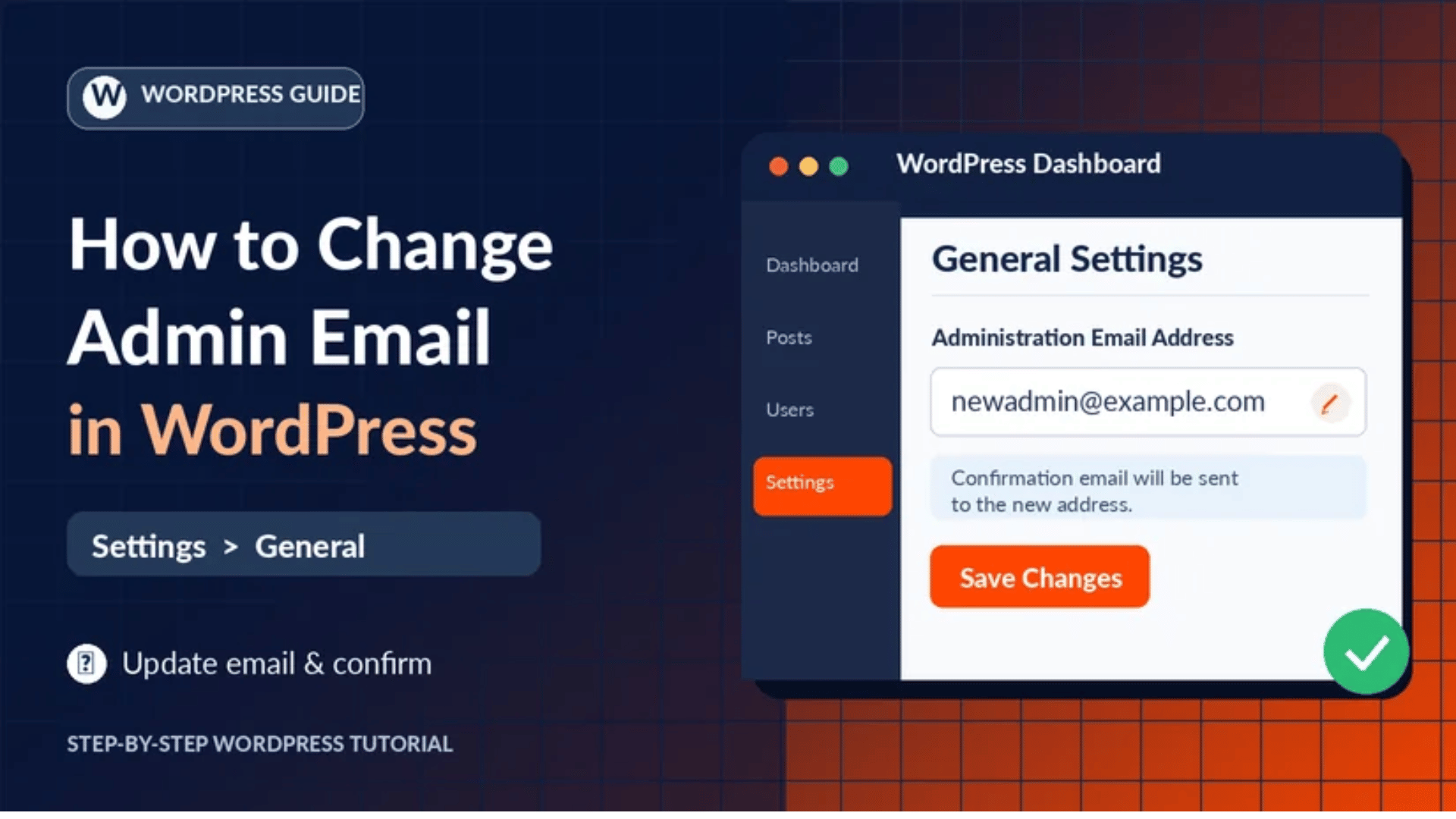
This is the standard way. Log in to your WordPress dashboard as an administrator. Open Settings in the left menu, then choose General. Find the field named Administration Email Address. It sits near the top, below the site address fields.
Delete the old address and type the new one. Check the spelling with care. Scroll down and click Save Changes. WordPress does not switch the address yet. It shows a notice that a change is pending. The old address stays active for now.
Next, open the new inbox. Look for a message from your site about the new admin email address. Check the spam folder if you do not see it. Click the confirmation link inside. You must be logged in to the site in that same browser.
Now return to the General settings screen. The field should show the new address with no pending notice. That confirms the change is live. If you made a mistake, use the Cancel link beside the pending notice. Then start again with the right address.
Method 2: Change the Email on Your User Account
Use this method for your personal login email. It is the address used for your password resets. In the dashboard, open Users, then choose Profile. Scroll to the Contact Info section. Find the Email field, which is marked as required.
Type your new address and click Update Profile at the bottom. WordPress again asks for proof. It sends a confirmation link to the new address. Your old address stays in place until you click it. A notice on the profile screen shows the pending change.
Open the message and click the link. Then reload your profile. The Email field should show the new address. To change another person’s email, open Users, then All Users. Click Edit under their name and change the field there. An administrator’s edit to another account applies at once, with no confirmation step.
During a handover, repeat this for every administrator. Remove accounts that nobody should use any more. This keeps old staff from resetting a password and getting back in.
Method 3: Change the Admin Email in phpMyAdmin
Use this method when you cannot confirm the change by email. Perhaps the site cannot send mail. Or you are locked out of the dashboard. This method edits the database directly, so no confirmation is needed. It also means a mistake can break the site. Take a full database backup before you begin.
Log in to your hosting control panel and open phpMyAdmin. Choose your site’s database from the list on the left. If you host several sites, check the database name in your wp-config.php file. Then click the table that ends in “options”. It is often named wp_options, but your prefix may differ.
Look for the row where option_name is admin_email. It is usually on the first page. Click Edit on that row. Replace the address in the option_value box with the new one. Click Go to save. Change nothing else in the row.
To change a user’s email as well, open the table that ends in “users”. Find the row for that username and click Edit. Replace the user_email value and save. Then log in to the dashboard and open the General settings screen. The new address should appear there with no pending notice.
Method 4: Change the Admin Email With WP-CLI
WP-CLI is the command line tool for WordPress. Many hosts include it with SSH access. This method is quick and skips the confirmation email. It still changes the database, so take a backup first. Connect over SSH and move to the folder that holds WordPress.
First, check the current value. Then set the new one:
wp option get admin_email
wp option update admin_email "owner@example.com"
WP-CLI prints a success message when the value is saved. Run the first command again to confirm it. You can change a user’s email in the same way. Replace the username and address with your own:
wp user update yourusername --user_email="owner@example.com"Log in to the dashboard afterwards and check both screens. The settings screen and the profile screen should show the new address. This method is handy for agencies. It makes the same change on many sites in very little time.
Method 5: Change the Admin Email With a Plugin
A plugin helps when you have dashboard access but no working email. You may also lack database access. The plugin directory lists a free tool for this. It is called Change Admin Email Setting Without Outbound Email. As its name says, it lets you save the address without the confirmation message.
Before you install any plugin, read its page in the directory. Check when it was last updated. Check which WordPress version it was tested with. Take a backup first, as you should before any new plugin. Then install and activate it from the Plugins screen.
Open the General settings screen again. Change the administration email address and save it. The plugin applies the change straight away. Reload the screen to confirm that no pending notice remains. When you are done, deactivate and delete the plugin. You do not need to keep it for a one-time change.
What to Do If the Confirmation Email Never Arrives
Sometimes you save the new address and no message comes. The pending notice stays on the settings screen. Start with the simple checks. Look in the spam and junk folders of the new inbox. Then check that you typed the address correctly in the pending notice.
If both are fine, your site may not be sending mail at all. Test this with another message. Log out and request a password reset for your own account. If that email also fails, the site has a mail delivery fault. Many hosts limit or block the basic mail function that WordPress uses.
The lasting fix is to send mail through SMTP. SMTP is a proper mail service with a login. An SMTP plugin connects your site to it. Once mail works, cancel the pending change and save the address again. A fresh confirmation link will then reach you.
If you need the change right now, use Method 3, 4 or 5. They do not depend on email. Still, fix the mail fault soon after. A site that cannot send email will also fail to send order notices and reset links.
Other Places That Still Use the Old Address
Changing the admin email does not update everything. Several tools keep their own copy of an address. Check each one after the change. Otherwise, some notices will keep going to the old inbox.
Start with WooCommerce if you run a store. Open the WooCommerce settings and choose the Emails tab. Each notice, such as New Order, has its own recipient field. Open each one and check the address. The same tab holds the “from” address that customers see.
Next, check your contact forms. Form plugins store a “send to” address for every form. Some use a tag that follows the admin email. Others hold a fixed address that someone typed long ago. Open each form’s email settings and confirm the recipient.
Then look at your other plugins. Security, backup, and SEO plugins often send alerts. Each has its own notice address in its settings. On a multisite network, there is one more place. The network admin has a separate Network Admin Email under the network settings. Change it there as well.
Frequently Asked Questions
Can I change the admin email in WordPress without confirmation?
Yes, but not from the standard settings screen. That screen always sends a confirmation link to the new address. To skip it, edit the value in the database with phpMyAdmin. You can also use WP-CLI or a plugin made for this job. All three methods apply the change at once. Take a backup first, because they bypass the normal safety check.
Why does WordPress say there is a pending change of the admin email?
That notice means the new address is not confirmed yet. WordPress has sent a link to the new inbox. It keeps the old address active until someone clicks that link. This protects you from typos and from unwanted changes. Open the new inbox and click the link while logged in. If the address was wrong, click Cancel and enter it again.
Does changing the admin email change my login?
No. The admin email is a site setting, not a login detail. Your username and password stay the same. Your own account email also stays the same. To change the address you use for password resets, edit your user profile. Many owners need to change both during a handover.
How often does WordPress ask me to verify the admin email?
By default, the check screen appears about every six months. Only administrators see it, right after they log in. You can confirm the address is correct or choose to update it. You can also ask to be reminded later. The screen is harmless, and it takes one click to pass.
Will visitors see my WordPress admin email?
Not by default. WordPress does not print the admin email on your public pages. It uses the address only to send notices to you. A theme or plugin could display it if set up to do so. It is still wise to use a role address, such as one for the site team. That way, no personal inbox is exposed if it ever leaks.
Conclusion
The admin email is small but important. It receives update notices, new user alerts, and recovery links. When it points to a dead inbox, you lose your early warnings. Keeping it current is one of the simplest ways to protect a site.
For most people, the settings screen is all they need. Type the new address, save, and click the link in the new inbox. Remember that your user account email is separate. Change it on your profile if password resets go to the wrong place. During a handover, review every administrator account.
When email is broken or you are locked out, use another route. phpMyAdmin, WP-CLI, and a plugin all skip the confirmation step. Back up first, because they change the database directly. Afterwards, check WooCommerce, your forms, and your other plugins for the old address.
The official WordPress page on the General settings screen explains this field further. The WP-CLI option command reference covers the command line route. Once your notices reach the right inbox, act on them. Update warnings often point to layout faults too, such as a media query not working in WordPress. And if a fatal error locks you out, our guide on the critical error message in WordPress shows how recovery mode helps. If you would rather hand this over, our WordPress support team can make the change for you.

James is an experienced WordPress and WooCommerce specialist with over 10 years of practical experience. At WPChatSupport, he creates clear guides that help website owners fix WordPress issues, improve speed, secure their sites, and manage WooCommerce stores with confidence. His expertise includes store setup, plugin configuration, theme customization, payment gateway integration, and website troubleshooting. Through simple and helpful content, James supports users in solving technical problems and following best practices for online business growth.