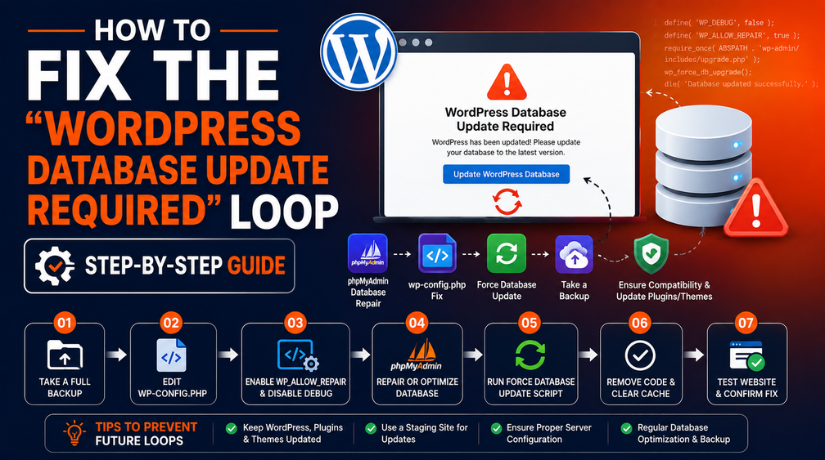
Introduction
A WordPress database update required message can appear after a WordPress update. At first, this message may not look like a serious problem. WordPress often needs to update database tables after core updates. This helps your website match the latest WordPress files. But sometimes, this message keeps appearing again and again. You click the update button, and WordPress says the process is complete. Then you open the dashboard, and the same message returns. This situation is called the WordPress Database Update Required loop.
This loop can be stressful for website owners and admins. You may not access your WordPress admin area properly. You may also worry about your pages, posts, plugins, or settings. In many cases, the website front end still loads normally. But the admin side stays stuck on the update screen. This creates a serious WordPress admin dashboard error for users managing active websites.
This guide explains the issue in a simple way. It will help you understand why the loop appears. It will also prepare you for the safest repair steps. Before trying to fix WordPress database error problems, you must understand what the message means. This will help you choose the correct solution.
What Does the “WordPress Database Update Required” Message Mean?
The WordPress database update required message means WordPress needs to update database tables. WordPress uses files and a database to run your website. Files control the WordPress system, themes, and plugins. The database stores your website content and settings. Both parts must work together correctly.
When WordPress releases a new version, it may change some database rules. These changes may support new features or security improvements. They may also improve how WordPress stores specific information. So, after updating WordPress files, the system checks the database version. If the database version is older, WordPress asks for an update.
This message is not always an error. In many cases, it is a normal update step. You click the update button, and WordPress completes the process. After that, your dashboard opens without any issue. The problem starts when the same screen keeps returning. This means the WordPress database update issue is stuck somewhere.
Why Does the WordPress Database Update Required Loop Happen?
The WordPress database update required loop usually appears after an update. It may happen after a WordPress core, plugin, theme, or WooCommerce update. WordPress tries to update the database, but the process does not finish correctly.
Object Cache Can Show Old Database Data
Object cache is one common cause. Redis, Memcached, or cache plugins may store old database version data. WordPress checks that old value and thinks the database still needs updating. This can make the WordPress database upgrade message appear again and again.
WordPress Update May Not Complete Properly
A failed update can also cause this loop. Low PHP memory, server timeout, file permission issues, or interrupted updates can stop the process. This can create a WordPress update error and prevent WordPress from confirming the database update.
Cache Plugin Conflict Can Trigger the Loop
Cache plugins may keep old admin data after updates. Plugins like LiteSpeed Cache, WP Rocket, W3 Total Cache, or Redis Object Cache can sometimes cause this issue. They may also recreate cache files automatically. This can keep the WordPress admin dashboard error active.
Plugin or Theme Conflict Can Block the Update
A plugin or theme may interfere with the database update process. This often happens after updating WooCommerce, LMS plugins, membership plugins, or custom themes. If the loop starts after a plugin update, that plugin should be checked first.
Hosting Cache Can Keep Showing the Same Screen
Some hosting providers use server-side cache. This cache works outside WordPress. Even after clearing the plugin cache, the hosting cache may still show old update data. In this case, you may need to clear cache from the hosting panel.
Database Table Problems Can Stop the Update
Sometimes, a damaged or locked database table can stop the update. This is less common, but it can happen on large websites. WooCommerce and membership websites may face this more often because they store more data.
Precautions Before Starting Fixing This Loop Error
Before trying to fix WordPress database error issues, take safety steps. The WordPress database stores posts, pages, users, comments, settings, and orders. Any wrong change can affect the full website.
Take a Full Backup First
Create a full backup of your website files and database. Also save the wp-content folder and wp-config.php file. This backup helps restore your website if anything goes wrong.
Use Staging If Possible
Use a staging website for testing, if available. This keeps your live website safe. It is very useful for business websites and online stores.
Keep Hosting Access Ready
You may need cPanel, FTP, SFTP, file manager, phpMyAdmin, or SSH access. Keep these details ready before starting the fix.
Avoid Direct Database Edits
Do not change database version values directly. This can create more problems. Try safe fixes first, such as clearing cache and checking plugins.
Note the Last Website Change
Check what changed before the issue started. It may be a WordPress update, plugin update, theme update, or hosting change. This helps find the cause faster.
How to Fix the WordPress Database Update Required Loop Safely
The WordPress database update required loop can block your dashboard access. So, you should fix it step by step. Do not start with database changes first. Begin with simple cache fixes. Then move to plugins, themes, server limits, and database repair. This safe order helps you avoid bigger website problems.
Step 1: Clear Browser, WordPress, Hosting, and CDN Cache
- Clear your browser cache first.
- Clear your WordPress cache plugin cache.
- Clear hosting cache from your hosting panel.
- Purge Cloudflare or CDN cache if used.
- Clear Redis or Memcached cache if available.
- Open this URL: https://yourdomain.com/wp-admin/upgrade.php.
- Run the database update again.
- Check if the dashboard opens correctly.
Step 2: Rename the object-cache.php File
- Open cPanel File Manager or FTP.
- Go to your WordPress root folder.
- Open the wp-content folder.
- Find the object-cache.php file.
- Rename it to object-cache-old.php.
- Open your WordPress dashboard again.
- Run the database update if asked.
- This often fixes the WordPress database upgrade stuck issue.
Step 3: Disable Cache Plugins Temporarily
- Cache plugins may recreate cache files automatically.
- Common plugins include LiteSpeed Cache, WP Rocket, and W3 Total Cache.
- Redis Object Cache and SG Optimizer can also cause issues.
- If wp-admin opens, deactivate the cache plugin.
- If wp-admin is blocked, open FTP or File Manager.
- Go to the wp-content/plugins folder.
- Rename the cache plugin folder temporarily.
- Clear hosting cache again and test wp-admin.
Step 4: Run the Database Update Manually
- Open this URL: https://yourdomain.com/wp-admin/upgrade.php.
- Replace yourdomain.com with your actual domain.
- Click the database update button.
- Wait until the process finishes.
- Do not refresh the page during the update.
- After success, open wp-admin again.
- Test it in a private browser window.
- This may fix a simple WordPress update error.
Step 5: Use WP-CLI to Update the Database
- Use this step only if you have SSH access.
- Ask your hosting team if you are not technical.
- Connect to your server through SSH.
- Go to your WordPress installation folder.
- Run this command:
- For WordPress multisite, use this command:
- Clear WordPress cache with this command:
- Check wp-admin after running the commands.
Step 6: Disable All Plugins Temporarily
- A plugin conflict can create a WordPress admin dashboard error.
- Open FTP, SFTP, or cPanel File Manager.
- Go to the wp-content folder.
- Rename plugins to plugins-old.
- Try opening wp-admin again.
- If the loop stops, one plugin caused the issue.
- Rename plugins-old back to plugins.
- Activate plugins one by one to find the issue.
Step 7: Switch to a Default WordPress Theme
- A theme conflict can also affect database updates.
- Open the wp-content/themes folder.
- Find your active theme folder.
- Rename the active theme folder temporarily.
- WordPress may switch to a default theme automatically.
- Open wp-admin again and check the issue.
- If the loop stops, your theme needs checking.
- Do not delete the theme folder without backup.
Step 8: Check PHP Error Logs and Server Limits
- Server limits can stop the database update process.
- Check hosting error logs for PHP fatal errors.
- Check MySQL errors and timeout issues.
- Low PHP memory can also cause this problem.
- Ask your host to increase PHP memory if needed.
- For many websites, 256M is a safer value.
- You can add this line in wp-config.php:
- Test the update again after increasing memory.
Step 9: Repair the Database Only If Needed
- Use database repair only when logs show table errors.
- Take a full backup before using this step.
- Open your wp-config.php file.
- Add this line:
- Open this URL: https://yourdomain.com/wp-admin/maint/repair.php.
- Run the repair option and wait.
- Remove the code from wp-config.php after repair.
- This can fix WordPress database error issues caused by damaged tables.
How to Prevent the WordPress Database Update Required Loop in the Future
You can prevent the WordPress database update required loop with safe maintenance habits. Most update problems happen because updates are rushed. Some also happen because the cache is not cleared properly. A careful update process can reduce future risks.
Always Take a Full Backup Before Updating WordPress
Before updating WordPress, create a full website backup. Your backup should include website files and the database. This gives you a safe restore point. If a WordPress update error appears, you can restore the site quickly. Backups are very important for WooCommerce and business websites.
Test Major Updates on a Staging Website First
A staging website helps you test updates safely. It is a copy of your live website. You can update WordPress, plugins, and themes there first. If the WordPress database update issue appears, your live site stays safe. After testing, you can apply the same update live.
Clear Object Cache After Major Updates
Object cache can store old database values. This can later cause a WordPress database upgrade issue. After every major update, clear Redis, Memcached, or object cache. Also clear your cache plugin and hosting cache.
Avoid Updating Everything at the Same Time
Do not update WordPress, plugins, and themes together. Update them one by one when possible. This helps you find the exact cause quickly. If an error appears, you know what changed last. This simple habit can help you fix WordPress database error issues faster.
Keep PHP and Database Versions Updated
Old PHP or MySQL versions can create update problems. WordPress works best with supported server versions. Ask your hosting provider to check compatibility before major updates. A modern server helps WordPress run updates smoothly.
Monitor Error Logs After Updates
After updates, check your website carefully. Open the dashboard, frontend pages, forms, and checkout pages. Also check hosting error logs for PHP or MySQL errors. Early checks help catch small problems quickly.
Conclusion
The WordPress database update required loop can stop you from accessing your dashboard. It often happens because of old cache, object cache, failed updates, plugin conflicts, or server limits. The best way to fix it is to follow a safe order. Start by clearing all the cache. Then rename the object-cache.php file if needed. After that, run the database update manually. If the issue continues, check plugins, themes, error logs, and database problems carefully.
Avoid direct database edits without a full backup. Your WordPress database stores posts, pages, users, settings, and orders. A small wrong change can affect the full website. Always take a backup before making changes. This keeps your website safe during troubleshooting.
If your website is still stuck on the update screen, you can contact WP Chat Support for guidance. Their team provides help for self-hosted WordPress websites and can assist with database update issues, plugin conflicts, cache problems, and dashboard access errors. You can visit WP Chat Support or call +1 888 602 0119 for support.
James is an experienced WordPress and WooCommerce specialist with over 10 years of practical experience. At WPChatSupport, he creates clear guides that help website owners fix WordPress issues, improve speed, secure their sites, and manage WooCommerce stores with confidence. His expertise includes store setup, plugin configuration, theme customization, payment gateway integration, and website troubleshooting. Through simple and helpful content, James supports users in solving technical problems and following best practices for online business growth.