Introduction
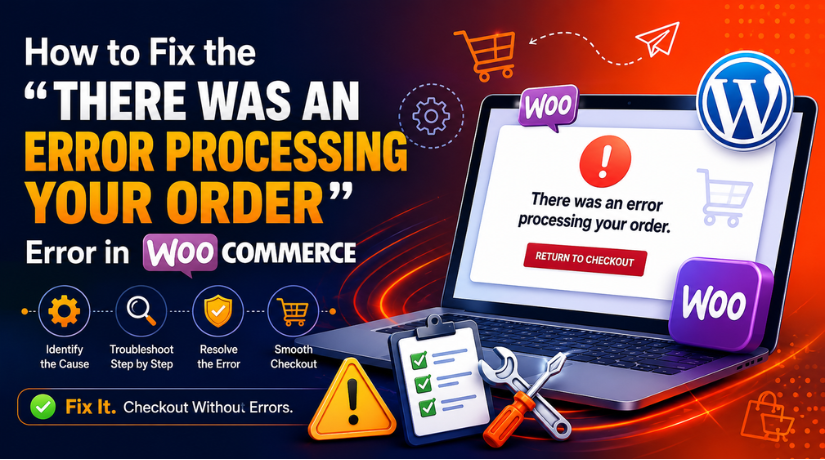
A smooth checkout is very important for every WooCommerce store. Customers expect quick payment and clear order confirmation. But sometimes, they click the Place Order button and see this message: “There was an error processing your order.” This issue can feel stressful for both customers and store owners. It can stop sales and reduce customer trust quickly.
This message usually points to a WooCommerce checkout error. It means something stopped the order from completing properly. The issue may come from payment settings, plugins, theme files, cache, or server limits. Sometimes the WooCommerce checkout page does not appear after an update. Other times, it starts after adding a new plugin or payment method.
This error needs careful checking because payment may still be charged. A customer may see the error and try again. That can create duplicate orders or double payment confusion. Store owners should first check the order status and payment gateway dashboard. They should not ask customers to retry payment too quickly.
What Does “There Was an Error Processing Your Order” Mean?
The message means WooCommerce could not complete the checkout process. It appears when something breaks between order creation and payment confirmation. WooCommerce first collects customer details from the checkout form. Then it creates an order inside your store. After that, the payment gateway checks the payment request. The gateway then sends a response back to WooCommerce.
If this process fails, WooCommerce may show the order processing error. This can happen before payment, during payment, or after payment. In many cases, it appears due to a WooCommerce payment gateway error. The gateway may reject the payment, delay the response, or fail to connect.
This error does not always mean payment has failed. Sometimes the payment is successful, but WooCommerce cannot update the order. For example, Stripe or PayPal may accept the payment. But WooCommerce may not receive the final confirmation. In that case, the customer may still see the error message. This can make the WooCommerce checkout not completing issues more confusing.
Causes of the WooCommerce Order Processing Error During Checkout
A WooCommerce order processing issue can happen for many reasons. Store owners should check each cause carefully before changing anything. Random fixes can create more checkout problems. The error usually comes from payment settings, plugins, cache, theme files, or server issues.
Payment Gateway Issues Can Stop the Order Process
Payment gateways handle the final payment step. If the gateway fails, WooCommerce cannot complete the order. This may create a WooCommerce payment gateway error during checkout. It can happen with Stripe, PayPal, Square, Razorpay, or other gateways. Sometimes the bank rejects the payment. Sometimes the gateway server responds slowly. This may show a WooCommerce payment failed error.
Wrong API Keys or Payment Settings Can Break Checkout
Payment gateways need correct API keys. Wrong keys can stop payment confirmation. Live keys must match live mode. Test keys must match sandbox mode. If these settings are mixed, checkout may fail. This can cause a WooCommerce checkout not completing issue. Store owners should also check currency, account status, and gateway connection.
Webhook Problems Can Stop Payment Confirmation
Webhooks send payment updates back to WooCommerce. If webhooks fail, order status may not update. The customer may see an error after payment. This issue often happens after website migration. Old webhook URLs may still use the previous domain. Always check webhook settings inside the payment gateway dashboard.
Plugin, Theme, Cache, and Server Issues Can Also Cause Errors
Plugin conflicts can create a serious WooCommerce checkout error. Cache plugins may store old checkout data. Security plugins may block payment requests. Theme files may also break checkout forms. JavaScript errors can stop the Place Order button. Server issues can also affect checkout.
Precautions Before Starting to Fix the WooCommerce Order Error
Before fixing this error, take a few safe steps first. A WooCommerce checkout error can involve payments, orders, and customer data. So, avoid making random changes on the live website. A careful process helps protect your store from bigger issues. It also helps you find the real cause faster.
Take a Full Backup Before Making Any Changes
Always take a full website backup before starting. Your backup should include website files and database data. This protects your store if something goes wrong. You can restore the site quickly after a failed change. This is very important when you fix WooCommerce checkout problems.
Check Whether the Customer Payment Was Charged
Do not ask customers to retry payment immediately. First, check the payment gateway dashboard. Sometimes payment is charged, but WooCommerce shows an error. This can happen during a WooCommerce payment gateway error. Checking payment status helps avoid duplicate charges and customer complaints.
Use a Staging Website for Safe Testing
Use a staging website before changing plugins or themes. A staging site is a safe copy of your store. You can test fixes there without affecting live customers. This is helpful when the WooCommerce checkout page does not show an issue appears after updates.
Note the Order Details Before Troubleshooting
Record the order number, payment method, customer email, and error time. These details help you check logs properly. They also help your developer or support team understand the issue. Good records make troubleshooting faster and more accurate.
Keep WooCommerce and Payment Logs Ready
Logs show the real reason behind many checkout problems. Check WooCommerce logs, payment gateway logs, and hosting error logs. These logs may show failed payments, API errors, or server issues. They can also explain why the WooCommerce checkout is not complete.
Avoid Disabling Plugins Directly on the Live Store
Do not deactivate all plugins on your live website. This can break checkout, design, forms, or customer features. Test plugin changes on staging first. Then apply the correct fix on the live store carefully.
Steps to Fix the “There Was an Error Processing Your Order” Error
You can fix this error with a clear step-by-step process. Do not apply all fixes at once. Test checkout after every change. This helps you find the real cause. It also protects your store from new issues.
Step 1: Check the WooCommerce Order Status First
- Go to WooCommerce > Orders from your WordPress dashboard.
- Open the order where the customer faced the error.
- Check the current order status carefully.
- Review the order notes on the order details page.
- Look for messages like payment failed, timeout, or webhook failed.
- This helps you understand the real WooCommerce order processing issue.
- Do not change settings before checking these details.
Step 2: Confirm the Payment Status in Your Gateway
- Open your payment gateway dashboard.
- Check Stripe, PayPal, Square, Razorpay, or your active gateway.
- Search using the order ID, customer email, or transaction ID.
- Confirm whether the payment was approved, failed, or pending.
- Do not ask the customer to retry payment immediately.
- This step helps prevent duplicate payments and complaints.
- It also helps confirm any WooCommerce payment failed error.
Step 3: Review Your Payment Gateway Settings
- Go to WooCommerce > Settings > Payments.
- Open your active payment method settings.
- Check whether the payment gateway is enabled.
- Confirm live mode or test mode is selected correctly.
- Check API keys, secret keys, and account connection.
- Make sure the payment account is active and verified.
- Wrong settings can create a WooCommerce payment gateway error.
Step 4: Check WooCommerce Logs for Hidden Errors
- Go to WooCommerce > Status > Logs.
- Open the latest checkout or payment log file.
- Search for the order ID or customer email.
- Check errors near the exact checkout time.
- Look for API errors, webhook issues, or timeout messages.
- Also check for PHP fatal errors or server failures.
- Logs help you fix WooCommerce checkout problems correctly.
Step 5: Clear Cache and Exclude Checkout Pages
- Clear your WordPress cache first.
- Clear your CDN cache if you use Cloudflare.
- Exclude the cart page from cache.
- Exclude the checkout page from cache.
- Exclude my account page from cache.
- Exclude the order received page from cache.
- Cached checkout data can cause a WooCommerce checkout page not working issue.
Step 6: Disable JavaScript Delay and Minification
- Open your speed optimization plugin settings.
- Temporarily disable JavaScript delay settings.
- Disable JavaScript defer settings during testing.
- Turn off JavaScript minification for checkout.
- Turn off script combination if checkout breaks.
- Test checkout again with a small test order.
- Broken scripts can stop the Place Order button.
Step 7: Test Plugin Conflicts on a Staging Site
- Create or open a staging copy of your store.
- Keep WooCommerce active during the test.
- Keep your active payment gateway plugin enabled.
- Deactivate other plugins one by one.
- Test checkout after each plugin change.
- Check cache, security, shipping, tax, and checkout plugins.
- This helps find the plugin causing the WooCommerce checkout error.
Step 8: Switch to a Default Theme Temporarily
- Test this step only on a staging site.
- Switch to a default WordPress theme temporarily.
- You can use Storefront or another default theme.
- Test the checkout process again.
- If checkout works, your theme may be causing the issue.
- Check outdated WooCommerce template files.
- Updating theme files may fix WooCommerce checkout not completing.
Step 9: Check Server, SSL, PHP, and cURL Settings
- Check your PHP version from hosting or Site Health.
- Confirm your WordPress memory limit is enough.
- Make sure your SSL certificate is active.
- Check whether cURL is enabled on the server.
- Confirm REST API is not blocked.
- Ask hosting support to check server error logs.
- Server issues can cause a WooCommerce payment failed error.
Step 10: Test Checkout Again After Every Fix
- Test checkout after each single change.
- Do not apply all fixes together.
- Use sandbox mode when possible.
- Use a low-value product for testing.
- Test guest checkout and logged-in checkout.
- Test different browsers and payment methods.
- Confirm the error is fully fixed before going live.
Conclusion
The “There Was an Error Processing Your Order” message can appear for many reasons. It may come from payment settings, cache rules, plugin conflicts, theme files, webhooks, JavaScript errors, or server limits.
Store owners should not apply random fixes without checking details first. Start by reviewing the order notes, payment status, and WooCommerce logs. Then check the payment gateway, cache settings, plugins, theme, and hosting setup one by one. This safe process helps protect customer payments and store data.
It also helps reduce duplicate orders, failed payments, and customer confusion. If the issue continues, you can review your WooCommerce setup with a support team. For more help, visit WP Chat Support or call WP Chat Support at +1 888 602 0119 for WooCommerce-related guidance.

James is an experienced WordPress and WooCommerce specialist with over 10 years of practical experience. At WPChatSupport, he creates clear guides that help website owners fix WordPress issues, improve speed, secure their sites, and manage WooCommerce stores with confidence. His expertise includes store setup, plugin configuration, theme customization, payment gateway integration, and website troubleshooting. Through simple and helpful content, James supports users in solving technical problems and following best practices for online business growth.