Introduction
You add a widget. You press save. You open your site, and nothing has changed. Or the widget is gone from the sidebar, the footer, or both. This is one of the most common problems on a WordPress site, and it is rarely serious.
Widgets are small blocks of content that live in areas set by your theme. They show recent posts, search boxes, menus, ads, and contact details. When they fail to appear, visitors lose a way to find your content. A missing search box or footer link can cost you clicks and sales.
The problem often starts after a change. You may have updated WordPress, switched themes, edited the design, or installed a new plugin. Caching can also make a correct change look broken. A saved widget can sit behind an old copy of your page.
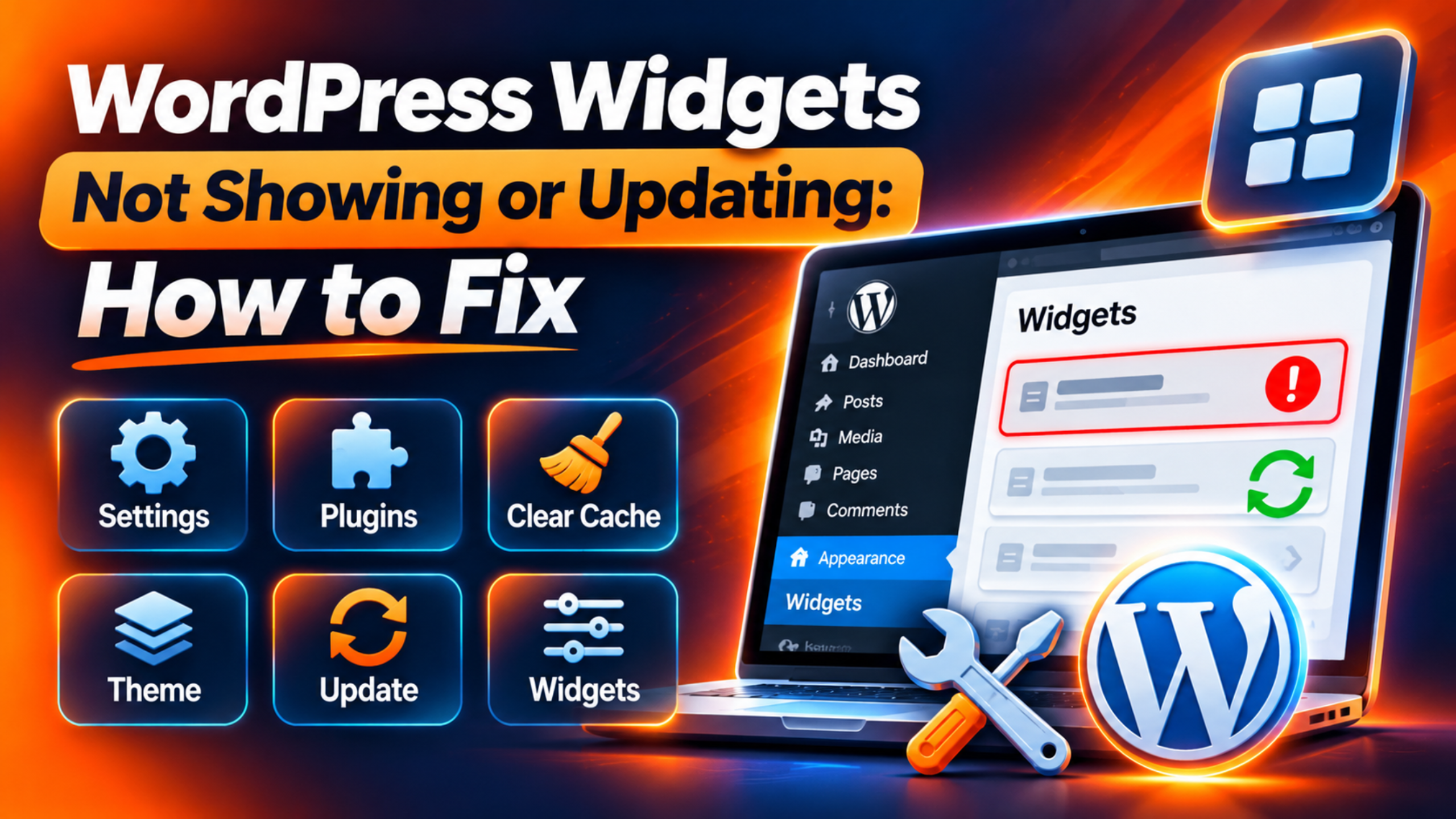
This guide helps you find the real cause. You will learn the signs that point to this problem. You will see the reasons it happens, and why each one breaks the widget area. Then you will work through eight fixes, from the safest check to the deepest test. Each fix tells you how to confirm the cause first. Each one also tells you how to verify the result. At the end, you will learn habits that stop the problem coming back.
If your whole sidebar has dropped under the page content instead, read our guide on the WordPress sidebar showing below content problem. That is a layout fault, and it needs different fixes.
Signs That Show WordPress Widgets Are Not Showing or Updating
Start by checking what you actually see. Different signs point to different causes. Spending two minutes here saves a lot of guessing later.
The first sign is a widget that is missing on the live site but present in the dashboard. You open the widgets screen and the widget sits in the right area. On the front of the site, the area is empty. This often points to caching, a template problem, or a theme that does not show that area.
The second sign is a widget that shows the old version. You change a title or a text block. You save it. The live site still shows the earlier text. This usually means a cache is serving a stored copy of the page.
The third sign is a widgets screen that behaves oddly. The screen may load blank. A save button may spin and never finish. You may see an error such as a failed update or a response that is not valid. Those signs point to a script error, a blocked request, or a conflicting plugin.
The fourth sign is a widget that appears only for some people. It may show when you are logged in but not when you are logged out. It may show on desktop but not on a phone. Both signs suggest a cache, a visibility rule, or a theme layout that hides the area.
The fifth sign is a widget area that vanished after a theme change. Your widgets were all there last week. Now the sidebar is empty. This is a classic sign of widgets that moved to the inactive list.
Finally, check whether the widgets menu itself is missing. If there is no widgets screen under the Appearance menu, your theme may be a block theme. That is not a fault. It means widgets are managed in a different place, which the fixes below explain.
Reasons Why WordPress Widgets Are Not Showing or Updating
Widgets pass through several layers before a visitor sees them. WordPress stores them. The theme decides where to print them. A cache may keep a copy. A browser may keep another. A fault at any layer gives the same symptom. Here are the real causes, and how each one breaks things.
The Change Was Never Saved or Published
On the block-based widgets screen, your edits stay in a draft state until you press the Update button. In the Customizer, the changes stay in a preview until you press Publish. If you leave early, WordPress keeps nothing. The live site then shows the old widgets, and the dashboard may look correct only while you stay on the screen.
A Cache Is Serving an Old Copy of the Page
Caching stores a finished copy of your page so it loads fast. Your browser can do this. A caching plugin can do it. Your host and a content delivery network can do it too. Widget changes are saved in the database, but the stored page copy does not know about them. Visitors keep seeing the old copy until the cache is cleared or expires.
The Widgets Moved to Inactive Widgets or the Wrong Area
Each theme sets its own widget areas. When you switch themes, WordPress tries to match old areas to new ones. If a new theme has fewer areas or different names, some widgets cannot be placed. WordPress keeps them safe in an inactive list, with their settings. They stay there, and they do not show on the site, until you move them back.
The Theme Does Not Show That Widget Area on That Page
A widget only appears if the theme prints its area. Developers register an area and then call it in a template file. If a template never calls the area, nothing shows. This also happens when the name used in the template does not match the registered name. Some page templates, such as full width or no sidebar layouts, leave the area out on purpose.
The Block Widgets Editor and Your Theme Type Do Not Match
Since WordPress 5.8, classic themes use a block-based editor on the widgets screen. Older widgets from plugins appear inside a Legacy Widget block. Some old plugins do not work well there. Block themes, in turn, have no widgets screen at all. They use the Site Editor instead. If you hunt for the old screen on a block theme, you will not find it.
A Plugin Conflict Breaks the Widget or the Widgets Screen
Plugins add their own widgets, scripts, and style rules. A faulty plugin can stop the widgets screen from loading its scripts. It can also print broken code that hides the widget on the page. Plugins that add visibility rules may hide a widget on pages you did not expect. A conflict between two plugins can do the same thing.
A Theme Fault or Custom Code Hides the Widget
Themes control the markup around each widget. A damaged template file can stop a widget area from printing. Custom code added to the theme functions file can remove areas or stop widgets from loading. Style rules can also hide a widget with display settings. The widget is present in the page, but nobody can see it.
A PHP Error or a Blocked Request Stops the Save
The block widgets screen saves its changes through the WordPress REST API. This is a built-in way for the screen to talk to your site. If a security plugin, firewall, or server rule blocks those requests, the save fails. A PHP error in a plugin or theme can fail the request too. The screen may then show an error, or it may look as if it saved when it did not.
How to Fix WordPress Widgets Not Showing or Updating (Step by Step)
Work through these steps in order. They run from the simplest check to the deepest test. After each step, reload your live site in a private browser window. If the widget appears, you can stop. If not, move to the next step. Steps that change files or settings include a backup warning, so read each one before you act.
Step 1: Confirm Your Widget Changes Were Saved and Published
This step fixes the first cause, where a change was never saved or published. It produces the symptom because the live site only reads saved data. To confirm it, open your WordPress dashboard and go to Appearance, then Widgets. Look at the top right of the screen. On the block widgets screen, an active Update button means unsaved changes. In the Customizer, an active Publish button means the same.
Now make the change again. Edit the widget, then press Update on the Widgets screen. In the Customizer, press Publish. Wait for the message that says your changes were saved. Do not close the tab until you see it.
To verify, open your site in a private window. The widget should now show the new content. If it still looks old, the save worked but something else is in the way. Move on to Step 2.
Step 2: Clear Every Cache Layer
This step fixes the cache cause. A stored copy of the page hides your saved widget. To confirm this, open your site in a private window while logged out. Then open it while logged in. If the logged-in view shows the new widget and the logged-out view does not, a page cache is almost certainly the cause. Healthy sites show the same widget to both.
Clear the caches from the closest layer outward. First, clear your browser cache, or use a private window. Next, open your caching plugin settings and use its clear or purge cache option. If your host has its own cache, find the purge button in your hosting panel. If you use a content delivery network, purge it as well. Our guide on why a WordPress site does not update right away explains each layer in more detail.
To verify, reload the page in a private window. The new widget text should appear. If the old text remains after you purge every layer, the cache is not the cause. Go to Step 3.
Step 3: Check the Inactive Widgets List and Widget Areas
This step fixes widgets that moved to the inactive list or the wrong area. It matters most after a theme switch or an update. To confirm it, open Appearance, then Widgets. Scroll down to the Inactive Widgets area. If your missing widgets are listed there, you have found the cause. Scroll all the way down, because that list can sit below the active areas.
Also look at the widget areas at the top. Compare their names with where you want the widget to appear. A new theme may call the area “Sidebar” in one place and “Footer 1” in another. Your widget may sit in an area that the theme does not print on the page you are viewing.
Move each widget into the correct active area. Then press Update. Wait for the saved message.
To verify, reload the page where the widget should show. If the widget now appears, the cause was placement. If the active area is correct and the widget is still missing, go to Step 4.
Step 4: Check That the Theme Prints the Widget Area on That Page
This step fixes the cause where the theme never prints the area. To confirm it, test a different page type. Open your homepage, a single post, and a standard page. If the widget shows on one but not on the others, the theme layout differs by page. Next, open the page in the editor and check which template or layout it uses. A full width or no sidebar template leaves the sidebar out by design.
Change the template to one that includes the sidebar. On a classic page, look for the Template option in the page settings. If your theme has its own layout setting in the Customizer, check it too. Choose the layout that includes the widget area.
If you use a custom or child theme, the template file may call the wrong area name. Back up your site first, or use a staging copy. Then open the sidebar file in the theme files and look for the call that prints the area. The name inside it must match the name the theme registered. A mismatch prints nothing and shows no error. If you are not comfortable with theme code, ask your developer to check this one.
To verify, reload the page. The widget should appear in its area. If not, the problem is not the template. Go to Step 5.
Step 5: Match the Widgets Screen to Your Theme Type
This step fixes the cause where the editor and the theme do not match. To confirm it, look at your Appearance menu. If you see Widgets, you have a classic theme. If you see Editor instead, you have a block theme. Block themes have no widgets screen, and that is normal.
On a block theme, open Appearance, then Editor. Open the template part that holds your sidebar or footer. Add the blocks you want there, then press Save. Widgets from the old setup do not carry across as areas, so you may need to rebuild them as blocks.
On a classic theme, check for Legacy Widget blocks that show a warning or an empty box. They point to a plugin widget that no longer loads. If the block widgets screen keeps failing, you can install the Classic Widgets plugin. It is an official plugin from the WordPress team. It restores the older widgets screens in both the widgets page and the Customizer. It does not work with block themes. Take a backup before you install it, because it changes how your widget screens work.
To verify, open the widgets screen again and make one small change. Save it and reload your site. If the widget updates, the editor mismatch was the cause. If not, go to Step 6.
Step 6: Test for a Plugin Conflict
This step fixes plugin conflicts. A plugin can break the widgets screen scripts or hide a widget. To confirm it, look for signs of a script problem. The widgets screen may load blank, or a save button may spin without end. Also think about what changed. Did the problem start after you added or updated a plugin?
Take a full backup first, or use a staging copy. Then deactivate your plugins in the dashboard. Do this on a staging copy if you can, because visitors will see the change on a live site. If you cannot reach the dashboard, rename the plugins folder in your file manager. WordPress then treats the plugins as missing. Rename it back afterward, and activate each plugin again by hand.
Check the widget. If it now works, turn plugins back on one at a time. Reload the widget page after each one. The plugin that brings the problem back is the cause. Look for an update, or replace it with another tool.
The Health Check and Troubleshooting plugin offers a safer way to run this test. Its Troubleshooting Mode disables plugins and loads a default theme only for your own session. Visitors still see the normal site. To verify, load the widget screen again. If it works with all plugins off, you have a plugin conflict. If it still fails, go to Step 7.
Step 7: Switch to a Default Theme to Rule Out a Theme Fault
This step fixes theme faults. A damaged template or custom code can hide a widget area. To confirm it, test your site with a default WordPress theme. Back up your site first. Use a staging copy if you have one, because a theme switch changes how the whole site looks for visitors.
Activate a default theme such as Twenty Twenty-Five. Be aware that widget placement may change when themes change, so note where your widgets sit before you begin. The Troubleshooting Mode in Step 6 can run this test without touching the live site. Check whether the widget area now appears with the default theme.
If the widget shows with the default theme, your original theme is at fault. Check for a theme update. If you use a child theme, compare its files with the parent. Look for code you added that removes widget areas or hides items. Also look at your Additional CSS for rules that hide widget blocks. Remove the rule, then test again. Switch back to your own theme once you have your answer.
To verify, reload the page after each change. If the widget still fails with a default theme, the theme is not the cause. Go to Step 8.
Step 8: Check for PHP Errors and Blocked REST Requests
This step fixes failed saves caused by errors or blocked requests. To confirm it, look at the widgets screen when you save. A message about a failed update or an invalid response is a clear sign. Next, check the site health screen under Tools. It may report that the REST API has a problem.
To see PHP errors, turn on the debug log. Back up your site and your wp-config file first, because a typing slip there can take the site down. Add three lines before the line that says to stop editing. Set the debug constant to true, set the log constant to true, and set the display constant to false. WordPress then writes errors to a file named debug.log inside the wp-content folder. Use this on a staging copy where you can. Turn it off when you finish.
Open the log after you try a widget save. Look for lines that name a plugin or theme file. Those files are your suspects. If a security plugin or a firewall blocks the request, check its log. Allow the request, or ask your host to review the rule. If the error is a memory problem, see our guide to the WordPress memory exhausted error.
To verify, save a widget again and reload your site. If the save now works and the widget shows, the cause was a failed request. If a fatal error takes the site down, read our guide to the critical error message in WordPress.
Best Practices to Prevent WordPress Widgets Not Showing or Updating in Future
Each habit below blocks one of the causes you just read. Together they keep your widget areas steady.
Always press Update or Publish, and wait for the saved message. This stops the unsaved change problem. Make it a habit to reload the live site in a private window after every widget edit. That small check catches problems in seconds.
Set up your caching rules carefully. Choose a cache plugin that clears the page cache when you save changes. Test it once to see that it works. A short cache lifetime also limits how long old widgets can show. Know which layers you use, such as browser, plugin, host, and network, so you know what to purge.
Test theme changes on a staging site before you go live. Before you switch themes, write down which widgets sit in which areas. After the switch, check the Inactive Widgets list at once. Keep widget settings in a note so you can restore them fast.
Keep WordPress, your theme, and your plugins up to date. Check plugin compatibility notes before you update on a live site. Test updates on staging first. Use a supported PHP version, because old versions cause odd errors in widgets. Keep your wp-config and theme edits small and always back them up. You can read how in our guide to backing up WordPress with UpdraftPlus.
Limit the number of plugins that add widgets or visibility rules. Every extra plugin adds one more thing that can hide a widget. Remove plugins you do not use. Use a good security plugin, but check its rules if the REST API is blocked. Keep a monitoring tool or a monthly review in place, so you spot broken areas before your visitors do.
Finally, if you build custom code, use the right names. Register each widget area once, and print it with the same name. Add a fallback so a missing area does not fail silently. Review your server settings and logs from time to time. A little care here keeps your sidebar and footer working.
Conclusion: Fix WordPress Widgets Not Showing or Updating for Good
Widgets that do not show or update look alarming, but the causes are usually simple. You saw the signs first. A widget may be missing on the live site, stuck on an old version, or blocked on a broken widgets screen. Those signs helped you narrow the problem.
You then saw the main causes. A change may be unsaved. A cache may hold an old copy. Widgets may sit in the inactive list. The theme may not print the area. The editor may not match your theme type. A plugin or theme may conflict. A PHP error or a blocked request may stop the save.
The fix process moves from easy to deep. Check that the change was published. Clear every cache layer. Look at the inactive list and the widget areas. Check the template. Match the screen to your theme type. Test plugins, then themes. Last, read the error log and check the REST requests. Each step tells you how to confirm the cause before you change anything.
The prevention habits are just as important. Save and verify every edit. Use staging for theme changes. Keep software updated, and keep good backups. Small checks save you from lost widgets and unhappy visitors. If a widget problem keeps returning, the speed and caching setup on your site is a good place to look next. For more help on widgets and areas in WordPress, see the official WordPress widgets documentation and the block-based widgets editor guide.

James is an experienced WordPress and WooCommerce specialist with over 10 years of practical experience. At WPChatSupport, he creates clear guides that help website owners fix WordPress issues, improve speed, secure their sites, and manage WooCommerce stores with confidence. His expertise includes store setup, plugin configuration, theme customization, payment gateway integration, and website troubleshooting. Through simple and helpful content, James supports users in solving technical problems and following best practices for online business growth.