Introduction
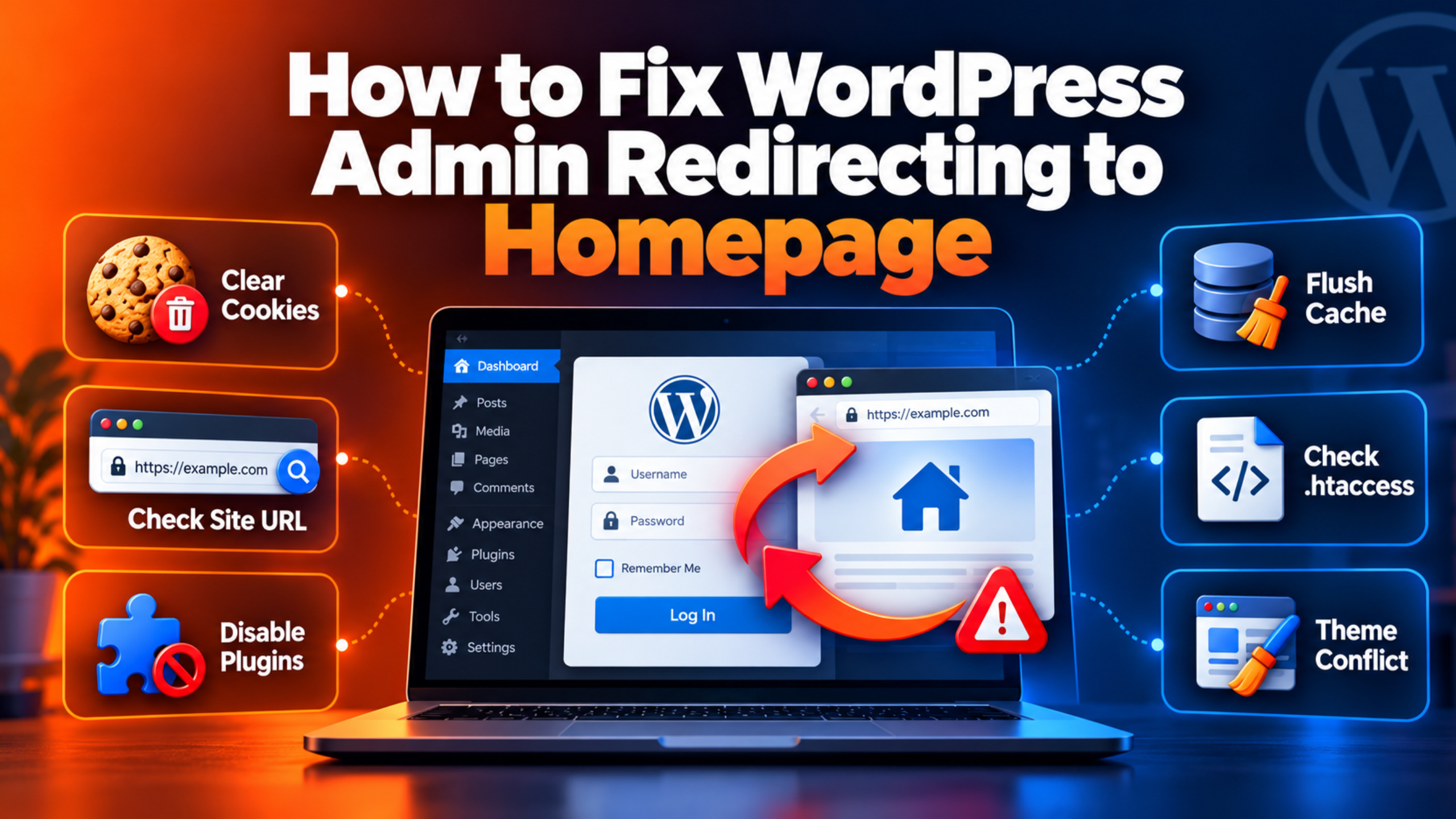
You type your site address and add /wp-admin at the end. You expect the dashboard. Instead the front page of your site loads. No error, no warning, no clue. Just your homepage, exactly as a visitor sees it.
This is one of the most confusing WordPress problems there is. A white screen at least tells you something broke. A redirect tells you nothing. The site looks healthy. Only you are locked out.
The damage adds up fast. You cannot publish a post or fix a price. You cannot install a security update. If you run a store, you cannot refund an order or check stock. Your site keeps serving visitors while you stand outside the door.
This guide walks you through the whole problem. You will learn how to spot the exact symptom you have. You will learn every real cause behind it. Then you will fix it with steps that start safe and get deeper only if they need to.
Most of the time the trigger is simple. Someone changed the site address. A plugin was updated. A theme snippet was pasted in. A caching layer or Cloudflare setting was switched on. A user role got damaged during a migration. None of these are rare, and all of them are fixable.
Signs That Show WordPress Admin Redirecting to Homepage
Before you change anything, confirm you have this exact problem. Several WordPress faults look similar. Each one needs a different fix, so this part saves you real time.
The main sign is simple. You request /wp-admin and your homepage loads instead. Look at the address bar. It no longer says /wp-admin. It shows your plain site address. That means something sent you away on purpose.
A second common pattern involves the login form. The form loads fine. You type your details and press the button. WordPress accepts them, with no “wrong password” message. Then it drops you on the homepage rather than the dashboard. This version points at a damaged user role, which we cover below.
Now compare that against the lookalikes. Each one is a different fault:
- You keep landing back on the login form. The page just refreshes. That is a WordPress login redirect loop, not this problem.
- Your browser says there were too many redirects. The whole site bounces, not only the dashboard. Read our guide on ERR_TOO_MANY_REDIRECTS in WordPress.
- You get in, then get logged out again minutes later. That is a session problem. See why WordPress keeps logging you out.
- The login page itself is blank or missing. Then start with a WordPress login page that is not working.
- You see a message saying you are not allowed on this page. That is a permissions block, not a redirect.
- The dashboard loads but shows nothing. Check our fix for a blank WordPress admin page.
A few more clues are worth noting. Try a private or incognito window. If the dashboard loads there, your saved cookies are the problem. Try a second user account. If that account gets in, the fault sits with your own user record.
Check whether only some admin pages bounce. Perhaps /wp-admin/ sends you away but /wp-admin/options-general.php loads. That pattern usually means a plugin is guarding the main dashboard screen. If every single admin page bounces, the cause sits lower down, in your settings or your server rules.
One last check costs nothing. Open the site in a different browser, or on your phone over mobile data. A problem that follows you everywhere is on the server. A problem that only happens in one browser is local to that browser.
Reasons Why WordPress Admin Redirecting to Homepage Happens
There are ten real causes, and each one works in its own way. Read them before you start fixing, because knowing the mechanism tells you which step to trust.
Old or broken cookies in your browser
WordPress proves who you are with cookies. Those cookies are tied to a web address and a folder path. If your site address changed, your browser may still hold the old set. The browser then sends a cookie that does not match the current site. WordPress cannot read it, so it treats you as a stranger and moves you along.
The Site Address and WordPress Address do not match
WordPress stores two addresses in its database. One is the Site Address, which is what visitors type. The other is the WordPress Address, which is where the core files sit. Both are plain text rows, saved as home and siteurl.
Almost every link WordPress builds comes from those two values. Your login cookie paths come from them too. So does the rewrite rule block that WordPress writes into your server config. Get one value wrong and your admin requests can be rewritten, bounced to the wrong host, or served as front-end content instead.
Your user account lost its administrator role
This is the one cause that produces this exact symptom inside WordPress itself. When you log in, WordPress decides where to send you. It checks your abilities first. If your account can edit posts, you go to the dashboard. If it can only read, you go to your profile page. If it can do neither, WordPress sends you to your homepage.
That is written into the login file in WordPress core. It is not a bug. Your password still works, because passwords live in the users table. Your role lives somewhere else, in the user meta table. Damage the role and you authenticate perfectly, then get dropped on the front page with no message at all.
A wrong table prefix in wp-config.php
This is the same failure with a different trigger. Your role is stored under a key that includes your table prefix. On a default install that key is wp_capabilities. If your prefix is something else, the key changes to match.
Now imagine a migration where the tables were copied but the prefix in the config file was not updated. WordPress looks for the role under the wrong key. It finds nothing. Every user on the site becomes role-less at once, so every user gets sent home after login.
A plugin is pushing you out of the dashboard
Plenty of plugins do this deliberately. The feature exists so shop customers and members never see the admin area. It is a normal feature until it points at the wrong people.
WooCommerce ships with this behaviour turned on by default. It blocks non-admin users from the admin area. They are sent to the My Account page instead. Membership plugins have their own version of the setting. MemberPress and Paid Memberships Pro both do. Role editor plugins often have a “deny wp-admin” option. Dedicated plugins exist purely to redirect non-admins away from the dashboard.
The mechanism is always similar. The plugin hooks into the moment the admin area starts loading. It checks what your account can do. If the check fails, it issues a redirect before any dashboard page is drawn. If a role was renamed, or a capability was lost, or a setting was saved wrongly, the plugin will happily lock out the owner.
A theme file or code snippet issuing a redirect
A single line in the wrong place can do this. Someone adds a redirect to a theme’s functions file. Or they save it inside a code snippets plugin. The intent is usually harmless, like sending subscribers to a welcome page.
The hook matters a lot here. A redirect attached to the login filter runs right after you sign in. A redirect attached to the admin start-up hook runs on every admin page you open. A redirect attached to the general start-up hook runs on both the front and back of the site. Any of these three can produce your symptom. Theme code is a real suspect because it survives plugin troubleshooting.
Stale or damaged server rewrite rules
On Apache servers, WordPress writes rules into a file named .htaccess. Those rules send pretty permalinks to the WordPress index file. One condition in them protects your dashboard. That condition says “skip this rule if the request matches a real folder”. The wp-admin folder is real, so it is normally left alone.
Trouble starts when something is added above that block. A forced-HTTPS rule will match everything. So will a forced-www rule, or a catch-all redirect with no folder check. That includes your admin requests. Apache runs these rules before PHP even starts, so WordPress never gets a say. A wrong rewrite base causes the same outcome a different way. That comes from a wrong Site Address.
Cloudflare or a proxy hiding the secure connection
This cause trips up a lot of people. WordPress works out whether a request is secure by reading two server values. It does not read any forwarded header.
Now put Cloudflare in front, set to its Flexible mode. Cloudflare serves your visitors over HTTPS. But it talks to your own server over plain HTTP. Your server therefore sees an insecure request on port 80. WordPress concludes the connection is not secure.
Meanwhile WordPress reads your stored Site Address. If that address begins with https, WordPress quietly turns on the setting that forces a secure admin area. Now the two beliefs clash. WordPress thinks the admin must be secure, and also thinks this request is not. So it redirects. Cloudflare serves that redirect over plain HTTP again, and the cycle repeats. Cloudflare’s own documentation warns about exactly this with Flexible mode.
Caching makes it stickier. A redirect is a normal response and caches like any other. Cloudflare holds a permanent redirect at its edge for two hours by default. So the bounce can outlive the fix.
A multisite network with a missing site record
A WordPress network looks up each request by domain and path. It checks its own site records to find a match. The settings in your config file are only a starting point. The database records always win.
If no record matches the address you requested, the network has to do something. On a subdomain network it sends you to the signup page. In other cases it redirects you to the network’s own home address. That is the second place in WordPress core where a request genuinely ends at a homepage. A bad search and replace during a migration is the usual trigger.
Injected redirect code from a hacked site
Attackers add redirects on purpose. It is one of the most common things they do. The code can sit in several places. Your config file, your root index file, a theme file, your .htaccess, or your stored Site Address value.
The nastiest spot is the must-use plugins folder. Code there loads automatically on every request. It cannot be switched off from the dashboard. It does not appear in your normal plugin list. Renaming your plugins folder will not disable it either. Security researchers have documented real attacks using exactly this folder.
How to Fix WordPress Admin Redirecting to Homepage (Step by Step)
Work through these steps in order. They start with the safest checks and get deeper only as needed. Stop as soon as your dashboard loads.
One diagnostic tip will speed everything up. Look at where the redirect actually sends you. If you land on the login form, you have an auth or cookie fault. If you land on a different domain, your stored addresses are wrong. If you land on your own homepage, something issued a deliberate redirect. That single observation tells you which steps below matter most.
Before you start, take a full backup. Several steps below touch your database, your config file, or your server rules. Any of those can take a live site down. Make a copy of your files and your database first, or work on a staging copy. Our guide to backing up WordPress with UpdraftPlus covers this in full.
Step 1: Clear your cookies and test in a private window
This step addresses the old-cookie cause. Your browser may be holding a login cookie that no longer matches your site. WordPress cannot validate it, so it refuses to treat you as signed in.
Confirm it first, because the check takes seconds and risks nothing. Open a private or incognito window. Go straight to your admin address and log in. If the dashboard loads there, you have proved the fault is in your normal browser, not on the server.
Now clear it properly. In your browser settings, delete cookies and site data for your domain only. You do not need to clear everything. Then close every tab for the site and open a fresh one. Log in again.
While you are in a private window, open your browser’s developer tools. Look at the stored cookies for your site. You are looking for names that start with wordpress_logged_in. Check their domain and their path. If the domain does not match the address in your bar, that mismatch is your clue. It points straight at Step 2.
To verify the fix, load your admin address again in your normal browser. If the dashboard appears, you are done. If your homepage still loads, move to Step 2.
Step 2: Check your Site Address and WordPress Address
This step addresses the address mismatch cause. Those two stored values drive a lot. Your admin links, your cookie paths, and your rewrite rules all come from them. A single wrong character can push every admin request somewhere else.
Confirm this is your cause before you change a thing. You cannot reach Settings, so read the values another way. In phpMyAdmin, open your options table and find the rows named home and siteurl. If you have command line access, run wp option get siteurl and wp option get home.
Now compare both values against the address in your browser bar. Check three things. Does the scheme match, http against https? Does the www part match? Is the domain itself correct? A healthy result has both values identical to what you type, with no slash on the end. A broken result differs in any of those three ways.
Also open your wp-config.php file and look for two constants. They are WP_HOME and WP_SITEURL. These override the database values without changing them. If they are present and wrong, they will undo any database edit you make. Fix them or remove them.
To fix the stored values, you have three safe routes. In phpMyAdmin, edit the two rows directly. On the command line, run these two commands:
wp option update home 'https://example.com'
wp option update siteurl 'https://example.com'
Or add this to your theme’s functions file for one page load, then remove it straight away:
update_option( 'siteurl', 'https://example.com' );
update_option( 'home', 'https://example.com' );
WordPress documents all three of these methods. Both values should include the https part and should not end with a slash. One warning: if you run a multisite network, do not use this step. Network site addresses are edited in the Network Admin screens instead.
To verify, load your admin address again. If it works, go to Settings and confirm both fields now read correctly. If your homepage still loads, move on.
Step 3: Check whether your account still has an administrator role
This step addresses the lost-role cause. It is the top suspect if your login clearly succeeds and then drops you on the front page. WordPress itself sends a role-less user to the homepage after login, by design.
Confirm it before changing anything. With command line access, run wp user list --role=administrator. A healthy site lists at least one account. An empty result on a site that definitely has an admin proves the role data is damaged. You can also run wp user list-caps with your username to see what your account can actually do.
Without command line access, check the database. Open your user meta table in phpMyAdmin. Filter for the key that ends in capabilities and find the row for your user. A healthy administrator row mentions the word administrator inside it. An empty value, a missing row, or a value naming a role that no longer exists all mean trouble.
To fix it, the cleanest route is the command line:
wp user add-role your-username administratorNote that the role is given as a plain word, not as an option flag. If your default roles themselves look damaged, you can restore them with wp role reset --all. That resets the built-in roles to their standard abilities and leaves custom roles alone. On a network, remember that adding a role is not the same as adding a network administrator.
If you have no command line access, editing user meta by hand is possible but risky. The value is stored in a packed format that breaks easily. Take a database backup first, and prefer the command line or your host’s support team if you can.
To verify, log out completely and log back in. You should land on the dashboard. Then open the Users screen and confirm your role reads Administrator.
Step 4: Check the table prefix in wp-config.php
This step addresses the wrong-prefix cause. It produces the same symptom as Step 3, but for every user at once. If no account on the site can reach the dashboard, check this before anything else.
Confirm it by comparing two things. Open wp-config.php and find the line that sets $table_prefix. Note the value exactly. Then open your database and read the real table names. A healthy site has tables whose names begin with that same prefix. A broken site has a prefix in the config file that matches nothing in the database.
Check your role keys too. In your user meta table, look at the key names. They should begin with the same prefix as your tables. If your tables are named with one prefix but your role keys use another, that is the fault.
The fix depends on which side is wrong. If the config file is wrong, correct the prefix there to match your real tables. That is the safer edit, because it changes one line instead of many rows.
If the role keys carry an old prefix, they need updating. WordPress documents this exact query for migrations:
UPDATE newprefix_usermeta SET meta_key = REPLACE( meta_key, 'oldprefix_', 'newprefix_' );Swap in your real prefixes before running it. This writes directly to your database, so back up first and run it on a staging copy if you possibly can. A typo here affects every user on the site.
To verify, log in again. Then check the Users screen and confirm roles appear beside each name. If the Role column is blank for everyone, the keys still do not match.
Step 5: Turn off your plugins and bring them back one by one
This step addresses the plugin cause. Something may be guarding your dashboard on purpose and getting the check wrong. Because you cannot reach the Plugins screen, you need a route that works from outside.
Confirm the cause by turning everything off at once. Three methods are available, and the first two are documented by WordPress itself.
The simplest is renaming the folder. Use FTP or your host’s file manager. Rename wp-content/plugins to something like plugins-hold. Then try your admin address. WordPress will report that plugins are missing, which effectively switches them all off.
The database method works too. In phpMyAdmin, open your options table and find the row named active_plugins. Copy the existing value somewhere safe first, because it is your only record of what was running. Then replace the value with exactly this:
a:0:{}With command line access, it is one command:
wp plugin deactivate --allIf your dashboard now loads, a plugin was the cause. Rename the folder back to plugins so WordPress can see them again. Then reactivate them one at a time. Check your admin address after each one. The plugin that breaks it is your answer.
Pay special attention to a few types. Shop plugins block non-admin users from the admin area by default. Membership plugins have a dashboard access setting. Role editor plugins have a deny wp-admin option. Security plugins can rename or guard your login page. Once you find the plugin, look at its settings rather than deleting it, because the feature usually just needs pointing at the right roles.
Back up your files and database before renaming folders or editing the options table. Both are reversible, but only if you kept a copy.
To verify, bring every plugin back and load your admin address once more. The dashboard should stay reachable with the problem plugin correctly configured.
Step 6: Switch to a default theme and look for custom redirect code
This step addresses the theme and snippet cause. Plugin troubleshooting does not touch theme code, so a redirect in your theme survives Step 5 untouched.
Confirm it by swapping the theme out. With command line access, run wp theme activate twentytwentyfive or another default theme you have installed. Without it, use FTP to rename your active theme’s folder. WordPress falls back to a default theme when the active one disappears. Then try your admin address.
If the dashboard loads with a default theme, your theme is the cause. Now find the line. Download your theme folder and search its PHP files for a few patterns. Look for wp_redirect, wp_safe_redirect, and header('Location. Then look at what hook each one is attached to.
Three hooks matter. A redirect on the login filter fires straight after you sign in. A redirect on the admin start-up hook fires on every admin page. A redirect on the general start-up hook fires everywhere. Any of those three explains your symptom.
One hook does not. A redirect attached to the template hook only runs on the front of your site. It never runs for an admin request. So you can rule that one out and save yourself time.
Also check two other places. Look inside wp-content/mu-plugins, because files there load automatically and never appear in your plugin list. And if you use a code snippets plugin, its snippets are stored in your database, not in files. You will need to look there too.
Editing theme files on a live site is risky. Copy the file before you change it, and keep a backup you can restore. Better still, make the edit on a staging copy and push it live once it works.
To verify, remove or correct the redirect, then switch your real theme back on. Load your admin address and confirm it stays reachable.
Step 7: Rebuild your .htaccess file
This step addresses the server rewrite cause. If the redirect comes from Apache, it happens before WordPress loads. No amount of plugin or theme work will touch it.
Confirm it by reading the file. Download .htaccess from your WordPress root folder. Check for a second copy inside the wp-admin folder too, because extra copies can exist in sub-folders. Then look for three things. Anything sitting above the block marked BEGIN WordPress. Any line starting with Redirect or RedirectMatch. Any catch-all rewrite rule that has no folder check on it.
Here is what a healthy default block looks like, straight from WordPress documentation:
# BEGIN WordPress
RewriteEngine On
RewriteBase /
RewriteRule ^index\.php$ - [L]
RewriteCond %{REQUEST_FILENAME} !-f
RewriteCond %{REQUEST_FILENAME} !-d
RewriteRule . /index.php [L]
# END WordPress
Note the line checking !-d. That is the one protecting your dashboard. It tells Apache to skip the rule when the request matches a real folder, and wp-admin is a real folder. Any rule placed above this block with no such check will swallow your admin requests.
Check the rewrite base too. It should match the path of your Site Address. On a site at the domain root, that is a single slash.
To fix it, rename the current file to .htaccess_old rather than deleting it. That keeps your custom rules recoverable. Then go to Settings and open the Permalinks screen, and press Save Changes without altering anything. WordPress rewrites a clean rule block for you. If the file is not writable, WordPress shows you the rules to paste in by hand.
If you cannot reach Settings yet, create a new .htaccess containing only the default block above. Once you are back in, re-save Permalinks properly. Add your custom rules back one at a time, always outside the BEGIN and END markers. WordPress overwrites anything between them. Our guide to setting up and fixing permalinks in WordPress explains the whole process.
Multisite networks are different here. WordPress does not rewrite .htaccess on a network install, so those rules must be maintained by hand.
Always keep a copy of the original file. Renaming it instead of deleting it is the whole point.
To verify, load your admin address. Then load a normal post to confirm your permalinks still work.
Step 8: Fix the HTTPS detection behind Cloudflare or a proxy
This step addresses the proxy cause. WordPress is deciding your connection is insecure while also insisting the admin area must be secure. The result is a redirect that never settles.
Confirm it before changing anything. Log into Cloudflare and open your SSL settings. If the mode is Flexible, that is your suspect. Cloudflare documents the problem itself and recommends Full or Full Strict instead.
You can also check from the server side. Ask your host to report three values. Is the HTTPS server value set? What is the server port? And what does the forwarded protocol header say? Your own test script can report all three. A broken setup shows the HTTPS value missing, the port as 80, and the forwarded header saying https. That combination is the proof.
The cleanest fix is on Cloudflare’s side. Move your encryption mode to Full Strict, which needs a valid certificate on your own server. Cloudflare recommends this, and it removes the mismatch entirely.
If you must keep the proxy as it is, tell WordPress how to read the forwarded header. WordPress publishes this snippet for reverse proxy setups. Add it to wp-config.php, above the line that loads wp-settings.php:
define( 'FORCE_SSL_ADMIN', true );
if ( strpos( $_SERVER['HTTP_X_FORWARDED_PROTO'], 'https' ) !== false )
    $_SERVER['HTTPS'] = 'on';
One security note matters here. Only trust that header if you control the proxy in front of your server. Otherwise someone could send it themselves.
Then clear the cached redirect. Redirects cache like any other response, and Cloudflare holds a permanent one for two hours by default. Purge the Cloudflare cache. Clear your own caching plugin and any host-level cache. Then test again in a private window.
Editing wp-config.php can take a site down if you make a typo. Copy the file first, and add your line in a plain text editor rather than a word processor.
To verify, load your admin address over https. The address bar should stay on /wp-admin with no bouncing. If your whole site was looping too, our guide on fixing ERR_TOO_MANY_REDIRECTS in WordPress covers the site-wide version.
Step 9: Check the multisite domain and path records
This step addresses the network cause. Skip it entirely if you run a single site. If you run a network, it may be your whole answer.
Confirm it by checking two things. First, open wp-config.php and read the network settings. You are looking for a few lines. They define whether the network is active, and whether it uses subdomains. They also set the current domain and path. Note those values.
Second, look at your network’s site records in the database. There are two tables, one for the network and one for the list of sites. Find the row whose domain and path match the address you requested. A healthy network has an exact match for every address you use. A broken network has no matching row, and that is what sends you to the network home page.
To fix the common case, edit the sub-site address in the dashboard. Go to the Network Admin area, open Sites, and edit the site in question. Put the correct full address in the Site Address field and save. Network site addresses are managed here, not in the per-site Settings screen.
If the records are missing entirely, WordPress documents emergency inserts for the network tables. Those are database writes on a live network, so treat them as a last resort. Take a full backup first and involve your host if you are unsure.
Also check each sub-site’s own stored addresses. Every site in a network has its own options table, with its own home and siteurl rows. A sloppy search and replace during migration often leaves these pointing at the old domain.
To verify, load the admin address for the specific sub-site that was failing. Then check another sub-site, to confirm you have not moved the problem sideways.
Step 10: Scan for injected redirect code
This step addresses the hacked-site cause. Reach it if every step above came back clean, or if you have other signs of trouble. Those include files changed on dates you do not recognise, or admin accounts you did not create.
Confirm it with integrity checks. On the command line, wp core verify-checksums compares your WordPress core files against the official versions. Then run wp plugin verify-checksums --all for your plugins. Be aware of the scope. The first command checks core files only, not plugins or themes. There is no equivalent command for themes.
Next, look where redirects hide. Check wp-config.php. Check the index.php in your site root, and the one in your theme folder. Check your theme’s functions, header, and footer files. Check every .htaccess on the install. Then list the contents of wp-content/mu-plugins.
That last folder deserves extra attention. Files there load on every single request. They cannot be switched off from the dashboard. They do not appear in your normal plugin list. Renaming the plugins folder does not disable them. Researchers have documented real attacks that live there specifically to stay hidden.
In the files you check, search for a few telltale patterns. Look for base64_decode, eval(, gzinflate, and str_rot13. Attackers use these to hide what the code actually does. Also read your stored siteurl and home values again. Changing those is a documented attack, because it redirects your whole site at once.
To clean up, follow the official WordPress guidance for a hacked site. Replace the wp-admin and wp-includes folders. Upload fresh copies of the same version over FTP. Do not rely on the dashboard’s reinstall button. Installers often only overwrite files that already exist, and attacks usually add new ones.
Then reset access properly. Change every password. Regenerate the security keys and salts in wp-config.php, which signs out every existing session everywhere. Review your user list and remove accounts you do not recognise.
Be careful here. Take a backup even though the site is infected, because you may need to compare files later. Clean on a copy where you can, and bring in a specialist if anything is unclear. Also note that the Site Health screen does not detect malware. It checks configuration, not file integrity, so a clean Site Health report proves nothing about a hack.
To verify, run the checksum commands again and expect no differences. Load your admin address and confirm it holds. Then check again after a day, because a backdoor left behind will undo your work.
Best Practices to Prevent WordPress Admin Redirecting to Homepage in Future
Each habit below shuts down one of the causes you just read about. That is why they are worth the effort.
Keep your two site addresses written down. This closes off the address mismatch cause. Note the exact Site Address and WordPress Address for every site you run, including the scheme and the www part. Check them after any migration, any domain change, and any move to HTTPS. You can define them as constants in wp-config.php if you want them locked. Remember two things, though. That hides the dashboard fields, and the database values stay unchanged underneath.
Test every update on a staging copy. This closes off the plugin and theme causes, which are the two most common of all. Most good hosts give you a one-click staging site. Update there, click into the dashboard, then push live. A plugin that locks you out of staging costs you ten minutes. On a live site it costs you a day.
Keep more than one administrator account. This closes off the lost-role cause. If one account’s role gets damaged, you still have a way in. Use strong, unique passwords on both, and review the account list regularly so unused admin accounts get removed.
Back up files and database together, automatically. This makes every cause above survivable. A database-only backup will not restore a damaged .htaccess or an infected theme file. Test that your backups actually restore. Do it at least once a quarter. Keep copies somewhere other than the server itself.
Keep your custom server rules outside the WordPress block. This closes off the rewrite cause. Any rule you add to .htaccess must sit above the BEGIN WordPress marker or below the END marker. WordPress overwrites everything between them. When you add a forced-HTTPS or forced-www rule, make sure it cannot match real folders like wp-admin.
Check your proxy and SSL settings properly. This closes off the Cloudflare cause. If you use Cloudflare, aim for Full Strict rather than Flexible, which means installing a valid certificate on your own server. Then stop forcing redirects in two places at once. Pick the edge or your own server, not both.
Keep PHP, WordPress, plugins, and themes current. This closes off the hacked-site cause, which is the ugliest one here. Most break-ins use a known hole in outdated code. Remove plugins and themes you no longer use rather than leaving them deactivated. Add define( 'DISALLOW_FILE_EDIT', true ); to wp-config.php, because the built-in file editor is often the first tool an attacker reaches for.
Watch your must-use plugins folder. This closes off the hardest hiding place. Learn what should be in wp-content/mu-plugins on your site, which for most sites is nothing at all. Anything new appearing there deserves a look.
Know your cache layers before you need them. This closes off the stuck-redirect problem. Write down every cache you run: plugin, host, object cache, and CDN. Know how to clear each one. After any fix, clear them from your own server outwards. Purging the edge first achieves nothing. Your server still serves the old response, so the edge pulls it straight back in.
Conclusion
A dashboard that drops you on your homepage feels like a dead end. It is not. The symptom is narrow, and so is the list of real causes behind it.
Start by confirming the symptom. Your homepage loads where the dashboard should be, and the address bar no longer shows /wp-admin. Separate that from a login loop, a redirect error, a blank admin page, or a permissions message. Each of those needs a different guide.
Then recall the causes. Stale cookies. Mismatched site addresses. A lost administrator role. A wrong table prefix. A plugin guarding the dashboard. A redirect in a theme file or snippet. Damaged server rewrite rules. Cloudflare’s Flexible mode hiding your secure connection. A missing multisite record. Injected code from a hack.
Work the fixes in the order given. A private window and a cookie clear first. Then your stored addresses, your user role, and your table prefix. Then plugins, then the theme, then .htaccess. Then your proxy settings and your network records. Save the malware scan for last. Each step tells you how to confirm the cause applies to you, and how to check the fix worked, so you are never guessing.
Keep the prevention habits too. Two administrator accounts. A staging site for updates. Automatic backups you have actually tested. Custom rules kept outside the WordPress markers. Current software and a tidy must-use folder. Those few habits turn this from a recurring emergency into something you probably never see again.
One related problem often shows up in the same week, usually after a site move. If your padlock broke at the same time, read our guide on fixing the WordPress mixed content error after SSL.
For the official reference material, see the WordPress guide to changing the site URL and the WordPress troubleshooting FAQ.

James is an experienced WordPress and WooCommerce specialist with over 10 years of practical experience. At WPChatSupport, he creates clear guides that help website owners fix WordPress issues, improve speed, secure their sites, and manage WooCommerce stores with confidence. His expertise includes store setup, plugin configuration, theme customization, payment gateway integration, and website troubleshooting. Through simple and helpful content, James supports users in solving technical problems and following best practices for online business growth.