Introduction
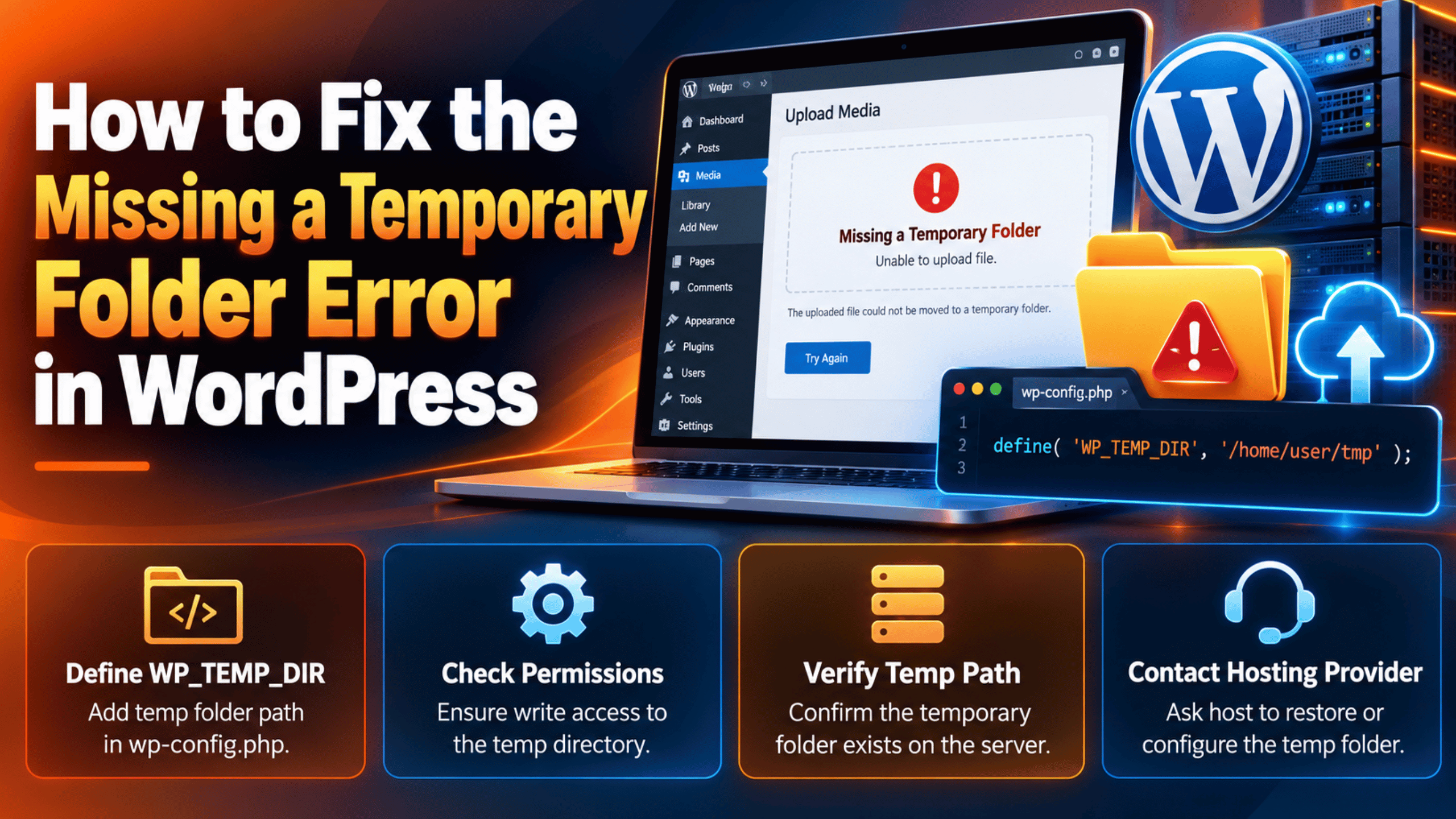
You try to upload an image, install a plugin, or update your theme. Instead of a progress bar you get five words: “Missing a temporary folder.” Nothing else. No file path, no hint about which folder, no clue what to do next.
The wording is misleading, and that is why this error wastes so much time. Nothing is missing from WordPress. No folder has vanished from your site. The problem sits one layer below WordPress, in PHP, and it has nothing to do with your uploads directory.
Here is what actually happens. When a browser sends a file to your server, PHP must park it somewhere before WordPress ever sees it. That parking space is a temporary folder set by your server. If PHP cannot use that folder, it refuses the upload and hands WordPress an error code. WordPress simply translates that code into English for you.
That matters for one practical reason. The fix almost every guide gives you for this error is to add a WP_TEMP_DIR line to wp-config.php. For a browser upload, that line cannot help, and the first step below explains exactly why. Knowing that will save you an afternoon.
This guide covers the whole job. You will learn the signs that confirm this exact fault. Then the real causes behind it. Then a fix for each one, in a safe order. You will also learn how to stop it returning.
Do your uploads fail with a size complaint instead of this message? Then you want our guide to the 413 request entity too large error.
Signs That Show the Missing a Temporary Folder Error
This error has a narrow and recognisable fingerprint. Checking it properly matters, because several upload failures look similar on screen and have completely different causes.
Start with the exact wording. You want “Missing a temporary folder.” on its own, usually in red, right after you choose a file. Does the message mention a size, a file type, or a folder being unwritable? Then you have a different fault. The steps below will not help.
Next, check how wide the problem is. This error typically affects every upload path at once. Media library uploads, featured images, plugin installs from a ZIP file, theme installs and core updates all fail together. If only one of those is broken, something more specific is going on.
Then check whether the file type or size changes anything. Try a very small image, around fifty kilobytes. If even that fails with the same message, the temporary folder is the problem rather than any limit. A fault that only appears above a certain size is a size limit instead.
Now rule out the close relatives. WordPress uses a fixed set of upload messages. They come straight from PHP’s own error codes. You can see them in the core upload handler. “The uploaded file exceeds the upload_max_filesize directive” is a size cap. “No file was uploaded” means nothing arrived. “Failed to write file to disk” means PHP had its temporary folder but could not move the file into your uploads directory afterwards. That last one is often confused with this error, and it needs a different fix.
Finally, note what changed recently. A host migration, a PHP version change, a new hosting plan, or a security hardening job are the usual triggers. Nothing inside WordPress causes this, so an internal change is unlikely to be the reason.
Do images upload and then appear broken? That is a separate matter. Our guide to WordPress media library images not showing covers it.
Reasons Why the Missing a Temporary Folder Error Happens
Every cause below is a server condition, not a WordPress setting. PHP reports the failure, WordPress only relays the words. Here is what is actually going wrong.
PHP has no usable temporary folder at all. PHP needs somewhere to hold an incoming file. It looks at a setting called upload_tmp_dir, and if that is empty it falls back to the system temporary directory. If neither is usable, there is nowhere to put the file and the upload is refused before it starts.
The configured folder does not exist. Someone set upload_tmp_dir to a specific path, and that path is now gone. This happens after migrations, after a control panel rebuild, or when a path was typed wrongly in the first place. PHP keeps pointing at a folder that is no longer there.
The folder exists but is not writable. The path is correct and the folder is present, but the user your site runs as has no permission to write into it. Permissions get reset by migrations, by restores from backup, and by well-meaning hardening scripts.
An open_basedir restriction keeps PHP out. Many shared hosts confine each account to a list of allowed directories using a setting called open_basedir. If the temporary folder sits outside that list, PHP is blocked from reaching it even though the folder exists and is writable.
The account has run out of disk space or inodes. A full disk means nothing can be written anywhere, including the temporary folder. Hosts also cap the number of files an account may hold, called an inode limit. Hitting either produces the same refusal, and disk quota is a far more common cause than people expect.
A custom php.ini or .user.ini is overriding the server. A file in your own account can override the host’s PHP settings. If one of those sets upload_tmp_dir to a path that does not work, your site breaks while everything else on the server is fine. These files are easy to forget about because they are rarely touched.
A migration or PHP version change reset the path. Moving host, or switching PHP version, rebuilds the PHP configuration. A temporary directory that was valid under the old setup may not exist under the new one. This is why the error so often appears on a site that worked perfectly the day before.
WP_TEMP_DIR looks like the fix but does not touch this path. This is not a cause of the upload failing, but it is the reason so many people stay stuck. The constant is real and it does something, just not this. The next section explains the difference, because understanding it is what stops you chasing the wrong fix.
How to Fix the Missing a Temporary Folder Error (Step by Step)
Work through these in order. The first step saves you from the most common wasted effort, and the rest move from simple checks to server-level repairs.
Step 1: Understand Why the WP_TEMP_DIR Fix Will Not Work Here
This step covers the false fix. Search this error and nearly every result tells you to add a WP_TEMP_DIR line to wp-config.php, often with a folder you create yourself. People add it, the error stays, and they assume they did it wrongly. They did not. The line simply has no bearing on a browser upload.
You can confirm this from WordPress itself. The constant is read by a core function called get_temp_dir(). According to the official get_temp_dir() reference, that function picks a writable directory for WordPress’s own temporary files, and WP_TEMP_DIR overrides its choice. Look at what calls it and the picture is clear. It serves downloads WordPress makes itself. Fetching a plugin or an update from WordPress.org, for example. It also serves metadata reads from audio and video files.
A file coming from your browser never passes through that function. PHP has already accepted or refused the file before WordPress runs a single line of its own. By the time WordPress is involved, the decision is made, and all it can do is print the message.
There is nothing to change in this step, which is the point. Already added a WP_TEMP_DIR line? You can leave it. It does no harm, and it may help plugin and theme installs that download files. But do not expect it to fix a media upload, and do not keep creating folders for it.
So move your attention to the server. Every remaining step below works on PHP’s own temporary folder, which is where the real fault is. That reframing is the most valuable thing in this guide.
Step 2: Find Out Which Temporary Folder PHP Is Actually Using
This step covers the case where PHP has no usable temporary folder at all. Before you can fix a folder, you need to know which one PHP wants. Guessing wastes time, because the answer differs between hosts and between PHP versions on the same host.
Confirm the value rather than assuming it. If you can reach your dashboard, open the Site Health screen and look at the server information section, which lists many PHP settings. Otherwise ask your host directly what upload_tmp_dir and the system temporary directory are set to for your account. Either route gives you a real path to work with. A healthy result is a path that exists and that your account owns.
Looking at settings carries no risk at all. Avoid one thing, though. Do not upload scripts that print your full PHP configuration to a public URL. That exposes server detail to anyone who finds the file.
Write down what you find. If upload_tmp_dir is empty, PHP is relying on the system temporary directory, commonly /tmp on Linux servers. If it holds a path, that exact path is what the next steps examine. Note whether the path sits inside your account’s home directory or somewhere shared.
With a path in hand, you can now check it. Say the path is empty and your host confirms the system temporary directory is healthy. Skip ahead to the disk space and open_basedir checks. Those two block a perfectly good folder. Otherwise continue in order.
Step 3: Create the Folder If It Does Not Exist
This step covers a configured folder that is simply not there. PHP points at a path, the path was removed or never existed, and so every upload is refused. This is the most common finding after a migration.
Check before you create anything. Using your host’s file manager or FTP, navigate to the path you noted in step 2. If the folder is missing, you have your cause. If it is present, leave it alone and move to step 4, because creating a second folder will only confuse matters.
Creating a folder is low risk, but creating one in the wrong place achieves nothing and leaves clutter. If the path sits outside your account, such as a shared system directory, do not attempt to create it yourself. That is your host’s job, and step 8 covers asking them.
If the path is inside your own account, create the folder with exactly the name in the path, matching capitalisation. A common arrangement is a folder named tmp directly inside your home directory, above public_html. Keep it outside your public web folder so its contents are never reachable from a browser.
Try an upload again. If it works, that was your fault and you are finished. If the folder now exists but uploads still fail, permissions are the next suspect.
Step 4: Make the Folder Writable
This step covers a folder that exists but refuses writes. PHP must create a file inside it for every upload. Without write permission the upload is refused exactly as if the folder were missing, which is why the message is so unhelpful.
Confirm this before changing anything. In your file manager or FTP client, look at the permissions on the folder from step 2. Folders normally need 755 to work and 777 only in awkward shared setups. Also check the owner. Is the folder owned by a different user from the rest of your site files? Then your account cannot write to it, whatever the number says.
Permissions changes affect security, so take care here. Never set 777 on anything inside your public web folder. Use it only on a temporary folder outside the web root, and only if 755 genuinely does not work. Take a backup of your site first, using a tool such as UpdraftPlus, so you can recover if a wider permissions change goes wrong.
Set the folder to 755 and try an upload. If that fails and the folder is safely outside your web root, try 775, then 777 as a last resort. If the owner is wrong, you cannot fix that yourself over FTP, and your host must correct it.
Upload a small test image to check. If it succeeds, record what you changed so you can repeat it after a future migration. If permissions look correct and uploads still fail, something is blocking access rather than denying it, which is the next step.
Step 5: Check That open_basedir Is Not Blocking the Folder
This step covers an access restriction rather than a permissions problem. Many shared hosts confine each account to a list of permitted directories through a setting called open_basedir. If the temporary folder is not on that list, PHP cannot touch it even though it exists and is writable. Everything looks correct and nothing works.
Confirm this one by comparing two values. Find open_basedir in the same server information you used in step 2. Then check whether the temporary folder path from step 2 falls inside one of the directories it lists. If the temporary folder is somewhere like /tmp while open_basedir only permits your home directory, you have found the block.
Do not try to widen open_basedir yourself even if you can. It is a security boundary, and loosening it exposes your account. The safe repair is to move the temporary folder inside the permitted area instead.
Ask your host to point upload_tmp_dir at a folder inside your own home directory. Or ask them to add the existing temporary directory to your open_basedir list. Either works, if their setup allows it. Some hosts let you manage a php.ini file yourself. If yours does, point upload_tmp_dir at the folder you created in step 3. Keep it inside your home directory and outside public_html.
Test an upload after the change takes effect, which may need a PHP restart. If uploads work, keep a note of the path. If open_basedir was never the issue, continue to the quota checks.
Step 6: Check Your Disk Space and Inode Count
This step covers a full account. If there is no space left, PHP cannot write a temporary file anywhere, and the result is identical to a missing folder. Hosts also limit how many files an account may hold. That limit is called an inode count. Sites with big media libraries or old backups hit it surprisingly often.
Check both numbers before doing anything else. Your hosting control panel normally shows disk usage and inode usage on its main screen. Anything close to the ceiling on either is your cause. A healthy result leaves clear headroom on both, not merely a few megabytes.
Deleting files to free space is the one genuinely dangerous action in this guide. Take a full backup first and download it off the server. Never delete anything from the core WordPress folders, and never remove files you cannot identify.
Clear the safe things first. Old backup archives stored on the server are usually the biggest win, and they should live elsewhere anyway. Then clear cache folders, old error logs, and any debug log that has grown large. Unused plugins and themes can be removed through the dashboard, which also helps the inode count.
Recheck your usage and try an upload. If it works, move your backups off the server permanently so the problem does not return. If space and inodes were never tight, the configuration is being overridden somewhere, which is next.
Step 7: Look for a Custom php.ini or .user.ini Overriding the Server
This step covers a setting file inside your own account. A php.ini or .user.ini file in your web root can override the host’s PHP configuration. Say one of those sets upload_tmp_dir to a path that does not work. Your site breaks. Every other site on the server stays fine. These files are often added once, years ago, and then forgotten.
Confirm this by looking for the files. Using FTP or your file manager, check your WordPress root folder for php.ini, .user.ini and .htaccess. Remember to turn on hidden files, since names beginning with a dot are hidden by default. Open any you find and search for upload_tmp_dir. If one sets a path, compare it with what step 2 reported.
These files affect how your whole site runs, so download a copy of anything before you edit it. A broken php.ini can take the site offline, not just uploads. Work on staging if you have it.
Say you find an upload_tmp_dir line pointing somewhere broken. You have two choices. Correct the path to a folder that exists and is writable. Or comment the line out, so PHP falls back to the server default. In a .user.ini file, changes can take a few minutes to apply, because PHP caches these files. Be patient before concluding it did not work.
Try an upload once the change has had time to apply. If it works, keep a note that the file exists so the next person is not caught out. If there is no such file, the cause lies with the host’s own configuration.
Step 8: Ask Your Host to Reset the Path After a Migration or PHP Change
This step covers the configuration you cannot reach. If you have worked through every step above, the fault is in server configuration that only your host can change. That is a normal outcome for this error, not a failure on your part. It is usually fixed in minutes once the right person looks.
Confirm you have reached this point honestly. You know the path PHP wants, you have checked it exists, is writable, is within open_basedir, and that your account has space. No custom php.ini is interfering. Your checks are the evidence that makes the support ticket quick to resolve.
There is no risk in asking, but be precise so nobody resets things they should not. Ask for the temporary upload path specifically, and avoid vague requests to reset PHP, which may undo other settings you rely on.
Write a short ticket that gives them everything. Say that uploads fail with “Missing a temporary folder”. Tell them this is PHP upload error code 6. Add that upload_tmp_dir or the system temporary directory looks unusable for your account. List what you already checked. Mention any recent migration or PHP version change, since that is very often the trigger.
Test an upload as soon as they reply. Were plugin and theme installs failing too? Test one of those as well. If that part still misbehaves, see our guide to a failed WordPress plugin installation. If your host insists nothing is wrong, a WordPress support team can gather the evidence and press the point for you.
Best Practices to Prevent the Missing a Temporary Folder Error in Future
This fault is almost always triggered by a change at server level. These habits catch it early or stop it happening.
Test uploads straight after any migration. This prevents the single most common trigger. Move host, change plan, or switch PHP version, then immediately upload a small image and install a small plugin. Finding it in that first minute is far easier than finding it next month.
Keep disk space and inodes under watch. This prevents the quota cause. Check both figures in your control panel monthly, and set an alert if your host offers one. Treat seventy per cent as the point to act rather than waiting for failure.
Store backups off the server. Backup archives sitting in your hosting account are the usual reason space runs out. Send them to cloud storage and keep only the most recent copy locally, if any.
Keep a record of your own PHP overrides. This prevents the forgotten php.ini cause. If you or a developer adds a php.ini or .user.ini file, write down what it changes and why. A note in your site documentation saves hours later.
Do not apply fixes you have not verified. The WP_TEMP_DIR advice spreads because it sounds plausible. Before adding a constant or creating a folder, check what it actually controls. An unverified fix leaves clutter behind and hides the real cause.
Keep PHP on a supported version, and upgrade deliberately. Upgrade on staging first, then test uploads before pushing live. Most PHP-change breakages are caught by that single test.
Know your paths before you need them. Note your temporary upload path, your open_basedir list and your PHP version somewhere safe. When something breaks, having those three to hand turns a long investigation into a short one.
Conclusion
“Missing a temporary folder” is a badly worded message for a simple situation. PHP needed somewhere to park an incoming file and could not use the place it was told to use. WordPress only passed the message along.
The signs are consistent. Every upload path fails at once, file size makes no difference, and the trouble almost always starts after a migration or a PHP change. The causes all sit at server level. A missing folder. An unwritable one. An open_basedir block. A full disk or inode count. A forgotten php.ini. Or a path that a host change invalidated.
The fix follows that order. Set aside the WP_TEMP_DIR advice, because it governs WordPress’s own downloads and not browser uploads. Find the path PHP actually wants. Check it exists, that it is writable, that nothing blocks it, and that your account has room. Look for your own override files. Then, if everything checks out, hand your host a precise ticket.
Afterwards, build the habits. Test uploads after every migration. Watch disk space and inodes. Keep backups off the server. Record your own PHP overrides. Is your site a heavy one? Then read our guide to the WordPress memory exhausted error as well. Large media files can run into that limit too.

James is an experienced WordPress and WooCommerce specialist with over 10 years of practical experience. At WPChatSupport, he creates clear guides that help website owners fix WordPress issues, improve speed, secure their sites, and manage WooCommerce stores with confidence. His expertise includes store setup, plugin configuration, theme customization, payment gateway integration, and website troubleshooting. Through simple and helpful content, James supports users in solving technical problems and following best practices for online business growth.