Introduction:
You can install WordPress. You can publish a post. You can add a plugin and change a theme. That is a real milestone, and it is also where most people stall. The dashboard stops teaching you new things. Progress starts to feel random.
The problem is rarely effort. It is direction. WordPress is enormous, and every article suggests a different next step. Without a plan you end up collecting tips instead of building skills.
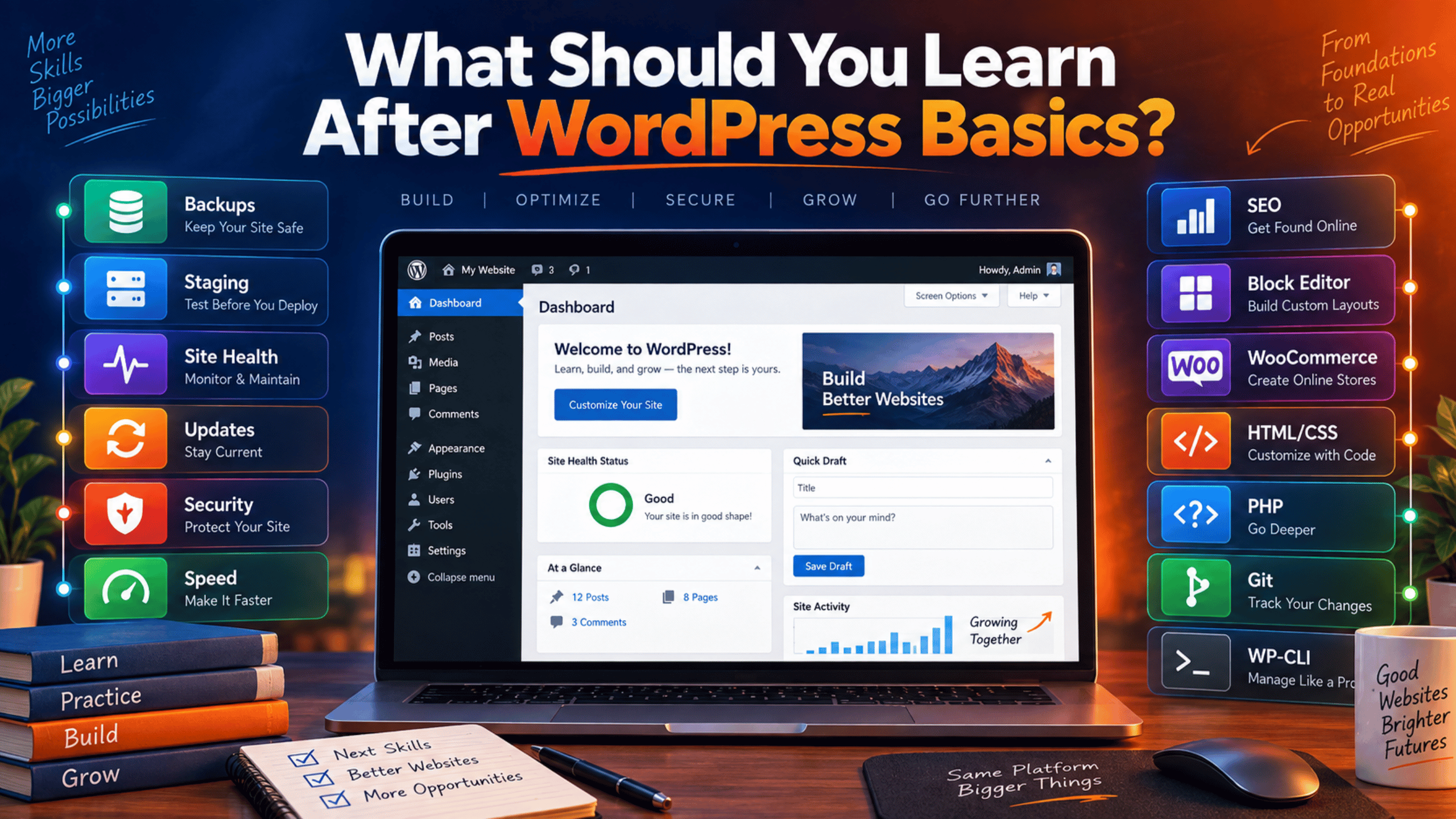
This guide gives you that plan. You will first check that your basics really are solid. Then you will pick a direction that matches your goal. Then you will work through the skills that matter, in a sensible order. Every recommendation here is tied to something WordPress actually does.
Nothing below requires paid training. The official resources are free and kept current. What you need is a sequence, and that is what follows.
First, Make Sure Your Basics Are Actually Solid
It is tempting to jump straight to code. Do not. Gaps in the basics cause most intermediate frustration.
What You Should Already Be Comfortable With
You should be able to publish and edit content without help. That means posts, pages, categories and tags. You should know when to use a page and when to use a post. You should be able to add images and set a featured image.
You should also be comfortable in the block editor. Adding blocks, moving them and changing their settings should feel routine. You should know how to install, activate and remove a plugin. You should know how to preview and switch a theme safely.
Finally, you should know where the settings live. Reading settings control your front page. Permalink settings control your URLs. Discussion settings control comments. If any of those sound unfamiliar, spend a week there before going further.
A Quick Self-Test
Try these five tasks on a test site. Set a static page as your front page and a separate page as your blog. Change your permalink structure and confirm your old links still work. Add a user with the Editor role and explain what they can and cannot do. Restore a post from a revision. Find out which theme and which WordPress version the site runs.
If all five felt easy, you are ready to move on. If two or three did not, that is your real next lesson. There is no shame in that at all. Solid basics make everything after them faster.
Pick a Direction Before You Pick a Skill
WordPress splits into three broad paths. They overlap, but the order of study is different for each. Choose one as your main road and visit the others later.
The Site Owner Path
You run one site, maybe two. Your goal is a site that stays fast, safe and online. You do not want to write code, and you do not need to.
Your priorities are maintenance and results. Backups, updates, security, speed and search come first. Learning a little about diagnosis will save you money on support. Most of the shared skills section below is aimed squarely at you.
The Site Builder Path
You build sites for other people. Maybe you freelance, or you do it inside a marketing team. You need speed, repeatability and polish.
Your priorities add design and delivery. Learn the Site Editor deeply. Learn patterns so you can reuse layouts instead of rebuilding them. Learn staging so client changes never go live by accident. Learn enough CSS to fix the last five percent of any design.
The Developer Path
You want to extend WordPress, not just assemble it. You plan to write plugins, themes or custom blocks.
Your priorities are code and architecture. Learn HTML, CSS and PHP properly. Learn how hooks work, because they are the heart of WordPress extension. Then choose a specialism. Theme development is one clear route, and our guide on how to learn WordPress theme development from scratch lays out that path in full.
Skills Every WordPress User Should Learn Next
These apply whichever path you chose. They are the difference between owning a site and hoping it stays up.
Backups You Have Actually Restored
Everyone knows they should take backups. Far fewer people have ever restored one. An untested backup is a guess, not a safety net.
Learn what a full backup includes. It is the database plus the files in wp-content. Learn where yours are stored and how long they are kept. Then practise a restore on a test site until it feels boring.
Set a schedule that matches how often you publish. A daily backup suits an active blog. A shop taking orders needs more than that. Our guide on backing up WordPress with UpdraftPlus walks through a working setup.
Using a Staging Site
A staging site is a private copy of your live site. You test updates and changes there first. Nothing you do can affect real visitors.
Most good hosts offer staging with one click. Learn where that button is on your host. Learn how to push changes back to live safely. Learn what staging does not copy, such as recent orders or new comments.
This one habit prevents most emergencies. Plugin updates, theme changes and PHP upgrades all get tested first. If your host has no staging, a local copy of the site works too.
Reading the Site Health Screen
WordPress has a built-in diagnostic tool. You find it under Tools, then Site Health. It has two tabs, Status and Info.
The Status tab groups its findings by severity. It shows critical issues, recommended improvements and passed tests. It will tell you if your PHP version is outdated. It will tell you if background updates are failing. It will warn you if your site is showing errors to visitors.
The Info tab is a technical summary of the whole site. It lists your WordPress version, your active theme and every plugin. It also shows server details, database details and file permissions. There is an export button that copies all of it to your clipboard.
Learn to read both tabs. When you ask anyone for help, that export is exactly what a support engineer wants to see first.
Updating Without Fear
Updates break sites when they are done carelessly. They protect sites when they are done well. The skill is the routine, not the button.
Build a simple order of operations. Take a backup. Update on staging. Check the front page, a post, a form, and checkout if you have one. Only then update live. Update plugins in small groups rather than all at once.
Learn to read a changelog before you update. Major version jumps deserve far more care than small patches. Learn how to roll back a single plugin if something goes wrong.
Practical Security Habits
Security is mostly discipline, not software. Strong unique passwords come first. Two-factor authentication on admin accounts comes second. Give every user the lowest role that still lets them work.
Then reduce your surface area. Delete plugins and themes you do not use. Inactive code can still be exploited. Keep everything that remains up to date.
A security plugin adds monitoring and a firewall on top of that. Our guide on setting up the All In One WP Security plugin shows a sensible configuration. Treat it as one layer, not as a replacement for good habits.
Speed and Core Web Vitals
Speed affects both visitors and search rankings. Learn to measure before you optimise, because guessing wastes a lot of time.
Start with the big wins. Compress and resize images before you upload them. Add a caching layer. Reduce the number of plugins loading on every page. Choose a host that is not badly oversold.
Then learn what the Core Web Vitals actually measure. Largest Contentful Paint is usually the one that fails first. Our guides on fixing page speed issues in WordPress and fixing Largest Contentful Paint cover the practical steps.
SEO Beyond Installing a Plugin
An SEO plugin does not do SEO for you. It gives you fields to fill in. The thinking is still yours.
Learn search intent first. Work out what someone actually wants when they type a phrase. Then write the page that answers it fully. Learn to write titles and meta descriptions that describe the page honestly.
Learn your site structure too. Permalinks, categories and internal links all shape how search engines read your site. Learn to read Search Console rather than guessing. That single habit beats most on-page tweaks.
Go Deeper Into the Block Editor
Most people use maybe a fifth of the editor. The rest is where the real time savings live.
Patterns and Reusable Layouts
A pattern is a saved arrangement of blocks. You insert it and fill in the content. It turns a twenty-minute layout job into a single click.
Learn to create your own patterns from layouts you have already built. Learn the difference between a pattern and a synced pattern. A synced pattern updates everywhere when you edit it once. That is perfect for a call-to-action you reuse across a whole site.
Build a small library for your own work. Hero sections, testimonial rows, pricing tables and contact blocks are good starting points. Consistency improves and your build time drops sharply.
The Site Editor and Global Styles
The Site Editor lets you edit templates, not just content. You can change the header, the footer and the post layout. This only works if your site runs a block theme.
Global Styles is the design panel inside it. It sets colours, typography and spacing for the whole site. Change it in one place and every page follows.
Learn to work from the top down. Set the global styles first. Only then override individual blocks where you really need to. People who work the other way end up with dozens of one-off styles and no consistency.
Block Themes
A block theme is what makes full site editing possible. Learning how one is built changes how you use it. You start to see why some options appear and others do not.
You do not need to build one to benefit. Read a default Twenty theme’s theme.json file on a test site. Notice how its palette maps to the colour picker you use every day. If that interests you, theme development is a natural next step.
Learn WooCommerce If You Sell Anything
WooCommerce turns WordPress into a shop. It is a large system in its own right. Treat it as a separate subject, not as just another plugin.
Start with the core flow. Products, variations, cart, checkout, orders and emails. Learn how tax and shipping rules are configured. Learn how a payment gateway connects, and what the customer sees when it fails.
Then learn the maintenance side. Stores break in ways blogs do not. A failed checkout costs money immediately. Test checkout after every update, without exception.
If you plan to customise a store, learn hooks early. WooCommerce exposes a large set of actions and filters. Our complete guide to WooCommerce hooks explains how they work and how to add them safely.
When You Are Ready for Code
Code is optional for site owners. It is unavoidable for developers. Take these four in order.
HTML and CSS First
HTML structures a page and CSS styles it. They are the fastest useful skills you can gain. A little CSS lets you fix spacing, colours and small layout problems on almost any site.
Learn selectors, the box model and specificity. Learn Flexbox and CSS Grid for layout. Learn to use your browser’s developer tools to inspect an element. That last skill alone will save you hours every month.
PHP and How Hooks Work
PHP is the language WordPress runs on. Learn variables, arrays, functions and conditionals. That base is enough to start reading real WordPress code.
Then learn hooks. WordPress lets plugins and themes attach code to specific moments. Actions run extra code at a set point in the process. Filters change a value before it is used. Almost every customisation you will ever write uses one of the two.
Write your first hooks in a small custom plugin on a test site. Never paste snippets straight into a live site’s functions.php. Take a full backup and use staging before you try anything on a site people rely on.
JavaScript and Custom Blocks
Custom blocks are written in JavaScript, using React. This is a bigger jump than it first appears. Learn modern JavaScript properly before you touch block development.
Learn the browser side first. Then learn the tooling: npm, a build step and a local block development environment. The official developer course covers setting that environment up, so you do not have to piece it together from blog posts.
Tools That Make You Much Faster
Two tools repay the effort quickly. WP-CLI runs WordPress commands in a terminal. It makes updates, user changes and database searches far faster than clicking through screens.
Git is the other one. Version control means you can undo any change with confidence. It also makes working alongside other people possible. Learn commits, branches and how to read a diff. That is enough to start being useful.
Where to Learn All of This for Free
You do not need to buy a course to make real progress.
Learn WordPress is the official training site. It organises everything into learning pathways. There is one for using WordPress, one for developing and one for design. The Intermediate WordPress User course runs about seven hours across thirty-seven lessons. The Beginner WordPress Developer course runs about nine hours across fifty-nine lessons.
The WordPress documentation site covers the software itself. It is the right place for questions about settings and screens. The developer handbooks then cover themes, plugins and the block editor in much more depth.
The support forums are the last piece. Reading other people’s problems teaches you diagnosis. Answering a few teaches you even more, and it is a good way to test what you think you know.
How to Build a Learning Plan You Will Finish
Most learning plans fail for the same two reasons. They are too broad, and they have no deadline.
Pick one skill at a time. Give it two weeks. Attach it to a real task on a real site. Learning about backups stays abstract until you actually restore one.
Keep a running list of things that confused you. Come back to that list once a month. You will be surprised how many items you can suddenly explain.
Finally, build one project that is slightly too hard for you. A small site for a friend, a club or a hobby works well. Real constraints teach what tutorials cannot. One finished project is worth more than fifty saved bookmarks.
Frequently Asked Questions
Do I need to learn to code to get better at WordPress?
No. Plenty of skilled WordPress professionals write very little code. Maintenance, content, SEO, speed and site building are all non-coding skills. Code becomes necessary only when you want to extend WordPress itself. Even then, a little HTML and CSS goes a long way.
Should I learn a page builder or the block editor?
Learn the block editor first. It is part of WordPress core, so it is always available. It is also what the Site Editor and block themes are built on. Page builders are worth learning if a client or employer already uses one. Just do not let a builder become the only way you can work.
What should I learn first, security or speed?
Security, without much hesitation. A slow site loses some visitors. A hacked site can lose everything, including trust. Start with backups, strong passwords and a safe update routine. Move on to speed once those are genuinely in place.
How much PHP do I actually need?
Less than you probably fear. Variables, arrays, functions, conditionals and loops cover most WordPress work. Add an understanding of actions and filters on top of that. That combination handles the large majority of customisation tasks you will meet.
Is WooCommerce worth learning if I do not have a shop?
It is if you work with clients. A large share of WordPress projects involve selling something. WooCommerce skills are in steady demand and they pay well. If you only run a personal blog, it is fine to skip it for now.
How do I know when I have moved past intermediate?
A good marker is diagnosis. When something breaks, can you form a theory and test it? Can you tell a theme problem from a plugin problem from a server problem? When that process becomes routine, you are no longer an intermediate user.
Conclusion
Finishing the basics is not the end of learning. It is the point where learning needs a direction. Without one you collect tips. With one you build skills.
Start by proving your basics really are solid. Then choose your path: site owner, site builder or developer. Whichever you pick, learn the shared essentials first. Tested backups, a staging site, the Site Health screen, a safe update routine, real security habits, speed and honest SEO.
From there, deepen what matters to you. Master patterns and the Site Editor if you build sites for others. Learn WooCommerce if you sell anything. Learn HTML, CSS, PHP and hooks if you want to extend WordPress itself.
Use the free official material throughout. Learn WordPress, the documentation site and the developer handbooks cover everything above. Give each skill a fortnight and a real task to go with it. And if theme building is where you are heading next, our guide on how to learn WordPress theme development from scratch is the right place to go.

James is an experienced WordPress and WooCommerce specialist with over 10 years of practical experience. At WPChatSupport, he creates clear guides that help website owners fix WordPress issues, improve speed, secure their sites, and manage WooCommerce stores with confidence. His expertise includes store setup, plugin configuration, theme customization, payment gateway integration, and website troubleshooting. Through simple and helpful content, James supports users in solving technical problems and following best practices for online business growth.