Introduction:
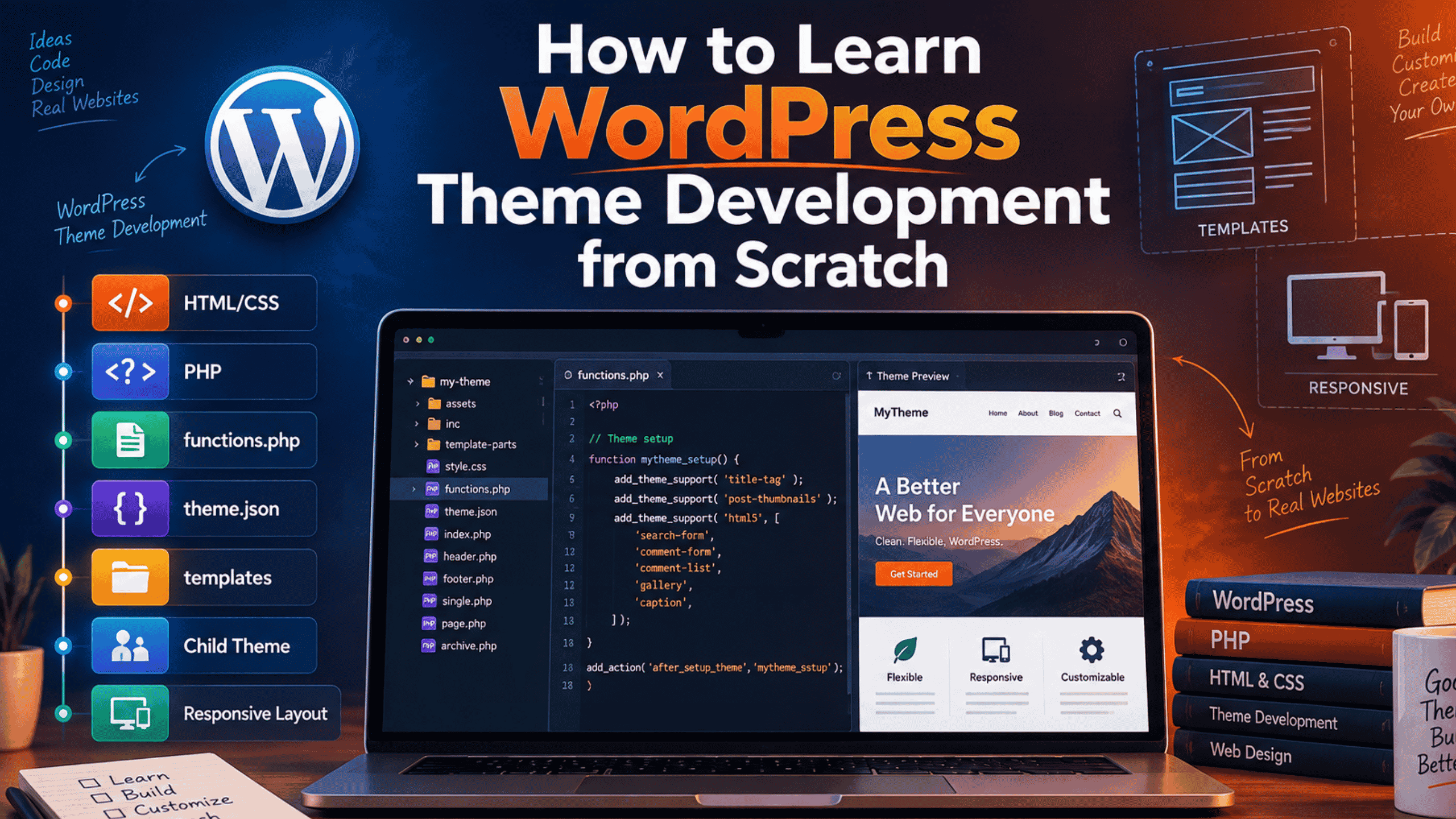
A WordPress theme controls how your site looks. It sets the layout, the colours and the fonts. It does not store your posts or pages. WordPress keeps those in a database. The theme only pulls that content out and displays it. Theme development is the craft of building that display layer.
Most people arrive here for one simple reason. A ready-made theme almost fits, but not quite. You want one more layout. You want a header that behaves your way. You want a site that is truly yours. Building your own theme gives you that control.
This guide lays out a full learning path. You will see which skills to learn first. You will set up a safe place to practise. You will learn the files that make a theme work. Then you will build your first theme in small steps. Every technical detail here comes from the official WordPress Theme Handbook.
You do not need a degree to do this. You need patience and a clear order of study. Take the steps below in sequence. Skipping ahead is the fastest way to get stuck. If you are not yet sure you need a custom theme at all, our guide on building a WordPress website without coding covers the no-code route first.
What You Should Know Before You Start
Theme development sits on top of normal web skills. You do not need all of them on day one, but you do need a base. Here is what that base looks like. Spend a few weeks here if you are new to the web. It will save you months later.
HTML and CSS Come First
HTML gives a page its structure. CSS controls how that structure looks. Every WordPress theme is built on both. You should be able to write a simple page by hand. You should know headings, lists, links and images. You should be comfortable with CSS selectors, spacing and colour.
You also need layout skills. Flexbox and CSS Grid do most of the work in modern themes. Learn how to make a layout that adapts to phones. Themes are judged on small screens as much as large ones. If you can build a static two-column page from scratch, you are ready to move on.
A Working Knowledge of PHP
PHP is the language WordPress is written in. Classic themes use PHP files for every template. Block themes use far less PHP, but they still use some. Your functions.php file is pure PHP, for example.
You do not need to be a PHP expert. You need the basics. Learn variables, strings and arrays. Learn if statements and loops. Learn how to write and call a function. That is roughly a week of study, and it is enough to begin.
A Little JavaScript, Later
JavaScript runs in the visitor’s browser. Themes use it for menus, sliders and small effects. You can build a good first theme with no JavaScript at all. So treat it as a later skill, not a blocker.
It becomes important if you move into block development. Custom blocks are written in JavaScript and React. That is a separate path from theming. Come back to it once your theme fundamentals are solid.
How WordPress Itself Works
This part is often skipped, and it hurts. You should know WordPress as a user before you build for it. Learn the difference between posts, pages and custom post types. Learn what categories and tags actually do. Learn how the media library stores images.
Themes exist to display this content. If you do not know what content types exist, you cannot display them well. Spend time in the dashboard of a real site. Publish posts. Make categories. Break things and fix them. That experience pays off in every template you write.
Block Themes and Classic Themes: Which to Learn First
WordPress supports two main kinds of theme. The Theme Handbook calls them block themes and classic themes. The difference shapes your whole learning path, so read this section before you choose.
Block Themes
Block themes are the modern way to build. The handbook describes them as the future of the project. They are built entirely out of blocks. Their templates are HTML files that hold block markup.
A block theme lives mostly in two places. Templates sit in a folder named templates. Design settings sit in a file named theme.json. Users can edit both through the Site Editor in the dashboard. That means less custom code for you and more control for them.
Only two files are truly required. You need style.css in the theme root. You need templates/index.html. Without index.html, WordPress will not treat the folder as a block theme at all.
Classic Themes
Classic themes use PHP templates instead of HTML ones. This system arrived with WordPress 1.5 in 2005. It is still fully supported today. A very large share of live sites still run on it.
Classic themes have fewer fixed rules. You write index.php, header.php, footer.php and so on. You call WordPress functions inside those files to output content. That gives you a lot of freedom. It also means more code to write and more to maintain.
Hybrid Themes
A hybrid theme is a classic theme with some modern parts. It might use theme.json for colours and fonts. It might use block template parts for a header. The community uses the word widely, but it is not an official theme type. Underneath, a hybrid is still a classic theme.
So Which Should You Learn?
Learn block themes first. They are where WordPress is heading. The handbook itself now leads with them. You will also write far less repetitive code while you learn.
Then learn enough classic theming to survive. Many of the sites you meet will still be classic. You will need to read PHP templates and make safe edits. Knowing both makes you far more useful to clients and employers.
Set Up a Safe Place to Practise
Never learn theme development on a live site. One bad edit can take a real site down in seconds. You need a private copy that nobody else can see.
Install WordPress on Your Own Computer
A local site runs on your machine, not on the internet. It is free, fast and completely private. You can break it as often as you like. Tools like XAMPP, MAMP, LocalWP and Studio all do the job.
We have a full walkthrough for one of them. See our guide on how to install WordPress on XAMPP locally. Follow it once and you will have a working sandbox. Put your theme folder inside wp-content/themes on that install.
Turn On Debugging
WordPress hides PHP errors by default. That makes a broken theme look like a blank white page. On a local site, you want to see every error instead. Open wp-config.php in your local install and set WP_DEBUG to true.
Only do this on the local copy. Debug output on a live site can leak private details. The WordPress Site Health screen flags that as a critical issue for exactly that reason. If you ever need to debug a real site, take a full backup first and use a staging copy.
Add Realistic Test Content
An empty site hides most theme bugs. Add posts of different lengths. Add a post with no featured image. Add a page with a very long title. Add a category with many posts and one with none.
The WordPress theme review team publishes a test data file for this. It is called the Theme Unit Test data. Import it and your theme faces every awkward case at once. Long titles, odd characters and missing images all get covered.
Learn the Files That Make a Theme
A theme is just a folder of files. WordPress looks for that folder inside wp-content/themes. Here is what goes inside and why each piece exists.
style.css and the File Header
Every theme must have style.css in its root folder. Its first job is not styling at all. It tells WordPress that this folder is a theme. WordPress reads the first 8KB of the file and looks for a comment block.
That comment block is called the file header. Only one field is strictly required, and that is Theme Name. In practice you should fill in many more. Description, Version, Author, Text Domain, Requires at least, Requires PHP, License and License URI all belong there. The WordPress theme directory requires those fields when you submit a theme.
/**
 * Theme Name: Fabled Sunset
 * Description: A small learning theme.
 * Version: 1.0.0
 * Author: Your Name
 * Requires at least: 6.2
 * Requires PHP: 7.4
 * License: GNU General Public License v2.0 or later
 * License URI: https://www.gnu.org/licenses/gpl-2.0.html
 */
The One Template You Cannot Skip
A block theme needs templates/index.html. That file is the fallback for everything. If WordPress finds no better template, it uses this one. Without it, your folder is not a block theme.
A classic theme needs index.php instead. Same idea, different language. It is the last stop in every lookup chain. Get this one file right and your theme will always render something.
theme.json
theme.json is the design control panel of a block theme. It is not strictly required. In practice you will use it in almost every project. It sets your colour palette, your font sizes and your spacing scale.
The real win is integration. Settings you define in theme.json appear in the editor interface. Your users then pick from your palette instead of inventing their own. That keeps a site looking consistent over years of edits by different people.
functions.php
functions.php holds PHP that runs when your theme loads. WordPress loads it automatically after the theme starts. You use it to register menus and to load stylesheets. You also use it to declare support for theme features.
Keep it focused on presentation. Site features belong in a plugin, not a theme. The handbook is clear about this. If a user switches themes, they should not lose their content or their features.
The parts, patterns and styles Folders
Block themes use three more named folders, and WordPress treats each one specially. The parts folder holds template parts. These are reusable chunks like header.html and footer.html.
The patterns folder holds block patterns. WordPress registers every file placed there automatically. Users can then insert them from the editor. The styles folder holds style variations. Each JSON file there is an alternative look for your theme, and users switch between them in the Styles panel.
Understand the Template Hierarchy
This is the single most important idea in theming. Learn it well and everything else gets much easier.
How WordPress Chooses a Template
Every URL on a WordPress site produces a query. WordPress reads that query to work out what is being shown. Is it a single post? A category archive? A search result? It then walks a list of template names in order.
For a block theme, WordPress checks three places in priority order. First it checks user-created templates saved in the database. Then it checks the child theme’s templates folder. Then it checks the parent theme’s templates folder. The first match wins.
The list of names is very specific. A category archive looks for category-{slug}.html first. Then category-{id}.html. Then category.html, then archive.html, then index.html. Every other page type has its own chain like this. Your URL structure feeds this process, so it is worth reading our guide on setting up and fixing permalinks in WordPress alongside this section.
The Templates Worth Learning First
You do not need every template on day one. Five will cover most of a normal site. index.html is the fallback and must exist.
singular.html covers single posts and pages together. archive.html covers categories, tags, authors and dates. search.html handles search results. 404.html handles missing pages. Build those five and your theme is genuinely usable.
Add more only when a page type truly needs different treatment. A shop might need archive-product.html. A magazine might need home.html for the blog index. Let real needs drive the file list, not a checklist.
A Trap Worth Knowing About
Home and front page are not the same thing in WordPress. front-page.html is the site’s front page. home.html is the blog posts index. The names are historical and they confuse almost everyone at first.
Which one applies depends on a setting. It lives under Settings, then Reading, in the dashboard. There you choose whether the front page shows your latest posts or a static page. front-page.html always takes priority if it exists. Test both settings while you learn, so the behaviour stops surprising you.
A Step-by-Step Path to Your First Theme
Now put the pieces together. Follow these steps in order, because each one builds on the last.
Step 1: Take a Default Theme Apart
Install a default Twenty theme on your local site. Open its folder in a code editor. Read style.css first, then theme.json, then the templates folder. Do not try to understand every line.
Your goal here is shape recognition. Notice how few files there really are. Notice how templates are mostly block comments. Change one colour value in theme.json and reload the site. Seeing your own change appear is the moment theming starts to click.
Step 2: Build a Child Theme
A child theme is the safest first project. It inherits everything from a parent theme. You then override only the parts you want to change. Parent updates never wipe your work.
Create a folder in wp-content/themes. Add a style.css with a file header. Add a Template field naming the parent’s folder exactly. For Twenty Twenty-Four, that value is twentytwentyfour. Then activate it under Appearance, then Themes.
One warning worth repeating. Never copy the parent’s functions.php into your child theme. Both files load, so duplicate function names cause fatal errors. Add only new code to the child’s functions.php.
Step 3: Redesign in the Site Editor
Open the Site Editor from the Appearance menu. Edit the header. Change the colours in Styles. Build a new page template out of blocks. You are theming already, without writing a line of code.
This step matters more than it looks. It teaches you what a block template actually contains. It also shows you what your users will be able to change later. Good themes are designed around that freedom, not against it.
Step 4: Export and Read Your Own Code
The Site Editor can export your changes as a theme. You get a ZIP file with real template files inside. Open them and read the block markup you produced.
This closes the loop nicely. You made a design visually, and now you can see the code behind it. Compare an exported template to the handbook description. Ideas that felt abstract suddenly look obvious.
Step 5: Build a Minimal Theme From Nothing
Now start with an empty folder. Add style.css with a proper file header. Add a templates folder. Add index.html with a few blocks inside it.
Activate it. The site will look plain and slightly broken. That is expected, and it is a good sign. You have just built the smallest valid block theme. Everything from here is addition, not magic.
Step 6: Add Global Styles With theme.json
Create theme.json in your theme root. Define a small colour palette. Define three or four font sizes. Define a spacing scale.
Reload the editor and look at the colour pickers. Your palette is now the default choice. This is the moment theme.json earns its place. Keep the palette small, because four or five colours is plenty for a first theme.
Step 7: Add Template Parts and More Templates
Create a parts folder. Add header.html and footer.html inside it. Reference them from your templates. Now a single edit updates the header everywhere.
Then add the templates listed earlier. Build singular.html, archive.html, search.html and 404.html. Test each one by visiting a matching URL. Watch the hierarchy pick the right file every time.
Step 8: Add PHP Only Where You Need It
Create functions.php last, not first. Use it to load a stylesheet if you have custom CSS. The correct function is wp_enqueue_style, called on the wp_enqueue_scripts hook.
Resist the urge to add features here. Ask one question before every addition. Would a user lose something important if they switched themes? If the answer is yes, that code belongs in a plugin instead.
Step 9: Test Your Theme Properly
Install the Theme Check plugin on your local site. It scans your theme against the directory requirements. Fix what it reports, even for a private theme. Those rules exist for good reasons.
Then test by hand. View the site at phone width. Check a post with no featured image. Check an empty category. Check a search that returns nothing. Tab through the page with a keyboard and listen with a screen reader. A theme that survives all of that is a real theme.
Free Resources That Teach This Properly
You do not need a paid course to learn theming. The official material is excellent, free and kept current.
The Theme Handbook
The WordPress Theme Handbook is the primary source. It covers theme structure, templates, theme.json and classic theming. It is maintained by the people who build WordPress. Read it in order rather than dipping in at random.
Treat it as your reference for the rest of your career. When a tutorial disagrees with the handbook, trust the handbook. Tutorials go stale quickly. The handbook gets updated.
Learn WordPress
The official training site is Learn WordPress. It groups content into learning pathways. Three pathways exist: using WordPress, developing with WordPress and designing with WordPress.
Two courses are directly useful here. The Beginner WordPress Developer course runs about nine hours across fifty-nine lessons. The Intermediate Theme Developer course runs about eight hours across thirty-two lessons, and it covers building a custom block theme from global styles through to release. Both are free.
Real Themes From the Directory
The WordPress theme directory is a library of working examples. Download three or four themes you like. Read their theme.json files side by side. Notice what they share and where they differ.
This is how most developers actually improve. You see a technique, understand it, then adapt it. Just respect the licence on anything you reuse. Themes in the directory are licensed under the GPL.
Mistakes That Slow Beginners Down
Some mistakes show up again and again. Knowing them in advance can save you weeks of frustration.
The first is editing a live site directly. Always work locally or on a staging copy. Take a full backup before you touch a real site at all. Our guide on backing up WordPress with UpdraftPlus covers a simple routine you can set once.
The second is editing a parent theme’s files. Your changes vanish at the next update. Use a child theme instead, because it takes about ten minutes to set up.
The third is putting site features inside a theme. Contact forms and custom post types belong in plugins. Otherwise a theme switch destroys the user’s work.
The fourth is skipping the template hierarchy. People copy templates without knowing why one loads and another does not. Learn the order and debugging becomes straightforward.
The fifth is ignoring accessibility and small screens. Both are much harder to retrofit later. Build them in from your very first template.
How Long Does This Take to Learn?
The honest answer depends on your starting point. Someone with solid HTML and CSS can build a simple block theme in a few weeks. Someone starting from zero should plan for a few months.
A workable schedule looks like this. Spend three to four weeks on HTML and CSS. Spend one to two weeks on PHP basics. Spend two weeks on the handbook and a child theme. Spend three to four weeks building your own theme. That is roughly three months of steady part-time study.
Progress will not feel linear, and that is normal. You will lose a whole evening to one broken template. Then three concepts will click at once. Keep a small project running the entire time. Learning sticks when it is attached to something real.
Frequently Asked Questions
Do I need to know PHP to build a block theme?
Not much of it. A basic block theme can be built with style.css, templates/index.html and theme.json. None of those three files require PHP. You will need some PHP once you add functions.php, and even then it is usually a few short functions. Learning PHP basics is still worth it, because so many existing sites are classic themes.
Should I still learn classic theme development?
Yes, at least to a reading level. Classic themes remain fully supported in WordPress. A very large share of live sites still use them. You will be asked to edit one sooner or later. Knowing header.php, footer.php and the loop is enough for most maintenance work.
Is a child theme still the right way to customise a theme?
For customising an existing theme, yes. A child theme keeps your changes separate from the parent. The parent can then update without wiping your work. If you find yourself overriding most of the parent, stop and reconsider. At that point, building your own theme is cleaner and easier to maintain.
Can I build a theme without writing any code?
Partly. The Site Editor lets you change templates and styles visually. You can then export the result as a theme. What you cannot do is create a brand new theme from nothing inside the editor. You always start from an existing theme and reshape it.
What is theme.json for, in plain terms?
It is a settings file for your design. It defines colours, fonts, sizes and spacing in one place. WordPress then offers those options inside the editor. It saves you writing a lot of repetitive CSS, and it keeps a site visually consistent.
Where should I ask for help when I get stuck?
Start with the Theme Handbook and the support forums on WordPress.org. Describe what you expected and what actually happened. Include the template name you believe is loading. Clear, specific questions get answered quickly.
Conclusion
Theme development looks intimidating from the outside. Up close it is a short list of ideas. A theme is a folder with a style.css and a fallback template. The template hierarchy decides which file loads. theme.json holds your design settings. functions.php holds the small amount of PHP you need.
Learn the web basics first: HTML, CSS and a little PHP. Set up a local site so you can break things safely. Start with block themes, then learn enough classic theming to maintain older sites. Work through a child theme before you build from scratch. Then build the five core templates and test them hard.
Use the official material as you go. The Theme Handbook and Learn WordPress are free and current. Read real themes from the directory to see how experienced developers solve problems.
Most of all, keep one small project alive. A theme you actually finish will teach you more than ten tutorials. And when your foundations feel solid, plan your next move deliberately. Our guide on what to learn after WordPress basics maps out the paths ahead.

James is an experienced WordPress and WooCommerce specialist with over 10 years of practical experience. At WPChatSupport, he creates clear guides that help website owners fix WordPress issues, improve speed, secure their sites, and manage WooCommerce stores with confidence. His expertise includes store setup, plugin configuration, theme customization, payment gateway integration, and website troubleshooting. Through simple and helpful content, James supports users in solving technical problems and following best practices for online business growth.