Introduction
Many WordPress website owners see speed warnings in Google PageSpeed Insights. One common warning is related to Largest Contentful Paint, also called LCP. This warning may say that the main content takes too long to load. For many websites, this issue appears on mobile pages first. It can affect blogs, service pages, landing pages, and WooCommerce product pages.
Largest Contentful Paint WordPress issues are common because many websites use large images, sliders, page builders, fonts, and plugins. These elements can make the first screen load slowly. When this happens, visitors may wait longer before they see the main content. A slow first view can make the website feel heavy and weak.
LCP is part of Core Web Vitals WordPress performance checks. It helps measure how fast users can see the main content. A good LCP score can improve user experience and support better website performance. This guide explains the basic meaning of LCP first. Then it will show how to reduce Largest Contentful Paint using simple WordPress steps.
What is the Largest Contentful Paint and How Does It Work?
Largest Contentful Paint measures the loading time of the largest visible element. This element appears inside the first screen of the page. It is usually the main content that users notice first. In WordPress, this can be a hero image, featured image, product image, banner, heading, or large text block.
LCP does not measure every part of the page. It only focuses on the largest visible content area. This makes it useful for checking real user experience. Visitors often judge a page by what appears first. If the main content appears quickly, the page feels fast. If it appears late, the page feels slow.
For example, a WordPress homepage may have a large hero banner. That banner can become the LCP element. A blog post may show a large featured image first. That image can become the LCP element. A WooCommerce product page may show the main product photo first. That product image can also become the LCP element.
What is a Good Largest Contentful Paint Score?
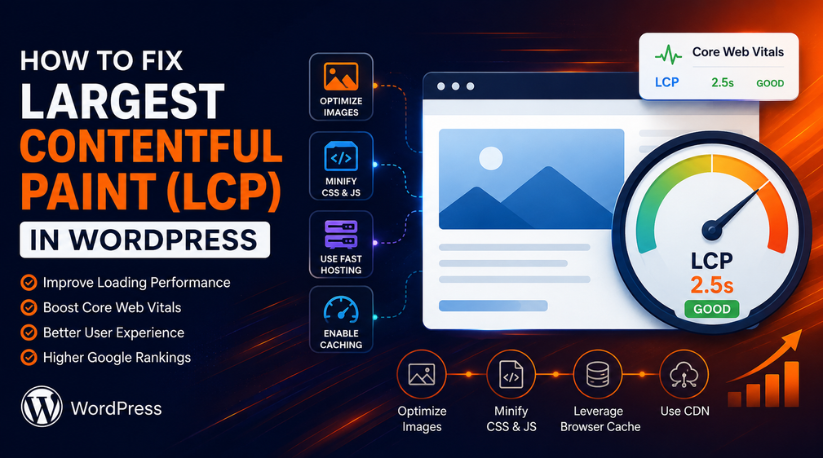
A good LCP score is 2.5 seconds or less. This means the largest visible content should appear quickly. If LCP takes between 2.5 and 4 seconds, it needs improvement. If it takes more than 4 seconds, the score is poor.
Why LCP Matters for Better WordPress Website Performance
LCP helps users see the main content faster
Largest Contentful Paint shows how fast the main content appears. This content can be a hero image, heading, banner, or product image. When it loads quickly, users understand the page sooner. This creates a better first experience on the website.
LCP improves the first impression of your website
Visitors judge a website within a few seconds. If the main content loads late, the page feels slow. Users may think the website is not working well. Good Largest Contentful Paint WordPress performance makes the site feel smoother and more trusted.
LCP can reduce bounce rate on important pages
A slow page can make visitors leave quickly. This can happen before they read your content. It is common on mobile pages with large images. When you reduce Largest Contentful Paint, users are more likely to stay.
LCP supports better Core Web Vitals WordPress results
LCP is one of the main Core Web Vitals WordPress metrics. It checks how fast the main visible content loads. A better LCP score can support stronger page experience. This can help your website perform better over time.
LCP can help improve SEO performance
Google considers page experience as one part of search quality. LCP alone does not decide rankings. Content quality, intent, links, and technical SEO also matter. Still, poor LCP can hurt user experience and search performance.
LCP is important for mobile WordPress users
Most users visit websites from mobile devices. Mobile networks and phones can be slower than desktops. This can make LCP problems more visible on mobile. To improve LCP WordPress results, always check mobile performance first.
LCP matters for WooCommerce product pages
WooCommerce pages often use large product images and scripts. These files can delay the main product content. If the product image loads slowly, users may lose interest. WordPress LCP optimization helps product pages feel faster and clearer.
LCP helps users take action faster
A fast first screen helps users act with confidence. They can read, click, call, buy, or submit forms sooner. Slow LCP can delay these important actions. When you optimize Largest Contentful Paint, the user journey becomes smoother.
Fix Largest Contentful Paint Issues in WordPress (Step-by-Step)
To fix Largest Contentful Paint in WordPress, start by finding the real LCP element and then improve the exact issue that delays it. Follow these steps to reduce Largest Contentful Paint without adding unnecessary changes.
Step 1: Test the Exact WordPress Page First
Start by testing the exact page in Google PageSpeed Insights. Do not check only the homepage. Each WordPress page can have a different LCP issue. Check the mobile result first because mobile is usually slower. Then review the desktop result. Look for the Largest Contentful Paint score and the LCP element.
Step 2: Find the Real LCP Element
Before making changes, find the real LCP element. It may be a hero image, featured image, product image, banner, heading, or background image. This step is important because wrong fixes waste time. If the hero image is the issue, footer image optimization will not help much.
Step 3: Optimize the Main LCP Image
If the LCP element is an image, optimize it first. Resize the image before uploading it to WordPress. Compress it without losing clear quality. Use WebP or AVIF format where possible. Avoid very large PNG files. Also make sure the image size matches the display area.
Step 4: Remove Lazy Loading from the LCP Image
Lazy loading is good for images below the fold. But it should not be used for the main above-the-fold image. If the hero image or product image is lazy-loaded, it may appear late. Exclude the LCP image from lazy loading in your cache, image, theme, or page builder settings.
Step 5: Preload the Important LCP Image
Preloading helps the browser load the main image earlier. Use preload for the hero image, featured image, or product image if it is the LCP element. You can also use high fetch priority for the main LCP image. Do not apply high priority to many images.
Step 6: Improve your WordPress Server Response Time
Slow hosting can delay the full loading process. If the server responds late, LCP will also become slow. Use reliable WordPress hosting. Enable page caching. Keep PHP updated. Remove unused plugins. Clean the database carefully. Avoid unnecessary redirects before the page loads.
Step 7: Set Up Proper Caching
Caching helps WordPress serve pages faster. Use page caching for public pages like blogs, service pages, and landing pages. Also use browser caching and CDN caching if needed. For WooCommerce, do not cache cart, checkout, or account pages without proper rules.
Step 8: Reduce Render-Blocking CSS
Large CSS files can delay the first visible content. Remove unused CSS where possible. Load critical CSS first. Delay non-critical CSS. Avoid loading plugin CSS on pages where it is not needed. This helps improve LCP WordPress performance.
Step 9: Delay Non-Critical JavaScript
JavaScript can block the page from showing content quickly. Delay scripts that are not needed at the start. This includes chat widgets, popups, tracking pixels, sliders, and ads. Keep only important scripts active above the fold.
Step 10: Optimize Fonts Used Above the Fold
Fonts can slow LCP when the largest element is text. Use fewer font families and fewer font weights. Preload important fonts if needed. Use font-display swap so text appears faster. Remove unused icon fonts when possible.
Step 11: Keep the First Screen Simple and Light
A heavy hero section can increase LCP. Avoid large sliders, video backgrounds, heavy animations, and many background layers above the fold. Use one clear heading, short text, one optimized image, and a simple call-to-action.
Step 12: Retest and Monitor the Result
After each major change, test the page again. Check mobile and desktop results separately. Also monitor Google Search Console Core Web Vitals. Search Console may take time to update, so keep tracking results regularly.
Common Mistakes When Fixing Largest Contentful Paint in WordPress
Lazy-loading the main hero image
Lazy loading is useful for images below the fold. But it should not apply to the main hero image. The hero image often becomes the main LCP element. If it loads late, the first screen also appears late. This can increase Largest Contentful Paint WordPress issues quickly. Exclude the hero image from lazy loading settings.
Uploading very large images
Large images are one of the most common LCP problems. Many WordPress users upload images without resizing them first. A 3000px image is not needed for every section. Large files take more time to download and display. Always resize images according to the actual display area. This helps reduce Largest Contentful Paint in a simple way.
Compressing images but not resizing them
Image compression helps, but it is not always enough. A compressed image can still be too large in size. Many users compress full-size images and expect fast results. The better method is to resize and then compress. This gives a smaller file and better loading speed. It also supports better WordPress LCP optimization.
Using heavy sliders above the fold
Sliders can make the first screen load very slowly. They often use several images, scripts, and style files. This can delay the main visible content on the page. A single optimized image is usually a better option. It loads faster and keeps the layout clean. This can improve LCP WordPress performance on mobile.
Installing too many speed plugins
Many users install several speed plugins at the same time. This can create conflicts and break website design. Some plugins may also repeat the same optimization work. Use one trusted caching and speed setup carefully. Test every major setting after you enable it. Too many plugins can make LCP harder to fix.
Ignoring mobile LCP results
Mobile LCP is often slower than desktop LCP. Many users only check desktop results and miss problems. Most visitors may use phones to view the website. Large images, fonts, and scripts affect mobile more strongly. Always test mobile results before making final decisions. A light mobile layout can improve Core Web Vitals WordPress results.
Testing only the homepage
The homepage is not the only important page. Blog posts, service pages, and product pages also matter. Each page can have a different LCP element. A product page may show a large product image. A blog post may show a featured image first.
Not checking the real LCP element
Many users guess the issue without checking the report. This can lead to wrong changes and wasted time. The LCP element may be an image or text block. It may also be a banner or background image. Always check PageSpeed Insights before starting any fix.
Using too many Google Fonts
Fonts can delay visible text on WordPress pages. This matters when the largest element is a heading. Too many font families add extra loading requests. Too many font weights also increase page size. Use only the fonts and weights you really need.
Delaying important CSS or images by mistake
Some optimization settings can delay important page elements. This may happen when CSS or images load too late. The first screen needs important files as early as possible. Do not delay critical CSS needed above the fold. Do not lazy-load the main LCP image.
Conclusion
Fixing Largest Contentful Paint in WordPress needs a clear process. First, test the page and find the real LCP element. Then check images, lazy loading, caching, server speed, CSS, JavaScript, and fonts. Do not depend on one plugin only. A careful step-by-step check gives better and safer results. It also helps improve Core Web Vitals WordPress performance over time.
A faster first screen can improve user experience on blogs, service pages, and WooCommerce stores. It helps visitors see the main content sooner. Keep testing important pages after each change. Also review mobile results because mobile LCP is often slower.
For WordPress speed, LCP, caching, or Core Web Vitals questions, you can contact WPChatSupport for guidance. Their team provides WordPress and WooCommerce support, including speed and caching help. You can call +1 888 602 0119 for more information.

James is an experienced WordPress and WooCommerce specialist with over 10 years of practical experience. At WPChatSupport, he creates clear guides that help website owners fix WordPress issues, improve speed, secure their sites, and manage WooCommerce stores with confidence. His expertise includes store setup, plugin configuration, theme customization, payment gateway integration, and website troubleshooting. Through simple and helpful content, James supports users in solving technical problems and following best practices for online business growth.