Introduction
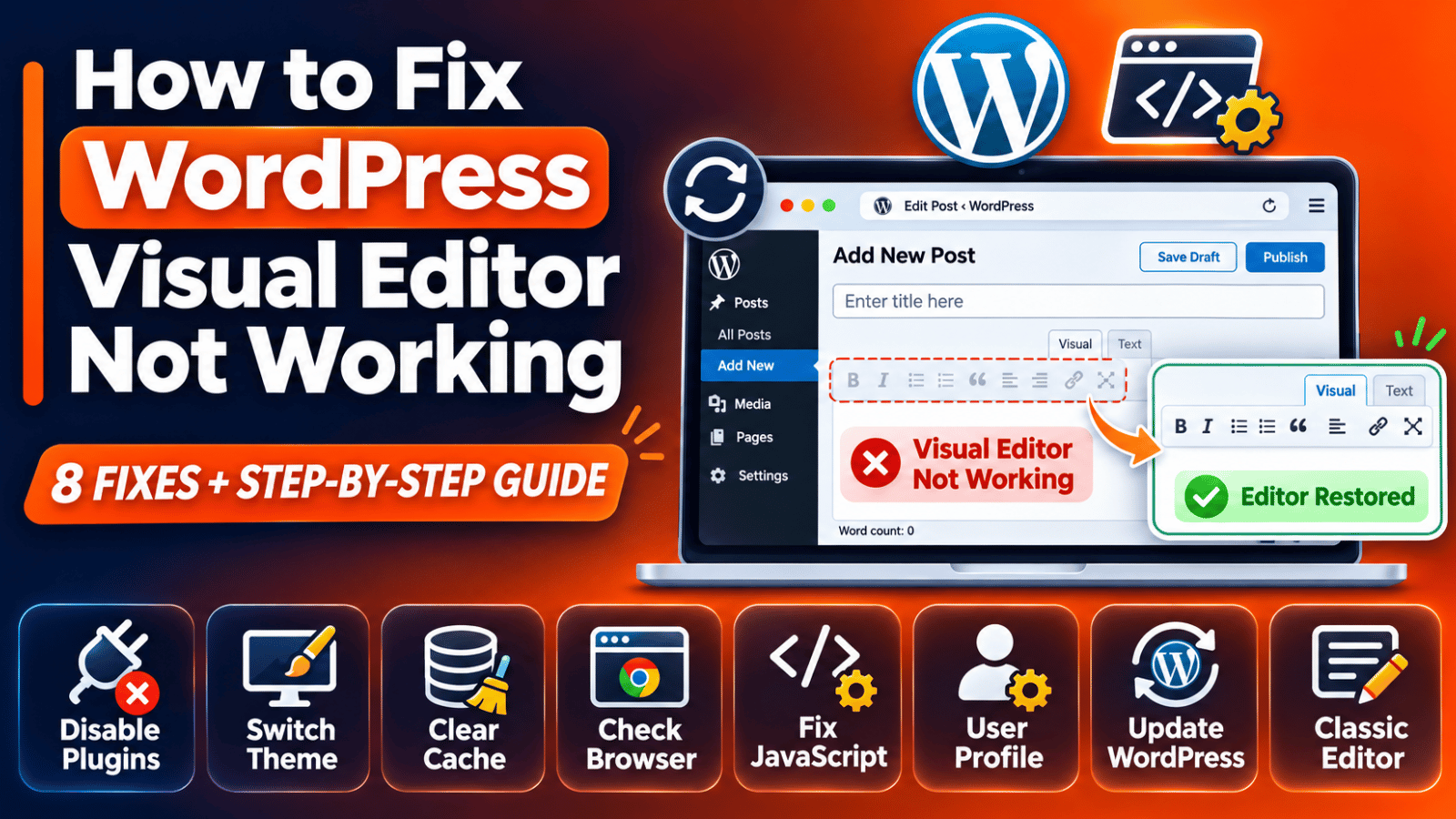
You open a post to write. The Visual tab will not respond, the toolbar is missing, or the editor box is blank. You cannot bold a word, add a link, or even see your text as it will look on the page. That is the WordPress visual editor not working, and it stops your writing the moment it happens.
The visual editor is the writing view that shows formatted text and a row of buttons. It sits beside the Text tab, which shows raw HTML. When the Visual side fails, many people fall back on the Text tab. That works for a while, but it is slow and easy to get wrong.
Several things can trigger the problem. A plugin update can add a script error. A setting in your user profile can switch the editor off. A browser add-on can block a script. Cached files can serve an old, broken version of the editor code. Even a small edit to your settings can change what loads.
This guide shows you how to spot the problem, understand why it happens, and fix it one step at a time. We start with the simplest checks and move to deeper tests. We also show you how to confirm each fix, and how to stop the problem coming back. Before you change any file, take a backup. Our UpdraftPlus backup guide shows an easy way to do that.
Signs That Show the WordPress Visual Editor Is Not Working
The first sign is a Visual tab that is greyed out or cannot be clicked. You may see only the Text tab, with no way to switch back. Some sites show a plain white box where the toolbar should be. Others show the toolbar but nothing happens when you press a button.
A second sign is a blank editor. The content area stays empty even though the post has text. When you switch to the Text tab, your words appear. This tells you the content is safe. Only the visual layer is failing.
A third sign is a half-working toolbar. Some buttons work, and others do nothing. The Add Media button may fail to open. Menus may refuse to open. The official WordPress guide on JavaScript problems lists broken buttons and menus as typical signs of a script error in the admin area.
Check how the problem behaves across users and devices. If it fails for every user, think plugin or site setting. If it fails for one user, think of the profile setting. If it fails in one browser only, think browser add-ons or cache. If it fails on every browser and every device, the cause is on the site itself.
Also note when it began. Did it start after a plugin update, a new plugin, or a settings change? The answer often points straight at the cause. Keep that note handy as you work through the steps below.
Reasons Why the WordPress Visual Editor Is Not Working
There are seven common causes. Each one has its own step in the next section.
1.The Visual Editor is switched off in a user profile
WordPress has a profile option that turns off the visual editor for one user. When it is ticked, that user only gets the plain HTML editor. Another admin, or the user in the past, may have ticked it. This cause affects one person and leaves other users untouched.
2.The Classic Editor plugin settings hide or lock the editor
The Classic Editor plugin brings back the older editing screen. It also lets an admin choose the default editor for the whole site. It can allow or block users from switching editors. A wrong choice here can leave people stuck in an editor they did not expect.
3.A browser add-on blocks editor scripts
The visual editor runs on JavaScript in your browser. Some browser extensions block or change scripts. Ad blockers, privacy tools, and script managers are the usual ones. If an extension blocks one editor script, the whole toolbar may fail.
4.Stale cached files serve old editor code
Your browser stores copies of scripts to load pages faster. After an update, the browser may keep using an old copy. The old file no longer matches the new admin screen, and the editor breaks. A hard reload or cleared cache fixes this.
5.A JavaScript error from a plugin stops the editor
One broken script can stop all the scripts that run after it. Plugins add their own scripts to the editor screen. When one of them throws an error, the editor may never finish loading. WordPress documentation says the usual cause of this kind of failure is two or more plugins fighting over the same resource, such as jQuery.
6.Admin script bundling fails
To load faster, WordPress joins its admin scripts into one file. If one script in that bundle has a problem, the joined file can fail as a whole. WordPress offers a setting that stops the joining. This makes errors easier to find and can restore a working editor.
7.A PHP error corrupts the editor page
A hidden PHP error can print text into the page before the scripts load. That stray output can break the editor code. You may never see the message on screen. WordPress can write these errors to a log file so you can read them safely.
How to Fix the WordPress Visual Editor Not Working (Step by Step)
Work through these steps in order. They run from the safest and fastest check to the deepest test. After each step, reload the post screen and see if the Visual tab works. Stop as soon as it does. Back up your site before Step 7 and Step 8, because those steps change a core file.
Step 1: Check the Visual Editor option in your user profile
This step fixes the cause where the profile switches the editor off. It is the most common reason when only one user has the problem. To confirm, open your WordPress dashboard and go to Users, then Your Profile. Look under Personal Options for the item named Visual Editor. If its box is ticked, the visual editor is disabled for you.
Untick the box. Scroll down and press the Update Profile button. WordPress should show a notice that the user was updated. If you do not see that notice, the change did not save, so try again. Now reopen a post. The Visual and Text tabs should both appear.
If the box was already unticked, nothing changes here. Move on to Step 2. If other users have the problem, open their profiles too, or ask them to check their own.
Step 2: Review the Classic Editor plugin settings
This step fixes the cause where the Classic Editor plugin sets the wrong default. To confirm the plugin is active, open the Plugins screen and look for Classic Editor. If it is not there, skip to Step 3. If it is there, go to Settings, then Writing. The plugin adds its options on that screen.
Look at the default editor choice. It sets which editor opens for everyone. Also look at the option that lets users change their own editor. When that option is on, users can pick an editor for each post. When it is off, everyone gets the default.
Set the default to the Classic editor if you want the Visual and Text tabs. Allow users to switch if your team needs choice. Save the changes. Each post also opens in the editor that was used last, so open the post and check the editor choice on its screen. If the plugin runs on a multisite network, a network-wide default may lock these options. In that case, a network admin must change them.
The plugin page also says it does not work with block themes. If your site uses a block theme, the plugin cannot give you the older editor. Plan for the newer editor in that case.
Step 3: Test in another browser and without extensions
This step fixes the cause where a browser add-on blocks a script. To confirm, open the same post in a second browser. Use a private window, which usually turns extensions off. If the Visual tab works there, the first browser is the problem.
WordPress guidance says to test in at least two browsers. If only one fails, the fault may be browser-specific, such as an extension. If every browser fails, the fault is likely a script error from a plugin or theme.
When the private window works, return to your normal browser. Turn extensions off one at a time. Reload the editor after each one. When the editor works again, you have found the add-on. Keep it off for your admin screens, or allow your site in its settings.
Step 4: Clear your browser cache
This step fixes the cause of stale cached files. To confirm, compare your result in a private window. If the editor works in the private window but not in your normal window, old files are the likely cause. A private window starts with a clean cache.
Clear the cache in your browser settings. Each browser places this option in a different spot, so check its help pages. Clear cached images and files, and cookies if you wish. Then close the browser, open it again, and sign in. Reload the post. WordPress support guidance lists emptying the browser cache as a fix for admin buttons that stop working.
If you also use a caching plugin or a CDN, clear those caches too. Then test again. If the Visual tab still fails, the problem is not stale files. Move to Step 5.
Step 5: Read the browser console for a JavaScript error
This step finds a script error from a plugin. To confirm, open your browser developer tools. Press F12, or use Ctrl+Shift+I on Windows, or Cmd+Option+I on a Mac in Chrome. Then open the Console tab and reload the post screen.
Look for red error lines. Each one shows the file name and line number. The file path often names the plugin or the part of WordPress that failed. For example, a path with wp-content/plugins/ followed by a plugin folder name points to that plugin.
Write down the full message and the file name. Some errors only appear while the page loads, so reload if the console looks empty. If you see no errors, the console is clean, and a hidden problem may be elsewhere. Go on to Step 6 anyway, because a conflict can leave no clear message.
Step 6: Test for a plugin conflict
This step fixes the cause of clashing plugins. If Step 5 named a plugin, start with that one. Otherwise, test all of them. Take a backup first, because you are changing live plugins. If you can, copy the site to a staging area and test there.
Go to the Plugins screen. Deactivate your plugins one by one and reload the post screen after each. WordPress guidance describes this one-by-one method. When the Visual tab returns, the last plugin you turned off is the cause. Update it, replace it, or contact its author.
If you cannot reach the dashboard at all, rename the plugins folder using FTP or your file manager. WordPress will then treat every plugin as off. Rename it back, then turn plugins on one at a time. Our plugin conflict guide walks through this process in detail.
Step 7: Turn off admin script bundling and use debug scripts
This step fixes the cause where joined admin scripts fail. To confirm, try the test below. If the editor works after it, the bundle was failing. Back up your site first, and save a copy of the wp-config.php file. A typo in that file can take the whole site offline.
Open wp-config.php and add a line that sets CONCATENATE_SCRIPTS to false. WordPress documentation says to try this when JavaScript fails on an admin screen. Save the file and reload the editor.
You can also set SCRIPT_DEBUG to true. This makes WordPress load the readable versions of its scripts instead of the compressed ones. The official guide says to test with it and then turn it off again. If the problem vanishes with it on, report that fact to the plugin or theme author. Remove both lines when you finish testing, unless you need the bundling off for good. If you hit a white screen after editing, restore your backup of the file. Our white screen guide helps with that.
Step 8: Check for hidden PHP errors in the debug log
This step fixes the cause of a PHP error that breaks the editor page. Back up your site and your wp-config.php file first. Then turn on logging so that errors go to a file and not to the screen.
In wp-config.php, set WP_DEBUG and WP_DEBUG_LOG to true. Set WP_DEBUG_DISPLAY to false, so visitors never see the messages. WordPress documentation notes that debug is off by default and is not advised on a live site. Use it briefly.
Reload the post screen, then open the file wp-content/debug.log. Look for fresh entries with a plugin or theme path. Fix or remove the part that causes the error. Then set the debug lines back to false and delete the log file. Verify that the Visual tab now works.
Best Practices to Prevent the WordPress Visual Editor From Failing Again
Most editor failures start with a change. Test changes before they reach your live site. Use a staging copy to try plugin updates first. If the editor still works there, update the live site. This stops clashing plugins from reaching your writers.
Update one plugin at a time. If something breaks, you will know which update caused it. Keep a short note of each update date. That note speeds up any later conflict test.
Keep a scheduled backup running. A fresh backup lets you undo a bad change in minutes. Store copies off the server. Our backup guide explains the setup.
Review your user profiles after any team change. Make sure the Visual Editor box is not ticked for anyone who needs the visual view. Review the Classic Editor settings after you install or remove it. Record the default editor choice so nobody has to guess.
Use a clean browser for admin work. Keep a profile with few extensions. Clear caches after big updates. If you use a caching plugin, clear it after each plugin update. These small habits cut down on stale files and script blocks.
Leave debug mode off on live sites. When you must test, turn it on for a short time and log to a file. Read the log, fix what it shows, then turn debug off. Also remove any test lines such as CONCATENATE_SCRIPTS once you are done.
If you see odd page loading problems around the same time, read our guide on the Not a valid JSON response error. It covers a different editor failure that shows up when you save.
Conclusion
A broken visual editor usually shows up as a greyed-out Visual tab, a missing toolbar, or a blank box. The text is almost always safe. The fault sits in a setting, your browser, a script, or a plugin.
The main causes are a profile option that turns the editor off, Classic Editor settings, browser extensions, old cached files, plugin script errors, joined admin scripts, and hidden PHP errors. Each has a matching step above. You move from the easiest check to the deepest test, and you confirm each result before moving on.
Start with your profile, then the plugin settings, then the browser. Read the console for errors. Test plugins one at a time. Only then touch wp-config.php, and always with a backup in hand.
To stop it returning, test updates on staging, update one plugin at a time, and keep backups running. Keep debug mode off on a live site. For a related writing problem, see our guide on fixing broken links in WordPress. If you cannot find the cause, our team can help you at WP Chat Support.
More help: the official WordPress guide to diagnosing JavaScript errors and the Classic Editor plugin page.

James is an experienced WordPress and WooCommerce specialist with over 10 years of practical experience. At WPChatSupport, he creates clear guides that help website owners fix WordPress issues, improve speed, secure their sites, and manage WooCommerce stores with confidence. His expertise includes store setup, plugin configuration, theme customization, payment gateway integration, and website troubleshooting. Through simple and helpful content, James supports users in solving technical problems and following best practices for online business growth.