Introduction
Your site was working fine yesterday. Today it will not let you upload an image. Or a plugin update stops with a red error box. Or WordPress suddenly asks you for FTP details you have never used. These are all signs of a permission problem. The files are still there. WordPress simply is not allowed to touch them.
WordPress file and folder permissions decide who may read, change and run each file on your server. Your web host sets these values when your site is created. Most of the time they are correct and you never think about them. But they drift. A migration resets them. A restore from backup brings old values back. A support agent runs a quick command and sets the wrong number. A plugin asks you to “make the folder writable” and you set it too wide.
This guide walks you through the whole problem in order. First you will learn the signs, so you know this is really a permission error. Then you will learn the real causes and how each one breaks your site. After that you get a step by step fix for every cause, from the safest check to the deepest one. Finally you get the habits that stop it coming back.
You do not need to be a developer to follow this. You do need access to your files. That means your host’s file manager, an FTP app like FileZilla, or SSH access. Everything below can be done with any one of those three.
Signs That Show WordPress File and Folder Permission Errors
Permission errors rarely announce themselves clearly. WordPress often reports the symptom instead of the cause. So the first job is to recognise the pattern. Here is what people actually see.
WordPress asks for FTP or SSH login details. You click Update Plugin and a screen titled “Connection Information” appears. It wants a hostname, a username and a password. This is WordPress telling you it cannot write the files itself. It is offering to do the job over FTP instead.
Uploads fail in the Media Library. You drag an image in and the bar stops. You may see “Unable to create directory”. You may see “The uploaded file could not be moved”. Sometimes the file uploads but the thumbnail never appears.
Updates and installs fail halfway. A plugin install ends with “Installation failed”. A theme update ends with “Could not copy file”. Sometimes the site is left stuck in maintenance mode because the update could not finish.
Permalinks will not save. You pick a new permalink structure and press Save. WordPress says the settings were saved. But every post now returns a 404 page. WordPress could not write the new rules into your .htaccess file.
The whole site shows a 500 error or a blank page. This happens when permissions are far too strict. The server cannot even read index.php or wp-config.php, so nothing loads at all.
The theme editor is read only. You open Appearance and then Theme File Editor. The code is visible but the Update File button fails or is missing.
One more clue is worth checking. Does the problem affect only one folder, or everything? A single broken folder usually means one wrong value. A site wide failure usually means a bad recursive command or wrong ownership.
Reasons Why WordPress File and Folder Permission Errors Happen
Every permission error comes down to one sentence. The user that PHP runs as is not allowed to do what WordPress asked. Below are the eight real reasons that happen. Read them before you change anything. The fix you need depends on which one you have.
The permission numbers on your files and folders are wrong
Linux stores three numbers for every file. The first is for the owner. The second is for the owner’s group. The third is for everyone else. Each number adds up read, write and run rights. A folder also needs the run right just to be opened at all. That surprises people. A folder set to 644 looks readable, but nobody can list what is inside it.
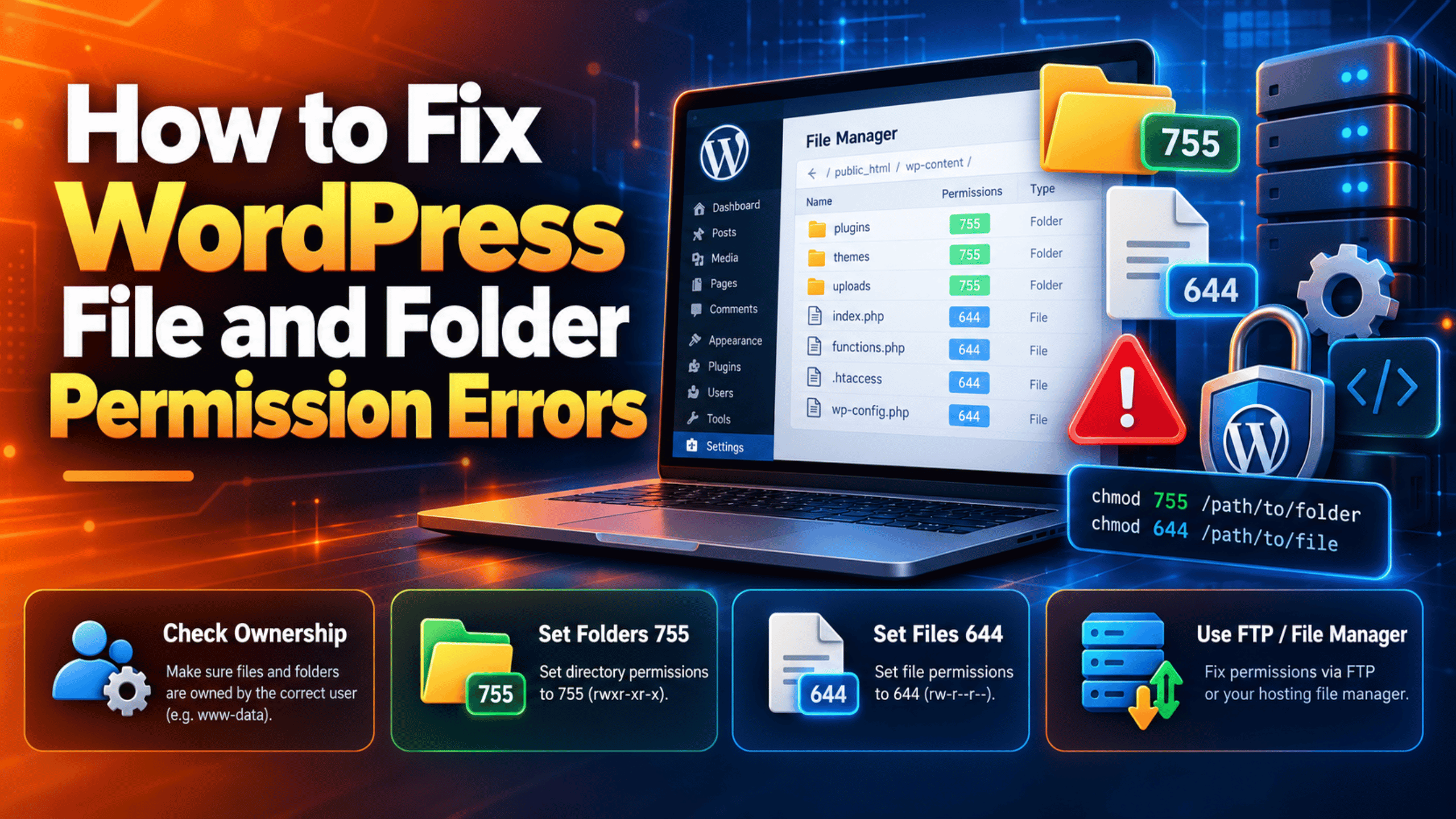
WordPress expects 755 on folders and 644 on files. The official WordPress guidance also allows 750 and 640 on tighter hosts. If a value drops below that, writes and sometimes reads fail. If it rises too far, you get a different set of problems covered below.
Your files are owned by the wrong user
Permission numbers only make sense next to ownership. The owner number applies to one user account. Your hosting account is usually that user. But the web server often runs as a different user, such as www-data, apache or nobody.
If your files are owned by your hosting user and PHP runs as apache, then PHP is not the owner. It falls through to the group rules, or to the everyone rules. Those are read only on a normal 755 and 644 setup. So PHP can read your site but cannot write to it. The numbers look perfect and nothing works. This is the single most confusing cause on the list.
Folders are set to 777 and the server refuses them
777 means every user on the server can read, write and run the file. People set it because a plugin told them to make a folder writable, and 777 always works. It is also dangerous, and some hosts block it.
Many servers run PHP under suPHP, suEXEC or mod_ruid2. These modules refuse to run a file that the whole world can write to. The result is a 500 error on a site whose permissions look generous. WordPress itself warns that no directory should ever be given 777, not even the uploads folder.
The .htaccess file is not writable
On Apache servers, WordPress stores your permalink rules in a file called .htaccess. It sits in the same folder as index.php. It starts with a dot, so most FTP apps hide it by default.
WordPress rewrites this file whenever you change your permalink structure. It also touches it when some plugins add rules. If the file is not writable, WordPress saves the setting in the database but cannot write the matching rule to disk. Your homepage still loads because it does not need a rule. Every inner page returns 404.
The uploads folder is not writable
All your media goes into wp-content/uploads. WordPress creates a new folder inside it for each year and each month. So in October 2026 it writes to wp-content/uploads/2026/10.
Two things can break here. The uploads folder itself may not be writable, so nothing saves. Or uploads may be writable but the year folder may not be, so new months fail while old files still show. That second case is why uploads can work for months and then stop on the first of a new month.
The upgrade and cache folders are missing or locked
WordPress does not unzip updates straight into place. It downloads the zip to a working folder called wp-content/upgrade and expands it there first. If that folder is missing or not writable, the update fails before it starts.
Caching plugins behave the same way. They need to write into wp-content/cache. Both folders are often deleted by cleanup scripts or skipped by migration tools, because they only hold temporary files. WordPress will normally recreate wp-content/upgrade on its own, but only if the parent wp-content folder is writable.
A migration, restore or manual unzip reset everything
This is the most common trigger of all. Moving a site changes who owns the files. If you unzip an archive over SSH as the root user, every file becomes owned by root. PHP then owns nothing and can write nothing.
Backup restores carry the old permission values with them. So a site restored from a server with different settings arrives with the wrong numbers. The official WordPress migration guide even warns to watch for files that arrive with 0000 permissions and to set them back to 0644. Bulk FTP uploads cause the same drift, because the FTP app applies its own default mask.
SELinux is blocking the write
Some servers run a kernel security layer called SELinux. It is common on CentOS, Rocky Linux, AlmaLinux and Fedora. SELinux adds a second set of rules on top of normal permissions.
This matters because the two failures look identical. Your numbers are 755 and 644. Your ownership is correct. The write still fails. WordPress documentation notes that SELinux denials are hard to tell apart from plain permission errors. A classic symptom is WordPress being unable to write .htaccess on an otherwise healthy server.
How to Fix WordPress File and Folder Permission Errors (Step by Step)
Work through these steps in order. Each one fixes a single cause from the list above, starting with the safest and most common.
Step 1: Reset Folder Permissions to 755 and File Permissions to 644
This step fixes wrong permission numbers. That is the first cause above. Folders need the run right to be opened. Files need the read right to be served. When those bits are missing, WordPress cannot write media, and the server may not even read your core files.
Confirm this is your cause first. Open your host’s file manager or connect with FTP. Look at the permission column next to your WordPress folders. Healthy folders show 755 or drwxr-xr-x. Healthy files show 644 or -rw-r–r–. If you see 600, 640 on folders, 444, or anything with 0 in the middle position where you expect 5, you have found it. Check wp-content, wp-content/uploads and wp-content/plugins in particular.
Take a backup before you change anything. A recursive permission command cannot be undone by hand. If you are unsure, test on a staging copy of the site first. Our guide on how to back up WordPress using UpdraftPlus covers a free way to do this.
Now make the change. In a file manager, select your WordPress root folder. Choose the Change Permissions or chmod option. Enter 755 and tick the box that applies the change to folders only, then apply it recursively. Repeat with 644 and the files only option. If you have SSH access, you can do the same from the WordPress root folder:
find . -type d -exec chmod 755 {} \;
find . -type f -exec chmod 644 {} \;
Then tighten the one file that matters most. Set wp-config.php to 640. Many hosts accept 600 or even 400, which is safer still.
Verify it worked. Go back to your dashboard. Try uploading a small image to the Media Library. If it saves and shows a thumbnail, you are done. If the upload still fails, ownership is the likely problem, so move to Step 2.
Step 2: Fix the Ownership of Your WordPress Files
This step fixes wrong file ownership, the second cause above. Ownership decides which of the three permission numbers applies to PHP. If PHP is not the owner, correct looking numbers still give it read only access.
Confirm this is your cause first. You need to know two names. The first is the user that owns your files. The second is the user that PHP runs as. In a file manager, the owner is shown in a column next to each file. Over SSH, run ls -l in your WordPress folder and read the third column. To find the PHP user, create a small file called whoami.php in your root with this one line, load it in your browser, then delete it straight away:
<?php echo exec('whoami');
If those two names match, ownership is fine and you should move on. If they differ, this is your cause.
This is a server level change, so care is needed. Changing ownership wrongly can lock you out of your own files. On shared hosting you usually cannot do it at all, and you should ask your host to correct it for you. Only continue yourself if you manage the server.
Make the change. Over SSH, from one level above your WordPress folder, set the owner and group to your hosting user and the web server group. Replace the names with the real ones from your server:
chown -R myuser:www-data /var/www/html
WordPress advises that files should be owned by your own account, never by the web server process itself on shared hosts. If your host uses suEXEC or PHP-FPM, PHP already runs as your own user, so owner and group should both be your account.
Verify it worked. Reload the dashboard and start a plugin update. If the Connection Information screen no longer appears, ownership is correct. WordPress only asks for FTP details when it cannot create files with the right owner itself. If the screen still appears, go to Step 3.
Step 3: Remove 777 Permissions and Replace Them With Safe Values
This step fixes over-permissive modes, the third cause above. It is the opposite of Step 1. Here the problem is not that WordPress cannot write. It is that your server refuses to run files the whole world can change.
Confirm this is your cause first. Look for 777 or drwxrwxrwx in your permission column. Check wp-content, uploads and any folder a plugin asked you to open up. A strong hint is a 500 error that appeared right after someone “fixed” a write problem by setting 777. Modules like suPHP and suEXEC return a server error rather than a permission message, which is why this one is easy to misread. Our guide on how to fix the 500 internal server error in WordPress explains the other triggers for that screen.
Make the change. Set every folder you find at 777 back to 755. Set every file at 777 or 666 back to 644. Do this one folder at a time so you can see which change restores the site. WordPress states plainly that no directory should ever be given 777, including upload directories.
If a plugin genuinely needs more access, raise it slowly. The official advice is to start restrictive and climb. Try 755 first, then 775, then 764, and stop at the first value that works. Never jump to 777 to save time.
Verify it worked. Load your homepage and one inner page. If the 500 error is gone, this was your cause. Then test whatever feature needed the open folder, such as a cache plugin or an image optimiser. If the site still errors, continue to Step 4.
Step 4: Make .htaccess Writable and Rebuild Your Permalinks
This step fixes an unwritable .htaccess file, the fourth cause above. Without write access, WordPress saves your permalink choice in the database but never writes the matching rewrite rule. The homepage works and every other page returns 404.
Confirm this is your cause first. Connect by FTP and turn on hidden files. In FileZilla, open the Server menu and choose Force showing hidden files. Look in the same folder as index.php for a file named .htaccess. Two findings point here. Either the file is missing entirely, or its permissions are stricter than 644. Open it and check that it still contains the block that starts with # BEGIN WordPress.
Back up this file before you touch it. Download a copy to your computer first. Custom redirects and security rules live in this file, and losing them can break more than permalinks.
Make the change. Set .htaccess to 644. That is the value WordPress recommends for it. If the file does not exist, create an empty text file named .htaccess and upload it with the same value. Then open your dashboard, go to Settings and then Permalinks, and press Save Changes without altering anything. That single click makes WordPress rewrite the rules.
Verify it worked. Open any blog post directly. If it loads instead of showing a 404, the rules were written. Then download .htaccess again and confirm the # BEGIN WordPress block is now present. Our guide on how to set up and fix permalinks in WordPress covers the rest of that screen. If posts still return 404 and the block is still missing, something above normal permissions is blocking the write, so jump to Step 8.
Step 5: Repair the Uploads Folder So Media Files Can Be Saved
This step fixes an unwritable uploads folder, the fifth cause above. WordPress writes media into a year and month folder inside wp-content/uploads. If any level in that chain is locked, the upload stops.
Confirm this is your cause first. Browse to wp-content/uploads in your file manager. Check the permissions on the uploads folder itself. Then open it and check the current year folder, and the month folder inside that. All three should read 755. A very telling sign is that old images still display while new uploads fail. That means uploads is fine but the newest month folder is not. The error text “Unable to create directory” points the same way.
Make the change. Set uploads and everything inside it to 755 for folders and 644 for files. Apply it recursively so every year and month folder is covered. Do not use 777 here, even though many old forum posts suggest it. The uploads folder is the one place where world write access is most likely to be abused.
Also check the path setting. Open Settings and then Media. If an upload path was set manually and that folder no longer exists, uploads fail even with perfect permissions. Leaving the default empty value is right for almost every site.
Verify it worked. Upload a fresh image. It should save, generate a thumbnail and appear in the Media Library grid. If the file saves but the thumbnail is blank, that is a separate issue, and our guide on broken or blank thumbnails in the WordPress Media Library covers it. If nothing saves at all, go to Step 6.
Step 6: Recreate the Upgrade and Cache Folders WordPress Writes To
This step fixes missing or locked working folders, the sixth cause above. WordPress expands every update inside wp-content/upgrade before copying it into place. Caching plugins write into wp-content/cache. Both folders hold only temporary files, so cleanup tools and migration scripts often drop them.
Confirm this is your cause first. Open wp-content in your file manager. Look for a folder named upgrade. If it is absent, check the permissions on wp-content itself, because WordPress can only recreate upgrade when wp-content is writable. Then look for a folder named cache if you run a caching plugin. The matching symptom is an update that fails immediately with “Could not create directory” rather than part way through.
Make the change. Confirm wp-content is set to 755. Create a folder named upgrade inside it and set that to 755 as well. If your caching plugin expects wp-content/cache, create that too with the same value. Leave both folders empty. WordPress and your plugin will fill them as needed.
Verify it worked. Start a plugin update from the dashboard. It should now download, expand and finish. If an update leaves your site showing a maintenance message, our guide on the WordPress plugin installation failed error explains how to clear that. If the update still fails, your whole file tree is likely affected, so move to Step 7.
Step 7: Repair Permissions After a Migration, Restore or Manual Upload
This step fixes site wide drift caused by moving the site, the seventh cause above. A migration changes ownership. A restore brings the old server’s numbers with it. A root level unzip hands every file to root. The result is a site where many small things fail at once.
Confirm this is your cause first. Think about timing. Did the problem start right after a move, a restore, a host change or a bulk FTP upload? Then look for the fingerprints. Scan your folders for files showing 0000 permissions, which the WordPress migration guide names as a known side effect. Check whether owners are inconsistent, so some files belong to your user and others to root or to the web server.
This is a whole site change, so protect yourself first. Take a full backup of files and database before you begin. If the site is live and earning, do this on a staging copy and move the fix across once it is proven. Your host can usually create a staging site in a few clicks.
Make the change. Run the two commands from Step 1 across the whole WordPress root to normalise every value. Then correct ownership across the whole tree as in Step 2, so nothing is left owned by root. Afterwards reset wp-config.php to 640 and .htaccess to 644, because the recursive pass will have flattened both. Finally visit Settings and then Permalinks and press Save Changes to rebuild the rewrite rules.
Verify it worked. Run through four tests. Load an inner page. Upload an image. Update a small plugin. Open a page in the Customizer. If all four pass, the drift is repaired. If writes still fail on a Red Hat style server, move to Step 8.
Step 8: Check Whether SELinux Is Blocking the Write
This step fixes SELinux denials, the eighth cause above. SELinux is a kernel security layer. It can refuse a write even when ownership and permission numbers are both correct. WordPress documentation notes that these denials are hard to tell apart from ordinary permission errors.
Confirm this is your cause first. SELinux is normally only present on Red Hat style systems, so this applies to CentOS, Rocky Linux, AlmaLinux, Fedora and Amazon Linux. If you run Debian or Ubuntu you can usually skip this step. You also need SSH access and server level control, so shared hosting customers should hand this to their host. Over SSH, run getenforce. A reply of Enforcing means SELinux is active. A reply of Permissive or Disabled rules it out.
Then find the actual denial. Run audit2allow -w -a and read the output. It explains in plain words which action was blocked and which setting caused it. For the common case of WordPress being unable to write .htaccess, the tool reports that the httpd_unified boolean is set incorrectly.
Make the change. Apply the exact fix the tool recommends rather than guessing. For the .htaccess case that means allowing the web server to write to your site content:
setsebool -P httpd_unified 1
Never solve this by turning SELinux off permanently. You can test with setenforce 0 to prove SELinux is the cause, but set it back to 1 straight away and fix the specific rule instead.
Verify it worked. Repeat the action that was failing. Save your permalinks, or upload an image. Then run audit2allow -w -a once more and confirm no new denial was recorded for that action.
Best Practices to Prevent WordPress File and Folder Permission Errors in Future
Each habit below shuts down one of the causes you just read about. Together they keep permissions stable for years.
Keep a written note of your correct values. Write down 755 for folders, 644 for files, 640 for wp-config.php and 644 for .htaccess. Store it with your site notes. This stops wrong numbers creeping in, because anyone who touches the server has a reference.
Never accept 777 as a solution. When a plugin or a forum post tells you to open a folder fully, climb from 755 instead. Ask the plugin author or your host for a proper workaround. This prevents both the security risk and the server refusals from Step 3.
Check permissions as part of every migration. Add it to your checklist right after the files land. Normalise the numbers, confirm ownership, then save your permalinks. This removes the single biggest cause of drift before it reaches your visitors.
Never unzip or copy site files as the root user. Switch to your hosting user first, or use your host’s own migration tool. Files owned by root are the fastest way to break every write in WordPress at once.
Back up before any bulk change. Keep automatic daily backups running, and take a manual one before you touch permissions or ownership. A recursive command is quick to run and impossible to undo by hand.
Test server level changes on staging. Most hosts give you a one click staging site. Use it for ownership changes and SELinux work. You get the same answer without risking the live site.
Ask your host which PHP user your site runs as. Note it down once. It takes a minute and it removes all the guesswork from ownership problems later.
Watch the first day of each month. That is when WordPress creates a new upload folder. If media uploads break on the first, you know a parent folder lost its write access.
Keep WordPress, plugins and themes current. Updates need write access, so a healthy update path is also an early warning system. If updates start failing, check permissions before anything else.
Conclusion: Keep WordPress File and Folder Permissions Correct
Permission errors feel alarming because they hit several features at once. Uploads stop. Updates fail. Permalinks break. But the files are safe the whole time. WordPress is simply being refused by the server.
The signs are easy to spot once you know them. A request for FTP details, a failed upload, a 404 on every inner page, or a sudden 500 error all point the same way. The causes are a short list. Wrong numbers, wrong ownership, 777 folders, a locked .htaccess, a locked uploads folder, missing working folders, migration drift, and SELinux.
The fix follows the same order every time. Set folders to 755 and files to 644. Confirm that PHP owns what it needs to write. Pull 777 back to safe values. Make .htaccess writable and resave your permalinks. Repair uploads and the working folders. Normalise everything after a move. Only then look at SELinux.
Prevention is mostly a matter of discipline. Record your correct values, refuse 777, check permissions after every migration, and never copy files as root. Back up before bulk changes and test server work on staging.
Permissions are also closely linked to redirects and HTTPS settings. If your site loads but the browser bounces in circles, see our guide on how to fix ERR_TOO_MANY_REDIRECTS in WordPress. For the full reference on permission values, the official WordPress file permissions documentation and the Hardening WordPress guide are both worth bookmarking.

James is an experienced WordPress and WooCommerce specialist with over 10 years of practical experience. At WPChatSupport, he creates clear guides that help website owners fix WordPress issues, improve speed, secure their sites, and manage WooCommerce stores with confidence. His expertise includes store setup, plugin configuration, theme customization, payment gateway integration, and website troubleshooting. Through simple and helpful content, James supports users in solving technical problems and following best practices for online business growth.