Your WordPress site was working an hour ago. Now it shows a blank page, an error code, or nothing at all. Your heart sinks. Every minute a broken site stays down, you lose visitors, sales, and trust. The good news is that most WordPress emergencies follow a pattern, and you can work through them with a clear plan.
This guide gives you a calm, step-by-step playbook for emergency WordPress support. You will learn what to do in the first five minutes, how to spot the type of failure, and how to bring your site back safely. You will also learn when to stop guessing and call a professional. Keep this page handy, because the best time to read it is before the next crisis hits.
First, Stay Calm: Your First 5 Minutes
Panic leads to rushed changes that make things worse. Slow down and do three things first.
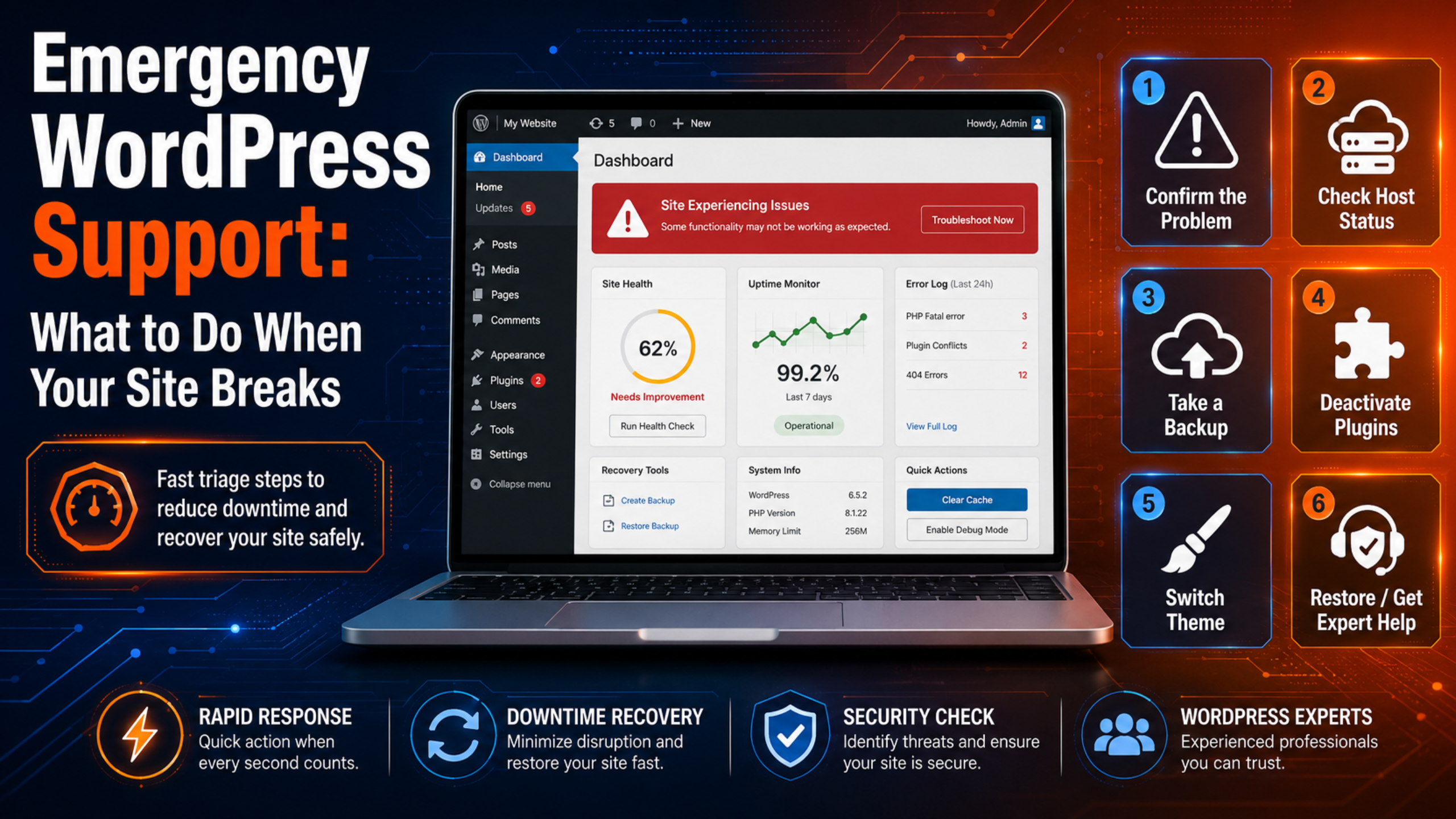
1. Confirm the problem is real. Open your site in a private or incognito window. Try a different device or network too. Sometimes the issue is only your browser cache or a local connection glitch, not the site itself.
2. Take screenshots of everything. Capture the exact error message, the page URL, and the time. If you later contact support because your website is down, these details help a technician diagnose the fault fast.
3. Check your host’s status page. Visit your hosting provider’s status or support page. If their servers are down, the problem is not your site, and the fix is on their side. You just need to wait or open a ticket with them.
Once you know the problem is real and on your site, move to the next step: naming the failure.
Identify What Kind of Breakage You Face
WordPress rarely “just breaks.” It usually shows a specific symptom. Naming that symptom points you straight to the likely cause. Here are the most common emergencies.
The White Screen of Death
You see a plain white page with no text. This usually means a PHP error, a memory limit problem, or a broken plugin or theme. WordPress hides the error by default, so the screen looks empty.
500 Internal Server Error
This generic error means the server tried to load your site but hit a wall. Common causes include a corrupt .htaccess file, a plugin conflict, or a low PHP memory limit.
503 Service Unavailable
The server is reachable but cannot complete the request right now. This often points to an overloaded server, a bad plugin, or a failed update. Our guide on how to fix the 503 service unavailable error walks through each cause.
Error Establishing a Database Connection
WordPress cannot reach the database that stores your content. The cause is usually wrong database login details, a corrupt database, or an overloaded database server.
Stuck in Maintenance Mode
You see “Briefly unavailable for scheduled maintenance.” This happens when an update fails partway through and leaves a .maintenance file behind. Our post on a site stuck in maintenance mode shows the quick fix.
Sudden 404 Errors or a Hacked Site
If pages that once worked now show “404 Not Found,” your permalinks or files may be damaged. If you see spam links, strange redirects, or unknown admin users, treat it as a security breach and act fast.
The Emergency Triage Checklist
Work through these steps in order. Stop as soon as your site comes back. Test the front page after each step so you know which change fixed the problem.
Step 1: Back up before you touch anything. Even a broken site is worth saving. If you can reach your files, copy the wp-content folder and export the database. A tool like UpdraftPlus for backups makes this simple when the dashboard still loads. A backup gives you a safety net if a later step goes wrong.
Step 2: Turn on WordPress Recovery Mode. Since version 5.2, WordPress emails the admin a special recovery link when a fatal error strikes. That link lets you log in with the broken plugin or theme paused. Check the admin inbox for this message. You can read the official details in the WordPress troubleshooting guide.
Step 3: Deactivate all plugins. Plugins cause most sudden failures. If you can reach the dashboard, deactivate them all at once. If you cannot, use an FTP client or your host’s file manager. Rename the wp-content/plugins folder to plugins-off. WordPress will then load with no plugins. If the site returns, rename the folder back and re-enable plugins one by one to find the guilty one.
Step 4: Switch to a default theme. If plugins are not the cause, your theme may be. Rename your active theme folder inside wp-content/themes. WordPress will fall back to a default theme like Twenty Twenty-Four. If the site loads, the theme was the problem.
Step 5: Reset the .htaccess file. A broken .htaccess file triggers many 500 errors. Rename the current file to .htaccess-old. Then log in, go to Settings, then Permalinks, and click Save to build a fresh one.
Step 6: Raise the PHP memory limit. A white screen often means WordPress ran out of memory. Edit wp-config.php and add this line above the “stop editing” comment: define('WP_MEMORY_LIMIT', '256M');. If a task keeps timing out, review our fix for the maximum execution time exceeded error.
Step 7: Clear every cache. Clear your caching plugin, your host cache, and any CDN cache. Old cached files can keep showing a broken page even after you fix it.
Step 8: Restore from a clean backup. If nothing above works, roll back to your most recent working backup. This is why daily backups matter so much. A fresh restore is often faster than hunting for the root cause during a live outage.
Common Mistakes That Make an Emergency Worse
Under pressure, it is easy to make a bad situation worse. Avoid these traps.
Editing files without a backup. One wrong character in wp-config.php can take down the whole site. Always copy a file before you change it, so you can undo the edit in seconds.
Changing many things at once. If you deactivate plugins, switch the theme, and edit files all together, you will not know which change worked. Make one change, then test, then move on.
Ignoring the error message. The exact wording of an error is a clue, not noise. Turn on debug mode by setting define('WP_DEBUG', true); in wp-config.php to reveal the hidden PHP error behind a white screen. The official guide to debugging in WordPress explains each setting.
Deleting files in a panic. Never delete core folders or database tables to “clean up.” You may erase content you cannot recover. When in doubt, pause and get expert eyes on the problem.
When to Call Emergency WordPress Support
Doing it yourself is fine for small sites and simple faults. But some situations call for a professional right away. Call for help when:
You see signs of a hack, such as spam pages, injected code, or a warning from Google. Cleaning a hacked site badly can leave hidden backdoors. You have no recent backup and cannot risk more damage. Your site earns money every hour it runs, so downtime costs more than the support fee. You have tried the checklist and the site is still down. Or the error involves the database or server files and you are not comfortable editing them.
A trained team can diagnose the fault in minutes, fix it safely, and confirm nothing else is broken. If you want live help the moment trouble starts, instant WordPress live chat support connects you to an expert without a long wait. For a full picture of your options, our guide on how to get WordPress support lays them all out.
How to Prevent the Next Emergency
The best emergency is the one that never happens. A few habits cut your risk sharply.
Schedule automatic daily backups and store copies off-site. Update plugins, themes, and core in small batches, and test on a staging copy first. Remove plugins and themes you no longer use, since idle code still carries risk. Keep strong passwords and two-factor login for every admin account. Watch your uptime with a monitor that alerts you the moment the site drops.
Better still, hand these tasks to a plan that covers them around the clock. A round-the-clock plan catches problems before your visitors ever notice. Our guide to 24/7 WordPress support plans explains what a strong plan should include, from monitoring to guaranteed response times.
Frequently Asked Questions
Why did my WordPress site break with no changes from me?
Sites often break without any action on your part. An automatic plugin update, a host server change, an expired PHP version, or a security attack can all trigger a sudden fault. That is why backups and monitoring matter even when you are not touching the site.
Can I fix a broken WordPress site without technical skills?
Yes, many fixes only need calm, careful steps like deactivating plugins or restoring a backup. But if the fault involves server files, the database, or a hack, it is safer to call a professional than to risk deeper damage.
How fast can emergency WordPress support fix my site?
Simple faults are often resolved within an hour. Complex issues like malware removal or database repair can take longer. A provider with guaranteed response times will tell you their target before you start.
Will I lose my content if my site crashes?
Usually not. Your content lives in the database and the uploads folder, which stay intact through most crashes. A recent backup guarantees you can recover everything even in a worst-case failure.
Conclusion
A broken WordPress site feels like a crisis, but it rarely is one if you have a plan. Stay calm, confirm the problem, and name the symptom. Then work the triage checklist in order, from backing up to restoring, and test after each step. Know your limits, and call emergency WordPress support when a hack, a database fault, or lost revenue raises the stakes.
Most of all, prepare before trouble strikes. Daily backups, careful updates, and round-the-clock monitoring turn a would-be disaster into a minor hiccup. Bookmark this guide, share it with your team, and you will face the next surprise with a steady hand instead of a racing heart.

James is an experienced WordPress and WooCommerce specialist with over 10 years of practical experience. At WPChatSupport, he creates clear guides that help website owners fix WordPress issues, improve speed, secure their sites, and manage WooCommerce stores with confidence. His expertise includes store setup, plugin configuration, theme customization, payment gateway integration, and website troubleshooting. Through simple and helpful content, James supports users in solving technical problems and following best practices for online business growth.