A down website is stressful. Visitors cannot reach you, sales stop, and every minute feels longer than the last. The good news is that you can get back online faster when you follow a clear plan.
This guide shows you what to do when your WordPress site is down. You will confirm the problem, run a few quick checks, find the right person to contact, and give them the details they need. The goal is simple: reach the right help fast and cut your downtime short.
Step 1: Confirm the Site Is Really Down
Before you contact anyone, make sure the site is actually down for everyone. Sometimes the problem is only on your side.
Open your site in a private or incognito window. Then try it on your phone using mobile data instead of Wi-Fi. If it loads there, the issue may be your browser, device, or local network, not the site.
You can also use a free status checker like “Down for Everyone or Just Me” or a similar uptime tool. Enter your web address and let it test the site from another location. If the tool says the site is up, the problem is likely local to you.
Step 2: Try a Few Quick Checks First
A few simple steps can rule out small issues and save you a support ticket.
- Refresh the page and clear your browser cache.
- Flush your computer’s DNS cache, then reload the site.
- Restart your router to clear temporary network problems.
- Try a different device or network to compare results.
If the site still will not load after these checks, the problem is likely on the server or inside WordPress. That is when it is time to reach out for help.
Step 3: Look for Clues About the Cause
The message on your screen tells you a lot about who can help.
A message like “Error establishing a database connection” usually points to the server or database, which is a hosting issue. A 503 service unavailable error often means the server is overloaded or a plugin failed. A site stuck in maintenance mode can get frozen after an update.
A white screen with no message is called the white screen of death. It often comes from a plugin conflict, a theme error, or a memory limit. Note the exact message before you contact anyone, because it helps them find the cause faster.
Step 4: Know Who Is Responsible for Your Site
WordPress downtime can come from three places: your host, your software, or a recent change. Knowing which one saves time.
If your site is on WordPress.com, the company manages the servers, so their support team is your contact. If your site is self-hosted, no single company owns the whole setup. Your hosting provider handles the server, while plugins, themes, and custom code come from other makers.
For most self-hosted sites that go down, the hosting provider is the right first contact.
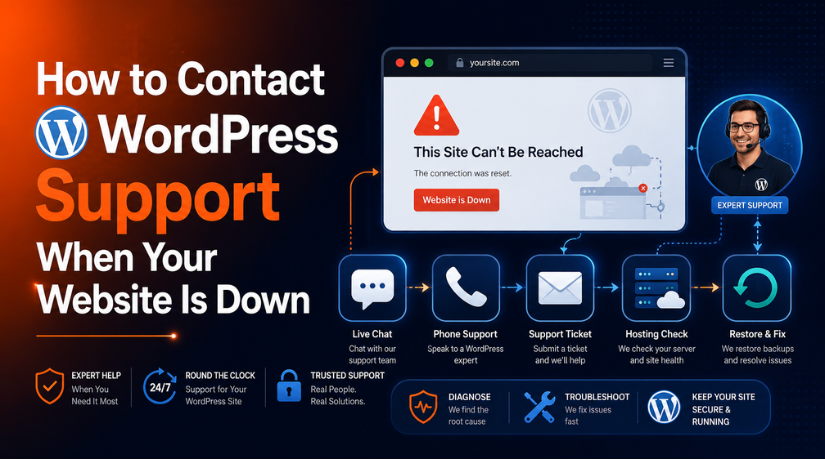
Step 5: Contact Your Hosting Provider First
Your host controls the server, so they can spot many problems fast. Most hosts offer support through live chat or tickets around the clock.
Log in to your hosting account from a separate browser tab, since your own site may be unreachable. Look for a live chat button or a support ticket link. Ask the host to check server status, error logs, resource limits, and recent outages.
Your host can also restore a backup if the server has one. This is often the quickest way to get a broken site back online.
Step 6: Contact WordPress.com Support for Hosted Sites
If your site runs on WordPress.com, contact their team directly.
Open a separate browser tab and log in to your WordPress.com account. Click Help in the corner of your dashboard, then choose Contact Support. Paid plans include live chat and email support, which are the fastest official routes. WordPress.com does not offer phone support. Their guide on why a site may be down is a useful starting point.
Describe the problem clearly and mention any recent change, such as a plugin update or a new setting.
Step 7: Reach a Developer or Professional Support Service
Sometimes the host confirms the server is fine, but your site is still down. That usually points to a plugin, theme, or code problem.
In that case, contact the developer of the plugin or theme you suspect. For urgent help, a professional WordPress support service can step in and fix the site for you. A managed service like WP Chat Support handles error fixes and downtime around the clock, which is useful when you cannot afford a long wait.
Share access only with a trusted service or developer, and remove that access once the work is done.
What Information to Give Support
The details you share decide how fast support can help. Have this ready before you contact anyone:
- Your website address and where it is hosted.
- The exact error message or a screenshot of the screen.
- The time the site went down.
- Any change you made just before it happened, such as an update or new plugin.
- Steps you have already tried.
- A recent backup, if you have one.
Clear information helps support skip the guesswork and move straight to the fix.
How to Prevent Future Downtime
Once your site is back, a few habits lower the chance of another outage.
Set up an uptime monitor so you learn about downtime before your visitors do. Keep automatic backups so you can restore the site quickly. Test major updates on a staging site first, and keep a support plan in place for fast help. If you are still weighing your options, our guide on how to get WordPress support covers every channel in detail.
Frequently Asked Questions
How do I know if my WordPress site is really down?
Test it in a private window and on mobile data. Then use a free uptime checker. If the tool loads your site, the problem is likely on your device or network, not the site.
Who do I contact first when my site goes down?
For a self-hosted site, contact your hosting provider first, since they control the server. For a WordPress.com site, contact WordPress.com support through your dashboard.
Can I fix a down site myself?
Sometimes. Clearing your cache, restoring a backup, or deactivating a faulty plugin can help. If you are unsure, contact your host or a support service before you change core files.
Does WordPress have emergency phone support?
The WordPress project does not offer phone support. Some hosts and professional support services do, so check with them if you need urgent, live help.
Conclusion
A down website feels like an emergency, but a clear plan keeps you calm and fast. First, confirm the site is really down. Then run a few quick checks and note the error you see.
From there, contact the right help. Start with your hosting provider for a self-hosted site, or WordPress.com support for a hosted one. Reach a developer or a professional support service when the problem sits inside your site. Share clear details, keep recent backups, and you will shorten your downtime every time.

James is an experienced WordPress and WooCommerce specialist with over 10 years of practical experience. At WPChatSupport, he creates clear guides that help website owners fix WordPress issues, improve speed, secure their sites, and manage WooCommerce stores with confidence. His expertise includes store setup, plugin configuration, theme customization, payment gateway integration, and website troubleshooting. Through simple and helpful content, James supports users in solving technical problems and following best practices for online business growth.