What Is a Slug in WordPress?
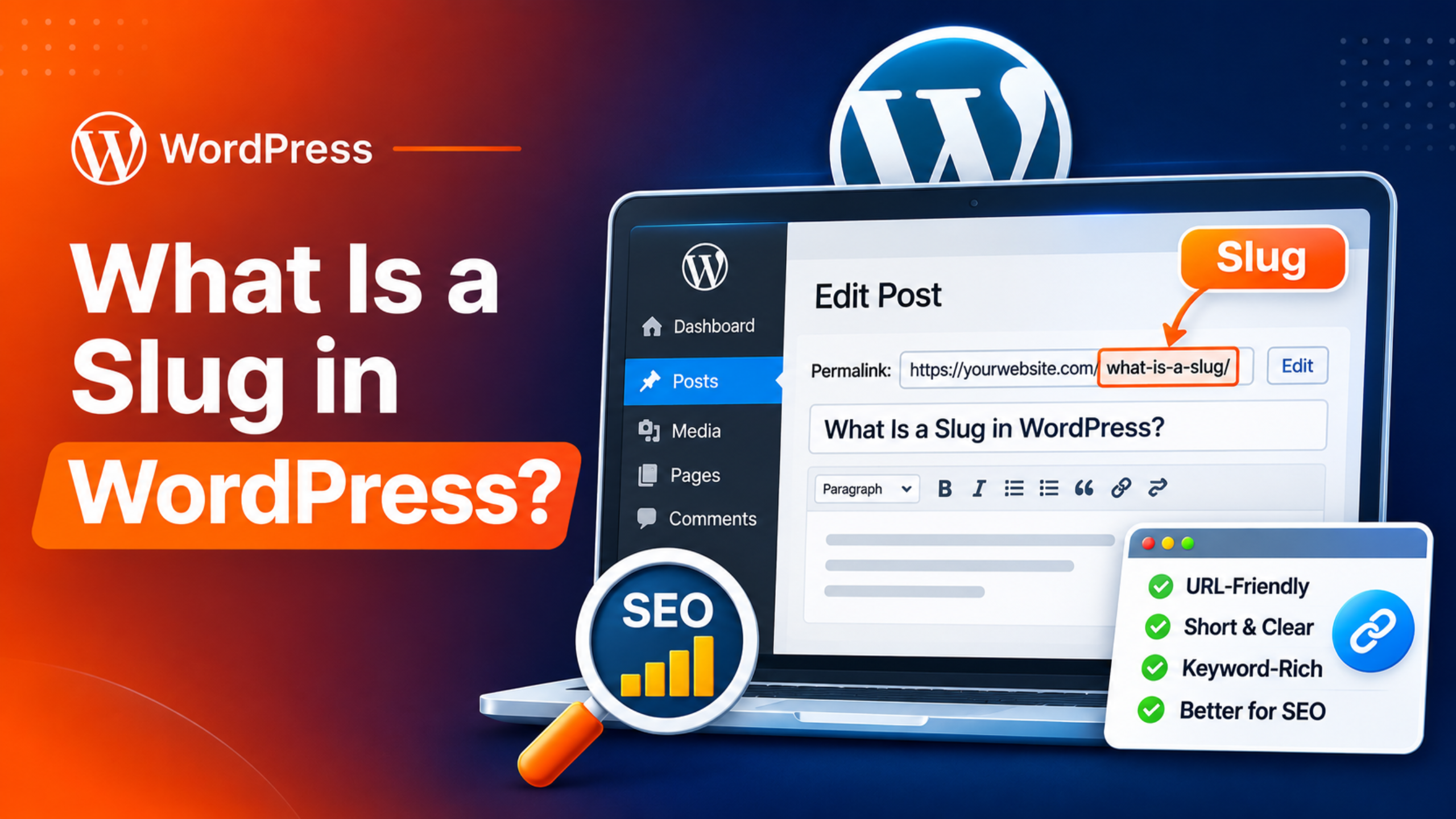
A slug is the part of a web address that names one page or post. It comes at the end of the address, after your domain name. Take the address example.com/blog/apple-pie-recipe/. Here the slug is “apple-pie-recipe”. It tells people and search engines what that page is about.
Every post and page on your site has a slug. So does every category and every tag. WordPress writes one for you from the title you give. You can keep it or change it to something better. A slug uses lowercase letters, numbers, and hyphens. That keeps the address easy to read, type, and share.
Slugs matter more than they look. A clear slug helps a reader trust a link before they click. It helps search engines understand the topic. And a careless change to a slug can break links across your site. This guide explains how slugs work on pages and posts. It also shows how to edit them and how to avoid the common traps.
Slug vs Permalink vs URL: What Is the Difference?
These three words get mixed up a lot. A URL is any full web address. It includes the https part, the domain, and everything after it. A permalink is the full, lasting URL of one piece of content on your site. The word is short for permanent link. The slug is only one piece of that permalink.
An example makes it clear. Say a post lives at https://example.com/2026/11/apple-pie-recipe/. The whole line is the URL and also the permalink. The date part comes from your permalink settings. Only “apple-pie-recipe” is the slug. You set the pattern once for the whole site. You set the slug for each post or page.
You choose the pattern on the Permalinks screen, under Settings in your dashboard. The “Post name” option gives the shortest result, with just the slug after the domain. Other options add dates or a category in front. One option, called Plain, uses no slug at all. It shows a number such as ?p=123 instead. Our guide on how to set up and fix permalinks covers those settings in full.
How WordPress Creates a Slug From Your Title
WordPress builds the first slug from your title. It runs the title through a clean-up routine. Capital letters become lowercase. Spaces become hyphens. Dots and slashes become hyphens too. Quotes, commas, question marks, and most other symbols are removed. Rows of hyphens are squeezed into one. Stray hyphens at the ends are cut off.
Here is how that looks. The title “10 Quick Tips: Faster Sites!” becomes “10-quick-tips-faster-sites”. The colon and the exclamation mark are gone. Each space is now a hyphen. Nothing is left that could confuse a browser.
Timing matters here. Once the post is published, the slug is fixed. Changing the title later does not change the address. This protects links that already point to the page. But it also means the slug can drift away from the title. A long title makes a long slug as well. So always read the slug before you publish.
Where Slugs Are Used in WordPress
Slugs are not just for blog posts. WordPress uses them in several places, and each one works a little differently.
Post Slugs
A post slug names one blog post. It must be unique among your posts. Where it sits in the address depends on your permalink pattern. With “Post name”, it comes right after the domain. With a date pattern, it comes after the year and month. Post slugs have one helpful extra. When you change the slug of a published post, WordPress remembers the old one. Visitors who use the old address are sent on to the new one.
Page Slugs
A page slug names one static page, such as About or Contact. Pages can be nested under a parent page. Then the address shows both slugs in order. A Team page under About lives at example.com/about/team/. Because of this, a page slug only needs to be unique under the same parent. You could have a “team” page under About and another under Careers. Unlike posts, pages keep no memory of old slugs. Change a page slug and the old address may stop working.
Category and Tag Slugs
Categories and tags have slugs too. They appear in archive addresses. An archive is a page that lists all posts in one group. A category named “Easy Dinners” gets the slug “easy-dinners”. Its archive then lives at example.com/category/easy-dinners/. Tags work the same way, with “tag” in place of “category”. Those two fixed words are called bases. You can change them on the Permalinks screen if you wish. Keep these slugs short, since they show up in many addresses.
How to Change a Slug in WordPress
The steps depend on which editor you use and what you are editing. If the content is already live, read the next section before you change anything.
Change a Slug in the Block Editor
Open the post or page in the editor. Look at the settings sidebar on the right. If it is hidden, click the settings icon at the top right of the screen. Choose the Post or Page tab. Find the row labelled Slug and click the value beside it. A small box opens with a Permalink field. Type the new slug there, with hyphens between words. Close the box, then click Save or Publish. If you see no Slug row, save the draft first. Older WordPress versions label this row URL. The official settings sidebar guide shows each part of this panel.
Change a Slug in the Classic Editor
The classic editor shows the permalink just below the title box. It appears once the post has a title. Click the Edit button next to it. The slug part turns into a text field. Type your new slug and click OK. Then click Update or Publish to save the change. WordPress cleans up what you type, so spaces turn into hyphens. Check the line again after saving to confirm the result.
Change a Slug With Quick Edit
Quick Edit lets you change a slug without opening the editor. Go to the Posts or Pages list in your dashboard. Hover over a title and click Quick Edit. A small form opens in place, with a Slug field near the top. Type the new slug and click Update. This is handy when you need to fix a few slugs in a row. It is also easy to do by mistake. So double check which row you are editing.
Change a Category or Tag Slug
Go to Posts in your dashboard, then open Categories or Tags. Hover over the name you want and click Edit. You will see a Slug field under the Name field. Change it and click Update. The archive address for that group changes right away. Old links to the archive will no longer match. So change these slugs early, before the archive pages collect links.
What Happens When You Change a Published Slug
Changing a slug changes the address of the page. Every old link now points to an address that has moved. What happens next depends on the content type. For posts, WordPress stores the old slug. A visitor who opens the old address is forwarded to the new one. This works without any plugin.
Pages are different. WordPress keeps no record of an old page slug. If the new slug still starts the same way, WordPress may guess the right page. Changing “about” to “about-us” often still works. A full change, such as “about” to “our-team”, does not. The old address then shows a “page not found” error, also called a 404.
So take care with live content. Before you change a slug, ask if the gain is worth it. If you go ahead, set up a redirect from the old address to the new one. A redirect plugin can do this in a minute. Then update your menus, since a custom menu link keeps the old address. Search your own posts for the old link as well. Our guides on fixing broken links and fixing 404 errors show how to find and repair what is left.
Why WordPress Adds “-2” to the End of a Slug
Sometimes you type a clean slug and WordPress adds “-2” to it. This means the slug is already taken. Two items cannot share one address, so WordPress makes the new one unique. It tries “-2” first, then “-3”, and so on. The fix is to find what holds the slug you want.
Start with the obvious place. Look for another post or page with the same name. Then check your Media Library. Each uploaded file gets a slug of its own, taken from the file name. An image named contact.jpg can hold the slug “contact”. Your new Contact page then becomes “contact-2”.
Once you find the item, change its slug or remove it. For a media file, upload it again under a new file name. Then delete the old copy, if nothing else uses it. Now go back and set the slug you wanted. Slugs made only of numbers can clash too. A post slug like “2026” may be read as a date archive, so WordPress changes it. Use words in your slugs and this never comes up.
Best Practices for SEO-Friendly Slugs
A good slug is short, clear, and stable. It should tell a stranger what the page covers. Aim for three to five words. Drop filler words such as “a”, “the”, and “and” when the meaning holds without them. “How to Bake the Best Apple Pie at Home” can become “bake-apple-pie”.
Use real words that match the topic. Include your main keyword once, if it fits in plain English. Do not stuff extra keywords in. Put hyphens between words, not underscores. Google’s own URL structure guidance favours hyphens and readable words. WordPress already handles the lowercase part for you.
Leave out things that go stale. A year in the slug, such as “best-plugins-2026”, dates the page. Next year you must keep an old-looking address or change it and add a redirect. Numbers from list titles age the same way. “7-speed-tips” is wrong the day you add an eighth tip.
Most of all, set the slug before you publish and then leave it alone. A stable address keeps its links, shares, and search history. Change a live slug only for a strong reason, such as a wrong or misleading word. When you do, add a redirect the same day.
Frequently Asked Questions About WordPress Slugs
These are the questions site owners ask most about slugs.
Does Changing a Slug Hurt SEO?
It can, if you do it without a redirect. Search engines know your page by its address. A new slug is a new address in their eyes. Without a redirect, the old address shows an error and its links lose their value. With a proper redirect, most of that value moves to the new address. Expect a short dip while search engines catch up. For a brand new post with no traffic, a change does no harm.
Why Can’t I Edit My Slug?
There are three common reasons. First, your permalink setting may be Plain. Plain addresses use a number, so there is no slug to edit. Pick another option on the Permalinks screen and the field appears. If that screen shows an access denied message, see our guide to fixing WordPress admin access denied. Second, the draft may not be saved yet. Save it once and look again. Third, your user role may not allow it. A Contributor, for example, cannot edit a post after it is published.
How Long Should a Slug Be?
Shorter is better, as long as it stays clear. Three to five words suit most pages. WordPress allows up to 200 characters, but you should never get close. Long slugs are hard to read and hard to share. They are also easy to mistype. If your title is long, write a shorter slug by hand.
Can Two Pages Have the Same Slug?
Not at the same level. WordPress makes each slug unique and adds “-2” to a repeat. Two pages can share a slug only when they sit under different parent pages. For example, “pricing” can exist under both a Products page and a Services page. Their full addresses still differ, so nothing clashes. Drafts are a special case. WordPress does not check a draft’s slug until you publish it.
Can I Use Capital Letters or Symbols in a Slug?
No, and you do not need to. WordPress turns capitals into lowercase when it saves the slug. It removes symbols such as question marks and exclamation marks as well. Spaces and dots become hyphens. This is a good thing. Simple addresses work in every browser and are easy to read aloud. Stick to lowercase letters, numbers, and hyphens.
Conclusion
A slug is the short, readable name at the end of a web address. Every post, page, category, and tag in WordPress has one. WordPress writes it from your title, in lowercase with hyphens. The permalink is the full address, and the slug is one part of it.
You can edit a slug in the editor sidebar, below the classic editor title, or through Quick Edit. Do it before you publish whenever you can. Keep it short, use plain words, and skip dates and filler. If WordPress adds “-2”, something else already holds that name. Often it is a media file.
Be careful with content that is already live. Posts forward old addresses on their own, but pages do not. Add a redirect, fix your menus, and check for broken links after any change. Get these habits right and your addresses will stay clean for years. Has a slug change already broken links on your site? Our team can help through WP Chat Support live chat.

James is an experienced WordPress and WooCommerce specialist with over 10 years of practical experience. At WPChatSupport, he creates clear guides that help website owners fix WordPress issues, improve speed, secure their sites, and manage WooCommerce stores with confidence. His expertise includes store setup, plugin configuration, theme customization, payment gateway integration, and website troubleshooting. Through simple and helpful content, James supports users in solving technical problems and following best practices for online business growth.