Introduction
You log in to your site as usual. The password works. Then a plain white screen stops you. It says, “Sorry, you are not allowed to access this page.” This is the WordPress admin access denied error. It feels alarming, but your site is rarely damaged.
The message means one thing. WordPress knows who you are, but it thinks you lack the right to open that screen. Something has changed your role, your rights, or the way WordPress reads them. Common triggers are a site move, a restored backup, a new plugin, or a change to user roles.
The cost is real while it lasts. You cannot update plugins, publish posts, or manage orders. A store owner may be locked out during a busy sale. This guide shows you the signs, the true causes, and a fix for each one. You will also learn how to check each cause before you change anything. Work through the steps in order, from the safest check to the deepest one.
Signs That Show WordPress Admin Access Denied
The clearest sign is the exact wording on screen. You see “Sorry, you are not allowed to access this page.” on a blank white page. There is no menu and no dashboard around it. WordPress itself prints this message. Your web server does not.
The timing is a second sign. The error shows up after a login that works. Your username and password are accepted first. If the login form keeps coming back, you have a different fault. Our guide to the WordPress login redirect loop covers that case.
Look at how much of the dashboard is blocked. Sometimes every admin screen shows the message. Sometimes only one screen does, such as Plugins or Users. Sometimes you can write posts but cannot reach Settings. Note which pattern you have. It points to the cause later.
The public side of your site usually looks normal. Visitors can still read pages and place orders. Other admins may still get in without trouble. If so, the problem sits with your account, not the whole site.
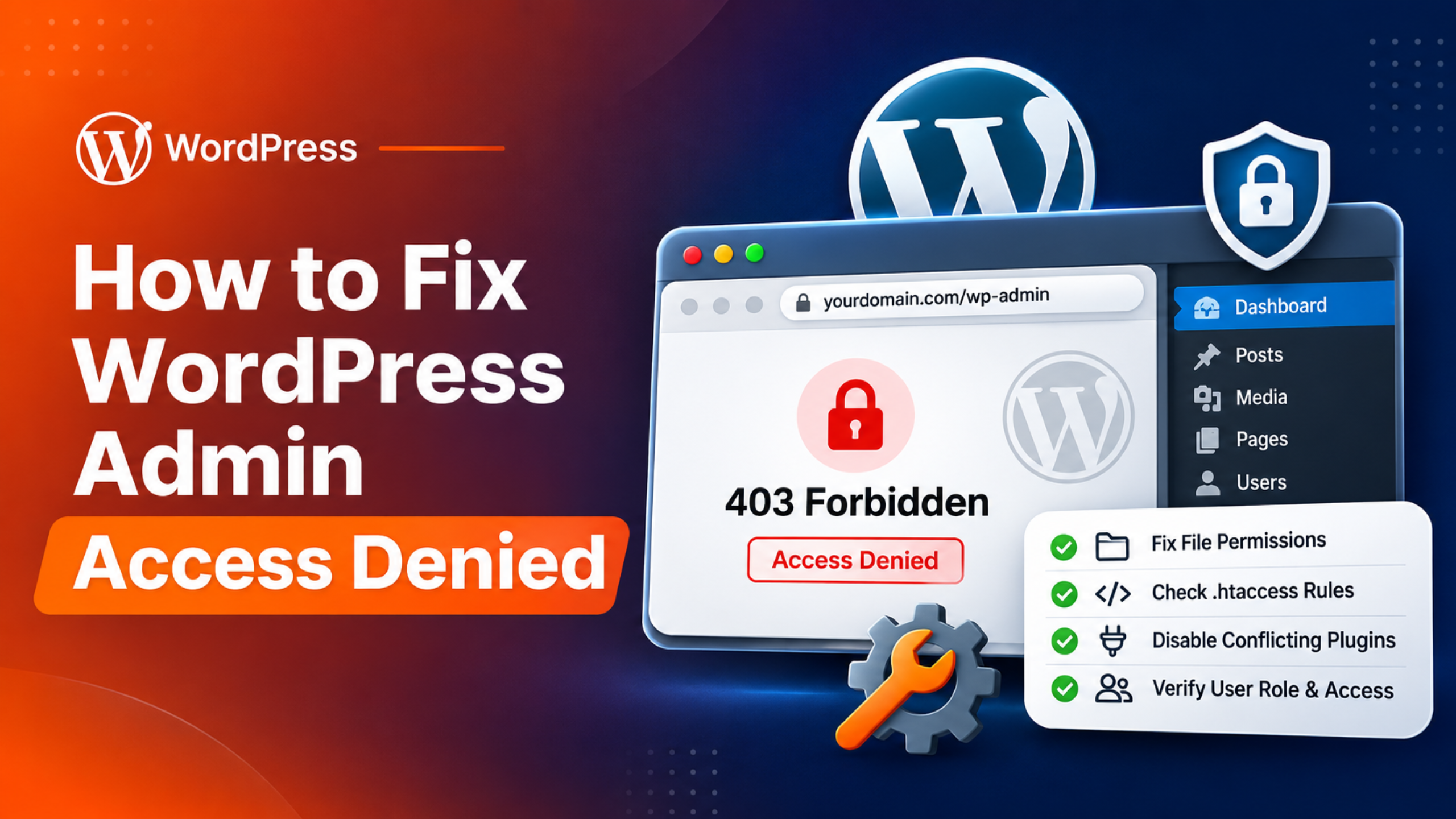
Do not confuse this with a server block. A page headed “403 Forbidden” comes from the server or a firewall. That needs the steps in our 403 Forbidden error guide. And if you land on your home page instead of the dashboard, read about the admin area redirecting to the homepage.
Reasons Why WordPress Admin Access Denied Happens
WordPress controls the dashboard with roles and capabilities. A role is a label such as Administrator or Editor. A capability is one single right, such as the right to install plugins. The official Roles and Capabilities page lists them all. Every admin screen needs one capability. When you open a screen, WordPress checks your account for it. If the right is missing, it stops and shows the message. So every cause below ends the same way. WordPress cannot find the right it expects on your account.
The Page No Longer Exists or Needs a Higher Role
Many plugins add their own screens to the dashboard. Each screen has its own web address. When you remove or turn off the plugin, that screen is gone. An old bookmark or saved link still points to it. WordPress cannot match the address to any screen you may open. It answers with the same access denied message. The same thing happens when you open a link meant for a higher role.
Your Account Has the Wrong Role
Your role may have changed without you knowing. Another admin may have set you to Editor or Subscriber. A membership or user plugin may have swapped your role on its own. You may also be logged in with a second, lower account. In each case the login works fine. But the lower role lacks rights that admin screens need. WordPress then blocks those screens.
The Database Prefix Does Not Match After a Move
This cause is common after a migration or a restore. WordPress table names start with a short prefix, often “wp_”. The file wp-config.php tells WordPress which prefix to use. Here is the catch. The prefix is also stored inside two kinds of data. Your role sits in a row named with the prefix, such as “wp_capabilities”. The list of all roles sits in a row named “wp_user_roles”. If the prefix in the file changes but these names do not, WordPress looks for the wrong rows. It finds nothing. Your account then has no role at all, so every screen is denied.
A Plugin Has Changed Roles or Blocks the Dashboard
Some plugins exist to control access. Security plugins, role editors, membership tools, and user managers all do this. They can remove rights from a role. They can also hide the dashboard from some users. A bad setting or a bug can catch the site owner too. On the WordPress support forum, one owner traced a full lockout to a user management plugin. The fault often starts right after an install, an update, or a settings change.
Theme Code Restricts the Admin Area
A theme can also carry access rules. Some themes limit who can use the dashboard. So do some snippets pasted into the functions.php file. The aim is often to keep customers out of the admin area. If the rule checks for the wrong right, it blocks real admins as well. This cause is likely when the error began after a theme switch. It is also likely after you pasted new code into the theme.
The Saved Roles Data Is Damaged
WordPress saves its roles in the database, in the options table. The row holds every role and the rights each one has. This row can be damaged. A failed import, a hand edit, or a faulty plugin can do it. The Administrator role may then lose key rights, such as managing settings. Your account still says Administrator. But the role itself no longer opens the screens it should.
You Are Not a Super Admin on a Multisite Network
Multisite lets one WordPress install run many sites. It adds a higher level called Super Admin. On a network, a normal site Administrator has fewer rights than on a single site. By default, only a Super Admin can install plugins and themes, or edit users. So a site admin who opens those screens gets the access denied message. Nothing is broken here. The account just sits one level too low for that task.
How to Fix WordPress Admin Access Denied (Step by Step)
Take a full backup before you start, files and database both. Several steps below touch the database or site files. A backup lets you undo a mistake. Then follow the steps in order. The first ones are quick and safe. The later ones go deeper. Stop as soon as your dashboard opens again.
Step 1: Check Whether One Screen or the Whole Dashboard Is Blocked
This step deals with pages that no longer exist. A dead link gives the same message as a real lockout. So first learn which one you face. Look at the address bar. Does it show a long plugin page address? If web addresses are new to you, our guide on what a slug is in WordPress explains the parts. Now type your site address followed by /wp-admin/ and press Enter. This opens the main dashboard screen.
If the dashboard loads, your account is healthy. Only that one old link was the problem. Delete the bookmark and reach the screen through the menu instead. If the menu item is gone, the plugin behind it is off or removed. Turn the plugin back on if you still need it. If the main dashboard is also denied, the fault is wider. Move on to Step 2.
Step 2: Confirm Your Account and Restore the Administrator Role
This step fixes a wrong role. A lower role passes the login but fails the rights check. First confirm who you are logged in as. Log out, then log in again with the owner account. If the error stays, check the role itself.
The easy check needs a second admin. Ask them to open the Users screen in the dashboard. Your row shows your role in the Role column. It should say Administrator. If it does not, they can edit your user and pick Administrator from the Role menu.
No second admin? Use WP-CLI, a command line tool that many hosts offer. Run wp user list --role=administrator to see who holds the role. If your name is missing, run wp user set-role yourname administrator.
The last route is the database, through phpMyAdmin in your hosting panel. Editing the database can break a site, so finish your backup first. Open the users table and note the ID next to your username. Then open the usermeta table and find the rows with that user ID. Look for the row named “wp_capabilities”. Your prefix may differ from “wp_”. For an admin, it should hold this value:
a:1:{s:13:"administrator";b:1;}
The row named “wp_user_level” should hold 10. Correct both if they differ, then save. Log out and back in. If the dashboard opens, the role was the cause. If the values were already right, go to Step 3.
Step 3: Match the Database Prefix in wp-config.php
This step fixes the prefix mismatch. When the file and the data disagree on the prefix, WordPress cannot find your role. Check this first if the error began after a move or a restore. Open wp-config.php in your host’s file manager. Find the line that starts with $table_prefix. Note the value between the quotes, such as wp_ or site_.
Now open phpMyAdmin and compare three things. First, the table names should start with that same prefix. Second, look in the usermeta table. The role rows should be named with the prefix, then “capabilities” and “user_level”. Third, look in the options table. One row should be named with the prefix, then “user_roles”. On a healthy site all three match the file.
If they do not match, you have found the cause. The safe fix is to rename the rows, not the tables. Back up the database first. Then edit the option name and the two meta key names so they carry the right prefix. For a prefix of site_, the names become site_user_roles, site_capabilities, and site_user_level. Save, log out, and log in again. The dashboard should load. If all names matched from the start, move on.
Step 4: Turn Off All Plugins to Find a Conflict
This step finds a plugin that has changed roles or blocks the dashboard. You cannot reach the Plugins screen, so use your files instead. Think back first. Did the error start right after a plugin install or update? That plugin is your main suspect.
Connect with SFTP or open your host’s file manager. Go into the wp-content folder. Rename the folder called plugins to plugins-off. WordPress can no longer find any plugin, so it turns them all off. Renaming is easy to undo, but keep your backup at hand. With WP-CLI you can run wp plugin deactivate --all instead.
Now try the dashboard. If it opens, a plugin was the cause. Rename the folder back to plugins. Then open the Plugins screen and turn them on one at a time. Reload the dashboard after each one. The plugin that brings the error back is the culprit. Leave it off, check its access settings, or ask its author for help. Our plugin conflict guide goes deeper on this test.
One warning applies here. Some plugins save their role changes in the database. Those changes stay even when the plugin is off. Step 6 repairs them. If the error stays with all plugins off, rename the folder back and go to Step 5.
Step 5: Switch to a Default Theme
This step tests for theme code that restricts the admin area. A rule in the theme can block the dashboard for the wrong users. It is the likely cause if the trouble began after a theme change or a new snippet. The test is to load the site without that theme.
First make sure a default theme is installed, such as Twenty Twenty-Five. Look in wp-content, then themes, for its folder. Now rename the folder of your active theme. Add -off to the end of its name. WordPress cannot find it and falls back to the default theme. With WP-CLI, run wp theme activate twentytwentyfive instead.
Open the dashboard again. If it loads, the theme held the block. Rename the folder back, but do not activate it yet. Look in its functions.php file for code that mentions admin access or redirects. Remove a snippet you added, or ask the theme author for a fix. Edit theme files on a staging copy, never straight on the live site. If the error remains on the default theme, restore the folder name and continue.
Step 6: Reset Damaged Roles to Their Defaults
This step repairs damaged roles data. Here your account is still an Administrator, yet the role has lost its rights. The sign is a pattern you could not explain so far. Steps 2 and 3 looked correct. Plugins and theme made no difference. Some screens may open while others stay denied.
WP-CLI has a command made for this. Run wp role reset --all. The WP-CLI manual explains it in full. It puts every default role back to its fresh install state. Missing rights return, and added rights are removed. Know the side effect before you run it. Rights that plugins added to default roles are removed too. Some plugins add them back when you turn them off and on again. Custom roles are left alone. Back up the database first, and test on staging if you can.
Log in again after the reset. The dashboard should open in full. No WP-CLI on your host? Then restore a database backup from before the error began. You will lose changes made since that backup, so note recent orders or posts first. Our guide to backing up WordPress with UpdraftPlus shows how restores work. On a single site, this step should end the problem.
Step 7: Get Super Admin Rights on a Multisite Network
This step applies only to Multisite. There, a site admin lacks some rights that a Super Admin holds. The check is simple. Look at the top admin bar for a My Sites menu with a Network Admin link. If you have no such link, you are not a Super Admin. Note which screens fail too. Plugin install, theme install, and user editing are the usual ones.
The clean fix is to ask a current Super Admin. They can open Network Admin and go to Users. There they can edit your account and grant Super Admin rights. Or they can do the blocked task for you. That is often the safer choice.
If you own the network and lost the role, use WP-CLI. Run wp super-admin list to see who holds it now. Then run wp super-admin add yourname to grant it to your account. Reload the screen that was denied. It should open now. Give this role to very few people. A Super Admin can change every site on the network.
Best Practices to Prevent WordPress Admin Access Denied in Future
Each cause above has a habit that stops it. None of them takes long. Together they make a lockout far less likely.
- Keep a second admin account. Give it a strong password and store it safely. If your main role is ever changed, you can fix it in a minute from the Users screen.
- Review roles often. Open the Users screen once a month. Check that each person has the lowest role that fits their job. Fewer admins means fewer chances of a wrong change.
- Move sites with care. Use a trusted migration tool that handles the database prefix for you. Never change the prefix by hand unless you also rename the three matching rows. Log in right after every move to test access.
- Test access plugins on staging. Try role editors, security plugins, and membership tools on a copy of your site first. Log in there as each role before you go live. Do the same with theme snippets that touch the admin area.
- Back up before you edit. Run a daily database backup. Take a fresh one before any change to roles, users, or the database. A recent backup is the fastest cure for damaged roles data.
- Use the menu, not old bookmarks. Admin addresses change when plugins are removed. Reach screens through the dashboard menu and you avoid dead links.
- Record your Super Admins. On Multisite, keep a short list of who holds the role. Make sure at least two trusted people are on it.
Keep your hosting panel and SFTP details where you can find them. Ask your host now whether WP-CLI is available. You need these tools most on the day the dashboard is closed to you.
Conclusion
The WordPress admin access denied error looks worse than it is. The login works, but a white screen says you are not allowed to access the page. The public site keeps running. That mix of signs tells you the fault lies in roles and rights, not in the server.
The causes all lead to one place. WordPress cannot find the right it expects on your account. A dead plugin link, a changed role, or a prefix mismatch after a move can each do it. So can a plugin, theme code, damaged roles data, or a missing Super Admin role on Multisite.
The fix is a steady process. Check if one screen or the whole dashboard is blocked. Confirm your role, then the database prefix. Turn off plugins, then switch the theme. Reset the roles if they are damaged, and check Super Admin rights on a network. Confirm each cause before you change anything, and back up before each risky step.
Then make a lockout unlikely. Keep a second admin, review roles, test changes on staging, and back up daily. If you are still locked out, our team can help. Reach us through WP Chat Support live chat and we will get you back into your dashboard.

James is an experienced WordPress and WooCommerce specialist with over 10 years of practical experience. At WPChatSupport, he creates clear guides that help website owners fix WordPress issues, improve speed, secure their sites, and manage WooCommerce stores with confidence. His expertise includes store setup, plugin configuration, theme customization, payment gateway integration, and website troubleshooting. Through simple and helpful content, James supports users in solving technical problems and following best practices for online business growth.