Introduction
Your contact page works. Your blog posts work. Your shop works. Only the homepage is broken.
It might be blank. It might spin forever. It might show an error, or the wrong content entirely. Whatever it shows, every other address on the site behaves perfectly.
This is a strange and useful symptom. Most site faults break everything at once. This one breaks a single address, which means the cause has to be something that only touches that address.
That narrows the search enormously. It also rules out a long list of popular advice straight away. If another page loads, your domain works, your certificate works, your server works and your database works. They cannot be the problem.
The homepage is special in ways most people never think about. It uses its own template file. It has its own settings. It is the page builders target with their own layouts, the page caches keep most aggressively, and the page tracking scripts get bolted onto first.
Any one of those can fail on its own. This guide covers the signs that confirm what you are dealing with, the causes that genuinely break one address, a step-by-step fix in a sensible order, and the habits that stop it happening again. It also names the advice that cannot possibly help, and explains why.
Signs That Show Your Homepage Is the Only Problem
Before you change anything, pin down exactly what is broken. The fixes below split sharply depending on what you find here.
Confirm It Really Is Only the Homepage
Open three or four other addresses on the site. Try a blog post, a normal page and an archive. If they all load, the fault is scoped to your front page.
Then try the homepage two ways. Type the address with a trailing slash and without. Try the www version and the plain version if both exist.
Now log out and try again. A private browser window is the quickest way. This single test matters more than any other, and the next section explains why.
Finally, try the address with a pointless question mark on the end, such as a test value. If that version loads and the clean address does not, you are looking at a cached copy rather than a broken page.
What the Different Failures Tell You
The shape of the failure points at different causes. Look carefully rather than just noting that it is broken.
- A completely blank white page. Usually a PHP error with error display switched off. The WordPress community calls this the white screen of death.
- A message about a critical error. WordPress caught a fatal error in a plugin or theme and showed its own notice.
- The page frame loads but the middle is empty. The template ran, but the content it expected was not there.
- Completely different content. Something other than WordPress is answering that address.
- An endless spinner. The HTML arrived but something is blocking the page from finishing.
- A redirect that never settles. A rule is sending the homepage in a circle.
If you are seeing a blank page, our guide to the WordPress white screen of death covers that symptom in depth. If you are seeing the critical error notice, read our guide to that message alongside this one.
The Logged-Out Test, and Why It Matters So Much
Administrators do not see the same site that visitors see. That difference causes a whole class of homepage faults that look invisible from the dashboard.
WordPress lets a logged-in administrator view pages that are still drafts. A logged-out visitor cannot see them at all. So if your front page is set to a page you never published, you will see it perfectly and your customers will not.
Caching works the same way. Most caching tools bypass the cache for logged-in users. You get a freshly built page while everyone else gets the stored copy.
So always check in a private window before you believe the homepage is fine. If it works for you and fails there, you have narrowed the cause to two families already.
Read the Page Source, Not Just the Screen
A blank screen and an empty page are different things. Telling them apart takes ten seconds.
Right-click the broken homepage and choose to view the page source. Then look at what actually arrived.
If the source is completely empty, PHP stopped before it printed anything. That is a fatal error. If the source is full of normal HTML but the screen looks blank, the HTML arrived and something visual or script-based is failing instead.
Your browser’s developer tools will also show the status code for the page. A 200 with empty content means a different thing from a 500. Note which you have before moving on.
Reasons Why Only the Homepage Stops Working
Each cause below can break one address while leaving every other address untouched. That is what qualifies them for this list.
A Stray Index File Sitting in Your Web Root
This is the cleanest explanation of the lot, and it explains the strangest version of the symptom: the homepage shows content that is not your site at all.
The mechanism is in WordPress’s own rewrite rules. Those rules say that a request should be handed to WordPress only when it is not an existing file and not an existing directory.
Your homepage is a request for the root folder itself. That folder obviously exists. So the rule does not fire, and the request is treated as a plain directory request instead.
The web server then looks for a default file to serve from that folder. Apache’s documentation says it returns the first match from its list. If a leftover file is sitting there and is listed before the WordPress one, that file is what visitors get.
Every other address escapes this, because no folder of that name exists, so the WordPress rule fires normally. One leftover file, one broken address.
A Broken Front Page Template in Your Theme
Themes may include a dedicated file for the front page. The WordPress theme documentation is blunt about how it is used: on the site front page, WordPress will always use that file if it exists.
Always is the important word. It wins whether your front page shows recent posts or a static page.
That file is loaded for one address and no other. So a fatal error inside it breaks exactly one address and nothing else. Nothing in the error reaches your other pages, because they never load that file.
This often appears straight after a theme update or an edit to the theme files.
Your Front Page Is Set to a Page That Is Not Published
WordPress stores your choice of front page as a page reference in its settings. It does not check that the page is still public.
There is an exception worth knowing, because it kills a popular myth. If you trash or delete the page, WordPress repairs itself. It resets the setting and falls back to showing your recent posts. So a deleted front page gives you the wrong content, not a broken page.
Drafts are different. Nothing resets when a page is merely unpublished. The setting still points at a real page, so WordPress keeps trying to show it.
For a logged-out visitor that page is not viewable, so the front page query returns nothing. The signature is unmistakable: it works for you and fails for everyone else.
The Front Page Setting Points at Nothing
There is a subtler version of the same fault. Your settings can say “show a static page” while no page is actually chosen.
WordPress’s own code checks both things together. It only treats an address as the front page when the setting says static page and a page is genuinely assigned.
When the second half is missing, WordPress stops recognising your front page as the front page. Every plugin and theme feature that depends on that check quietly stops running, on one address only.
Nothing errors. Things simply go missing. That makes this one of the hardest versions to spot.
Code That Runs on the Homepage and Nowhere Else
WordPress has two separate checks for “is this the homepage”, and they mean different things. Mixing them up is the most common homepage bug in the whole ecosystem.
One check asks whether this is the address visitors reach at your main web address. The other asks whether this is the page showing your time-based blog content.
On a site showing recent posts at the front, both are true, so sloppy code works fine. Switch to a static front page and the two split apart. Code written with the wrong one now fires on your blog page instead of your homepage.
The result is a homepage missing whatever that code did, with no error anywhere. The reverse mistake breaks the blog page instead.
There is also a timing trap. WordPress documentation states that these checks do not work before the query has run. Code that asks too early always gets a false answer.
A Cached Copy of Just the Homepage
Your homepage is the most requested address on the site. It is therefore the one most likely to be cached, and the one most likely to be holding something bad.
A cache can store a broken version just as happily as a good one. It can store an error page, a redirect, or a version built during a migration with the wrong addresses in it.
Once that copy is stored, visitors keep getting it even after you fix the real cause. Meanwhile you often see a fresh page, because caches usually skip logged-in users.
There are more layers here than people expect. A caching plugin, a server cache, a content delivery network and the browser are four separate stores. Page builders keep a fifth, for their generated styles.
A Redirect Rule That Matches Only the Front Page
Redirect plugins and server rules work on address patterns. A rule written for the root address matches your homepage and nothing else.
Get that rule slightly wrong and the homepage sends visitors to itself. The browser gives up and reports too many redirects.
This also interacts badly with caching. A cached redirect is especially stubborn. Cloudflare’s documentation warns that purging a redirected address clears the cached redirect, not the content it points at.
If this is your symptom, our guide to fixing redirect loops in WordPress goes deeper into the causes.
A Page Builder Layout Scoped to the Homepage
Theme builders inside Divi, Elementor and similar tools let you assign a layout to specific places. The homepage is one of those places.
These tools let you both include and exclude. Divi’s documentation states the rule plainly: if a template is set to include the homepage and exclude the homepage, the exclusion wins.
So a layout can work everywhere except the one address you care about. Nothing is broken in the ordinary sense. The homepage simply has no layout assigned.
Be careful with the common claim that a builder’s missing style files blank the homepage. Elementor’s documentation says the files are rebuilt on the next visit. The documented symptom is unstyled or stale appearance, not an empty page.
A Heavy Homepage Hitting a PHP Limit
Nothing about PHP’s limits is homepage-specific. The homepage is simply where sites pile up sliders, product carousels and several extra post loops at once.
So it is the page most likely to cross a limit that a simple contact page never approaches.
Two limits matter. One caps how long a script may run. The other caps how much memory it may use. Crossing either ends the request, and with error display switched off the visitor just gets a blank page.
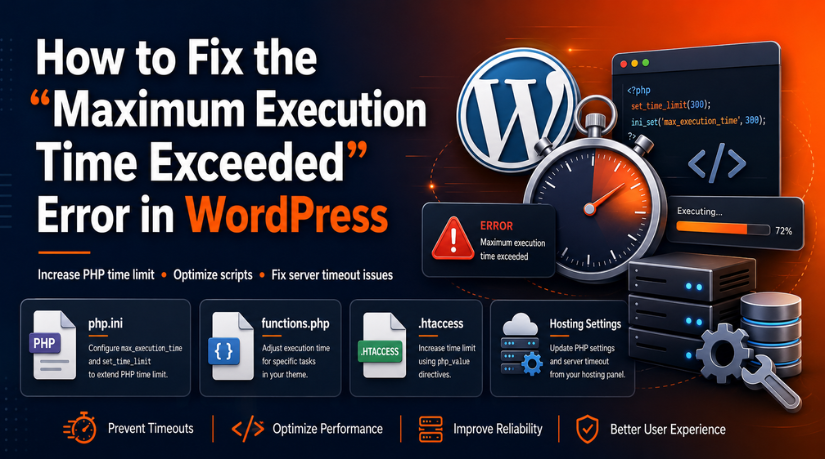
Our guides to the WordPress memory exhausted error and the maximum execution time exceeded error cover both limits in detail.
A Blocking Script Added Only to the Homepage
Tracking pixels, chat widgets and testing snippets are often added to the front page alone. Many are added through exactly the homepage-only check described earlier.
A script tag without the attributes that let it load in the background stops the page being built. Web standards documentation describes this plainly: the parser is blocked from when the file is found until it has been downloaded and run.
If the company hosting that script is slow or unreachable, your homepage waits. Visitors see a spinner on one address while everything else loads instantly.
The tell is in the page source. The HTML is there, but the browser never finishes with it.
How to Fix a Homepage That Will Not Load (Step by Step)
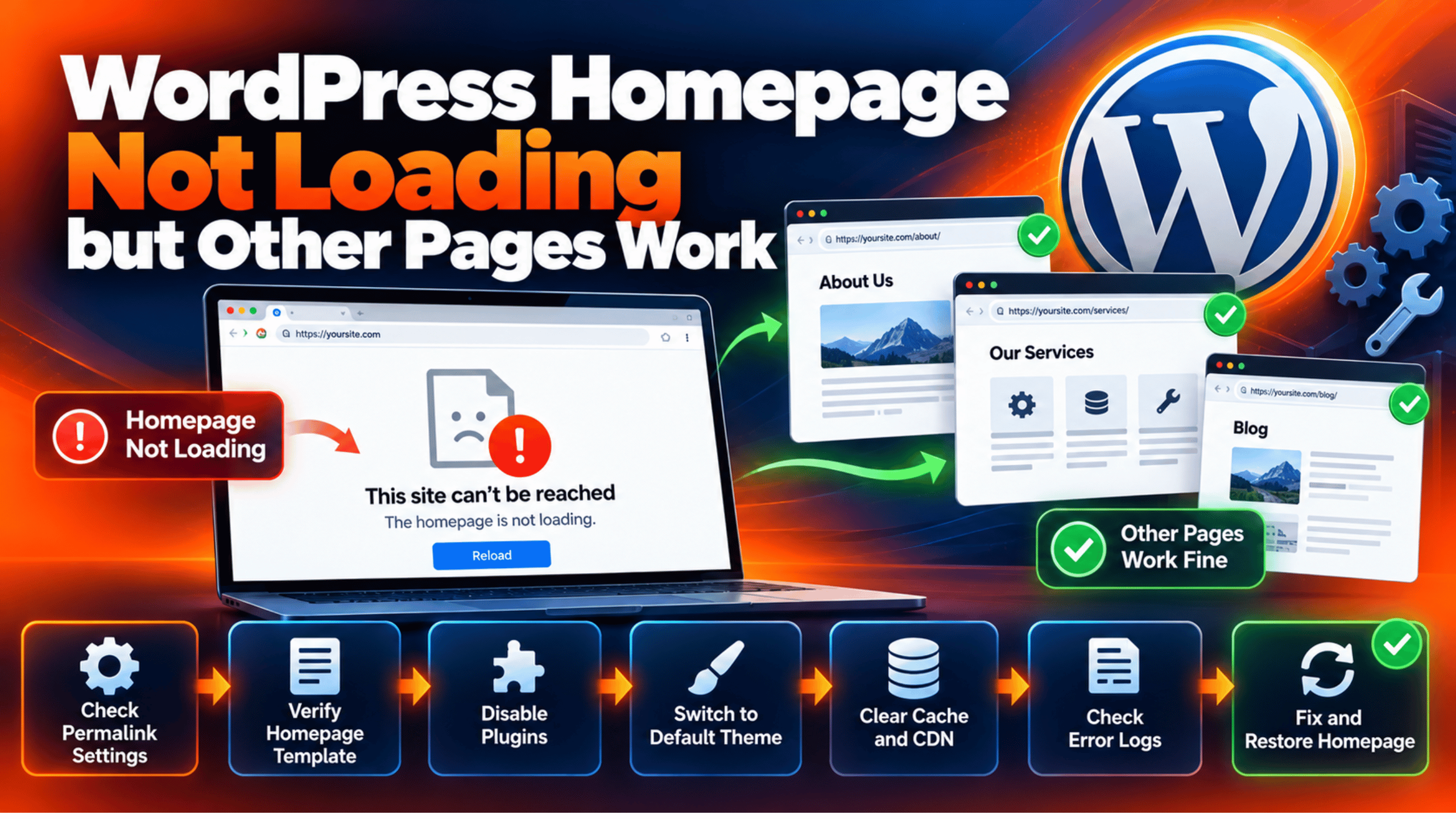
Work through these in order. The early steps are free and tell you which family you are in. The later ones touch files and settings.
Take a backup before you change anything on a live site. Our guide to backing up WordPress with UpdraftPlus walks through it. Use a staging copy for anything that touches theme files.
Step 1: Gather the Four Facts That Decide Everything
This step narrows every cause above before you change a thing. Skipping it is why people spend hours on the wrong fix.
To check, collect four pieces of information. Load the homepage in a private window and note whether it works. View the page source and note whether it is empty or full. Check the status code in your browser’s developer tools. Then load the homepage with a junk question mark value on the end and note whether that version works.
Now read them together. Works logged in but not logged out means a draft front page or a cache. Empty page source means a PHP error. Full source but a blank screen means a script or style problem. The junk value working means a cached copy.
Write those four answers down. They tell you which of the steps below actually apply to you.
If every one of them looks normal and the page still fails, carry on to Step 2 anyway, because the next cause leaves no trace in any of them.
Step 2: Look for a Stray Index File in Your Web Root
This step addresses the leftover file cause. Because your homepage is a request for a folder, WordPress’s rewrite rule is skipped and the web server serves whatever default file it finds there.
To confirm it applies, connect over SFTP or open your host’s file manager and go to the folder holding your WordPress files. Look for any default page file other than the WordPress one. A plain HTML index file is the usual culprit, often left behind by a host’s placeholder page or an old site.
If you find one, rename it rather than deleting it. Adding a suffix to the name is enough, and it keeps the file if you turn out to need it.
Be careful about which file you touch. WordPress needs its own index file in that folder, so leave that one alone. Only rename the extra.
To verify, reload your homepage. If the correct site now appears, that was your cause. If your host had added the file deliberately, ask them before removing it permanently.
If no stray file exists, move to Step 3.
Step 3: Check Your Reading Settings and the Front Page’s Status
This step addresses two causes at once: a front page that is only a draft, and a front page setting that points at nothing.
To confirm, open your dashboard and go to the reading settings. Look at what your homepage is set to display. If it is set to a static page, note which page is chosen in the homepage field.
Two results are warning signs. An empty homepage field while the static page option is selected is the pointing-at-nothing fault. A chosen page that is not published is the draft fault.
Check that page’s status directly. Open your pages list and find it. You are looking for the word published. Draft, pending or private all produce this symptom for visitors while looking fine to you.
Now fix whichever applies. Publish the page if it is a draft. Choose a real page if the field is empty. If you want a quick test instead, switch the setting to show your latest posts and save, which takes the static page out of the path entirely.
If you have command line access you can read the same values directly, which is faster than clicking.
wp option get show_on_front
wp option get page_on_front
wp option get page_for_posts
To verify, load the homepage in a private window. Success here means you are done. Note that WordPress will not let you set your homepage and your posts page to the same page, so if you have somehow done that, separate them.
If the settings were already correct, move to Step 4.
Step 4: Rule Out the Theme’s Front Page Template
This step addresses a broken front page template. That file is loaded on one address only, so an error inside it breaks one address only.
To confirm it applies, check whether your theme even has one. Connect over SFTP and open your active theme’s folder. Look for a file named for the front page. If there is no such file, this step does not apply to you, so skip to Step 5.
If the file exists, test it by taking it out of the path. Rename it by adding a suffix to the file name. WordPress will then fall back to its normal templates.
Back up the file before you touch it, and work on staging if you can. Renaming a theme file changes how your site looks, and on a live site that is visible to customers immediately.
To verify, reload the homepage. If it now loads, even if it looks wrong, you have found your cause. The fix is then to repair the file or report it to the theme’s developer, not to leave it renamed.
If you want to test the whole theme rather than one file, rename the active theme’s folder instead. WordPress documentation describes this method, and it falls back to a default theme. Be aware that this requires a default theme to still be installed.
If the homepage still fails with the theme out of the way, move to Step 5.
Step 5: Find the Plugin That Only Runs on the Homepage
This step addresses code that is gated to the front page. A plugin whose work happens only on one address can also fail only on that address.
To confirm it applies, think about what changed. A new plugin, an update, or a new banner or popup are all common triggers. A homepage that broke the moment something was activated is a strong hint.
The safest way to test on a live site is WordPress’s own troubleshooting mode, provided by the Health Check plugin. The official support handbook is explicit that the stripped-down view applies only to your own logged-in user and does not affect visitors. That lets you switch plugins off one at a time without taking the site down.
If you cannot reach the dashboard, use the documented file method instead. Connect over SFTP, open the content folder, and rename the plugins folder. Then visit your plugins page in the dashboard, which is the step people miss, and rename the folder back.
That method does take the site down for visitors while it is in effect, so do it quickly or at a quiet time. Note too that must-use plugins are not switched off by either method, so check that folder separately if nothing changes.
To verify, reload the homepage after each change. When it starts working, the last plugin you switched off is your cause. Re-enable the rest and take that one up with its developer.
If plugins make no difference, move to Step 6.
Step 6: Purge the Homepage From Every Cache Layer
This step addresses a stored bad copy of the front page. It is worth doing early if your junk-value test in Step 1 worked, because that is the signature.
To confirm it applies, compare the two views again. A homepage that works in a private window but fails normally, or works with a question mark and fails without, is being served from a store rather than built fresh.
Now clear each layer in turn, working from the inside out. Start with your caching plugin. Some have a dedicated control for just the front page, which is the gentlest option. Then clear any server-level cache your host provides.
Then clear your content delivery network. Cloudflare’s documentation describes clearing a single address through a custom purge, and notes that the path is case-sensitive. Finally clear your own browser, or simply test in a private window.
Order matters. Clearing the outermost layer first just lets it refill from the stale layer underneath.
To verify, load the homepage from a device that has never visited the site, or over mobile data. If it works there, the remaining problem is a local copy on your own machine.
If purging everything changes nothing, move to Step 7.
Step 7: Check for a Redirect Rule That Matches the Front Page
This step addresses a redirect that affects only the root address. Your browser will usually say so outright by reporting too many redirects.
To confirm it applies, watch the address bar as the page fails, and check your browser’s developer tools for a chain of redirects. If the homepage is bouncing and other pages are not, a rule is matching the root address specifically.
Now look in the obvious places. Open any redirect plugin you use and search its rules for the root address. Then check your site address settings, because WordPress builds its own canonical redirects from those values.
Remove or correct any rule whose source is the bare root address. Be careful with patterns here, since a rule meant to catch one page can easily match everything beneath it.
To verify, clear your caches again before testing, because a cached redirect survives the fix that removed it. Then load the homepage in a private window.
If there is no redirect in play, move to Step 8.
Step 8: Check Your Page Builder’s Homepage Template
This step addresses a builder layout that is scoped away from the front page. It applies only if you build pages with a theme builder.
To confirm it applies, open your builder’s template or layout list. Find any template that mentions the homepage or front page in its conditions.
Read both sides of the conditions carefully. These tools let you include and exclude the same place, and exclusion wins. A template that lists the homepage in both lists will never appear on the homepage.
Fix the condition so the homepage appears in the include list only. If no template covers the homepage at all, assign one.
While you are there, clear the builder’s own generated style files. Divi exposes this in its builder options, and Beaver Builder in its tools screen. These are a separate store from your page cache.
To verify, reload the homepage. If the layout returns, that was your cause. If the page loads but looks unstyled, the generated styles are rebuilding, which usually resolves on the next visit.
If you do not use a builder, or this made no difference, move to Step 9.
Step 9: Look for a Heavy Homepage Hitting a PHP Limit
This step addresses a homepage that is simply doing too much. The limits are not homepage-specific, but the workload usually is.
To confirm it applies, look for the signature. The page takes a long time and then fails, rather than failing instantly. It may fail intermittently rather than every time. The page source is empty or cut off partway through.
Turn on logging so you can see the real error. Open your configuration file and add these lines above the comment telling you to stop editing.
define( 'WP_DEBUG', true );
define( 'WP_DEBUG_LOG', true );
define( 'WP_DEBUG_DISPLAY', false );
That writes errors to a log file inside your content folder rather than showing them to visitors. Reload the homepage, then read that file. A message about memory being exhausted or an execution time being exceeded tells you exactly which limit you crossed.
Remove those lines once you are done. WordPress documentation warns that the log often sits in a publicly reachable place, so delete the file afterwards too.
The real fix is usually to reduce the work rather than raise the limit. Look for sliders and product carousels set to load everything at once, and cap how many items they pull. Raising the limit hides the cause and only buys time.
To verify, reload the homepage and watch how long it takes. A page that now loads quickly has had its real problem solved.
If the log shows nothing and the page is fast, move to Step 10.
Step 10: Check for a Blocking Script in the Homepage Header
This step addresses the endless spinner. Here the HTML arrives but the browser never finishes building the page.
To confirm it applies, check what Step 1 told you. A full page source with a blank or stuck screen points here, not at PHP.
Open your browser’s developer tools and look at the network panel while the homepage loads. You are looking for a request that never completes, or one that takes many seconds. Note which company it belongs to.
Then check the console for blocked requests. If your site runs over a secure connection and a script is being requested insecurely, browsers block it outright. Our guide to mixed content errors after moving to HTTPS covers that case.
Now remove or defer the offending script. If it was added by a plugin, switch that plugin off to confirm. If it was pasted into your theme’s header or a header-scripts box, take it out temporarily.
To verify, reload the homepage with the script gone. If it loads instantly, that was your cause. Add the script back with the attributes that let it load in the background, so a slow third party can never hold your homepage hostage again.
Advice That Cannot Fix a Homepage-Only Failure
This section exists because a great deal of published advice for this symptom is simply wrong. Knowing what to ignore saves real time.
Your domain settings cannot be the cause. A domain lookup resolves a host name, not a path. If any page on the site loads, your domain is working.
Your certificate cannot be the cause either. A certificate is presented before the browser has even said which page it wants. It cannot treat your homepage differently from your contact page.
Re-saving your permalinks will not help, and this is the most over-prescribed non-fix of all. That action regenerates the map between addresses and content, and rewrites part of your server rules file. Every documented use of it on WordPress.org addresses the opposite symptom: a working homepage with other pages returning not-found errors. Our guide to setting up and fixing permalinks covers when it genuinely applies.
Reinstalling WordPress will not help either. Core files are the one part of the system that is identical on every site. Your settings, theme, plugins and cache are the variables, and a core reinstall touches none of them.
Best Practices to Stop Your Homepage Breaking Again
Each habit below closes one of the causes above.
Keep Your Web Root Clean
The stray file cause is entirely preventable, and it tends to appear during migrations and host moves.
So check the folder holding your WordPress files after every move. Anything that is not part of WordPress, your uploads or your own additions should be questioned.
Pay special attention to placeholder pages. Hosts often drop one in when an account is created, and it sits there harmlessly until the day a rewrite rule changes.
Treat the Homepage as a Separate Thing to Test
Most people check their site by loading the homepage. That is exactly backwards for catching this fault.
So after any update, check the homepage and at least two other pages, logged out. The logged-out part is what catches draft front pages and cache problems.
Set your uptime monitoring to watch more than the root address too. A monitor that only checks the homepage will miss everything else, and one that only checks a deep page will miss this.
Be Careful With Homepage-Only Code and Layouts
Anything scoped to a single address can fail at a single address. That includes tracking scripts, popups, banners and builder templates.
So keep a short written list of what is homepage-only on your site. When the homepage misbehaves, that list is your first suspect list rather than a blank page.
Review builder conditions whenever you add a template. Check the exclude list as carefully as the include list, because exclusion wins.
Load Third-Party Scripts Safely
A script from another company is a dependency you do not control. If it is added in a way that blocks the page, their outage becomes yours.
So add analytics, chat and testing scripts with the attributes that let them load in the background. Your page then finishes building whether or not they answer.
Review what has accumulated once or twice a year. Homepages collect scripts that nobody remembers adding and nobody is still using.
Keep the Homepage Light
The PHP limit cause comes down to how much work one address is asked to do.
So cap what your sliders and carousels load. Pulling every product or post to show six of them is a common and expensive mistake.
Watch how long the homepage takes to respond, not just how it scores. A page creeping towards the time limit will eventually cross it. Our guide to fixing page speed issues in WordPress covers the wider picture.
Know Your Cache Layers Before You Need To
When the homepage is serving a bad copy, the slow part is working out where that copy lives.
So write down every layer you run: the plugin, the server cache, the delivery network and any builder style cache. Note how to clear each one.
Keep that note somewhere you can reach when the site is down. Clearing them in the wrong order simply refills the one you just emptied.
Conclusion: Getting Your Homepage Back
A homepage that fails while every other page works is telling you something precise. The cause has to be something that touches one address and nothing else.
Start with the four facts. Does it work logged out, is the page source empty or full, what status code comes back, and does a junk query value change anything. Those four answers point you at the right family before you change a single setting.
The real causes are a short list. A stray index file in your web root, because your homepage is a folder request and skips the WordPress rule. A broken front page template, which loads on one address only. A front page set to an unpublished page, or to no page at all. Code scoped to the homepage with the wrong check. A cached bad copy. A redirect matching the root. A builder template excluded from the homepage. A heavy page crossing a PHP limit. A blocking script from a slow third party.
Fix them in that order and you will not waste effort. Check the web root, then your reading settings, then the theme’s front page file, then plugins, then every cache layer, then redirects, builder conditions, PHP limits and finally scripts.
Just as importantly, skip what cannot help. Your domain and your certificate cannot break one page. Re-saving permalinks fixes the opposite symptom. Reinstalling core changes none of the things that are actually variable.
Prevention is mostly discipline. Keep the web root clean after migrations. Test logged out, on more than the homepage. Keep a list of what is homepage-only. Load third-party scripts without blocking, keep the page light, and know your cache layers in advance.
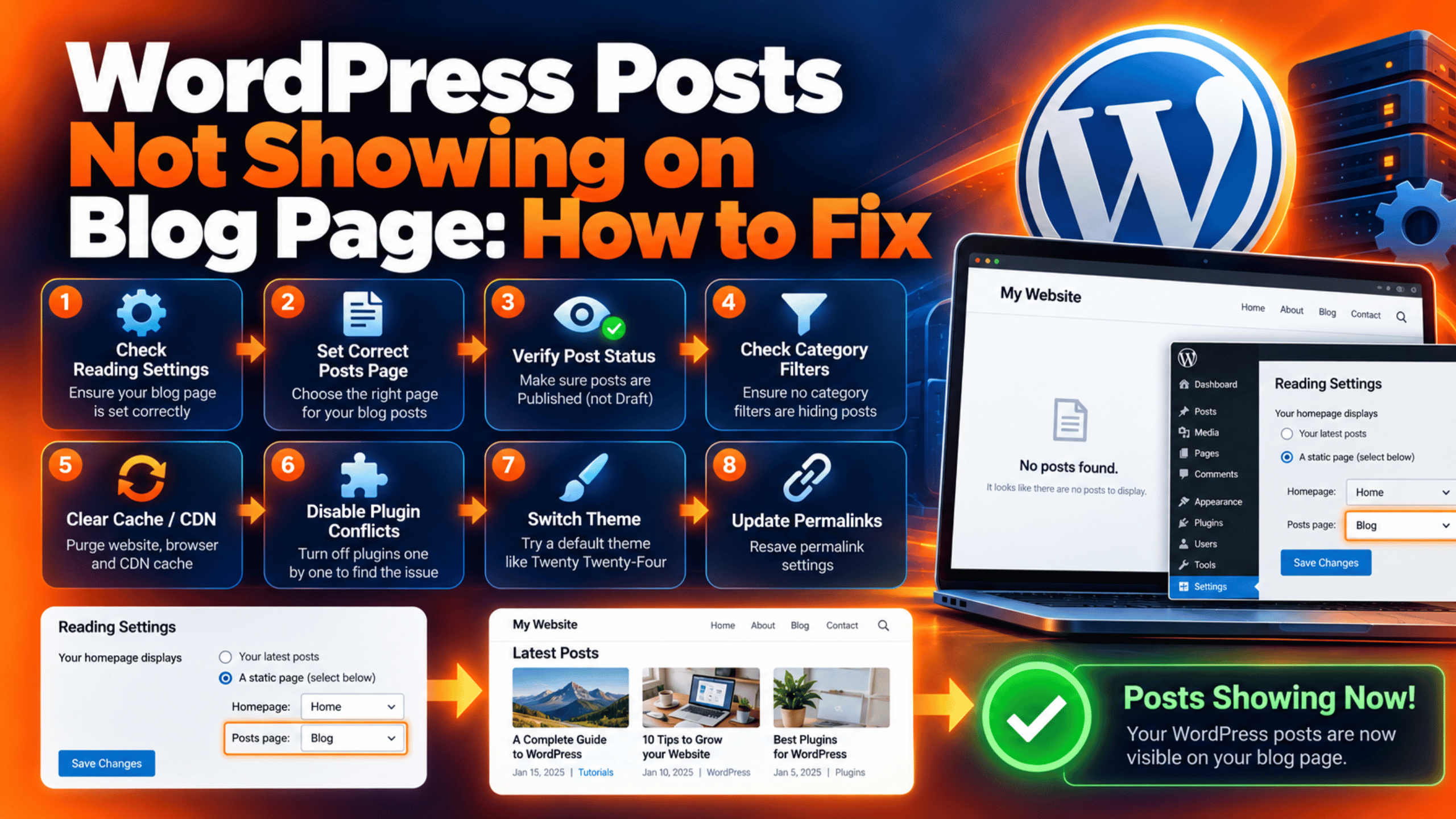
If your blog page loads but shows no posts, that is a different fault with a different cause list. Our guide to WordPress posts not showing on the blog page covers it.

James is an experienced WordPress and WooCommerce specialist with over 10 years of practical experience. At WPChatSupport, he creates clear guides that help website owners fix WordPress issues, improve speed, secure their sites, and manage WooCommerce stores with confidence. His expertise includes store setup, plugin configuration, theme customization, payment gateway integration, and website troubleshooting. Through simple and helpful content, James supports users in solving technical problems and following best practices for online business growth.