Introduction
Something has gone wrong with your website. Maybe an update broke the layout. Maybe a new plugin took the whole site offline. Maybe you changed a setting and cannot undo it by hand.
A backup restore rolls your site back in time. It swaps your current files or your database for an older copy. Done with care, it is the fastest way out of most WordPress trouble.
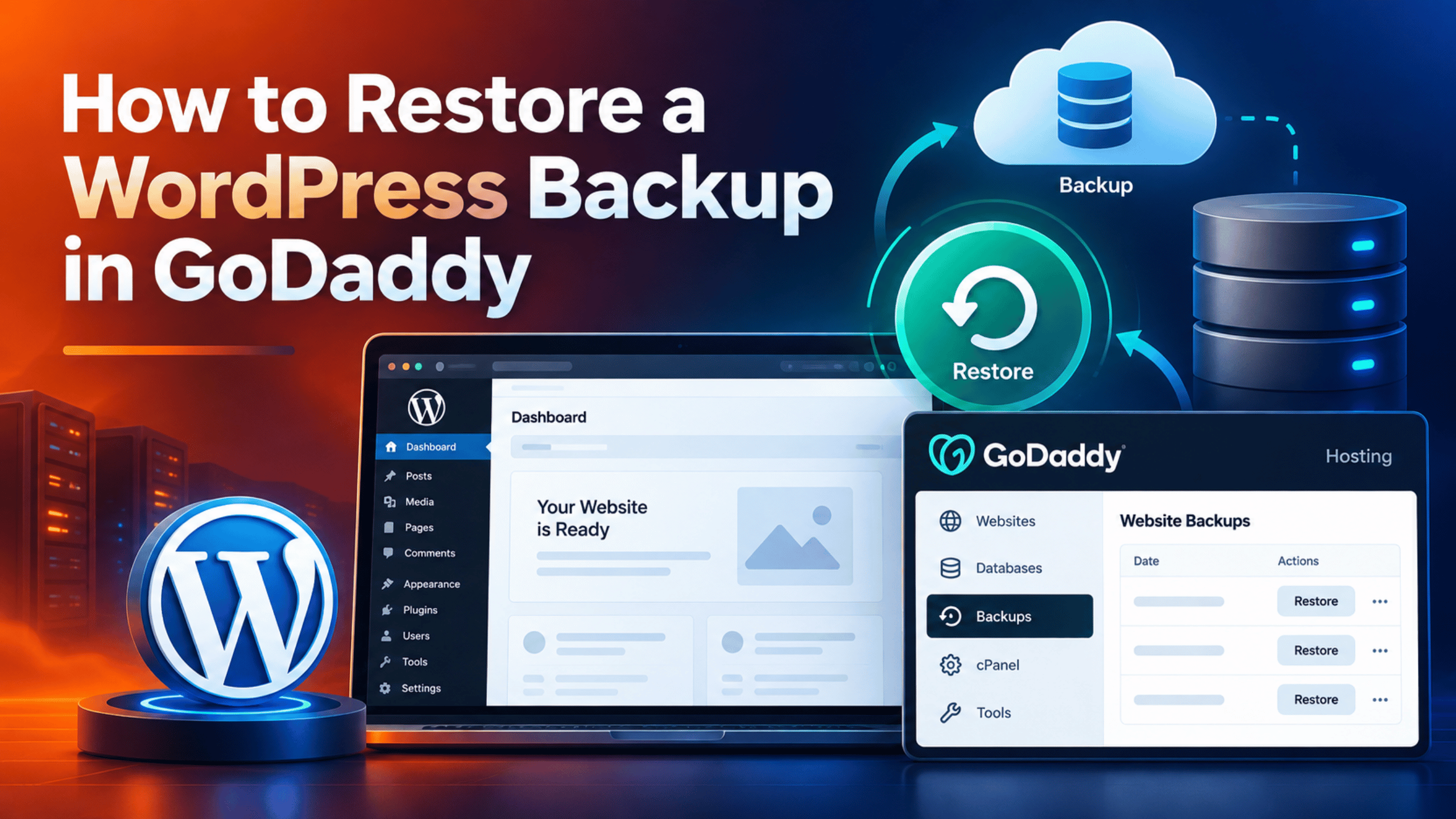
GoDaddy already makes backups for you. But the steps are not the same on every plan. Managed Hosting for WordPress has its own Backups screen. cPanel hosting works in a different way. You may also hold your own plugin backups.
This guide walks through each route in plain steps. You will learn what to check first. You will learn how to pick the right backup date. You will learn when to restore files, when to restore the database, and when to restore both.
You will also learn what to do when the restore does not fix the problem. That happens more often than people expect, and there is usually a simple reason.
Before You Restore a WordPress Backup in GoDaddy: Checks That Save Your Data
A restore overwrites live data. Anything created after the backup date is gone. That includes new orders, new posts, new comments and new users.
GoDaddy says this plainly in its own help notes. Restoring a database removes sales data and posts made after the backup you picked. So a few minutes of care here matters.
Work through the three checks below before you touch anything. They take about ten minutes in total.
Check 1: Work Out Which GoDaddy Plan You Have
GoDaddy sells several kinds of hosting. The restore steps differ on each one, so this is the first thing to settle.
Sign in and open your list of products. Look at the section heading above your site. If it says Managed Hosting for WordPress, you have the managed plan with a built-in Backups screen. Older accounts may still show the name Managed WordPress.
If instead you see Web Hosting or a cPanel login button, you are on cPanel hosting. That plan has a different backup system and a shorter default history.
If you see Websites + Marketing, you are not on WordPress at all. That is GoDaddy’s own site builder, and none of the steps below apply.
Note which one you have before you read on. The rest of this guide is split by plan type.
Check 2: Take a Fresh Backup Before You Restore Anything
This step feels odd. You are about to restore an old copy, so why save the broken one?
The answer is simple. A restore is not always the right call. Sometimes the old backup is broken too. Sometimes you restore the wrong date. If you saved the current state first, you can always come back to it.
On Managed Hosting for WordPress you can make one on demand. Open the Backups screen for your site and choose the option to back up now. GoDaddy lets you rename it, so give it a name you will recognise later. Something like “broken before restore” works well.
On cPanel, use the Backup Wizard in the Files area to save a copy first.
Never skip this. It is the only step in this guide that cannot be undone if you get it wrong.
Check 3: Decide Whether You Need Files, the Database, or Both
GoDaddy lets you restore three ways. Picking the smallest one that fixes your problem keeps your losses low.
Restore files when the problem came from a theme or a plugin. That covers a bad update, a manual edit to a theme file, or something you uploaded over SFTP. Files hold your themes, your plugins and your uploads. They do not hold your posts or your orders.
Restore the database when the problem came from a setting or from content. That covers a settings change that broke the site, a flood of spam comments, or a password that changed without your knowledge. The database holds your posts, pages, settings, users and orders.
Restore both when the site shows a blank white screen, or when you think it has been hacked. In those cases you cannot tell which half is damaged, so you replace both.
If you are unsure, think about what changed last. The thing you touched most recently is almost always the thing to roll back. For a wider look at what to do in a crisis, our guide to emergency WordPress support when your site breaks walks through the same triage.
How to Restore a WordPress Backup in GoDaddy Managed Hosting
Managed Hosting for WordPress keeps thirty days of backups. You do not have to switch anything on. The backups run daily and cover both your files and your database.
One warning matters here. Backups only stay available while the plan is active. If the plan is cancelled or billing fails, GoDaddy removes it, and you would need your own local copy instead. So do not let a lapsed invoice sit unpaid while your site is broken.
Step 1: Open the Backups Screen for Your Site
Sign in to GoDaddy and open your product list. Find the Managed Hosting for WordPress section and choose the option to manage all your sites.
You will see a row for each website you host. Open the menu beside the site you want to fix. Depending on your account, you will either go straight to the site dashboard or pass through a hosting settings screen first.
Once you are inside that site, look along the top menu for Backups. Select it.
You should now see a calendar on the left and a list of saved backups. If the calendar is empty, the plan may be inactive, or the site may be very new. Contact GoDaddy before going further in that case.
Step 2: Pick the Right Backup Date
This is the step people rush, and it is the one that costs them.
Pick the last date on which the site definitely worked. Not the date the problem appeared. Those are often different days. A plugin can break a site quietly and show the fault days later.
Select that date in the calendar. If several backups exist for that day, you will see them listed. Choose the one saved before the change you regret.
Think about what you would lose at that date. If your store took forty orders since then, a database restore erases them. Write down anything important first, or restore only the files instead.
Step 3: Choose Files, the Database, or Both
Select Restore beside the backup you picked. GoDaddy now asks what you want to bring back. You tick or untick the parts you want.
Use the decision you made in Check 3 above. Files for theme and plugin damage. Database for settings and content damage. Both for a white screen or a suspected hack.
Read the confirmation text on screen before you agree. It states clearly that newer changes will be lost. That line is your last chance to stop.
Step 4: Run the Restore and Wait
Select Restore to begin. Then leave it alone.
GoDaddy says the job can take a few minutes, and larger sites take longer. Do not reload the page repeatedly. Do not start a second restore because the first seems slow. Two restores running together can leave your files and database out of step.
When it finishes, open your site in a private browsing window. A private window ignores your saved browser cache, so you see the real result rather than an old copy.
If the site looks right, sign in to WordPress and check a few pages. If it still looks wrong, skip ahead to the troubleshooting section below.
How to Restore a Backup on GoDaddy cPanel Hosting
cPanel hosting handles backups differently, and the difference surprises people.
Every Web Hosting plan includes an automatic daily backup. But the standard plan keeps only one day of history. If you want thirty days, GoDaddy sells a separate Website Backup product. Check which you have before you plan a rollback to last week.
There are three routes on cPanel, and they suit different problems.
Restore From the Daily Backup
This is the quickest route and the one to try first.
Open your hosting account and find the Backups area. Choose the backup date you want. You will then see the backup contents split into parts, such as files and databases.
Pick only the part you need. GoDaddy warns that this restore can overwrite your current domains, files, databases and mailboxes. That warning is worth taking seriously, because mailboxes can be caught up in it.
Run the restore, then test the site in a private window as above.
Restore a Single Database in phpMyAdmin
Use this when only your content or settings are damaged, and you already hold a database export file.
Open phpMyAdmin from cPanel and sign in. Select your WordPress database from the list on the left. Check the name matches the one in your wp-config.php file, because many accounts hold several databases.
Before importing, export the current database and save that file to your computer. This is your undo button.
Now select the import option and upload your saved .sql file. Large files sometimes fail here because of upload limits. If that happens, upload the file over SFTP and import it another way, or ask your host to run it.
The official WordPress backup documentation covers this process in more depth.
Restore Files by Hand With SFTP
Use this when one theme or one plugin is broken and you do not want to touch anything else.
Connect to your hosting with an SFTP program such as FileZilla. Open the wp-content folder. Inside it you will find your themes, plugins and uploads.
Rename the broken folder rather than deleting it. Adding “-old” to the end is enough. Renaming is reversible, and deleting is not.
Then upload the good copy from your backup in its place. Reload your site and check the result.
How to Restore From Your Own Plugin Backup Instead
Many site owners run a backup plugin as well as the host’s backups. That is sound practice, because it gives you a copy that survives a hosting problem.
If you have one, restoring from it is often simpler. Open the plugin inside your WordPress dashboard and use its own restore screen. Our guide to backing up WordPress with UpdraftPlus shows how that works in practice.
There is one catch on GoDaddy managed plans. GoDaddy blocks a list of plugins on Managed Hosting for WordPress, and most backup plugins are on it. GoDaddy’s reasoning is that the plan already provides backups, so these plugins duplicate the work and slow the site.
The list is detailed rather than blanket. UpdraftPlus, for example, is listed only for versions 1.23.2 and older, which were affected by a security issue. Newer versions are treated differently. You can read the current GoDaddy blocklisted plugins page to see where a given plugin stands today.
If your backup plugin has been removed from the site, do not fight it. Use the GoDaddy Backups screen instead. It holds the same thirty days.
What to Do When the Restore Does Not Fix Your Site
You ran the restore and the site still looks wrong. This is common, and it rarely means the restore failed.
Work through these three causes in order.
Flush the GoDaddy Cache
Managed Hosting for WordPress caches your pages to make them load faster. After a restore, that cache can still be serving the broken version.
Sign in to your WordPress dashboard. Look at the top toolbar for the GoDaddy Quick Links menu, then choose the option to flush the cache.
Now reload your site in a private browsing window. If the site is suddenly correct, the restore worked all along and you were looking at an old copy.
If you also run a caching plugin or a service such as Cloudflare, clear those too.
Check You Restored the Right Part
If the site is still wrong, you may have restored the wrong half.
Ask what actually changed. Is the layout broken but your posts are intact? That points at files, not the database. Are your posts and settings wrong but the design is fine? That points at the database.
Go back to the Backups screen and restore the other part from the same date. Because you saved a fresh backup in Check 2, this second attempt costs you nothing.
Look for a Problem a Backup Cannot Fix
Some faults sit outside your backup entirely.
A wrong PHP version will break a site no matter which backup you load. So will an expired SSL certificate, a DNS change, or a server outage. None of those live in your files or your database.
Permalink settings are another common one. If your posts return 404 errors after a restore, open your permalink settings and save them once without changing anything. That rewrites the rules. Our guide to setting up and fixing permalinks in WordPress explains why this works.
A database prompt can also appear after a restore. If WordPress asks you to update the database, our guide to the WordPress database update required message covers it.
How to Avoid Needing a Restore Next Time
A restore is a rescue, not a routine. These habits keep you from needing one.
Test updates on a staging copy first. Managed Hosting for WordPress offers a staging site on every plan except Basic. You create it from your site’s settings screen. Update there, look at the result, then repeat on the live site.
Update one thing at a time. If you update eight plugins together and the site breaks, you have no idea which one did it. One at a time costs a few more minutes and saves hours.
Keep a second backup somewhere other than your host. Host backups vanish when the plan lapses, as noted above. A copy in cloud storage does not.
Write down the date of every big change. A short note in a text file is enough. When you need to pick a backup date under pressure, that note is worth a great deal.
Check that your backups actually work. Once a quarter, restore one to a staging site. An untested backup is only a hope.
Frequently Asked Questions About GoDaddy WordPress Backups
How long does GoDaddy keep WordPress backups?
Managed Hosting for WordPress keeps thirty days of daily backups, covering both files and database. Web Hosting on cPanel includes a one day automatic backup by default. If you need thirty days on cPanel, GoDaddy sells Website Backup as a separate product. Check which applies to your plan before you count on older dates being there.
Will restoring a backup delete my recent orders?
A database restore will, yes. Orders, posts, comments and users all live in the database. Anything added after the backup date disappears when you load that older copy. Files-only restores leave your orders alone, because orders are not stored in your files. If your store is busy, export your recent orders before you restore the database.
How long does a GoDaddy restore take?
GoDaddy says it depends on the size of your site, and that a few minutes is normal. Small blogs finish quickly. Large stores with many images take longer. The important thing is not to interrupt it. Let one restore finish before you start another, or your files and database can end up mismatched.
Can I download a copy of my GoDaddy backup?
The Backups screen is built around restoring in place rather than handing you a file. If you want a copy you control, make your own. Download your files over SFTP and export your database from phpMyAdmin. GoDaddy documents both for Managed Hosting for WordPress, and both are reachable from your site’s settings screen. Keep that pair together, because one is not much use without the other.
Does restoring a backup fix a hacked WordPress site?
Sometimes, but not reliably. A restore removes the damage only if the backup predates the break-in, and attackers often sit quietly for weeks. It also does nothing about the hole they came through. If the weak plugin or stolen password is still there, you will be hacked again within days. Restore both files and database, then change every password and update everything before you relax.
Can I restore just one plugin or one page?
Not from the GoDaddy Backups screen, which works at the level of files and database. For a single plugin, use the SFTP method above and replace just that folder. For a single page or post, check your WordPress revisions first, because WordPress saves earlier drafts of your content on its own. That is usually faster than any restore.
Conclusion
Restoring a WordPress backup in GoDaddy is straightforward once you know which plan you are on. Managed Hosting for WordPress gives you thirty days and a Backups screen with a calendar. cPanel hosting gives you one day by default, with a paid option for more.
The steps matter less than the preparation. Save a fresh copy before you begin. Pick the last date the site truly worked, not the date you noticed the fault. Restore files for theme and plugin damage, the database for settings and content damage, and both when you cannot tell.
If the site still looks broken afterwards, flush the GoDaddy cache before assuming the restore failed. Most apparent failures are just old cached pages. After that, check whether you restored the right half, and look for faults that live outside your backup entirely.
Then build the habits that keep you out of this screen. Stage your updates, change one thing at a time, and keep a copy somewhere your host cannot reach.
If you are thinking about leaving GoDaddy after all this, our guide to migrating a WordPress website away from GoDaddy walks through that move safely.

James is an experienced WordPress and WooCommerce specialist with over 10 years of practical experience. At WPChatSupport, he creates clear guides that help website owners fix WordPress issues, improve speed, secure their sites, and manage WooCommerce stores with confidence. His expertise includes store setup, plugin configuration, theme customization, payment gateway integration, and website troubleshooting. Through simple and helpful content, James supports users in solving technical problems and following best practices for online business growth.