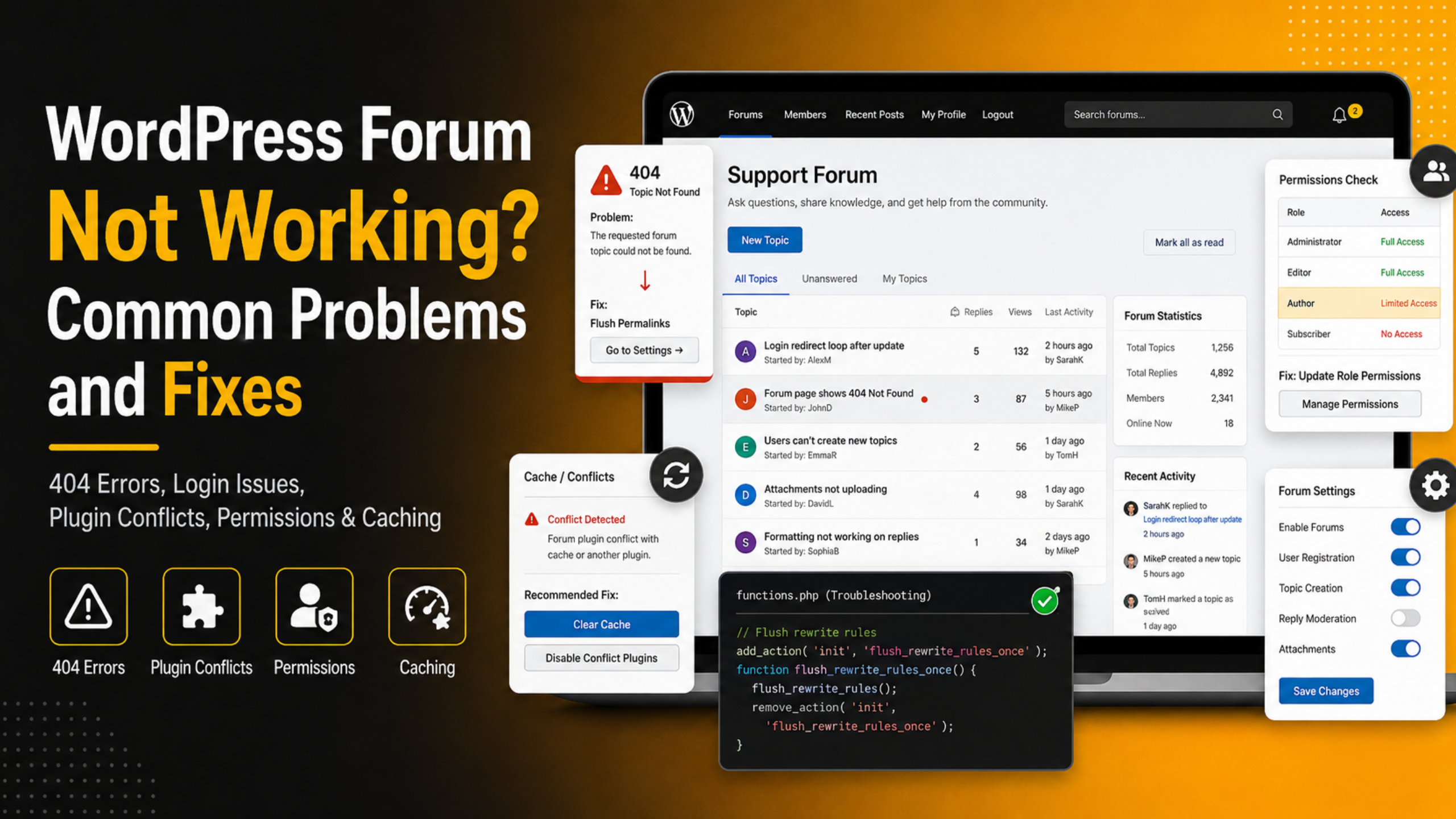
Your forum worked yesterday. Today it shows a blank page, a 404 error, or a wall of raw shortcode text. That is frustrating. It also looks far worse than it usually is. Most forum failures in WordPress trace back to a short list of causes. Permalinks, caching, user permissions, and plugin conflicts explain the large majority of them. Each one has a clear fix that takes minutes.
This guide walks through the problems that support teams see most often. It covers bbPress, wpForo, Asgaros Forum, and ForumWP. You will learn how to find the real cause first. Then you apply the matching fix. Every step below happens inside your WordPress dashboard or a single config file. You do not need to be a developer.
Why WordPress Forums Break More Often Than Other Plugins
A forum plugin is not a normal plugin. It adds four separate layers to your site at once. It creates its own content storage, its own URLs, its own permission system, and its own templates. bbPress 2.6.15 stores topics and replies as custom post types. wpForo 3.1.5 and Asgaros Forum 3.4.0 create their own database tables instead. Every one of those layers is a place where something can go wrong.
Version drift adds a second risk. WordPress core is now at 7.1. bbPress 2.6.15 lists 7.1 as tested. Asgaros Forum 3.4.0 only lists 6.9.7, and wpForo 3.1.5 lists 7.0.4. A gap like that does not always break a site. But it does mean a core change can surface as a PHP notice, a broken layout, or a dead button. Knowing this helps you guess the cause faster.
Run This Five-Minute Triage Before You Change Anything
Do not start disabling plugins yet. First, gather facts. Open your forum in a private browser window while logged out. Then open it again as an admin. If the two views differ, you have a permissions or caching problem, not a broken plugin. Next, check whether one forum page fails or every page fails. A single broken URL points at permalinks. A site-wide failure points at a conflict or a PHP error.
Write down the exact symptom before you touch a setting. “Blank white page” and “404 Not Found” have completely different causes. So do “shortcode shows as text” and “styles are missing.” The three checks below give you the evidence you need. They take about five minutes in total.
Turn On the WordPress Debug Log
The debug log turns a silent failure into a readable error message. Open wp-config.php through your host’s file manager or FTP. Find the line that says “That’s all, stop editing!” Add these three lines just above it:
define( 'WP_DEBUG', true );define( 'WP_DEBUG_LOG', true );define( 'WP_DEBUG_DISPLAY', false );
Save the file and reload the broken forum page. WordPress now writes errors to /wp-content/debug.log. Open that file and read the newest lines at the bottom. Fatal errors name the exact plugin file and line number. That single detail often solves the whole problem. Remember to set WP_DEBUG back to false when you finish.
Read the Site Health Report
Go to Tools → Site Health in your dashboard. Open the Status tab first. WordPress flags failed REST API calls, blocked loopback requests, and missing PHP modules here. All three break forum features in ways that look random. Then open the Info tab and expand the Server section.
Check three numbers there. PHP version matters because wpForo 3.1.5 needs PHP 7.1 or higher. Memory limit matters because busy forum pages run many queries at once. Max execution time matters because large forum tables take longer to read. If memory sits at 64M, ask your host to raise it to at least 256M. That one change fixes a surprising number of forum timeouts.
Check Recent Changes
Forums rarely break for no reason. Something changed just before the failure. Open Dashboard → Updates and look at what updated recently. Ask whether anyone installed a new plugin, switched themes, or edited a caching rule. Check your host control panel for a recent PHP version bump too.
Hosts often upgrade PHP automatically on a schedule. That upgrade can break an older forum add-on overnight. If your host keeps backups, note the timestamp of the last working snapshot. Comparing that timestamp to your update log usually names the culprit within a minute. Fixing the right thing beats guessing at ten wrong things.
Fix 1: Forum Pages Return a 404 Error
This is the single most common forum failure. Your forum index loads, but individual topics return “Page not found.” The cause is stale rewrite rules. WordPress caches URL patterns, and forum plugins add new ones during activation. If that cache never refreshed, the new URLs do not exist as far as WordPress is concerned.
The fix takes ten seconds. Go to Settings → Permalinks and click Save Changes. You do not need to change anything on that screen. Saving forces WordPress to rebuild the rewrite rules from scratch. Reload a topic URL and it should load normally.
If topics still 404, check for a slug collision. In bbPress, open Settings → Forums and look at the Forum Root value. If you also have a normal WordPress page using that same slug, the two fight and the page usually wins. Rename one of them. Our guides on setting up and fixing permalinks and fixing 404 errors in WordPress cover the deeper cases.
Fix 2: The Forum Shortcode Shows as Plain Text
You see [forum] printed on the page instead of an actual forum. This happens with Asgaros Forum and with wpForo shortcodes. The cause is almost always the page builder. Asgaros Forum reads the shortcode from the standard WordPress post content field. Builders like WPBakery store their content somewhere else, so the plugin never sees the shortcode.
Fix it by editing the forum page with the plain block editor or the classic editor. Add the shortcode directly to the page content, not inside a builder module. In the block editor, use the dedicated Shortcode block. Save and reload.
Two other rules matter here. Asgaros Forum allows only one forum shortcode per page, so remove any duplicates. And in Asgaros the forum home page must be set correctly under Forum → Settings → General. If that setting points at a deleted or trashed page, the shortcode has nowhere to render. Our walkthrough on how to add a forum to WordPress without coding shows the correct page setup.
Fix 3: The Forum Loads But Looks Broken or Unstyled
The content is there. The design is not. Text runs edge to edge, buttons look like plain links, and icons show as empty boxes. This means the forum CSS or icon font failed to load. Open your browser console with F12 and check the Network tab for red 404 lines. Those lines name the missing file.
Three causes account for most of these. First, a caching plugin’s minify or combine option stripped the forum stylesheet. Turn off CSS minification, clear the cache, and reload. Second, the missing file is an icon font. Asgaros Forum bundles Font Awesome, which it updated to version 6.3.0 in release 2.4.0. If your theme loads a different Font Awesome version, the two can clash.
Third, the theme itself is the problem. Switch temporarily to any default WordPress theme from the Twenty Twenty series. If the forum looks correct there, your theme is overriding forum styles. Contact the theme author, or add targeted CSS overrides in Appearance → Customize → Additional CSS.
Fix 4: Caching Serves the Wrong Forum Pages
Members report seeing someone else’s username in the forum header. Or new replies never appear until a hard refresh. Or the forum shows logged-out content to logged-in users. All three are caching problems, and they are very common. Forum pages are personal, so they must never be served from a shared page cache.
The Asgaros Forum FAQ addresses this directly. It tells you to disable caching for the forum page, and it names WP Super Cache as an example. The same advice applies to every caching plugin. Add your forum URL and everything under it to the cache exclusion list. In most plugins that means a rule such as /forums/(.*).
Then take two more steps. Turn off page caching for logged-in users entirely. And exclude your CDN from caching forum URLs as well, because a CDN can hold a stale copy long after your plugin cache clears. Finally, clear every cache layer once and test again in a private window.
Fix 5: Members Cannot See Forums They Should See
You can see every forum as an admin. Members see an empty page or a “no access” notice. This is a permissions problem, and each plugin handles permissions differently. Getting the model right saves a lot of guessing.
wpForo uses two separate systems that people often confuse. Usergroups control what a member can do across the whole board. Forum Accesses control what a member can do inside one specific forum. The official wpForo documentation is explicit that these are not the same thing. So check both. Open Dashboard → Forums → Usergroups, then open each forum’s own settings and confirm which access is attached to which usergroup.
bbPress works differently. It assigns every member a forum role through the Auto Role setting in Settings → Forums. The options are Keymaster, Moderator, Participant, Spectator, and Blocked. Participant is the default. If Auto Role is set to Spectator, members can read but never post. Users who registered before you installed bbPress may hold no forum role at all, so use the repair tools under Tools → Forums to remap them.
Fix 6: Posting Fails With a JSON or 403 Error
A member writes a reply, clicks submit, and gets an error instead of a post. Common messages include “The response is not a valid JSON response” and a bare 403 Forbidden. Both mean the request never reached WordPress properly. The forum plugin itself is usually innocent here.
Start with your security plugin or firewall. Web application firewalls frequently block POST requests that contain links, HTML, or long text. Forum replies contain all three. Temporarily set the firewall to learning or monitor mode, then post a test reply. If it works, add a rule to allow your forum URLs and re-enable protection.
Next check the REST API. Site Health reports a failed REST API test when a plugin or server rule blocks /wp-json/. Some hosts also block requests through mod_security. Ask your host to check the mod_security log for the exact rule ID that fired. Our guide to fixing the “not a valid JSON response” error covers each of these paths in order.
Fix 7: Forum Notification Emails Never Arrive
Subscriptions look enabled, but nobody receives anything. Members stop returning because they never learn about new replies. Forum email failures are rarely a forum bug. They are almost always a mail delivery problem on the server.
WordPress sends mail through PHP’s built-in mail function by default. Most shared hosts either block that function or send from an unauthenticated address that Gmail rejects. The fix is to route mail through authenticated SMTP instead. Install an SMTP plugin, connect it to a real mailbox on your domain, and send a test message. That single change fixes the majority of these cases.
After SMTP works, check the plugin settings. In wpForo, open Settings → Email Settings and confirm the sender address matches your SMTP account. Also confirm subscriptions are enabled under Settings → Subscriptions & Mentioning. In bbPress, subscriptions are toggled in Settings → Forums. If mail still fails, our guide on the “could not instantiate mail function” error covers the server side.
Fix 8: The Forum Is Slow or Times Out
Forum pages load in ten seconds while the rest of the site feels fast. Or you see a 504 error on the busiest board. Forums are query-heavy by nature, so they expose weak hosting before anything else does. Every forum index counts topics, counts replies, and looks up the last poster for each row.
Start by raising limits. Ask your host to set PHP memory to 256M and max execution time to at least 120 seconds. Then reduce the work per page. In bbPress, lower the topics and replies per page values in Settings → Forums. Thirty per page is far cheaper to render than one hundred.
Next, add a persistent object cache such as Redis if your host offers one. Forums benefit from object caching more than almost any other plugin type. Finally, check your database. Forum tables grow quickly, and missing indexes on a large table turn fast queries slow. Our guides on the maximum execution time exceeded error and fixing page speed issues go deeper.
Fix 9: The Forum Broke After a Migration or URL Change
You moved to a new host, switched to HTTPS, or changed your domain. Now the forum shows broken links, missing avatars, or a redirect loop. The cause is stored absolute URLs. wpForo and Asgaros Forum keep data in their own database tables, so a normal WordPress export and import can miss them entirely.
Work through four steps in order. First, confirm the custom tables actually arrived. Open phpMyAdmin and look for tables with a wpforo or forum prefix. If they are missing, restore them from the source database. Second, run a proper search and replace across all tables to swap the old URL for the new one. Use a serialisation-safe tool, not a raw SQL find and replace, or you will corrupt stored arrays.
Third, go to Settings → Permalinks and click Save Changes to rebuild rewrite rules. Fourth, re-check the forum page setting inside your plugin, since the page ID often changes during a migration. After those four steps, clear every cache and test as a logged-out visitor.
How to Test for a Conflict Without Breaking Your Live Site
The classic advice is to disable every plugin and switch themes. On a live forum that is terrible advice. It takes your community offline while you experiment. There are two safer ways to get the same answer.
The first is the official Health Check & Troubleshooting plugin from the WordPress plugin directory. Its troubleshooting mode disables plugins and themes for your admin session only. Every other visitor keeps seeing the normal site. Enable troubleshooting mode, then re-enable your forum plugin alone. If the problem disappears, switch other plugins back on one at a time until it returns. The last one you enabled is your conflict.
The second is a staging site. Most managed hosts create one with a single click. Clone the site, reproduce the fault there, and test fixes freely. Staging is the better choice when you need to change PHP versions or edit theme files. It also lets you confirm a fix before anyone sees it.
Plugin-Specific Notes: bbPress, wpForo, and Asgaros Forum
bbPress
bbPress 2.6.15 has around 100,000 active installs and holds a 3.9 star rating from 342 reviews. It stores forums, topics, and replies as custom post types, so its data survives a standard WordPress migration cleanly. That is its biggest troubleshooting advantage.
Most bbPress problems live in one place: Settings → Forums. Check Auto Role first when members cannot post. Check the Forum Root slug when URLs 404. Check “Throttle posting every,” which defaults to 10 seconds, when users complain that fast replies get rejected. Check “Disallow editing after,” which defaults to 5 minutes, when users cannot edit their own posts. bbPress also ships repair tools under Tools → Forums that recount topics and replies after a bad import.
wpForo
wpForo 3.1.5 has roughly 20,000 active installs and a 4.7 star rating from 390 reviews. It requires PHP 7.1 or newer. wpForo keeps its data in custom tables, which makes it fast but makes migrations more delicate. Always verify the custom tables after a move.
Two settings areas cause most wpForo tickets. Permissions live in the usergroup and forum access system described earlier, and the two must agree. Spam controls live in Settings → Spam Protection, where the flood protection defaults allow 5 posts per minute and 30 posts per hour. Active members sometimes hit those limits and read the block as a broken forum. If real users report rejected posts, raise those numbers before you suspect a bug.
Asgaros Forum
Asgaros Forum 3.4.0 has about 10,000 active installs and a 4.8 star rating from 207 reviews. It needs WordPress 6.4 or higher and lists 6.9.7 as its tested version. It is the lightest of the three, which usually means fewer moving parts to break.
Its two known trouble spots are documented in the plugin’s own FAQ. The first is caching, which it tells you to disable for the forum page. The second is uploads, since it allows only jpg, jpeg, gif, png, bmp, and pdf by default. Members who cannot attach a file are usually hitting that list, not a bug. You change it in the forum administration area. If you want a head-to-head view of the options, read our bbPress vs wpForo comparison.
Frequently Asked Questions
Why does my forum work for admins but not for visitors?
This gap almost always comes from one of two sources. The first is caching. Admins bypass the page cache while visitors receive a stored copy, so visitors see an older or broken version of the page. Clear every cache layer and exclude forum URLs from caching, then test again in a private window.
The second source is permissions. Admins hold every capability by default, so a misconfigured member role stays invisible to you. In wpForo, check both the usergroup and the forum access for that forum. In bbPress, check the Auto Role setting. Create a genuine test member account with normal permissions and browse as that user. Testing as a real member catches problems that admin testing never will.
Can I fix a broken forum without losing topics and replies?
Yes, in nearly every case. None of the fixes in this guide delete content. Re-saving permalinks, clearing caches, changing roles, and switching themes all leave your posts untouched. Deactivating a forum plugin also leaves the data in the database.
Take one precaution first. Make a full backup that includes both files and the database before you begin. This matters most for wpForo and Asgaros Forum, because their content lives in custom tables that some backup tools skip. Confirm your backup actually contains those tables before you rely on it. With a verified backup in hand, you can test fixes without risk.
Does deactivating my forum plugin delete my forum?
Deactivating does not delete anything. Your forums, topics, replies, and members stay in the database. The forum simply stops rendering on the front end until you activate the plugin again. This makes deactivation a safe diagnostic step.
Deleting the plugin is a different matter. Some forum plugins offer an option to remove all their data on uninstall. If that option is enabled, deleting the plugin destroys your forum permanently. Always deactivate rather than delete while troubleshooting. And always take a database backup before you delete any plugin that stores its own tables.
Which forum plugin breaks least often?
There is no single answer, because the failure modes differ. Asgaros Forum is the simplest of the three and holds the highest rating at 4.8 stars, which reflects a small, stable feature set. bbPress uses native custom post types, so it survives migrations and backups more predictably than table-based plugins. wpForo offers the most features, and more features naturally mean more settings that can be wrong.
Hosting matters more than plugin choice for most sites. A forum on underpowered shared hosting will feel broken no matter which plugin you pick. Give the forum enough PHP memory, a modern PHP version, and object caching. Then choose the plugin that matches the community you actually want to build.
Should I switch plugins if mine keeps breaking?
Switch only after you know the real cause. Repeated failures usually point at the environment rather than the plugin. Low memory limits, aggressive firewalls, and page caching on member URLs break every forum plugin equally. Migrating will simply move the same problem to a new plugin.
A switch does make sense in two situations. The first is an abandoned plugin that no longer receives updates for current WordPress versions. The second is a genuine feature mismatch, such as needing private member areas that your plugin cannot provide. If you do move, export your content first and test the import on staging. Our guide to the best free WordPress forum plugins for small communities can help you shortlist alternatives.
How do I stop spam from breaking my forum?
Spam is not a technical failure, but it produces the same result. Moderators drown, pages fill with junk, and real members leave. A forum flooded with bot accounts also runs slower, because every member query has more rows to scan.
Treat spam prevention as part of forum maintenance, not an afterthought. Lock down registration, add a CAPTCHA, and use your forum plugin’s own spam controls. One important detail catches many site owners out: Akismet does not check WordPress user registrations at all. Our companion guide on how to stop spam registrations in a WordPress forum covers the full setup.
Getting Your Forum Working Again
Broken forums feel urgent, but they follow patterns. Nine problems explain almost every ticket, and each has a specific fix. Start with the five-minute triage rather than random changes. Read the debug log, check Site Health, and note whether the failure affects admins, members, or everyone. That evidence points you straight at the right section of this guide.
Then work in order. Re-save permalinks for 404 errors. Exclude forum URLs from caching for stale or personalised content. Check usergroups and roles for access problems. Route mail through SMTP for missing notifications. Raise PHP memory and execution time for timeouts. Use the Health Check plugin’s troubleshooting mode when you suspect a conflict, so your community stays online while you test.
Finally, prevent the next outage. Keep your forum plugin, WordPress core, and PHP version current. Back up the custom database tables, not just the WordPress ones. Add spam controls before spam arrives. And test every change on staging when the forum matters to your business. If you get stuck on a live site, professional WordPress support can take the diagnosis off your hands. Planning a new board instead? Start with our guide to creating a question-and-answer forum in WordPress.

James is an experienced WordPress and WooCommerce specialist with over 10 years of practical experience. At WPChatSupport, he creates clear guides that help website owners fix WordPress issues, improve speed, secure their sites, and manage WooCommerce stores with confidence. His expertise includes store setup, plugin configuration, theme customization, payment gateway integration, and website troubleshooting. Through simple and helpful content, James supports users in solving technical problems and following best practices for online business growth.