Introduction
A WordPress 404 error can appear at any time. It usually means a page cannot be found. Visitors may see this error after clicking a link. They may also see it after typing a URL. This problem often appears after website changes. You may change a page slug, delete content, or update plugins. Sometimes, WordPress permalink issues can also create this error. In many cases, the page still exists on your website. However, WordPress cannot load it through the requested URL.
A WordPress 404 page not found error can have an immediate impact on users. Users may depart if they come upon a page that is broken. Both the user experience and trust may suffer as a result. Your SEO may also be impacted if important pages are broken. Backlinks, traffic, and rankings may already be present on important pages. Search engines might not be able to access those pages if they display errors.
Many website owners look for solutions for WordPress 404 error issues. The cause determines the appropriate solution. WordPress broken links are the cause of some issues. Others occur when an outdated page is accessed via a broken WordPress URL. Redirecting a removed page may be necessary. It could be necessary to only refresh a broken permalink.
What Is a 404 Error in WordPress and Why Does It Appear?
A 404 error in WordPress means the page was not found. Your browser reaches the website server successfully. However, WordPress cannot find the requested page or file. This is why visitors see a WordPress page not found error. It does not always mean your whole website is down. In many cases, only one page or post has the issue.
This error can appear for several simple reasons. The page may be deleted, moved, or unpublished. The URL may also be typed incorrectly. Sometimes, the page exists, but the URL structure is broken. This often happens because of WordPress permalink issues. WordPress uses permalinks to create clean and readable URLs. When those rules break, pages may stop loading correctly.
Visitors may see different messages for the same issue. The page may say “404 Not Found” or “Page Not Found.” Some themes show a custom message like “Oops, this page cannot be found.” These messages all mean the requested URL is missing or unavailable.
Additionally, there is a distinction between a soft 404 and a regular 404. Search engines are informed that the page is missing by a typical 404. A soft 404 returns success even though it appears to be an error page. Indexing may be impacted and search engines may become confused. Missing pages should return the appropriate status for improved SEO.
Common Reasons Why 404 Errors Happen in WordPress Websites
There are numerous causes of a WordPress 404 error. Certain causes can be easily resolved. Others might require a closer look at the webpage. You should identify the primary source of WordPress 404 errors before attempting to resolve them. This enables you to select the best option and prevent further adjustments. Links, settings, plugins, themes, and server files can all be the source of a 404 page not found WordPress error.
Broken Permalink Settings Can Stop WordPress Pages From Opening
WordPress uses permalinks to create clean page URLs. These URLs help users and search engines understand your content. When permalink rules break, pages may stop opening correctly. In many cases, the homepage still works fine.
Deleted or Unpublished Pages Can Create a 404 Error
A WordPress page not found error can appear when content is removed. The page may be deleted, moved to trash, or changed to draft. This often happens during website redesigns or content cleanup. Sometimes, a page is unpublished by mistake during editing. When visitors open that old URL, WordPress cannot find the page.
Changed Page Slugs Can Break Old WordPress URLs
Page slug is the last part of the URL. If you change it, the old URL stops working. For example, you may change a blog URL for SEO. The new URL may work, but the old one may fail. This creates a WordPress URL not working issue for old visitors. Search engines may also still crawl the old address.
Broken Internal Links Can Lead Visitors to Missing Pages
WordPress broken links are another common reason for 404 errors. These links may appear in menus, buttons, footer links, or blog content. They may also appear in images, sidebars, or product pages. The actual page may still exist on your website.
Missing Redirects Can Cause Page Not Found Errors
When a page moves, the old URL should guide users forward. This is done with a 301 redirect. Without it, users and search engines may reach a missing page. This often happens after changing page names, moving blog posts, or deleting products.
Plugin Conflicts Can Affect WordPress URL Structure
Some plugins control redirects, security rules, SEO settings, and custom URLs. A plugin conflict can cause a WordPress 404 error without warning. This may happen after installing or updating a plugin. SEO plugins, redirect plugins, security plugins, and WooCommerce add-ons can affect links.
Theme or Template Issues May Break Some Pages
A WordPress theme controls many design and template files. Sometimes, a theme update can affect custom pages or post types. This does not happen often, but it is possible. A custom theme may also use special URL rules. If those rules break, some pages may show 404 errors.
.htaccess File Problems Can Break Inner WordPress Pages
On many Apache servers, WordPress uses the .htaccess file. This file helps manage URL rewrite rules. If it is missing or damaged, inner pages may fail. The homepage may still open correctly. However, posts, pages, and categories may show 404 errors.
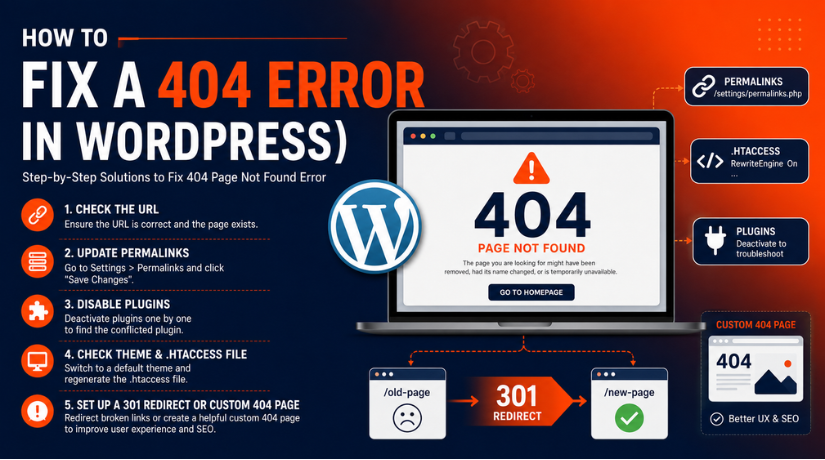
Guide to Fixing 404 Not Found Errors in WordPress
Fixing a WordPress 404 issue should follow a straightforward procedure. Don’t alter many settings at once. This may make it more difficult to identify the actual problem. Before moving on to more complex procedures, start with basic inspections. Permalinks, cache, redirects, broken links, plugins, or page status are the main causes of 404 page not found WordPress problems.
Step 1: Check Where the 404 Error Appears
First, check if the error appears on one page only. Open your homepage, one blog post, and one service page. If you use WooCommerce, also check one product page. If only one URL shows the error, the issue may be page-specific. The page may be deleted, moved, or unpublished. If many inner pages show errors, it may be linked to WordPress permalink issues.
Step 2: Refresh WordPress Permalink Settings
Permalink issues are a common cause of WordPress errors. To fix this, log in to your WordPress dashboard. Go to Settings > Permalinks and click Save Changes. Do not change the structure unless needed. This refreshes WordPress rewrite rules and can fix many errors. After saving, open the broken URL again. If it works, the issue was likely permalink-related.
Step 3: Clear Website and Browser Cache
Cache can keep showing an old 404 error page. This may happen even after the issue is fixed. Open the URL in a private browser window first. Then clear your WordPress cache plugin. Also clear hosting cache if your host provides it. If your site uses Cloudflare or another CDN, purge it too. After clearing cache, test the page again carefully.
Step 4: Check If the Page or Post Exists
A WordPress page not found error can appear when content is missing. Go to Pages or Posts in your dashboard. Search for the page title and check its status. Make sure the page is published, not drafted or trashed. If the page is in trash, restore it. For WooCommerce, check if the product is published. A draft product can also show a 404 error.
Step 5: Review the URL Slug
The slug is the last part of the page URL. If the slug changes, the old URL may stop working. Open the page editor and check the current slug. Make sure it matches the link visitors are using. If the slug was changed, add a redirect. This helps fix WordPress URL not working problems. It also protects users from landing on broken pages.
Step 6: Add a 301 Redirect
A 301 redirect sends users to the correct new page. Use it when a page is moved or renamed. You can add redirects with a trusted WordPress plugin. Many SEO plugins also provide redirect options. Always redirect to the most relevant live page. Do not send every broken URL to the homepage. That can confuse users and search engines.
Step 7: Fix WordPress Broken Links
WordPress broken links can send users to missing pages. Check menus, buttons, footer links, and blog content. Also review image links, sidebar links, and product links. Replace the old URL with the correct live URL. This is better than depending only on redirects. Clean internal links improve user experience and website quality.
Step 8: Check the .htaccess File
The .htaccess file controls rewrite rules on Apache servers. If this file is damaged, inner pages may show 404 errors. Always take a backup before editing this file. You can access it through hosting File Manager or FTP. Resaving permalinks may rebuild this file automatically. If the issue continues, contact your hosting support team. If your site uses Nginx, .htaccess rules will not apply.
Step 9: Test Plugin Conflicts
A WordPress 404 error can occasionally be caused by plugins. This could occur following updates or fresh installations. To test plugins, make a complete backup of your website. Deactivate each newly updated plugin individually. After every plugin update, test the broken URL. Pay attention to WooCommerce, multilingual plugins, security, SEO, and redirection. After turning off one plugin, check the page’s settings if it still functions.
Step 10: Check Google Search Console
Google Search Console can show 404 and soft 404 issues. Open the indexing report and review the listed URLs. Important pages should be restored, redirected, or fixed. Old URLs with no useful replacement can stay as 404. This is normal when the page is truly gone. Search Console helps you find errors that users may miss.
How to Avoid Future 404 Errors in WordPress Websites
Fixing a WordPress 404 error is important, but prevention is better. A few simple checks can protect your website from future issues. These steps also help improve user experience and SEO health. When visitors click a link, they expect the right page. If they land on a broken page, they may leave quickly. This is why you should manage URLs with care.
Create Redirects Before Changing Any WordPress URL
Before changing any page, post, product, or category URL, create a redirect plan. This helps users reach the new page without trouble. A 301 redirect is useful when content moves permanently. It can also help search engines understand the new page location. This step can prevent many WordPress URLs not working.
Do Not Delete Important Pages Without Checking Their Value
Do not delete important pages without a proper review. Some pages may have traffic, rankings, or backlinks. If you remove them, visitors may see a 404 page not found WordPress error. Instead, update the page if it is still useful. If the page is no longer needed, redirect it to a relevant page.
Keep Internal Links Updated After Website Changes
WordPress broken links often appear after content updates. Check menus, footer links, buttons, and blog links after changes. Also review product links and image links. If a link points to an old URL, update it quickly. Clean internal links help users move through your website easily.
Monitor Google Search Console for 404 Issues
Google Search Console can show a WordPress page not found error reports. Check these reports often to find broken URLs. Review each URL before taking action. Important pages should be fixed, restored, or redirected. Old pages with no replacement can remain as proper 404 pages.
Keep Permalinks, Sitemap, and Slugs Clean
WordPress permalink issues can create many 404 errors. Avoid changing permalink settings without a clear reason. Keep your XML sitemap clean and updated. It should not include deleted or draft pages. Also avoid using the same slug for pages, products, and categories. This reduces conflicts and keeps URLs clear.
Conclusion
A WordPress 404 error can happen for many reasons. It may come from broken permalinks, deleted pages, wrong URLs, missing redirects, cache issues, or plugin conflicts. The best way to fix it is to check the issue step by step. Start by refreshing permalinks, clearing cache, and checking page status. Then review redirects, internal links, plugins, themes, and Google Search Console reports.
Some old pages can safely show a proper 404 status. However, important pages should be restored, redirected, or fixed quickly. This helps users find the right content and keeps your website easier to crawl.
For more WordPress support information, you can visit WPChatSupport. You can also contact their support team at +1 888 602 0119 for help with WordPress 404 errors and related website issues.
James is an experienced WordPress and WooCommerce specialist with over 10 years of practical experience. At WPChatSupport, he creates clear guides that help website owners fix WordPress issues, improve speed, secure their sites, and manage WooCommerce stores with confidence. His expertise includes store setup, plugin configuration, theme customization, payment gateway integration, and website troubleshooting. Through simple and helpful content, James supports users in solving technical problems and following best practices for online business growth.