Introduction
You type a word into your site search box. You press enter. Nothing useful comes back. Maybe you see a blank page, a 404 message, or a list that skips posts you know exist. Visitors who cannot find what they want often leave. On a store or a help site, that means lost sales and lost trust.
WordPress search is simple by design. A form sends a word to your site. WordPress looks for that word and builds a results page from a theme template. Any link in that chain can break. The form can vanish, the results address can fail, a plugin can change the query, or the content can be hidden from search on purpose.
Problems often appear right after an update, a design change, a new plugin, or a caching tweak. This guide helps you work out which link is broken. You will learn the signs, the real causes, and eight fixes in a safe order. You will also learn how to keep search healthy. You do not need to be a developer to follow it.
Signs That Show WordPress Search Is Not Working
The first sign is a search box that is missing. Your theme may have dropped it after an update. You may also have removed a widget by mistake. If visitors cannot see the box, they cannot search at all.
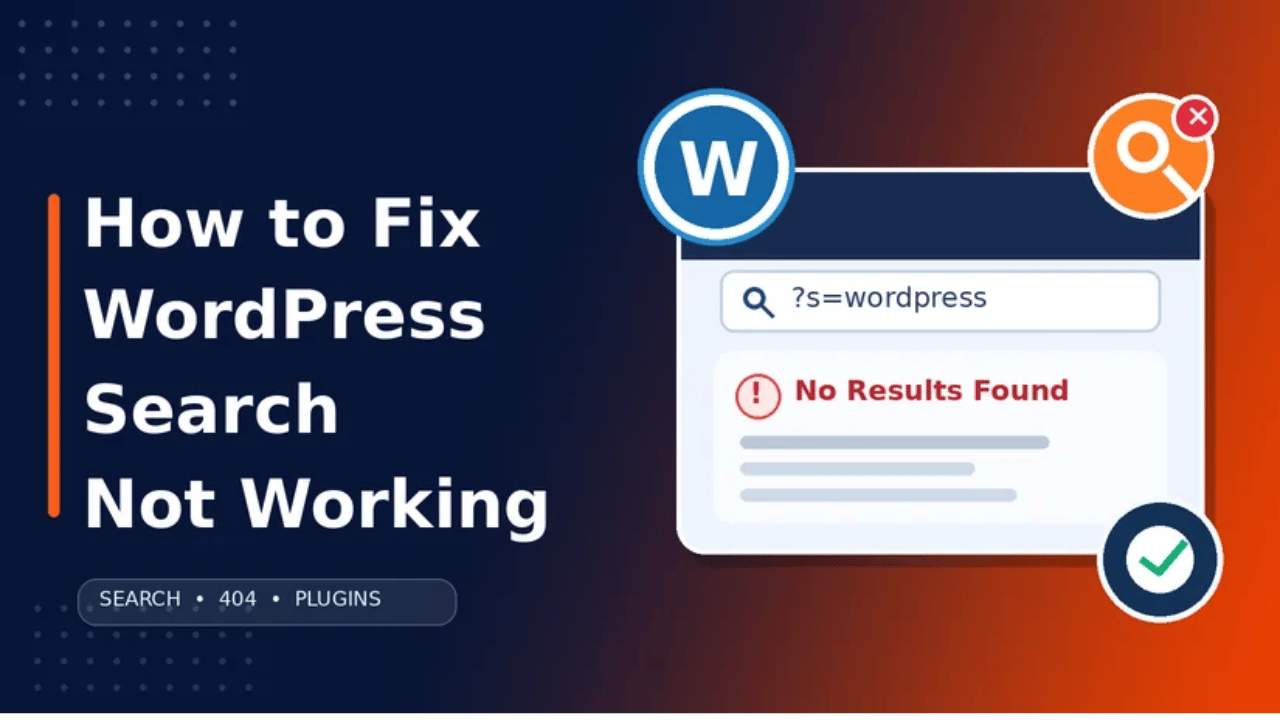
The second sign is a results page that returns a 404 error. The address in your browser may look right, such as your domain followed by a question mark, the letter s, and your word. Yet the page says not found. This points to a routing problem, not a content problem.
The third sign is a results page that loads but says nothing was found. You search for a post title you can see on the blog. WordPress still says there are no results. This is a strong hint that the query is being changed, or that the content type is hidden from search.
The fourth sign is odd or outdated results. You publish a new post, but it does not appear. Or every search shows the same list of posts. That often means a cache is serving an old copy of the page.
The fifth sign is a blank white page or a very slow response. Large sites feel this most. Check one more thing before you start. Search while logged out, and search while logged in. Private posts show only to logged-in users. A difference between the two views tells you something real.
Reasons Why WordPress Search Is Not Working
Each cause below has a matching fix in the next section. Read them first. Then you can pick the right step instead of guessing.
The search form is missing or points to the wrong place. WordPress search starts when a form sends your word to the site as the “s” value in the address. If the form is gone, nothing starts. If a page builder or a custom form sends the word somewhere else, WordPress never runs a search.
Permalink rules are broken. WordPress keeps a list of rewrite rules. These rules tell the server how to turn a friendly address into a real request. If the list is out of date, the results page can return a 404. This often follows a migration, a plugin change, or a manual edit to the rewrite file.
A cache is serving an old page. Cache tools save a finished copy of a page so it loads fast. A search results page changes with every word. If the cache saves one copy and shows it to everyone, visitors see stale or wrong results.
A plugin is changing the search query. Many plugins hook into the search. Membership tools, filter tools, and shop add-ons may limit or rewrite what WordPress looks for. A bug or a clash between two plugins can make the results empty.
The theme template is broken or overrides the search. WordPress uses a search results template from your theme. If that file is missing, WordPress falls back to a general template. If the file runs its own custom query, it can ignore the word the visitor typed.
The content type is hidden from search. Custom post types, such as products or events, can be set to stay out of search. Posts with a draft, pending, or private status do not show to the public. In both cases the content exists but search skips it.
The built-in search is too basic for your site. The default search mainly checks post titles and body text. It does not rank well, and it may not look in custom fields. On large sites it can also be slow. Visitors then feel that search “does not work”, even though it runs as designed.
Your server hits its limits. A search on a large site asks the database to scan a lot of text. If the host caps run time or memory, the request can time out. Visitors then see an error or a blank page only on search, while other pages load well.
How to Fix WordPress Search Not Working (Step by Step)
Work through these steps in order. The early steps are quick and safe. The later steps go deeper. Test your search after every step. Use a private browser window so you see what a visitor sees.
Step 1: Check That the Search Form Exists and Sends the Right Request
This step fixes a missing or misdirected search form. Without a working form, WordPress never gets a word to look for. To confirm this is your cause, open your site in a private window and look for the search box. Then type a word you know exists in a post title and press enter. Look at the address bar. A healthy search ends with your domain, a question mark, the letter s, an equals sign, and your word. If the address looks different, the form is not the standard one.
To fix a missing box, open your WordPress dashboard and go to Appearance, then Widgets, or open the Site Editor if you use a block theme. Add the Search block to the header, sidebar, or footer. Save the change. If you use a page builder form, replace it with the Search block as a test. Reload the site and run the same search. If the address now looks right and results appear, you are done. If the box shows but results are still wrong, go on to the next step.
Step 2: Refresh the Permalink Rules
This step fixes a results page that returns a 404. Broken rewrite rules are the cause. WordPress builds these rules from your permalink settings. To confirm, open the search address by hand. Type your domain, then a question mark, then s equals a common word. If other pages open but this one gives a 404, the rules are the likely cause. A healthy page loads a results template, even if it shows no results.
Go to Settings, then Permalinks. Do not change anything. Scroll down and click Save Changes. This makes WordPress rebuild its rules. Now reload your search address. If the 404 is gone, you fixed it. If you want a deeper guide, read our article on how to set up and fix permalinks in WordPress. If the 404 stays, your server may not be reading the rewrite rules at all. Ask your host to check that rewrite support is on.
Step 3: Clear Every Cache
This step fixes stale or identical results. A cache can save one results page and serve it to everyone. To confirm, search for two very different words in a private window. If the results look the same, or if a post you just published never appears, a cache is likely involved. Also try adding a random word to the address after the s value. Fresh results on a new word, but old results on the old word, point to a cache.
Clear your caching plugin first. Most plugins have a purge or clear all button in their settings. Then clear any cache your host provides. Many hosts add a cache button in their control panel. If you use a CDN, purge it too. Finally, clear your own browser cache. Search again. If results are now fresh, set your caching plugin to skip pages that contain a question mark in the address. Many cache tools have a setting for query strings or excluded pages. If the symptom stays, move on.
Step 4: Test for a Plugin Conflict
This step fixes a plugin that rewrites or blocks the search query. Plugins that filter content, restrict access, or add custom search are the usual suspects. To confirm, note which plugins touch search, such as membership, filter, language, or shop add-ons. If search broke soon after you added or updated one, that plugin is a strong suspect.
Take a full backup first. If you have a staging site, test there. Then go to Plugins, select all, and choose Deactivate from the bulk actions menu. Test your search. If it works now, turn plugins back on one at a time. Test after each one. The plugin that breaks search again is the cause. Update it, check its settings, or look for a replacement. Our guide on how to find and fix a WordPress plugin conflict explains the process in more detail. If search still fails with all plugins off, your plugins are not the cause.
Step 5: Check the Theme Search Template
This step fixes a theme that breaks or overrides the search. WordPress looks for a file named search.php in your theme. If it is missing, WordPress falls back to index.php. Some themes add their own query inside the search file. That query can ignore the visitor’s word. To confirm, switch to a default WordPress theme and search again. If search works there, your theme is the cause.
Take a full backup before you touch any theme file. Better, test on a staging site. Go to Appearance, then Themes, and activate a default theme. Search again. If it works, go back to your theme. If you use a child theme, check whether it has its own search file. Open that file in a code editor, not the live editor. Look for lines that start a new query, such as new WP_Query or query_posts. Those lines can override the real search. Ask the theme author for an update, or ask a developer to remove the override. If search fails even in the default theme, the theme is not the cause.
Step 6: Make Sure Your Content Type Is Included in Search
This step fixes content that exists but never shows. Custom post types have a setting called exclude_from_search. According to the WordPress developer reference, it defaults to the opposite of the public setting. A type that is not public is left out of search by default. To confirm, search for a title of a product, event, or other custom item. If normal posts appear but the custom items never do, the type is probably excluded.
Also check post status. Drafts, pending posts, and private posts do not appear for public visitors. Open the item in your dashboard and look at its status. Published is what you want. For custom types, check the plugin or theme that registers them. Many plugins have a setting to include items in search. If not, a developer can set the type to appear in search. Make a backup before any code change. After the change, run your search again and look for the items.
Step 7: Upgrade to a Better Search Tool
This step fixes search that works, but poorly. The default tool mainly checks titles and body text. It may miss custom fields. Its ranking is basic. On large sites, it can also be slow. To confirm, search for a word that you know sits only in a custom field or a product code. If nothing returns, the default search cannot see that data. Slow searches on a big site are another sign.
Install a trusted search plugin from the WordPress plugin directory. Read its page and check that it was updated recently and works with your WordPress version. Choose which content types and fields it should search. Many tools build their own index, which speeds up results. Test with several words. Check the results for products, posts, and pages. Then watch your site speed. A good tool should find more items and respond faster. Keep it updated like any other plugin.
Step 8: Ask Your Host About Server Limits
This step is for searches that time out or show a server error on large sites. A heavy search can hit the limits your host sets for time or memory. To confirm, check whether the error appears only on search while other pages load well. Your host’s error log may show a timeout or memory message. Our guide on the WordPress memory exhausted error explains how to read these signs.
Contact your host and share the time of a failed search. Ask them to check the logs. They may raise limits or find a slow database query. Take a database backup before any cleanup. If you want expert help, our team can look at it for you, as we do for many common WordPress problems. After the host makes a change, test again with a few words. If search is fast and correct, you are done.
Best Practices to Prevent WordPress Search Problems in Future
Most search failures come from changes. So manage changes with care. Use a staging site to test updates before they go live. Test your search after every theme, plugin, or WordPress update. A short test takes under a minute. Search for one post title and one custom item.
Keep backups current. A fresh backup lets you undo a bad change fast. Pair that with a plugin list you review often. Remove plugins you no longer use. Fewer plugins means fewer conflicts that can rewrite your query.
Set up your cache with care. Exclude search result pages from page caching. This prevents one visitor’s results from showing to another. Flush permalinks after any migration or large change. Check that your host keeps PHP and server software current.
Plan for growth. If your site gains many products or posts, move to a search tool with its own index early. Review your custom post types after each new feature. Confirm they are set to appear in search where they should. Finally, add a monthly check to your routine. Read your error logs, test search, and clear old data.
Conclusion
When WordPress search fails, you see a missing box, a 404 page, empty results, stale results, or slow loading. Each sign points to a cause. The form may be missing. Permalink rules may be broken. A cache may be stale. A plugin or theme may be changing the query. A content type may be hidden. The default search may simply be too basic. Your server may also be hitting its limits.
The fix process follows the same order. Check the form. Refresh permalinks. Clear caches. Test plugins. Test the theme. Check content types. Upgrade the search tool. Then ask your host. Test after every step so you know what worked. Always back up before you edit anything risky.
To keep search healthy, test after updates, use staging, keep backups, exclude search pages from the cache, and review your content types. If you get stuck, you can also read our guide on fixing a WordPress RSS feed that is not working, which uses a similar step-by-step method. For official details on search settings and post types, see the WordPress developer reference.

James is an experienced WordPress and WooCommerce specialist with over 10 years of practical experience. At WPChatSupport, he creates clear guides that help website owners fix WordPress issues, improve speed, secure their sites, and manage WooCommerce stores with confidence. His expertise includes store setup, plugin configuration, theme customization, payment gateway integration, and website troubleshooting. Through simple and helpful content, James supports users in solving technical problems and following best practices for online business growth.