It is a fair question, and a common one. You need help with your WordPress website, but you are not comfortable handing over the keys. Or you cannot log in at all, so you have no keys to hand over.
The short answer is yes, up to a point. A skilled expert can do a surprising amount from the outside. But some repairs are impossible without access, and pretending otherwise only wastes everyone’s time.
This guide explains what WordPress support can and cannot do at each access level. It also covers safer alternatives to sharing your password, how to grant access without losing control, and what to do when you are locked out completely.
The Short Answer
Support can usually diagnose without access. Support usually cannot repair without access.
Think of a mechanic on the phone. They can listen to the noise you describe, ask what changed, and name the likely cause. They cannot tighten the bolt from their desk.
WordPress works the same way. Almost every real fix means editing a setting, a file, or a database record. All three sit behind a login.
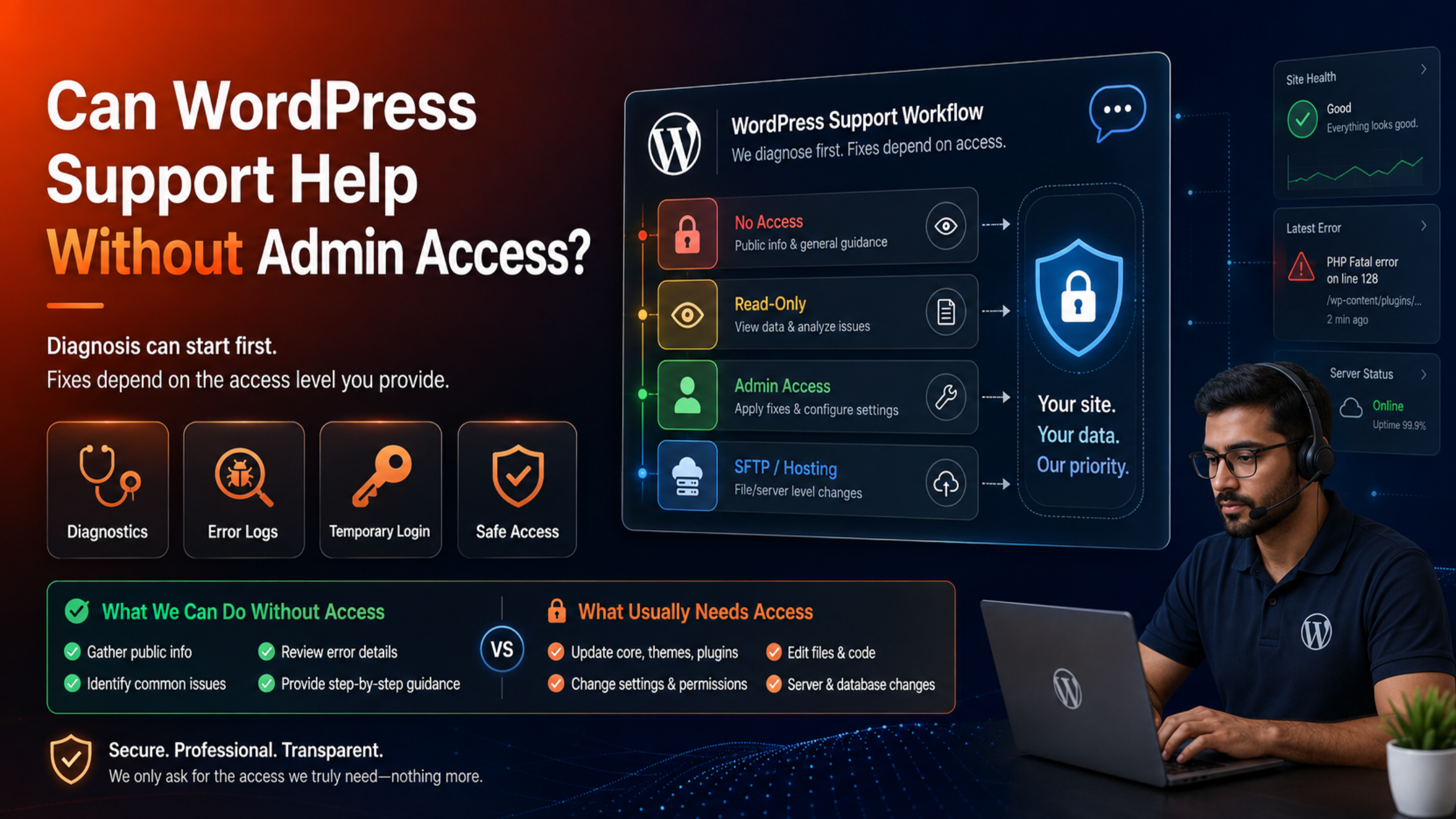
What Support Can Do Without Admin Access
More than most people expect. Here is the honest list.
Run External Diagnostics
Your website is public, so a lot of evidence is public too. From the outside, an expert can check:
- The HTTP status code your server returns, such as 200, 403, 500, or 503.
- Page load times and which files are slow, using the browser developer tools.
- JavaScript errors in the browser console.
- Whether your SSL certificate is valid and correctly installed.
- DNS records, nameservers, and where your domain actually points.
- Whether the site is blocklisted by a security vendor.
- Which theme and which public plugins the site loads, from the page source.
That is often enough to separate a server problem from a WordPress problem. It is also enough to rule out whole categories of causes.
Read the Evidence You Provide
You can hand over information without handing over control. Error messages, screenshots, the Site Health report, and the PHP error log all travel by email or chat.
An expert reading a fatal error from your debug.log can name the failing plugin and the line number. They still need access to change it, but the diagnosis is done.
If you are not sure how to package this information, our guide on how to describe a WordPress problem to a support expert gives you a checklist and a template.
Guide You Through the Fix
Sometimes the best outcome is that you do the work with an expert talking you through it. Over live chat or a screen share, a support agent can direct each click while you keep sole control of the login.
This suits sensitive sites, regulated industries, and anyone whose internal policy forbids third-party admin accounts. It is slower than letting the expert work directly, but it is safe and it works.
Advise on Strategy and Prevention
Plan reviews, security audits based on your own reports, backup strategy, hosting recommendations, and update policy all happen in conversation. None of that requires a login.
What Support Cannot Do Without Access
Be realistic about the limits. Without a way into the site, an expert cannot:
- Deactivate a plugin that is crashing your site.
- Roll back a bad theme or plugin update.
- Edit
wp-config.php,.htaccess, or a template file. - Increase the PHP memory limit or the maximum execution time.
- Repair or optimise a database table.
- Remove malware from your files.
- Restore a backup.
- Regenerate thumbnails, flush permalinks, or clear a server-side cache.
- Reproduce anything that only happens for logged-in users.
This is why an emergency ticket without access tends to stall. If your site is down and every minute counts, arranging access early is the fastest move you can make. Our emergency WordPress support guide walks through the order to do things in.
The Access Levels, and What Each One Unlocks
Access is not one switch. It is a ladder, and you can stop at any rung.
Level 1: No Access
The expert works from your description and public data only. Good for triage, advice, and second opinions. No repairs possible.
Level 2: Read-Only Information
You share the Site Health export, screenshots, and error logs. The expert can now name the likely cause with real confidence. Still no repairs.
Level 3: A WordPress Admin Account
This covers the large majority of everyday work: plugin and theme conflicts, settings, content, updates, and most error messages. It does not cover anything that needs file or server access when the dashboard itself is unreachable.
Level 4: SFTP or a Hosting File Manager
File access is what saves a site that will not load at all. With it, an expert can rename a broken plugin folder, restore a good .htaccess file, or edit wp-config.php. It is the level that fixes the white screen of death.
Level 5: The Hosting Control Panel
This adds the database, PHP version settings, server-side caching, staging tools, and host backups. Reserve it for migrations, malware cleanups, and serious database work.
Grant the lowest level that solves the problem. A good provider will tell you which rung they actually need and why. If they cannot explain that clearly, treat it as a warning sign, and read our guide on how to choose a reliable WordPress support company.
Safer Alternatives to Sharing Your Password
Never give anyone your personal login. There are better options, and all of them are easy.
Create a Separate Administrator Account
Go to Users → Add New, create an account with the expert’s email address, and set the role to Administrator. WordPress can email them a password-set link, so you never see or send a password at all.
The benefits are real. Your own password stays private. Every action is attributed to that account in your logs. When the job is done, you delete one user instead of changing your own credentials.
Use a Temporary Login Plugin
Plugins such as Temporary Login Without Password generate a private URL that logs the holder in as a chosen role, then expire automatically on a date you set.
Nobody needs a username or a password. You can revoke the link at any moment. It is the cleanest option for short jobs and one-off fixes.
Consider a Lower Role First
WordPress ships with Administrator, Editor, Author, Contributor, and Subscriber roles and capabilities, each with its own permissions. Content work rarely needs Administrator. If someone is fixing a layout inside a page builder, an Editor account may be enough.
Work on a Staging Copy
Most quality hosts offer one-click staging. Give the expert admin access to the staging site instead of production. They diagnose and build the fix there, you review it, and only then does anyone touch the live site.
Staging suits risky work: major version updates, theme changes, and custom development. It does not suit emergencies, because the outage is on the live site.
Share Your Screen Instead
You stay logged in and in control. The expert watches, points, and explains. You click. This is the strictest option and the slowest, but for a highly sensitive site it is often the only one that passes review.
How to Grant Access Safely: A Seven-Step Routine
- Take a full backup first. Store a copy off-site, not only on the server. Our UpdraftPlus backup walkthrough shows a reliable setup.
- Confirm who you are dealing with. Use the contact details on the company’s own website, not a link from an unexpected email.
- Agree the scope in writing. Note what will be changed, what will not be touched, and roughly how long it should take.
- Create a dedicated account or a temporary login. Never share your own credentials.
- Send credentials through a safe channel. Use the provider’s own ticket system or a one-time secret link, not plain email or a public forum.
- Ask for a change log. A short written note of what was edited helps you and any future developer.
- Set an end date. Decide up front when the access expires.
What to Do After the Work Is Finished
Closing the door matters as much as opening it.
- Delete the temporary user account, or let the temporary login expire.
- Review Users → All Users and remove anything you do not recognise.
- Change your own password if credentials were ever exchanged.
- Turn
WP_DEBUGback off if it was switched on for troubleshooting. - Rotate SFTP and database passwords if those were shared.
- Take a fresh backup of the working site.
- Check the front end and the checkout on a phone as well as a desktop.
When You Are Locked Out Completely
Sometimes the question is not whether you want to share access. You simply cannot get in.
Start with the password reset link on your login screen. If the reset email never arrives, your site may not be sending mail, which is a separate fault worth reporting.
If that fails, your hosting control panel is the next door. Most hosts include a file manager, database access, and often a one-click WordPress login. From there an expert can create a new administrator account for you.
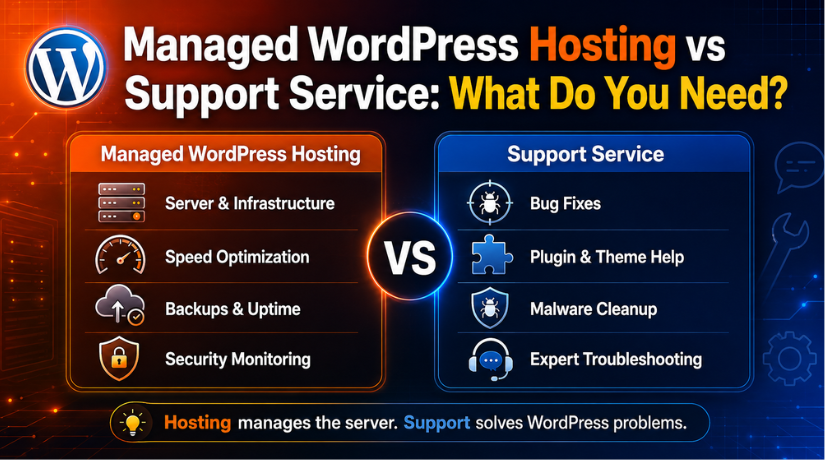
Your host can also confirm server-level problems, though their remit stops at the server. Our article on why hosting support cannot fix every WordPress problem explains exactly where that line falls.
Red Flags to Watch For
Most providers are honest. A few are not. Be cautious if someone:
- Contacts you first, unprompted, claiming your site is infected.
- Asks for your password rather than suggesting a dedicated account.
- Refuses to explain why they need a particular access level.
- Pushes you to skip the backup because the job is urgent.
- Wants payment before any diagnosis at all.
- Will not give a company address or a verifiable phone number.
Frequently Asked Questions
Can WordPress support fix a white screen without any access?
No. A white screen usually means a PHP fatal error, and the fix means renaming a plugin folder or editing a file. That needs SFTP or a hosting file manager at minimum.
Is it safe to give a support company admin access?
It is reasonably safe with an established provider, provided you create a separate account, take a backup first, and remove the account afterwards. The risk comes from sharing your own password and never revoking access.
What is the least access an expert usually needs?
For most everyday issues, one WordPress administrator account is enough. File access becomes necessary only when the dashboard itself will not load.
Can I give access for a limited time only?
Yes. A temporary login plugin expires automatically on a schedule you choose. Deleting a dedicated user account achieves the same result manually.
Will support work on my staging site instead?
Usually, yes, and many experts prefer it for non-urgent work. Just remember that the fix still has to be applied to the live site afterwards.
What can support actually fix once they are in?
A very wide range of issues. Our overview of what WordPress support can fix lists the most common ones.
Final Thoughts
WordPress support can help without admin access, but the help is limited to diagnosis, guidance, and advice. The moment a real repair is needed, someone has to be able to change something.
The good news is that access does not have to mean risk. Create a dedicated account or a temporary login, grant the lowest level that solves the problem, back up first, and close the door when the work is done. That routine protects your site without slowing the fix.
If you would like to talk through what a specific problem needs before you share anything, our team is available on instant WordPress live chat support.

James is an experienced WordPress and WooCommerce specialist with over 10 years of practical experience. At WPChatSupport, he creates clear guides that help website owners fix WordPress issues, improve speed, secure their sites, and manage WooCommerce stores with confidence. His expertise includes store setup, plugin configuration, theme customization, payment gateway integration, and website troubleshooting. Through simple and helpful content, James supports users in solving technical problems and following best practices for online business growth.