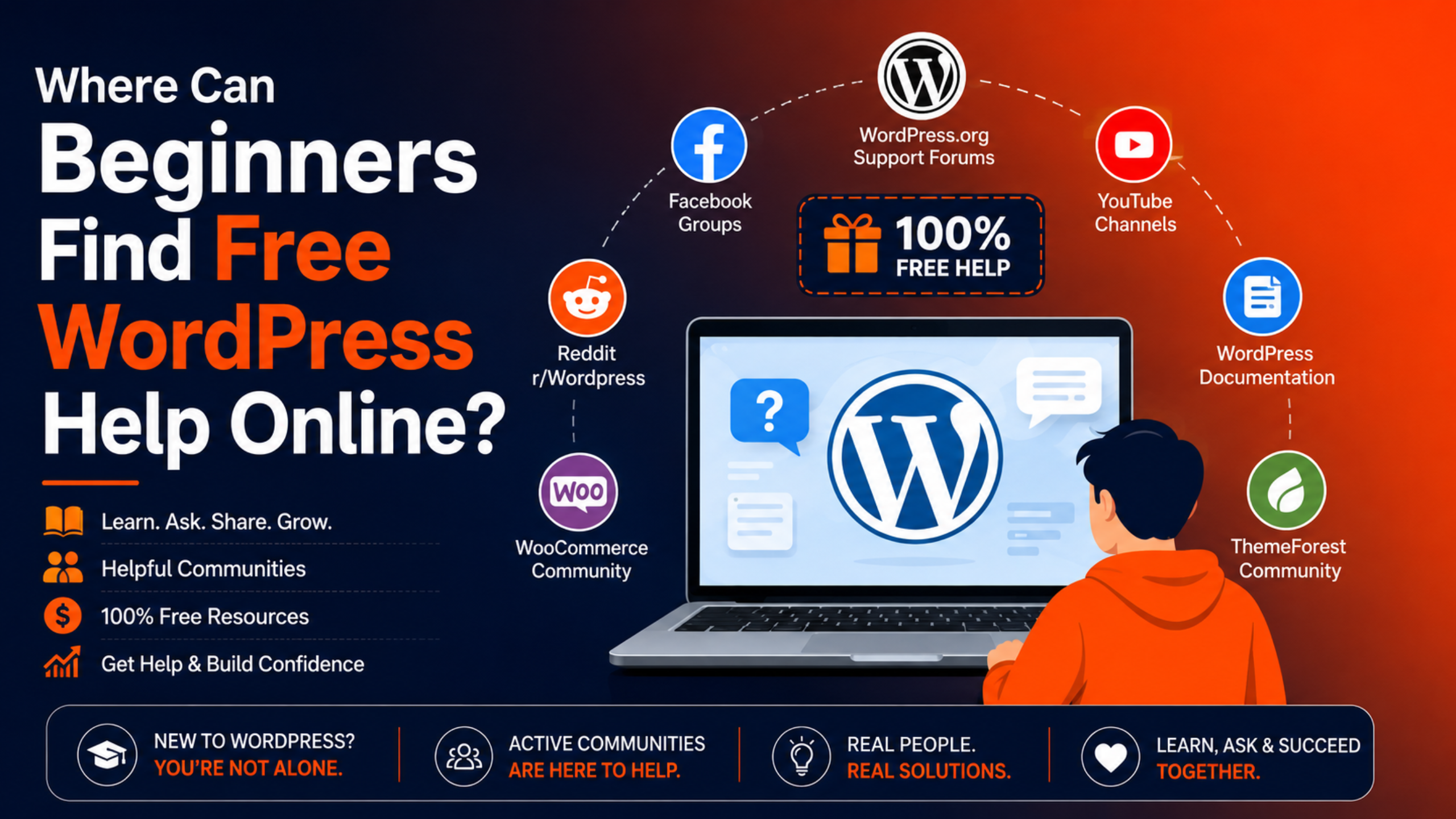
You just started with WordPress. Something broke, or something confuses you. Hiring a developer is not in the budget right now. So you type your problem into Google and hope for a clear answer. Good news: a lot of free WordPress help exists online. Some of it is official. Much of it comes from volunteers who hit the same wall last year and wrote up what worked. The tricky part is knowing which door to knock on first. This guide lists nine trusted places where beginners can find free WordPress help online. You will learn what each one does well, what it does not cover, and how to get a faster answer once you are there.
Why free WordPress help works well for beginners
WordPress runs an enormous number of sites. That scale pays you back in one specific way. Almost every beginner problem has already been asked, answered, and written up somewhere. Free help is strongest when your issue is common. Think broken menus, plugin settings, image sizes, or a setting you cannot find. Volunteers and official docs handle those questions every day. Free help is weakest when your problem is urgent, custom, or tied to your specific server. Nobody promises you a reply time. Nobody logs into your site for you. Hold that thought while you work through the list. If you want the wider view, our guide on nine reliable ways to get WordPress support compares free and paid routes side by side.
9 places beginners can find free WordPress help online
1. The WordPress.org support forums
The WordPress.org support forums are the official home for self-hosted WordPress questions. Volunteers answer there. So do plugin authors and long-time community members. Use the forums for core WordPress problems, editor issues, and general “how do I” questions. Search first. Your question may already have an answer with screenshots attached. One caveat: the forums run on goodwill. Replies can arrive in an hour or in three days. We explain how this works in our post on whether WordPress.org offers customer support.
2. Learn WordPress
Learn WordPress is the official training site. It holds free lessons, short tutorials, and recorded workshops. Contributors build the material, and it stays free. Start here when the real issue is that nobody ever showed you how a feature works. Learning how blocks, menus, and media work will prevent dozens of future questions.
3. The official WordPress documentation
WordPress keeps a full documentation library at wordpress.org/documentation. It covers installation, settings, the block editor, user roles, and troubleshooting steps. The docs are precise and current. The wording avoids jargon, so a first-time site owner can follow along. When a forum reply tells you to “check the Site Health screen,” the docs explain what that screen shows.
4. WordPress.com support guides
If your site sits on WordPress.com, its help centre is your first stop. The guides use plenty of screenshots and cover billing, domains, themes, and plugins. Free-plan users get guides and community forums. Paid plans unlock direct contact. We walk through the options in our guide to contacting the WordPress.com support team.
5. Plugin and theme support forums
Each free plugin and theme listed on WordPress.org carries a dedicated Support tab of its own. That tab is the right place for questions about that product. Say your contact form stops sending email. Post on the form plugin’s support tab, not the general forums. The developer reads that tab. General volunteers usually do not know the plugin’s internals. Premium plugins and themes work differently. They handle support through their own ticket system, and that support is included in the price you already paid. Check your purchase receipt for the login.
6. WordPress Meetups and WordCamps
WordPress runs local meetups in hundreds of cities. Many are free and now run online too. WordCamps are larger community events with low ticket prices. These events give you something the internet cannot: a person who will look at your screen and explain the fix out loud. Many meetups run open “help desk” sessions for beginners.
7. Reddit and Facebook communities
Community groups on Reddit and Facebook move fast. Post a clear question with a screenshot and you often get a reply within the hour. Treat the advice with care. Anyone can answer, and quality varies. Never paste your admin login or database details into a public group. If someone offers to “just log in and fix it,” decline politely.
8. YouTube tutorials
Video helps when you need to see where a setting lives. Search the exact plugin name plus your task, and check the upload date. WordPress changes fast, so a five-year-old video may show an interface that no longer exists. Prefer channels that show the whole process, including the settings screen. Skip videos that push you toward a paid tool in the first minute.
9. Your web host’s knowledge base
Your hosting company almost certainly has a help library. It covers SSL certificates, PHP versions, email routing, DNS, staging sites, and server errors. This is the right source for anything below WordPress itself. If the site returns a 500 error or an SSL warning, start with your host. Many hosts also include free chat support in your plan.
How to choose the right place for your question
Matching the question to the venue is the single biggest time saver. Use this quick rule:
- Is it a plugin or theme issue? Go to that product’s support tab.
- Is it a server, domain, or email issue? Contact your host.
- Is it a WordPress.com billing or plan issue? Use the WordPress.com help centre.
- Is it general WordPress behaviour? Use the WordPress.org forums.
- Do you simply not know how a feature works? Use Learn WordPress or the documentation.
Post in the wrong place and you may wait days for someone to redirect you.
Run these three checks before you ask anyone
Many beginner problems solve themselves in ten minutes. Try these checks first. They also give you useful details to share if you do need to post.
Check 1: Update everything
Open your dashboard and look at Updates. Run pending updates for WordPress core, plugins, and your theme. Outdated software causes a surprising share of odd behaviour, because a plugin written for an older release can clash with a newer one.
Check 2: Test for a plugin conflict
Switch off one plugin, reload the page, and watch for a change. Repeat down the list. The moment the fault clears, the plugin you just disabled is your suspect. Do this on a staging copy if your host offers one, so visitors never see the site misbehave.
Check 3: Read the Site Health screen
Go to Tools, then Site Health. WordPress flags outdated PHP versions, missing modules, and failed background tasks there. Its Info tab gathers every version number and server setting into a single screen. That is precisely the block of text helpers keep requesting. If a check reveals the cause, you are done. If not, you now have real information instead of “it stopped working.”
How to get better answers from free help
Volunteers are spending their own evening on you. Repay that by removing every obstacle. A few habits make a big difference:
- Write a specific title. “Contact form sends no email after 6.9 update” beats “Help please.”
- Say what you already tried. It stops people repeating advice you have tested.
- Copy the exact error text. Do not paraphrase it.
- Name your WordPress version, theme, and the plugin involved.
- Add one screenshot that shows the problem.
- Reply when someone answers, and say what worked.
Our step-by-step walkthrough on how to ask for help in the WordPress support forum includes a copy-and-paste template you can reuse.
Back up your site before you try any fix
This step is not optional. Free advice comes from strangers who cannot see your site. Some suggestions involve editing files, deactivating plugins, or changing database values. Take a full backup first. Store it somewhere outside your hosting account, such as cloud storage. Our tutorial on backing up WordPress with UpdraftPlus shows the whole process with a free plugin. With a backup ready, a bad suggestion costs you ten minutes instead of your website.
What free WordPress help cannot do
Free help has honest limits. Knowing them saves you frustration.
- No response time. Volunteers answer when they can. There is no deadline.
- No hands-on fixing. Nobody logs in and does the work for you.
- No accountability. If advice breaks your site, that is your problem to unwind.
- Little help with custom code. Bespoke themes and custom functions are usually out of scope.
- No security clean-up. Hacked sites need proper investigation, not forum guesses.
If your site earns money, downtime costs more than help does. Our comparison of free WordPress support vs paid support breaks down where each option makes sense. For urgent problems, live chat support puts a specialist on the issue straight away.
Frequently asked questions
Is free WordPress help safe to follow?
Usually, yes, especially from official sources. Still, take a backup before you apply any fix. Never share admin passwords, hosting logins, or database credentials in a public thread.
How long does the WordPress.org forum take to reply?
There is no guarantee. Simple questions often get an answer the same day. Unusual ones can sit for days. A clear, detailed post improves your odds a lot.
Do I need to pay for WordPress itself?
No. The software itself is open source and costs nothing to download. Your spending goes on hosting, a domain name, and any premium theme or plugin you decide to buy.
When should a beginner stop using free help?
Switch to professional help when the site is down, when customers cannot buy, when you suspect a hack, or when you have spent hours without progress. Those situations need a guaranteed response.
Can I use several free sources at once?
Yes, but post the same question in one place at a time. Duplicate posts across forums annoy volunteers and slow everyone down.
Conclusion
Beginners have plenty of free WordPress help available online. The official forums, Learn WordPress, the documentation, plugin support tabs, meetups, communities, video tutorials, and your host’s knowledge base all cost nothing. Send each question to the right place, write it clearly, and back up before you change anything. Do that and free help will solve most everyday problems. When the stakes rise, and the site is offline or losing sales, a guaranteed response is worth paying for. Until then, the free WordPress community is one of the most generous on the web. Use it well.

James is an experienced WordPress and WooCommerce specialist with over 10 years of practical experience. At WPChatSupport, he creates clear guides that help website owners fix WordPress issues, improve speed, secure their sites, and manage WooCommerce stores with confidence. His expertise includes store setup, plugin configuration, theme customization, payment gateway integration, and website troubleshooting. Through simple and helpful content, James supports users in solving technical problems and following best practices for online business growth.