Introduction
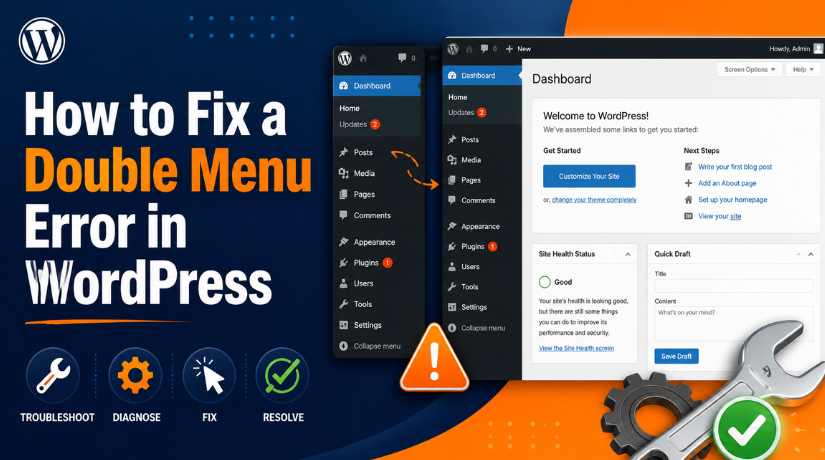
A double menu in WordPress can make your website look broken. It usually means the same menu is showing two times. Many users notice this issue in the header area first. Sometimes, the menu also appears twice on mobile screens. In other cases, it may show again after scrolling down the page.
This issue can confuse visitors when they browse your website. A clean menu helps users find pages without extra effort. But when the WordPress menu appears twice, the layout feels crowded. It may also make your site look less trusted and less professional.
A WordPress duplicate menu can happen for many simple reasons. It may start after a theme update, plugin change, or header edit. It may also happen after using Elementor or another page builder. Sometimes, the cache keeps showing an old menu layout.
This guide will help you understand the issue first. Then, the next parts will show how to fix double menu in WordPress step by step. You will also learn why the WordPress menu is not displaying correctly and how to avoid this problem later.
What Is a Double Menu Error in WordPress and How It Looks
A double menu error in WordPress is mostly a display issue. It does not always mean your website is fully broken. It usually means WordPress is loading the same navigation from two places. Because of this, the menu appears twice on the front end.
For example, your theme may show the main header menu. At the same time, a page builder may also show another menu. This creates a WordPress navigation menu issue on the live website. Users may see two sets of the same page links. These links can appear one above another or side by side.
In many cases, users search for this issue as WordPress menu showing twice. Some may also say the WordPress menu appears twice after an update. Both problems often point to the same root cause. The menu is being called more than once.
This issue can look different on each website. On some sites, the same menu appears twice in the header. On mobile, two hamburger icons may appear together. Sometimes, the desktop menu and mobile menu both show at once. A sticky header can also create a second menu while scrolling.
Elementor users may see another common version of this issue. The Elementor header may load with the theme header. This creates two headers and two menus on the same page. In block themes, an extra Navigation block can create the same problem.
Common Reasons Why a Double Menu Error Happens in WordPress
Same Menu Assigned to Multiple Theme Locations
This is one of the most common causes. Many WordPress themes have different menu locations. These may include primary menu, header menu, top menu, mobile menu, and footer menu. If the same menu is assigned to two visible areas, your WordPress menu appears twice on the website.
Extra Navigation Block Added in a Block Theme
Newer WordPress block themes use the Site Editor. The header often includes a Navigation block. If your header has two Navigation blocks, both may show on the front end. This can create a WordPress duplicate menu and make the layout look confusing.
Elementor or Header Builder Showing Another Menu
Page builders can also cause this issue. Elementor, Divi, and other builders can create custom headers. If the custom header appears with the theme header, both menus may show together. This is a common WordPress navigation menu issue after redesign work.
Sticky Header Settings Creating a Second Menu
Some themes use sticky headers. A sticky header stays visible when users scroll. If the sticky menu does not replace the main menu, both menus may appear together. This can make the header look heavy and hard to use.
Mobile Menu Settings Loading Twice
Many themes have separate desktop and mobile menus. Some websites also use mobile menu plugins. If both mobile menus load together, users may see two hamburger icons. This is a common reason for the WordPress menu showing twice on phones.
Mega Menu or Menu Plugin Conflict
Menu plugins can change how navigation appears. Mega menu plugins, mobile menu plugins, and header plugins may add another menu area. If the theme also shows its own menu, the result can be a WordPress duplicate menu.
Cache or Minification Showing an Old Menu Layout
Sometimes, the issue stays visible after you fix it. This can happen because of cache. Browser cache, plugin cache, server cache, or CDN cache may still load the old header. This can make the WordPress menu not displaying correctly even after changes.
What to Consider Before You Start Fixing the Double Menu Error
Take a Full Website Backup First
Before you fix the double menu in WordPress, take a full backup. Your backup should include website files and the database. This gives you a safe restore point. If anything goes wrong, you can restore the site quickly.
Check Where the Double Menu Appears
Open your homepage, blog page, service pages, and contact page. Check if the WordPress menu showing twice issues appears everywhere. If it appears on all pages, check the global header. If it appears on one page, check that page layout.
Test the Issue on Mobile Devices
A WordPress duplicate menu may only appear on mobile screens. Sometimes, the desktop menu looks normal and clean. But the mobile may show two hamburger icons together. Test your website on a real phone.
Check If the Menu Appears After Scrolling
Scroll down your website and watch the header area. If the WordPress menu appears twice after scrolling, check sticky settings. A sticky header may be loading another menu. This often happens when the sticky menu is not set correctly.
Review Recent Website Changes
Think about recent changes made on your website. Did you update the theme or a plugin? Did you edit the header in Elementor? Did you change menu locations recently? These details can help you find the source faster.
Identify Your WordPress Theme Type
Check if your website uses a classic or block theme. Classic themes usually use menu locations in Appearance settings. Block themes use the Site Editor and Navigation block. The steps to remove duplicate menu WordPress issues depend on this.
Avoid Deleting the Menu Immediately
Do not delete your menu as the first step. A WordPress navigation menu issue may come from display settings. It may also come from cache, plugins, or header code. First, find where the second menu is loading from.
Use a Staging Website If Possible
Use a staging site before changing important settings. A staging site lets you test fixes safely. You can check plugins, headers, menus, and cache there. This protects your live website from layout problems.
Save Screenshots of Current Settings
Take screenshots of your menu and header settings. These screenshots can help you restore old settings later. They are useful if the WordPress menu is not displaying correctly after changes. This simple step can save time during troubleshooting.
How to Fix a Double Menu in WordPress (Detailed Guide)
Fixing a double menu error in WordPress becomes easier when you follow a clear process. Do not remove menus without checking the real cause first. A WordPress duplicate menu can come from theme settings, block editor, Elementor, mobile settings, plugins, cache, or custom code. Follow these steps one by one to fix the issue safely.
Step 1: Check Where the Double Menu Appears
- Open your website and check key pages.
- Test the homepage, blog, services, and contact page.
- Check if the WordPress menu appears twice everywhere.
- If yes, the issue may be in the global header.
- If it appears on one page, check that page layout.
- Test desktop, tablet, and mobile views.
Step 2: Check Menu Locations in Classic WordPress Themes
- Go to Dashboard > Appearance > Menus.
- Select the main menu used in your header.
- Check if any menu item is repeated.
- Remove the extra item if needed.
- Open the Manage Locations tab.
- Keep the menu in the correct header location only.
- Remove it from extra visible menu locations.
- Save changes and test the website again.
Step 3: Check the Header in the WordPress Site Editor
- Go to Dashboard > Appearance > Editor.
- Open the header template or header pattern.
- Use List View to check all header blocks.
- Look for more than one Navigation block.
- Keep the correct main Navigation block.
- Remove the extra block if it is not needed.
- Save changes and preview the live website.
Step 4: Review Elementor or Header Builder Templates
- Open Elementor or your header builder.
- Check all active header templates.
- Review the display conditions.
- Make sure only one global header is active.
- Disable old or test headers.
- Check if the theme header is also loading.
- Remove any extra menu widget from page content.
- Save changes and test the site again.
Step 5: Check Sticky Header Settings
- Open your theme settings or customizer.
- Check Sticky Header or Fixed Header settings.
- Turn off sticky header for a quick test.
- If the duplicate menu disappears, adjust the settings.
- Check sticky settings for desktop and mobile.
- Save changes and test while scrolling.
Step 6: Fix Duplicate Mobile Menu Settings
- Open your theme mobile menu settings.
- Check Mobile Menu and Off-Canvas Menu options.
- Make sure only one mobile menu is active.
- Review mobile menu plugin settings if used.
- Disable either the theme menu or plugin menu.
- Test the website on a real mobile phone.
Step 7: Clear Cache After Making Menu Changes
- Clear your browser cache.
- Clear your WordPress cache plugin.
- Clear server cache from your hosting panel.
- Clear CDN cache if used.
- Clear builder cache if available.
- Test again in incognito mode.
Step 8: Test for Plugin Conflicts
- Use staging if possible.
- Disable recently added plugins first.
- Start with menu, header, and sticky plugins.
- Test the website after each change.
- Reactivate plugins one by one.
- Find which plugin brings the issue back.
- Update, replace, or reconfigure that plugin.
Step 9: Check Custom Code or Theme Files
- Review this step only if you understand code.
- Check header.php, functions.php, and template files.
- Search for repeated wp_nav_menu() calls.
- Remove the duplicate menu call if found.
- Do not edit parent theme files directly.
- Use a child theme or ask an expert.
Step 10: Test the Website on Desktop and Mobile
- Open your website after all changes.
- Check all key pages again.
- Test desktop, tablet, and mobile views.
- Check the menu in incognito mode.
- Scroll down and test sticky header behavior.
- Confirm the menu appears only once.
How to Prevent Double Menu Issue in WordPress for the Future
Keep Only One Active Global Header
Keep only one main header active on your WordPress website. If you use Elementor, Divi, Bricks, or another builder, remove old test headers. Also check display conditions after every header change. This helps stop two headers from loading together and causing a WordPress duplicate menu.
Name Your Menus Clearly
Use clear menu names inside your WordPress dashboard. You can use names like Main Menu, Footer Menu, and Mobile Menu. Clear names help you know where each menu belongs. This reduces mistakes when editing menus or assigning them to theme locations.
Avoid Assigning One Menu to Many Header Locations
Do not assign the same menu to many visible header areas. Some themes have Primary, Top, Header, and Secondary menu locations. If the same menu appears in two visible areas, the WordPress menu appears twice. Keep the main menu in the correct header location only.
Remove Old Header Templates After Redesigns
After a website redesign, check old builder templates. Sometimes, an old header remains active in the background. This can create a WordPress menu showing twice the issue. Delete or disable unused headers after confirming the new header works properly on all pages.
Check Mobile and Desktop Views After Updates
Always test your website after theme, plugin, or WordPress updates. Check desktop, tablet, and mobile views. Some updates can change header behavior or menu display. A quick check helps you catch a WordPress navigation menu issue before visitors notice it.
Clear Cache After Header or Menu Changes
Clear cache whenever you update menus or headers. Old cache files can keep showing the previous layout. This may make the WordPress menu not displaying correctly even after a fix. Clear browser, plugin, server, CDN, and builder cache when needed.
Avoid Using Too Many Menu Plugins Together
Do not use many menu plugins at the same time. Mega menu, mobile menu, sticky menu, and header plugins can conflict. One plugin may add another menu without replacing the old one. Keep only the tools you truly need for your website.
Document Any Custom Header Code
If your website uses custom code, keep proper notes. Write down where the menu code was added and why. This helps during future updates or fixes. Also use a child theme for custom code. It keeps your changes safer when the main theme updates.
Conclusion
Double menu in WordPress usually means the menu is loading from two places. It may come from theme menu locations, Navigation blocks, page builders, sticky headers, mobile menu settings, plugins, cache, or custom code. The best way to fix double menu in WordPress is to find the source first. Then you can remove the extra menu without breaking the main navigation.
Do not delete your menu before checking the full setup. The issue may not be inside the menu itself. It may be linked to a header template, mobile setting, plugin conflict, or old cache file. Follow each step carefully and test your site after every change. This helps you fix the WordPress menu showing twice issues safely.
For more WordPress help, you can visit WPChatSupport at https://wpchatsupport.com/. You can also call +1 888 602 0119 for WordPress support details, as listed on the WPChatSupport contact pages. WPChatSupport provides information and support for WordPress issues, including theme, plugin, layout, and website error checks.

James is an experienced WordPress and WooCommerce specialist with over 10 years of practical experience. At WPChatSupport, he creates clear guides that help website owners fix WordPress issues, improve speed, secure their sites, and manage WooCommerce stores with confidence. His expertise includes store setup, plugin configuration, theme customization, payment gateway integration, and website troubleshooting. Through simple and helpful content, James supports users in solving technical problems and following best practices for online business growth.