Introduction
You forgot your password, so you clicked the lost password link. WordPress told you to check your email. Nothing arrived. Or the mail arrived and the link said your reset link was invalid. Either way you are stuck outside your own site, and the one door marked “emergency exit” has jammed.
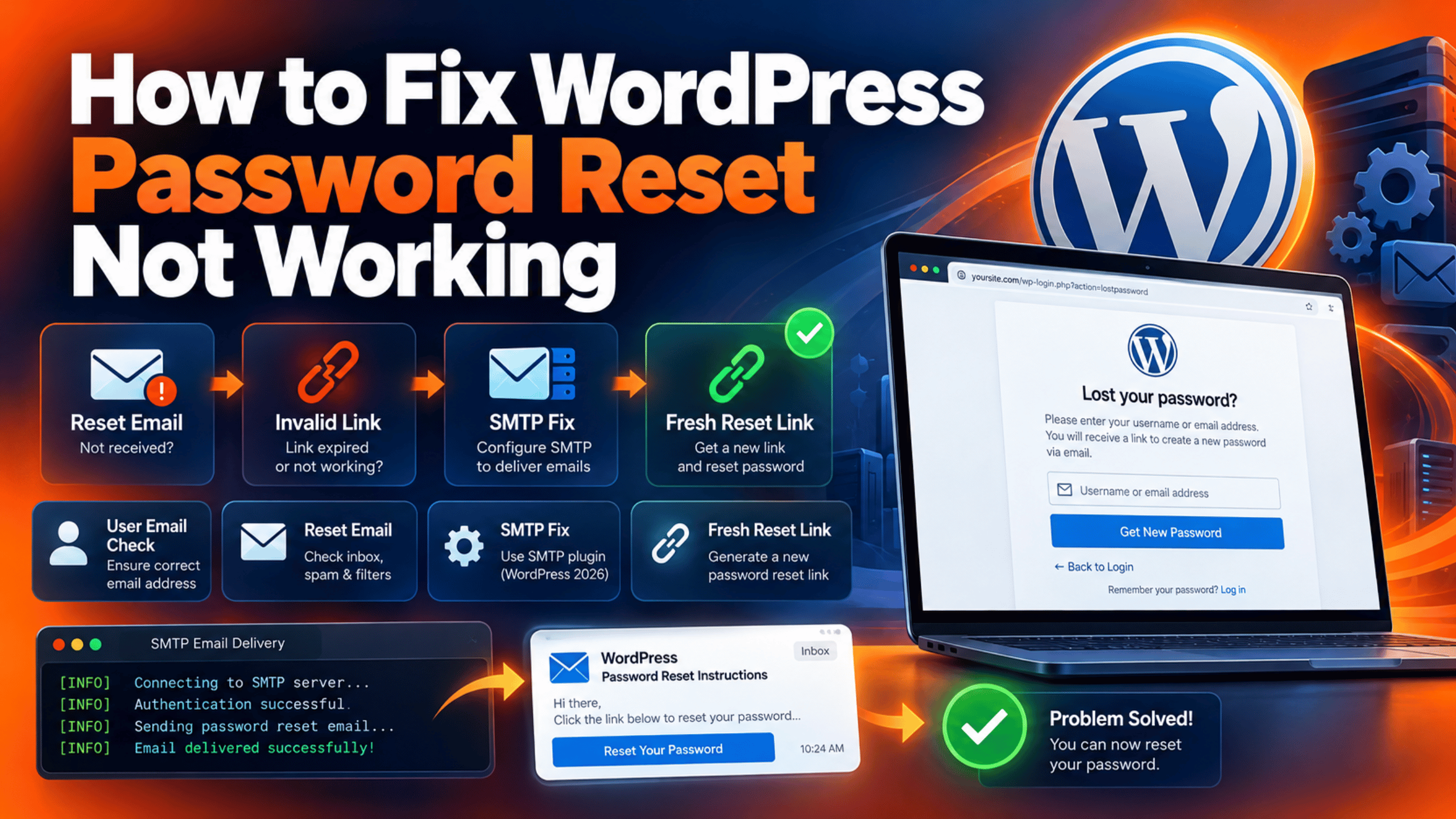
This is a common and very fixable problem. WordPress password reset not working almost always comes down to two families of fault. Either the email never reaches you, or the key inside the link no longer matches what your site has stored. Both have clear causes and clear repairs.
It helps to know how the reset actually works. When you ask for a reset, WordPress makes a random key, hashes it, and saves it against your account with the current time. It then emails you a link holding the plain key and your username. When you open the link, WordPress checks the key against the stored copy and checks how old it is. If either test fails, you see a short message saying the key is invalid. If the email never leaves the server, you never get that far.
This guide covers the whole journey. You will see the signs that tell you which half of the problem you have. You will see every common cause, explained in plain words. Then you get an ordered fix list, from the quickest check to the last resort that sets your password by hand.
Something usually changed just before it broke. New hosting. A new security plugin. An email address nobody updated. A domain move that left the mail records behind. Sometimes it was never working at all, and today is simply the first day you needed it. Whatever changed last is the best place to point your attention.
Signs That Show Your WordPress Password Reset Is Not Working
“The reset does not work” describes at least four different faults. Each one has a different fix, so spend two minutes reading the signs first. Note exactly what you see and where it appears.
Start with the email. The clearest split is whether a message arrives at all. If you wait fifteen minutes with nothing in the inbox and nothing in spam, the problem is delivery. If a message arrives quickly but the link fails, the problem is the key. If a message arrives hours later, you have both: a slow mail route and a key that may have already expired.
Next, read the exact words on screen after you click the link. WordPress uses a short, blunt message when the key fails. Seeing that message is useful, because it means the reset page loaded and WordPress did check your link. The failure happened at the key, not at the door. A link that leads to a missing page or to your home page is a different fault entirely.
Look at the words on the request form too. If the lost password form answers that there is no account with that username or email address, you are typing something your site does not recognise. If it answers that password reset is not allowed for this user, something on your site has switched the feature off for that account. Those two messages point at very different causes.
Check who is affected. Try the reset on a second account with a different email address, ideally at a different provider. If one works and the other does not, you have an address or a filter problem. If neither works, your site is probably unable to send mail at all. Test that theory by using any contact form on the site and seeing whether that message arrives.
Finally, note whether the reset page itself opens. Paste the link into a fresh browser window rather than clicking it. If the page loads and asks for a new password, the route is fine. If it shows a not-found page, a login form, or your home page, a security plugin or a firewall is standing in the way. Our guide on WordPress login page not working covers that side of things in more depth.
Reasons Why WordPress Password Reset Stops Working
Nine causes explain nearly every failed reset. Read them all before you act. The signs you noted above will usually point straight at one or two of them.
Your Site Cannot Send Email at All
WordPress sends mail through a function called wp_mail. Out of the box that function hands the message to PHP’s basic mail feature, which asks the web server itself to deliver it. Many hosts switch that feature off, limit it heavily, or route it through a shared server with a poor reputation.
The painful part is the silence. WordPress hands the message over and treats the job as done. It has no way to learn that the server quietly dropped it. So the screen still says to check your email, and you wait for something that was never sent. This is the single most common reason a reset email never arrives, and it affects every email your site sends, not just resets.
The Email Is Sent but Treated as Spam
Mail servers are suspicious by default. They check whether the sending server is allowed to send mail for your domain. Those checks rely on records in your domain settings, usually called SPF and DKIM.
A standard WordPress site sends from an address at your domain, using a web server that your domain records never mention. To a receiving mail server that looks like forgery. The polite response is to drop the message into spam. The blunt response is to refuse it outright. Gmail, Outlook and corporate mail filters are all strict about this, which is why a reset can reach one address and never reach another.
The Reset Key Has Expired
WordPress does not keep a reset key alive forever. It stores the time the key was made, and it rejects the key once a set period has passed. By default that period is twenty-four hours.
That sounds generous until your mail is slow. If the message sits in a queue for a day, the link is dead before you open it. The same happens when a reset request is sent on a Friday and opened on a Monday. WordPress will not tell you the link is merely old. It gives the same short message it gives for a key that never matched, which makes the real cause easy to miss. The official reference for the key check shows both tests happening side by side.
A Second Request Killed the First Link
Each account has room for exactly one reset key at a time. Asking for a new reset makes a fresh key and writes it over the old one. There is no queue and no history.
This causes a very common trap. You ask for a reset, nothing seems to happen, so you ask again. Then the first email finally arrives and you click its link. That link carries the old key, which the second request already replaced, so it fails. Clicking an older email in a stack of reset emails fails for the same reason. Only the newest link can ever work.
The Link Was Damaged on Its Way to You
The reset link is long. It carries the key and your username as part of the address. Email programs often fold long addresses across two lines, which can cut the link in half when you click it.
Other mail tools cause related trouble. Some corporate filters rewrite every link so they can scan it first, and the rewritten version does not always survive. Some clients convert characters or add punctuation at a line break. WordPress strips anything that is not a letter or a number from the key before comparing it. So a link that arrives slightly altered will not match. You get the invalid key message even though the email was perfectly genuine.
The Username in the Link No Longer Matches
The reset link carries two pieces of information. One is the key. The other is the account name it belongs to. WordPress looks the account up by name first, then compares the key against that account’s stored copy.
So the name has to be right as well. If someone changed the username in the database after the email was sent, the lookup fails. If you edited the link by hand, or copied only part of it, the name can arrive wrong. If you have several sites and you clicked a link from the wrong one, the name will not exist at all. Every one of these ends in the same short failure message.
A Plugin Has Switched Password Reset Off
WordPress gives plugins a formal way to block a reset for a given account. Security plugins and membership systems use it, sometimes on purpose and sometimes as a side effect of another setting.
When a plugin blocks the reset, WordPress answers clearly. The lost password form replies that password reset is not allowed for this user. That exact wording is the giveaway. Some plugins block resets for accounts with full admin rights as a hardening measure. Others block them for accounts that have not confirmed their email, or for roles that are not meant to sign in at all.
The Email Goes to an Address You Cannot Read
WordPress sends the reset to the address stored on the user account. That is not the same field as the site’s administration email address, and the two do not have to match.
People mix these up constantly. You update the site email in the general settings and assume resets will now reach you. They will not. The reset still goes to the address on your personal profile, which might be an old work address, a mistyped one, or a shared mailbox nobody checks. If that address no longer exists, the message bounces off into nowhere and you never see a thing.
The Reset Page Is Hidden, Redirected or Cached
The reset form lives inside the standard WordPress login file. Plenty of tools interfere with that file. Security plugins hide it behind a secret address. Firewalls block requests that carry long values in the address. Custom login plugins replace the page with their own.
Caching causes a quieter version of the same problem. The reset flow stores a small cookie before it shows the new password form. A cache that stores a copy of the login file can serve you a stored page where that step never happened. WordPress then finds no matching key and refuses the link, even though your email and your timing were both perfect.
How to Fix WordPress Password Reset Not Working (Step by Step)
Work down this list in order. The early steps cost nothing and solve most cases. The later steps touch plugins, files and the database, so read each warning before you act. Every step names the cause it fixes, shows you how to confirm that cause is yours, and tells you how to check the result.
The final step sets a password by hand. It does not repair any of the causes above. It is there so you can get back into your site today and then fix the real cause from the comfort of your dashboard. If you are in a hurry, do Step 10 first and come back to the rest afterwards.
Step 1: Confirm Which Address the Reset Email Goes To
This step deals with a reset sent to an address you cannot read. It matters because WordPress uses the address on the user account, not the site address, and those two fields are very easy to confuse.
Confirm it by looking the value up directly. If another admin can still reach the dashboard, ask them to open the users list and read the email column for your account. If nobody can get in, open phpMyAdmin from your hosting panel. Browse the wp_users table and read the user_email value on your row. A healthy value is an address you can open right now. An old company address, a typing error, or a mailbox nobody owns is your cause.
Fix it from the dashboard where you can. Another admin can simply edit your profile and save a working address. If nobody can get in, back up the database first, then edit the user_email value in wp_users for your row only. Change nothing else on that row. With command line access, a single line does it cleanly:
wp user update your-username --user_email=you@example.comNow request a fresh reset and watch the new mailbox. A message arriving within a minute or two means this was your cause. If nothing arrives at the new address either, the mail itself is not leaving your server, so continue to the next steps.
Step 2: Search Spam and Check Whether the Mail Arrived Late
This step handles mail that is sent but filtered. It matters because a receiving server that cannot prove your site is allowed to send for your domain will quietly file the message as junk.
Confirm it properly, because a quick glance at the spam folder is not enough. Search your entire mailbox for the word “password” and for your site name, with the search set to include spam and all folders. Check any quarantine your workplace mail system runs. If you find the message sitting in spam, this is your cause and the reset itself works fine.
The quick fix is to mark the message as not spam and add your site’s sending address to your contacts. That teaches your own mailbox to accept future messages. The real fix is to make your domain vouch for your sender, which means adding the right SPF and DKIM records in your domain settings. Your host or your mail provider will give you the exact values to paste in. Those records are the reason the same email reaches one person and not another.
Request a new reset and watch which folder it lands in. Arriving in the inbox within a minute means delivery is now healthy. If the message took hours to arrive, treat Step 3 as your next move, because a slow message often outlives its own link.
Step 3: Request a Fresh Link and Open It Straight Away
This step fixes an expired key. It matters because WordPress stores the moment the key was made and refuses it once twenty-four hours have gone by.
Confirm it by checking the clock on the email. Look at when the reset message was actually sent, not when you noticed it. Anything older than a day is already dead, whatever it looks like. An old link and a wrong link produce the same short message on screen, so the timestamp is your only reliable evidence.
The fix costs nothing. Go to your login page, click the lost password link, and enter your username or email address. Wait for the new message. When it arrives, open the link immediately rather than saving it for later. If your mail is slow, keep the tab open and watch for it instead of walking away.
You will know it worked when the page offers you a new password box instead of the failure message. Set a long, unique password and sign in. If the newest possible link still fails within minutes of arriving, time is not your problem and you should move on to Step 4.
Step 4: Send Only One Request and Use Only the Newest Email
This step clears up a key that was replaced by a later request. It matters because your account holds exactly one key at a time, and each new request writes over the previous one.
Confirm it by counting. Open your mailbox and look at how many reset emails you have from the site. If there is more than one, every link except the newest is already dead. Think back to what you did as well. Clicking the lost password button twice because nothing seemed to happen is the usual way people land here.
The fix is a change of habit rather than a change of setting. Ask for one reset. Do not ask again while you wait, however tempting it is. Then go to your mailbox, sort by date, and open only the most recent message. Delete the older reset emails so you cannot click one by mistake later.
A working link shows you the new password form. If that newest link still fails, the key is not being overwritten, so the damage is happening somewhere between the server and your screen. Step 5 deals with that.
Step 5: Copy the Whole Link Instead of Clicking It
This step rescues a link that was broken by your email program. It matters because the key travels inside the web address. WordPress removes any character that is not a letter or a number before comparing it. A link that arrives even slightly altered will never match.
Confirm it by looking at the raw link. Right-click the link in your email and copy the address, then paste it into a plain text note before you open it. A healthy reset address contains the login file name, an action value, a long key and your username. If the address looks cut short, wrapped across two lines, or replaced by a tracking address from a scanner, you have found your cause.
Fix it by hand. Paste the full address into your browser bar in one piece and check nothing is missing from the end. If the link wrapped across lines, join the pieces with no space between them. If your mail is viewed in a corporate client that rewrites links, open the same message in a web mail view instead, which usually leaves the address alone. Viewing the message as plain text also stops most rewriting.
Press enter and watch for the new password form. If the page loads and accepts a new password, the link was simply damaged in transit. If you still get the failure message with a clean, complete address, go on to Step 6.
Step 6: Check That the Username in the Link Matches the Account
This step covers a link whose account name is wrong. It matters because WordPress looks your account up by name before it even compares the key. No matching name means an instant failure, whatever the key says.
Confirm it by reading the name out of the link. The reset address ends with a login value holding your username. Compare that with the real username on the account. If another admin can reach the dashboard, they can read it from the users list. Otherwise read the user_login value in the wp_users table. A healthy pair matches exactly, including capital letters. Watch out for characters written in code form in the address, such as a space appearing as a percent sign and two digits.
The fix depends on what you find. If you have several WordPress sites, make sure the email you are using came from the right one, since the links look nearly identical. If the username was changed after the email went out, simply request a new reset so the fresh link carries the current name. Do not try to edit the name inside the link by hand, because the key is tied to that account and editing will not help.
Request one new reset and open the newest email. The form should load and let you set a password. If the name was right all along and the link still fails, the fault is on the site. The next steps deal with that.
Step 7: Test Whether Your Site Can Send Any Mail, Then Move to SMTP
This step fixes a site that cannot send email at all. It matters because WordPress hands the message to the web server’s basic mail feature by default, and many hosts disable or throttle it. The message is dropped without any warning, so the screen still claims success.
Confirm it with a test that does not involve the reset. Use the site’s own contact form and send yourself a message. Ask a colleague who can still reach the dashboard to publish a test comment that triggers a notification. If no email of any kind reaches you, your site is not sending mail, and the reset was never going to work. WordPress has its own name for this failure. Our guide on how to fix the could not instantiate mail function error in WordPress helps if you see that wording in a log.
The reliable fix is to stop using the server for mail and use a proper mail service instead. Install an SMTP plugin such as WP Mail SMTP by WPForms, which is free and used on more than four million sites. Connect it to a mail provider you already trust, such as your Google Workspace or Microsoft account, or a dedicated sending service. Then use the plugin’s own test tool to send a message and confirm it arrives. This needs dashboard access, so if you are locked out, do Step 10 first and come back here.
Once the test email arrives, request a password reset again. The message should now appear within a minute. Switching to SMTP usually fixes every email the site sends, so your contact forms and order notices will start working again at the same time.
Step 8: Check Whether a Plugin Is Blocking the Reset
This step handles a reset that has been deliberately switched off. It matters because WordPress offers plugins a formal way to refuse a reset for a given account, and security and membership plugins use it.
Confirm it from the message on the request form. If the form answers that password reset is not allowed for this user, a plugin has blocked it, and you can stop guessing. A reset that fails for one role but works for another points the same way. So does a site where resets stopped working on the exact day a security plugin was installed.
Look in that plugin’s settings first, because almost all of them offer a switch. Search its options for anything about disabling password resets, about admin accounts, or about forcing resets through a different flow. Turning that single option off is far better than removing the plugin. If you cannot find it, rule the plugins out as a group. Rename the plugins folder inside wp-content over FTP. That switches them all off at once. Do that only at a quiet hour, since your site will run without plugins while the folder is renamed, and rename it back immediately afterwards.
Request a reset again and watch the message. A form that now says to check your email means the block is gone. Turn your plugins back on one at a time, testing after each. That shows you which one was responsible, so you can set it correctly instead of leaving it off.
Step 9: Make Sure the Reset Page Loads and Is Not Being Cached
This step clears a blocked or stale reset page. It matters because the reset flow stores a small cookie before it shows the new password form, and a cached or redirected page breaks that handover.
Confirm it by watching what the link actually opens. Paste the reset address into a private browser window. A healthy result is a page asking for a new password twice. A not-found page, a redirect to your home page, or a plain login form means something is standing between you and the reset file. Check whether you run a plugin that hides the login address, and whether you have a firewall or a security service in front of the site.
Fix it in two parts. First, clear every cache you have: the caching plugin, any CDN, and any server cache your host runs. Then open the caching plugin’s settings and confirm the login file is on the exclusion list so it is never stored. Second, if a plugin hides your login address, use that custom address rather than the standard one. The reset link has to travel through the same door. If a firewall is blocking the request, ask your provider to allow requests to the login file that carry a key value.
Request one more reset and open the newest link in a private window. The password form should appear within a second or two. If it still refuses, you have exhausted the ordinary repairs, so use the last step to get back in.
Step 10: Set the Password Directly When You Are Locked Out
This step does not repair any cause. It is a way back into your site so you can fix the real cause from inside the dashboard. Use it when you need access today, then return to the step that matches your actual fault.
Before you start, make a full backup of your database and keep the copy somewhere off the server. You are about to edit user data by hand, and a mistake here can lock out every account rather than just one. Our guide on how to back up WordPress using UpdraftPlus walks through this. If your host offers a staging copy, practise there first.
The cleanest route is the command line, if your host gives you access to it. One line does the whole job and WordPress handles the hashing for you:
wp user update your-username --user_pass='a-long-unique-password' --skip-emailIf you have no command line, use phpMyAdmin instead. Open the wp_users table, find your row, and edit the user_pass field. Choose the MD5 option from the function list beside that field and type your new password as the value. WordPress accepts that older format once and replaces it with a modern one the first time you sign in. Save the row and change nothing else.
Now sign in with the new password. You should reach the dashboard straight away. Once you are in, go back and fix the real cause, because the reset route will still be broken for everyone else. Step 7 is the right place to start if no email of any kind was reaching you. If you also find yourself bounced back to the login form after signing in, read our guide on how to fix the WordPress login redirect loop.
Best Practices to Prevent WordPress Password Reset Problems in Future
Each cause above has a habit that keeps it from coming back. These are not vague maintenance tips. Each one shuts a specific door.
Set up proper mail delivery before you need it. An SMTP plugin connected to a real mail provider takes fifteen minutes and removes the biggest single cause on this page. Add your SPF and DKIM records at the same time, so receiving servers can see that your site is allowed to send for your domain. Then send a test message and confirm it lands in the inbox rather than in spam.
Test the reset route on a schedule rather than in a crisis. Once a quarter, create a throwaway account, run a full reset on it, and confirm the email arrives and the link works. That single test proves delivery, timing and the reset page all at once. Do the same test right after any host migration, domain change or new security plugin, because those are the three events that break it.
Keep the email address on every admin account current and reachable. Check the address on your own profile, not just the site address in the general settings, since the reset uses the profile one. When a team member leaves, change the address on any account they owned instead of leaving a dead mailbox in place. Avoid an address hosted on the same domain and server as the site. A server problem would then take out your site and your way back in.
Open reset links quickly and only ask once. Treat every link as something that expires, because it does. Ask for one reset, wait for it, and use the newest email. Delete old reset emails so nobody clicks a stale one by accident.
Check what your security plugin does to the login file before you trust it. Note whether it hides the login address, and whether it has an option that blocks resets for admin accounts. Write the custom login address down somewhere outside the site. Confirm that your caching plugin never stores the login file, and check that again after any host change, since a new server cache can arrive with different defaults.
Finally, keep a second way in. Hold a spare account with full rights, on a different email address at a different provider. Confirm your FTP details or your hosting file manager still work, since neither route needs the dashboard. Store recent backups away from the server, and practise one restore so you know the drill. With all of that ready, a failed reset becomes an inconvenience rather than an emergency.
Conclusion
WordPress password reset not working is almost never a mystery once you split it in two. Either the email does not reach you, or the key inside the link does not match. The signs tell you which half you are in. Nothing in the inbox after fifteen minutes points at delivery. A short invalid key message on screen points at the link itself.
The causes follow from there. Your site may be unable to send mail at all, because the server’s basic mail feature is blocked. The message may be sent and filtered as spam, because your domain records do not vouch for the sender. The key may have expired after its twenty-four hours. A second request may have replaced the first key. The link may have been broken by your email program. The username in the link may no longer match. A plugin may have switched resets off. The mail may be going to an old address on your profile. Or the reset page may be hidden, redirected or served from a cache.
The fix process runs in the same order every time. Check which address the mail goes to. Search spam. Request one fresh link and open it at once. Use only the newest email. Copy the whole link instead of clicking it. Check the username. Test whether the site can send any mail and move to SMTP. Look for a plugin block. Make sure the reset page loads and is not cached. If you need access today, set the password directly, then come back and repair the real cause.
Prevention is quicker than any of this. Set up SMTP and your domain mail records now. Test a reset every quarter and after every big change. Keep profile email addresses current and reachable. Open links promptly and ask only once. Know what your security and caching plugins do to the login file. Hold one spare account with full rights, on a mailbox you can always reach. Get those habits in place and the emergency exit will open the next time you pull it.

James is an experienced WordPress and WooCommerce specialist with over 10 years of practical experience. At WPChatSupport, he creates clear guides that help website owners fix WordPress issues, improve speed, secure their sites, and manage WooCommerce stores with confidence. His expertise includes store setup, plugin configuration, theme customization, payment gateway integration, and website troubleshooting. Through simple and helpful content, James supports users in solving technical problems and following best practices for online business growth.