Introduction
You sign in to your dashboard. You click one link. Suddenly you are back at the login screen. You sign in again, and it happens again.
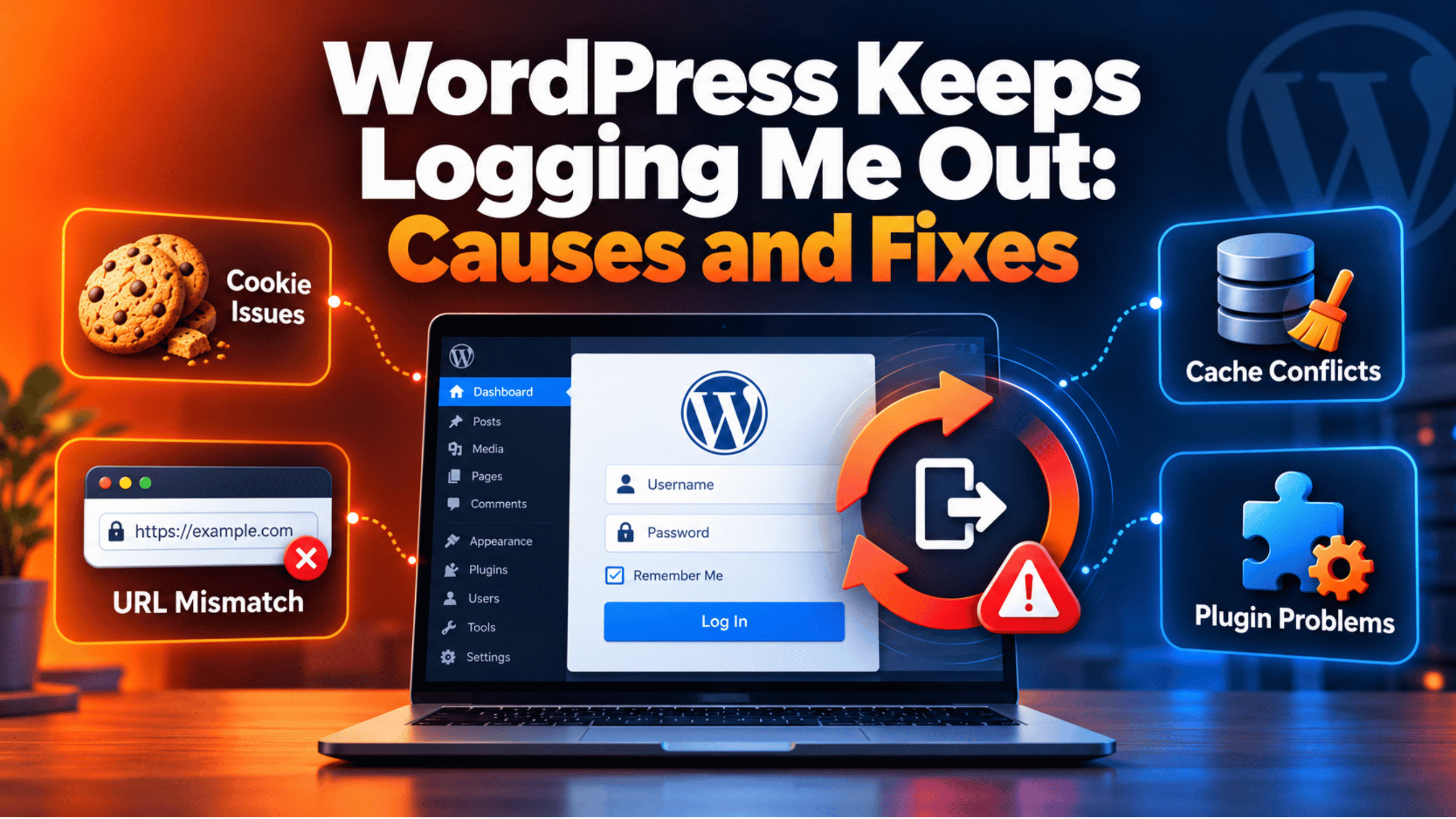
The root of this loop is simple. WordPress uses cookies to remember who you are. A cookie is a small file your browser stores for one website. If that cookie is missing, blocked, or no longer valid, WordPress treats you as a stranger. It then sends you straight back to the login page.
The cost adds up fast. You cannot finish an edit. You cannot install a security update. On a store, you cannot process a refund while a customer waits. Repeated logouts also tempt people to pick short, weak passwords, which creates a real security risk.
If you keep thinking “WordPress keeps logging me out” every time you open the dashboard, this guide is for you. It covers the signs, every common cause, a step-by-step fix for each cause, and the habits that stop the problem coming back.
A few triggers come up again and again. Moving a site to a new domain. Switching from HTTP to HTTPS. Adding a caching plugin or a CDN. Editing wp-config.php. Installing a new security plugin. Any one of these can break the cookie chain.
One note before you start. This guide is for people who can log in but do not stay logged in. If the login screen itself is blank, missing, or will not load at all, read our guide on how to fix a WordPress login page that is not working. That is a different problem with different fixes.
Signs That Show WordPress Keeps Logging You Out
These logouts look slightly different on every site. Checking the signs first tells you that you have this problem, and not a similar one. Work through the list below and note which items match your site.
The clearest sign is a short, repeating loop. You log in, the dashboard loads, and one click returns you to the login screen. The login form shows no error at all. It simply asks for your details again, as if you had never been there.
Watch your address bar during the loop. Many site owners find the address quietly flips between www and the plain domain, or between http and https. That single change is often the whole cause, and it is easy to miss.
Another common sign shows up on the public side of the site. The dashboard works, but the admin bar is gone from your front page. WordPress thinks you are logged in on one part of the site and logged out on another. Some people see the opposite: the front end knows them, but the dashboard keeps asking.
Timing is a useful clue too. Some people are dropped within seconds. Some stay in until they close the browser. Some last about two days and then get dropped. Each of those timings points at a different cause, so write down which one matches you.
Check whether it is just you. Open the site in a second browser, or in a private window. If you stay logged in there, the problem sits in your first browser. If the whole team was logged out at the same moment, the cause is on the server instead.
Finally, look for a cookie warning. WordPress sometimes says that cookies are blocked or not supported by your browser. That message means WordPress tried to set a test cookie and failed. It is strong evidence that you are dealing with a cookie problem and not a password problem.
One thing is worth ruling out now. If the login form rejects your password and tells you so, you have a password or security-plugin problem, not a cookie problem. The steps below assume your password is accepted and the session then disappears.
Reasons Why WordPress Keeps Logging You Out
Every cause below breaks the same chain in a different place. WordPress writes a login cookie, your browser stores it, and your browser sends it back on the next request. Each reason stops one of those three things from happening. Only some of these will apply to your site, so read them and shortlist the ones that fit.
1. Your stored site address does not match the address you visit. WordPress keeps two addresses in its general settings: the WordPress Address and the Site Address. A cookie belongs to one exact host name. If WordPress stores https://example.com but you open https://www.example.com, your browser never sends that cookie back. WordPress sees no cookie and logs you out. The same break happens between http and https.
2. You did not tick Remember Me. This one surprises people, because it is normal behaviour rather than a fault. When you leave the box unticked, WordPress sets a browser session cookie. That cookie dies when you close the browser. It also expires after two days, whichever comes first. When you tick the box, the cookie lasts fourteen days by default instead.
3. Your security keys and salts keep changing. Your wp-config.php file holds eight long random strings, with names like AUTH_KEY and AUTH_SALT. WordPress uses them to sign your login cookie. Change any one of them and every existing cookie becomes invalid at once, so everybody has to log in again. Some security plugins rotate these strings on a schedule, and some hosts rewrite the file during a migration or a staging sync.
4. Your password changed. Your login cookie includes four characters taken from your hashed password. That design is deliberate, because it means a stolen cookie stops working as soon as the password changes. The side effect is that any password change ends every open session for that account. A migration that imports an older users table has exactly the same effect.
5. A cache is serving you a logged-out copy of the page. A page cache stores a finished copy of a page and hands it to the next visitor. That is great for speed, but a logged-in editor needs a personal version of the page. If the cache hands you a visitor’s copy, your admin bar vanishes and the site looks logged out. If the cache also stores the login page, the form can carry an old security token that no longer matches.
6. Your CDN or proxy is not passing HTTPS through to WordPress. WordPress decides whether to flag a cookie as secure by checking whether the current request arrived over HTTPS. Some proxy setups accept HTTPS from the visitor and then talk plain HTTP to your server. WordPress then believes the request is insecure, and the cookie flags stop matching the real connection. WordPress also only marks the front-end cookie secure when your stored Site Address itself starts with https.
7. The cookie domain or cookie path is wrong for your setup. WordPress stores the admin cookie on the /wp-admin/ path and the front-end cookie on your site path. That works for a normal install without any help. Unusual layouts need a hand: WordPress in a subfolder, a site spread over several subdomains, or static files served from a separate subdomain. In those cases the cookie can be saved under a path or domain that does not cover the page you are actually on.
8. A plugin is ending your session on purpose. Plenty of plugins are allowed to log you out, and most of them are doing their job. Security plugins end idle sessions. Two-factor plugins restart a session after a failed code. Membership and course plugins manage their own sessions. Single-session plugins log you out when the same account signs in elsewhere. Two such plugins together can fight each other and log you out every few minutes.
9. Your browser is blocking or clearing the cookies. Strict privacy settings block third-party and sometimes first-party cookies. A “clear cookies when I close the browser” setting wipes your session every night. Private windows throw cookies away by design. Privacy extensions and some company-managed browser policies do the same thing. WordPress usually shows its cookie warning when this happens.
10. Your server clock is wrong. Every cookie carries an expiry time, and WordPress works that time out from the server clock. If the clock sits far ahead of real time, the cookie can look expired the instant it is created. If it sits far behind, the expiry maths goes wrong in other ways. This cause is rare, but it is worth checking when nothing else explains the behaviour.
How to Fix WordPress When It Keeps Logging You Out (Step by Step)
Work through these steps in order. They start with the safest checks and move towards changes that touch files on your server. Each step names the cause it fixes, shows you how to confirm that cause is really yours, and tells you how to check the result. If a step does not apply after you run its check, skip it and move to the next one.
One rule applies throughout. Before you edit any file on a live site, take a full backup of files and database, or make the change on a staging copy first. Our guide to backing up WordPress with UpdraftPlus walks through a free way to do that. A backup is the difference between a bad afternoon and a lost website.
Step 1: Tick Remember Me and See What Changes
This step deals with the normal session length described in cause two. Without Remember Me, WordPress gives you a cookie that dies with the browser and expires after two days anyway. Many people report a logout problem that is really just this setting.
Confirm it first. Think about when you get dropped. If it happens every time you close the browser, or roughly every second day, this is almost certainly your cause. If you get dropped within seconds of logging in, it is not, and you should move on.
The fix takes a few seconds. Log out properly rather than just closing the tab. On the login screen, tick the Remember Me box, then sign in. Now close the whole browser, reopen it, and go to your dashboard.
If the dashboard opens without asking for a password, you are done. If you want a longer session than fourteen days, a reputable session-length plugin can set that, and it is safer than editing core behaviour by hand. If you were dropped again within minutes, the cause lies elsewhere, so go to step two.
Step 2: Make Your Site Addresses Match the Address You Use
This step fixes cause one, the address mismatch. Your browser only returns a cookie to the exact host name that set it. A stored address of example.com and a browsing address of www.example.com are two different hosts as far as cookies are concerned.
Check it before you change anything. Log in, then open your general settings in the dashboard, where the WordPress Address and the Site Address are stored. Compare both of them with the address in your browser bar, character by character. Pay attention to www and to http against https. Both values should start with https:// and should have no slash on the end.
If they differ, set both fields to the one address you want people to use, then save. WordPress will send you to that address and you may need to log in once more. If the logout loop is too fast to let you save the form, you can hard-code the values instead. Back up wp-config.php first, because a typo here will lock you out of the site completely, then add these two lines above the line that says to stop editing:
define( 'WP_HOME', 'https://example.com' );
define( 'WP_SITEURL', 'https://example.com' );
To verify the fix, visit the other version of the address on purpose. Type the www form if you chose the plain form. Your server should redirect you to the correct address, and you should stay logged in the whole time. If you now get a redirect loop instead, our guide on fixing ERR_TOO_MANY_REDIRECTS in WordPress covers that next step. If the logouts continue, move on.
Step 3: Clear Your Cookies and Retest in a Private Window
This step handles cause nine, a browser that refuses to keep the cookie. Nothing on the server can help if the cookie never survives on your computer. This check is free and completely safe, so run it early.
Confirm it with a second browser. Open your dashboard in a browser you never normally use, or in a private window, and work for a few minutes. If you stay logged in there but not in your usual browser, your usual browser is the problem. If you are logged out in both, skip ahead.
Now clean up the browser you prefer. Clear cookies and site data for your own domain only, rather than wiping everything. Look through your privacy settings for an option that clears cookies when the browser closes, and turn it off. Add your site to the list of sites allowed to store cookies. Then switch off privacy and ad-blocking extensions one at a time, testing after each one.
Log in again in your normal window and work for ten minutes. Staying in means a browser setting or an extension was the cause. If you see the cookie warning again straight away, the server is refusing to set the cookie, and the later steps will deal with that.
Step 4: Clear Every Cache and Keep Logged-In Users Out of It
This step addresses cause five, caching. A cache that hands you a visitor’s copy of a page will make you look logged out even when your session is perfectly healthy. Sites often have several caches stacked on top of each other.
Confirm it in one move. Log in, then open your site’s front page in the same browser. If the dashboard works but the admin bar is missing from the front page, a cache is serving you the public copy. Another clue is a logout that only happens on one particular page.
Clear every layer you have, in this order: your caching plugin, your host’s own page cache, your CDN, and any object cache such as Redis or Memcached. Then stop the problem returning. Most caching plugins have a setting that turns caching off for logged-in users, and you should switch it on. Add the login page and the admin area to the list of addresses that are never cached. If you use a CDN, check that it is told to bypass the cache when a WordPress login cookie is present.
Reload your front page while logged in. The admin bar should appear and stay. Browse several pages and confirm the session holds. If the admin bar is still missing, your CDN or proxy is the likely culprit, which is the next step.
Step 5: Check How Your CDN or Proxy Handles HTTPS
This step fixes cause six. When a proxy accepts HTTPS from your visitor and then speaks plain HTTP to your server, WordPress gets the wrong idea about the connection. It then sets cookie flags that do not match reality, and the browser quietly declines to send the cookie back.
Confirm it by looking at two things. First, check whether your site sits behind a proxy or CDN such as Cloudflare. Second, look at the SSL or encryption mode in that service. A mode described as flexible means the proxy talks to your server over plain HTTP, and that is the setup that causes this. Also confirm that your stored Site Address begins with https.
The clean fix is to use proper end-to-end encryption. Install a valid certificate on your own server, then switch the proxy to its full or strict mode so the whole path is encrypted. Most hosts issue a free certificate for this. If you genuinely cannot change the proxy mode, you can tell WordPress to trust the forwarded protocol header. Back up wp-config.php first, then add this above the stop-editing line:
if ( isset( $_SERVER['HTTP_X_FORWARDED_PROTO'] ) && 'https' === $_SERVER['HTTP_X_FORWARDED_PROTO'] ) {
    $_SERVER['HTTPS'] = 'on';
}
Only add that snippet if your traffic really does pass through a trusted proxy. To verify, log in and browse for ten minutes. Check that the padlock shows on every page and that the admin bar stays visible. If the logouts stop, this was your cause.
Step 6: Rule Out a Password Change or a Sync Tool
This step covers cause four. Because your cookie contains part of your hashed password, any password change ends every open session for that user. People often forget that a password manager, a migration, or a single-sign-on plugin can change a password without anybody noticing.
Confirm it by asking three questions. Did anyone reset your password or a shared account recently? Did you restore a backup or import a users table from an older copy of the site? Do you run a membership, SSO, or directory plugin that writes passwords on login? A whole team logged out at the same moment points strongly at this cause or at step seven.
Set one fresh password and then leave it alone. In the dashboard, open your user profile from the users list, generate or type a new password, and save the change. Store it in a password manager so nobody needs to reset it again next week. Then turn off or reconfigure any tool that rewrites passwords on every login. If your reset emails never arrive, our guide on fixing the “could not instantiate mail function” error explains why WordPress email fails.
Log in with the new password and work for a full day. A stable session tells you the password churn was the cause. If you are dropped again, and especially if your whole team is, go to step seven.
Step 7: Check Whether Your Security Keys and Salts Keep Changing
This step deals with cause three. Those eight random strings in wp-config.php sign your cookie. If something rewrites them, every cookie on the site becomes worthless at the same instant, and everybody is logged out together.
Confirm it with a simple comparison. Download a copy of wp-config.php and note the first few characters of the AUTH_KEY value. Wait until the next unexpected logout, or simply wait a day, then download the file again and compare. If the strings have changed on their own, something is rotating them. Check your security plugin’s settings for an option about rotating or regenerating keys and salts, and check whether your host runs a staging sync that overwrites the file.
Fix it at the source rather than at the symptom. Turn that rotation schedule off, or set it to a long interval that you choose on purpose. If you do want one clean logout of every session, for example after a security scare, replace all eight lines with fresh values from the official WordPress salt generator. Back up wp-config.php before you touch it, and expect every user to log in again straight afterwards. The official wp-config.php documentation explains what each key does.
Verify by downloading the file again a day later and comparing it. Identical strings mean the rotation has stopped. If the file is stable and you are still being logged out, carry on to step eight.
Step 8: Set the Cookie Domain and Path for Your Setup
This step fixes cause seven, a cookie stored under the wrong domain or path. A standard install in the root of a domain almost never needs this. Unusual layouts often do.
Confirm it before changing anything, because this check tells you whether the step applies at all. Log in, then open your browser’s developer tools and find the storage or application panel, where cookies are listed. Look for a cookie whose name starts with wordpress_logged_in_. Note the domain and the path it is stored under. If that path or domain does not cover the page where you get logged out, you have found your cause. The official WordPress cookies documentation lists what each cookie is for.
If there is a mismatch, tell WordPress which domain to use. Back up wp-config.php, then add one line above the stop-editing line, using your own host name:
define( 'COOKIE_DOMAIN', 'www.example.com' );Do not add this line speculatively. Setting the wrong domain here will lock you out, which is exactly why the backup matters. To verify, log in again and recheck the cookie in developer tools. It should now be stored under the domain you set. Then browse between the areas of the site that used to drop you.
Step 9: Test Your Plugins for a Session or Timeout Conflict
This step handles cause eight. Many plugins are entitled to end your session, and sometimes two of them disagree about when. This step is further down the list because deactivating plugins on a live site affects real visitors.
Confirm it by narrowing the field first. List every plugin that touches logging in: security, firewall, two-factor, idle timeout, membership, course, and single-sign-on plugins. Open each one’s settings and look for a session length, an idle timeout, or an option that limits an account to one session. If the logouts started right after you installed or updated one of these, you already have your answer.
Make the change on a staging copy if you possibly can. Raise the idle timeout, or switch the single-session feature off, then retest. If you still cannot tell which plugin is responsible, deactivate the login-related plugins one at a time and test after each. If the logout loop is too fast to let you reach the plugins screen, rename the wp-content/plugins folder to plugins-hold over FTP or your file manager, load the plugins page in the dashboard so WordPress marks everything inactive, then rename the folder back. Take a full backup first, and never run this test on a live store during busy hours, because your site will lose plugin features while the folder is renamed.
Verify by reactivating the plugins one at a time, in order, and working for a few minutes after each. The plugin that brings the logouts back is your cause. Then look for a setting that fixes it, or ask that plugin’s support team, before you reach for a replacement.
Step 10: Check the Server Clock
This final step covers cause ten. Your cookie’s expiry time is calculated from the server clock, so a badly wrong clock can expire a cookie the moment it is created. This is the rarest cause on the list, which is why it comes last.
Confirm it from inside WordPress. The Site Health screen in your dashboard reports server information, and your hosting control panel shows the server time directly. Compare that time with the real time in the server’s own time zone. A gap of a few seconds is normal and harmless. A gap of many minutes or hours is a genuine problem.
You usually cannot fix this yourself on shared hosting. Open a ticket with your host, tell them the time you observed and the real time, and ask them to sync the server clock with a time server. On a server you manage, enable the standard time synchronisation service. Changing the WordPress time zone setting will not help, because that setting only affects how dates are displayed.
To verify, recheck the server time once your host confirms the change, then log in and work normally. If sessions now hold, the clock was the cause. If you have worked through all ten steps without success, the problem is likely specific to your hosting stack, and emergency WordPress support is a sensible next move.
Best Practices to Prevent WordPress From Logging You Out in Future
Each habit below closes off one of the causes above. Together they make unexpected logouts very unlikely. Most of them cost nothing and take a few minutes once.
Choose one address and stick to it. Decide whether your site uses www or not, and whether it is HTTPS, then make both stored addresses match exactly. Add a server-level redirect so the other version always lands on your chosen one. This single habit prevents the most common cause of all.
Decide your session length on purpose. Tick Remember Me for day-to-day work. If your team needs longer sessions, set that deliberately with a trusted plugin rather than leaving people confused by two-day logouts. Shorter sessions are safer on shared computers, so match the setting to how your team actually works.
Treat your keys and salts as fixed. Leave the eight strings in wp-config.php alone during normal operation. Rotate them when you have a reason, such as a suspected breach or a staff departure, and tell your team they will need to log in again. Turn off any plugin schedule that rotates them automatically.
Change passwords deliberately and tell people. Agree that nobody resets a shared account without warning the others. Store credentials in a shared password manager so resets become rare. After restoring a backup, expect everyone to log in again, and say so in advance.
Configure caching once, properly. Set your caching plugin to skip logged-in users, exclude the login and admin pages, and tell your CDN to bypass the cache when a WordPress login cookie is present. Then clear every layer after any change to the site. Write down which caches exist, because most sites have more than people remember.
Run encryption end to end. Install a valid certificate on your own server and set your proxy or CDN to its strict mode. Avoid flexible modes that leave the last leg unencrypted, because they cause both logout loops and mixed-content warnings.
Write down your cookie settings. If your site needed a COOKIE_DOMAIN line or a subfolder install, record that in a short setup note alongside your hosting details. The next person to migrate the site will not have to rediscover it the hard way.
Test login-related plugins on staging first. Security, two-factor and membership plugins change how sessions work, so try them on a copy of your site before they touch live traffic. Keep a note of the session settings you chose, so an update that resets them is easy to spot.
Keep one browser profile for admin work. Use a profile with your site allowed to store cookies and with aggressive privacy extensions switched off. Save your private window for checking how your site looks to visitors.
Watch your server and keep software current. Check the Site Health screen now and then, including server time. Keep WordPress, plugins, themes and PHP on supported versions, and read plugin changelogs before updating anything that handles logins. Keep automatic backups running so any file edit can be undone.
Conclusion
Unexpected logouts feel random, but they almost never are. The sign to look for is a clean loop with no error message, often with the address bar quietly switching between www and the plain domain, or between HTTP and HTTPS. Noting exactly when you get dropped, and whether a second browser behaves differently, narrows the cause down quickly.
The causes fall into a short list. Mismatched site addresses. A session cookie that was never meant to last. Keys and salts that keep changing. A password change. A cache serving a logged-out page. A proxy that hides HTTPS from WordPress. A cookie saved under the wrong domain or path. A plugin ending the session on purpose. A browser that discards cookies. A server clock that has drifted.
The fix process follows that list in a safe order. Tick Remember Me, match your site addresses, clean up your browser, clear every cache, check how your proxy handles HTTPS, rule out a password change, check your keys and salts, set the cookie domain if your layout needs it, test your login plugins, and finally check the server clock. Each step tells you whether it applies before you change anything, which saves you from editing settings blindly.
Prevention is mostly about consistency. One canonical address, a session length you chose on purpose, stable keys and salts, caching configured to skip logged-in users, encryption all the way through, and new login plugins tested on staging. Add reliable backups before any file edit, and this problem stops being part of your week.
If you can log in but not stay in, you now have a full path to follow. If you cannot reach the login screen at all, start with our guide on fixing a WordPress login page that is not working instead.

James is an experienced WordPress and WooCommerce specialist with over 10 years of practical experience. At WPChatSupport, he creates clear guides that help website owners fix WordPress issues, improve speed, secure their sites, and manage WooCommerce stores with confidence. His expertise includes store setup, plugin configuration, theme customization, payment gateway integration, and website troubleshooting. Through simple and helpful content, James supports users in solving technical problems and following best practices for online business growth.