You know something is wrong with your WordPress website. The support expert on the other end does not. That gap is where most support delays begin.
A clear problem description can turn a two-day conversation into a twenty-minute fix. A vague one, like “my site is broken,” forces the expert to guess. They ask questions, you reply hours later, and the clock keeps running.
This guide shows you how to describe a WordPress problem so an expert understands it on the first read. You will learn what to collect first, how to structure your message, which words cause confusion, and how to share technical details safely. A copy-and-paste template sits at the end.
Why a Clear Description Saves You Hours
Support experts work from evidence. They cannot see your screen. They do not know which plugin you installed last Tuesday. Everything they know comes from what you tell them.
When your message is precise, the expert skips discovery and starts diagnosing. When it is vague, they must first rebuild the picture in their head. That rebuild costs time, and it happens before any real work begins.
There is a second benefit. Writing the description forces you to check your own assumptions. Many people find the cause while typing the message. Listing the facts reveals the pattern.
Response times vary by provider and priority level. If you want to know what is reasonable, read our guide on how fast a WordPress support company should respond. A tight description helps you land in the fast lane.
Collect These Six Things First
Spend five minutes gathering facts before you open the chat window. This short prep step does more for your ticket than any clever wording.
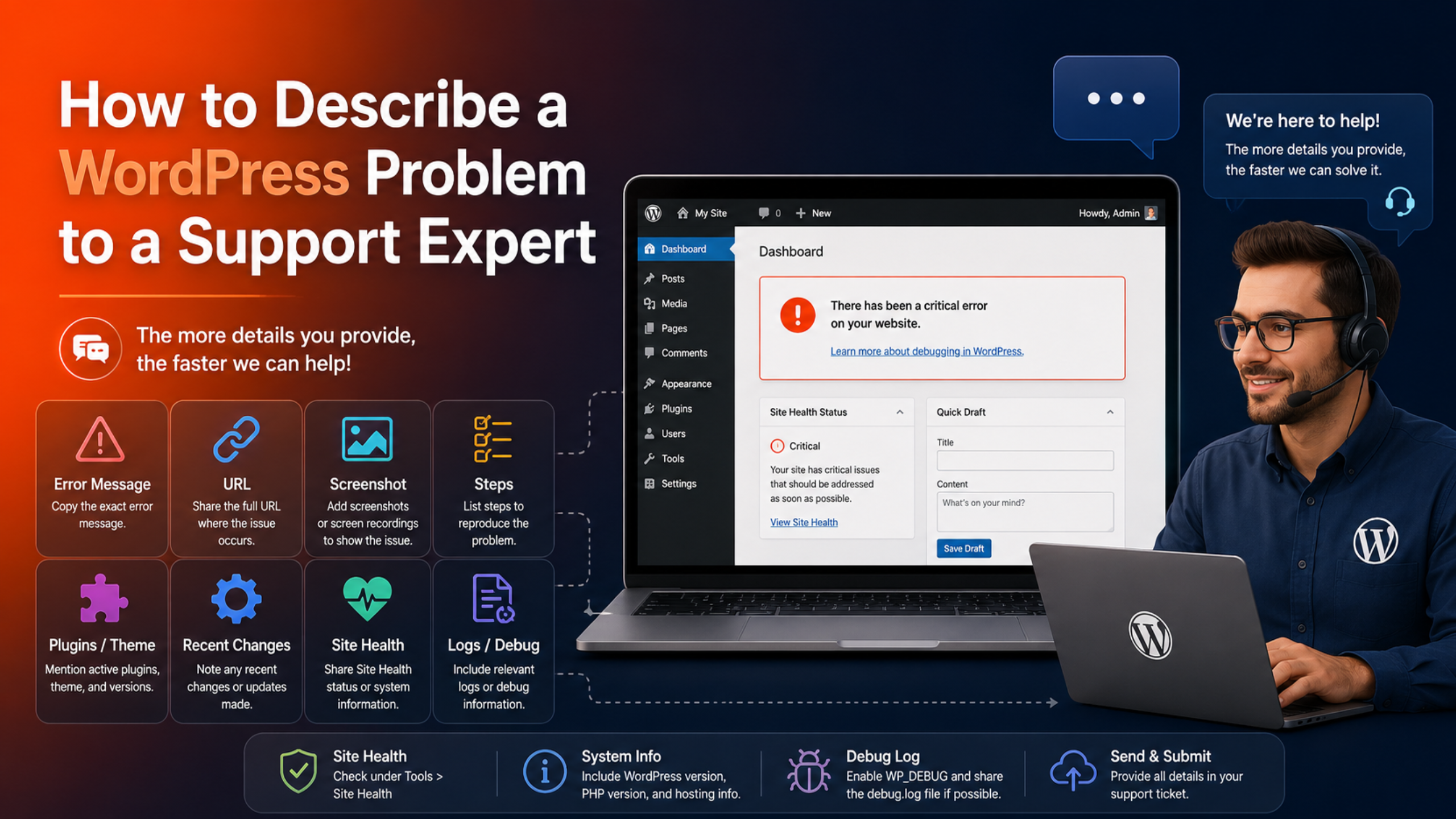
1. The Exact Error Message
Copy the error text word for word. Do not paraphrase it. “There has been a critical error on this website” and “Error establishing a database connection” point to completely different causes.
If the message includes a file path or a line number, include that too. A line such as PHP Fatal error: Uncaught Error: Call to undefined function ... in /wp-content/plugins/example/example.php on line 214 names the guilty file directly.
2. The Exact URL
Give the full address of the page where the problem appears. “The checkout page” is not enough on a store with several checkout flows. Paste the real link.
If the problem appears in the dashboard, name the screen. For example, “Posts → All Posts” or “Appearance → Customize.”
3. What Changed Recently
WordPress problems rarely appear from nowhere. Something usually changed first. Think back over the last few days and list anything that applies:
- You updated WordPress, a theme, or a plugin.
- You installed or activated something new.
- Your host moved the site or changed the PHP version.
- Someone edited a template file or a code snippet.
- An SSL certificate or a domain renewed.
- A new user account was created.
This single list solves a large share of tickets. Roll-back testing is quick when the expert knows what to roll back.
4. Who Is Affected
State whether the problem hits everyone or only you. Then say how you checked. A private browsing window, a second browser, or a phone on mobile data all work as fast tests.
If the issue only appears for logged-in users, or only for one customer, say so. That detail narrows the search from the whole site to a caching or permissions layer.
5. Your Site Health Info
WordPress ships with a report built for this exact moment. Go to Tools → Site Health, open the Info tab, and click Copy site info to clipboard. Paste the result into a text file and attach it.
The report lists your WordPress version, PHP version, server details, database details, active theme, and every plugin with its version number. It answers a dozen questions before the expert asks them.
6. A Screenshot or Short Recording
Show the whole browser window, not a tight crop of the error. The address bar, the admin bar, and any notices around the error all carry meaning.
For anything involving movement, such as a menu that will not open or a form that resets itself, record a short video instead. Ten seconds of footage beats three paragraphs of prose.
The Four-Line Framework
Once you have the facts, arrange them. This framework works for every kind of WordPress issue, from a broken layout to a failed payment.
Line 1: What You Expected
Describe the normal behaviour in one sentence. For example: “When a customer clicks Place Order, the order should complete and show the thank-you page.”
Line 2: What Actually Happened
Describe the failure in one sentence, with the exact error text. For example: “Instead, the page reloads and shows: There was an error processing your order.”
Line 3: How to Reproduce It
Write numbered steps a stranger could follow. Include the test data you used.
- Open the shop page at [full URL].
- Add any product to the cart.
- Go to checkout and fill in the billing form.
- Click Place Order.
- The error appears within two seconds.
Then say how often it happens. “Every time” and “roughly one order in five” lead to very different investigations.
Line 4: What You Already Tried
List your own troubleshooting steps and the result of each one. This stops the expert repeating work you have done.
Be honest here, especially about edits. If you pasted code into functions.php and it did not help, say so and paste the code. Hidden changes waste far more time than mistakes do.
Swap Vague Words for Specific Ones
Some phrases feel descriptive but carry almost no information. Replace them.
- “The site is down” → say what you see: a blank white page, a 500 error, a browser timeout, or a host suspension notice.
- “It is slow” → give a number. “The shop page takes about 11 seconds to load on desktop broadband.”
- “It looks broken” → name the element. “The header logo overlaps the menu on screens under 768 pixels wide.”
- “Nothing works” → list the two or three things you tested that failed.
- “It stopped working” → add a time. “It worked on Monday morning and failed by Monday evening.”
Numbers, timestamps, and element names are the currency of a good support ticket.
Match the Detail to the Channel
Where you report the problem changes how you should write it up.
Live chat rewards a short opening. Lead with one sentence naming the symptom and the URL, then offer the rest. The agent can ask for the log or the Site Health file once they know the direction.
Email and ticket systems reward completeness. Nobody is waiting on the other end, so send everything at once. One thorough message beats six short ones, because each reply adds hours to the round trip.
Phone calls reward preparation. Have the URL, the error text, and your recent changes open in front of you before you dial. Follow up in writing afterwards so the details are on record.
Community forums reward context. Volunteers have no access to your site and no obligation to reply, so include everything and keep the tone friendly.
Share Logs and Access Safely
Some problems need server-side evidence. Your host can supply the PHP error log. WordPress can also produce its own log.
Add these lines to wp-config.php, above the line that reads “That’s all, stop editing”:
define( 'WP_DEBUG', true );
define( 'WP_DEBUG_LOG', true );
define( 'WP_DEBUG_DISPLAY', false );
WordPress then records errors, warnings, and notices in wp-content/debug.log. Reproduce the problem once, copy the newest entries, and share those. Turn debugging off again when the work is finished, because the log can expose file paths.
Take a full backup before you edit any file. Our walkthrough on how to back up WordPress using UpdraftPlus covers a safe routine in a few minutes.
Never paste passwords into a public forum or an unencrypted email. If the expert needs to log in, ask about safer options first. Our guide on whether WordPress support can help without admin access explains what each access level unlocks and how to grant it without handing over your own password.
A Template You Can Copy
Paste this into your ticket, chat window, or email and fill in the blanks.
Site URL:
Page where it happens:
Exact error message:
Expected result:
Actual result:

Steps to reproduce:
1.
2.
3.

How often: (every time / sometimes / happened once)
Who is affected: (everyone / logged-in users only / just me)
First noticed: (date, rough time, time zone)

Recent changes:
-

Already tried:
-

Attached: screenshot, Site Health info, debug log
Best way to reach me:
Keep a filled copy in your notes. The next problem will be much faster to report.
Five Mistakes That Slow Everything Down
- Sending one line and waiting. “Site broken, please fix” starts a question-and-answer loop that can last a full day.
- Splitting one problem across many messages. Facts scattered over five chats are hard to read together. Send one complete message.
- Bundling unrelated issues. A slow homepage and a broken contact form are two tickets. Combined, both move slower.
- Reporting your theory instead of the symptom. “The database is corrupted” may be wrong. Describe what you see and let the expert diagnose.
- Leaving out the deadline. If a campaign launches tomorrow, say so. Priority changes how a queue is handled.
If your site is completely offline right now, skip the long write-up. Follow our emergency WordPress support guide instead. Speed matters more than polish during an outage.
Frequently Asked Questions
How long should my problem description be?
Long enough to cover the six facts above, and no longer. Most strong descriptions fit in 150 to 250 words, plus attachments. Structure matters more than length.
Should I guess at the cause?
You can share a hunch, but label it clearly. Write “I suspect the caching plugin, because the problem started right after I cleared the cache.” Keep your theory separate from the facts.
What if I cannot reproduce the problem?
Say that plainly. Then describe the last time it happened, what you were doing, and which browser and device you used. Intermittent issues need logs and timestamps more than they need steps.
Do I need to know technical terms?
No. Plain English works well. Copy the exact error text and describe what you see on screen. A good expert will translate the rest.
Where can I ask if I do not have a support plan?
Community forums are free and often helpful, though replies are never guaranteed. If your post sits there without answers, our article on why nobody answers your WordPress forum question explains the usual reasons.
Final Thoughts
Learning to describe a WordPress problem well is a small skill with a large payoff. Gather the six facts. Use the four-line framework. Replace vague words with numbers. Share logs safely and back up before you touch a file. That is the whole method.
The expert on the other end wants to fix your website. Give them a clear picture, and they usually can. If you would rather talk it through with a person right now, our team is available through instant WordPress live chat support.
Official references: the WordPress Site Health screen documentation and the Debugging in WordPress handbook.

James is an experienced WordPress and WooCommerce specialist with over 10 years of practical experience. At WPChatSupport, he creates clear guides that help website owners fix WordPress issues, improve speed, secure their sites, and manage WooCommerce stores with confidence. His expertise includes store setup, plugin configuration, theme customization, payment gateway integration, and website troubleshooting. Through simple and helpful content, James supports users in solving technical problems and following best practices for online business growth.