Introduction
A WooCommerce store often needs small custom changes. You may want to add a message on a product page. You may want to change button text or show delivery notes. You may also need to adjust checkout fields or email content. WooCommerce hooks help you make these changes safely.
Editing WooCommerce plugin files is not a good idea. Plugin updates can remove your custom changes. A small mistake can also break the store. Hooks give you a safer way to customize WooCommerce without touching core files.
This WooCommerce hooks tutorial explains the basic meaning first. It also covers WooCommerce action hooks and WooCommerce filter hooks. Later parts will explain how to add WooCommerce hooks step by step. The goal is to keep things simple and practical.
WooCommerce hooks can be used on product pages, shop pages, cart pages, checkout pages, order pages, and emails. They are helpful for developers, agencies, and store owners who manage small website changes.
What Are WooCommerce Hooks in Simple Words?
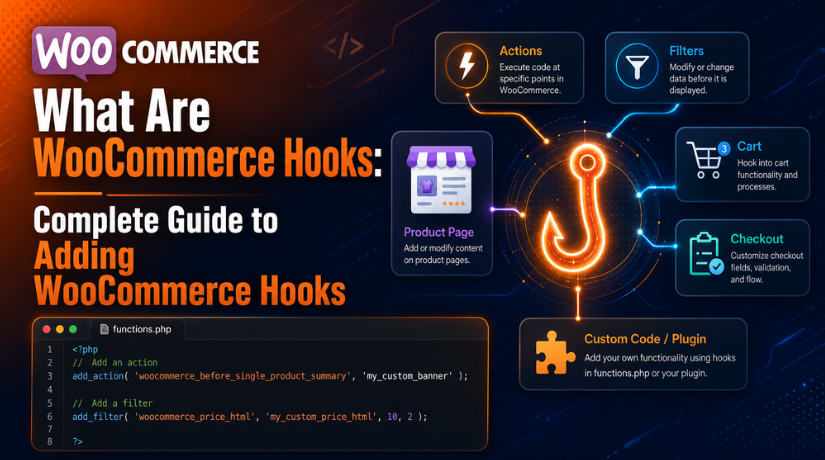
WooCommerce hooks are connection points inside WooCommerce. These points let you attach your own custom code. When WooCommerce reaches that point, your code can run.
In simple words, a hook is like a fixed spot. WooCommerce says, “Custom code can be added here.” If your function is connected to that spot, WooCommerce will show or run it.
WooCommerce uses the WordPress hook system. That is why people also call them WordPress WooCommerce hooks. WordPress provides the hook structure. WooCommerce adds store-related hook names for products, cart, checkout, orders, and emails.
Hooks are useful because they keep custom code separate. You do not need to edit WooCommerce core files. This makes updates safer and code easier to manage.
For example, you may want to add a notice before the Add to Cart button. A WooCommerce hook can place that notice there. You do not need to change the full product template. WooCommerce custom hooks can also be created by developers. These are mostly used in custom plugins or advanced theme work. They help other code connect with custom features.
Types of WooCommerce Hooks You Should Know
WooCommerce Action Hooks Add New Content or Run Code
WooCommerce action hooks are used to add something new. They can also run custom code at a set point. For example, you can add a message before the cart. You can also run code after an order is completed.
A basic action hook looks like this:
add_action( ‘hook_name’, ‘custom_function_name’ );
function custom_function_name() {
echo ‘Custom content here’;
}
The hook name controls where the code runs. The function contains the custom action. The echo line displays content on the page.
WooCommerce Filter Hooks Change Existing Data
WooCommerce filter hooks are used to change existing data. They are often used for text, labels, values, and fields. For example, a filter can change Add to Cart button text. It can also change a checkout field label.
A basic filter hook looks like this:
add_filter( ‘hook_name’, ‘custom_filter_function’ );
function custom_filter_function( $value ) {
return $value;
}
The important part is return. A filter must return the changed value. It should not only print or echo text.
What Are the Uses of WooCommerce Hooks in a Real Store?
WooCommerce hooks are useful for many store changes. They help you add content, change text, move sections, or run custom logic. You can use them on product pages, shop pages, cart pages, checkout pages, emails, and order actions.
Customizing WooCommerce Product Pages With Useful Hook Examples
Product pages often need extra details to guide customers. You can add size notes, shipping messages, trust text, stock notes, or product alerts. For example, a WooCommerce action hook can show a message before the Add to Cart button. This helps customers understand key details before buying.
Customizing Shop and Category Pages With WooCommerce Hooks
Shop and category pages show many products together. Hooks can add useful notes, badges, or short messages. For example, you can show “New Arrival,” “Best Seller,” or delivery text near product cards.
Customizing Cart Pages With WooCommerce Action Hooks
Cart pages are important before checkout. You can use hooks to add free shipping notes, coupon reminders, delivery messages, or return policy text. Keep these messages short so the cart stays clean.
Customizing Checkout Pages With an Updated WooCommerce Blocks Note
Checkout hooks can add notices, edit fields, change labels, or show payment notes. However, some classic checkout hooks may not work with WooCommerce Checkout Blocks. Always check whether your checkout page uses a shortcode or a block before adding code.
Customizing WooCommerce Emails and Order Messages
WooCommerce hooks can also add content inside order emails. You can include support details, return policy notes, or delivery instructions. Keep email content clear and short.
Running Custom Logic After Order Actions
Hooks can also run hidden logic after order changes. For example, you can add order notes, trigger workflows, or run code when an order is completed. Always test order-related hooks carefully.
Best Practices Before Adding WooCommerce Hooks to Your Website
Before learning how to add WooCommerce hooks, follow safe steps first. A small code mistake can affect the whole website. These best practices help reduce risk.
Take a Full Website Backup Before Adding Custom Code
Always take a full backup before adding hook code. The backup should include website files and the database. This gives you a safe restore point.
If something breaks, you can return to the older version. This is important for live WooCommerce stores. Even a short issue can affect sales.
Use a Staging Website for Testing Hook Changes
A staging website is a test copy of your store. You can add WooCommerce custom hooks there first. This helps you check errors before customers see them.
Test every visible change on desktop and mobile. Also test the buying flow if the hook affects cart or checkout. This includes product pages, cart, checkout, payment, and emails.
Do Not Edit WooCommerce Core Plugin Files
Never edit files inside the WooCommerce plugin folder. WooCommerce updates can overwrite those changes. This can remove your custom work without warning.
Use hooks instead of direct plugin edits. This keeps your custom code separate. It also makes future maintenance much easier.
Use a Child Theme, Custom Plugin, or Code Snippets Plugin
Small snippets can go inside a child theme’s functions.php file. This is common for simple changes. A custom plugin is better for long-term features.
Many store owners also use a code snippets plugin. It helps manage snippets from the WordPress admin area. You can disable a snippet if it causes errors.
Check Whether Your Store Uses WooCommerce Blocks
This is very important for cart and checkout changes. WooCommerce Blocks do not always support every classic hook. WooCommerce developer docs list supported hooks and alternatives for blocks.
Open your cart or checkout page in the WordPress editor. If you see a Cart or Checkout block, it uses blocks. If you see a shortcode, it uses the classic method.
Keep WooCommerce Hook Code Simple and Clear
Keep each hook snippet short and focused. One function should handle one clear task. Add a short comment above your custom code.
Clear code is easier to update later. It is also easier for another developer to review. This is useful when the store grows.
Test the Full Customer Buying Flow
After adding hooks, test the full store flow. Add a product to the cart. Visit the cart page. Open checkout. Place a test order if possible.
Also check the thank you page and order email. If the hook changes checkout or orders, testing is required. This helps protect the customer experience.
How to Add WooCommerce Hooks (Step by Step Guide)
Learning how to add WooCommerce hooks becomes easier with clear steps. First, know what you want to change. Then choose the right hook, hook type, and code location. This WooCommerce hooks tutorial keeps the process simple and safe.
Step 1: Decide What You Want to Change in WooCommerce
- Start with one clear goal before adding any code.
- Do not add hooks without knowing the exact change.
- Decide if you want to add content or change existing content.
- You may want to add a product message.
- You may want to change Add to Cart text.
- You may need to edit checkout fields.
- You may also want to add email content.
- Adding a message needs a WooCommerce action hook.
- Changing button text needs a WooCommerce filter hook.
- This step helps keep the code clean and focused.
Step 2: Find the Correct WooCommerce Hook for the Page
- Choose the hook based on the page location.
- A product hook works on product pages.
- A cart hook works on the cart page.
- An email hook works inside WooCommerce emails.
- The wrong hook may not show any result.
- Match your goal with the correct hook area.
| Goal | Possible WooCommerce hook |
| Add content before product details | woocommerce_before_single_product |
| Add content near product summary | woocommerce_single_product_summary |
| Add content before the cart | woocommerce_before_cart |
| Edit checkout fields | woocommerce_checkout_fields |
| Add content to order emails | woocommerce_email_after_order_table |
- These WooCommerce hook examples help you understand placement.
- Always check the hook before adding final code.
Step 3: Choose Between Action Hooks and Filter Hooks
- Choose the correct hook type before writing code.
- WooCommerce action hooks add new content or run code.
- WooCommerce filter hooks change existing data.
- Use an action hook to show something new.
- Use a filter hook to change existing text or values.
- Adding a message is an action hook task.
- Changing Add to Cart text is a filter hook task.
- Choosing the wrong type can stop the code working.
- This is a key rule in WordPress WooCommerce hooks.
Step 4: Add a WooCommerce Action Hook Example
- Use an action hook when adding new content.
- The example below adds a notice before Add to Cart.
- Add this code in a safe code location.
- You can change the message as needed.
add_action( ‘woocommerce_before_add_to_cart_button’, ‘custom_product_notice’ ); function custom_product_notice() { echo ‘<p class=”custom-product-notice”>Please check product details before ordering.</p>’; }
- add_action() connects your function to WooCommerce.
- The hook name decides where the message appears.
- The custom function contains your own content.
- The echo line prints content on the page.
- This is a simple WooCommerce custom hooks example.
Step 5: Add a WooCommerce Filter Hook Example
- Use a filter hook to change existing data.
- The example below changes Add to Cart button text.
- This is useful for simple button text changes.
- Filters must return the final changed value.
add_filter( ‘woocommerce_product_single_add_to_cart_text’, ‘custom_add_to_cart_text’ );
function custom_add_to_cart_text( $text ) {
return ‘Buy Now’;
}
- add_filter() changes existing WooCommerce data.
- The original button text passes into the function.
- The function returns the new button text.
- Do not only echo text inside a filter.
- This is a common mistake in WooCommerce hook examples.
Step 6: Set Hook Priority to Control the Position
- Priority controls when your function runs.
- The default priority number is 10.
- A lower number runs earlier.
- A higher number runs later.
- Use priority when many functions use one hook.
- This helps place content in the right order.
add_action( ‘woocommerce_single_product_summary’, ‘custom_product_message’, 25 ); function custom_product_message() { echo ‘<p>Need help choosing this product? Contact our support team.</p>’; }
- In this example, the priority is 25.
- The message appears after earlier hooked content.
- You can adjust the number if needed.
- Test different priorities to find the right position.
Step 7: Add the Code in a Safe Place
- Add small snippets in a child theme file.
- You can use the child theme’s functions.php file.
- Use a custom plugin for long-term custom changes.
- A code snippets plugin is also a simple option.
- Do not edit WooCommerce plugin files directly.
- Plugin updates can remove direct file changes.
- Keeping snippets separate makes updates safer.
- It also makes future edits easier.
Step 8: Test the WooCommerce Hook After Adding Code
- Open the page where the hook should appear.
- Clear website cache and browser cache.
- Refresh the page and check the result.
- Test the change on desktop and mobile.
- Check if the layout still looks clean.
- If checkout is affected, test the full buying flow.
- Add a product to the cart.
- Visit cart and checkout pages.
- Place a test order if possible.
- Check for PHP errors after adding code.
Common Mistakes When Adding WooCommerce Hooks to a Store
WooCommerce hooks are useful, but they need careful use. A small mistake can stop code from working. It can also affect product, cart, or checkout pages. These common mistakes can help you avoid problems.
Using the Wrong Hook Type
Many beginners mix action hooks and filter hooks. WooCommerce action hooks add new content or run code. WooCommerce filter hooks change existing data and return it. WooCommerce explains that actions and filters help developers extend store features.
For example, adding a product notice needs an action hook. Changing Add to Cart text needs a filter hook. If you choose the wrong type, the snippet may fail.
Echoing Content Inside a Filter Hook
A filter hook should return a changed value. It should not only print content with echo. This is a common issue in many WooCommerce hook examples.
Wrong example:
function custom_button_text( $text ) {
echo ‘Buy Now’;
}
Correct example:
function custom_button_text( $text ) {
return ‘Buy Now’;
}
The correct method returns the final value. This keeps WooCommerce filter hooks working as expected.
Adding Code to the Parent Theme
Some users add code to the parent theme file. This is not a safe method. A theme update can remove the custom code. It can also make future changes harder to manage.
Use a child theme for small snippets. Use a custom plugin for long-term store features. A code snippets plugin can also help manage small changes.
Editing WooCommerce Plugin Files Directly
Never edit WooCommerce core plugin files directly. WooCommerce updates can replace those files. Your custom changes may disappear after an update.
Hooks exist to avoid this problem. They let you customize WooCommerce without changing main plugin files. This makes the store safer and easier to maintain.
Using Classic Checkout Hooks on Checkout Blocks
This is a very common updated issue. Many older tutorials use classic checkout hooks. But modern WooCommerce stores may use Cart and Checkout Blocks.
Some old PHP hooks do not work the same way with blocks. WooCommerce provides a hook alternatives guide for block-based cart and checkout pages.
Before adding checkout code, check the checkout page first. If it uses a Checkout block, use block-friendly methods. If it uses [woocommerce_checkout], classic hooks may work better.
Not Using Hook Priority Correctly
Hook priority controls when your function runs. The default priority is usually 10. A lower number runs earlier. A higher number runs later.
Your hook may work but appear in the wrong place. In that case, change the priority number. Then test the result again.
Not Testing the Full Checkout Process
A hook can affect more than one page. Product changes may affect cart behavior. Checkout changes may affect orders or emails.
Always test the full buying flow. Add a product to the cart. Visit the cart and checkout pages. Place a test order if possible. Also check the thank you page and email.
Copying Outdated WooCommerce Hook Code
Many snippets online are old. Some may not work with new WooCommerce versions. Some may also conflict with your theme or plugins.
Always review the code before using it. Start with a small test snippet. Then add the final code only after testing.
Conclusion
WooCommerce hooks are helpful for safe store customization. They let you add content, change text, move sections, or run custom logic. You can use them on product pages, cart pages, checkout pages, emails, and order actions.
WooCommerce action hooks help you add new content or run code. WooCommerce filter hooks help you change existing data. Both hook types are useful when used correctly. They also help avoid direct edits to WooCommerce core files.
Before adding any hook, always follow safe steps. Take a backup first. Test the code on a staging website. Use a child theme, custom plugin, or code snippets plugin. Also check whether your cart or checkout page uses WooCommerce Blocks.
Hooks can make WooCommerce more flexible. But they should be added with care. A small mistake can affect the buying process. So always test product pages, cart pages, checkout, orders, and emails after each change.
If you need help understanding WooCommerce hooks, fixing code issues, or checking a WooCommerce store, you can contact WPChatSupport for guidance. Visit WP Chat Support or call +1 888 602 0119 to discuss your WordPress or WooCommerce issue.

James is an experienced WordPress and WooCommerce specialist with over 10 years of practical experience. At WPChatSupport, he creates clear guides that help website owners fix WordPress issues, improve speed, secure their sites, and manage WooCommerce stores with confidence. His expertise includes store setup, plugin configuration, theme customization, payment gateway integration, and website troubleshooting. Through simple and helpful content, James supports users in solving technical problems and following best practices for online business growth.