Introduction
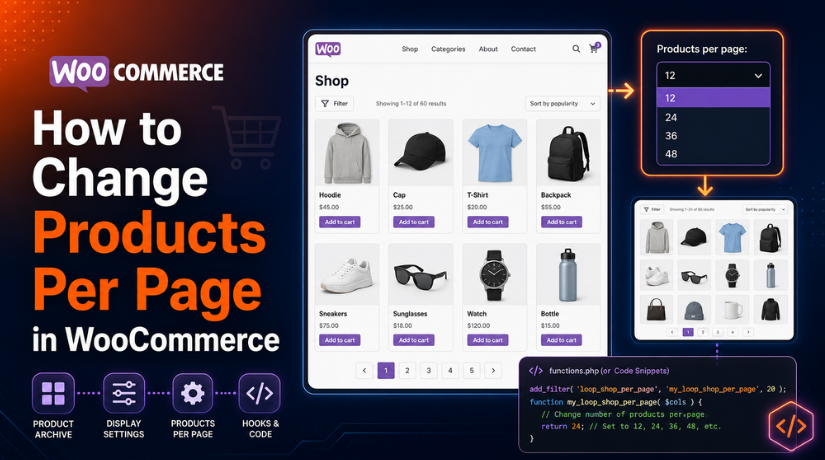
Running a WooCommerce store means showing products clearly to shoppers. Your shop page should feel simple, fast, and easy to use. One important setting is the number of products shown per page. This is often called WooCommerce products per page. It controls how many items appear before shoppers move to the next page.
Many store owners want to change this setting for better browsing. Some want more products on one page. This helps shoppers compare items without clicking too much. Others want fewer products per page. This can make the shop page load faster, especially on mobile.
The right setting depends on your website design and catalog size. A small store may only need 8 or 12 products. A larger store may need 16, 20, or more. However, too many products can slow the page. This can affect the user experience and sales.
WooCommerce settings for products per page can be altered in a number of ways. The WooCommerce Customiser is compatible with a number of traditional themes. The Product Collection block is also compatible with contemporary block themes. Certain websites might make use of page builder tools or theme settings.
This guide explains the safe and updated ways to manage WooCommerce shop page products per page. It also helps you understand product layout, WooCommerce pagination, and common display settings.
What Products Per Page Means in a WooCommerce Store?
Products per page means the number of products shown on one shop page. After that number, WooCommerce pagination usually appears. Pagination lets shoppers move to page two, page three, and more.
For example, your shop page may show 12 products first. If your store has 60 products, WooCommerce will split them into pages. This makes the product list easier to browse. It also helps the page load in a cleaner way.
This setting is different from products per row. Products per row controls how many product cards appear across the page. Products per page controls the total product count shown before pagination starts.
Here is a simple example. If your store shows 4 products per row and 3 rows, it displays 12 products per page. If your store shows 3 products per row and 4 rows, it still displays 12 products per page.
The WooCommerce product limit can affect many areas of your store. It may affect your main shop page. It may also affect product category pages, product tag pages, and archive pages. However, this depends on your theme and layout setup.
WooCommerce product display settings are important for both design and speed. A clean product grid helps customers browse without confusion. A slow or crowded shop page can create a poor experience.
Precautions Before Changing Products Per Page in WooCommerce
Check Your Current Theme Type
Before changing WooCommerce products per page, check your active theme first. Classic themes and block themes do not always work the same way. A classic theme may use WooCommerce catalog settings inside the Customizer. A block theme may use the Site Editor and product blocks. This step helps you choose the correct method from the start.
Review Your Shop Page Setup
You should check how your shop page is created. Some stores use the default WooCommerce shop page. Other stores use custom templates, blocks, or page builders. If your shop page uses a custom layout, the normal WooCommerce product display settings may not work. This can save time and prevent confusion later.
Check If the Product Collection Block Is Used
Modern WooCommerce websites may use the Product Collection block. This block can control the WooCommerce shop page products per page setting. It may also control layout, columns, filters, sorting, and WooCommerce pagination. If this block is active, you should change the product count from its settings.
Check Theme or Page Builder Settings
Many themes and builders add their own shop layout controls. Tools like Elementor, Divi, Flatsome, Astra, Kadence, and WPBakery may override default WooCommerce catalog settings. If your product count does not change, the builder may be controlling it. Always check those settings before adding code.
Take a Backup Before Making Changes
Always take a website backup before changing layout settings. A backup gives you a safe restore point. This is helpful if the shop page breaks or the design changes badly. You can use your hosting backup, a backup plugin, or a staging website.
Test the Shop Page on Mobile Devices
A product layout may look good on desktop but crowded on mobile. More products per page can make the page longer and harder to browse. Check the product grid, buttons, images, and spacing on smaller screens. A mobile-friendly layout can improve the shopping experience.
Avoid Setting a Very High Product Limit
A high WooCommerce product limit can slow your shop page. This is common when product images are large or many plugins run together. Showing too many products can also make the page feel heavy. A balanced product count with clear WooCommerce pagination is usually better.
Clear Website Cache After Saving Changes
Cache can stop your latest changes from showing. Clear your website cache after changing WooCommerce products per page. You should also clear browser cache, CDN cache, and hosting cache. Then check the shop page again in a private browser window.
Method 1: Change Products Per Page From the WooCommerce Customizer
The WooCommerce Customizer is one of the easiest methods. It works well for many classic WordPress themes. You can use it to manage WooCommerce catalog settings without code. This method is best when your shop uses the default WooCommerce layout. It may not work if a builder controls the shop page.
Step 1: Log In to Your WordPress Dashboard
- First, log in to your WordPress admin dashboard.
- Use an account with full administrator access.
- This gives you access to theme and WooCommerce settings.
- After login, stay on the main dashboard screen.
- From here, you can open the Customizer area.
Step 2: Open the WordPress Customizer Area
- Go to the left-side WordPress admin menu.
- Click on Appearance from the dashboard menu.
- Then click on Customize to open the Customizer.
- This area controls many website design settings.
- It may include headers, colors, menus, and layouts.
Step 3: Open the WooCommerce Product Catalog Settings
- Inside the Customizer, look for the WooCommerce option.
- Click WooCommerce to open related store settings.
- Then click Product Catalog from the available options.
- This section controls many WooCommerce catalog settings.
- It can help with WooCommerce shop page customization.
Step 4: Find the Product Rows and Columns Options
- In the Product Catalog section, check product grid settings.
- Look for Products per row and Rows per page.
- Some themes may show Products per page instead.
- These settings control WooCommerce shop page products per page.
- For example, four products per row and three rows show twelve products.
Step 5: Select the Best Product Count for Your Shop
- Choose a number that fits your shop layout.
- A small store may look good with eight products.
- A medium store may work better with twelve products.
- Larger stores may use sixteen or twenty-four products.
- Avoid a very high WooCommerce product limit.
- Too many products can slow the shop page.
Step 6: Publish the Changes and Check the Shop Page
- After changing the settings, click the Publish button.
- This saves your new WooCommerce product display settings.
- Now open your shop page in a new tab.
- Check the total number of products shown.
- Also check whether WooCommerce pagination appears correctly.
- If changes do not show, clear the website cache.
Step 7: Review the Layout on Different Screen Sizes
- Check the shop page on desktop, tablet, and mobile.
- Make sure product images look clean and clear.
- Review product titles, prices, buttons, and spacing.
- If the layout looks crowded, reduce the product count.
- Good WooCommerce shop page customization should support easy browsing.
- A clean layout can improve product discovery and user experience.
Method 2: Change Products Per Page Using the Product Collection Block
The Product Collection block is useful for modern WooCommerce websites. Many updated stores now use blocks for shop page layouts. This method helps you manage WooCommerce products per page without code. It is also helpful when Customizer settings are not visible. If your store uses a block theme, check this method first.
Step 1: Open the WordPress Site Editor
- First, log in to your WordPress admin dashboard.
- Go to Appearance from the left-side menu.
- Then click Editor to open the Site Editor.
- This area controls templates in block-based themes.
- It may include shop, archive, and category templates.
Step 2: Open the Correct Shop Page Template
- Inside the Site Editor, click on Templates.
- Look for the shop or product archive template.
- Common names include Shop and Product Catalog.
- You may also see Product Archives or Product Category.
- Select the template that controls your shop page.
Step 3: Select the Product Collection Block Carefully
- Click on the product grid area in the template.
- If selection feels hard, open the List View.
- List View shows all blocks inside the template.
- Find and select the Product Collection block.
- This block controls the product display on that template.
Step 4: Open the Block Settings Sidebar
- After selecting the block, check the right sidebar.
- The sidebar shows settings for the selected block.
- Look for layout, query, and product display settings.
- You may also see sorting and filter options.
- These parameters facilitate the customisation of WooCommerce shop pages.
Step 5: Adjust the Products Per Page Setting
- Find the Products Per Page option in block settings.
- Enter the number of products you want to show.
- You can use 8 products for a clean layout.
- You can use 12 products for a standard grid.
- Larger stores may use 16 or 24 products.
- Avoid a very high WooCommerce product limit.
- Too many products can slow the shop page.
Step 6: Check Columns, Rows, and Product Layout
- After changing the product count, check the layout.
- Columns control how many products appear in one row.
- Products per page controls the total number shown.
- Both settings affect the final shop page design.
- Keep enough spacing around product images and buttons.
- A clean product grid improves the browsing experience.
Step 7: Make Sure WooCommerce Pagination Is Added
- Check if WooCommerce pagination appears below the products.
- Pagination helps shoppers move through more product pages.
- Without pagination, only limited products may appear.
- This can hide many products from normal browsing.
- Add pagination if your template does not show it.
- Then test page two and page three carefully.
Step 8: Save the Template and Test the Result
- Click Save after changing the block settings.
- Open your shop page in a new browser tab.
- Check the WooCommerce shop page products per page count.
- Also test product category and product tag pages.
- Clear website cache if changes do not appear.
- Review the layout on desktop, tablet, and mobile.
This method is best for block-based WooCommerce websites. It gives more control over product layout and display. It also keeps your store flexible for future design changes. If the Customizer method does not work, this option often helps.
Method 3: Change Products Per Page Using Theme or Page Builder Settings
Some WooCommerce websites use custom shop page designs. In this case, the product count may not come from WooCommerce settings. A theme or page builder may control the whole product grid. This is common with custom WooCommerce shop page customization.
Step 1: Check If Your Shop Page Uses a Builder
- First, open your WordPress admin dashboard.
- Go to Pages and find your shop page.
- Check if the page opens in a builder.
- Common builders include Elementor, Divi, WPBakery, and Flatsome.
- If a builder controls the layout, edit settings there.
- This helps avoid changing the wrong WooCommerce catalog settings.
Step 2: Open the Shop or Product Archive Template
- Some builders use templates for WooCommerce shop pages.
- Go to your theme builder or template area.
- Look for the shop or product archive template.
- It may control all product category pages too.
- Open the template that displays your product grid.
- This is where the product count may be controlled.
Step 3: Select the Product Grid or Products Widget
- Click on the product grid inside the template.
- Select the product widget or WooCommerce product module.
- Open the widget settings from the sidebar.
- Look for layout, query, or display options.
- These options may control WooCommerce shop page products per page.
- They may also control columns and product sorting.
Step 4: Change the Products Per Page Setting
- Find the product count or products per page option.
- Enter the number of products you want to show.
- Use 8 or 12 products for smaller stores.
- Use 16 or 24 products for larger stores.
- Avoid a very high WooCommerce product limit.
- Too many products can slow the shop page.
Step 5: Adjust Columns and Layout Settings
- After setting the count, check the column layout.
- Columns decide how many products appear in one row.
- Products per page decides the total number shown.
- Keep enough spacing between product images and buttons.
- Make sure prices and titles are easy to read.
- Good WooCommerce shop page customization improves browsing.
Step 6: Check Pagination or Load More Options
- Review the WooCommerce pagination setting inside the builder.
- Some builders also offer a load more button.
- Make sure shoppers can access all products easily.
- Pagination should appear after the selected product count.
- If pagination is missing, some products may stay hidden.
- Test page two and other archive pages carefully.
Step 7: Save the Template and Clear Cache
- Save or update the builder template after editing.
- Then clear your website cache and browser cache.
- Clear CDN or hosting cache if your site uses them.
- Open the shop page in a private browser window.
- Check if the new product count appears correctly.
- Also test product category and product tag pages.
Step 8: Test the Shop Page on Mobile Devices
- Open the shop page on a mobile device.
- Check product images, buttons, titles, and prices.
- Make sure the product grid does not look crowded.
- If it feels heavy, reduce the product count.
- The user experience can be enhanced with a clear mobile layout.
- It also helps customers browse products more easily.
Common Problems and Solutions When Changing WooCommerce Products Per Page
Products Per Page Setting Is Missing
Sometimes, you may not find the products per page setting. This usually happens with block themes or custom shop templates. The setting may not appear inside the normal Customizer area. In this case, check the WordPress Site Editor first. Also check whether your shop page uses the Product Collection block. If a page builder controls the layout, check builder settings too.
Customizer Changes Are Not Showing on the Shop Page
You may change products per page WooCommerce settings in the Customizer. Still, the shop page may show the old product count. This can happen when the theme overrides WooCommerce settings. It can also happen when a builder controls the shop layout. Check your theme options, shop template, and product widget settings. Then clear all cache and test the shop page again.
Product Collection Block Shows Only Limited Products
The Product Collection block has its own product display settings. It may control the WooCommerce shop page products per page number. If it shows fewer products, open the block settings. Check the query, product count, columns, and pagination options. Make sure WooCommerce pagination appears under the product grid. Without pagination, customers may not find all products.
Product Category Pages Show a Different Count
Sometimes, the main shop page shows the correct product count. But product category pages may show a different number. This happens when category pages use separate archive templates. Check your Product Category template inside the Site Editor. Also review page builder archive templates if you use them. Apply the same WooCommerce product limit where needed.
The Product Grid Looks Crowded After Changes
A higher product count can make the shop page feel busy. Product images, titles, prices, and buttons need enough space. If the layout looks crowded, reduce products per row first. You can also reduce total WooCommerce products per page. Always test the layout on desktop, tablet, and mobile. A clean layout helps shoppers browse without stress.
WooCommerce Pagination Is Missing or Not Working
Pagination helps shoppers move through all product pages. If WooCommerce pagination is missing, many products may stay hidden. This problem often appears in custom templates or product blocks. Check the pagination setting inside your builder or block editor. Also check if AJAX filters or custom code affect pagination. After fixing it, test page two and page three.
Fewer Products Show Than Expected
Sometimes, WooCommerce shows fewer products than your selected number. This may happen because some products are hidden from catalog view. Out-of-stock products may also be hidden by store settings. Filters, sale queries, or category limits can also affect results. Check product visibility, stock status, and category settings carefully. Then review your WooCommerce product display settings again.
Conclusion
Changing WooCommerce products per page can be simple and useful. But the correct method depends on your website setup. Classic themes usually use the WooCommerce Customizer and catalog settings. Block themes often use the Product Collection block instead. Custom shop pages can make use of page builder or theme settings. That is why one method may not work for every store.
Before making changes, check your theme, template, and builder setup. Then choose the method that matches your shop structure. Always test the product grid after saving changes. Review desktop, tablet, and mobile layouts carefully. Also clear cache if the new product count does not appear. A balanced WooCommerce product limit can improve speed, layout, and browsing. It also helps customers view products with less confusion.
For more WordPress or WooCommerce support guidance, you can contact WPChatSupport. Their team can review theme settings, blocks, page builders, cache, and WooCommerce pagination issues. You can also call +1 888 602 0119 for help with WordPress and WooCommerce website issues.

James is an experienced WordPress and WooCommerce specialist with over 10 years of practical experience. At WPChatSupport, he creates clear guides that help website owners fix WordPress issues, improve speed, secure their sites, and manage WooCommerce stores with confidence. His expertise includes store setup, plugin configuration, theme customization, payment gateway integration, and website troubleshooting. Through simple and helpful content, James supports users in solving technical problems and following best practices for online business growth.