Introduction
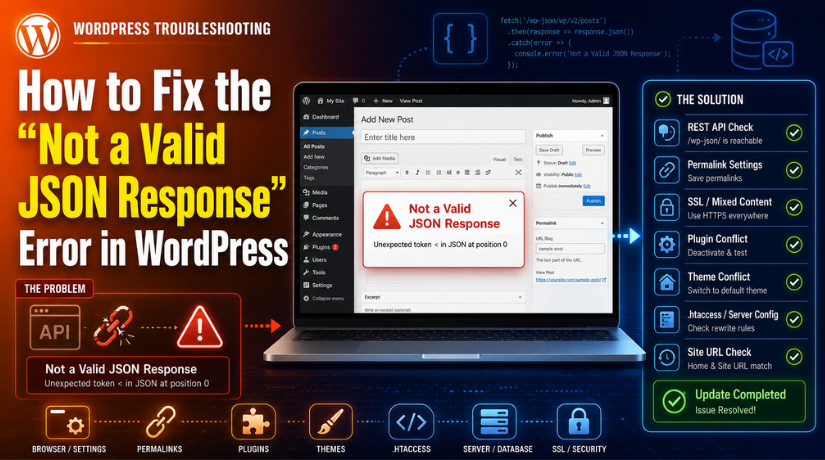
The “not a valid JSON response” error is common in WordPress. It usually appears when you update or publish a post or page. You may see this message: “Updating failed. The response is not a valid JSON response.” You may also see: “Publishing failed. The response is not a valid JSON response.”
This issue is also known as a WordPress JSON response error. Some users call it a Gutenberg JSON error because it appears in the WordPress block editor. It can stop you from saving your latest changes.
In most cases, your content is not the problem. The issue happens when WordPress cannot get the right reply from your server. WordPress sends a request when you click Update or Publish. The server should send back a valid JSON response. If the response is broken, blocked, or redirected, WordPress shows this error.
The good thing is that this error can usually be fixed. You only need to check the main causes one by one. In this guide, we will explain what the error means, why it happens, and how to fix it safely.
What Does “Not a Valid JSON Response” Mean in WordPress?
The error sounds technical, but it is simple to understand. WordPress uses JSON to send and receive data. JSON is a format that helps WordPress and your server communicate.
When you click Update or Publish, WordPress sends your content to the server. The server should return a clean JSON response. If WordPress receives the correct response, your content saves properly.
The problem starts when the server sends something else. It may send a 404 page, 403 page, login page, redirect page, firewall block, PHP warning, or server error. WordPress cannot read these as valid JSON. So, it shows the WordPress update failed error.
This is why the error is often linked with the REST API. The WordPress block editor uses the REST API to save content. If the REST API is blocked or not working, the editor may fail. To fix WordPress REST API issues, you need to check permalinks, plugins, security settings, and hosting rules.
Sometimes, the content may still save even after the error appears. This happens when WordPress saves the content but receives a broken final response. Other times, the content may not save at all.
In simple words, the WordPress block editor error means WordPress expected a proper server reply but received the wrong response. Once the communication issue is fixed, the editor usually works again.
Common Causes of the WordPress JSON Response Error
The WordPress JSON response error can happen for different reasons. Below are the most common reasons for the invalid JSON response WordPress issue.
Broken permalink settings can stop WordPress from reading the right page
Permalink settings are one of the most common causes. WordPress uses permalinks to create clean URLs for posts, pages, and other content. It also uses rewrite rules to handle internal requests. If these rules stop working, WordPress may not find the correct REST API route. Instead of a JSON response, the server may return a 404 page. This can lead to a WordPress update failed message in the editor.
Incorrect WordPress Address or Site Address can create redirects
Wrong site URL settings can also cause this issue. WordPress has two important URL fields. These are WordPress Address and Site Address. Both should use the correct domain. Both should also use the same HTTP or HTTPS version.
This issue is common after adding SSL. It can also happen after moving a website to a new domain. Checking both URLs is a simple but important step.
REST API is blocked or not working correctly
The WordPress REST API helps the editor communicate with your site. The block editor uses it when you save, update, or publish content. If the REST API is blocked, WordPress may not save changes properly. This can create a WordPress REST API error in the editor or Site Health.
Plugin or theme conflicts can break the editor response
Plugins can also cause the invalid JSON response WordPress error. Security plugins may block REST API requests. Cache plugins may serve an old or broken response. Optimization plugins may change scripts or server output. Page builders and SEO plugins can also create conflicts in some cases.
SSL or mixed content issues can affect saving content
SSL issues can also create the WordPress block editor error. This usually happens when the website uses HTTPS, but some settings still use HTTP. Old internal links may also point to the HTTP version of the site. This can create mixed content or redirect problems.
Firewall, ModSecurity, or Cloudflare rules may block requests
Security tools are useful, but they can sometimes block valid requests. A firewall may see a REST API request as suspicious. ModSecurity may block some POST requests from the editor. Cloudflare rules may also challenge or block admin requests.
PHP warnings or server errors can damage the JSON response
PHP errors are another common cause. A plugin, theme, or custom code file may create a warning or fatal error. Even a small warning can break a clean JSON response. WordPress then receives extra output before the real response.
How to Resolve the “Not a Valid JSON Response” Error in WordPress
The WordPress JSON response error can often be fixed with simple checks. Start with the basic steps first. Then move to plugins, firewall, and server settings if needed. These steps can help fix the invalid JSON response WordPress issue safely.
Step 1: Copy your content and take a backup first
- Copy your post or page content before making changes.
- Save it in a document, text file, or Google Doc.
- This protects your latest work if the page fails.
- Take a full website backup before changing settings.
- A backup helps restore the site if anything goes wrong.
Step 2: Resave your WordPress permalink settings
- Go to your WordPress dashboard.
- Open Settings and click Permalinks.
- Do not change any permalink option.
- Click the Save Changes button.
- This refreshes the WordPress rewrite rules.
- Go back to your post or page.
- Try to update or publish it again.
Step 3: Check WordPress Address and Site Address
- Go to Settings and open General.
- Check the WordPress Address URL.
- Check the Site Address URL.
- Both URLs should use the same domain.
- Both should use HTTPS if SSL is active.
- Do not use HTTP in one URL and HTTPS in another.
- A small URL mismatch can cause a WordPress update failed error.
Step 4: Test the WordPress REST API URL
- The WordPress block editor uses the REST API.
- Open this URL in your browser: https://yourdomain.com/wp-json/.
- Replace yourdomain.com with your real domain.
- If you see raw JSON text, the REST API is working.
- If you see a 404 page, check permalink settings.
- If you see a 403 error, check security rules.
- If you see a login page, check redirect settings.
- If you see a server error, check hosting or PHP errors.
- This test helps fix WordPress REST API issues faster.
Step 5: Check WordPress Site Health
- Go to Tools in your WordPress dashboard.
- Click Site Health.
- Open the Status tab.
- Look for REST API or loopback request warnings.
- You may see “The REST API encountered an error.”
- You may also see “The REST API encountered an unexpected result.”
- These warnings can explain the WordPress block editor error.
Step 6: Disable plugins and test again
- Plugins can cause the Gutenberg JSON error.
- Start with security, cache, SEO, and optimization plugins.
- Page builders can also affect REST API requests.
- Deactivate non-essential plugins for testing.
- Try saving the post or page again.
- If the error disappears, reactivate plugins one by one.
- Test the editor after each plugin.
- This helps find the plugin causing the issue.
Step 7: Switch to a default WordPress theme
- The active theme can sometimes cause this error.
- This may happen because of old code.
- PHP warnings from the theme can also break JSON.
- Switch to a default WordPress theme for testing.
- Try updating the page again.
- If the error disappears, your theme may need work.
- Update the theme or review its custom code.
Step 8: Check SSL and mixed content issues
- Make sure your SSL certificate is active.
- Check that WordPress URLs use HTTPS.
- Old HTTP links may create redirect issues.
- These redirects can break the JSON response.
- Clear your website cache after fixing HTTPS settings.
- Use a safe search-and-replace tool if needed.
- Take a backup before changing database URLs.
Step 9: Check firewall and security settings
- A firewall may block valid editor requests.
- This can cause a publishing failed WordPress message.
- Check your WordPress security plugin logs.
- If you use Cloudflare, check firewall events.
- Look for blocked requests related to /wp-json/.
- Ask your host to check ModSecurity rules.
- Do not disable security fully for long.
- Whitelist safe admin REST API requests instead.
Step 10: Repair the .htaccess file
- A broken .htaccess file can affect REST API routes.
- This mainly applies to Apache or LiteSpeed hosting.
- Open your hosting file manager or FTP.
- Find the .htaccess file in the root folder.
- Download a backup copy first.
- Rename the file to .htaccess-old.
- Go to Settings and click Permalinks.
- Click Save Changes to create a fresh file.
- Test the editor again.
Step 11: Check PHP errors and debug logs
- PHP errors can damage the JSON response.
- A plugin or theme may show a warning.
- These warnings can appear before WordPress sends data.
- Check the debug log at /wp-content/debug.log.
- Look for plugin names, theme names, or fatal errors.
- Update, disable, or fix the item causing the issue.
- Keep visible debugging off on live websites.
- This protects users from seeing error details.
Step 12: Contact your hosting provider
- Contact hosting support if the issue still appears.
- Ask them to check REST API blocks.
- Ask them to review firewall and ModSecurity logs.
- Ask them to check SSL redirects and rewrite rules.
- Ask them to check PHP errors and server limits.
- You can send this message:
“Hello, I am getting the ‘Updating failed. The response is not a valid JSON response’ error in WordPress. Please check whether REST API requests to /wp-json/ are being blocked by firewall, ModSecurity, SSL redirects, rewrite rules, or PHP errors.”
Hosting support can often find server-side issues quickly. Once the blocked request is fixed, the editor should work again.
How to Prevent the JSON Response Error in Future
The WordPress JSON response error can return if the same issue happens again. So, it is important to keep your site clean and updated.
Keep WordPress core updated
Always keep WordPress core updated to the latest stable version. Updates help fix bugs, security issues, and editor problems. An outdated WordPress version can sometimes cause a WordPress REST API error or WordPress block editor error.
Update plugins and themes regularly
Old plugins and themes can create conflicts with the block editor. They may also break REST API requests. Update your plugins and theme when safe updates are available. This can reduce the risk of an invalid JSON response WordPress issue.
Use trusted plugins only
Use plugins from trusted developers and official sources. Poorly coded plugins can affect website performance and server responses. They may also cause the Gutenberg JSON error during editing. Remove plugins that you do not use anymore.
Avoid blocking the WordPress REST API
The WordPress block editor needs the REST API to save content. Do not block REST API access without a clear reason. If you use a security plugin, check its REST API settings carefully. This can help fix WordPress REST API issues before they affect your editor.
Keep HTTPS settings correct
Make sure your website uses HTTPS correctly. Your WordPress Address and Site Address should use the same HTTPS version. Wrong HTTP and HTTPS settings can create redirects. These redirects may cause the WordPress JSON response error.
Clear cache after major website changes
Clear your website cache after migrations, SSL changes, or URL updates. Old cached files can sometimes affect editor requests. Cache issues may also cause a WordPress update failed message. Clearing cache helps WordPress load fresh settings.
Check Site Health regularly
WordPress Site Health can show REST API and server warnings. Check it from your dashboard from time to time. If you see REST API warnings, fix them early. This can prevent publishing failed WordPress errors later.
Monitor PHP errors when issues appear
PHP errors can break a clean JSON response. Check error logs when the editor starts showing issues. A plugin, theme, or custom code file may be causing the problem. Fixing PHP errors can prevent the WordPress JSON response error from returning.
Test major updates on staging first
Use a staging site before making big changes. Test WordPress updates, plugin updates, and theme changes there first. This helps you find problems before they affect your live website. It is a safer way to manage WordPress updates.
Avoid editing .htaccess without backup
The .htaccess file controls important WordPress rules. A small mistake can affect permalinks and REST API routes. Always take a backup before editing this file. If rewrite rules break, the invalid JSON response WordPress error may appear again.
Check firewall rules carefully
Firewalls help protect your website from attacks. But strict rules can sometimes block valid editor requests. Check security plugin, Cloudflare, and hosting firewall settings carefully. Allow safe admin REST API requests when needed.
Conclusion
The “not a valid JSON response” error means WordPress received the wrong server reply. It often appears when you update or publish content. This issue is usually linked to REST API problems, broken permalinks, wrong HTTPS settings, plugin conflicts, firewall rules, or server errors.
Start with the simple checks first. Copy your content, take a backup, and resave permalinks. Then check your WordPress URLs, REST API URL, and Site Health. If the error continues, test plugins, themes, SSL settings, firewall rules, .htaccess, and PHP errors.
The invalid JSON response WordPress issue can look confusing at first. But it becomes easier when you follow each step in order. Once the broken response is fixed, the WordPress block editor should work properly again.
Need help understanding this WordPress error? If the WordPress JSON response error continues, it may need a deeper check. The issue can come from REST API settings, plugin conflicts, firewall rules, HTTPS problems, or server errors. For WordPress support, you can visit https://wpchatsupport.com/ or call +1 888 602 0119 for more guidance.

James is an experienced WordPress and WooCommerce specialist with over 10 years of practical experience. At WPChatSupport, he creates clear guides that help website owners fix WordPress issues, improve speed, secure their sites, and manage WooCommerce stores with confidence. His expertise includes store setup, plugin configuration, theme customization, payment gateway integration, and website troubleshooting. Through simple and helpful content, James supports users in solving technical problems and following best practices for online business growth.