Introduction
WordPress emails are important for every active website. They help your website send contact form messages, password reset links, order updates, user alerts, and admin notices. When these emails stop working, your website may look fine from the outside. But behind the scenes, important messages may not reach you or your users.
The “could not instantiate mail function WordPress” error is one common reason behind this problem. It usually appears when WordPress tries to send an email but cannot complete the process. This may happen during a contact form submission, password reset request, WooCommerce order update, or user registration.
This guide will help you understand the issue in simple words. You will learn what this WordPress email error means, why it happens, and what part of your website it can affect. Later sections will also show how to fix could not instantiate mail function problems using safe and practical steps.
What Does “Could Not Instantiate Mail Function” Mean in WordPress?
The “Could Not Instantiate Mail Function” error means WordPress tried to send an email but failed. In simple words, WordPress could not start or complete the mail sending process. This does not always mean your website is fully broken. It means the email system needs attention.
WordPress uses a function called wp_mail() to send emails. This function helps WordPress send messages from forms, plugins, WooCommerce, and user actions. It works with a mail library called PHPMailer. PHPMailer helps create and send email messages from your website.
When everything works correctly, WordPress sends the email request to the server. The server then tries to send that email to the receiver. But if the server cannot handle the request, WordPress may show this error. That is why this problem is often called a WordPress mail function error.
This can happen when PHP mail is disabled on your hosting server. It can also happen when your hosting company blocks outgoing emails. Some hosts limit mail sending to stop spam. This helps protect their servers, but it can also affect real website emails.
It is also important to understand one thing clearly. This error does not always mean your contact form plugin is faulty. It does not always mean WooCommerce is faulty either. The plugin may create the email correctly, but WordPress may fail to send it.
This issue can affect many types of WordPress emails, including contact form emails, admin alerts, password reset emails, WooCommerce order emails, user registration emails, booking emails, and membership emails.
Causes of the “Could Not Instantiate Mail Function” Error in WordPress
The “could not instantiate mail function WordPress” error can happen for several reasons. Most causes are linked to how your website sends emails. WordPress may create the email correctly, but the server may fail to send it. This is why the error often appears as a WordPress mail function error.
PHP Mail Function Is Disabled by Your Hosting Provider
WordPress often uses the PHP mail function to send emails. This function depends on your hosting server. If your host disables PHP mail, WordPress cannot send emails correctly.
Some hosting companies block PHP mail to prevent spam. This is common on shared hosting plans. Many websites use the same server, so hosts must control outgoing mail. If one website sends spam, it can affect the full server.
Hosting Server Mail Settings Are Not Configured Properly
Your server must be ready to send emails from WordPress. If the server mail service is missing or broken, emails may fail. The server may not have the correct mail path. It may also have poor mail routing settings.
Some servers need Sendmail, Postfix, or another mail service. If these tools are not set correctly, WordPress email delivery can fail. This can create a WordPress email delivery issue.
SMTP Is Not Set Up on the Website
SMTP is a better way to send WordPress emails. It uses proper login details or an API key. This helps your website send emails through a trusted mail service.
Without SMTP, WordPress may depend on default PHP mail. That method is not always reliable. Many hosting providers limit it or block it. This is why a WordPress SMTP setup is often the best solution.
Wrong From Email Address Is Used
The From email address is very important. It tells the receiver who sent the message. If this email does not match your domain, the server may reject it.
For example, using a visitor’s Gmail address as the From email is not safe. Your website is not allowed to send emails from that Gmail account. Mail servers may see this as a fake sender.
Plugin Conflict Can Break the Mail Process
Plugin conflict is another common cause. This can happen when two plugins control email sending together. For example, you may have two SMTP plugins active at once. Both plugins may try to change the same mail settings.
Security plugins can also block outgoing email requests. Some plugins may block server actions for safety. But they may also stop valid WordPress emails.
Contact Form Notification Settings Are Incorrect
A contact form can work but still not send emails. The form may save the entry in WordPress. But the notification email may fail because of wrong settings.
Check the recipient email first. Make sure it is correct and active. Then check the From email. It should use your domain email. Also check the Reply-To field. This field should use the visitor’s email.
WooCommerce Email Settings May Be Wrong
WooCommerce uses the WordPress mail system for store emails. If WordPress mail fails, WooCommerce emails may fail too. This can affect both store owners and customers.
You may miss new order emails. Customers may miss order confirmations. Refund, invoice, and completed order emails may also fail.
Checklist Before You Start Fixing the WordPress Mail Function Error
Before making changes, check a few basic things first. This helps you find the real cause faster. It also prevents extra mistakes during the fix.
Basic Checks
Check your WordPress admin email. Make sure it is correct and active. Check spam and junk folders. Test the password reset email. Submit one contact form test. Check if form entries are saved. If your site uses WooCommerce, confirm that order emails are enabled.
Also check if an SMTP plugin is already installed. If more than one SMTP plugin is active, keep only one.
Plugin and Theme Checks
Review recently updated plugins. Check form, email, security, and WooCommerce plugins first. Disable unused mail plugins. Clear the website cache after changes. Test with a default theme only if needed.
Hosting Checks
Ask your hosting provider these questions:
Is PHP mail enabled? Is outgoing mail blocked? Are SMTP ports restricted? Do server mail logs show any errors? Is my domain allowed to send emails? Is there an hourly email limit?
You can send this message:
“Hello, my WordPress website is showing a WordPress mail function error. Emails are not sending from forms and website actions. Please check if PHP mail is enabled, outgoing mail is blocked, SMTP ports are restricted, or server mail logs show any errors.”
Important Tip
Do not change many settings together. Make one change, then test again. This makes troubleshooting safer and easier.
Guide to Fixing the “Could Not Instantiate Mail Function” Error in WordPress
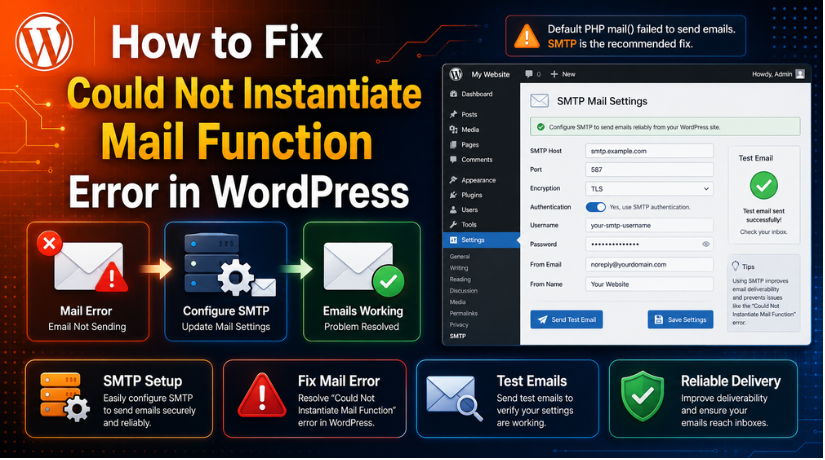
After checking the causes, you can start the fix. The goal is to make WordPress send emails through a trusted method. In most cases, a proper WordPress SMTP setup can fix could not instantiate mail function issues.
Step 1: Install One SMTP Plugin
Install one trusted SMTP plugin on your website. Common options include WP Mail SMTP, FluentSMTP, Post SMTP, Easy WP SMTP, and SMTP Mailer. Use only one SMTP plugin at a time. Multiple SMTP plugins can create a new WordPress email error.
- Go to Plugins, then click Add New.
- Search for your selected SMTP plugin. Install it and activate it.
- Then open the plugin settings page.
Step 2: Choose Your SMTP Mailer
Choose the mailer inside your SMTP plugin. You can use Gmail, Google Workspace, Microsoft 365, SendGrid, Mailgun, Brevo, Postmark, SMTP2GO, or another trusted provider.
For small sites, Gmail or Google Workspace may work. For business sites, a transactional email service is usually better.
Step 3: Add SMTP Details Correctly
Add the SMTP details from your email provider. Check the SMTP host, port, username, password, sender email, and API key. Common ports are 587 for TLS and 465 for SSL. Port 25 is often blocked by hosting providers.
Save the settings after checking every field. One wrong detail can cause a WordPress mail function error.
Step 4: Set a Domain-Based From Email
Use a sender email connected with your domain. Good examples include info@yourdomain.com, support@yourdomain.com, or orders@yourdomain.com.
Avoid using free Gmail, Yahoo, or Outlook emails as the main sender. The From Email should match your domain or SMTP account.
Step 5: Use Reply-To Correctly
Your website should send emails from your domain email. The visitor’s email should go in the Reply-To field.
Correct setup:
From: info@yourdomain.com
Reply-To: visitor’s submitted email
Incorrect setup:
From: visitor@gmail.com
Check this setting in Contact Form 7, WPForms, Gravity Forms, Ninja Forms, or Fluent Forms.
Step 6: Send an SMTP Test Email
Most SMTP plugins include a test email option. Send one test email to an active inbox. Check the inbox and spam folder.
If the email fails, read the error message. It may show a wrong password, blocked port, invalid sender, or failed connection.
Step 7: Test Contact Form Emails
Open your form notification settings. Make sure notifications are enabled. Check the recipient email, From email, Reply-To field, and conditional rules.
Submit one test form. Then check your inbox, spam folder, form entries, and SMTP logs.
Step 8: Test WooCommerce Emails
If you use WooCommerce, go to WooCommerce, then Settings, then Emails. Check new order, processing order, completed order, and customer invoice emails.
Make sure emails are enabled. Check the recipient email and sender email. Then place a small test order.
Step 9: Ask Hosting Support to Check Restrictions
If emails still fail, contact your host. Ask if PHP mail is enabled. Also ask if outgoing mail or SMTP ports are blocked.
You can send this message:
“Hello, my WordPress site is showing the ‘Could Not Instantiate Mail Function’ error. Please check if PHP mail is enabled, outgoing mail is blocked, SMTP ports are restricted, or mail logs show any rejection.”
Step 10: Test All Important Emails Again
Test the SMTP email, contact form email, password reset email, WooCommerce email, and user registration email.
Check inbox, spam folder, SMTP logs, form entries, and WooCommerce notes. If all emails work, the WordPress email not sending issue is likely fixed.
How to Prevent “Could Not Instantiate Mail Function” Error in the Future
Fixing the error is important, but prevention is also necessary. A stable email setup helps protect leads, orders, and user messages. It also reduces future WordPress email not sending issues. You can prevent this WordPress email error by keeping your mail setup clean, trusted, and tested.
Use SMTP Instead of Default PHP Mail
WordPress may use the default PHP mail function for emails. This method depends heavily on your hosting server. If the server blocks mail, emails can fail again. A proper WordPress SMTP setup is more reliable. SMTP sends emails through an authenticated mail service. This helps reduce many WordPress mail function error cases.
Keep Only One SMTP Plugin Active
Do not use multiple SMTP plugins together. They may change the same email settings. This can create conflicts and new sending errors. Keep only one trusted SMTP plugin active. Remove unused email plugins from your website.
Use a Verified Domain Email Address
Always use a domain-based email as the sender. Good examples include support@yourdomain.com, info@yourdomain.com, or orders@yourdomain.com. Avoid using free Gmail or Yahoo addresses as your main sender. A domain email looks more trusted to mail servers. It also helps reduce sender mismatch problems.
Add SPF, DKIM, and DMARC Records
Email authentication records help improve email trust. SPF tells mail servers who can send emails for your domain. DKIM adds a trusted signature to your email. DMARC gives rules when email checks fail. These records may not directly fix could not instantiate mail function errors. But they help improve WordPress email delivery after SMTP setup.
Enable Email Logs on Your Website
Email logs help you track WordPress emails. They show which email was sent and when. They can also show failed emails and error details. This is helpful for contact forms, WooCommerce, and user emails. If a WordPress email delivery issue happens again, logs make testing easier.
Test Emails After Important Website Changes
Always test emails after major website changes. Test after website migration, hosting changes, DNS changes, plugin updates, and PHP version updates. Also test after changing your SMTP password or email provider. Send test emails from forms, WooCommerce, and password reset pages.
Avoid Sending Bulk Emails Through Default WordPress Mail
Do not send newsletters through basic WordPress mail. Default WordPress mail is not made for bulk campaigns. Use a proper email marketing tool for newsletters. Use a transactional email service for important website emails.
Conclusion
The “could not instantiate mail function WordPress” error means WordPress cannot send emails correctly. It often happens because PHP mail is disabled, hosting mail is blocked, SMTP is missing, or sender details are wrong. This issue can affect contact forms, password reset emails, WooCommerce order emails, user alerts, and admin notifications.
A proper WordPress SMTP setup is usually the safest fix. SMTP helps your website send emails through a trusted mail service. You should also use a domain-based From Email and set the Reply-To field correctly. After making changes, test all important emails. Check contact forms, password reset emails, WooCommerce emails, inbox folders, spam folders, and email logs.
If the WordPress email error continues, it may need deeper checking. Hosting restrictions, SMTP port blocks, DNS records, or plugin conflicts may be involved. In that case, you can review the issue with a WordPress support team.
For help with WordPress email sending, SMTP setup, contact form emails, or WooCommerce email issues, you can visit https://wpchatsupport.com/. You can also call WPChatSupport at +1 888 602 0119 for WordPress support guidance.

James is an experienced WordPress and WooCommerce specialist with over 10 years of practical experience. At WPChatSupport, he creates clear guides that help website owners fix WordPress issues, improve speed, secure their sites, and manage WooCommerce stores with confidence. His expertise includes store setup, plugin configuration, theme customization, payment gateway integration, and website troubleshooting. Through simple and helpful content, James supports users in solving technical problems and following best practices for online business growth.