Introduction
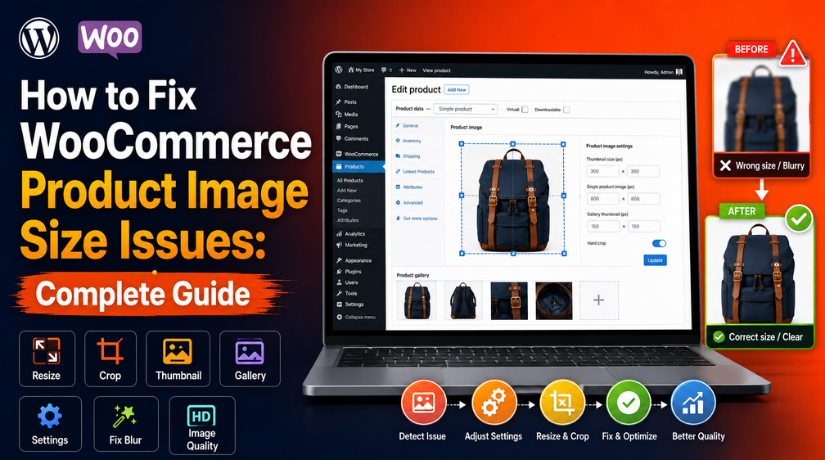
Product images play a major role in every WooCommerce store. Customers cannot touch or test products online before buying. They depend on clear images to understand product quality, size, color, and design. So, your product images must look sharp, clean, and properly placed. A small WooCommerce product image size issue can hurt the full shopping experience. It can make your store look less professional and less trustworthy. If images look blurry, cropped, stretched, or uneven, customers may leave the page. They may also feel unsure about buying from your store.
Good product images help users make faster buying decisions. They also improve the look of shop pages and product pages. A clean product grid makes your website easier to browse. It also helps users compare products without confusion. When the WooCommerce image size is correct, your store looks more polished. It also gives users a smoother shopping experience across devices.
This guide explains why these problems happen. It also helps you understand the common reasons behind WooCommerce blurry product images. Once you know the cause, fixing the issue becomes much easier.
Why WooCommerce Product Image Size Issues Happen
Low-Quality or Small Uploaded Images
Small images are a common reason for blurry product photos. When you upload a small image, WooCommerce or your theme may stretch it. This makes the image lose quality on the product page. For example, a 300 × 300 px image may not look clear in a large display area.
Wrong WooCommerce Image Size Settings
WooCommerce uses image settings to control product photos. These settings affect shop pages, category pages, and product pages. If the WooCommerce image size is not set correctly, images may look too small or too large. They may also appear cropped in the wrong place. This creates a common WooCommerce product image size issue.
Different Product Image Ratios
Product image ratio means the shape of the image. Some images may be square, while others may be vertical or wide. When all product images use different ratios, the shop grid looks uneven. Product boxes may not align correctly. Titles, prices, and buttons may also shift.
Theme-Controlled Product Image Sizes
Many WooCommerce themes control product image sizes. Your theme may set its own width, height, and cropping rules. In this case, WooCommerce settings alone may not fix the issue. The theme may force product images into a fixed box. This can cause cropping, stretching, or uneven display.
Old Thumbnails Still Showing
WooCommerce creates different thumbnail sizes for product images. When you change image settings, old thumbnails may still load. This means your new settings may not show on the frontend. The store may continue showing old image versions. This can make it look like the WooCommerce image size change did not work.
Cache or CDN Showing Old Images
Cache can also cause product image size problems. Browser cache, WordPress cache, hosting cache, or CDN cache may store old images. Even after fixing the settings, your store may still show the old version. This can confuse store owners during testing.
CSS or Page Builder Conflicts
Custom CSS and page builders can also affect product images. Tools like Elementor, Divi, WPBakery, or gallery plugins may add their own image rules. These rules can force fixed heights, widths, or crop styles. As a result, product images may look stretched, cropped, or uneven.
Common Reasons Behind WooCommerce Image Size Issues
Old WooCommerce Thumbnails Are Still Loading
WooCommerce creates different image sizes for shop pages, product pages, and galleries. When you change the WooCommerce image size, old thumbnails may still appear. This can make your new settings look wrong. Regenerating thumbnails usually fixes this issue.
Website Cache Is Showing Old Product Images
Cache can keep old image files saved on your website. Browser cache, plugin cache, hosting cache, and CDN cache may show old images. This can cause a WooCommerce product image size issue even after settings are fixed.
CDN Is Not Updating the Latest Image Version
A CDN helps load images faster from different locations. But sometimes, it keeps showing old product images. This can make WooCommerce product images not showing correctly on the frontend. Purge CDN cache after changing image settings.
Custom CSS Is Forcing Image Width or Height
Custom CSS can control product image size, height, and layout. Wrong CSS may stretch or crop product images. This can create WooCommerce blurry product images or uneven grids. Check fixed height, width, object-fit, and overflow rules.
Page Builder Settings Are Controlling Product Images
Page builders like Elementor, Divi, and WPBakery may use their own image settings. These settings can override WooCommerce product image dimensions. If images look wrong only on custom pages, check your builder settings first.
Product Gallery Plugins Are Changing Image Display
Some gallery plugins change how product images appear. They may control thumbnails, zoom, sliders, and gallery layouts. This can affect WooCommerce image resize results. Check plugin settings if gallery images look cropped or uneven.
Quick Checklist Before Fixing Image Sizes Issue In WooCommerce
Take a Full Website Backup First
Always take a full backup before changing image settings. This protects your store if anything goes wrong. A backup is very important for live WooCommerce websites.
Check Product Image Dimensions in Media Library
Open the WordPress Media Library and check image size. Make sure images are not too small. Proper WooCommerce product image dimensions help prevent blurry and stretched images.
Review the Shop Page and Single Product Page
Check where the issue appears in your store. It may show on the shop page, category page, or product page. This helps you find the exact cause faster.
Check WooCommerce Product Image Settings
Go to WooCommerce image settings and review the options. Check main image width, thumbnail width, and cropping settings. Wrong settings can affect the full product layout.
Check Theme Image and Layout Settings
Your theme may control product image sizes. Check theme settings for shop grids, product cards, and galleries. This step is important when WooCommerce settings do not work.
Clear Cache Before Testing the Final Result
Clear browser, plugin, hosting, and CDN cache after changes. Then test the page in an incognito window. This helps you see the latest image version.
Test Product Images on Mobile and Desktop
Product images may look different on each device. Check desktop, tablet, and mobile views. This helps you catch responsive WooCommerce image size issues.
Apply One Fix at a Time
Do not change many settings together. Apply one fix, test the result, and then continue. This makes troubleshooting safer and easier.
Step By Step Guide to Fix WooCommerce Product Image Size Issues
Step 1: Check Product Image Dimensions
- Open your WordPress Media Library.
- Select the product image with the issue.
- Check the image width and height.
- Small images can cause WooCommerce blurry product images.
- Use at least 800 × 800 px for most products.
- Use 1000 × 1000 px if image zoom is active.
- Keep the same image ratio for all products.
Step 2: Replace Small or Poor Images
- Replace very small or low-quality images.
- Do not rely only on WooCommerce image resize settings.
- Upload clear and sharp product photos.
- Keep the product centered in the image.
- Use the same ratio for all product images.
- This helps fix WooCommerce product images not showing issues correctly.
Step 3: Open WooCommerce Image Settings
- Go to Appearance > Customize > WooCommerce > Product Images.
- Check the main image width option.
- Check the thumbnail width option.
- Review the thumbnail cropping option.
- Wrong settings can create WooCommerce product image size issues.
- Save changes only after checking your layout needs.
Step 4: Set the Main Image Width
- Main image width controls the large product image.
- It appears on the single product page.
- Choose a size that matches your theme layout.
- Avoid setting it too small or too large.
- Click Publish after making changes.
- Check one product page after saving.
Step 5: Set the Thumbnail Width
- Thumbnail width controls shop page images.
- It also affects category and gallery images.
- Wrong width can make product grids uneven.
- Choose a balanced size for your store layout.
- Keep product cards clean and aligned.
- Test the shop page after saving changes.
Step 6: Choose the Right Cropping Option
- Use 1:1 square cropping for equal product grids.
- Use custom ratio for tall or wide products.
- Use uncropped to show the full product image.
- Avoid uncropped images if grids look uneven.
- Choose cropping based on your product type.
- Test the shop page after changing this setting.
Step 7: Regenerate WooCommerce Thumbnails
- Go to WooCommerce > Status > Tools.
- Find Regenerate shop thumbnails.
- Click the regenerate option.
- Wait until the process is complete.
- Do not close the page too early.
- This creates new WooCommerce product image dimensions.
Step 8: Clear Cache and Test Again
- Clear your browser cache.
- Clear WordPress cache plugin data.
- Clear hosting cache if available.
- Clear CDN cache if you use one.
- Open the store in an incognito window.
- Check shop pages, product pages, and galleries.
Step 9: Test Images on Mobile and Desktop
- Open your store on the desktop.
- Check the same pages on mobile.
- Test product cards and gallery images.
- Check if images look clear and balanced.
- Make sure images are not cropped badly.
- If issues remain, check theme or page builder settings.
How to Prevent WooCommerce Image Size Issues in Future
Use the Same Image Ratio for All Products
Keep all product images in the same shape. For most stores, square images work well. A fixed ratio helps product grids look clean and balanced. It also prevents uneven product cards on shop pages.
Create a Fixed Product Image Size Guide
Make a simple image size rule for your store. For example, use 800 × 800 px or 1000 × 1000 px for product photos. This keeps WooCommerce product image dimensions consistent across your website.
Upload High-Quality Original Images
Always upload clear and sharp product images. Small or poor-quality images can become blurry after resizing. High-quality images help prevent WooCommerce blurry product images on product pages.
Compress Images Before Uploading
Large image files can slow down your store. Compress product images before uploading them. Use JPG or WebP for most product photos. This keeps images clear without making pages heavy.
Regenerate Thumbnails After Major Changes
Regenerate thumbnails after changing image settings or themes. This helps WooCommerce create fresh image sizes. It also prevents old thumbnails from showing on shop and product pages.
Clear Cache After Updating Product Images
Clear cache after changing product images or image settings. Browser cache, plugin cache, hosting cache, and CDN cache may show old images. Clearing cache helps display the latest image version.
Test Images on Desktop and Mobile
Check product images on desktop, tablet, and mobile. Images may look different on each screen size. Testing helps you catch WooCommerce product images not showing correctly issues early.
Check Images After Changing Themes
A new theme may control product image size and layout. Always check shop pages after changing themes. This helps prevent cropping, stretching, or WooCommerce image resize problems.
Keep WooCommerce, Theme, and Plugins Updated
Outdated plugins and themes can cause display issues. Keep WooCommerce, your theme, and image plugins updated. Regular updates help your store stay stable and image layouts work better.
Conclusion
WooCommerce product image size issues can affect the full shopping experience. Blurry, cropped, stretched, or uneven images can make products harder to understand. They can also make your store look less professional. Most image problems happen because of small images, wrong WooCommerce image size settings, old thumbnails, cache, theme rules, or page builder settings.
To fix the issue, start with the basics first. Check the original WooCommerce product image dimensions. Replace poor-quality images when needed. Then review WooCommerce image settings, choose the right cropping option, and regenerate thumbnails. After that, clear all cache and test your store on mobile and desktop.
For future safety, use the same image ratio for all products. Upload clear images, compress them properly, and test images after theme or plugin changes. These simple steps can help prevent repeated WooCommerce product image size issue problems.
If the issue still continues, you can review your store setup with a WordPress or WooCommerce support team. For help with WooCommerce image display, product page layout, or store-related technical checks, you can visit WP Chat Support or call +1 888 602 0119.

James is an experienced WordPress and WooCommerce specialist with over 10 years of practical experience. At WPChatSupport, he creates clear guides that help website owners fix WordPress issues, improve speed, secure their sites, and manage WooCommerce stores with confidence. His expertise includes store setup, plugin configuration, theme customization, payment gateway integration, and website troubleshooting. Through simple and helpful content, James supports users in solving technical problems and following best practices for online business growth.