Introduction
WordPress is a powerful platform for building online business websites. Many business owners use it to create blogs, service websites, and online stores. With WooCommerce, WordPress becomes a complete eCommerce store. You can add products, accept payments, manage orders, and sell online. However, a normal WooCommerce store usually works for one store owner only. This setup is good for a single seller. But it is not enough for a marketplace with many vendors.
A marketplace website needs a different type of setup. Many sellers need their own accounts, stores, products, orders, and earnings. The website owner also needs control over commissions, vendors, and payments. This is where the Dokan WordPress plugin becomes useful. It helps you turn a simple WooCommerce store into a complete marketplace website.
If you want to Create online marketplace WordPress websites, Dokan can make the process easier. You do not need to build everything from scratch. Dokan gives you many ready marketplace features. This Dokan installation guide will help you understand the basics first. Then you can follow the next steps with better clarity.
What Is Dokan and How Does It Work with WooCommerce?
Dokan is a Dokan multi-vendor marketplace plugin for WordPress. It works with WooCommerce and adds vendor-based selling features. WooCommerce creates the main store system. Dokan adds the marketplace system over it. Together, they help you build a full Multi-vendor marketplace WordPress website.
WooCommerce handles the basic online store functions. It manages products, cart pages, checkout pages, orders, payments, taxes, and shipping. Without WooCommerce, Dokan cannot manage the main eCommerce process properly. That is why WooCommerce is an important base for Dokan.
Dokan adds the vendor system to your WooCommerce store. Vendors can register and create their own store profile. They can upload products, manage prices, view orders, and check earnings. They do not need backend WordPress access for daily work. This makes the setup safer and easier for marketplace owners.
The admin controls the complete marketplace from WordPress. Admin can approve vendors, review products, set commission, manage payments, and check reports. Admin can also decide whether vendors can publish products directly. This gives the store owner better control over product quality.
What Are the Uses of Dokan in WordPress?
Dokan is useful for many types of online marketplace websites. It helps website owners sell more without managing every product alone. With the Dokan WordPress plugin, you can allow many vendors to sell from one website. Each vendor gets a separate store area and dashboard. The admin keeps full control over marketplace rules and settings.
Create a Multivendor Product Marketplace with Dokan
The main use of Dokan is creating a product marketplace. You can allow many sellers to list products on one website. These products can include clothes, electronics, books, accessories, tools, or gifts. Each vendor can manage their own products from the frontend dashboard. They can add images, prices, stock, and product details easily.
Build a Digital Product Marketplace Using WordPress
Dokan is also useful for selling digital products online. Vendors can sell ebooks, templates, graphics, files, software, or learning material. This type of marketplace does not need physical shipping. Customers can buy and download products after payment.
Start a Local Vendor Marketplace for Small Sellers
Dokan can help you build a local vendor marketplace. You can bring local shops onto one online platform. This is useful for city-based stores, local service providers, and small businesses. Customers can find many local sellers in one place.
Sell Handmade or Custom Products Through Vendor Stores
Dokan is a good choice for handmade and custom product sellers. Artists, craft makers, and small brands can create vendor stores. They can sell handmade jewelry, home decor, clothing, art, or custom gifts.
Create a Service-Based Marketplace with Dokan
Dokan can also support service-based marketplace websites with proper setup. Vendors can list services instead of physical products. These services may include consulting, design, repair, booking, training, or digital work. Each vendor can explain the service and set pricing.
Earn Commission from Vendor Sales Easily
Dokan helps website owners earn from vendor sales. The admin can set commission for each sale. This commission can be percentage-based, fixed, or mixed. For example, the admin may earn 10% from every vendor order.
Requirements Before Installing Dokan On WordPress
Active WordPress Website With Admin Access
You need an active WordPress website before installing Dokan. The website should open properly on desktop and mobile. You also need admin login access to install plugins. Only admin users can add, activate, and configure marketplace plugins.
Updated WordPress Version for Better Plugin Support
Your WordPress version should be updated before installing Dokan. Older WordPress versions may create plugin conflicts. They can also cause security and performance issues. An updated WordPress site works better with WooCommerce and Dokan.
WooCommerce Plugin Installed and Configured
Dokan works with WooCommerce to build marketplace features. WooCommerce manages products, cart, checkout, payments, and orders. Dokan adds vendor stores, commissions, and dashboard features. So, WooCommerce is the base of your marketplace website.
Reliable Hosting for Marketplace Website Speed
A marketplace website needs strong and reliable hosting. Many vendors may upload products, images, and store details. Customers may also place many orders at the same time. Poor hosting can make your website slow.
SSL Certificate for Secure Checkout and Login
An SSL certificate is important for every marketplace website. It protects customer login, vendor login, and payment details. SSL also shows a secure lock icon in browsers. This helps customers trust your online store. Most payment gateways also require SSL for secure transactions.
WooCommerce-Friendly WordPress Theme
Use a theme that supports WooCommerce and marketplace layouts. A clean theme helps product pages load properly. It also improves vendor store pages and mobile design. A poor theme can break layouts or slow your website.
Clear Marketplace Business Plan
Create a basic marketplace plan before installing Dokan. Decide what type of sellers can join your website. Also decide what products vendors can sell. Set your commission rate before launching the marketplace. Choose payment methods and withdrawal rules early.
Payment and Withdrawal Method Planning
You should plan payment and withdrawal methods before setup. Customers will pay through WooCommerce checkout. Vendors will request earnings through Dokan withdrawal options. Decide whether you will use bank transfer, PayPal, or another method. Also set a minimum withdrawal amount.
Vendor Approval and Product Approval Rules
Decide how vendors will join your marketplace website. You can approve vendors manually or allow automatic approval. Manual approval is better for new marketplace websites. It helps you check seller details before allowing sales. You should also decide product approval rules.
Basic Backup and Security Setup
Set up website backup before installing marketplace plugins. Backup helps you restore your website after any issue. You should also use basic WordPress security settings. A marketplace website handles vendors, customers, orders, and payments.
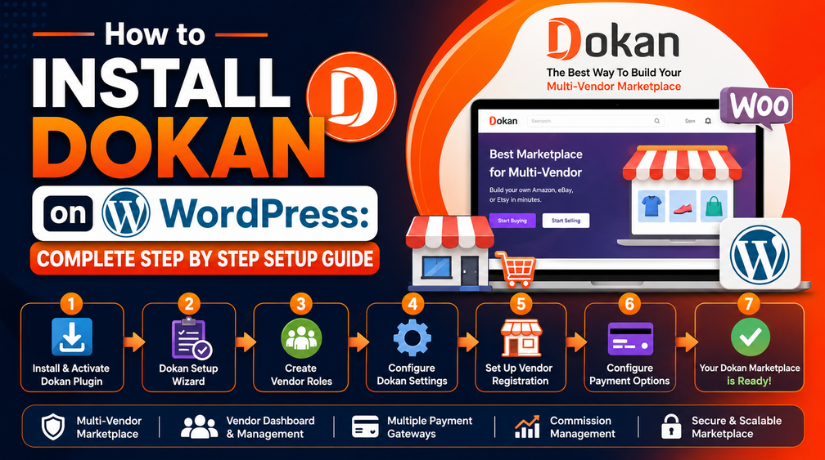
How to Install Dokan on WordPress (Detailed Guide)
Now you can install Dokan on your WordPress website. Follow each step carefully and test everything before launch. This process will help you create online marketplace WordPress websites without confusion.
Step 1: Log in to Your WordPress Dashboard
- Open your WordPress admin login page.
- Enter your admin username and password.
- Click the Log In button.
- Make sure you are using an admin account.
- Admin access is required to install plugins.
- Check that your WordPress dashboard opens correctly.
- Also check that your website is not showing errors.
Step 2: Install WooCommerce on Your Website
- Dokan works with WooCommerce, so install WooCommerce first.
- Go to Plugins > Add New from your dashboard.
- Type WooCommerce in the plugin search box.
- Click Install Now next to the WooCommerce plugin.
- Wait until the installation is complete.
- Click Activate to enable WooCommerce.
- WooCommerce will create your online store system.
Step 3: Complete the Basic WooCommerce Setup
- After activation, WooCommerce may show a setup wizard.
- Follow the wizard steps carefully.
- Add your store address and location details.
- Select your store currency.
- Choose your product type.
- Add your basic payment options.
- Set your basic shipping details.
- Do not skip these important store settings.
- Dokan uses WooCommerce settings for marketplace functions.
Step 4: Install the Dokan Plugin
- Now install the Dokan WordPress plugin.
- Go to Plugins > Add New again.
- Type Dokan in the search box.
- Find the official Dokan multivendor marketplace plugin.
- Click Install Now to start installation.
- Wait until WordPress installs the plugin.
- Click Activate to enable Dokan.
- Dokan will now add marketplace features to WooCommerce.
Step 5: Start the Dokan Setup Wizard
- After activation, Dokan may open its setup wizard.
- Click the start button to begin setup.
- Add your basic store settings.
- Set your marketplace selling options.
- Add your admin commission details.
- Choose your vendor withdrawal methods.
- Complete all steps shown in the wizard.
- You can change these settings later from Dokan > Settings.
Step 6: Set Vendor Selling Permission
- Decide how vendors can sell on your marketplace.
- You can allow vendors to sell after registration.
- You can also approve vendors manually before selling.
- Manual approval is better for new marketplace websites.
- It gives you better control over new sellers.
- It also helps avoid fake or low-quality vendors.
- Choose the option that matches your marketplace plan.
Step 7: Add Your Commission Settings
- Commission means your earning from vendor sales.
- Choose a simple commission rule first.
- You can set a percentage commission for each order.
- For example, you can set 10% admin commission.
- In this case, you earn 10% from each vendor sale.
- Vendors receive the remaining amount after commission.
- Keep commission rules simple during the first setup.
Step 8: Select Vendor Withdrawal Methods
- Vendors need a way to receive their earnings.
- Dokan lets vendors request withdrawals from their dashboard.
- Choose the withdrawal methods you want to allow.
- You can enable bank transfer, PayPal, or other methods.
- Select the method that suits your business location.
- Set a minimum withdrawal amount.
- Clear withdrawal rules help vendors understand payments.
Step 9: Check Dokan Pages
- Dokan creates important pages during setup.
- These pages help vendors use your marketplace.
- Check the Vendor Dashboard page.
- Check the Store List page.
- Check the My Orders page.
- Check the Vendor Registration page.
- Go to Dokan > Settings and review page settings.
- Make sure every page is assigned correctly.
- Wrong page settings can break vendor dashboard features.
Step 10: Test Vendor Registration
- Create a test vendor account before launch.
- Register as a new vendor from the frontend.
- Check if the vendor dashboard opens properly.
- Add test store details from the vendor dashboard.
- Upload a store banner and profile details.
- Add address and contact information.
- Check if all vendor options work correctly.
- Fix any issue before real vendors join.
Step 11: Add a Test Product
- Add one test product from the vendor dashboard.
- Enter the product name.
- Add the product price.
- Upload a clear product image.
- Write a short product description.
- Submit the product for approval if required.
- Log in as admin and check product status.
- Approve the product if manual approval is enabled.
- This confirms product submission works correctly.
Step 12: Place a Test Order
- Open your website like a real customer.
- Visit the test product page.
- Add the product to the cart.
- Go to the checkout page.
- Complete checkout using your selected payment method.
- Check if the order is created correctly.
- Review customer and vendor email notifications.
- Check admin commission calculation.
- Open the vendor dashboard and check the order.
- After this test, your Dokan marketplace is ready.
Common Dokan Installation Problems and Quick Fixes
Dokan is easy to install on WordPress. Still, some setup issues may appear. Most problems happen because of wrong settings, missing pages, or plugin conflicts. You can fix many issues by checking Dokan, WooCommerce, and WordPress settings carefully.
Dokan Setup Wizard Is Not Showing
Sometimes, the setup wizard does not appear after activation. You can still set up Dokan manually. Go to Dokan > Settings and check all basic options. Set store details, commission, selling options, and withdrawal methods.
Vendor Dashboard Page Is Not Working
The vendor dashboard may not work if pages are not assigned. Go to Dokan > Settings > Page Settings. Select the correct dashboard page. Then go to Settings > Permalinks and click Save Changes.
Vendor Registration Form Is Missing
This issue happens when registration is not enabled. Check WooCommerce account settings first. Then check Dokan registration settings. Make sure users can create accounts from the frontend. Also check the vendor registration page.
Vendors Cannot Add Products
Vendors cannot add products if selling permission is disabled. Check the vendor status from the admin dashboard. Approve the vendor if manual approval is active. Also check product submission settings in Dokan.
Products Are Not Showing
Products may not show if they are pending approval. Check product status, visibility, stock, and category settings. Publish or approve the product from the admin dashboard.
Payment Gateway Is Not Showing
Payment problems usually come from WooCommerce settings. Check if the payment method is enabled. Also check currency, country, and SSL settings. Some gateways need SSL to work properly.
Commission Is Not Calculating Correctly
Check your commission settings in Dokan > Settings > Selling Options. Review the commission type and value. Also check vendor-specific commission rules if used.
Conclusion
Installing Dokan on WordPress is a simple process when the setup is planned correctly. You need WooCommerce, a secure website, proper vendor settings, payment options, and clear commission rules. After installing the Dokan plugin, always test vendor registration, product upload, checkout, and order flow. This helps you find issues before real vendors join your marketplace.
A well-configured Dokan marketplace can help vendors sell easily. It also helps customers buy products without confusion. So, take time to check every setting before launching your website.
For technical help with Dokan, WooCommerce, or WordPress setup, you can contact WP Chat Support. Their website lists support for WordPress and WooCommerce issues, including plugin conflicts, customization, security, backups, and website development. You can visit WP Chat Support or call +1 888 602 0119 for support details.

James is an experienced WordPress and WooCommerce specialist with over 10 years of practical experience. At WPChatSupport, he creates clear guides that help website owners fix WordPress issues, improve speed, secure their sites, and manage WooCommerce stores with confidence. His expertise includes store setup, plugin configuration, theme customization, payment gateway integration, and website troubleshooting. Through simple and helpful content, James supports users in solving technical problems and following best practices for online business growth.